

Where it lives
CRM sits under Settings, at Integrations → CRM & Data.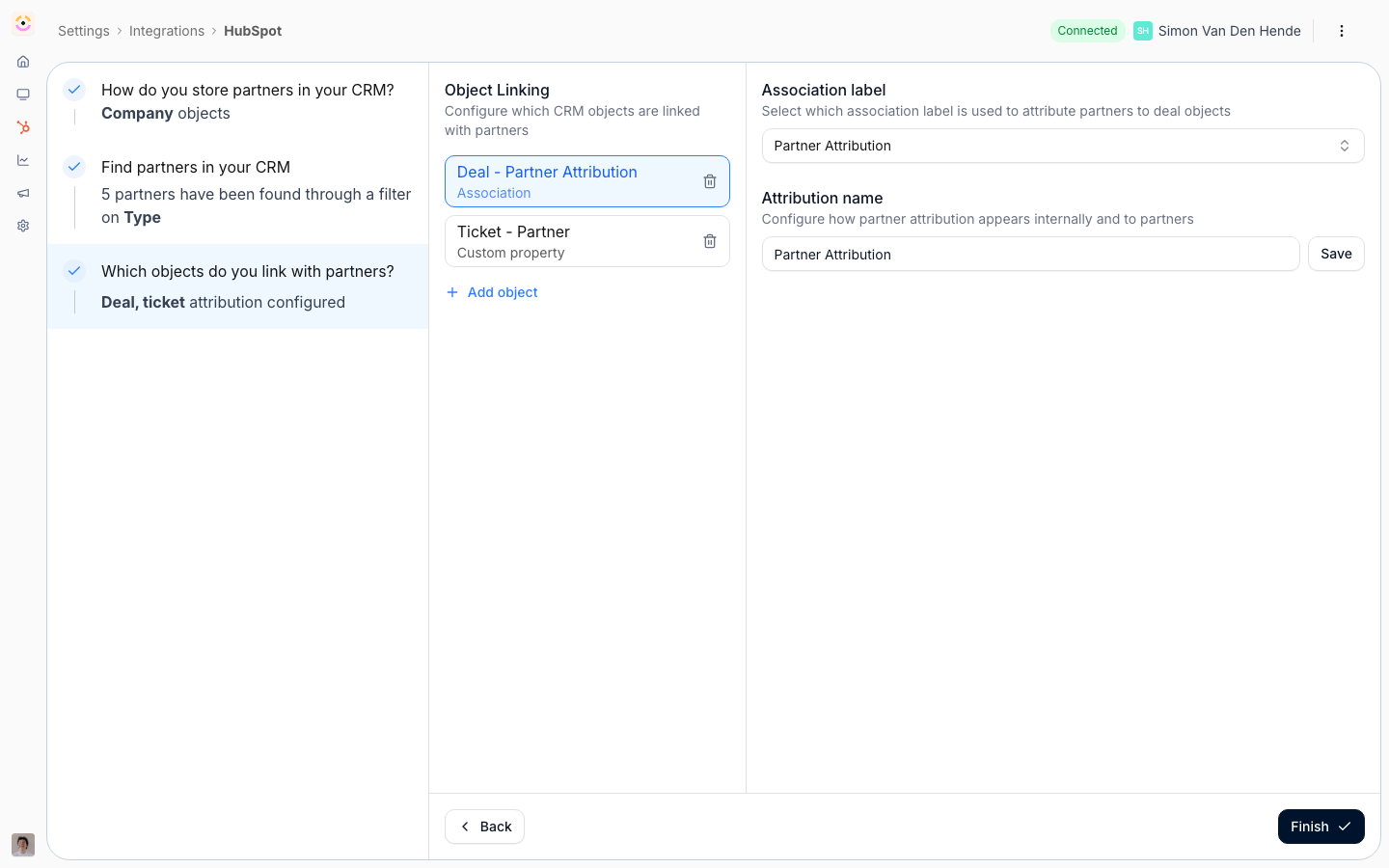
Before you start
For Salesforce, know up front whether you are connecting a sandbox or a production org.
How it works
The CRM integration is one connection that does four jobs. You set it up in this order:- Connect & sync - authorize HubSpot, Salesforce, or Pipedrive via OAuth. Only one CRM can be connected at a time. Records then sync in on a schedule and through near-real-time change detection (contacts, companies, deals, leads, plus owners, pipelines, and currency rates), with webhooks for deletions and merges, and select Introw data is pushed back.
- Store & import partners and contacts - tell Introw which object represents partners, filter which records count, and import them with their contacts. New matches can sync automatically.
- Attribute - tell Introw how deals/objects link to partners. It supports whichever method you already use, no code required.
- Map back & embed - push tiers, managers, roles, and contact access to the CRM, and add the Introw cards/components so reps work from the record.
How the sync stays accurate and secure
Two-way sync is only worth having if you can trust it. A few things Introw handles for you, none of which you configure:- Your CRM credentials stay isolated. Introw never stores your CRM’s login tokens in its own application. They are held in a separate, dedicated credential vault, and every request to your CRM is cryptographically signed and scoped to your organisation alone - so even a breach of Introw would expose no usable access to your CRM, and no customer’s connection can ever reach another’s. This is the guarantee that makes connecting your CRM safe.
- Changes show up in near-real-time. Beyond the scheduled sync, Introw notices CRM changes within about a minute and knows who made them - so partners are nudged the moment their deal moves, not hours later.
- The sync keeps itself healthy. Each object syncs independently, so one misconfigured field never stalls the rest; rate limits are handled as a normal, self-clearing pause rather than an error; and when something does break, Introw pinpoints the CRM-side cause (a deleted custom object, a renamed property, a removed label) instead of just failing. Re-syncs never spam duplicate notifications, and a deal never silently drops off a partner’s view.
- Your history comes in on connect. Introw pulls your full partner-relevant history - including deals closed long before you adopted Introw - plus the records behind them, so the program populates itself with nothing to migrate.
Which way each thing flows, and how fast
The question behind most “is it synced yet” moments. Nothing here is configurable; it is how the sync behaves.
Two consequences worth planning around.
A field your team edits in the CRM is visible to a partner within about a minute, so there is no safe window to make a change quietly on a record a partner can see.
And a certificate you issue shows in Introw immediately but takes up to 15 minutes to appear as a CRM record, so a rep checking Salesforce or HubSpot straight after can legitimately not see it yet.
Settings & configuration
Everything lives under Integrations → CRM & Data, plus a few partner/settings screens for write-back mappings.Connect the CRM
Use the HubSpot, Salesforce, or Pipedrive tile to authorize via OAuth. Accept all requested scopes - declining any blocks the connection. Salesforce supports sandbox or production login and may install a managed package. On Salesforce, expect the first authorization to be refused until the org allows the Introw connected app: attempt it once, then install the app from Connected Apps OAuth Usage (or grant the connecting user Approve Uninstalled Connected Apps) and reconnect.How partners are stored
In the wizard, choose the CRM object that represents partners - Company/Account by default, or any custom object you use to manage partners at scale.Filter & import (with contacts)
Filter the partner object by CRM property, choose all matches or specific records, and enable automatically sync new partners so future matches import on their own. A partner’s contacts are pulled in with it and kept current. See Sync partners & contacts.Attribution
Configure how each object links to partners on the Object Linking screen. Methods include a custom property, a HubSpot association label, a Salesforce lookup or relation table, or a one-click property Introw creates for you. Configure Deal/Opportunity at minimum. See how to attribute deals to partners for your CRM’s methods.Map Introw data back to the CRM
- Tiers & managers - at Tiers, map a partner’s tier and partnership manager to CRM properties.
- Partner team roles - at Partner roles, map roles to CRM properties.
- Contact portal access & role - from a partner’s People dialog at Partners, map access and role to CRM contact properties.
Embed Introw in the CRM
Add the Partner Connect card (HubSpot) or Introw component (Salesforce) to record pages, drop workflow actions into HubSpot workflows, and rely on app events to post partner activity to the CRM timeline. See the embed guides below.What the Introw HubSpot app puts in your portal
Authorizing HubSpot installs the Introw app, and with it five kinds of HubSpot extension. They are worth naming, because these are the terms HubSpot uses and the ones your admin will search for:
App events and app objects flow on their own once the app is installed with current scopes; there is no switch to turn them on. App cards are the one surface a HubSpot admin has to place on a record layout, and the MCP server is the one a HubSpot admin has to connect on an agent.
Automate it with a workflow
A connected CRM is what makes most workflows worth building, in both directions. Reading: Partner updated fires on any partner-level CRM property changing on the company or your custom partner object, so a rep editing a program field in HubSpot or Salesforce is an event Introw can act on. The partner-conditions block on every trigger and fork reads those same properties, so “the field changed, and it now holds Managed” is one trigger. Writing: Update partner properties writes back to any writable CRM property in the same step that updates Introw, and Log a CRM note puts a note on the partner’s own record, their company or your custom partner object, so the rep who made the change sees the consequence on the record they were already looking at. There is no record picker, because the partner’s own record is the one record every run can name. See React to a CRM change on a partner.Set it up for your CRM
The four jobs are the same on every CRM; the mechanics differ, so follow your CRM end to end. Connect first, set up attribution, then bring Introw onto the record where your team works. The jobs below the divider run the same way everywhere.- HubSpot
- Salesforce
- Pipedrive
Connect HubSpot
Authorize, set the partner object, filter, and import.
Attribution in HubSpot
Properties, association labels, or a custom object.
Set up Introw inside HubSpot
Add the cards, then collaborate, register, run workflow actions, and report from the record.
Across every CRM
These jobs work identically whichever CRM you connected:Sync partners & contacts
Pull partner accounts and their contacts live, and keep them current.
Sync tiers, programs & roles back
Push partner standing and ownership onto the CRM record.
Drive access from the CRM
Let a CRM field grant and revoke portal access.
Show & rename CRM fields
Put any CRM field on your Introw views, renamed for partners.
Disconnect a CRM
Safely stop the sync and switch CRMs.
Troubleshoot a connection
Fix a sync that needs attention.
Every CRM error Introw logs
Read the four places a CRM failure is reported.
How-to guides
Troubleshooting
Introw reports a CRM failure in four different places, one per layer: the connection on Integrations, one broken object link on Object linking, what the connection is not allowed to do on the screen where you would configure it, and a record your CRM refused on the submission that tried to create it. Every CRM error Introw logs is the map, and it is the page to open when a status says Connected and something is still missing.Records are not appearing
Records are not appearing
Check the partner object and filters, and confirm the sync is healthy.
Everything is green and a value is still missing
Everything is green and a value is still missing
Not every shortfall is a failure. Introw runs as a CRM identity, so an object it can only partly see, or a field it cannot write, delivers less than the mapping promises with no error anywhere. Read the verdict pills on Object linking and on a form’s Automation tab.
A submission shows Error
A submission shows Error
Your CRM refused the record. Open the submission: a red panel names the object and the reason in plain language, and where the cause is the submitted data the fields stay editable so the automation can retry.
The integration needs attention
The integration needs attention
Re-authorize; for HubSpot, missing scopes require Install update.
A deal is not attributed
A deal is not attributed
Revisit the Object Linking configuration and the selected property/association/relation.
A tier or role is not writing back
A tier or role is not writing back
Confirm the mapped CRM property exists and is writable.
A card is blank or missing
A card is blank or missing
Confirm the app/component is installed and added to the record layout, and that the record is linked to a partner.
FAQ
What happens to partner attribution when I merge records in my CRM?
What happens to partner attribution when I merge records in my CRM?
Nothing is lost. When you merge two companies or deals in HubSpot or Salesforce, Introw follows the merge and re-points the partner attribution, collaborators, comments, and timeline history onto the surviving record - so a routine dedupe never drops a partner’s credit or their conversation on the deal.
Where do my CRM credentials live - is connecting safe?
Where do my CRM credentials live - is connecting safe?
Introw never stores your CRM’s login tokens in its own application. They sit in a separate, dedicated credential vault, and every call to your CRM is cryptographically signed and scoped to your organisation alone - so even a breach of Introw would expose no usable access to your CRM, and one customer’s connection can never reach another’s.
Where is our data stored, and what is your security posture?
Where is our data stored, and what is your security posture?
Hosting, certifications, subprocessors, retention and the rest of the security posture are published in the Introw Trust Center, which is the right document to hand a security review. What is worth knowing before you get there: partners are never CRM users, so no external seat or licence is involved, and your CRM’s credentials are held outside the application in a dedicated vault. See Enterprise-grade.
How live is the sync?
How live is the sync?
Records sync on a schedule and, on top of that, Introw detects changes in near-real-time - within about a minute - and knows which CRM user made each one, so partners are notified the moment a deal moves. Deletions and merges arrive via webhooks.