

What you’ll achieve
The Introw app cards pinned to your HubSpot deal, ticket, and company records, so every rep opening a partner-linked record sees the partner, can collaborate and share, and can register or link the deal in place. This is the foundation for the in-CRM collaboration, registration, and reporting jobs.The app cards Introw ships
App cards are the one Introw HubSpot surface a HubSpot admin has to place by hand. App events and app objects flow on their own once the app is installed.
Before you start
1
Be a HubSpot admin
You need HubSpot admin rights to authorize the app and to edit the record customization that controls which cards appear.
2
Have permission in Introw
You need permission to manage integrations in Introw.
Steps
Authorize the Introw app in HubSpot
1
Connect HubSpot
Go to Integrations and confirm HubSpot is connected. If it is not, connect it first: see Connect HubSpot as your source of truth. Authorizing HubSpot is what installs the Introw app in your portal and registers its cards, so there is no separate marketplace install step.
2
Accept every requested scope
During the HubSpot authorization, accept all requested permission scopes. The cards rely on access to deals, tickets, companies, and related objects; if any scope is declined the cards cannot load that data.
3
Install scope updates when prompted
If the HubSpot tile later shows Update available or the connection header shows Install update, run it and re-authorize. HubSpot requires this when the app adds permissions (for example for quotes or certificates), and the cards and events stay current once you do.
Add the app cards to HubSpot records
1
Open a record and edit its customization
In HubSpot, open any deal, then use HubSpot’s record customization (the option to customize the record’s cards or sidebar). You add a card once per object type and it appears on every record of that type for the assigned users.
2
Add the Introw card from the card library
In HubSpot’s card library, search for Introw and add the Introw app card to the record: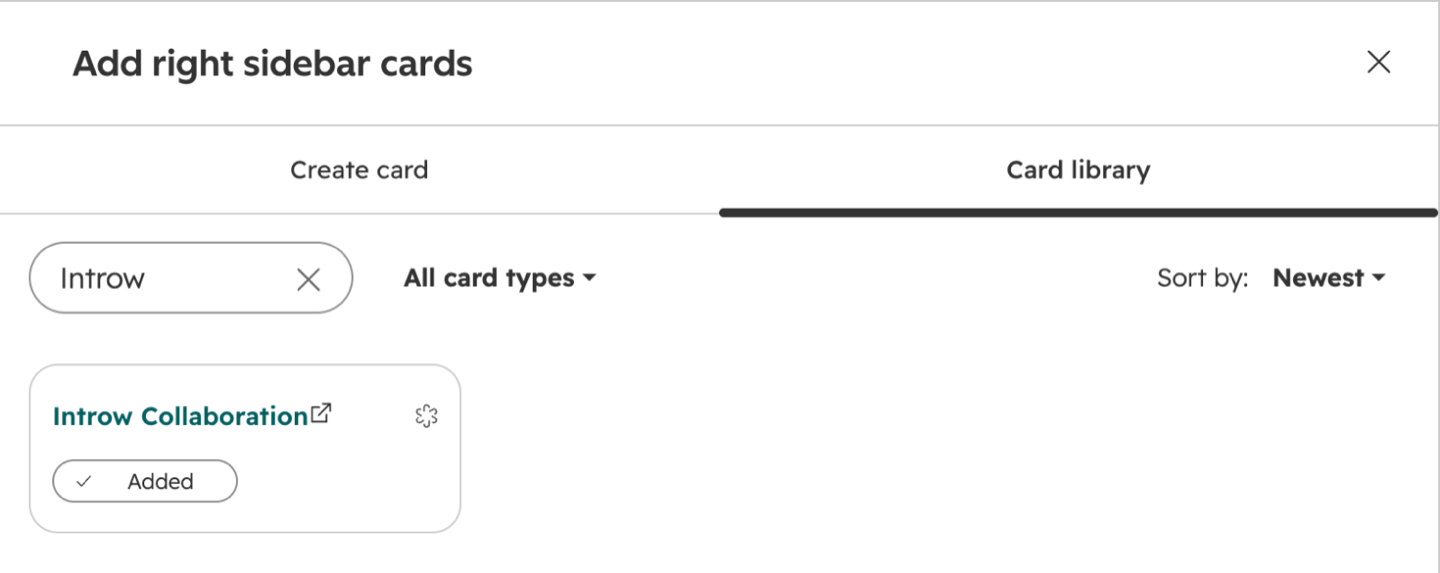
- On deals and tickets, add the Introw Collaboration card. This is the card reps use to see the linked partner, collaborate, share the record, and register or link a deal.
-
On companies, add the Introw Partner card so reps can see and create the partner, invite contacts, and open the partner portal from the company record.
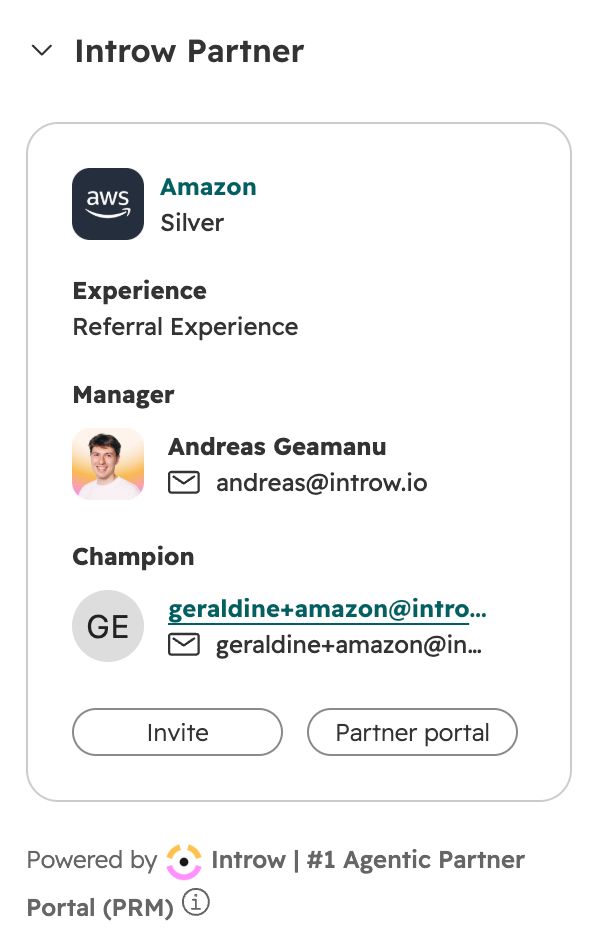
- On companies, tickets, and your partner object, you can also add the Introw Collaboration tab as a full record tab, for teams that work the partner relationship rather than glancing at it.
3
Save the customization for everyone
Save the record customization (and assign it to the right teams or views) so the card shows for all the reps who need it. Repeat for each object type you want covered: deals, tickets, and companies.
Verify it worked
Open a HubSpot deal that is linked to a partner: the Introw Collaboration card loads the partner, collaborators, and actions. Open a partner company and the Introw Partner card loads partner context. An unlinked record instead offers the option to share or create the partner, which is expected.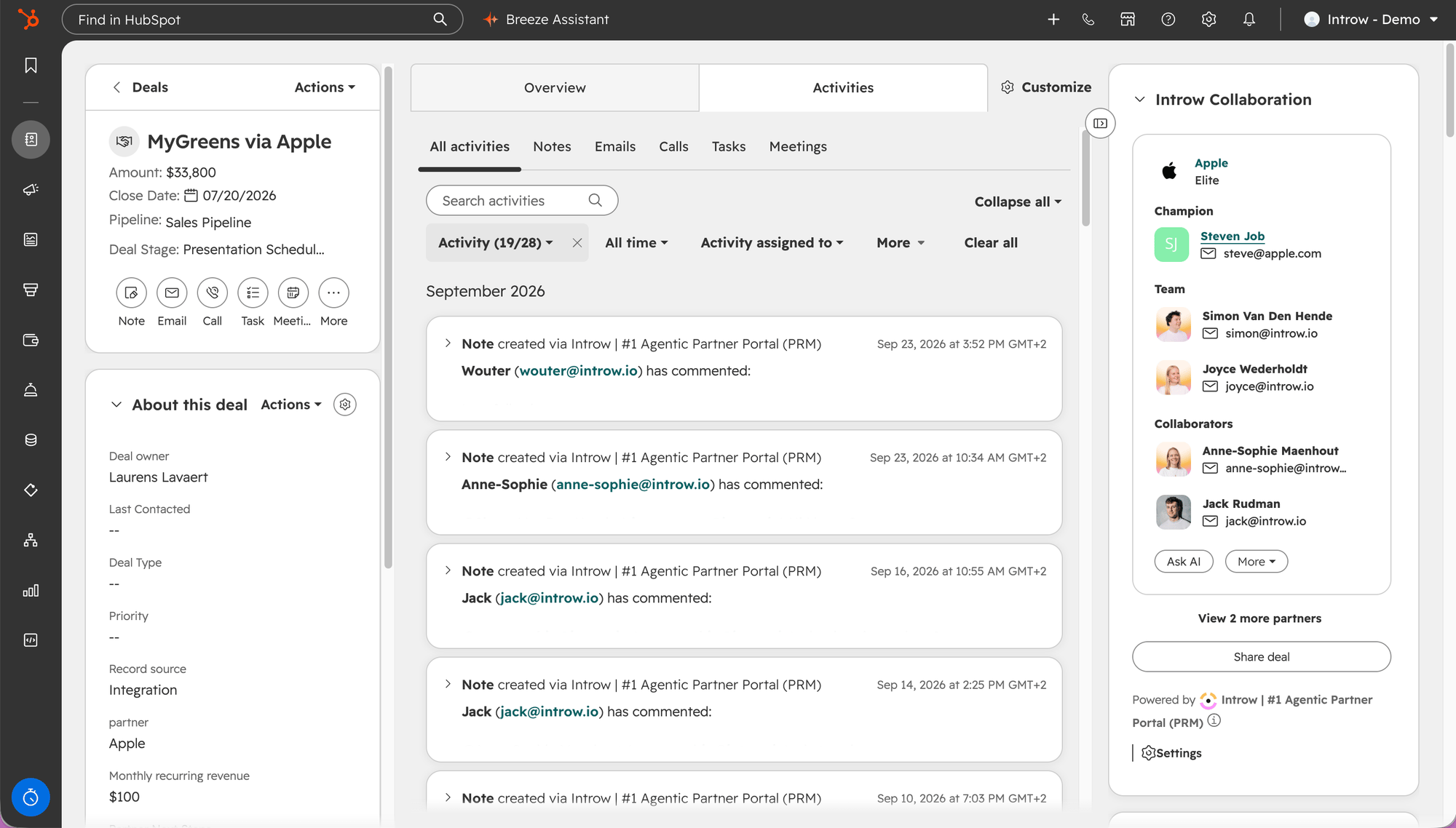
What a rep should see on a partner-linked deal once the card is on the record layout.
Related
Collaborate from HubSpot deals and tickets
Share and comment with partners from the record.
Register a deal from HubSpot
Register or link a partner deal in the CRM.
Embed Introw in Salesforce
The equivalent setup for Salesforce.
Report engagement with app events
Partner activity on the HubSpot timeline, counted in your reports.
Trigger workflows from app events
Enroll a HubSpot workflow the moment a partner acts.
Show course progress with app objects
Certifications and enrollments as real HubSpot records.
Implementation reference
Full configuration options.