

Where it lives
Workflows lives at Workflows.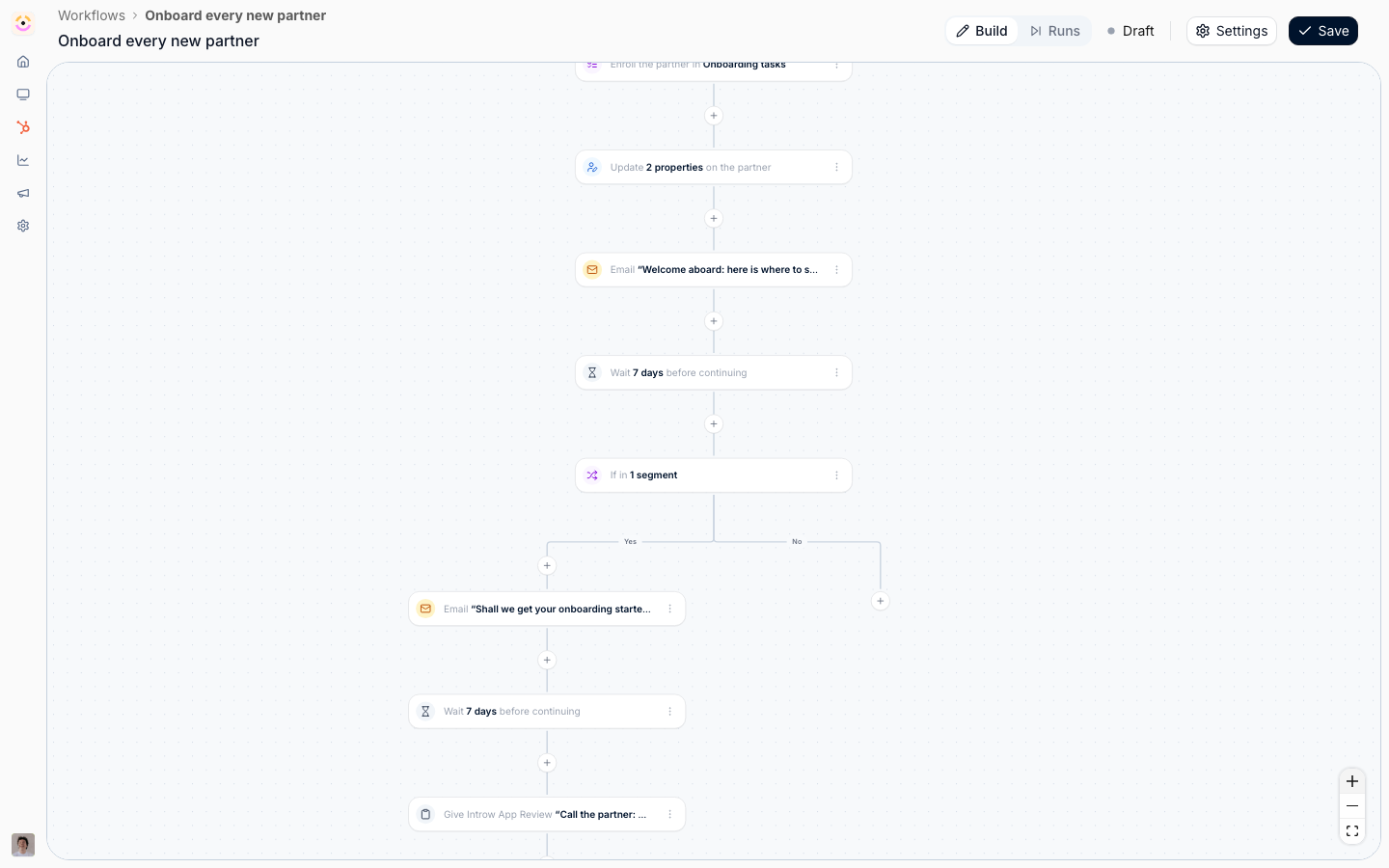
Before you start
Not in your left-hand navigation under Engage? Your role does not have the Workflows permission; ask an admin to turn it on in your role.
How it works
A workflow is one trigger followed by a chain of steps, drawn on a canvas. The trigger says what Introw watches for. Each step is either an Action (something done to the partner), a Condition (a Yes or No fork), or a Delay (a wait). Every run is about exactly one partner. That is the single most useful thing to hold on to: whatever the trigger was, the run knows which partner it happened to, so every action targets that partner and every email goes to that partner’s people. Some triggers also know which contact, which task, which course enrolment, or which form submission they were about, and a few steps only become available on those. Narrowing happens in three independent blocks, and mixing them up is the usual reason a workflow never fires:- Which partners, by segment. You pick segments, and any one of them matching is enough. Reach for this when the audience is one you already maintain, or want to reuse.
- Which partners, by their own fields. A condition builder over the partner’s Introw and CRM properties, for the one-off answer a segment would be overkill for. “The tier changed, and it is now Gold” is this block.
- Which events. Conditions on the fields the triggering event itself carries: which journey, which task, which course, which form, which portal access state, when it happened.
What workflows reach
Workflows do not add a parallel system. Every trigger is an event a feature you already configure emits, and every action is something you can do by hand on the same feature, which is the whole reason a workflow needs no code: the vocabulary is the product’s own. This is the map, and each feature’s own reference carries the same detail from its side.
One gap in that table is deliberate rather than missing. There is no enroll-in-a-course action,
because course auto-enrollment is decided by segments, so Add to a segment is the route.
Settings & configuration
Creating and finding workflows
New workflow on Workflows creates a draft called Untitled workflow and opens the canvas straight away. The list is the usual overview table, filterable and sortable on Name, Status (Active or Draft), Trigger, Steps, Runs, Owner (whoever saved it last), and Last updated, so you can answer “what do we have running, and who touched it” without opening anything. Select rows to delete several at once. The canvas header carries the workflow’s name (editable in place), a Build and Runs switch, the Active or Draft status with a tooltip explaining why it is still a draft, Settings, and Save. The canvas does not save as you type: Save commits it. Who sees what follows the Workflows permission on the person’s role. Without it, Workflows is not in the navigation and the page sends them home. With read access only, they open every workflow and its runs, but the canvas, the name and the step panels are read-only and there is no Test workflow. Building, testing, enabling and deleting need write access.Triggers
A workflow has exactly one trigger, picked from four groups. Every trigger also carries the two-part filter described under Narrowing.Tasks & journeys
Task assigned runs when a partner acquires a task, which means when the task is created. Reassigning an existing task between people does not run it, so a nudge chain does not restart every time a manager tidies up. It is the trigger to start a deadline chase from, and the only one that offers a wait anchored to the task’s due date. Task completed runs when a task is marked done. Enrolled in journey runs once when a partner is put on a journey. Which journeys count narrows it; pick none and any journey qualifies. Adding a task to a journey a partner is already on does not run it again. Journey completed runs when every task of a journey is done. Which journeys count narrows it the same way.Forms
Form submitted runs once, when a partner submits a form, such as a deal registration or a shared lead. Which forms count narrows it; pick none and any form qualifies. Accepting, declining or returning the submission later does not run it again. The forms you pick also decide which fields the steps can use: each one becomes its own group of variables. Submissions that are not tied to a partner do not run it. Submission status changed runs when a partner’s existing submission moves to another status, typically when it is accepted, declined or returned. It narrows twice: Which forms count, the same list as on Form submitted, and Which statuses count, the status the submission moved to: Pending review, Accepted, Auto-accepted, Declined, Returned to the partner, or Failed to process. Pick none and any status change runs it. The status a submission lands with when the partner submits it does not run this trigger, so a deal registration that is accepted on arrival runs Form submitted only. Switching a workflow between the two form triggers keeps every form field already used in its steps.Learning
Course started runs the first time a partner contact opens a course. Being enrolled without opening it does not run it. Which courses count narrows it. Course completed runs when the last module is finished. Progress before that does not run it. Certificate issued runs when a certificate is awarded to a partner contact. Which certificates count narrows it, and re-issuing the same certificate to the same contact does not run it again.Partners
Partner created runs when a new partner appears, whether added by hand or brought in by CRM detection. Partner updated runs when a partner’s field changes, in Introw or in your CRM. Which changes count is a searchable list of Partner tier, Partner phase, Partner categories, Partner owner, and every partner-level CRM property on the company or your custom partner object. Pick none and any of them changing runs the workflow. Changes the workflow makes itself never re-trigger it. Partner contact added runs when a contact appears on a partner’s portal. Which access states they arrive in narrows it to Invited, not signed in yet, Has portal access, Asked for access, or Access removed. Partner contact updated runs when an existing contact’s portal access moves or one of their fields changes. It narrows on both the access state and Which changes count, which here lists Portal access, Email address, First name, Last name, Job title, Language, Email deliverability, and every CRM contact property. Portal visits and emails sent to the contact do not run it. CRM record updated runs when a CRM record linked to the partner changes, such as a deal they sourced or a ticket on their account. Which record counts picks one record type, from the types your CRM integration attributes to partners; with no attribution mapping set up, the list is empty and says so. Which changes count then lists every CRM property on that record type. Pick none and any change runs the workflow, except a change where the only fields that moved are CRM bookkeeping (last modified, created or updated by, record source), because imports rewrite those without anyone editing the record. A record Introw sees for the first time, and a full CRM resync, cannot say which property moved, so they only run a workflow with no field picked. A sync that finds the record unchanged runs nothing. Segment membership runs when a partner enters or leaves a segment: The partner enters the segment or The partner leaves the segment, then Which segments count. This is the most useful trigger on the canvas, because a dynamic segment re-evaluates itself against live partner, contact, and CRM data on a schedule. “Has not traded in 30 days”, “crossed a revenue threshold”, “is certified” are all this one trigger pointed at a different segment. Segments the workflow itself adds partners to never re-trigger it.Narrowing: which partners, and which events
Both the trigger panel and every condition step carry the same three blocks, in the same order. Segments answers which partners, reusably. On the trigger it reads Only for partners in, on a condition just Partners in, and on the trigger it is checked before the workflow starts, so partners outside the chosen segments leave no run behind. Any one of the selected segments matching is enough. Leave it empty for every partner. Partner properties answers which partners, one-off. It reads Only for partners matching on the trigger and Partner matches on a condition, and it is a condition builder over the partner’s own fields: Partner tier, Partner phase, Partner categories, Partner owner, each partner team role, and every partner-level CRM property on the company or your custom partner object. Every field carries Introw’s mark or your CRM’s, so an Introw Tier and a CRM property also called Tier are distinguishable. Use it for the check that would otherwise need a segment per value. On the trigger it is read as the event arrives, so “the tier changed, and it is now Gold” is one trigger rather than a trigger plus a maintained segment. On a condition it is read when that step runs, so after a ten-day delay a tier condition sees the tier the partner has now. The two blocks are ANDed: a partner has to be in one of the segments and match the conditions. Contact and deal fields are deliberately absent from this block. A run acts on a partner, so those would offer filters the runner cannot answer; contact conditions belong in a segment. Event conditions answers which events, over the fields that trigger carries. The block is labelled for the trigger (Only for tasks matching, Only for certificates matching, Only for segments matching), and the fields on offer change with it:- Task triggers offer Journey, Task, and the timestamps (Due date and Assigned at on an assignment, Completed at on a completion). Picking a journey scopes the Task list to that journey’s tasks.
- Journey triggers offer Journey and Enrolled at or Completed at.
- Form submitted reads Only for submissions matching and offers Form and Submitted at.
- Submission status changed reads Only for changes matching and offers Form, Status, Previous status, Submitted at, and Status changed at. Previous status is how you tell “accepted after being returned” apart from “accepted straight away”.
- Course triggers offer Course plus Started at and Completed at.
- Certificate issued offers Certificate, Issued at, and Expires at.
- Partner contact added offers Portal access; Partner contact updated adds Changed fields and Updated at.
- Segment membership offers Segment.
- CRM record updated reads Record matches and offers every CRM property on the record type you picked, so “the deal is now in Closed won and over 50,000” is one condition on the record itself.
- Partner created and Partner updated offer nothing, so the block is not shown at all. Their event is the partner: which fields moved is already the trigger’s Which changes count picker, and everything else worth asking is a question about the partner, which the partner-properties block answers directly.
Actions
Ten actions, in four groups on the picker.Partner
Update partner properties writes values onto the partner, one row per property. Each row is a property, a value, and a Write mode: Overwrite always replaces what is there, Fill in if not known leaves an existing value alone. The write mode is the setting that decides whether an automation quietly undoes work a partner manager did by hand, so choose it deliberately. The properties on offer are Partner tier (from your tier program), Partner phase, Partner categories, Partner owner, the partner’s Experience (from your portal experiences), and every writable CRM property on their company or custom partner object, each marked with Introw’s logo or your CRM’s so you can tell two same-named fields apart. Setting the Experience is not an ordinary field write: it publishes that experience to the partner. Their portal is created if they have none, and its content, journeys, and goals are applied. A partner already in another experience is moved to this one. Because it can create a portal, it is subject to your plan’s portal limit: partners who already have a portal still move, and partners without one are skipped until you free up or add portals. The Experience row has no write mode for that reason. Update partner contact properties writes values onto the one contact the run is about, so it needs a trigger that names a contact: a contact added or updated, a course started or completed, or a certificate issued. The workflow cannot be switched on until the trigger names one. It offers two kinds of field: Portal access and every writable CRM contact property, with the same Overwrite and Fill in if not known write modes as the partner step. Portal access takes Active or Revoked and has no write mode, because a contact always has an access state. Setting it does exactly what the access switch on the partner’s people page does, notification included. Changes the workflow makes itself never re-trigger it. Add to a segment enrolls the partner in a static segment. Only static segments are offered: a dynamic segment’s members are whoever matches its audience, so an enrollment there would be undone at the next evaluation. The partner keeps every segment they are already in, and adding a partner twice does nothing.Tasks & journeys
Give a task creates one portal task, for the partner or for your own team. It is the same task detail a journey’s tasks have: Task name, a Due date expressed as days after assigned (assignment being this step running, so the date is right for every run rather than only the first, and the task is due at the end of that day in the Company timezone set under Company settings, or UTC when none is set), Assignee, Visibility, Status, an Action the partner must complete, a rich Description, and an attachment. On a trigger that names a contact, the assignee list also offers The contact this is about, resolved per run. Enroll in a journey gives the partner the tasks of a journey. It is the same operation as Apply on the partner page, so a partner already on that journey keeps their progress and only the steps they do not have yet are added.Rewards
Give commission books a one-off commission line for the partner: an Amount, a Currency, and a Description. A new step starts on your company currency. Clear the currency and the line is booked in each partner’s own currency, resolved per partner when the run happens (the field reads Empty uses the partner’s currency), so one workflow stays correct across a program that bills in several. This is the “500 for the referral” case, not a plan: it lands as a manual line, created as pending, so it still goes through your normal approval and payout run. Plans that earn lines from CRM or billing data live under Commission plans. Issue a certificate awards a certificate to The contact this is about (only on a trigger that names one), The partner champion, or All contacts of the partner. Recipients are notified exactly as they are for a certificate issued by hand.Messages
Send an email emails the partner’s contacts, alongside the notifications Introw already sends on its own. Send to offers All contacts of the partner, The partner champion, Contacts in a segment (which narrows this partner’s contacts, not other partners), and two options that appear only on the triggers that can answer them: The contact this is about on a contact trigger, and Whoever the task is assigned to on a task trigger. The task assignee is read fresh when the email sends and can be one of your own team if the task is assigned internally. Your partner team is the one audience that is always internal: your own colleagues assigned to this partner, optionally narrowed by the partner team roles they hold, which is how a chain escalates to the partner manager. The body is written in the announcement editor, so variables and CTA buttons behave exactly as they do in an announcement, and it is stored with the step, so it cannot be edited or deleted from under a live workflow. The Subject is its own one-line field and takes variables too. A workflow email is an explicit send, so it goes out even when your organization has partner announcement emails switched off in its notification defaults; a contact who unsubscribed from announcements themselves still does not get it. Send a chat message posts a short plain-text nudge to Slack or Microsoft Teams. The partner’s channel posts to the shared channel mapped on the partner’s page, resolved at send time so remapping a partner moves every workflow with it; One fixed channel posts every run into the same place. Type{ in the message to insert a variable, such as the partner’s name. Only connected and active providers are offered, and with one connected there is no provider choice to make. See Chat integrations.
Log a CRM note writes a note on the partner’s own CRM record, their company or your custom partner object. There is no record picker, because that is the one record every run can name. The note body takes variables too.
Variables
Any text a step writes can carry values the run resolves: the task name and description on Give a task, the description on Give commission, the note on Log a CRM note, the subject and body on Send an email, and the message on Send a chat message. Type{ where the value belongs and pick it from the list. It becomes a pill in the field, so you can see at a glance what is fixed text and what is filled in per run. Amounts, currencies and pickers take fixed values only.
The list has three sections:
- Always available - what every run has: Organization (name, domain, logo, time zone, country, currency and creation date) and Date, with Today and a Relative date such as 7 days from now or 2 hours ago, each in the format you pick: Date, Date with weekday, Date with time, Date with weekday and time, Numeric date or ISO timestamp. Links adds a link to drop into an email or chat message: the Portal Link, a Collaboration Link that opens the record on the run in the partner’s room, a Task Link on a task trigger, and Form Links and Course Links, where you pick the form or course. On a form or course trigger, Current form and Current course point at the one the run is about.
- From trigger - what the event carries. Partner is always there: the Introw fields (name, domain, logo, manager email, created at, phase, tier and categories) and every CRM property on the partner’s company or custom partner object. Each partner team role you have set up is its own group, with the name, email, phone, job title and LinkedIn URL of whoever holds that role on this partner. The trigger then adds its own group: Task on a task trigger, Journey on a journey trigger, the course, enrollment due date and learner on a course trigger, the certificate and the contact who earned it on Certificate issued, Contact on a contact trigger, Segment on Segment membership, and the record with all of its CRM properties on CRM record updated. On a form trigger it adds Form submission (the submitter, the form name, the status, when it was submitted, and the accept or decline message), followed by one group per form picked under Which forms count, named after the form and listing its fields. With no form picked there are no field groups, because no field is shared by every form. A step that uses a field from a form you later take off the trigger counts as a variable that is no longer available.
- From actions - what earlier steps on this path produced, one group per step, numbered when the same kind of step appears twice (Send email 1, Send email 2). Give commission hands on the line ID, amount, currency, description and a Formatted amount; Log a CRM note the Note URL; Give a task the task ID, name, assignee name and due date; Send an email when it was queued and sent and its subject; Enroll in a journey the journey name and how many tasks it created; Issue a certificate the certificate URL. Steps on the other side of a condition are not offered, because a run never passes through both.
Conditions
A Condition step splits the flow: everything matching takes the Yes path, everything else takes No, and exactly one path runs. It uses the same two-block filter as the trigger, labelled Partners in and the trigger’s own event-condition label, so you can branch on the partner’s segments, on the event’s fields, or on both. There is no merge node by design: each side runs to its own end. A condition is therefore always the last step of the chain it sits in, and both paths can hold further steps, including further conditions. Adding a condition in the middle of an existing chain moves the steps that followed it onto the Yes path.Delays
A Delay pauses the run and then carries on down the same path. The pause survives restarts and deploys. Wait chooses what the pause is measured from:- After the previous step is a plain wait: an amount and a unit of Minutes, Hours, or Days.
- Around the task’s due date, offered only on Task assigned, waits until an offset from that task’s due date.
- Around the course’s due date, offered only on Course started, does the same for a course enrolment’s due date.
Workflow settings
Settings in the canvas header holds the Name, the Description for whoever reads the workflow next, the Enable switch, and Delete workflow. Enabling is not retroactive. Only partners who meet the trigger from the moment you switch it on enter the workflow. Nothing replays history.Active workflow limit
Every organisation has Workflows. Your plan caps how many workflows are Active at the same time; drafts never count, so you can build, test and save as many as you like. Only switching a draft on takes a slot. Saving or re-enabling a workflow that is already Active never does, and switching one off frees its slot straight away. Some plans have no cap at all. See introw.io/pricing for what yours includes. When every slot is in use, a draft’s Settings shows a locked Enable button in place of the switch, and its tooltip says how many active workflows your plan runs. Switch another workflow off to make room, or select the locked Enable to book a call with Introw about upgrading. If another workflow takes the last slot while you have the dialog open, Save still saves the canvas, keeps the workflow as a draft, and tells you so with Workflow saved as a draft. Enable is unavailable while the canvas is unfinished, and the dialog lists exactly what is missing under Not ready to enable yet: a trigger, at least one action, an unset value on a step, a variable the step can no longer resolve, or a pairing that cannot work, such as an email addressed to the contact the trigger is about on a trigger that does not name one. The same list is behind the Draft tooltip in the header. Generate with AI writes the name and description from the canvas as it stands, even unsaved. There is a matching Generate with AI in the email editor that drafts a subject and body from where the step sits in the flow, greeting and sign-off added for you. Both leave the result in the form for you to edit before saving, and both need AI to be configured for your environment.Testing and run history
Test workflow, on the play button beside the trigger, rehearses the canvas as it stands against one partner you pick, and optionally one of their contacts. Every test is a dry run: delays resolve instantly, nothing is written and nothing is sent, conditions are evaluated against live data, and the trigger’s own filter is not applied, because you chose the partner by hand. Nodes the run touched are badged Simulated on the canvas. Runs in the header switches the canvas from building to reading. The panel lists every time the workflow fired, newest first, named by the partner it was about, with a Test marker on rehearsals and a status: Completed, Failed, Running, Queued, Waiting, Needs approval, or Cancelled. Picking a run paints it onto the canvas: each node reads Ran, Failed, Running, Waited, Waiting, Not taken (the fork went the other way), or Not reached, and a node that stopped the run short says why.How-to guides
Troubleshooting
The workflow never runs
The workflow never runs
Check it is Active, not Draft, and remember enabling is not retroactive. Then check the two narrowing blocks on the trigger: a segment that no longer matches the partner, or an event condition on a field the event does not carry, both produce a workflow that looks configured and fires for nobody.
Enable is greyed out
Enable is greyed out
Open Settings and read Not ready to enable yet, or hover Draft in the header. It names the unfinished node.
Enable shows a lock instead of a switch
Enable shows a lock instead of a switch
Your plan’s active workflows are all in use. Switch another workflow off, or select the locked Enable to upgrade. See Active workflow limit.
A run stopped part-way with a note
A run stopped part-way with a note
The node says why. No due date to wait for means the task or course had none, so the anchored delay had nothing to wait on. The partner has no mapped channel means the chat step could not resolve the partner’s shared channel. The partner has no champion with portal access and The partner has no portal contacts mean the audience resolved to nobody.
A step is marked Not taken
A step is marked Not taken
The condition above it went the other way. Open the condition node to see which path the run took.
The email went to the wrong people
The email went to the wrong people
Re-read Send to. Whoever the task is assigned to can resolve to your own team, and Your partner team always does.
A partner's tier or field keeps being overwritten
A partner's tier or field keeps being overwritten
The step’s Write mode is Overwrite. Switch it to Fill in if not known so manual values are left alone.
A test did nothing useful
A test did nothing useful
A test does not apply the trigger’s filter and writes nothing, so it proves the shape of the flow, not the audience. To check the audience, enable the workflow and read the first real runs.
Runs stop appearing for one busy partner
Runs stop appearing for one busy partner
The hourly run cap for that workflow and partner has been reached, usually because two workflows are triggering each other. Check whether one workflow writes a field the other triggers on.