

What you’ll achieve
An enabled workflow that turns a new partner into an onboarding partner without anyone setting it up: the journey is applied, the welcome email goes out, and the stall handling runs itself so a quiet partner is chased rather than forgotten.Before you start
1
Have the onboarding journey built
The workflow enrolls partners in a journey, so it has to exist. Give its tasks due dates as days after assigned, so each partner’s dates are right for when they started. See Build a journey from scratch.
2
Decide whether the experience is already handled
If your onboarding experience already has this journey attached, partners get it when the experience is published and this workflow should not enroll them again. Check Auto-apply a journey from the experience first, and use this workflow for the cases the experience does not cover, or for the welcome and chase half only.
3
Know how new partners arrive
If partners are detected from CRM filters, this workflow runs for every newly detected partner, which is usually what you want. Confirm your filters are narrow enough that only real partners are detected. See Detect partners from your CRM.
Watch it
- Video
- Click through
Steps
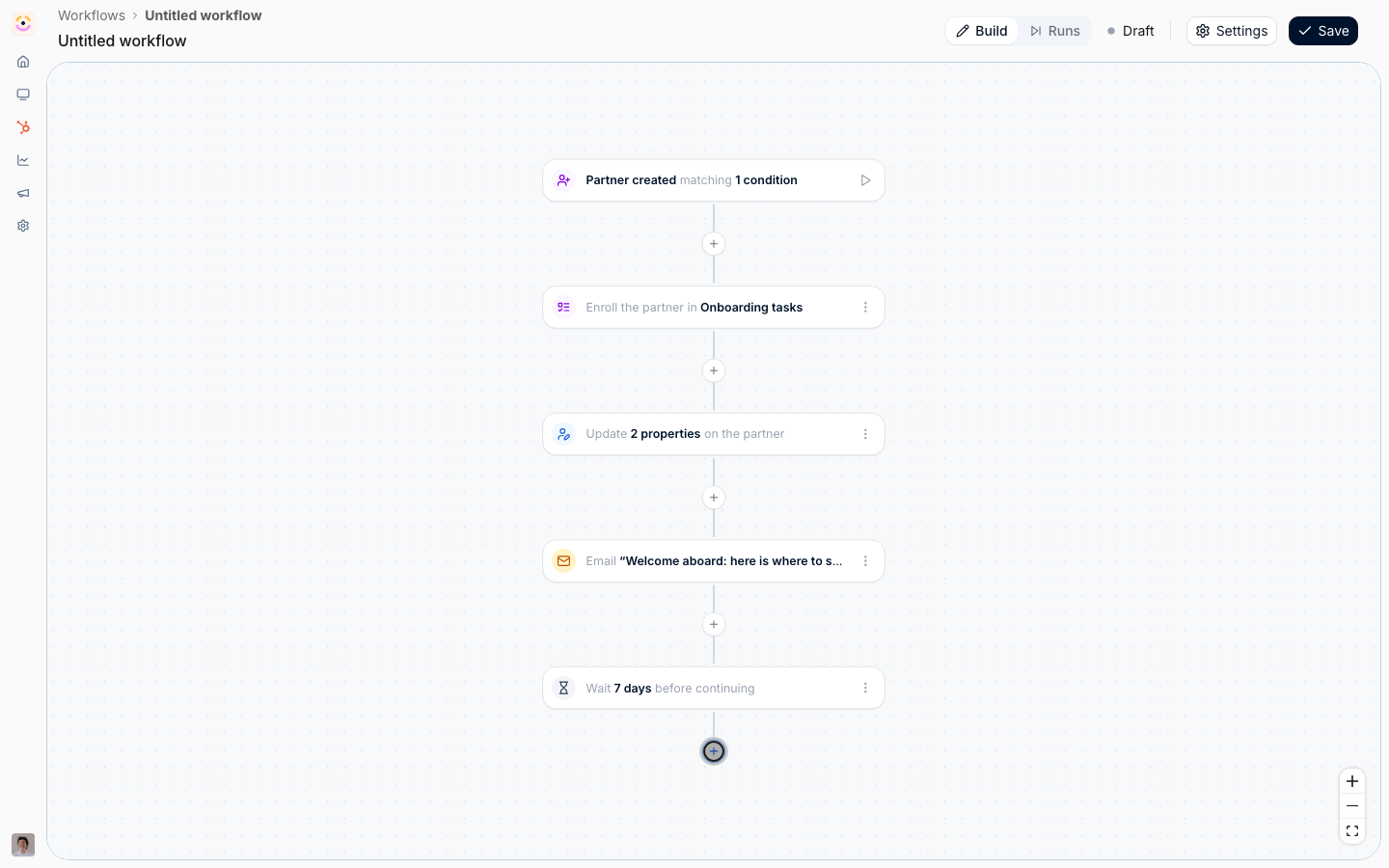
Start from the new partner
1
Create the workflow and pick Partner created
Go to Workflows, select New workflow, select the trigger node, and choose Partner created under Partners.Partner created fires when a new partner appears, whether added by hand or brought in by CRM detection. It is deliberately separate from Partner updated: adding a partner and editing one are different moments, and a welcome sequence must not re-run because someone corrected a company name two weeks later.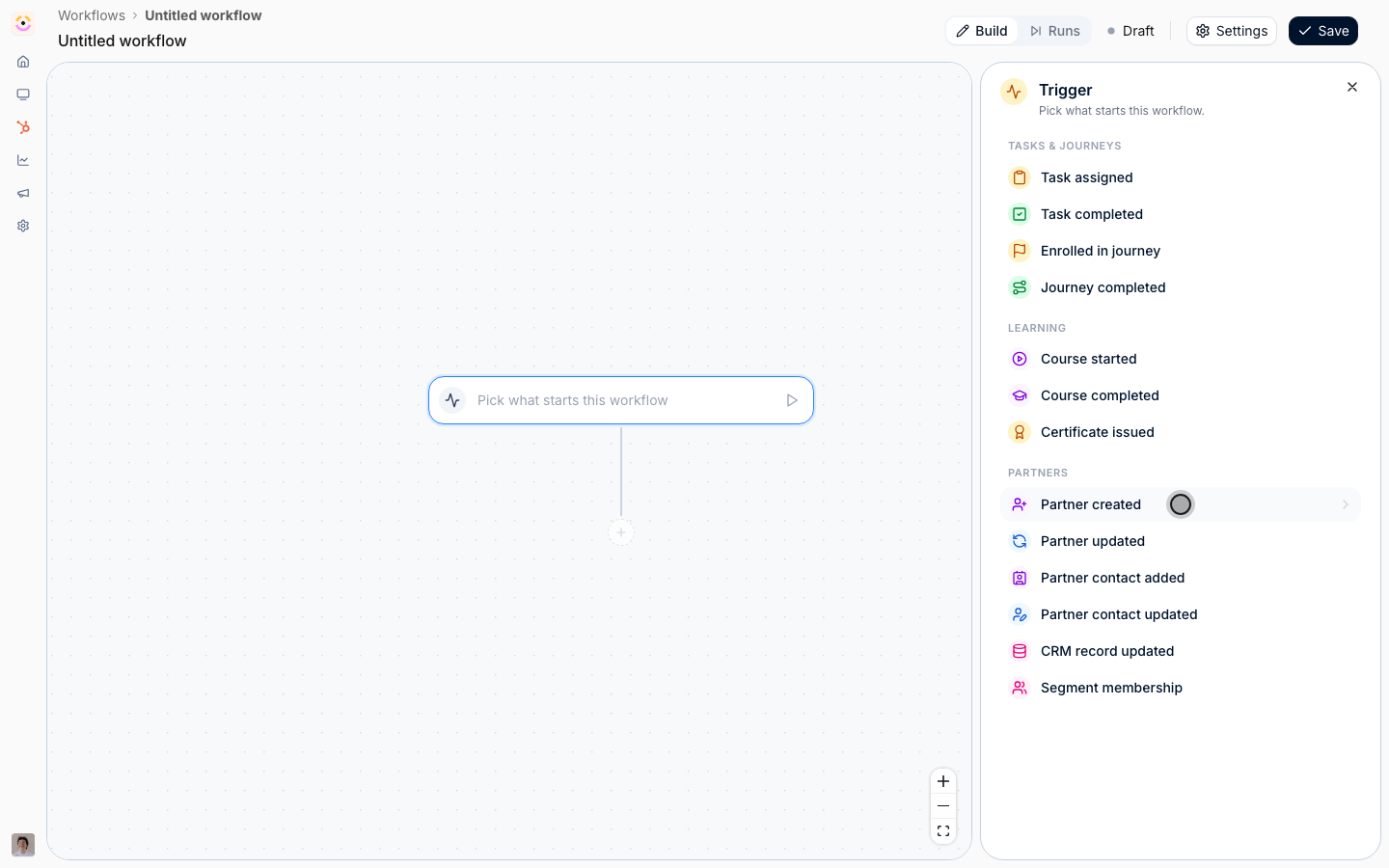
2
Narrow it if only some partners onboard this way
A create event carries very little, because there is nothing about a brand new partner to ask beyond the partner itself.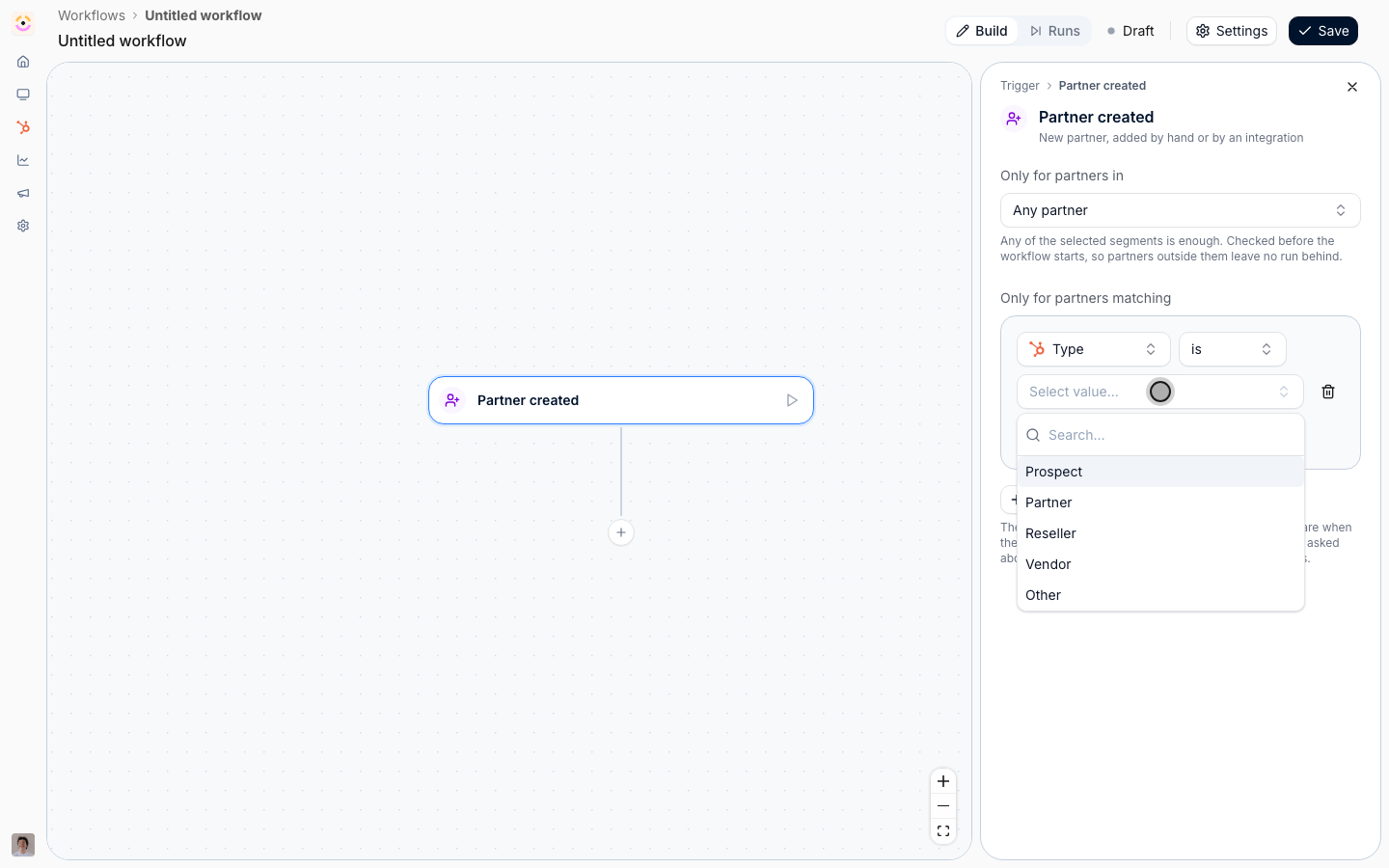
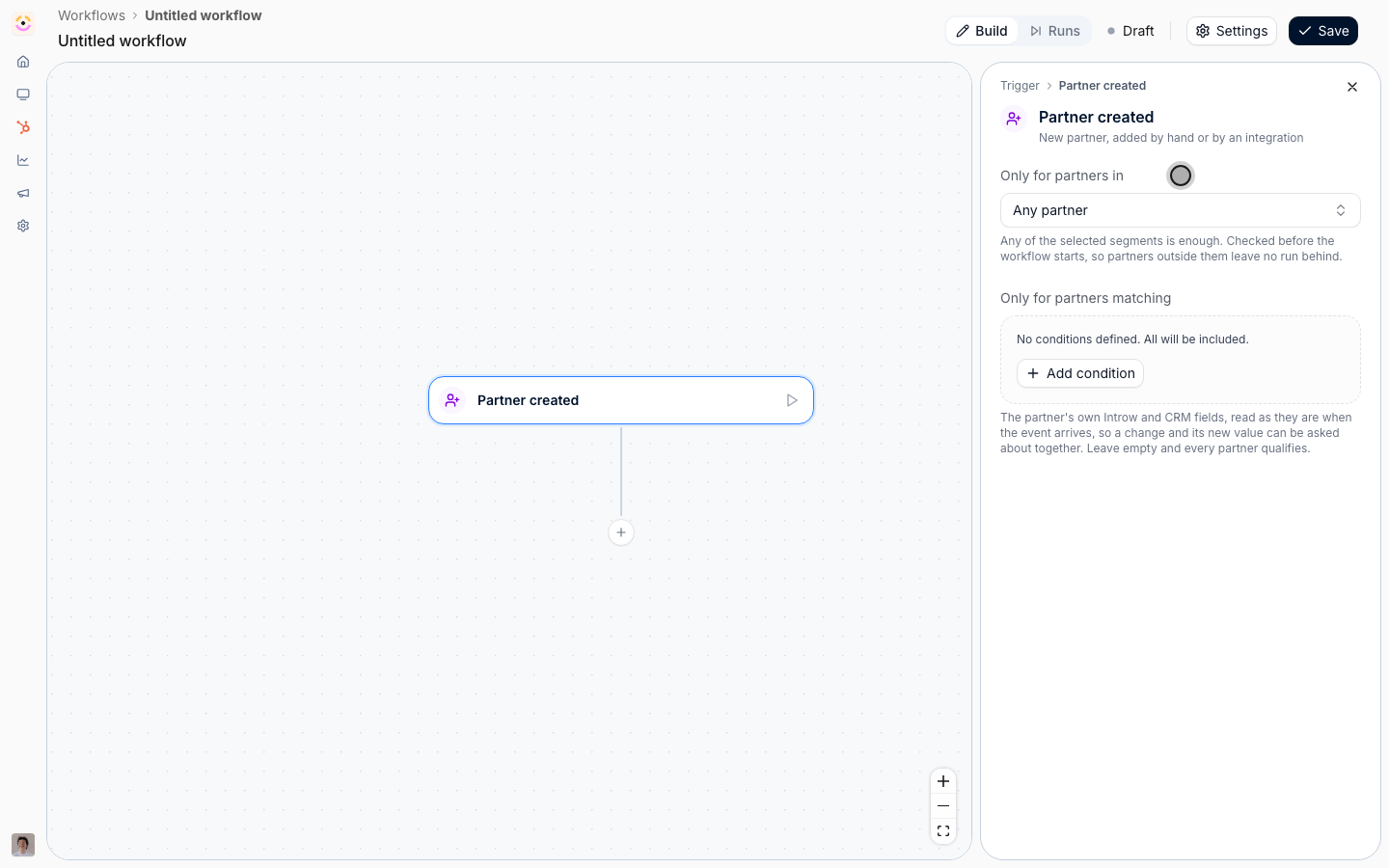
- Only for partners in - the segments the partner has to be in. If your program onboards resellers differently from referral partners, this is where you split them, and you would build one workflow per path. Note that a partner has to already match the segment when the run starts, so a segment keyed off a CRM property that arrives with detection works, while one keyed off something you set later does not.
- Only for partners matching - the same split without maintaining a segment, over the partner’s own Introw and CRM fields. A partner detected from your CRM arrives with its company properties already synced, so Company Type is Reseller works here on the first event.
Set the partner up
1
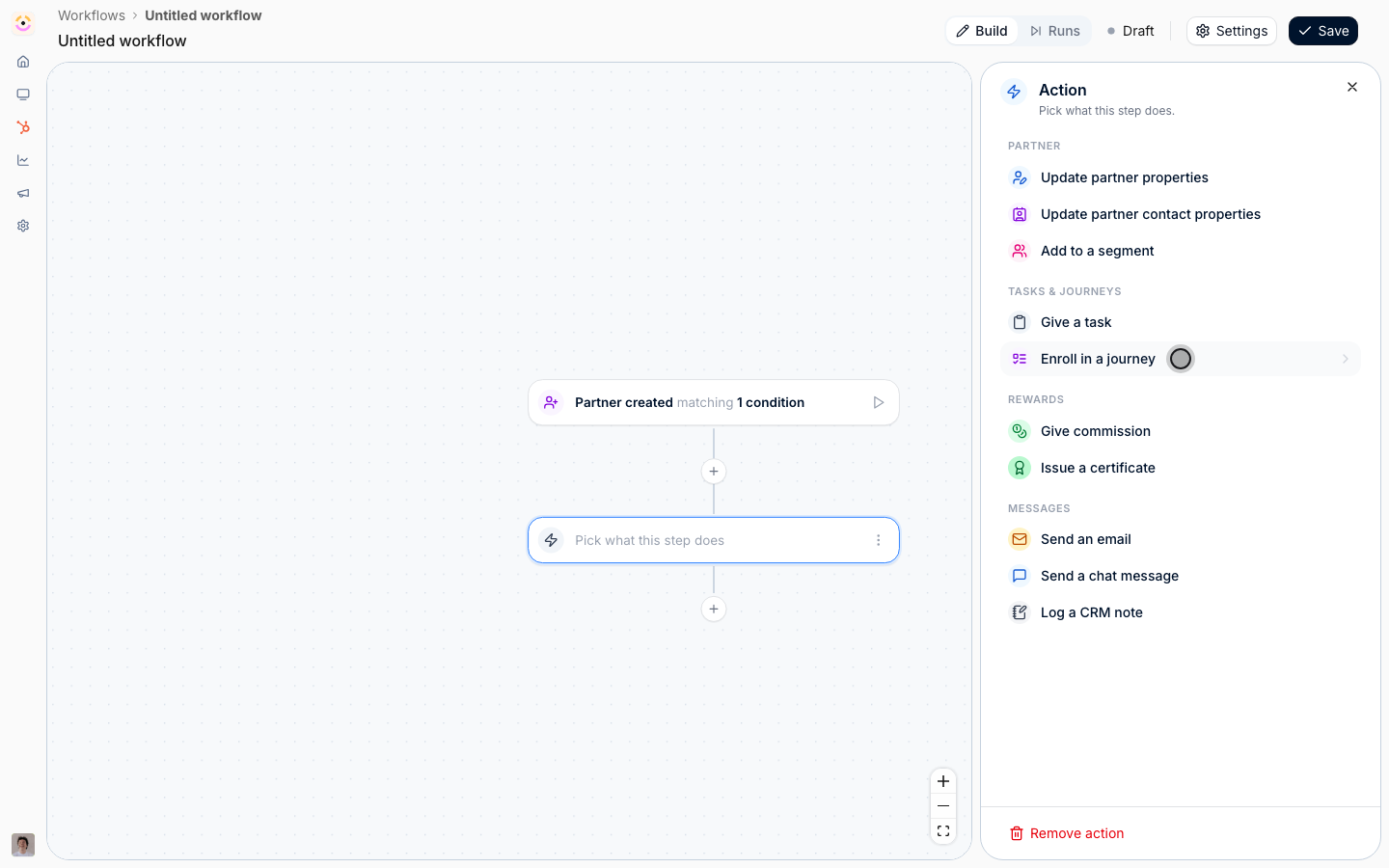
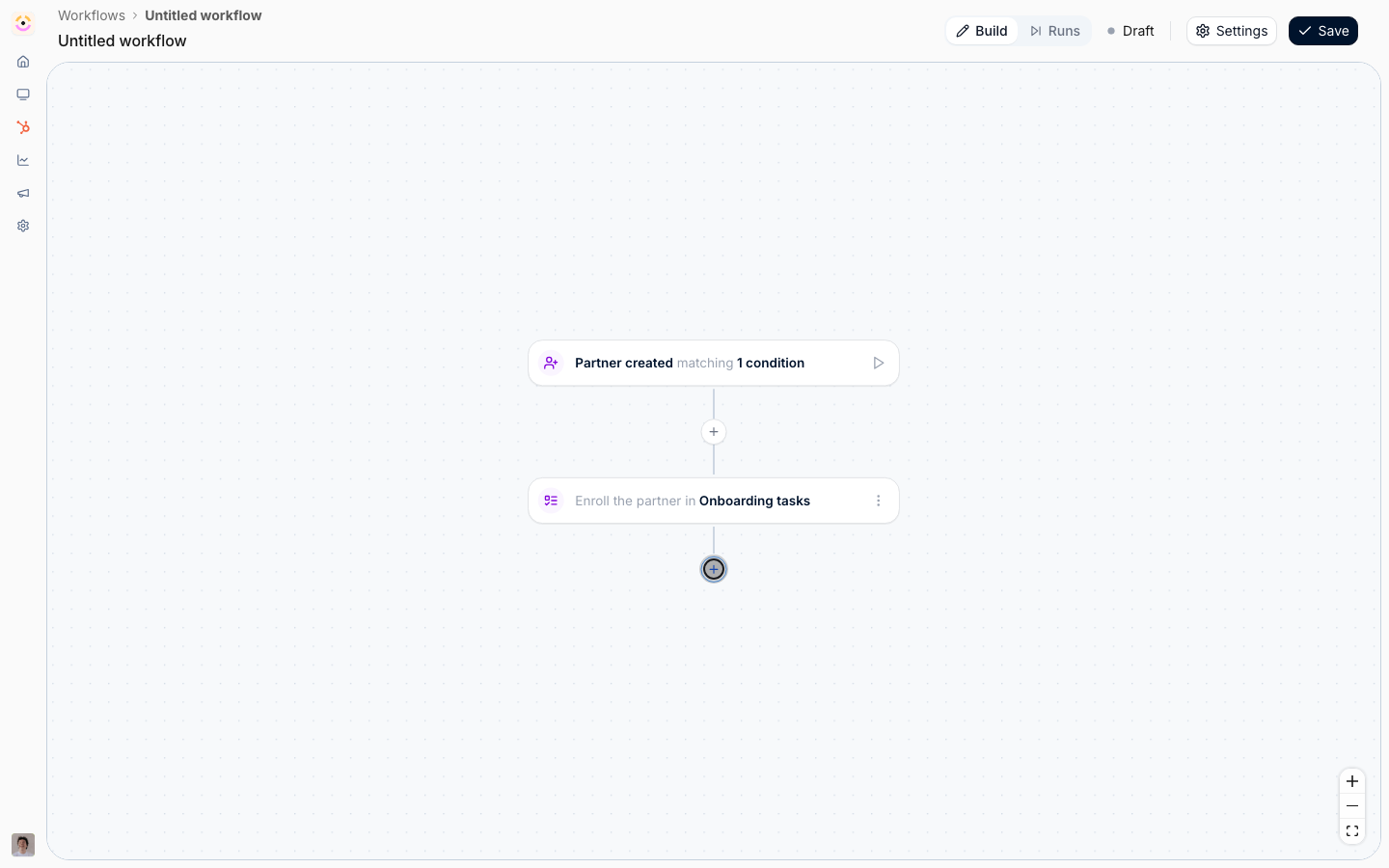
Enroll them in the onboarding journey
Select the + under the trigger, choose Action, then Enroll in a journey from the Tasks & journeys group, and pick your onboarding journey.This is the same operation as Apply on the partner page, so a partner already on the journey keeps their progress and only the steps they do not have yet are added. The tasks arrive with their due dates calculated from now, so each partner’s deadlines are right for when they actually started.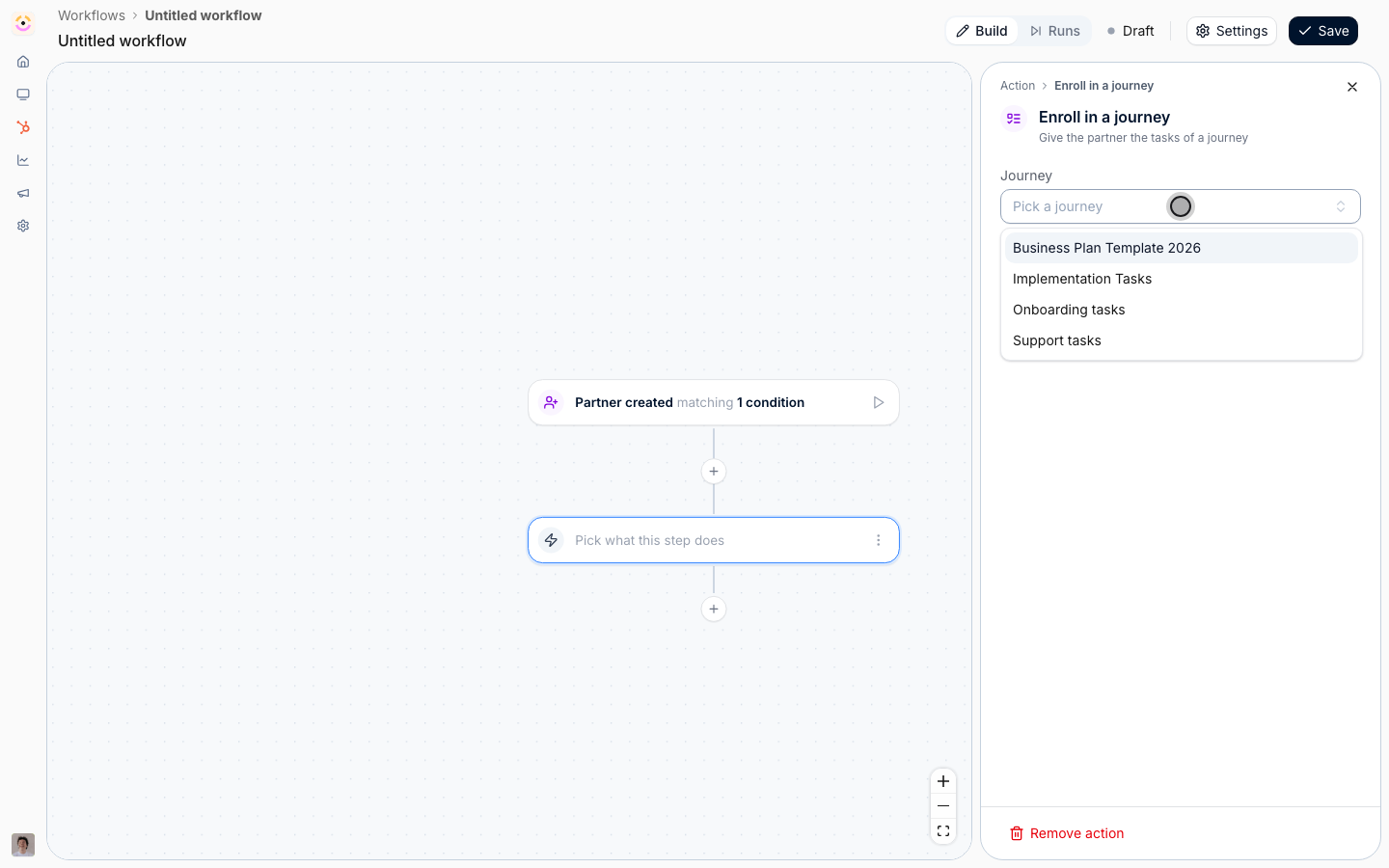
2
Set the fields that should be true from day one
Add an Action, then Update partner properties, and set the defaults you would otherwise fill in by hand: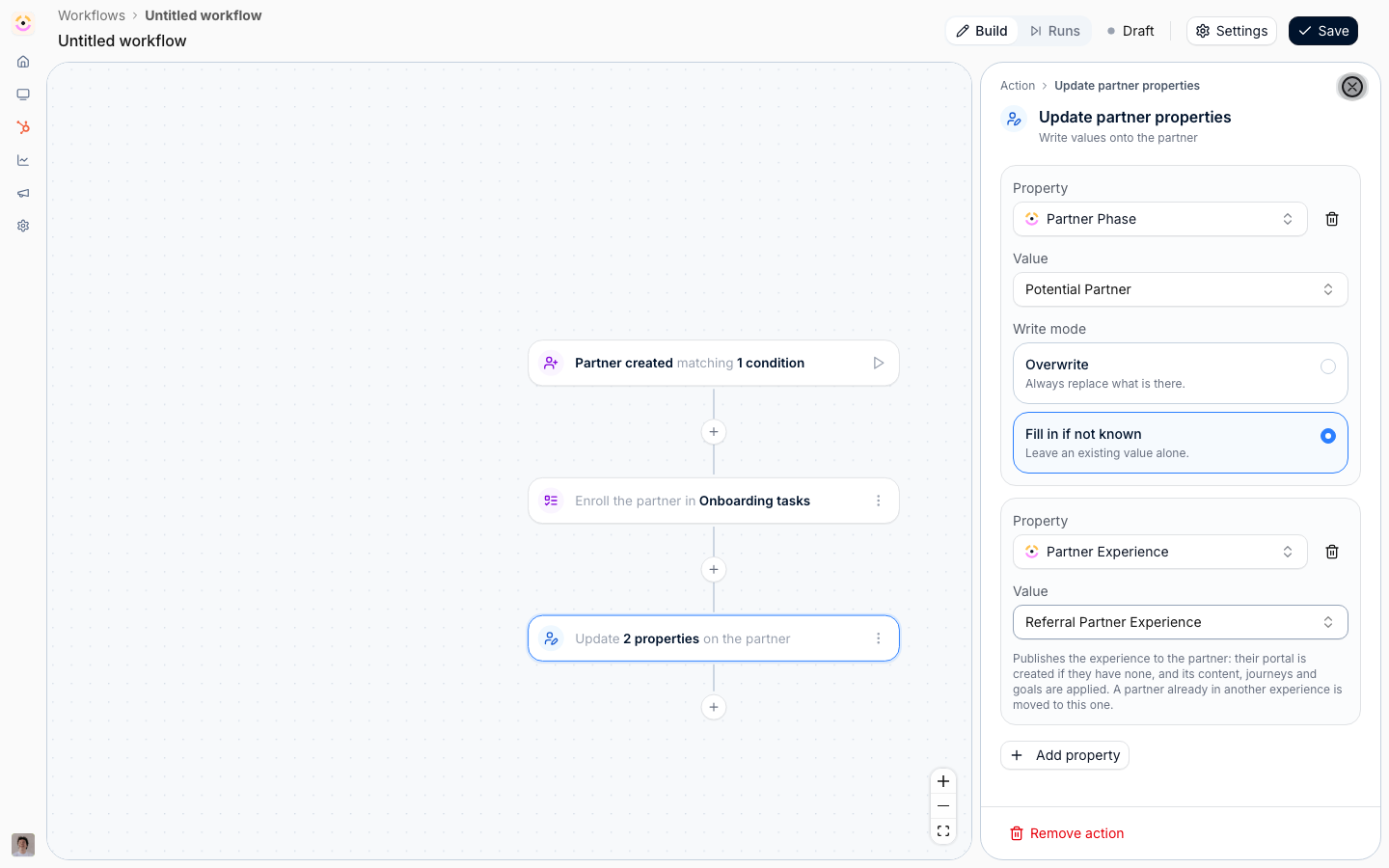
- Partner phase - the starting lifecycle phase, so the partner shows correctly in your reporting from the first day. Use Write mode Fill in if not known so a partner who arrived with a phase already set is left alone.
- Experience - the onboarding experience, if the partner does not get one another way. Setting this publishes the experience to the partner: their portal is created if they have none, and its content, journeys, and goals are applied. It has no write mode, and it counts against your plan’s portal limit for partners who do not already have a portal.
- Partner owner - only if there is a sensible default. Where ownership comes from your CRM account owner, leave this out and let the built-in owner suggestion do its job. See Wire partner ownership.
3
Welcome them
Add an Action, then Send an email.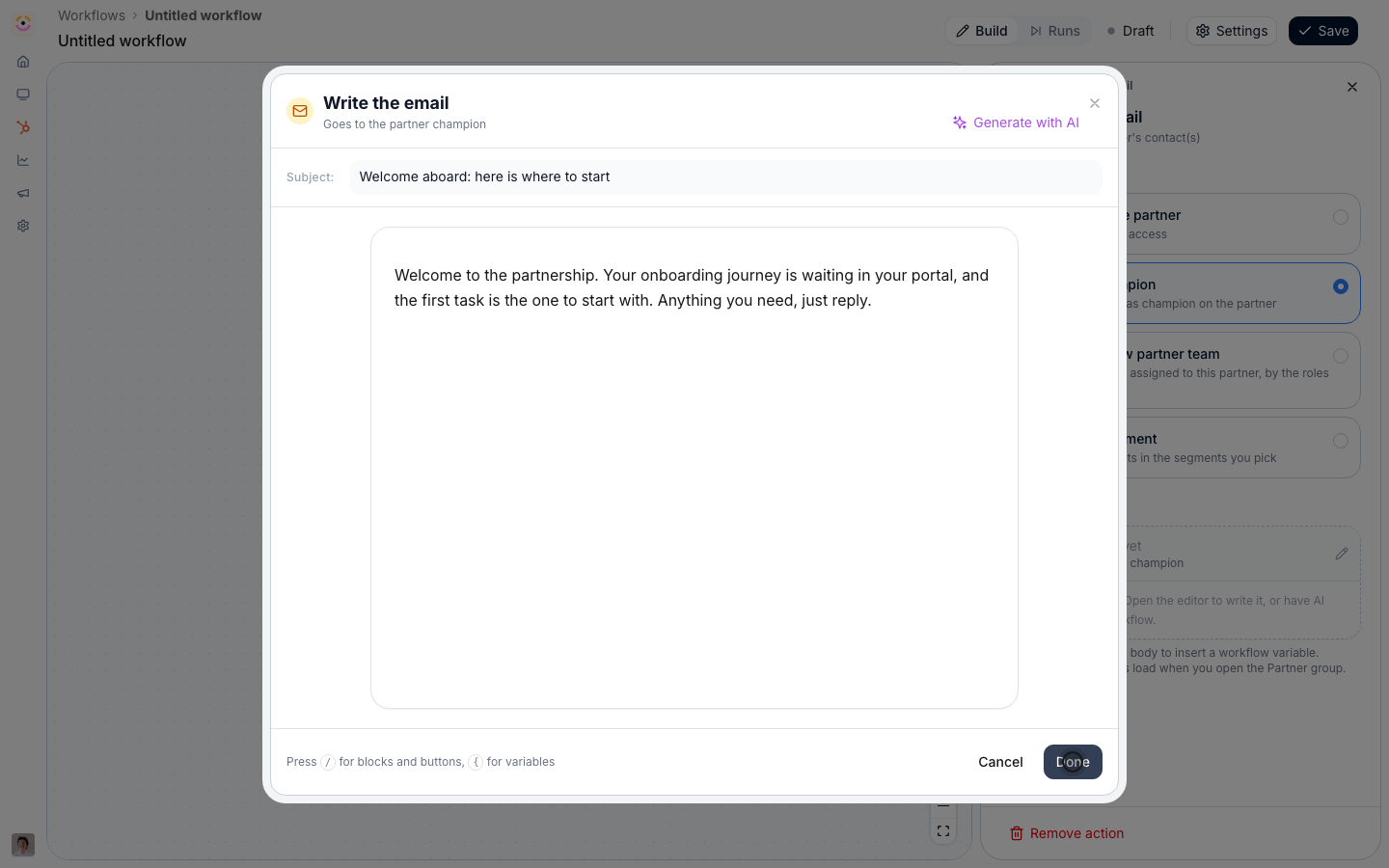
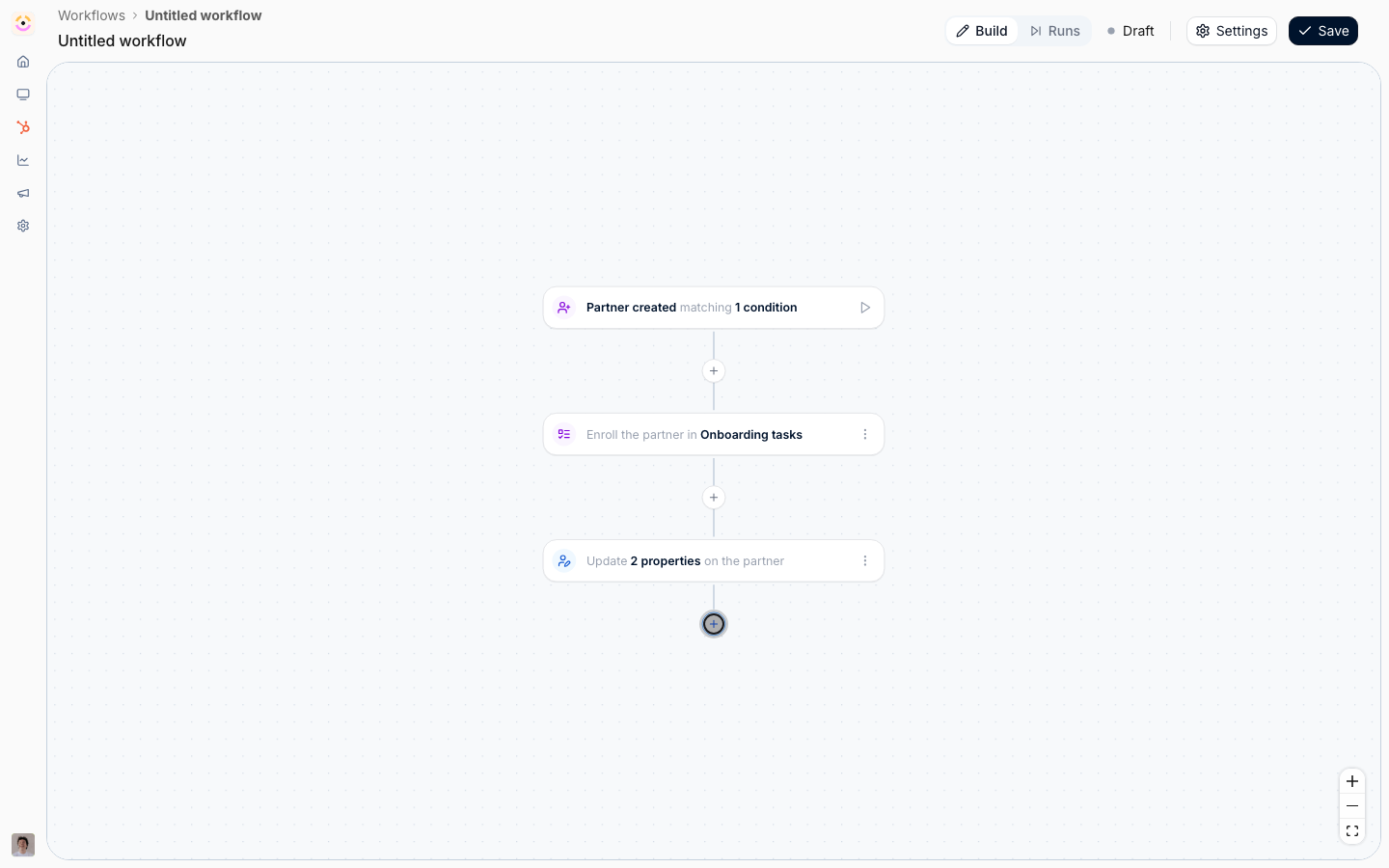
- Send to - The partner champion for a single personal welcome, or All contacts of the partner if several people arrived with the partner and all of them need the portal.
- Email - what the partnership is, what to do first, and a button into their portal. Variables resolve per recipient and CTA buttons point at that partner’s portal, exactly as in an announcement, so one email works for every partner. Generate with AI drafts it from this point in the flow.
This is not the portal invitation. Portal access is granted separately, through your access setup or by inviting the contact, and a welcome email is a poor substitute for it. See Invite partners and their teams.
Chase the ones who stall
1
Wait a week
Add a Delay under the email.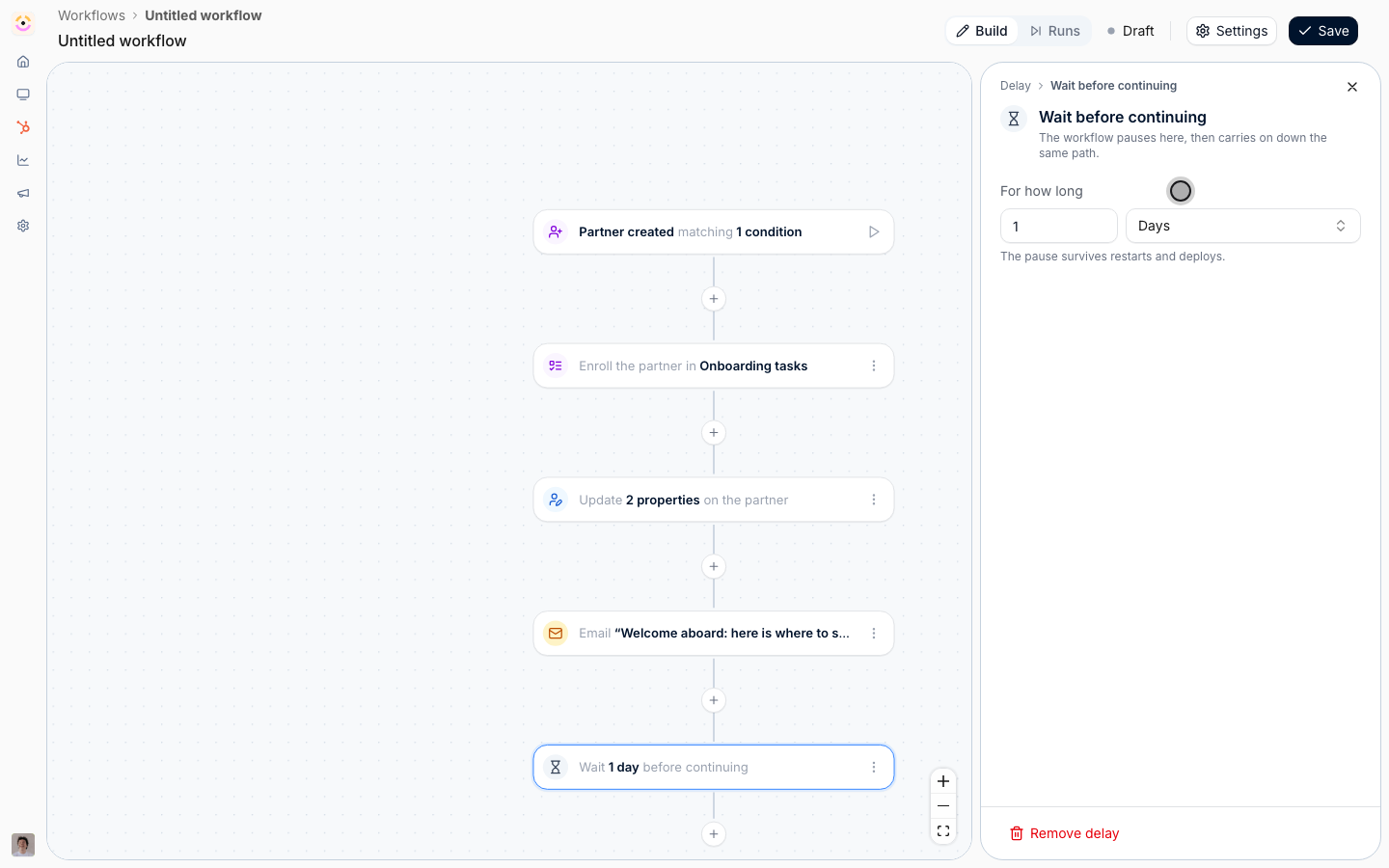
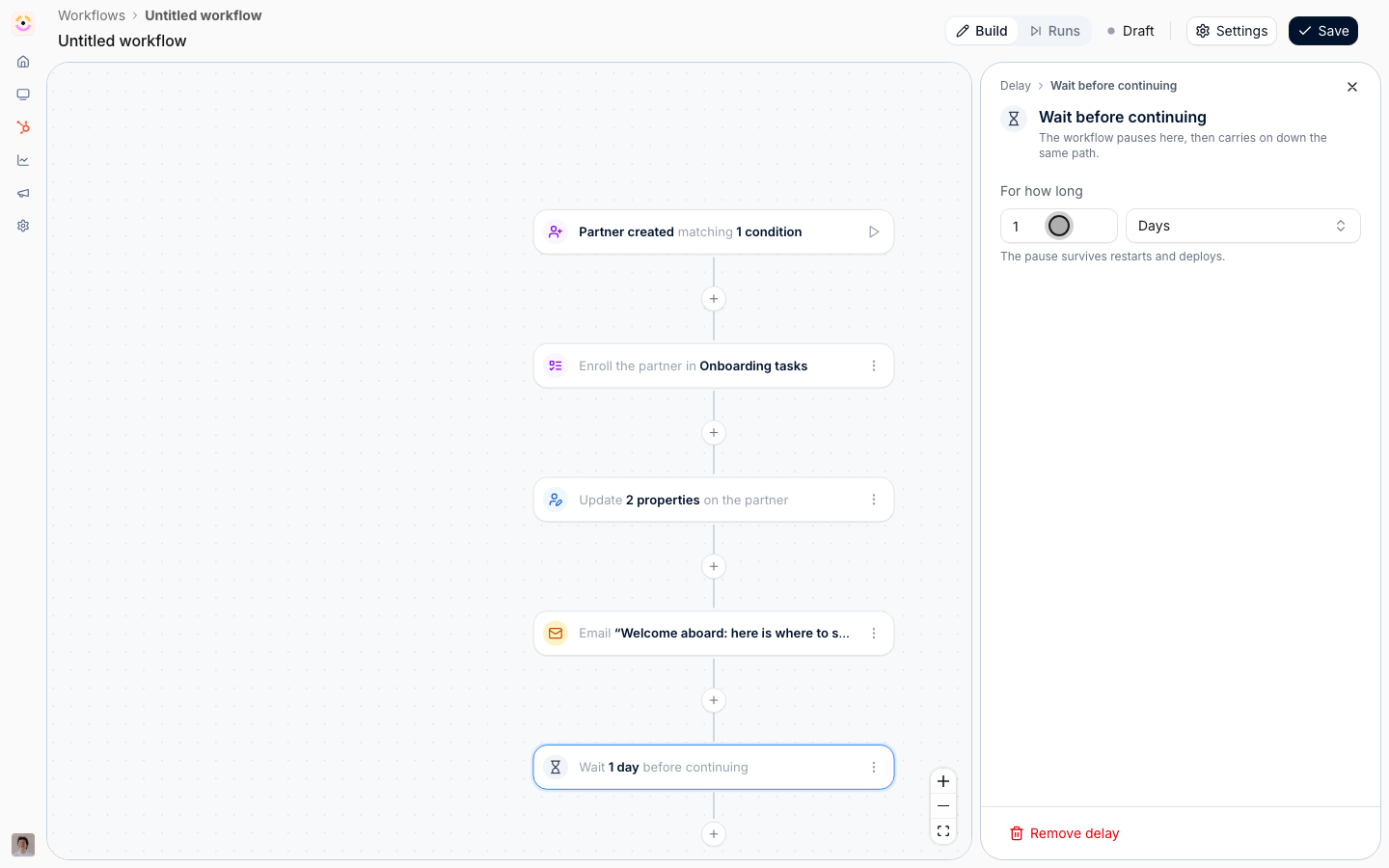
- Wait - After the previous step. The due-date anchors are not offered here, because Partner created carries no task or course to read a due date from, and the panel only shows the choice when there is one to make.
- For how long - 7, unit Days. The pause survives restarts and deploys, so a week-long wait is safe.
2
Check whether onboarding has started
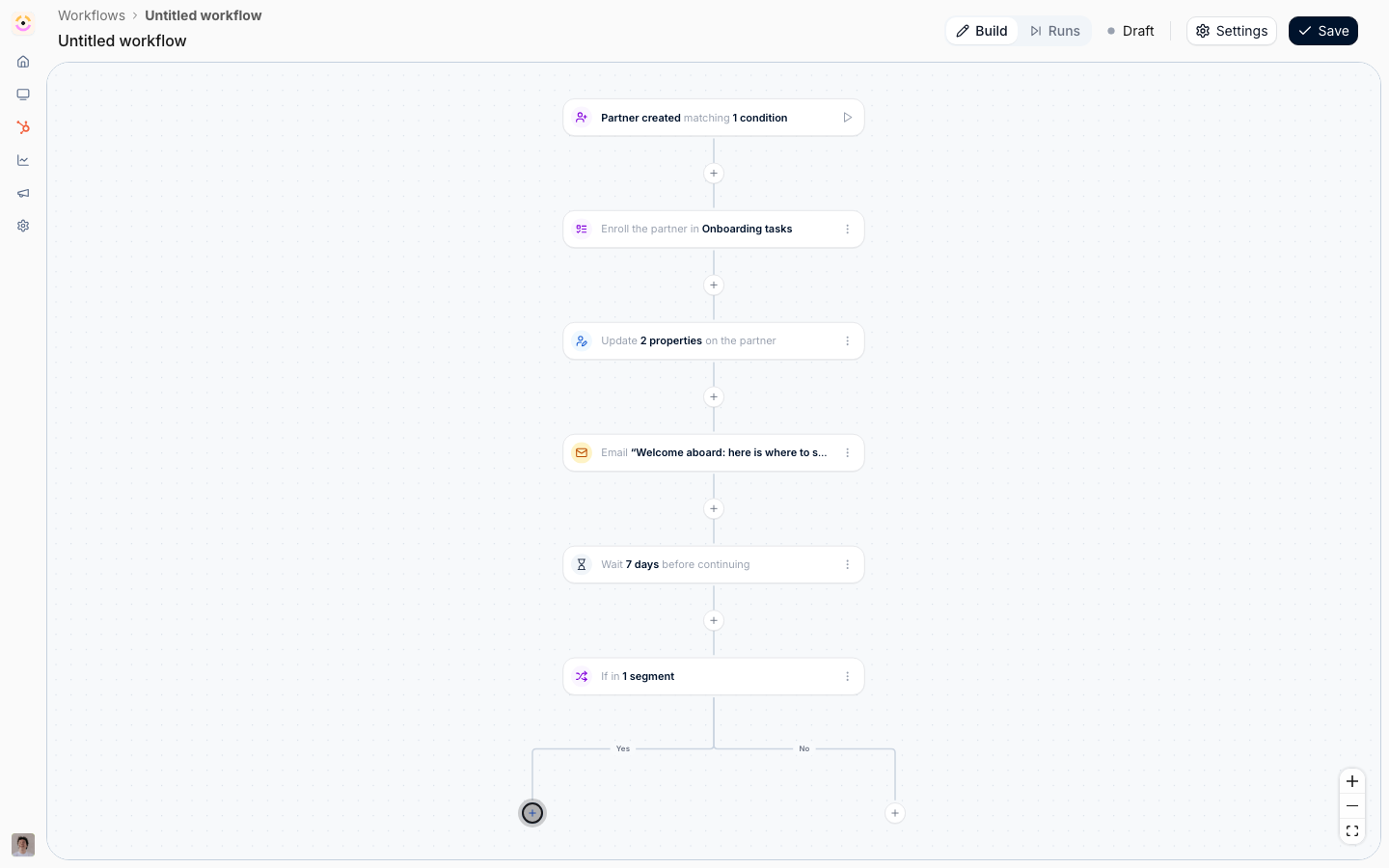
Add a Condition under the delay. There are no journey fields to ask about, because the trigger is about the partner rather than the journey. So use the two partner blocks instead: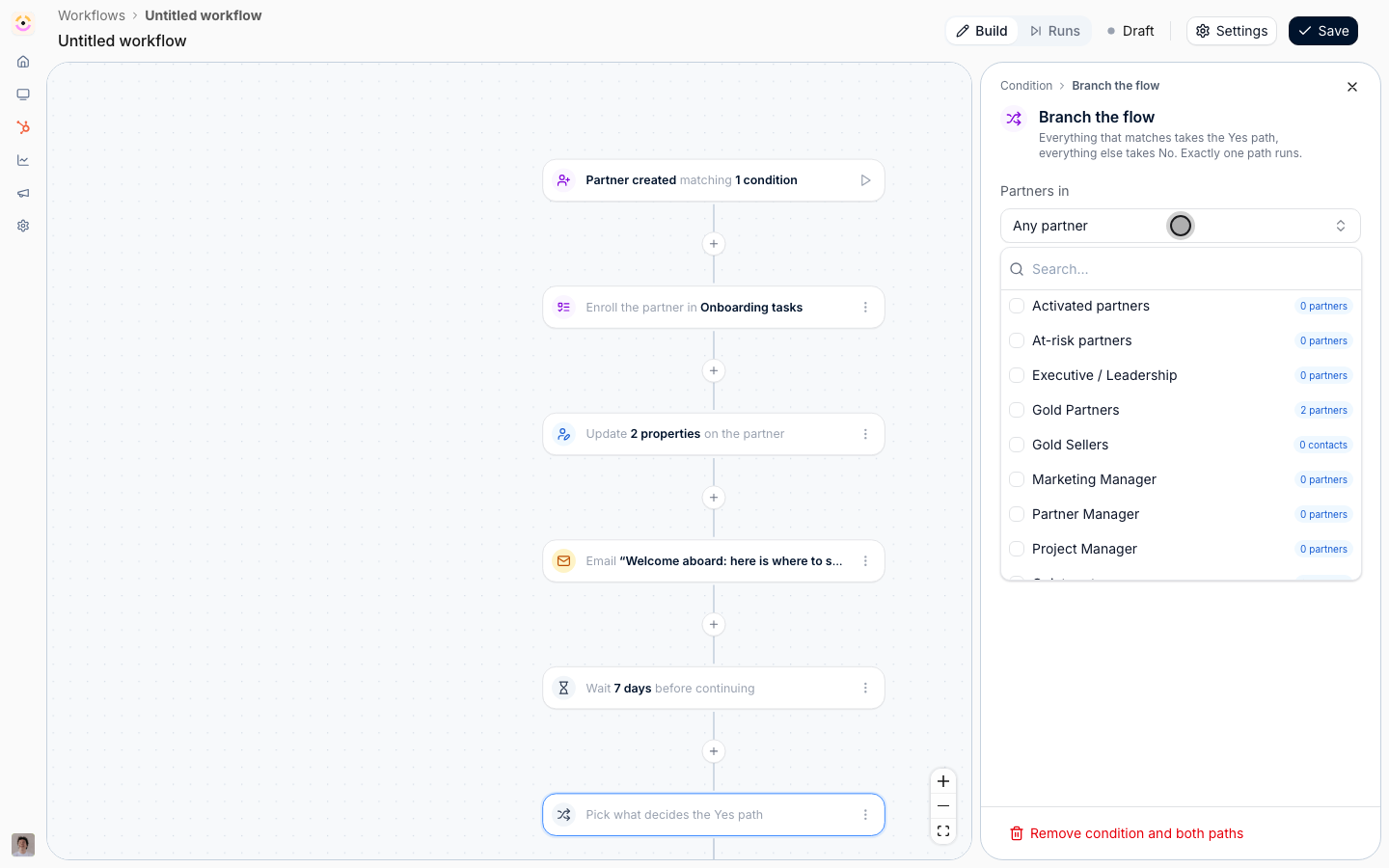
- Partners in - a static or dynamic segment of partners who have not started onboarding. The most reliable version is a dynamic segment over partner activity or a CRM field your journey’s first task writes, which is a good reason to make that first task write something.
- Partner matches - or skip the segment and read the partner’s own fields here. This block is evaluated when the fork runs, not when the workflow started, so Partner last activity or the CRM field your first task writes tells you what is true a week later rather than a week ago.
3
Nudge on the Yes path
On the Yes path, add Send an email to The partner champion with a short “shall we get started” message, and where your partners live in chat, add Send a chat message to The partner’s channel. Write 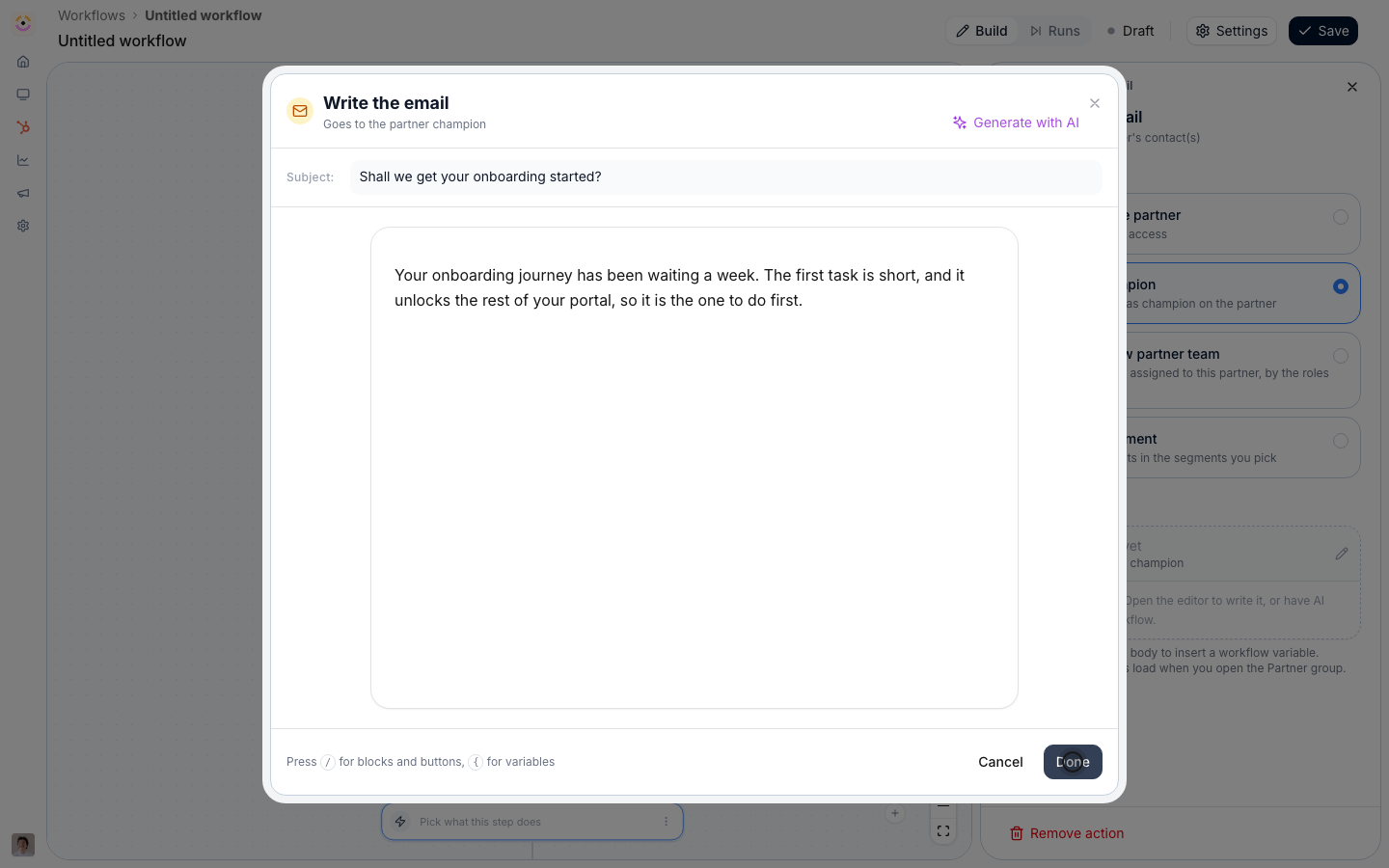
{{partner}} for the partner’s name. Chat needs a connected Slack or Microsoft Teams workspace and a channel mapped on the partner’s page; a partner without one stops the run at that step with a note rather than failing it.4
Escalate after another week
Still on the Yes path, add a second Delay of 7 Days, then Give a task from the Tasks & journeys group: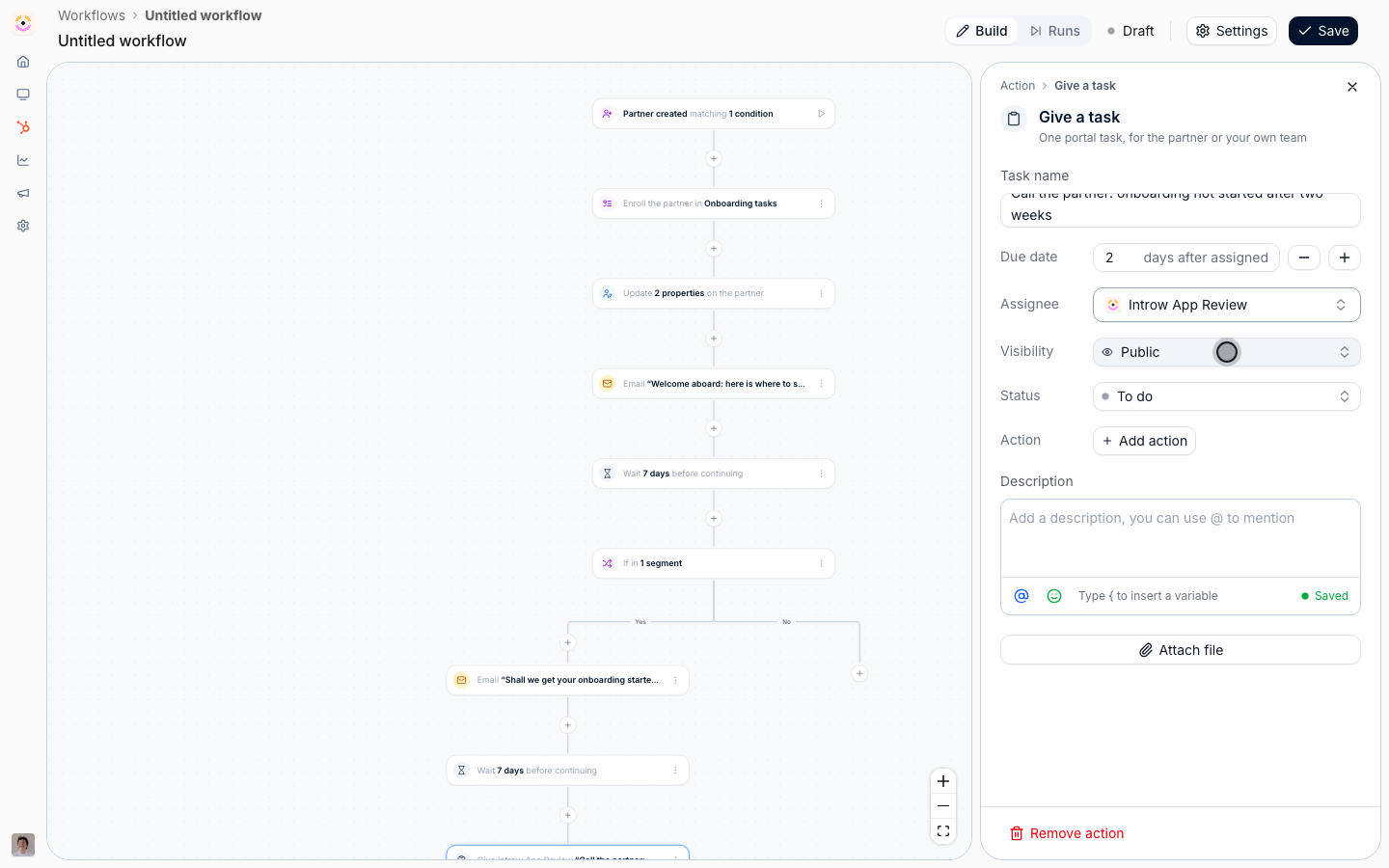
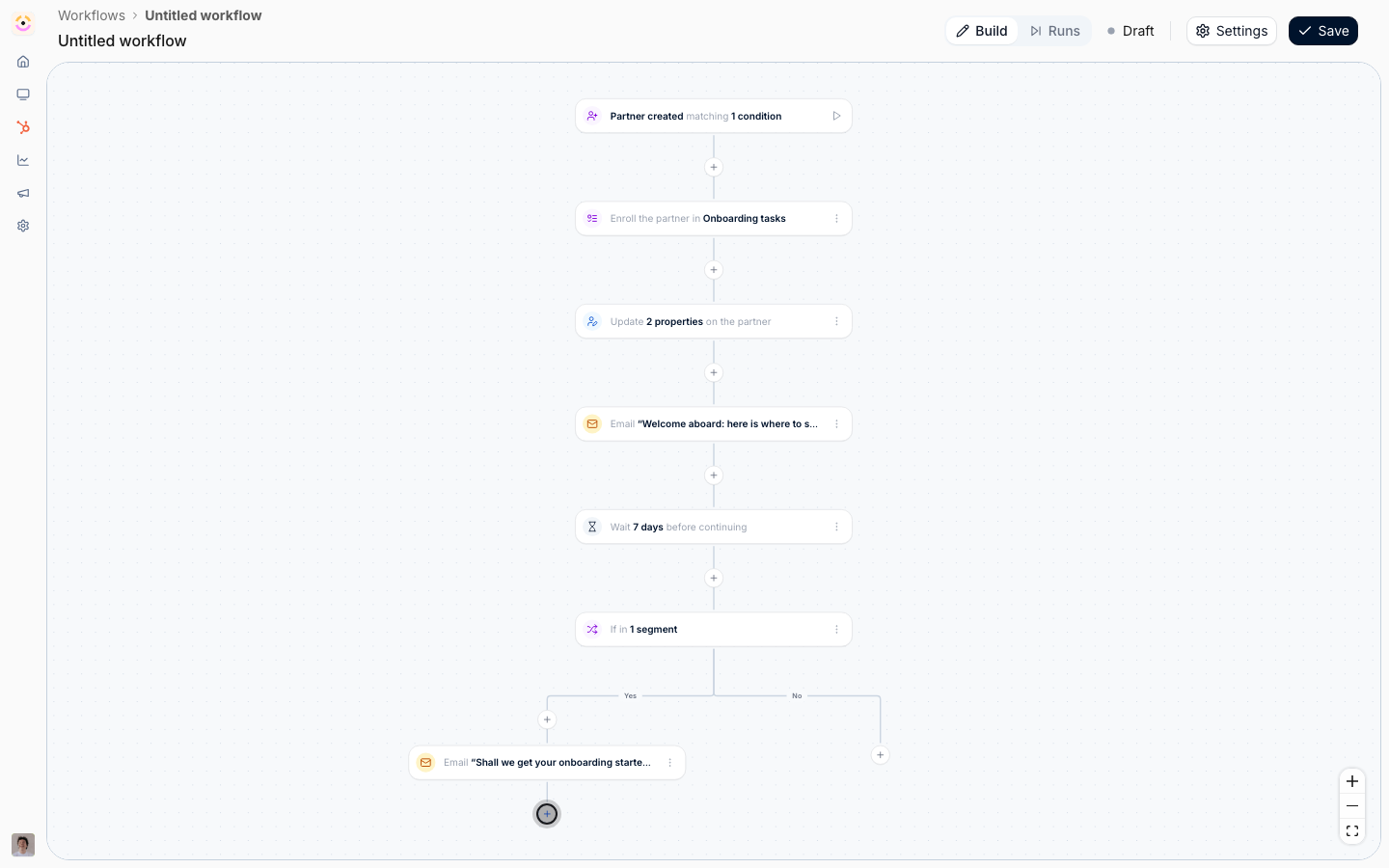
- Task name - something a manager can act on, for example “Call the partner: onboarding not started after two weeks”.
- Assignee - one of your own team. Use a partner team role rather than a named person so the task follows whoever owns the partner.
- Visibility - Internal, so the partner never sees the escalation. Internal visibility is only available on a task assigned to your own team.
- Due date - 2 days after assigned, so it does not sit indefinitely.
- Description - what has already been sent, so the manager does not repeat the automated nudges.
Rehearse and enable
1
Test it
Select the play button beside the trigger, pick an existing partner, and select Run test. Delays resolve instantly, so the whole two-week arc plays out in seconds and you can see both paths. Nothing is written, so no journey is applied and no experience is published.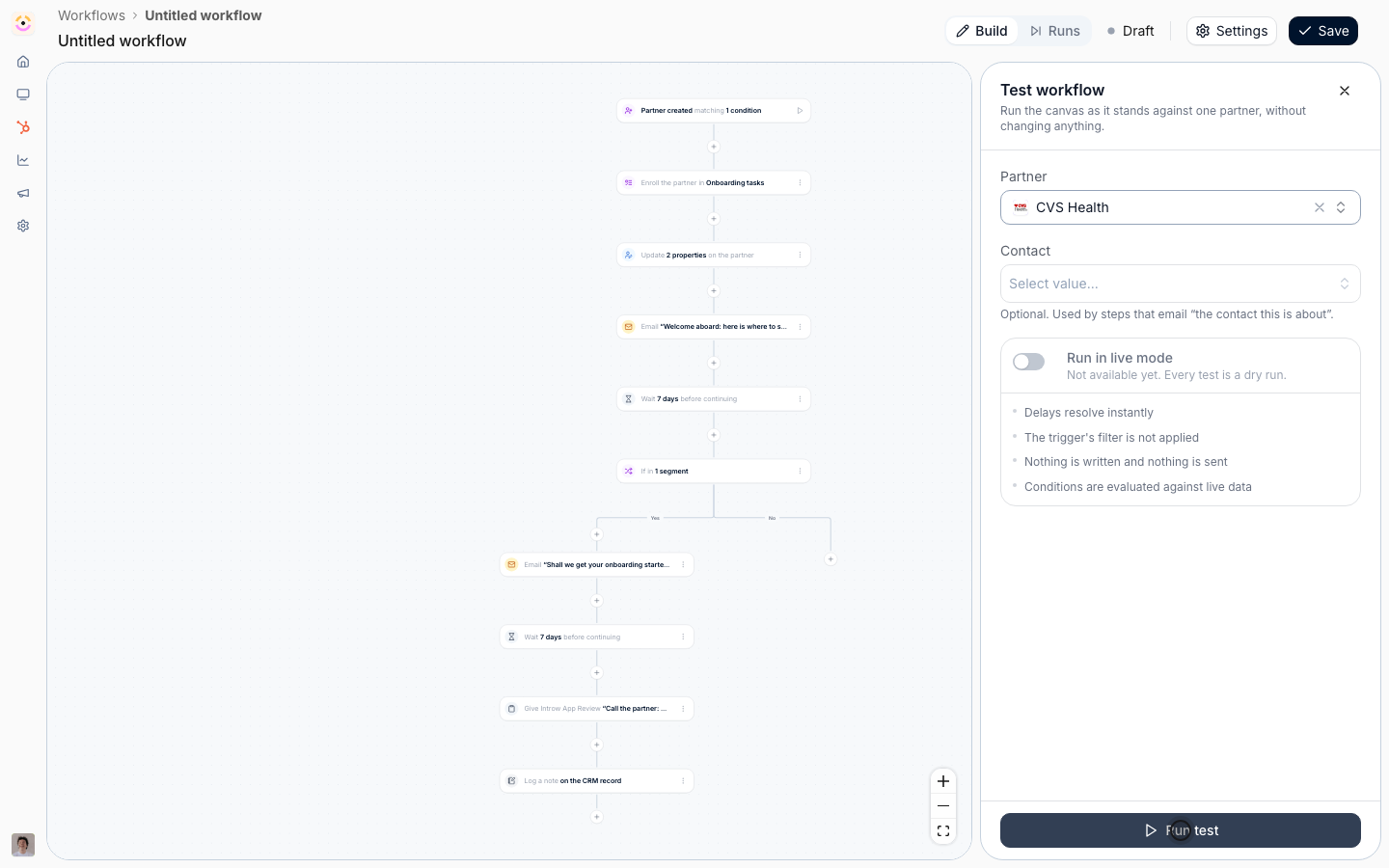
2
Name it and switch it on
Open Settings, name and describe it, switch Enable on, and Save. Only partners created from this moment on are onboarded by the workflow. Existing partners who never got the journey are a one-time bulk apply, not something this workflow will pick up.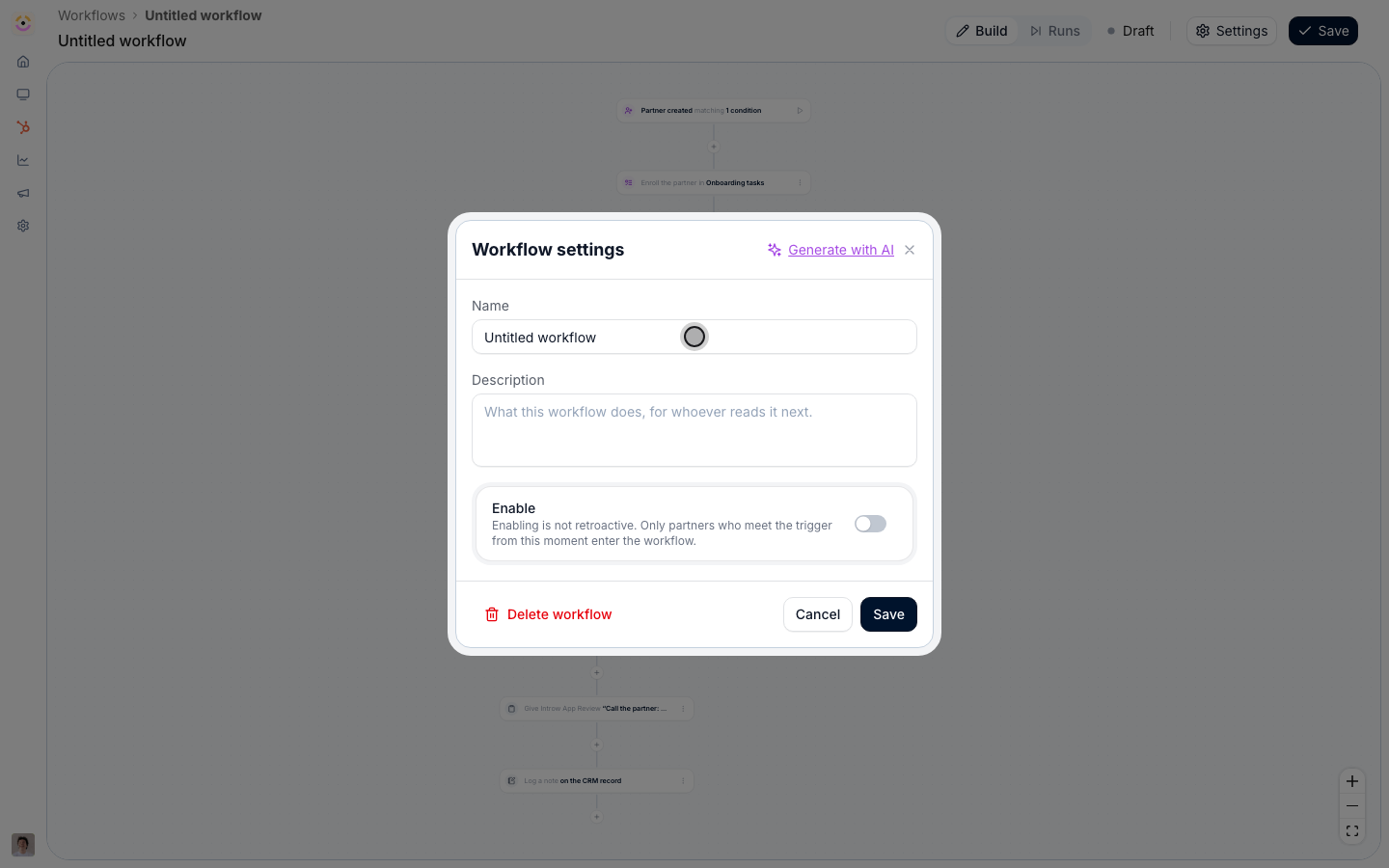
Verify it worked
Create a partner, or let your CRM detection bring one in, then switch the canvas header to Runs. A run appears named after that partner with the enrollment and email nodes reading Ran, and the delay reading Waiting with everything after it Not reached. Open the partner: the journey’s tasks are on their record with due dates counted from today, their phase and experience are set, and the champion has the welcome email. A week later the run resumes and takes the path the condition decides.Related
Reward a finished journey
Close the loop: pay and promote when this onboarding completes.
Chase a task to its due date
Chase the individual onboarding tasks, not just the whole journey.
Build a progressive onboarding path
Unlock the portal in stages as onboarding advances.
Workflows setup reference
Every trigger, action, condition, and delay option.