

What you’ll achieve
Confidence in a workflow before you enable it, and a reliable way to answer what it did afterwards: which partners it ran for, which path each run took, what each run changed, and where and why a run stopped short.Before you start
1
Have a workflow with a trigger and at least one step
A blank canvas has nothing to rehearse, and the panel says so. See Build your first workflow.
2
Pick a partner to rehearse against
Any real partner works, because nothing is written. If the workflow has steps that address the contact the trigger is about, pick one of their contacts too.
Watch it
- Video
- Click through
Steps
Rehearse it
1
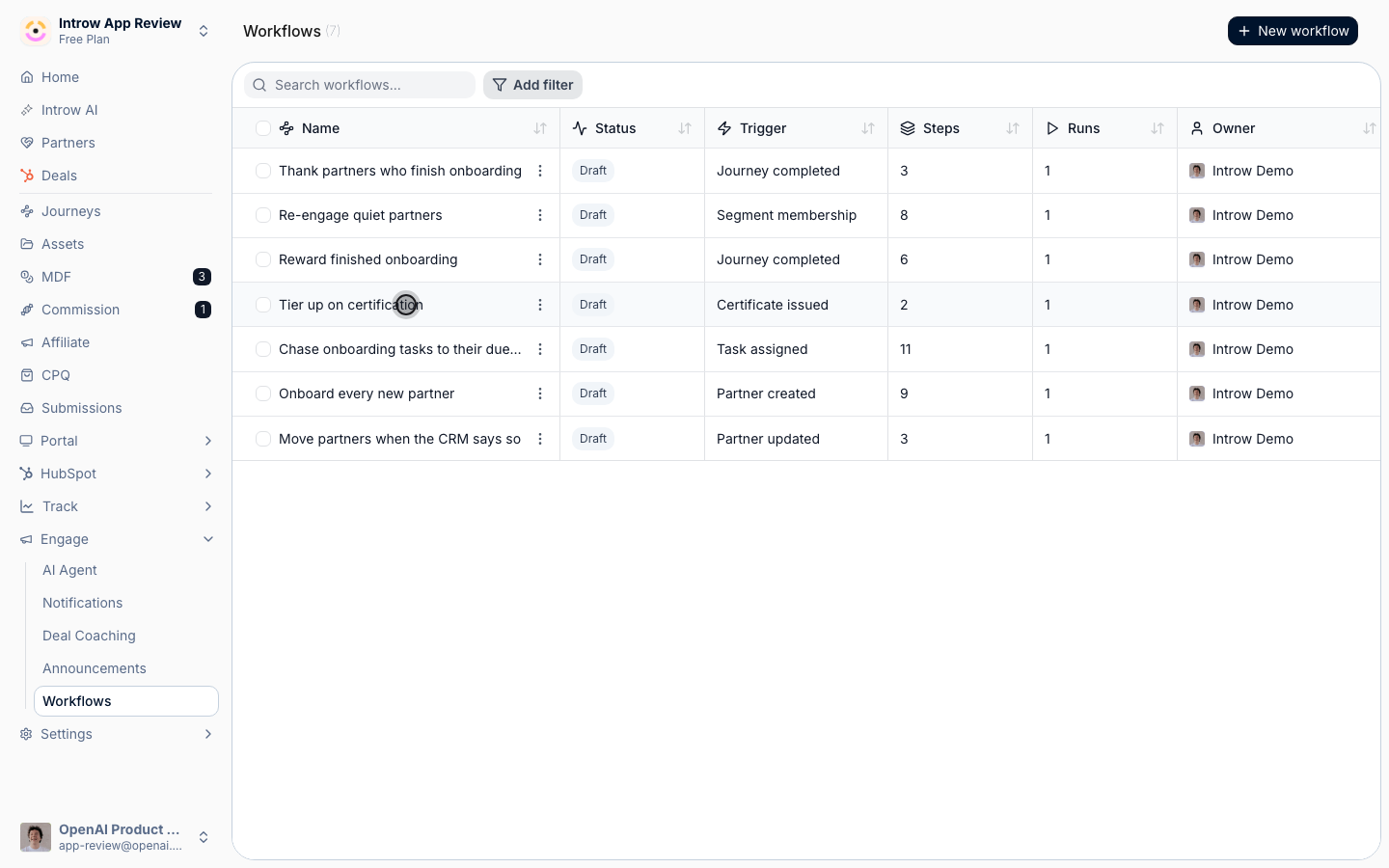
Open Test workflow
Go to Workflows, open the workflow, and select the play button beside the trigger node. The Test workflow panel opens beside the canvas.It rehearses the canvas as it stands in the editor, not as it was last saved. That is deliberate: the version worth testing is the one you are looking at, so you can try a change before committing it.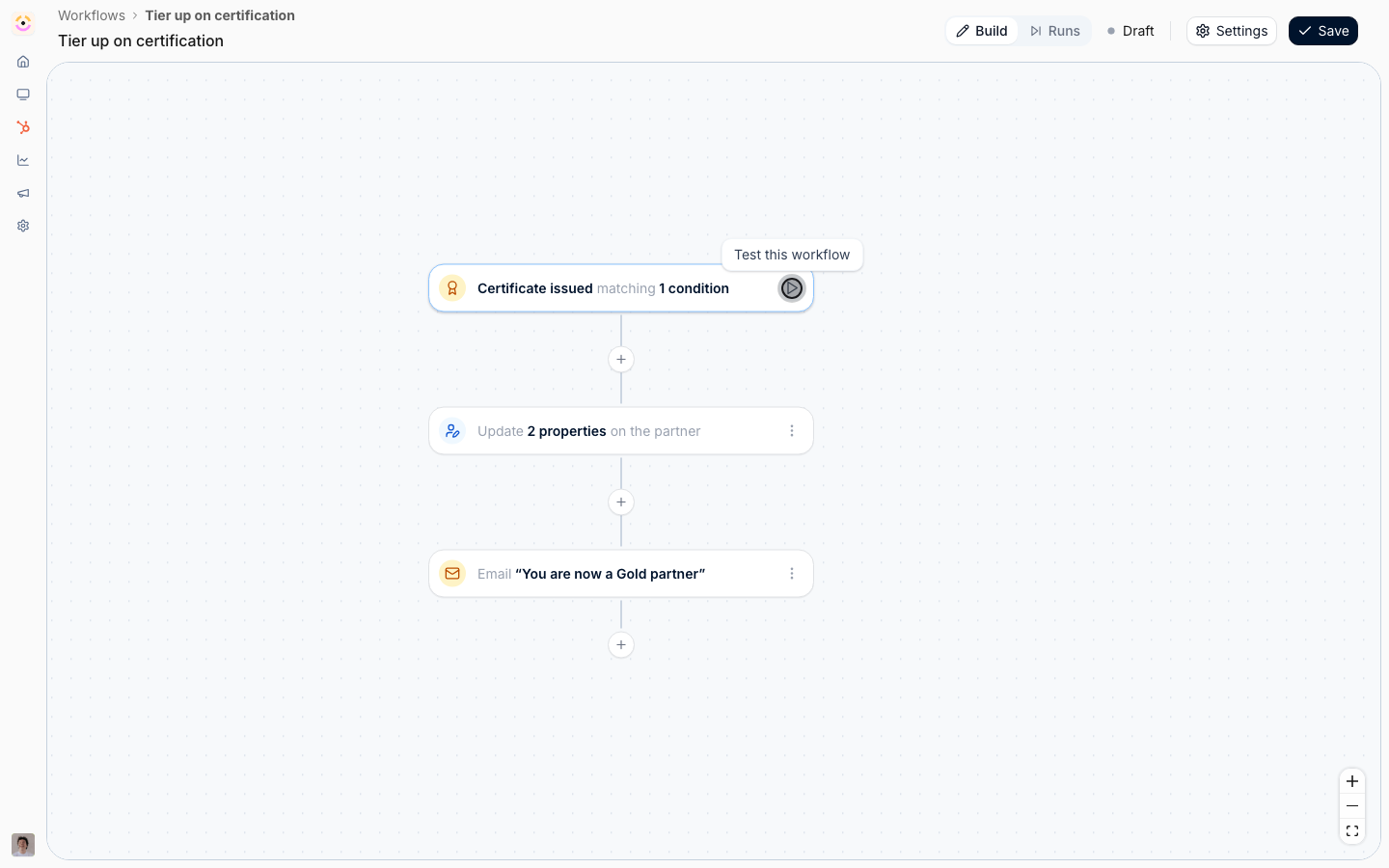
2
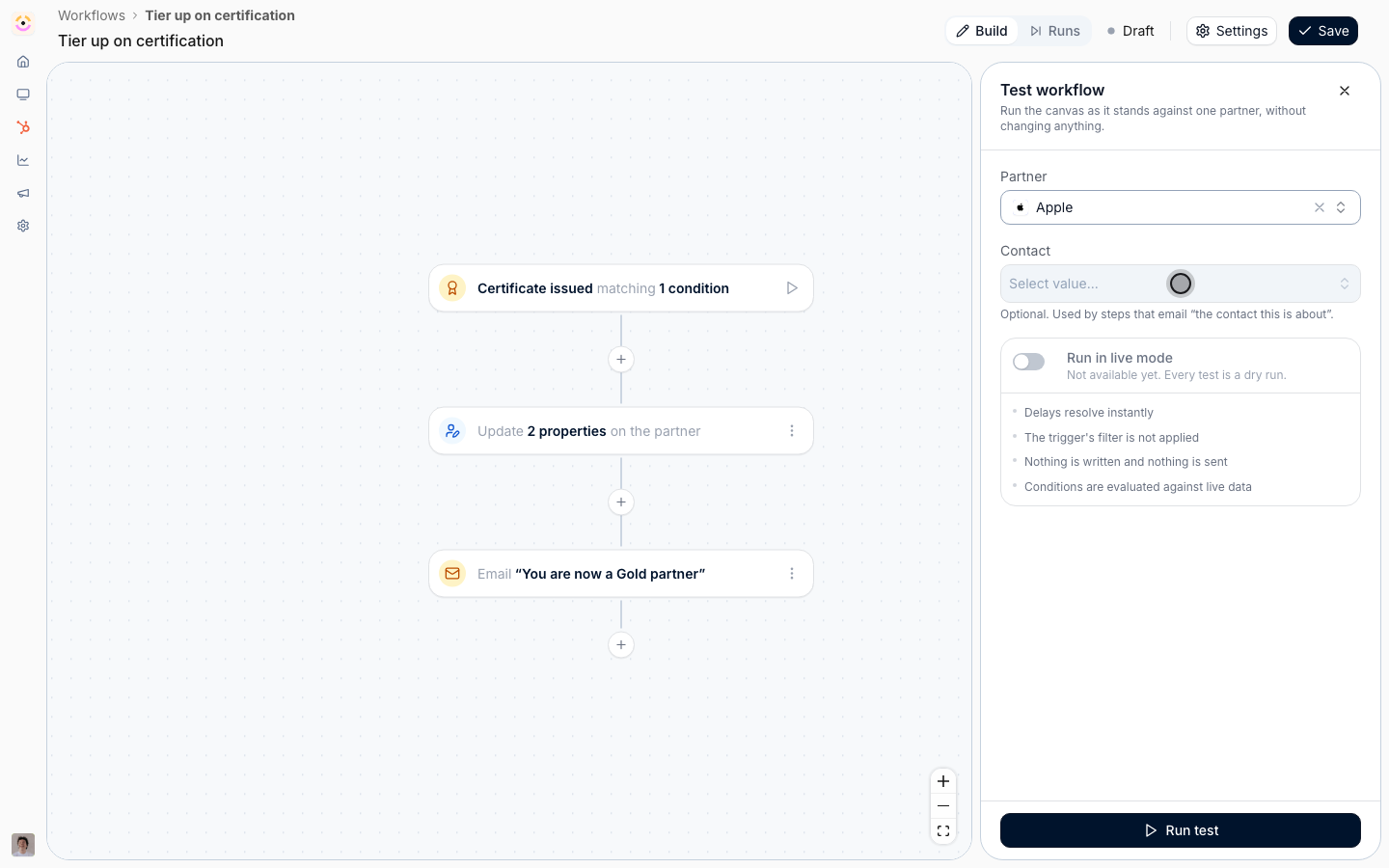
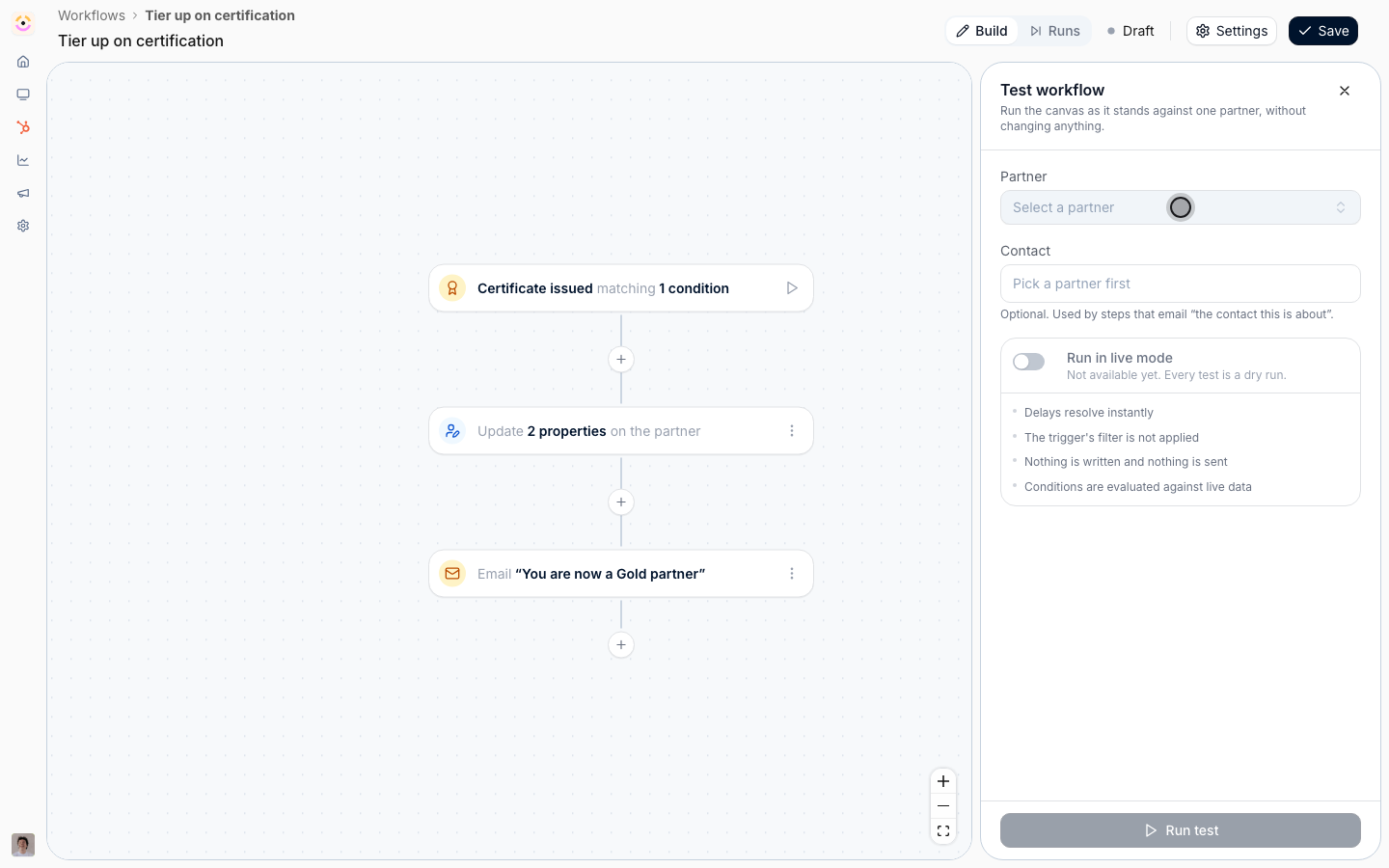
Choose the partner and contact
- Partner - the partner the rehearsal is about. Every run is about exactly one partner, so this is what the steps target.
- Contact - optional, and only used by steps that address “the contact this is about”, such as an email to the trigger’s contact, a certificate issued to them, or a task assigned to them. Leave it empty and those steps have no one to resolve to, which is itself useful to see.
3
Read what a dry run does before you run it
The card in the middle of the panel states the mode and its four consequences. All four matter: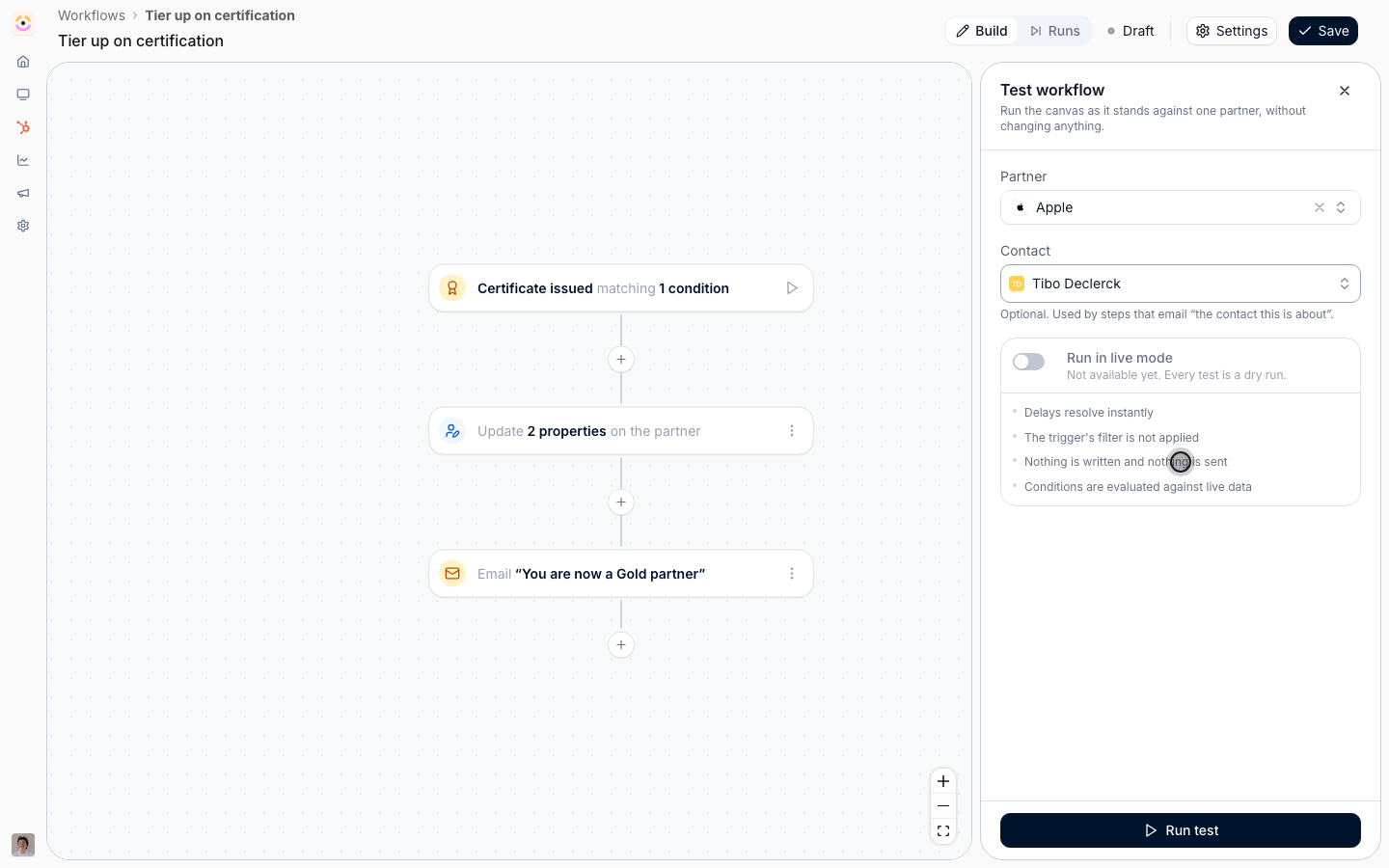
- Delays resolve instantly. A chain with three waits in it plays out in seconds, so you can see the whole arc without waiting a week.
- The trigger’s filter is not applied. You chose the partner by hand, so the run starts at the first step regardless of whether that partner would have qualified. This is the one thing a rehearsal cannot check for you.
- Nothing is written and nothing is sent. No field is changed, no commission line is booked, no certificate is issued, no email or chat message leaves.
- Conditions are evaluated against live data. The forks tell you the truth about that partner right now, which is what makes the rehearsal worth doing at all.
4
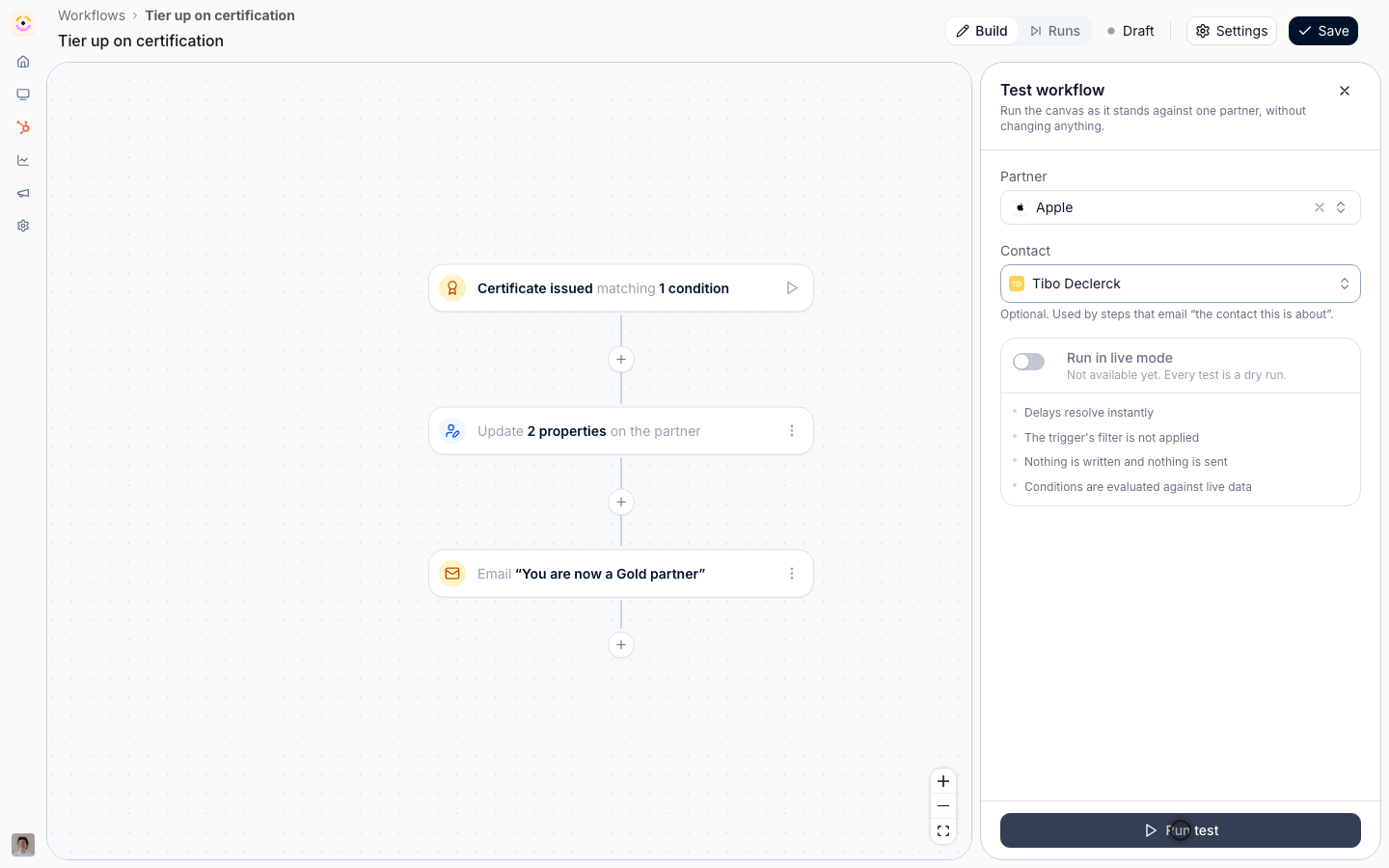
Run it and read the badges
Select Run test. The canvas updates as each step resolves, and the panel says when it is done.Nodes the run executed are badged Simulated rather than Ran, in a different colour, so a rehearsal can never be mistaken for the real thing. Everything else reads exactly as it does for a live run, which is covered in the next phase.Select Run again after an edit. Two identical rehearsals are two runs, not one, so you can iterate freely.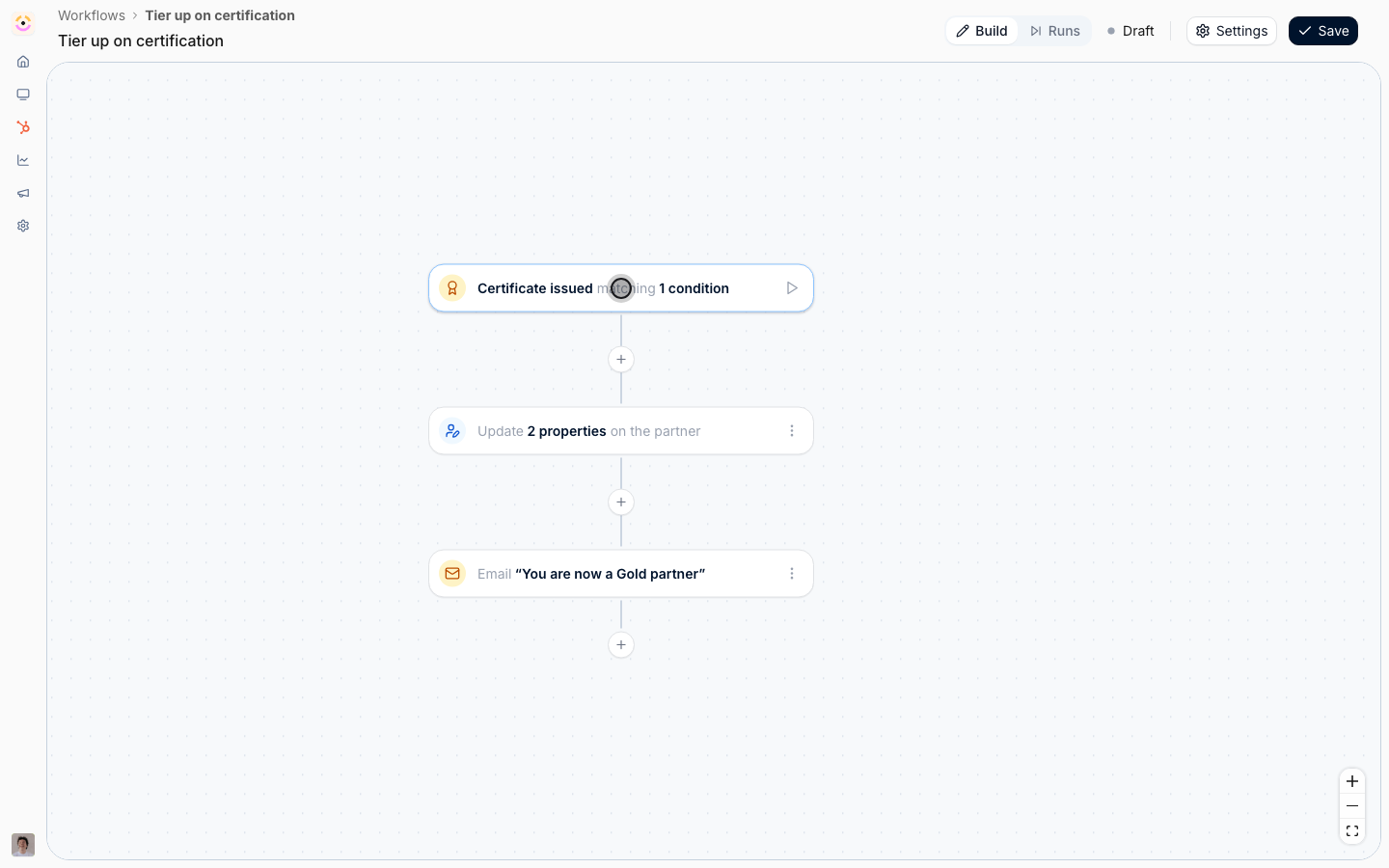
Read the run log
1
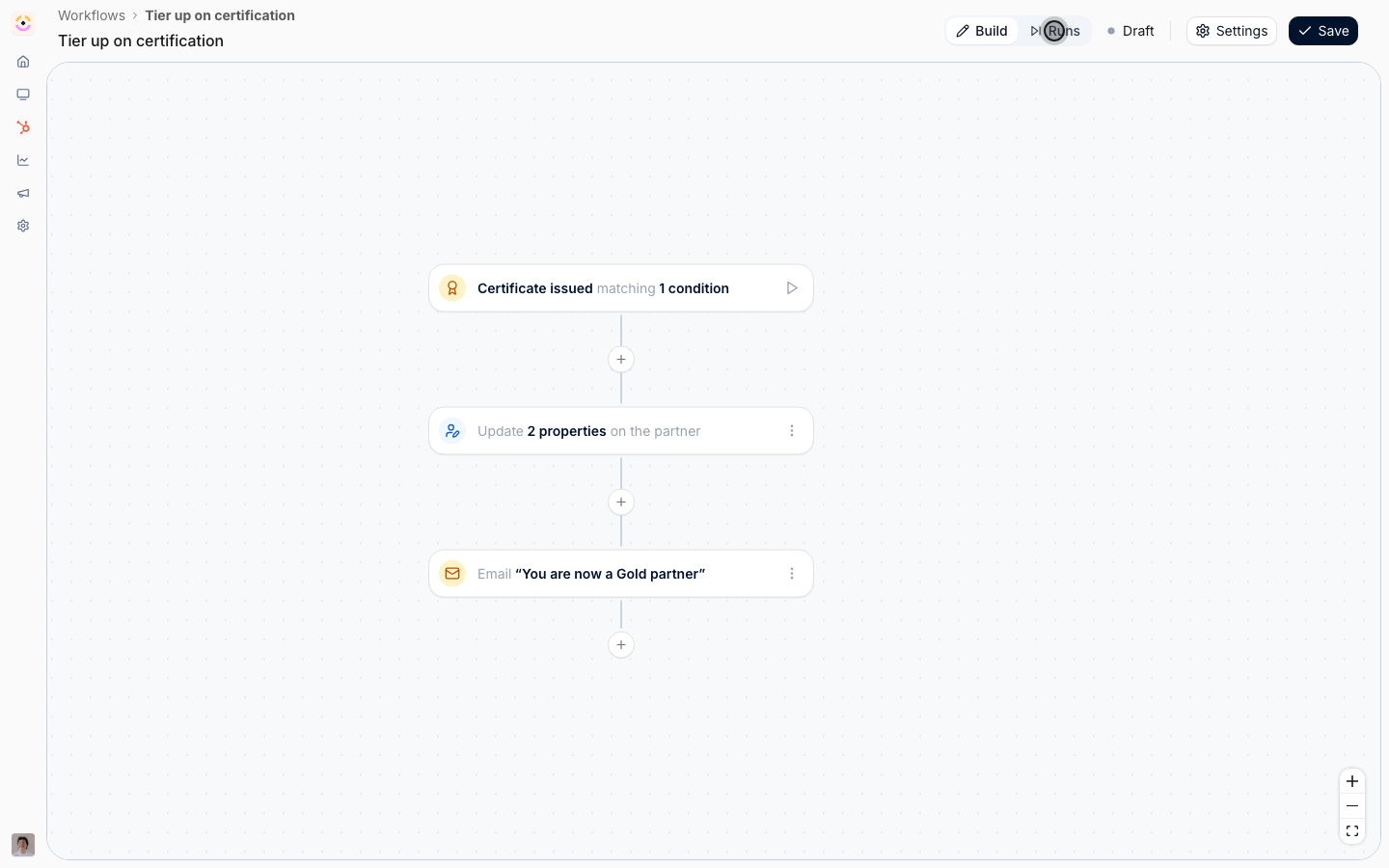
Switch the canvas to Runs
Switch the header from Build to Runs. The canvas stays put and a run list opens beside it. Reading a workflow’s history on the workflow itself is the point: a list of step names would make you rebuild the shape of the flow in your head.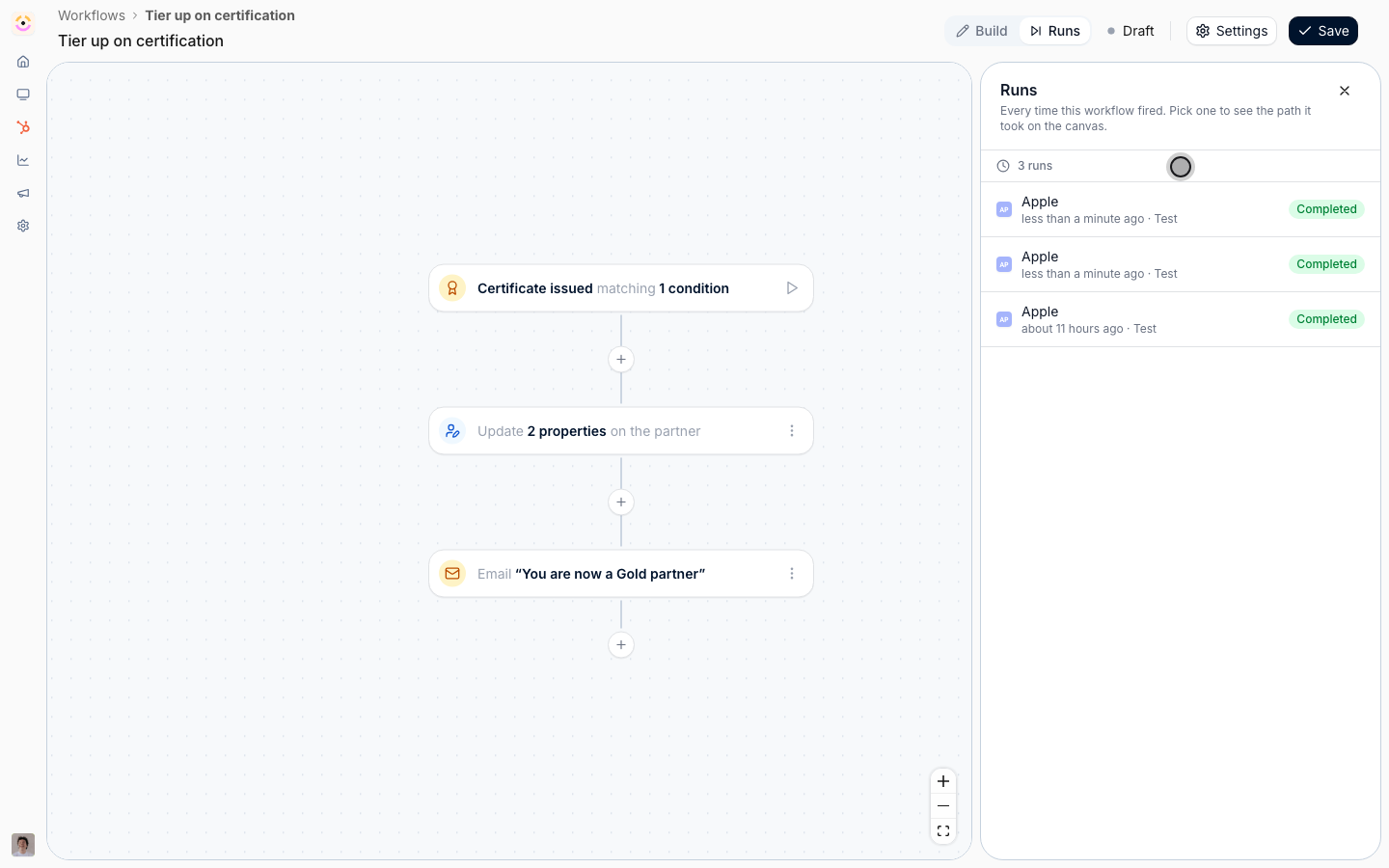
2
Read the list
Each row is one run: the partner it was about, when it started, a Test marker if it was a rehearsal, and a status. Rehearsals sit in the same log as live runs on purpose, because they are the same kind of evidence and hiding them would make “why did nothing happen” harder to answer.The statuses are: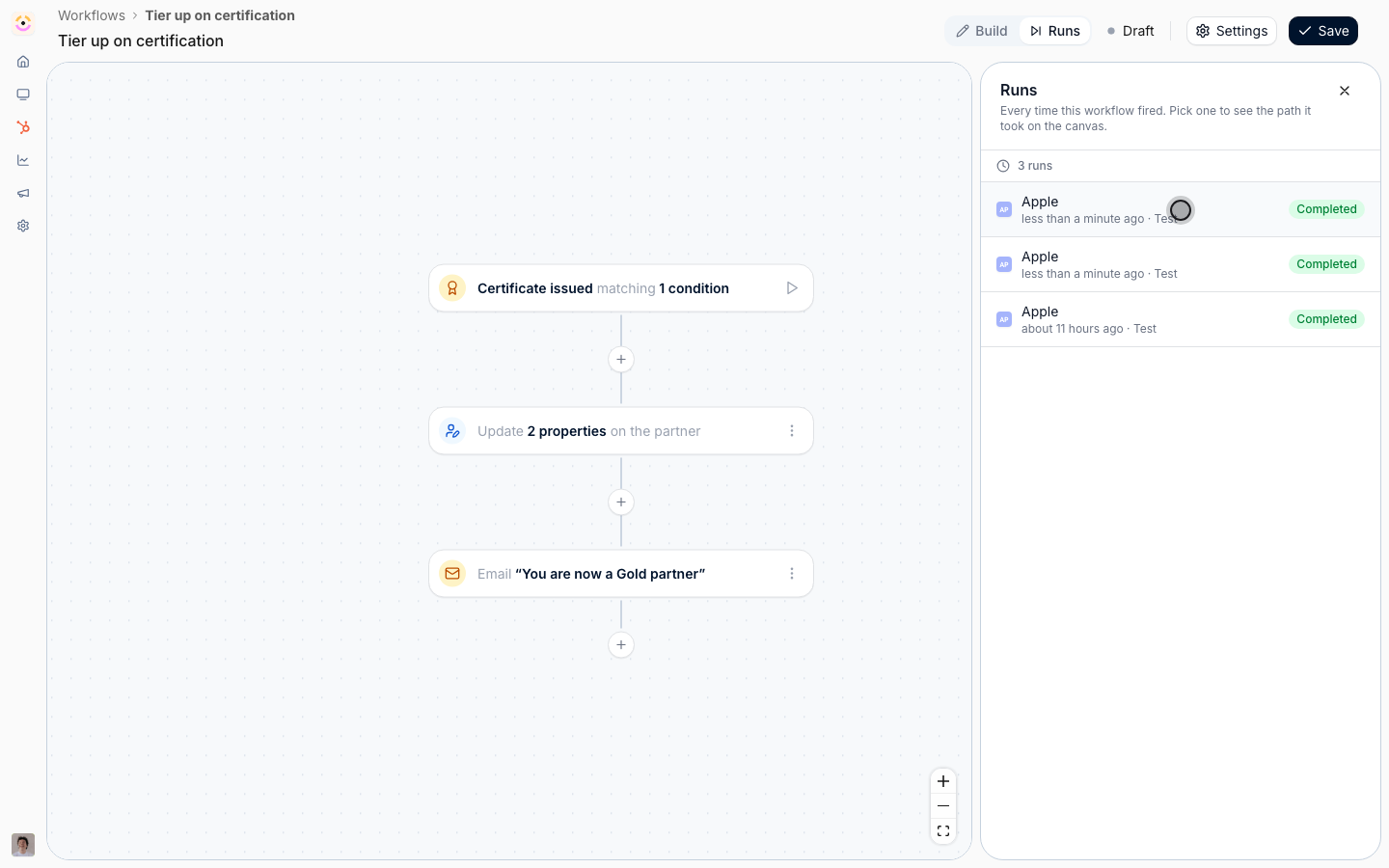
- Completed - the run finished.
- Failed - a step errored. The node carries the reason.
- Running - in progress.
- Queued - accepted, not started yet.
- Waiting - parked at a delay, which for a long chain is where most runs sit most of the time.
- Needs approval - held pending an approval.
- Cancelled - stopped before finishing.
3
Open a run and read the canvas
Select a run and it is painted onto the canvas. Every node carries an outcome: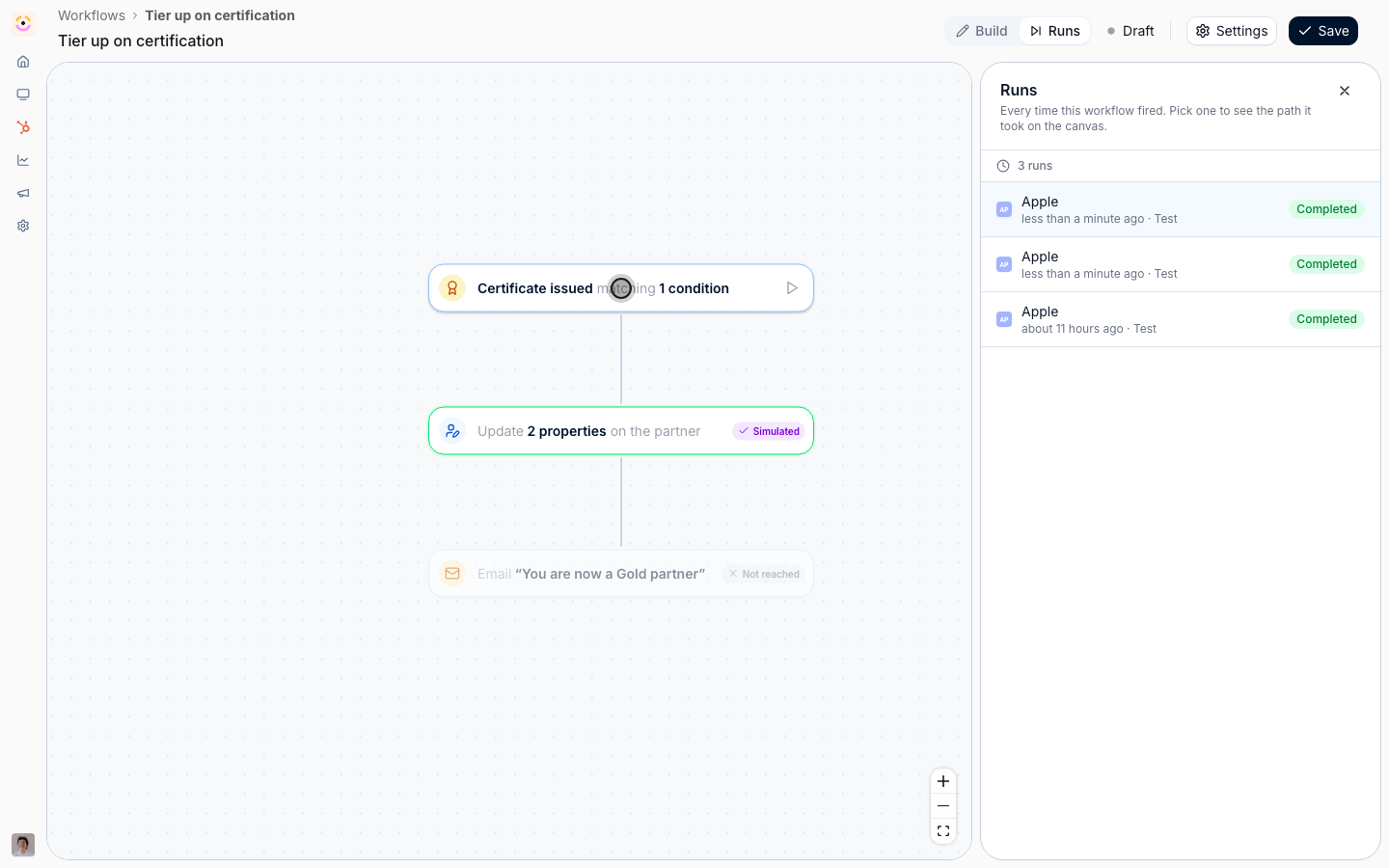
- Ran - the step executed and did what it was configured to do.
- Simulated - the same, in a rehearsal, with nothing written.
- Waited - a delay whose wait is over, and the run carried on past it.
- Waiting - a delay still counting down, or a step held for an approval.
- Running - still going.
- Failed - errored, with the message on the node.
- Not taken - the fork above went the other way, so this side was passed over. Drawn dimmed and dashed.
- Not reached - the run ended, or has not got this far yet. Drawn dimmed.
4
Read a node that stopped the run short
Some steps cannot do their job for a specific partner and stop the run rather than failing it. Those nodes carry a plain-language note, and it is usually the whole answer:
- No due date to wait for - an anchored delay had no task or course due date to measure from. Normal for some partners rather than a mistake, because a due date is optional.
- The due date is more than a year out - the anchored instant was implausibly far away, usually a mis-imported date.
- The partner has no mapped channel - the chat step could not resolve the partner’s shared Slack or Teams channel.
- The partner has no champion with portal access - an audience of “the partner champion” resolved to nobody.
- The partner has no portal contacts - an email audience resolved to nobody at all.
Use the two together
1
Rehearse for shape, enable for audience
Split the two questions and each becomes easy. A rehearsal answers “is the flow the one I drew, and do the steps resolve for a real partner”. Only a live run answers “does the trigger fire for the partners I meant”, because the rehearsal deliberately skips the trigger’s filter.So the sequence is: rehearse until the shape is right, enable, then read the first real runs to confirm the audience. If the run list stays empty, the narrowing is wrong, not the steps.
2
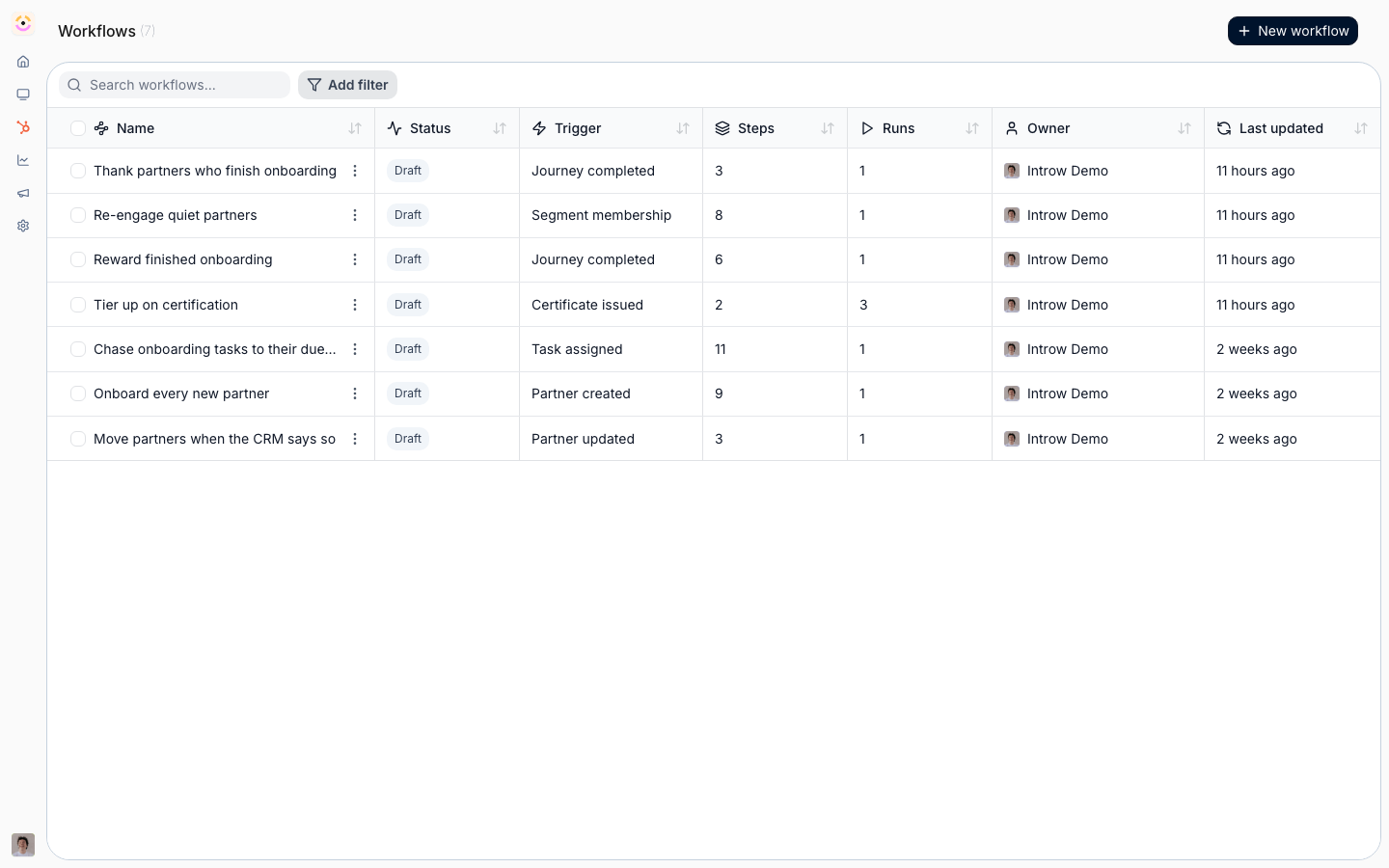
Check the run count on the list
The workflows list carries a Runs column, so you can spot a workflow that has never fired and one that is firing far more than expected without opening either. Sort by it after a week of running.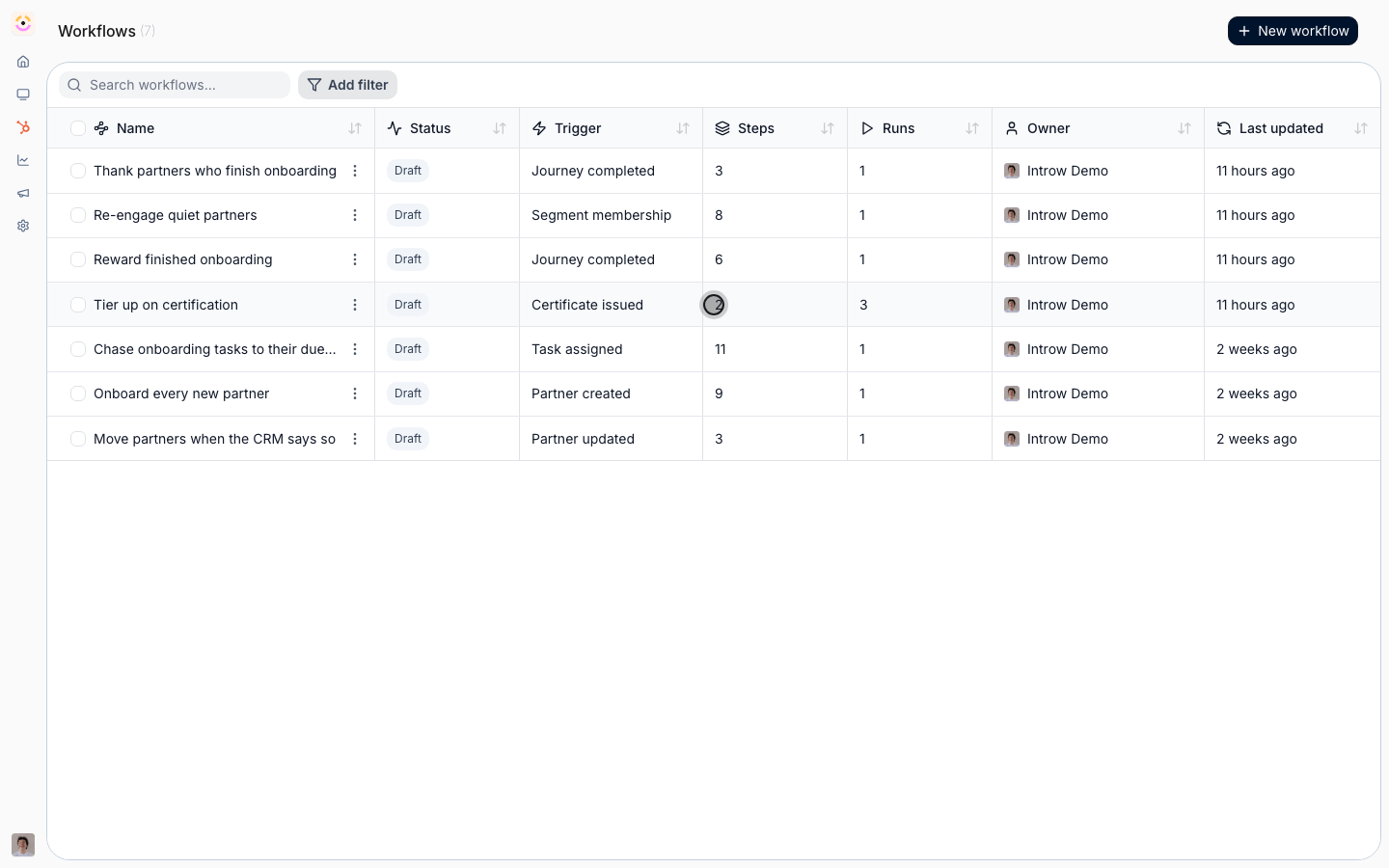
3
Know the one cap that can hide runs
No single partner starts more than ten runs of the same workflow in an hour. It exists to stop two automations triggering each other into a loop, and beyond the cap triggers for that partner and workflow are dropped.If a busy partner’s runs stop appearing, check whether one workflow writes a field another one triggers on. Changes a workflow makes itself never re-trigger that same workflow, but a cycle across two workflows is not something either of them can see.
Verify it worked
You should be able to answer three questions about any workflow you own, without leaving its page: how many times it has run and for which partners, which path the most recent run took and what it changed, and if a run stopped early, which node stopped it and why. When a colleague asks whether the automation is working, the answer is a run on a canvas rather than an opinion.Related
Build your first workflow
Build something to rehearse.
Chase a task to its due date
A chain where most runs sit in Waiting, and reading the canvas matters.
Workflows setup reference
Every trigger, action, condition, and delay option.