

What you’ll achieve
An enabled workflow that, for every partner assigned the task you name, sends the reminder before the deadline, the follow-up after it, and the escalation to your own team, all measured from that task’s own due date, and stops the moment the task is marked done.Before you start
1
Have the journey and task this chases
The chase is worth building for a specific task, not for every task in the program. Have the journey and know the exact name of the task inside it. See Build a journey from scratch.
2
Make sure that task has a due date
The whole chain is measured from the task’s due date, and a task without one stops the workflow at the first wait. On a journey’s task, the due date is set as days after assigned. Check it is set before you build this.
3
Decide who the escalation goes to
The escalation reaches your own colleagues assigned to the partner, optionally narrowed by the partner team role they hold. If you want it to reach only partner managers rather than the whole internal team, set up those roles first. See Set up partner team roles.
Watch it
- Video
- Click through
Steps
Set the trigger
1
Create the workflow and pick Task assigned
Go to Workflows, select New workflow, then select the trigger node and choose Task assigned under Tasks & journeys.Task assigned fires when a partner acquires a task, which means when it is created. Reassigning an existing task between people does not fire it, so the chain does not restart every time a manager tidies up ownership. It is also the only trigger that offers a wait anchored to the task’s due date, which is what the rest of this workflow is built on. Task completed would be too late: the clock has to start when the work appears, not when it is done.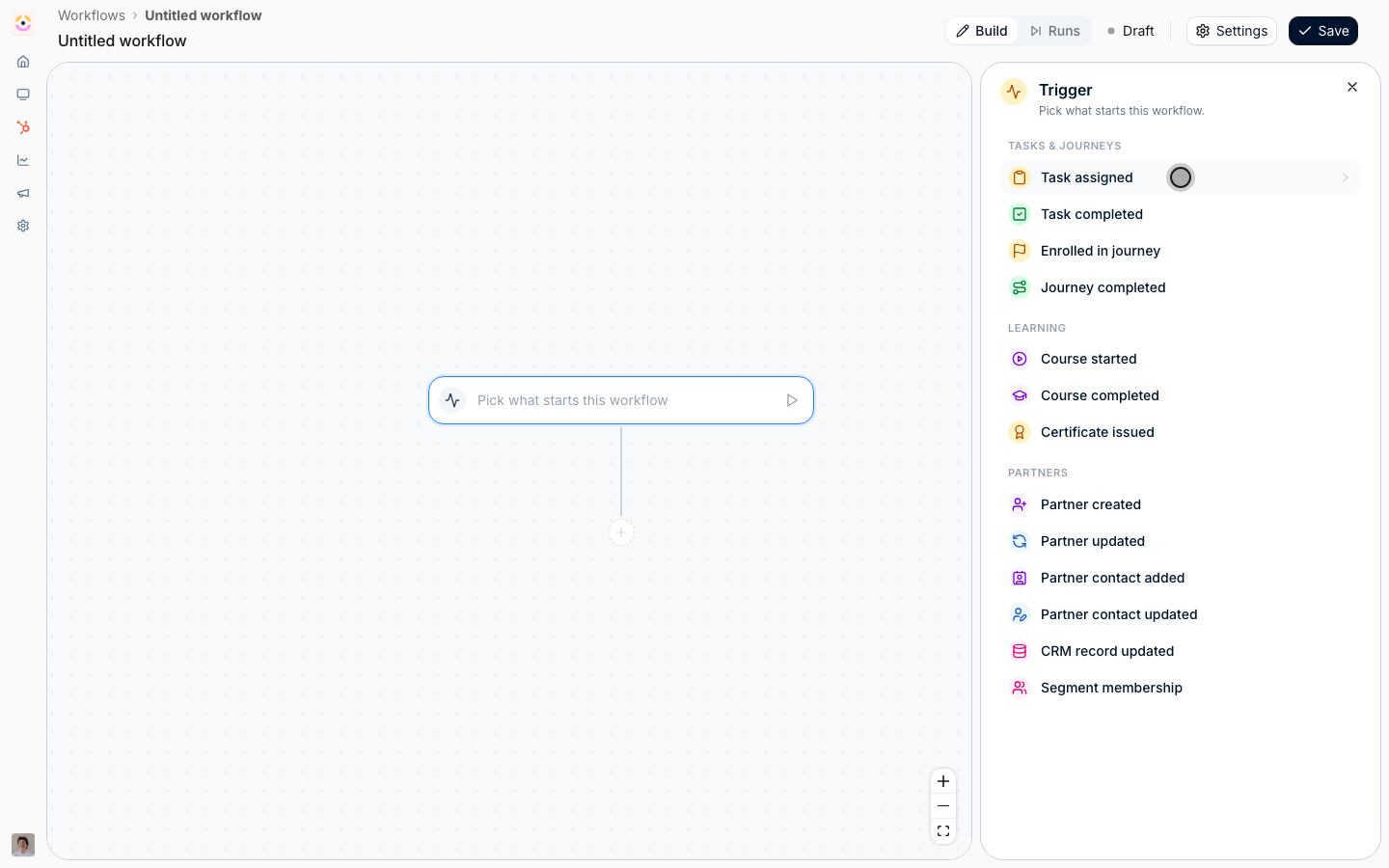
2
Narrow it to the one task you are chasing
Under Only for tasks matching, build two conditions: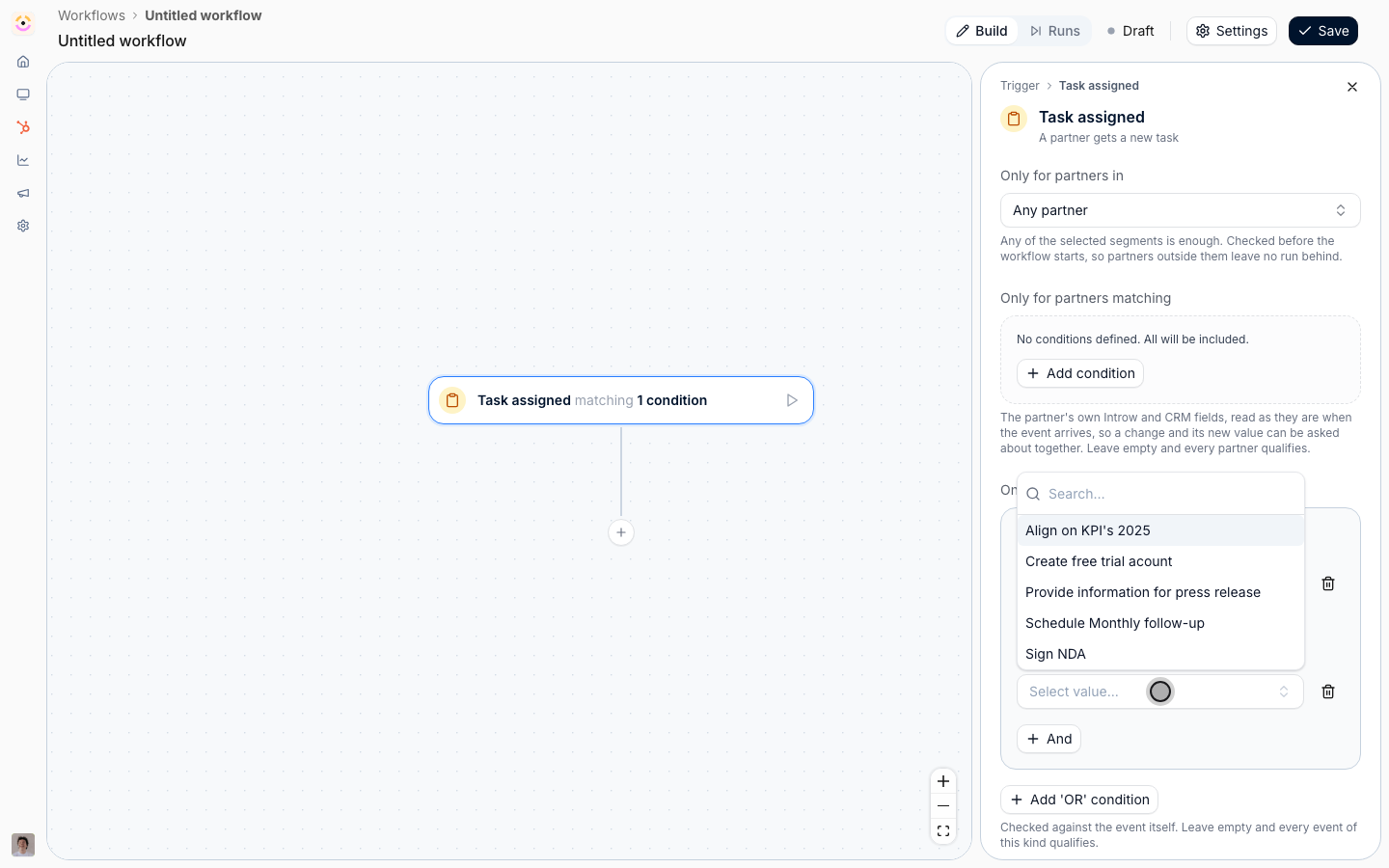
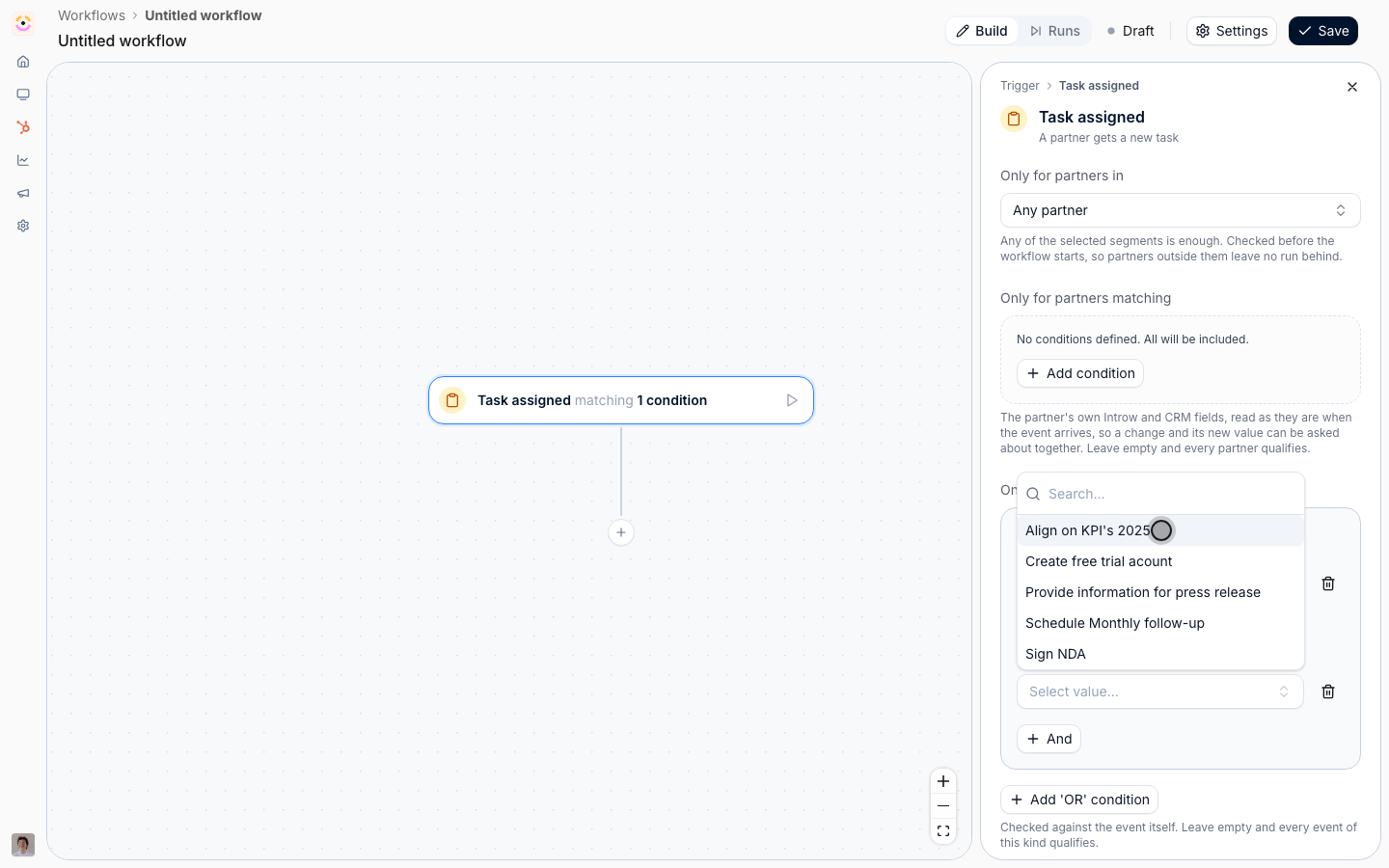
- Journey is your journey. Narrowing by journey first is what makes the next condition exact, because the Task list is then scoped to that journey’s tasks instead of every task in the program.
- Task is the task you are chasing, picked from that scoped list.
Nudge before the deadline
1
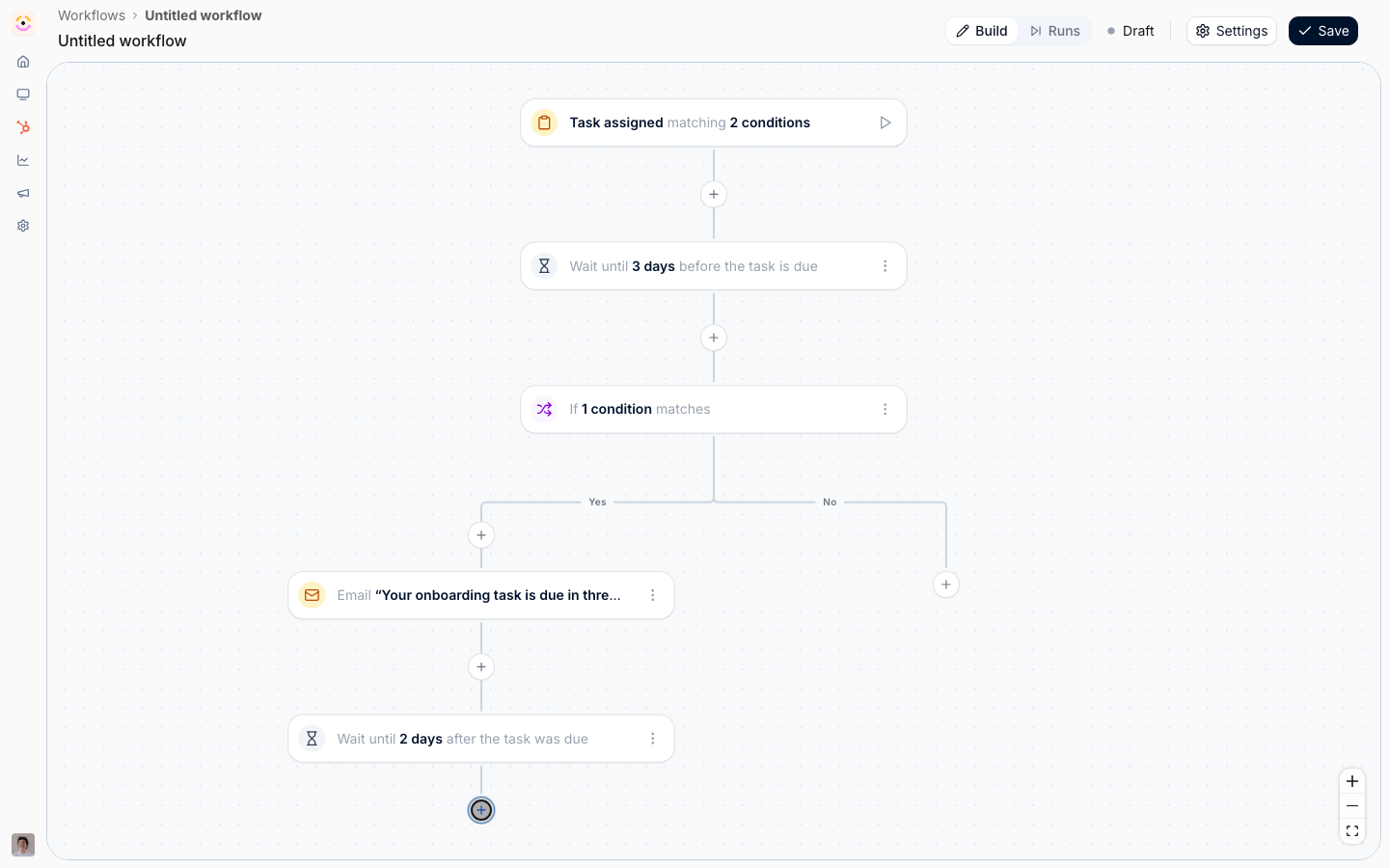
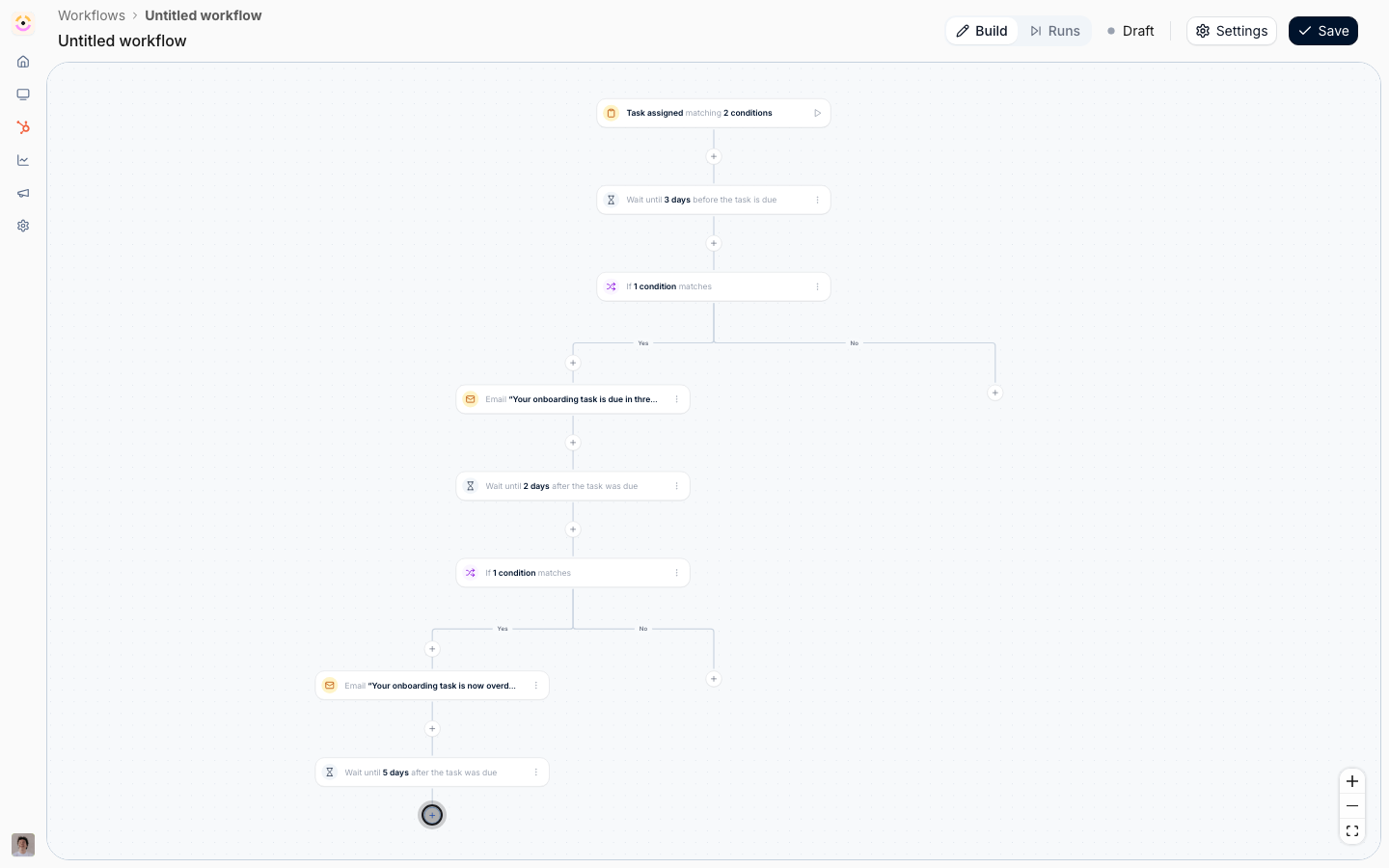
Wait until three days before it is due
Select the + under the trigger and choose Delay.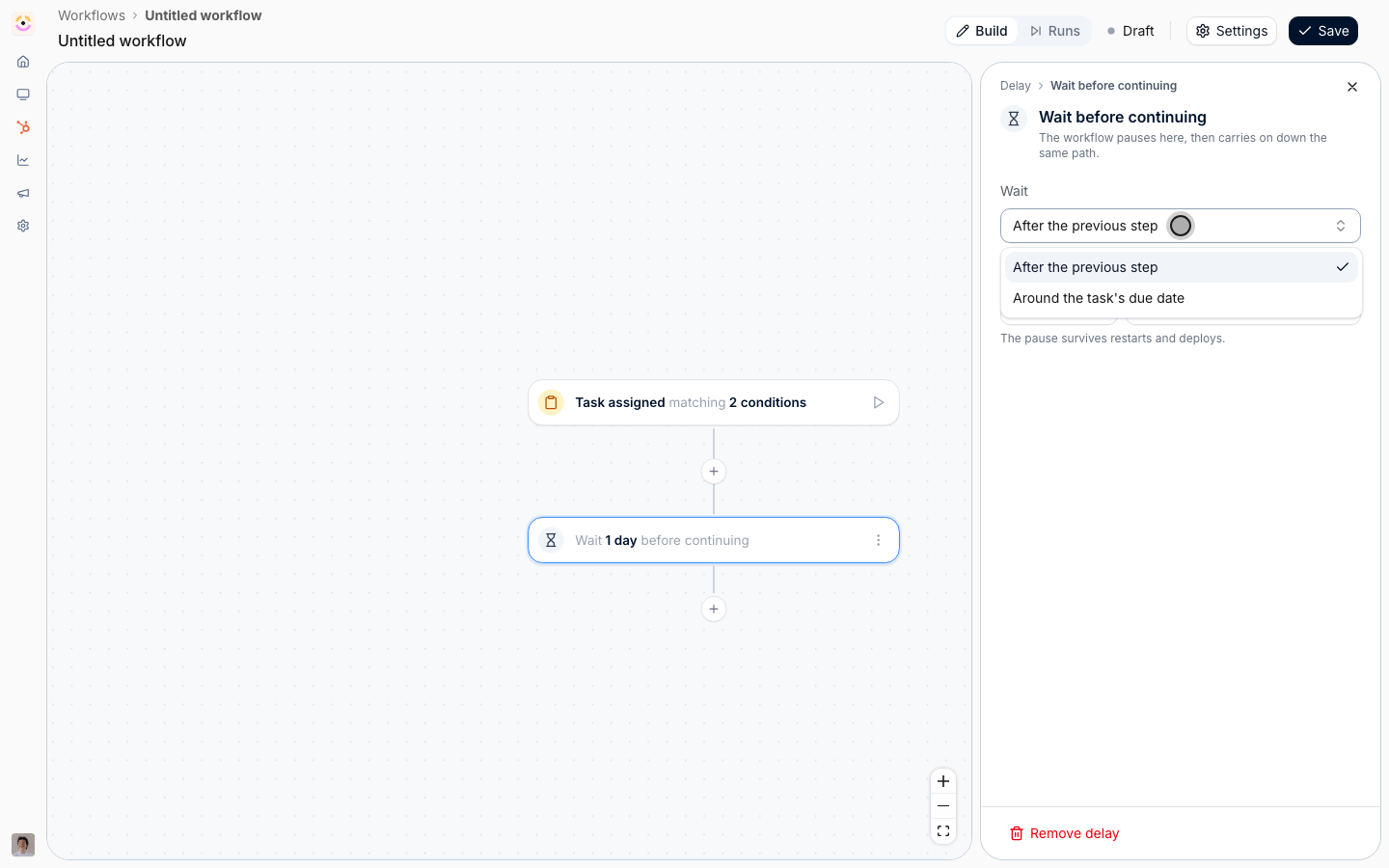
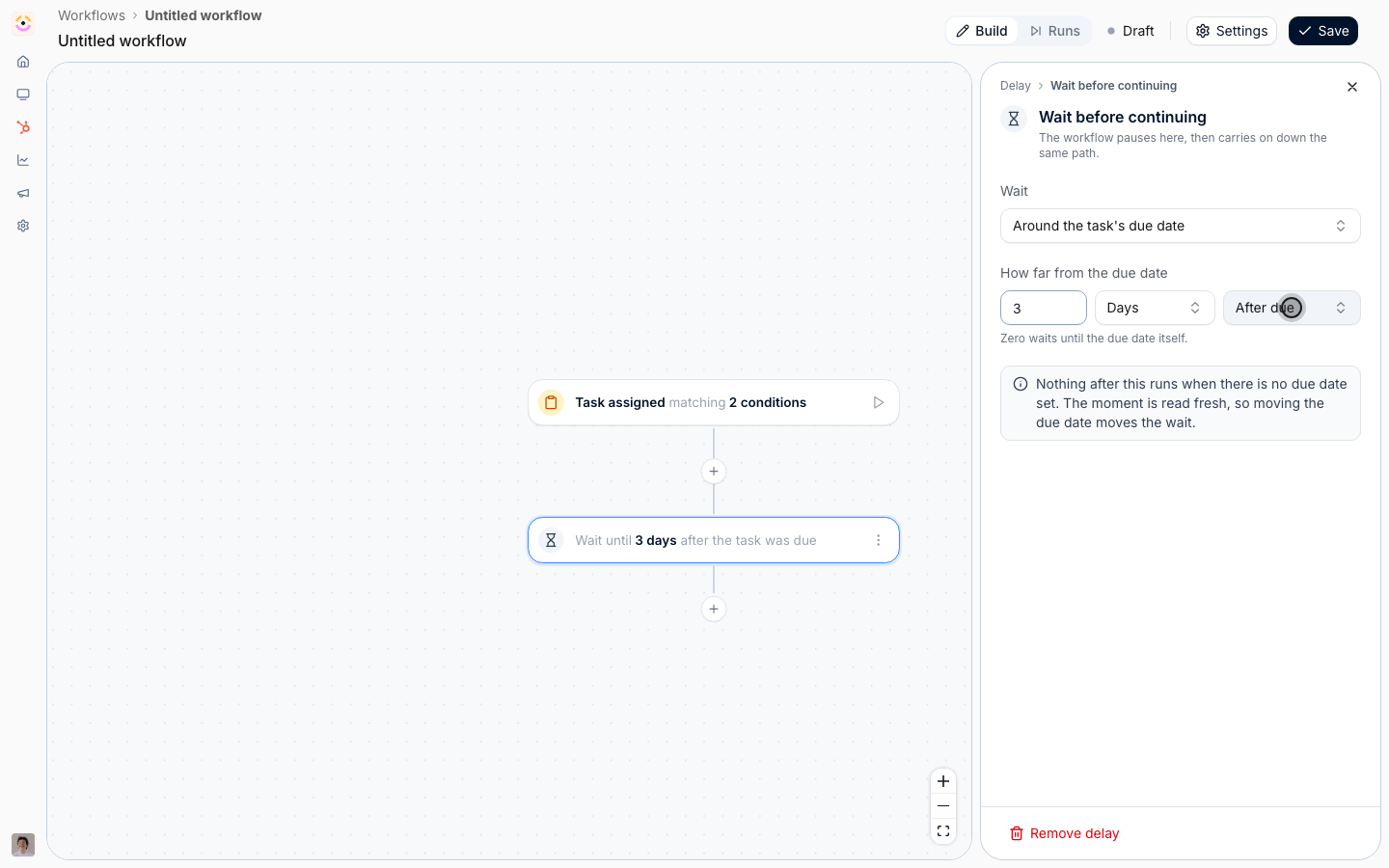
- Wait - choose Around the task’s due date. This option only appears because the trigger is Task assigned. The alternative, After the previous step, is a plain pause and would mean “three days after the task appeared”, which is not the same thing at all and drifts as soon as anyone edits a due date.
- How far from the due date - enter 3, unit Days, direction Before due. Zero would wait until the due date itself.
2
Check whether they have already done it
Select the + under the delay and choose Condition. Under the trigger’s own condition block, add: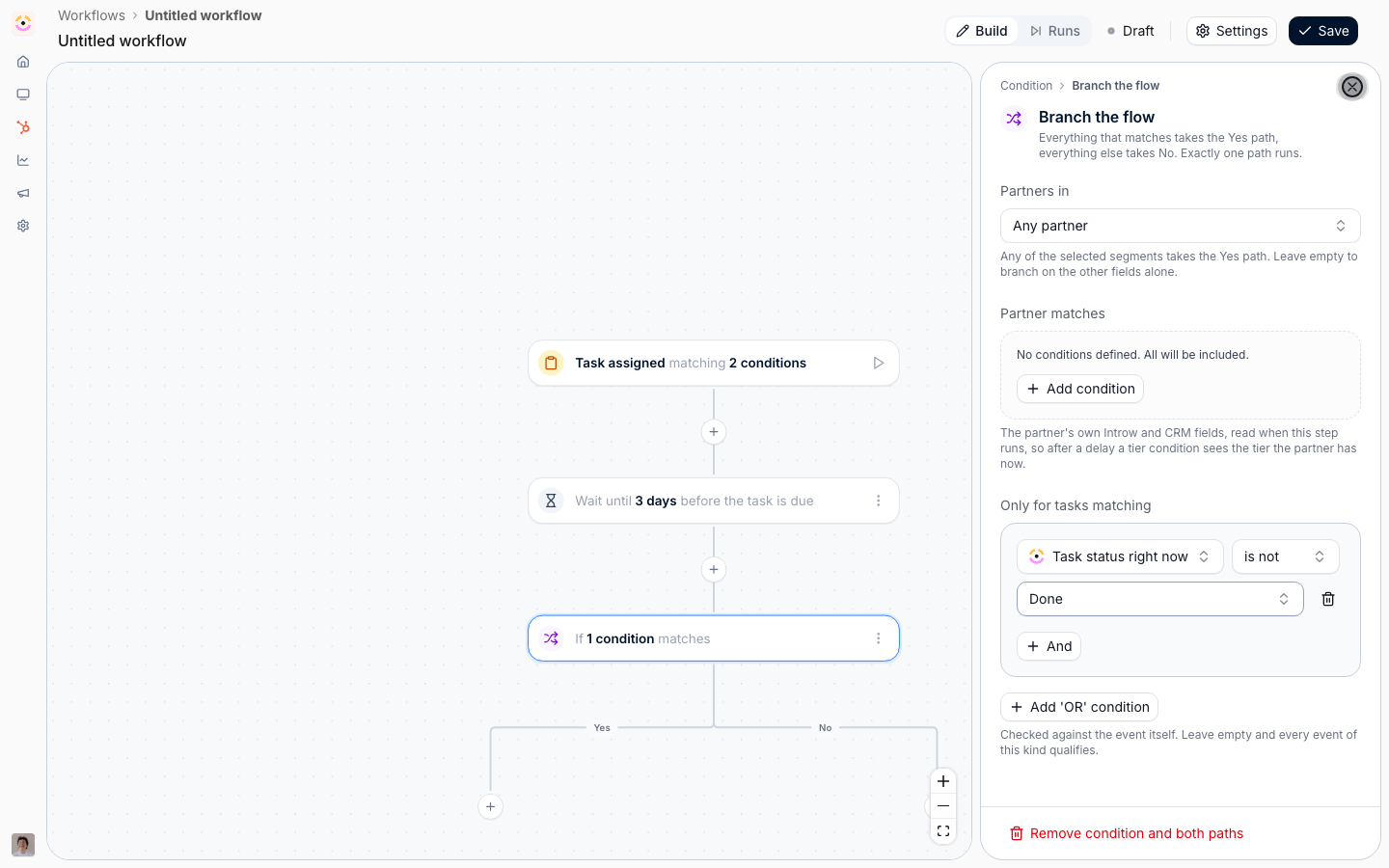
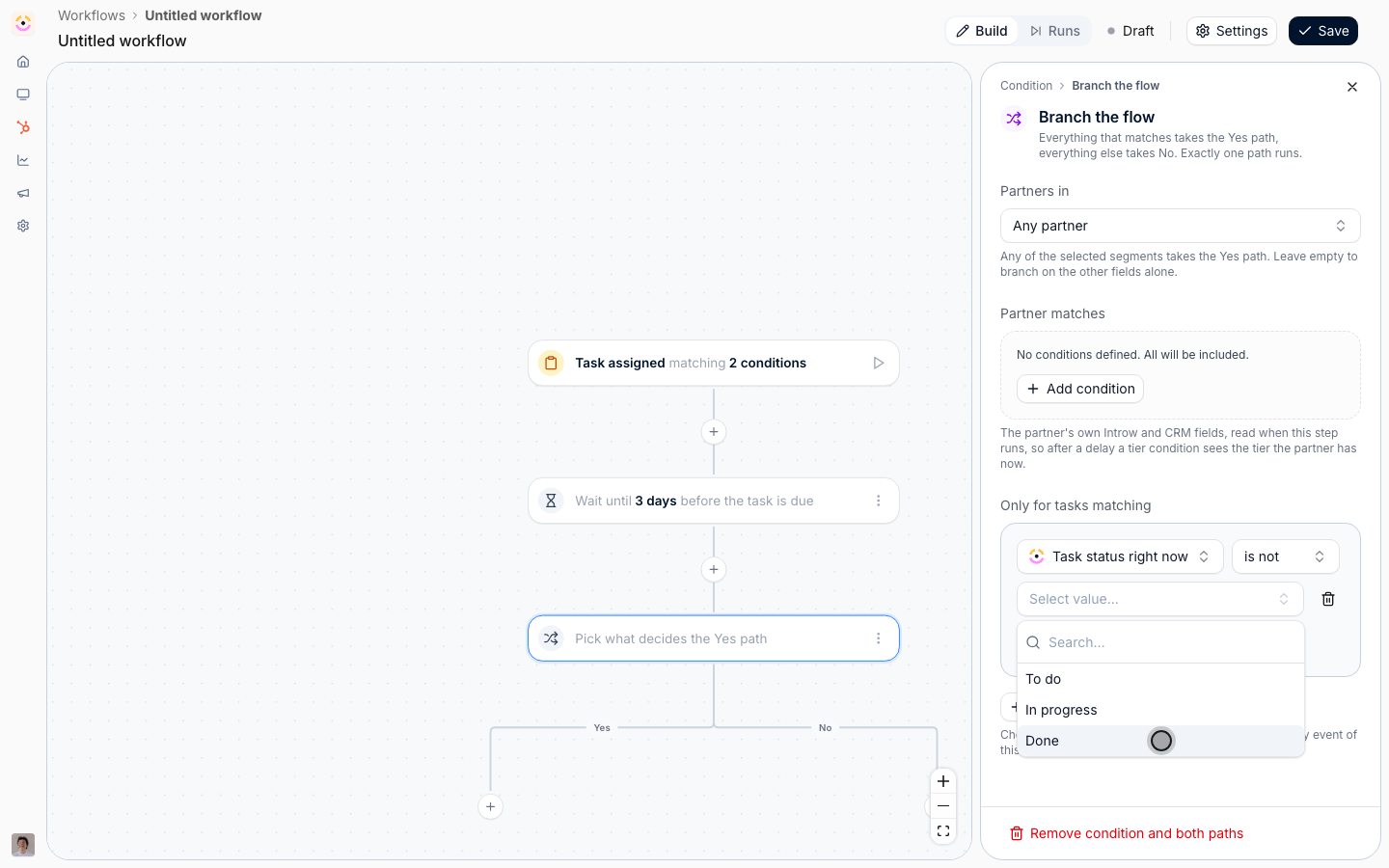
- Task status right now is not Done.
3
Send the reminder on the Yes path
On the Yes path, add an Action, then Send an email.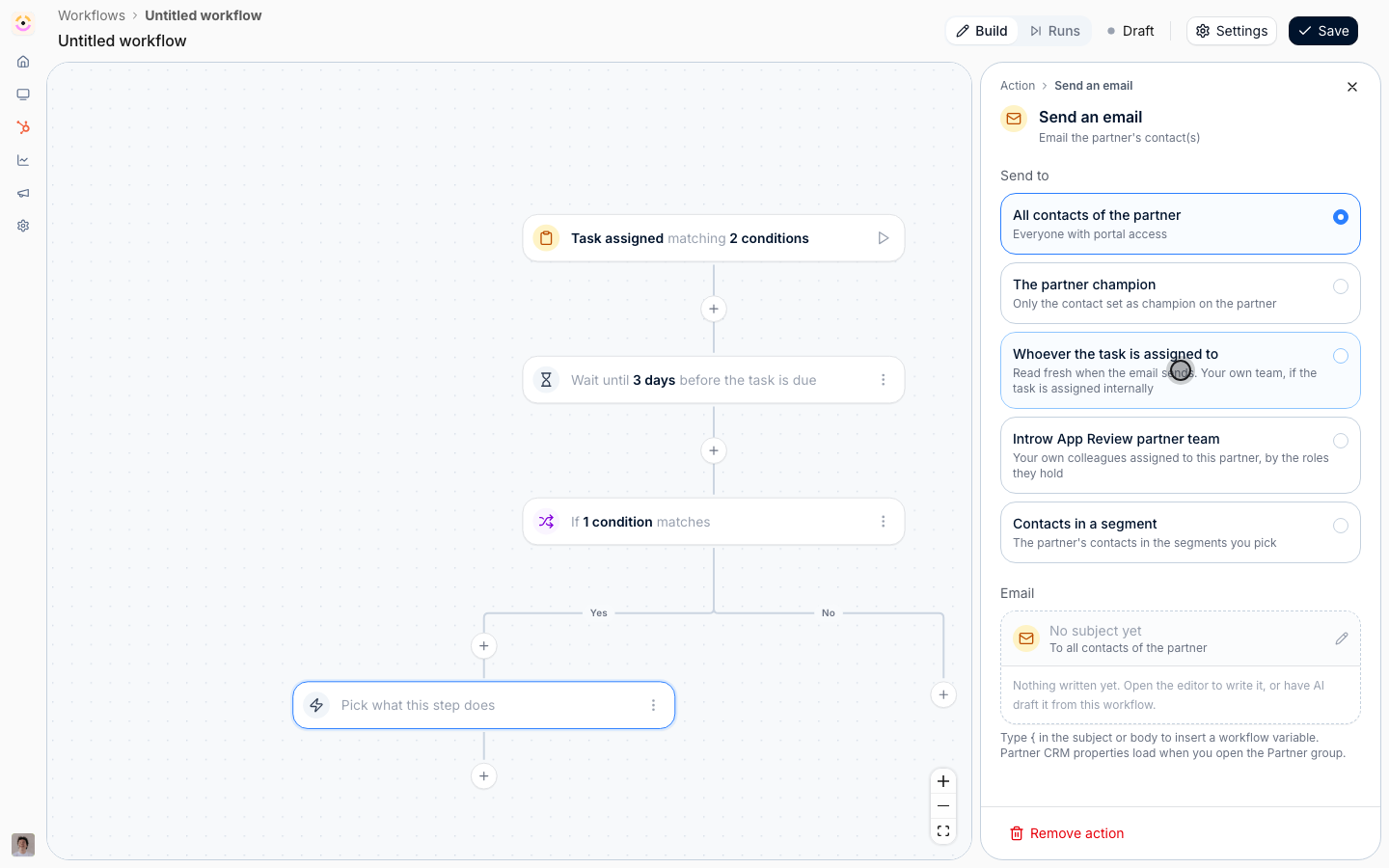
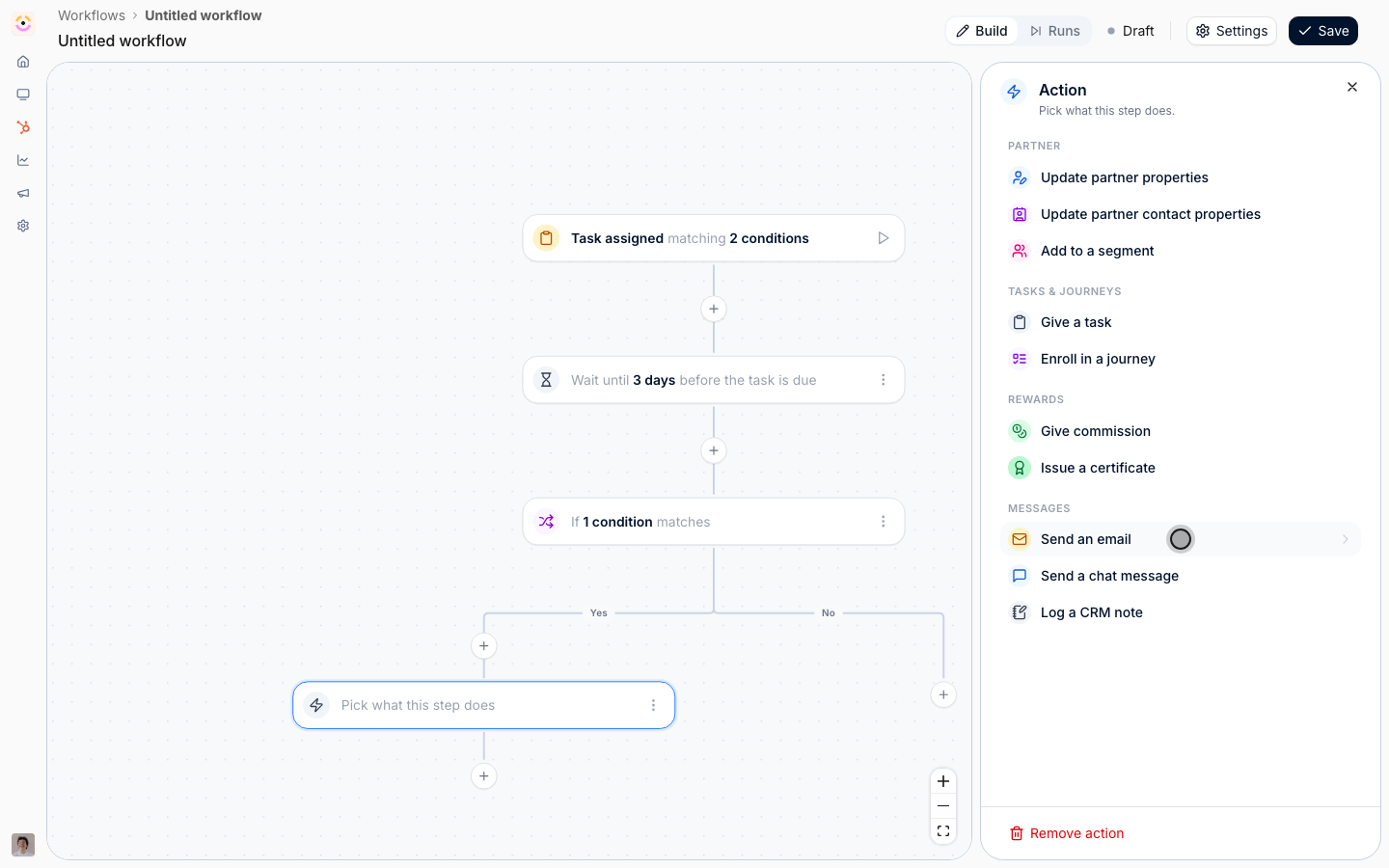
- Send to - Whoever the task is assigned to. This option appears only on task triggers, and it resolves when the email sends, so it reaches whoever currently owes the task rather than whoever owed it when the workflow started. Be aware it can be one of your own team if the task was assigned internally, so write the copy so it reads sensibly either way.
- Email - a short, friendly reminder with the deadline in it. Generate with AI drafts it from this position in the flow, which means it already knows it is a pre-deadline nudge.
Nudge again once it slips
1
Wait until two days after it was due
Still on the Yes path, under the email you just added, add another Delay.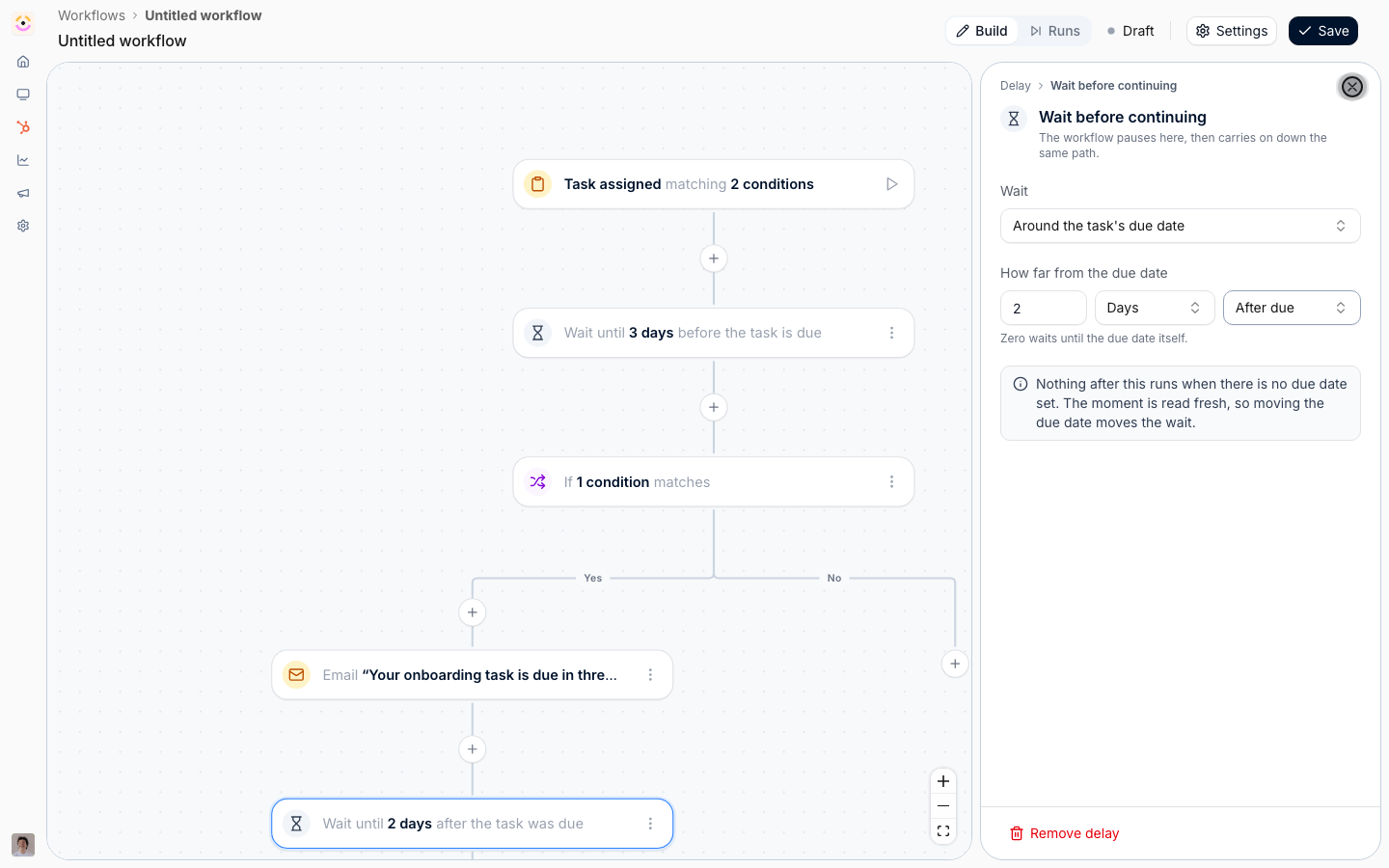
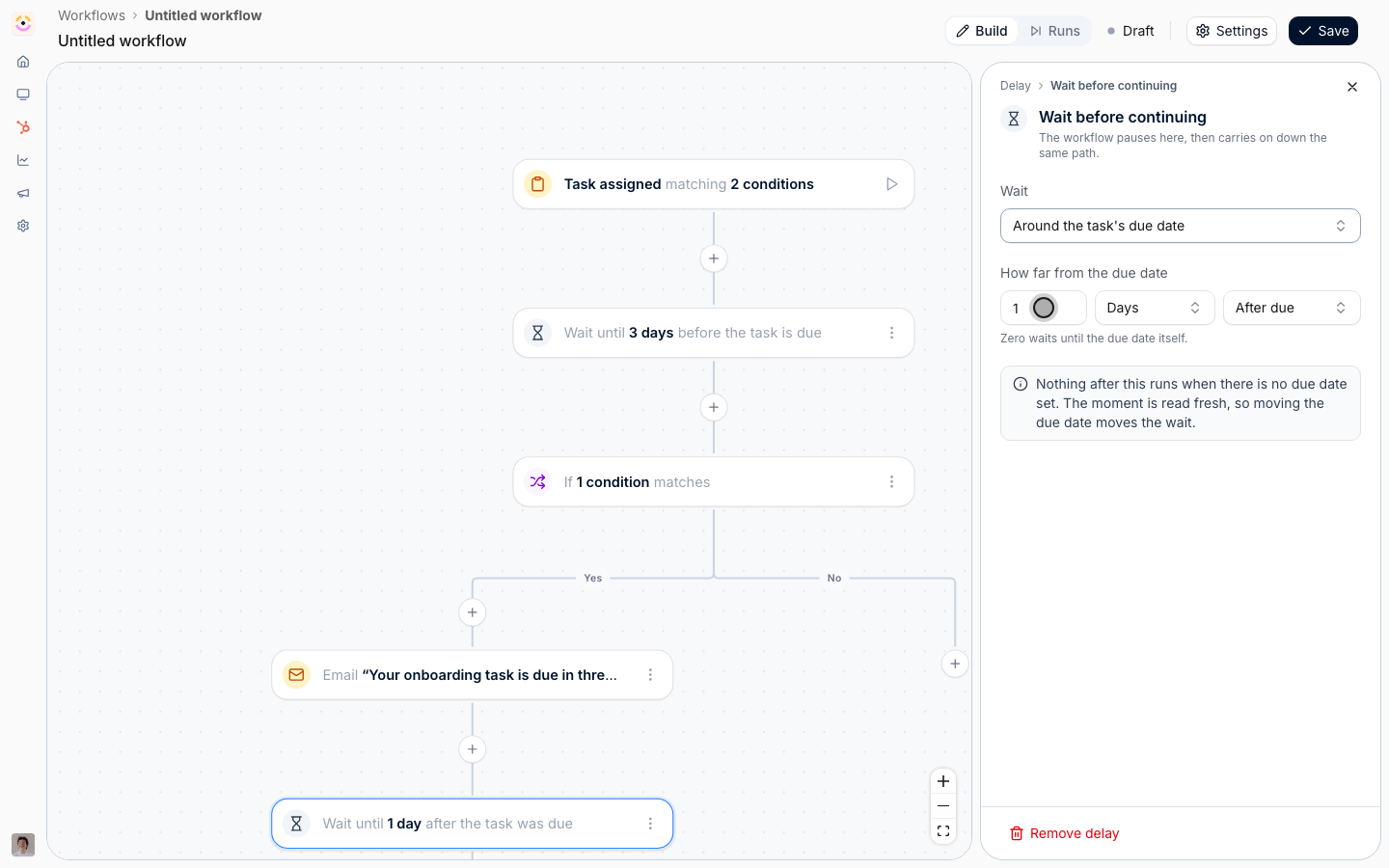
- Wait - Around the task’s due date again. A second anchored wait is measured from the same due date, not from the previous step, so you express each moment in the chain absolutely rather than accumulating offsets in your head.
- How far from the due date - 2, Days, After due.
2
Check again, then nudge harder
Add a Condition with the same Task status right now is not Done check. The partner may have acted on the first reminder, and this is what stops the second one reaching them.On its Yes path, add Send an email to Whoever the task is assigned to again, with copy that acknowledges the deadline has passed.If your partners live in Slack or Teams, this is a good place for Send a chat message instead of, or as well as, the email: pick The partner’s channel to post into the shared channel mapped on the partner’s page, and write 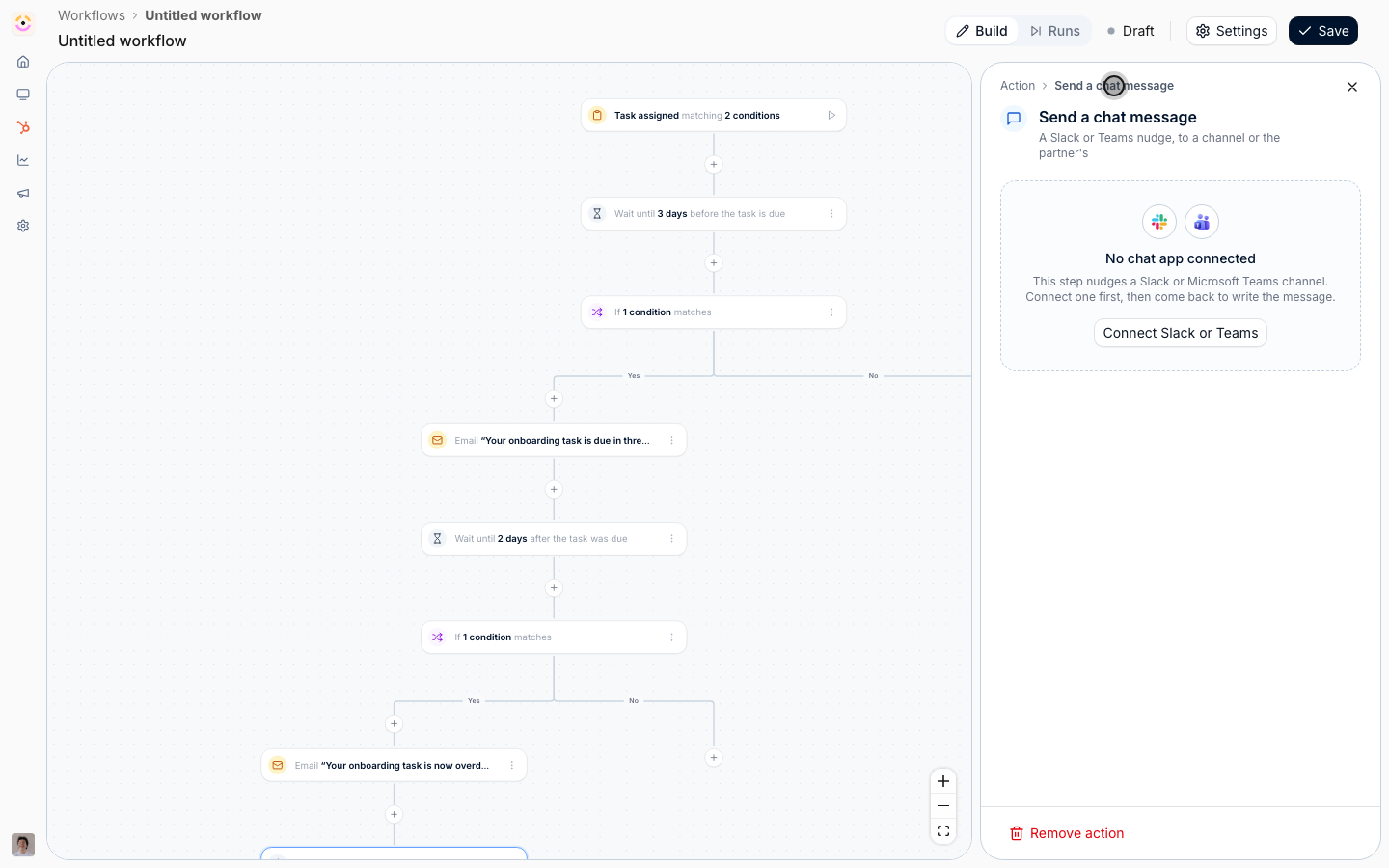
{{partner}} where you want the partner’s name. A message in a channel a partner already watches outperforms a third email. This needs a connected Slack or Microsoft Teams workspace. See Chat integrations.Escalate to the partner manager
1
Wait until five days after it was due
Under the second nudge, add a third Delay: Around the task’s due date, 5, Days, After due. Three days after the second nudge, and still anchored to the same date.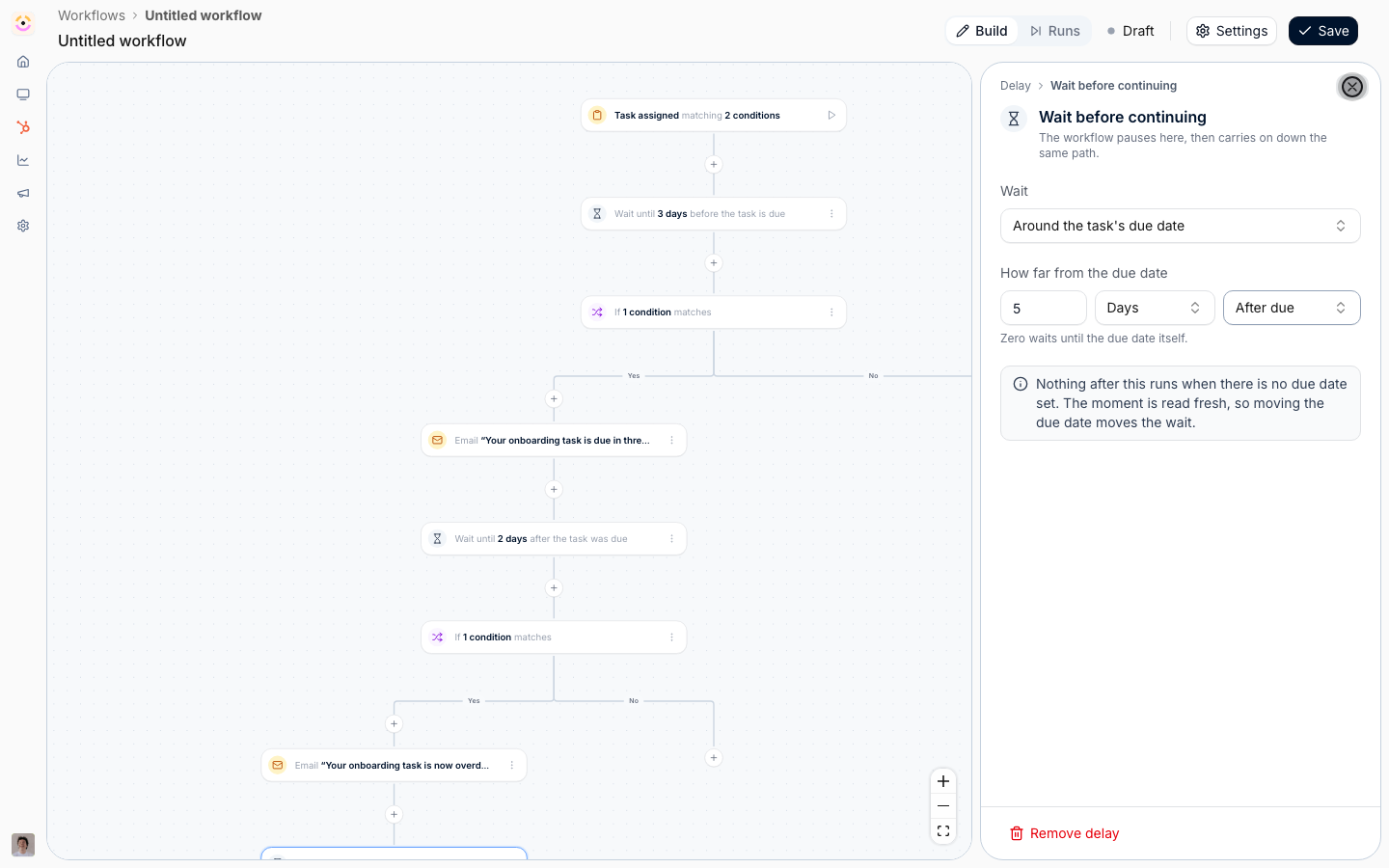
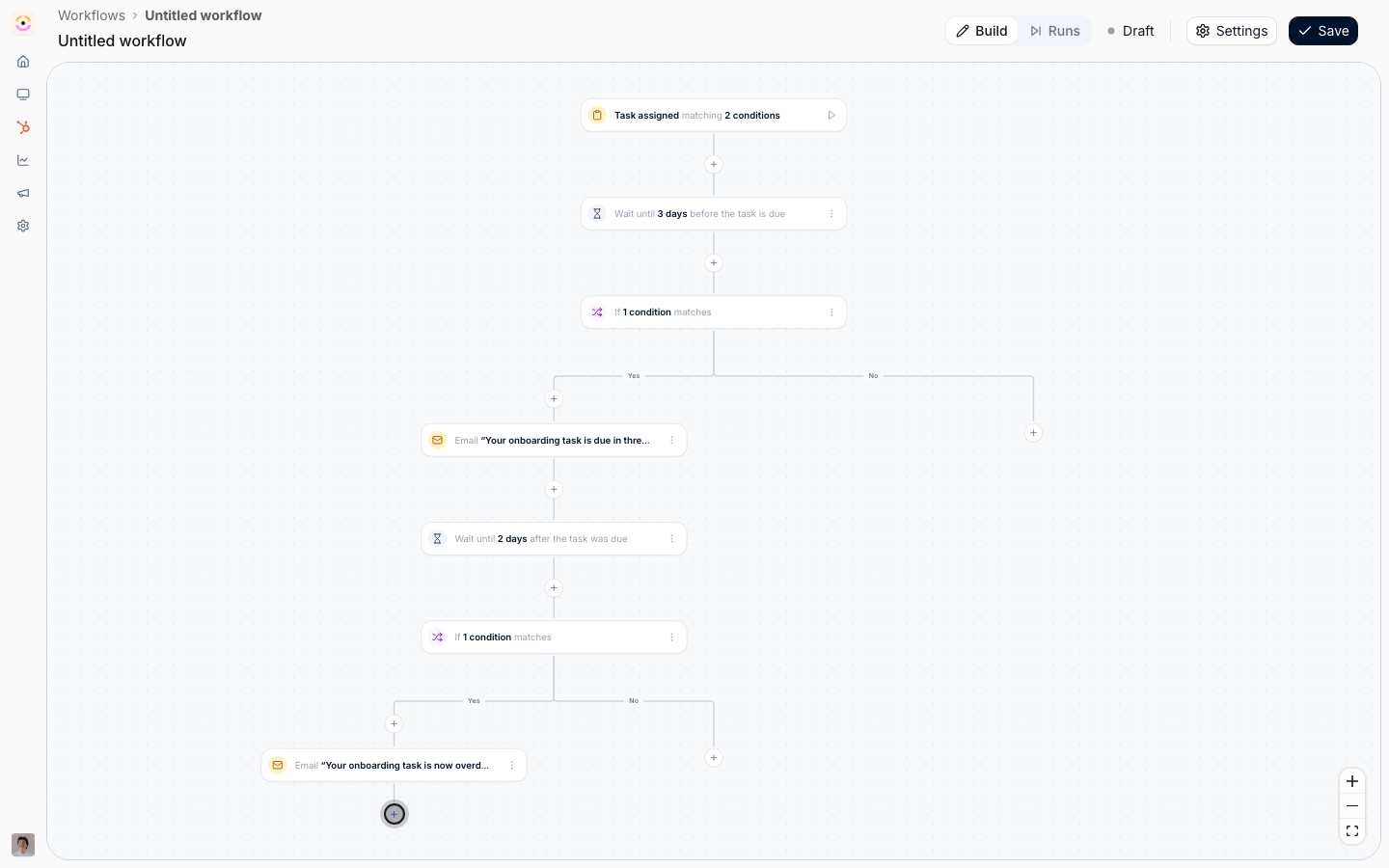
2
Check one last time
Add a Condition with Task status right now is not Done. Two nudges have gone unanswered, so this fork is what separates a partner who needs a human from one who simply took their time.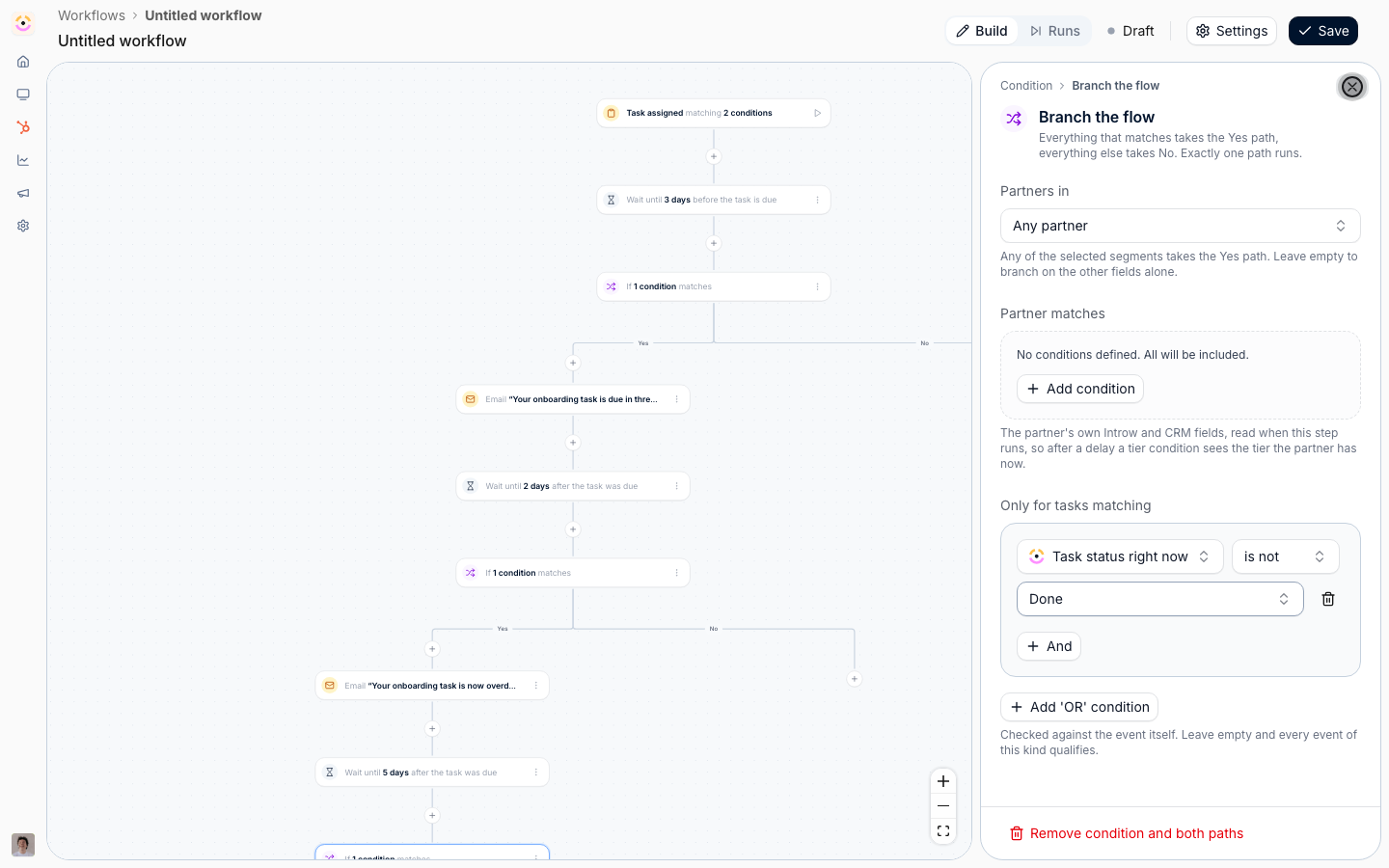
3
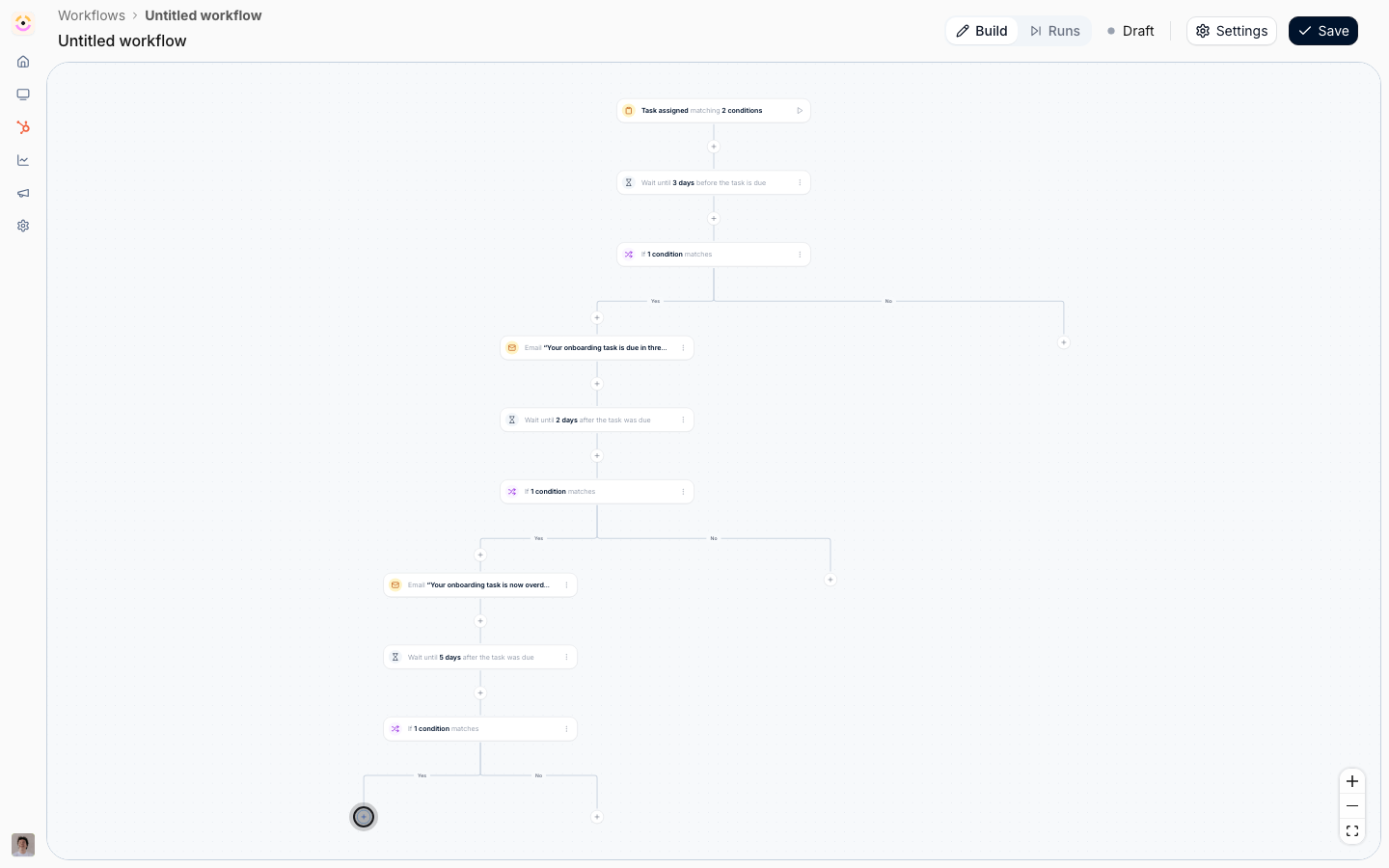
Tell your own team
On the Yes path, add Send an email.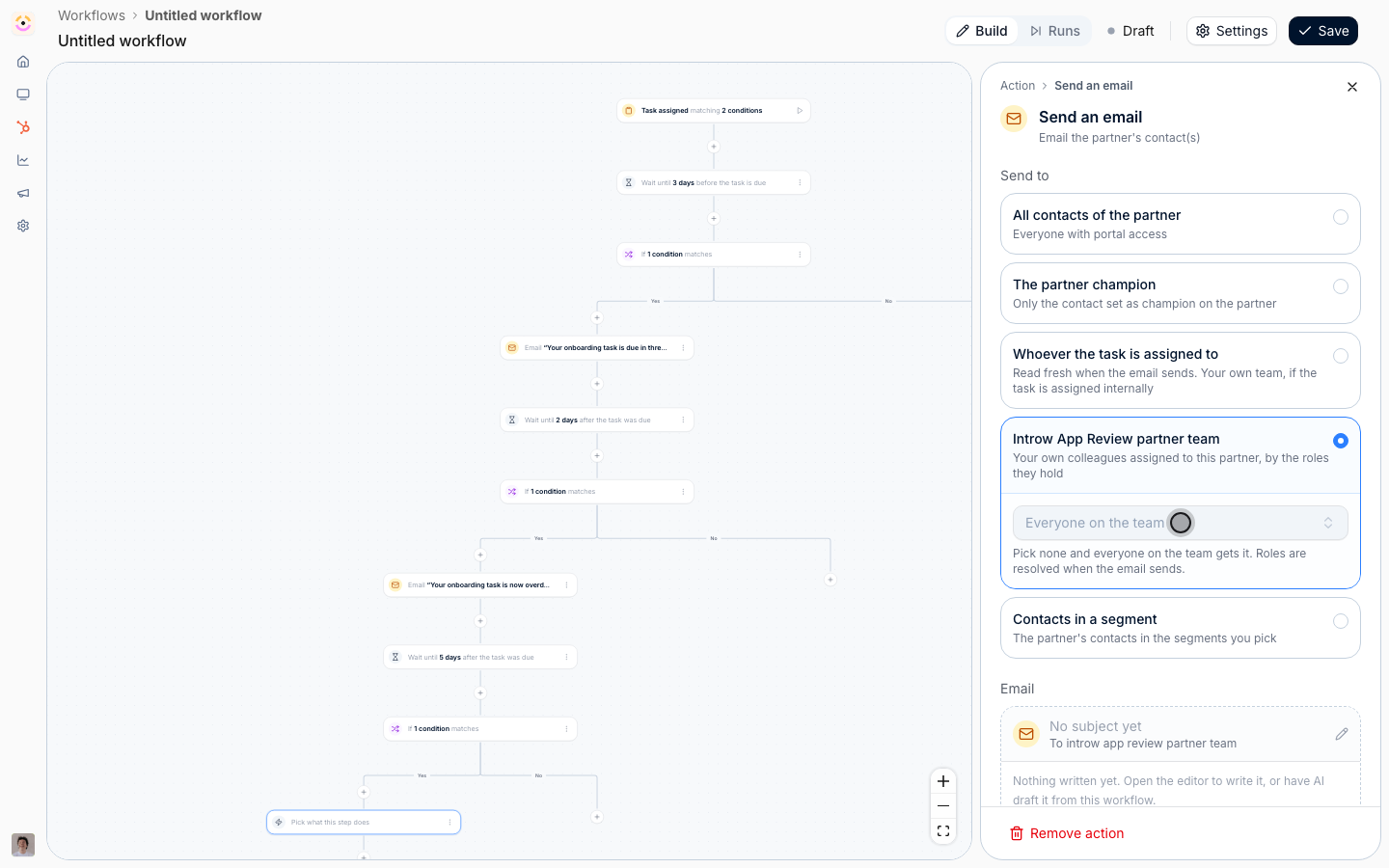
- Send to - Your partner team, which shows as your organisation’s name followed by “partner team”. This is the one audience that is always internal: your own colleagues assigned to this partner. A Roles picker appears under it. Pick the partner manager role to reach only them; leave it empty and everyone on the partner’s team gets it. Roles are resolved when the email sends.
- Email - name the partner, the task, and how long it is overdue, and say the automated nudges have already gone out, so the manager knows what the partner has already heard.
- Give a task with Assignee set to one of your own team, Task name something like “Call the partner about overdue onboarding”, and Due date two days after assigned. An email is read and forgotten; a task appears on someone’s list until it is done. Set Visibility to Internal so the partner never sees the escalation.
- Log a CRM note so the escalation is on the partner’s record in HubSpot or Salesforce for whoever picks the account up next. Write
{{partner}}for the partner’s name.
A workflow that triggers on Task assigned and also gives a task could set itself off. Introw refuses to enable that pairing, unless the trigger is narrowed to specific journeys, because a task a workflow creates belongs to no journey and so can never re-trigger it. The Journey condition you set on the trigger is what makes this escalation task safe. If Enable complains that the workflow would give partners the task that triggers it, that condition is missing.
Rehearse and enable
1
Test the whole chain
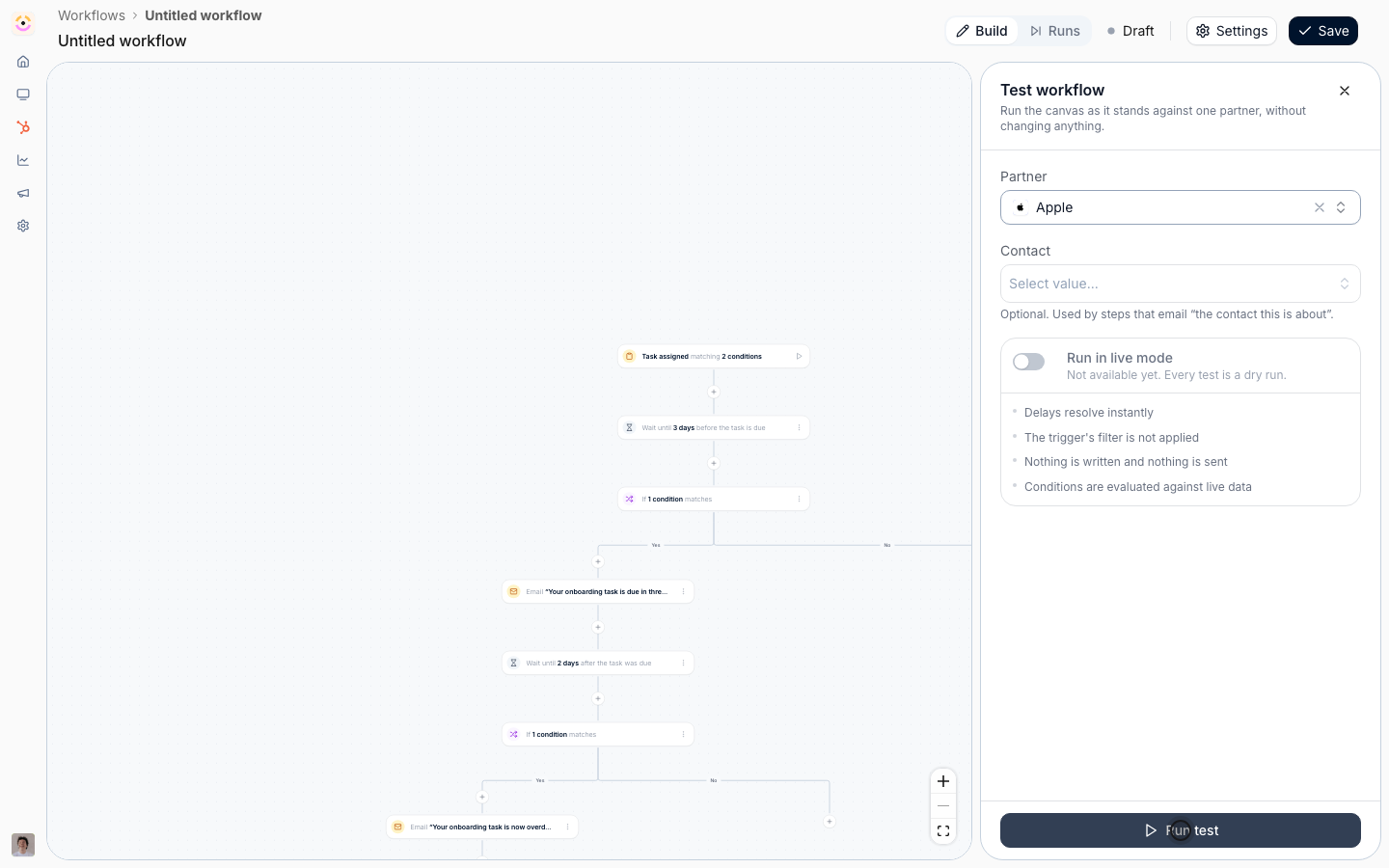
Select the play button beside the trigger, pick a partner, and select Run test. Delays resolve instantly in a rehearsal, so the whole chain plays out in seconds and you can see which side of each fork the run took without waiting a week. Nothing is written and nothing is sent.Remember the rehearsal does not apply the trigger’s filter, so it will run for the partner you picked whether or not they have the task. What you are checking here is the shape: three delays, three forks, the right audiences.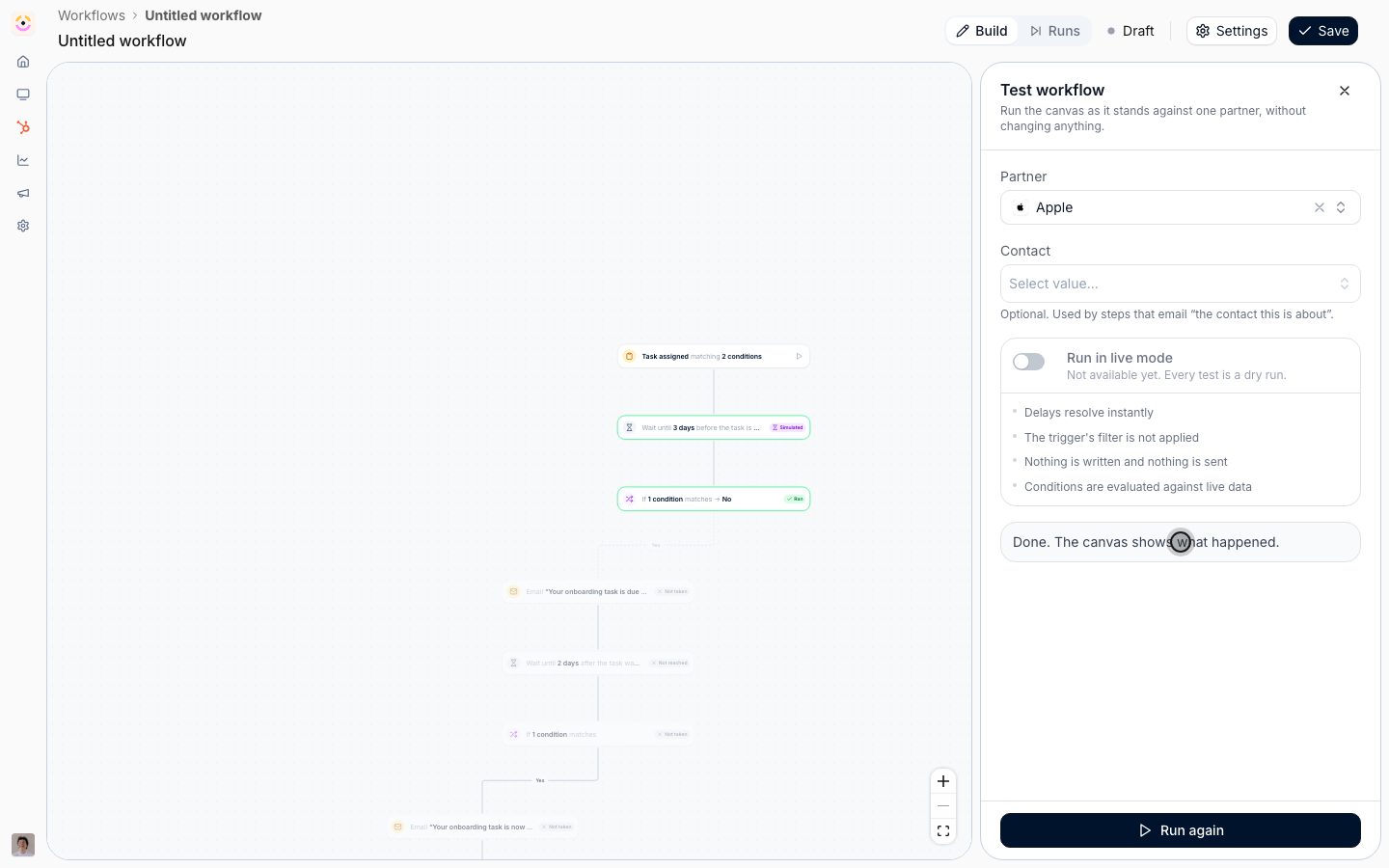
2
Name it and switch it on
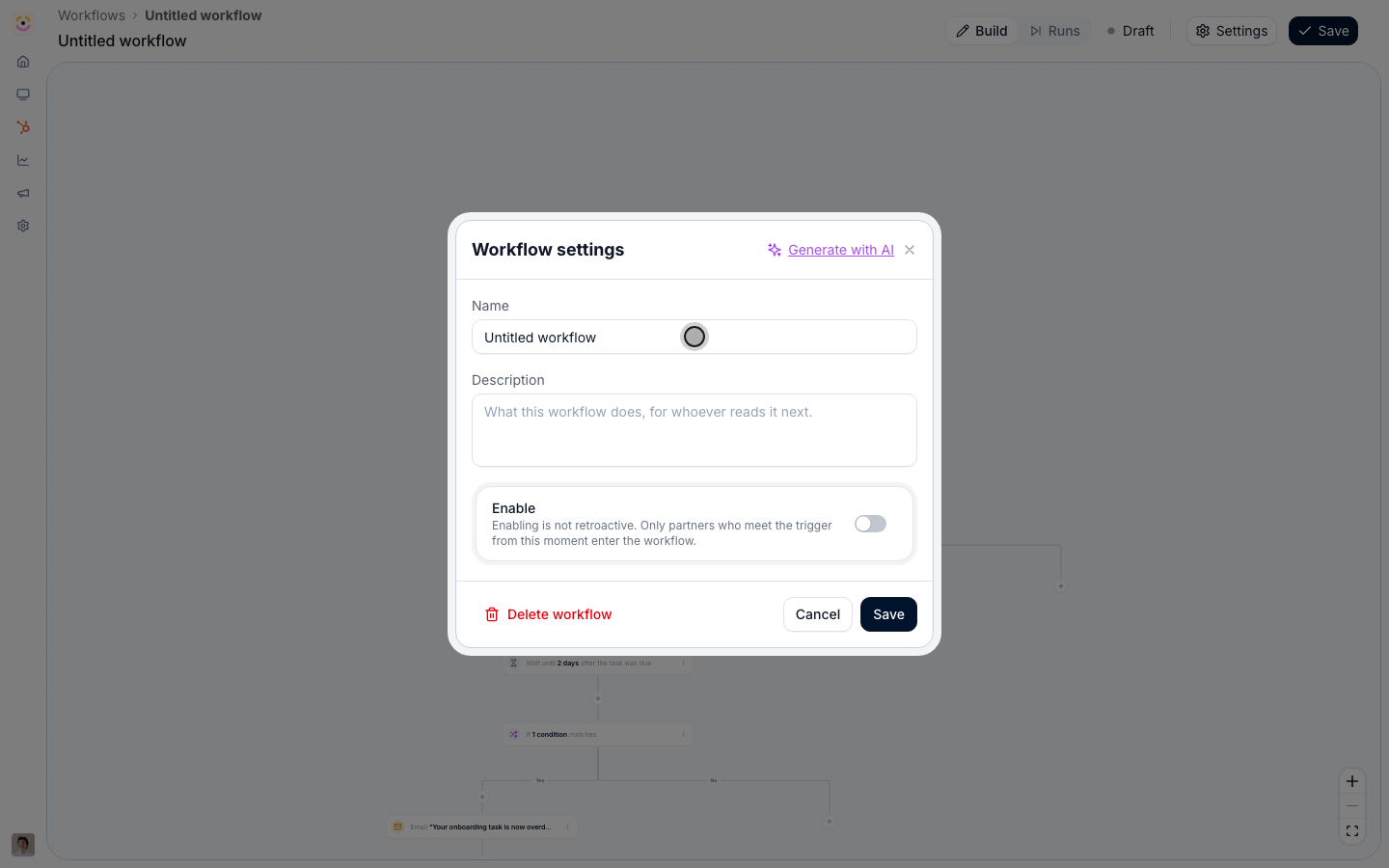
Open Settings, use Generate with AI to name and describe it, switch Enable on, and Save. Only tasks assigned from this moment on enter the chase; tasks already outstanding are not picked up.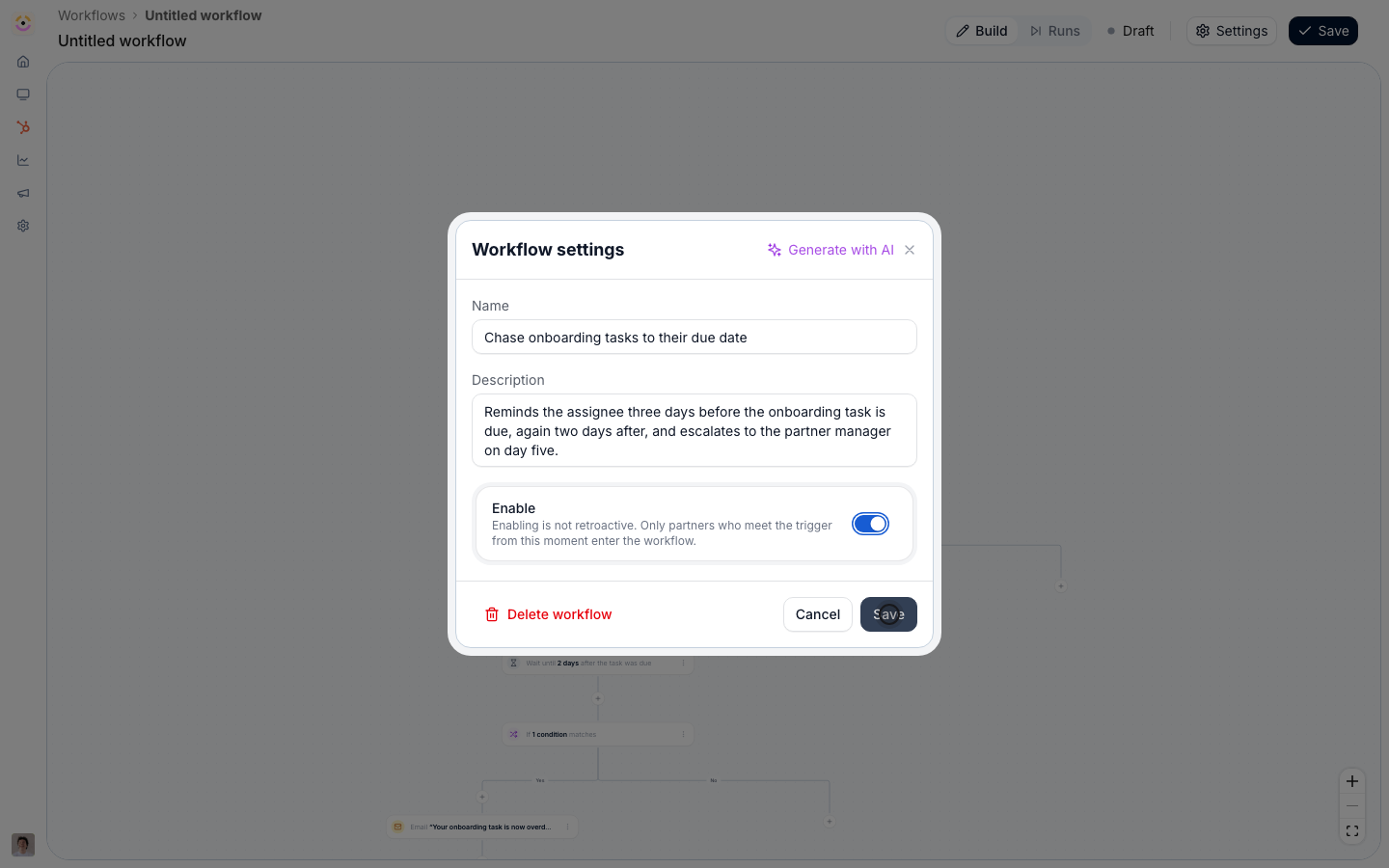
Verify it worked
Assign the task to a test partner with a due date a few days out and switch the canvas header to Runs. A run appears, and its first delay reads Waiting with the rest of the canvas Not reached, which is exactly right: the run is parked until three days before the due date. Mark the task done and the next condition sends the run down its No path, leaving the remaining nudges Not taken. Leave it undone and the reminder lands in the assignee’s inbox on schedule, the escalation reaches the partner manager five days after the deadline, and the note is on the partner’s CRM record.Related
Re-engage quiet partners
The same chase pattern, started by a partner going quiet instead of a deadline.
Onboard a new partner automatically
Put the partner on the journey these tasks come from.
Nudge stalled deals automatically
The built-in nudge for deals sitting too long in a stage.
Workflows setup reference
Every delay anchor, condition field, and email audience.