

What you’ll achieve
An enabled workflow that watches one partner-level CRM property and, when it changes to the value you care about, publishes a different portal experience to that partner, updates their Introw fields, and writes a note on their CRM record. The partner’s portal changes without anyone touching Introw.Before you start
1
Have a connected CRM with partner detection set up
The trigger reads the partner’s company or custom partner object, so those properties have to be synced. See CRM integrations and Detect partners from your CRM.
2
Know which property and value you are reacting to
Pick one partner-level property in HubSpot or Salesforce, and the value that should cause the change. A property with a fixed set of options is easier to build a reliable condition on than free text.
3
Have the target experience published
The workflow publishes an experience to the partner, so it has to exist and be ready for partners. See Build and publish a portal experience.
4
Check your portal allowance
Setting an experience creates a portal for a partner who does not have one, so it counts against your plan’s portal limit. Partners who already have a portal move regardless.
Watch it
- Video
- Click through
Steps
Trigger on the field changing
1
Create the workflow and pick Partner updated
Go to Workflows, select New workflow, select the trigger node, and choose Partner updated under Partners.Partner updated fires on a partner’s field changing, whether the change was made in Introw or came in from your CRM. It is one trigger over both sources on purpose: from a partner-program point of view, “the partner’s program field changed” is one event, and where the edit happened is not a distinction you should have to build around.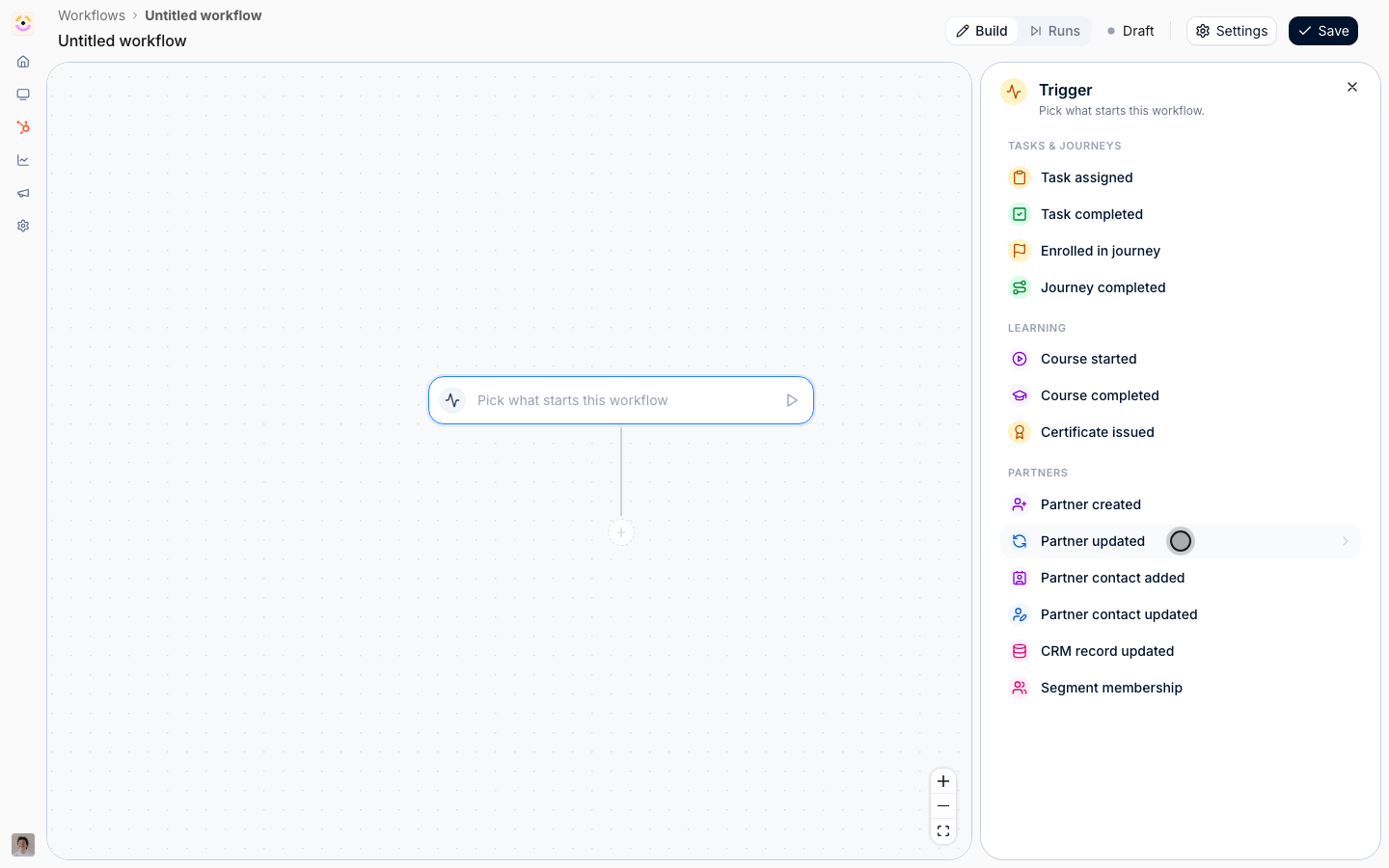
2
Choose which changes count
Which changes count is a searchable list holding Partner tier, Partner phase, Partner categories, Partner owner, and every partner-level CRM property on the company and your custom partner object. Each entry is marked with Introw’s logo or your CRM’s, which matters here: an Introw Tier and a HubSpot property also called Tier are different fields, and picking the wrong one gives you a workflow that never fires.Pick the one CRM property you are reacting to. Leaving the list empty means any triggerable field changing runs the workflow, which is almost never what you want on this trigger: every owner reassignment and every category edit would start a run.Contact properties are deliberately not in this list. A contact changing is a different object changing, and Partner contact updated is the trigger that carries it.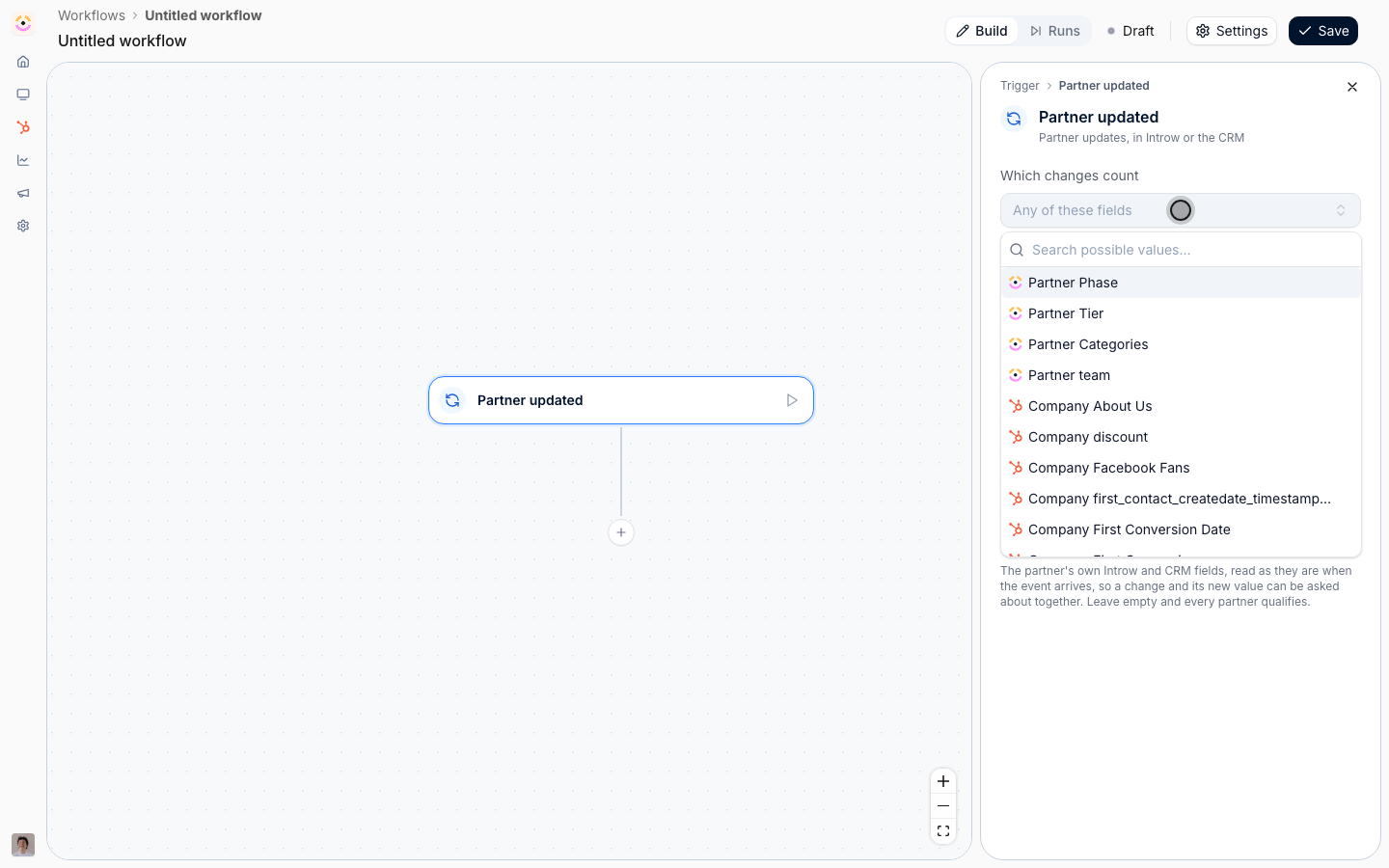
3
Narrow to the value you care about
The trigger tells you which field changed, not what it changed to. The value check is the next block down.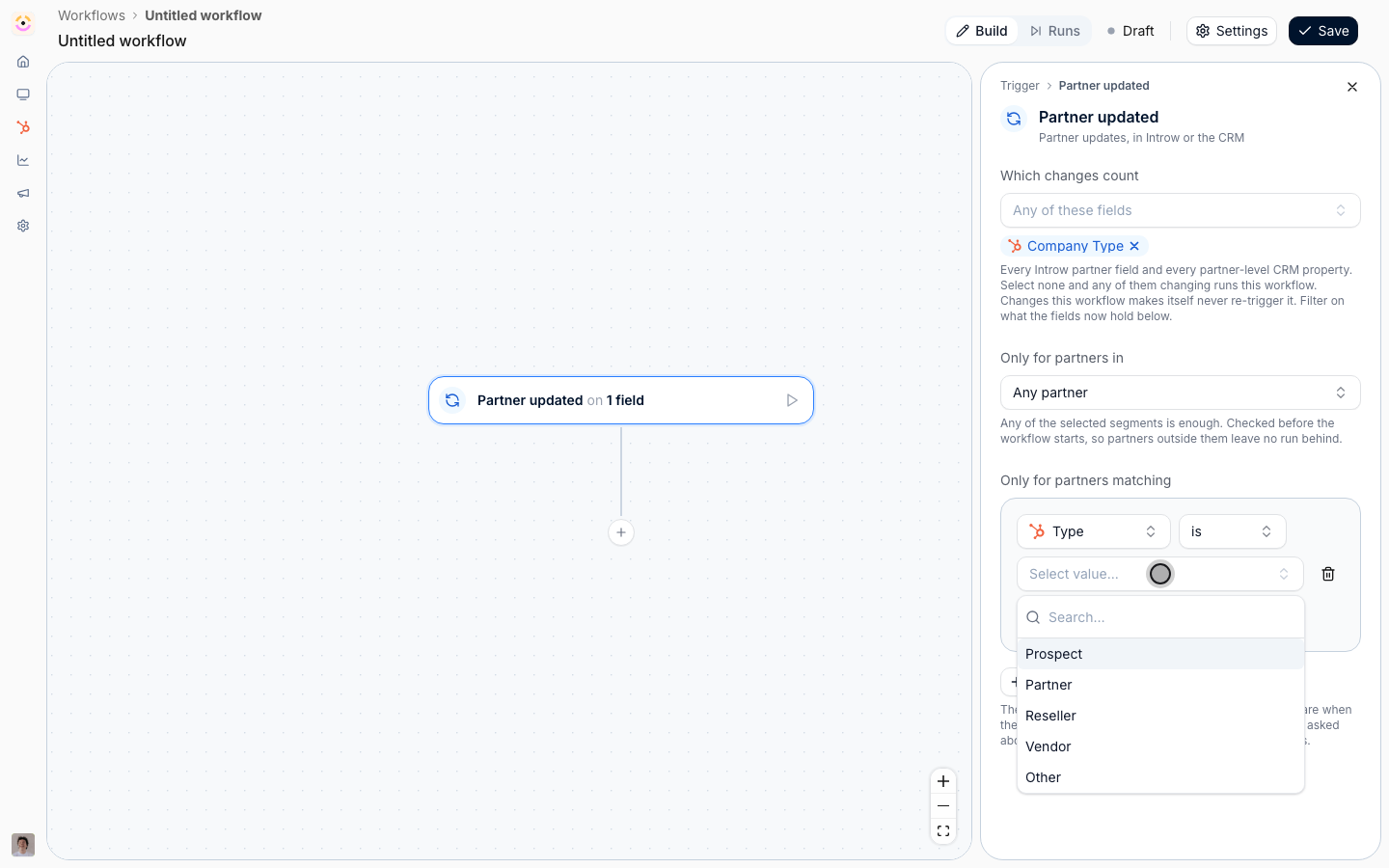
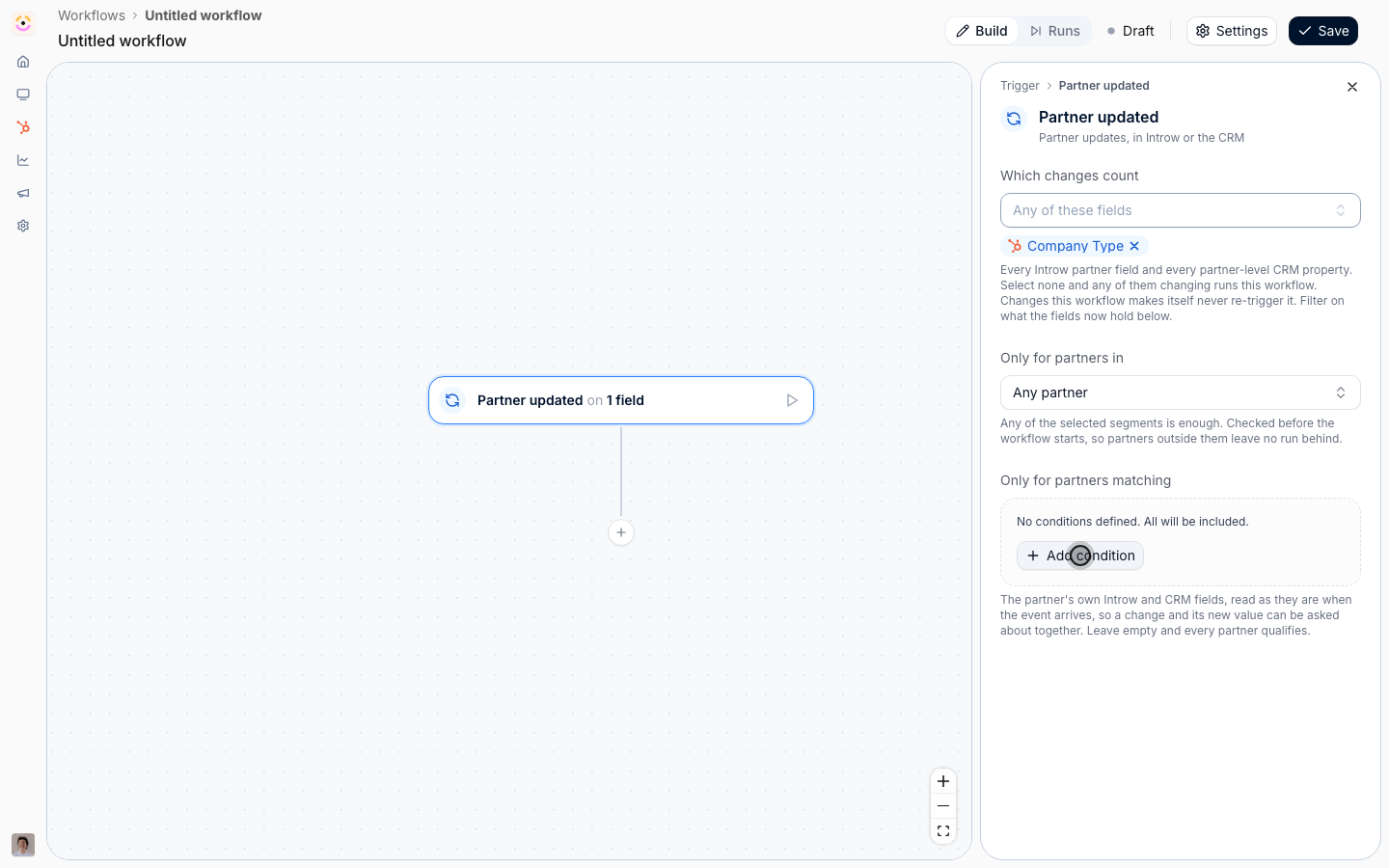
- Only for partners matching - a condition builder over the partner’s own Introw and CRM fields. Add your property is the value you care about, for example the CRM program field is Managed. It is read as the event arrives, so “this field changed, and it now holds Managed” is one trigger. A partner whose field moved to some other value leaves no run behind.
- Only for partners in - segments, ANDed on top. Use it when the rule only applies to some partner types, for example resellers, and skip it otherwise. A segment is the better home for the same check when several workflows share it, or when the audience also depends on contact-level data, which this block deliberately does not offer. See Create a dynamic segment.
Change what the partner sees
1
Publish the new experience
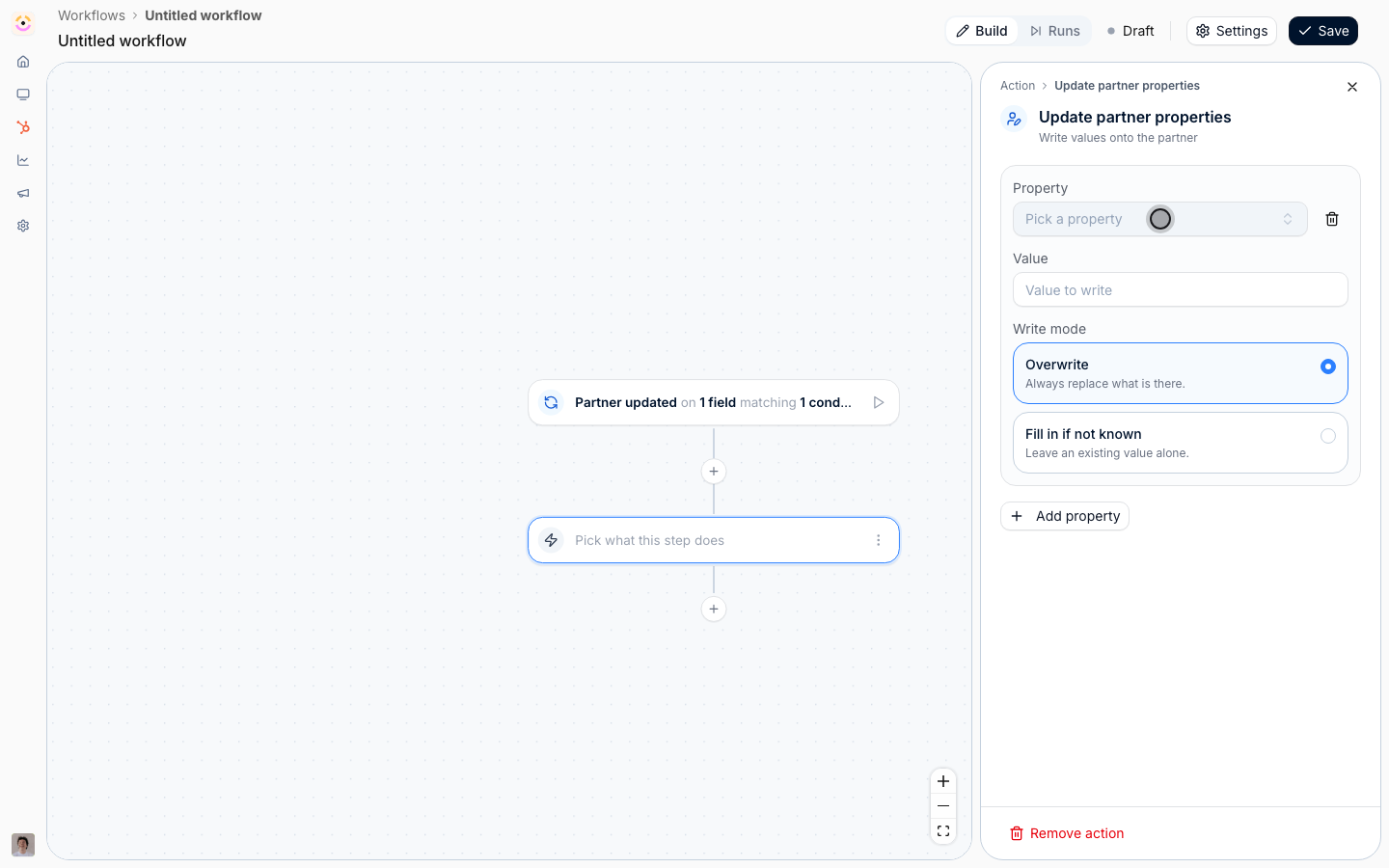
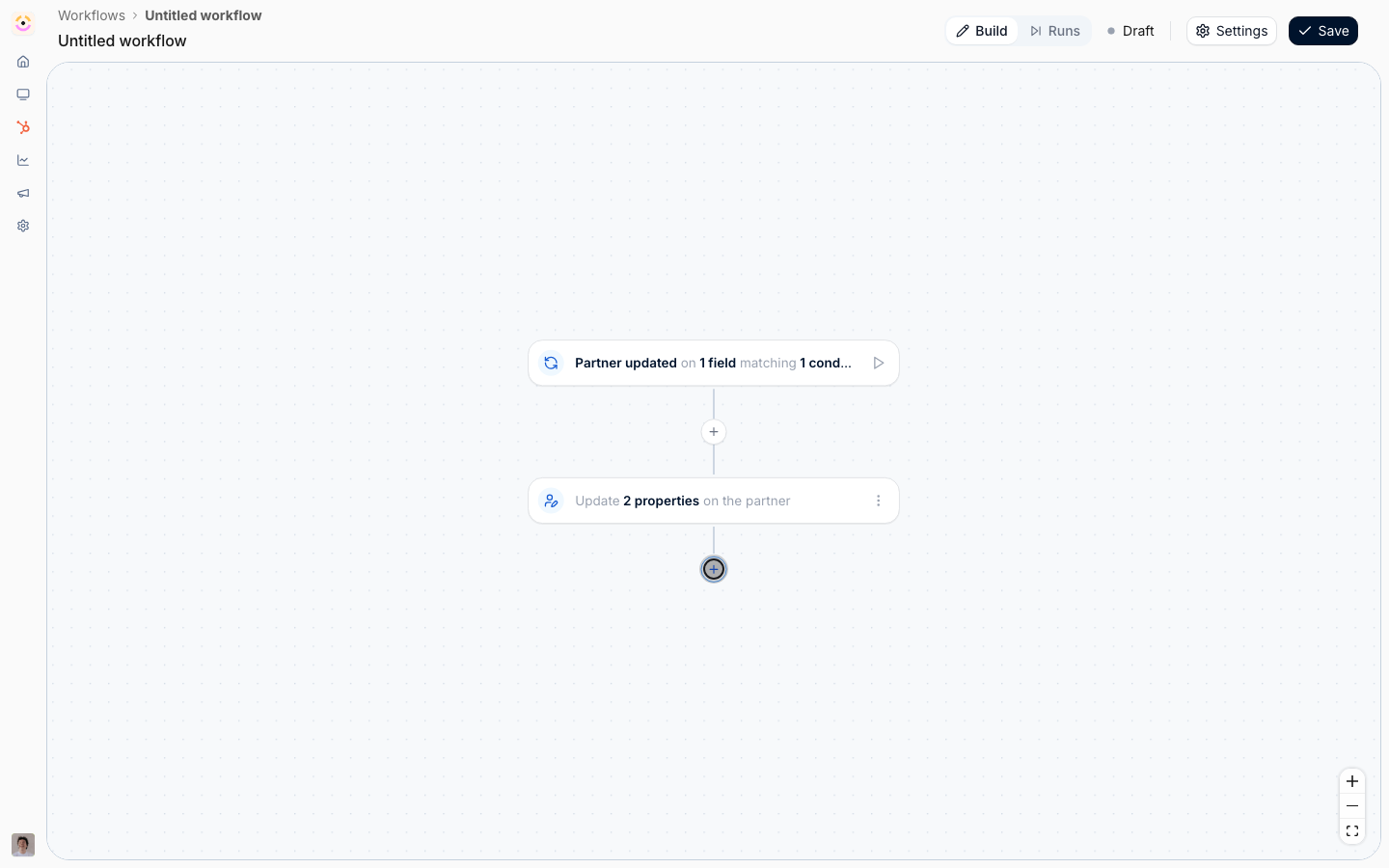
Select the + under the trigger, choose Action, then Update partner properties.Set Property to the partner’s Experience and Value to the experience you want them on. This row behaves differently from every other one, and the panel says so: setting an experience does not patch a field, it publishes that experience to the partner. Their portal is created if they have none, and its content, journeys, and goals are applied. A partner already in another experience is moved to this one, so this is a genuine move rather than an addition.Because of that, the Experience row has no write mode. If your plan has no portals left, partners who already have a portal still move and partners without one are skipped until you free up or add portals, and the panel warns you when that is the case.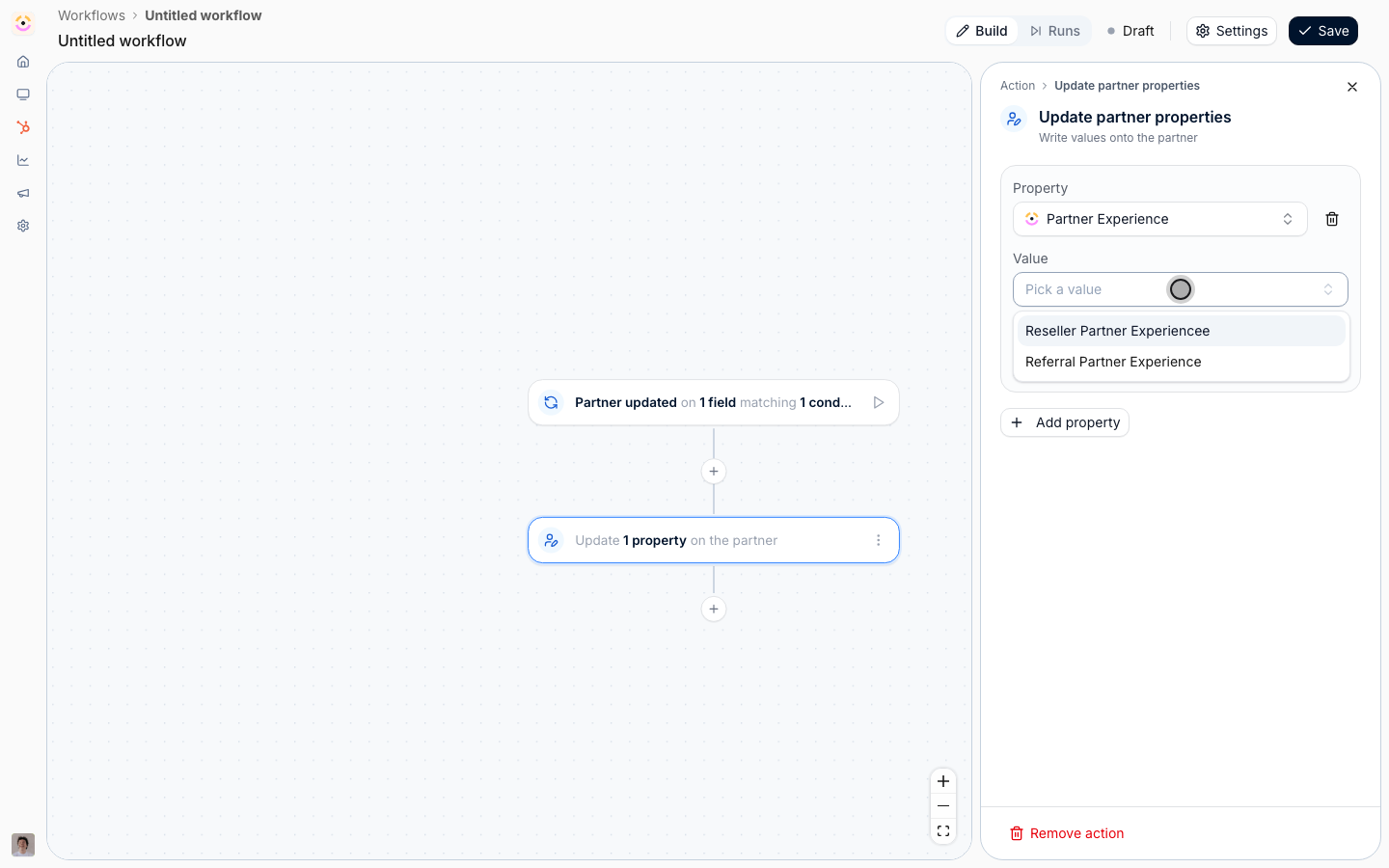
2
Retag the partner in the same step
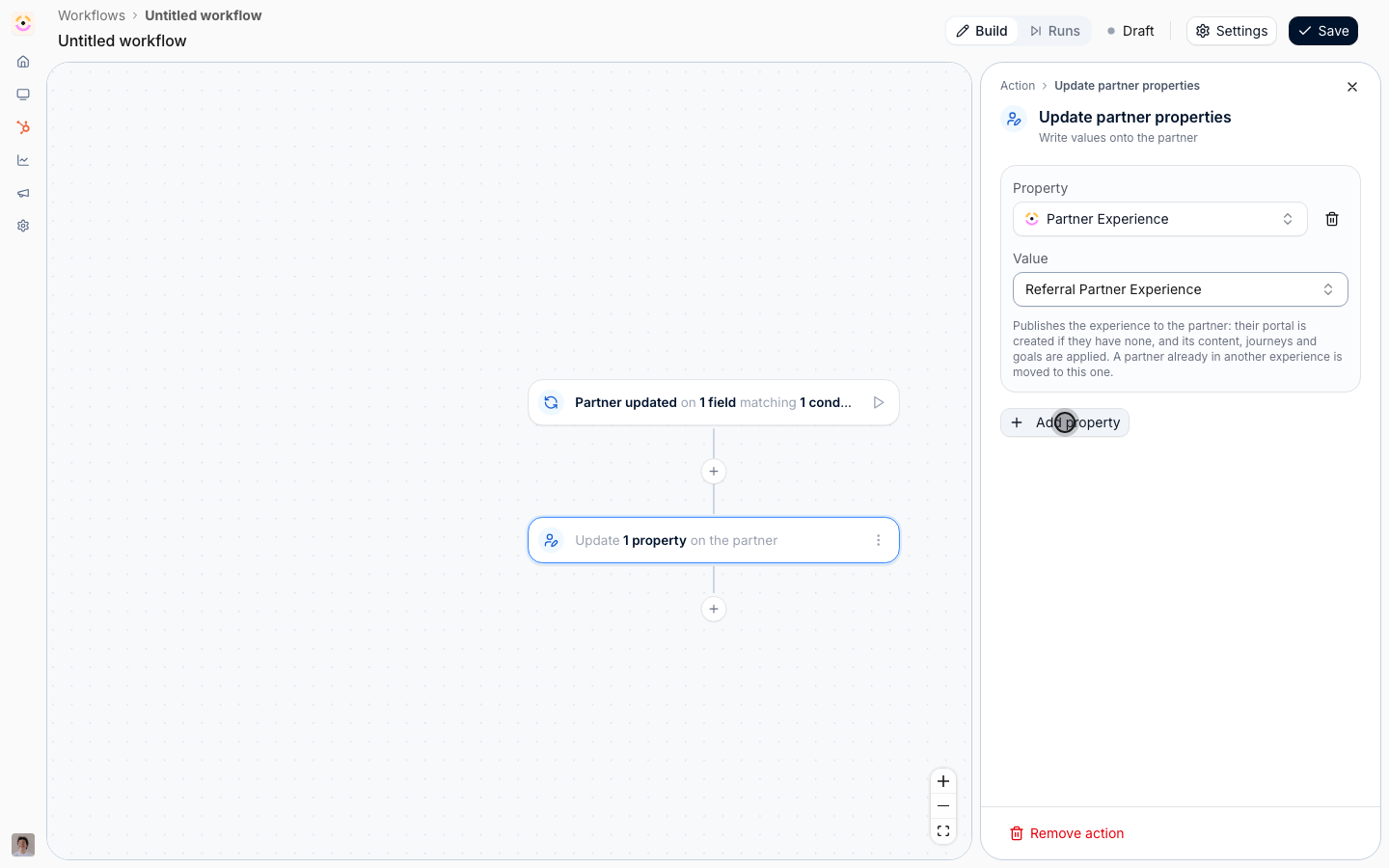
Select Add property and add the Introw fields that should follow the CRM change, so the partner’s classification is consistent everywhere: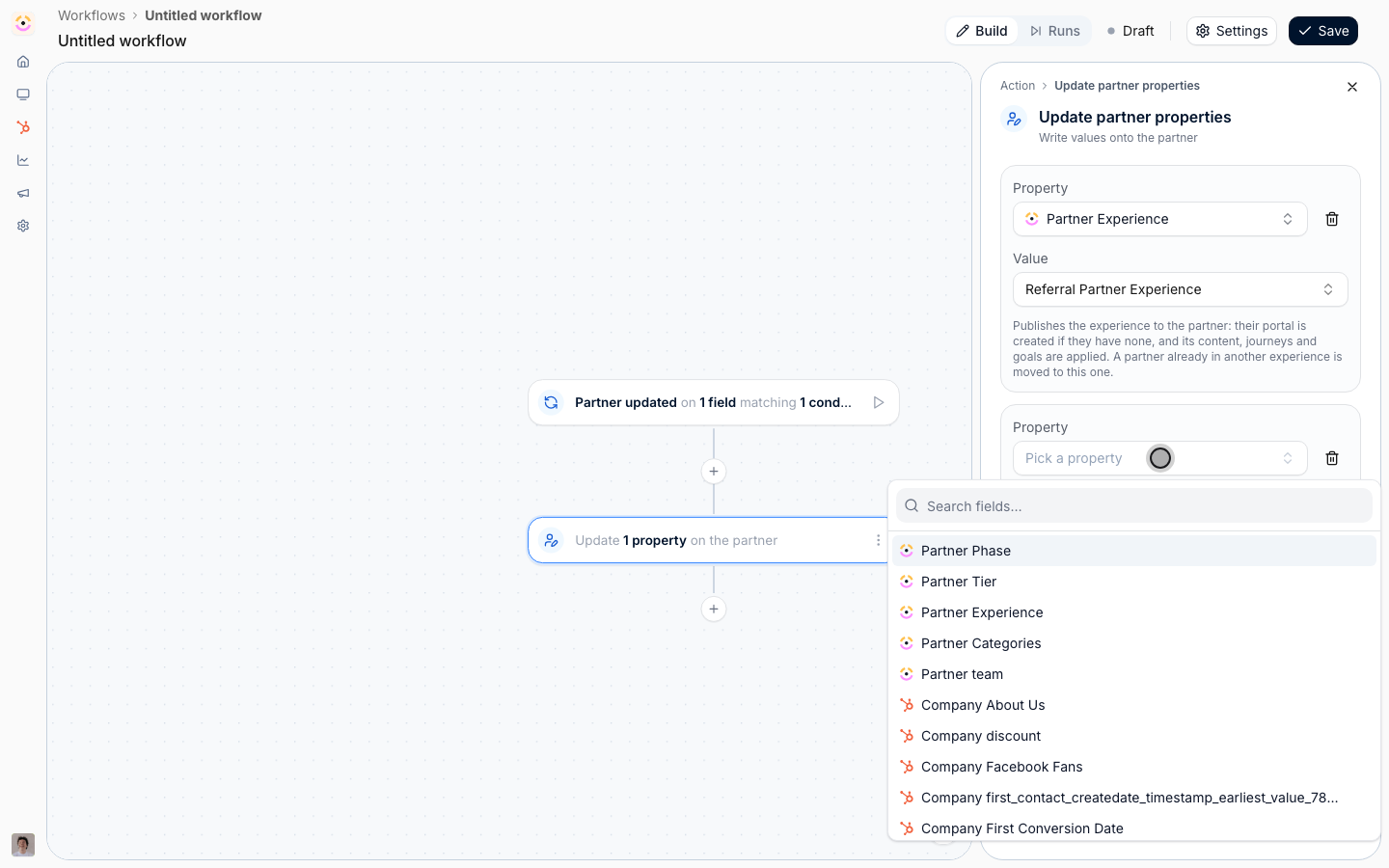
- Partner categories - the tags your segments, content visibility, and reporting filter on. This is a multi-value field, so give it the full set you want the partner to end up with.
- Partner phase or Partner tier - if the CRM change also means a lifecycle move.
- Overwrite always replaces what is there. Correct when the CRM is the authority for that field and the whole point is to bring Introw in line.
- Fill in if not known leaves an existing value alone. Correct for anything a partner manager sets by hand and would not want an automation quietly undoing.
3
Log the move on the CRM record
Add another Action, then Log a CRM note from the Messages group. Write a line saying which experience the partner was moved to and why. Use 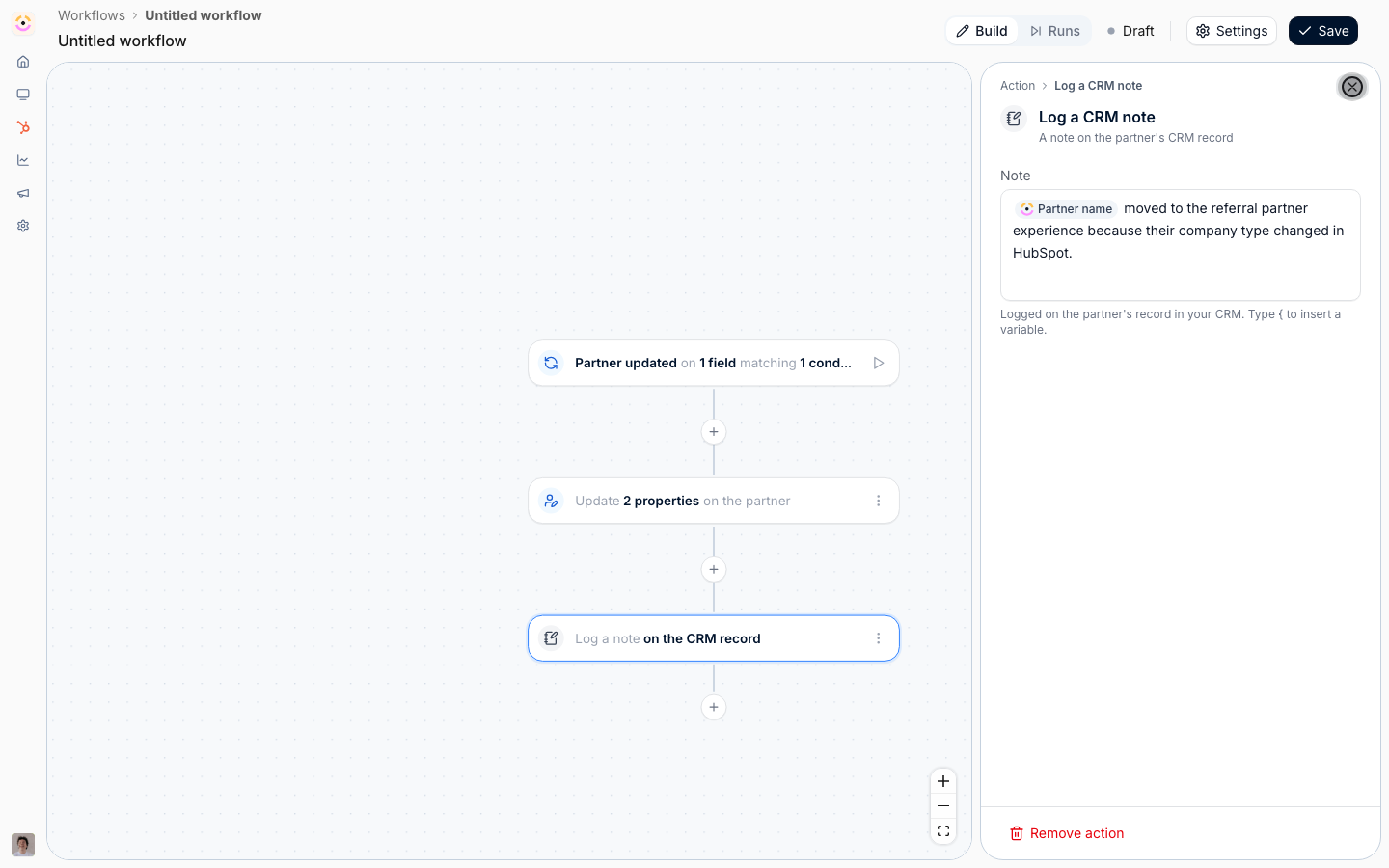
{{partner}} for the partner’s name.The note lands on the partner’s own record in HubSpot or Salesforce, their company or your custom partner object, so the rep who changed the field sees the consequence on the record they were already looking at. There is no record picker, because the partner’s own record is the one record every run can name.4
Tell the partner, if the change is theirs to know about
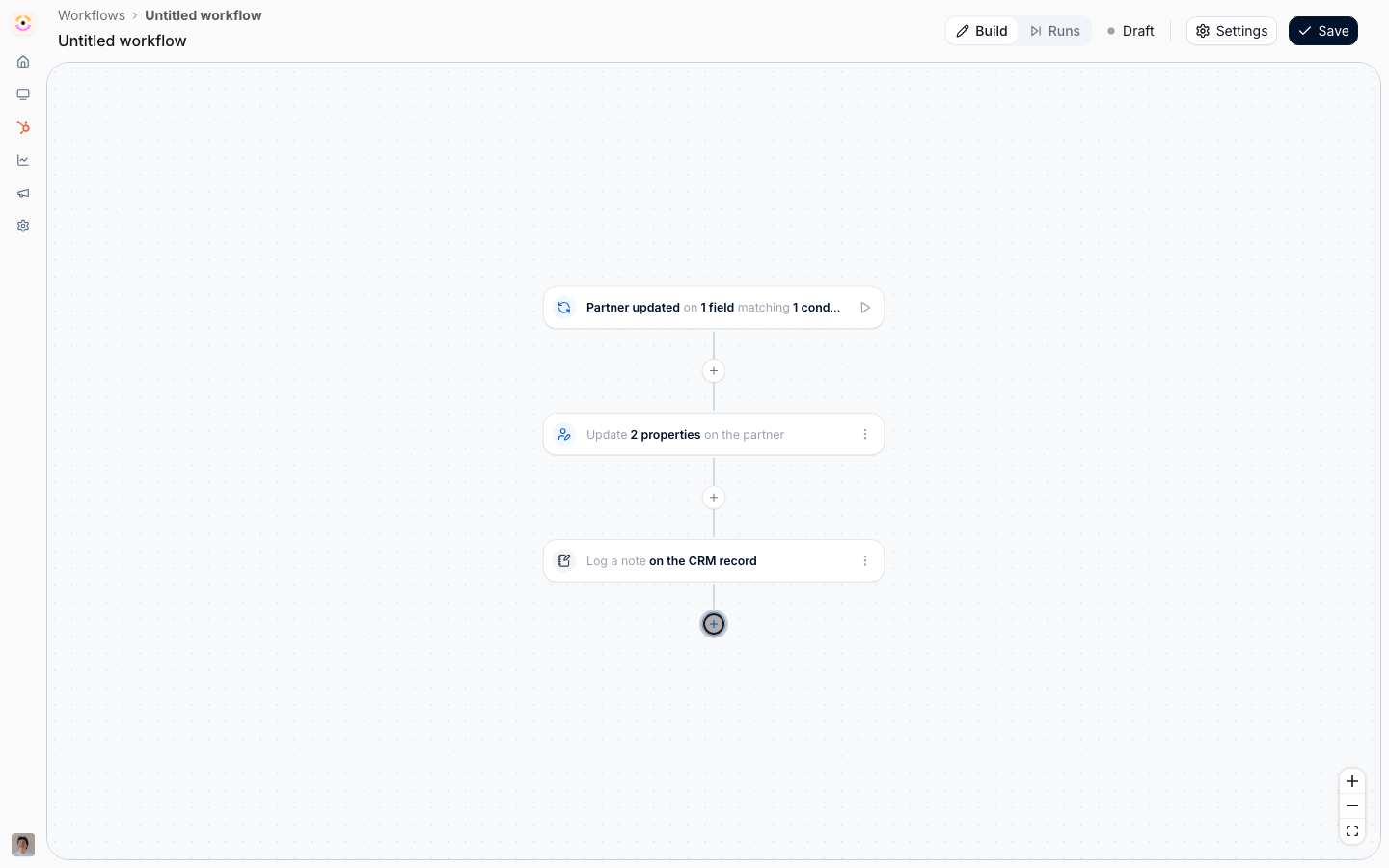
A portal that looks different without warning reads as a bug. If the move brings new content, a new journey, or new benefits, add Send an email with Send to set to The partner champion or All contacts of the partner, and say what has changed and what they can now do.The contact this is about is not offered here: Partner updated is about the partner, not about one person, so there is no contact for it to resolve to. If the option is missing from a list where you expected it, that is why.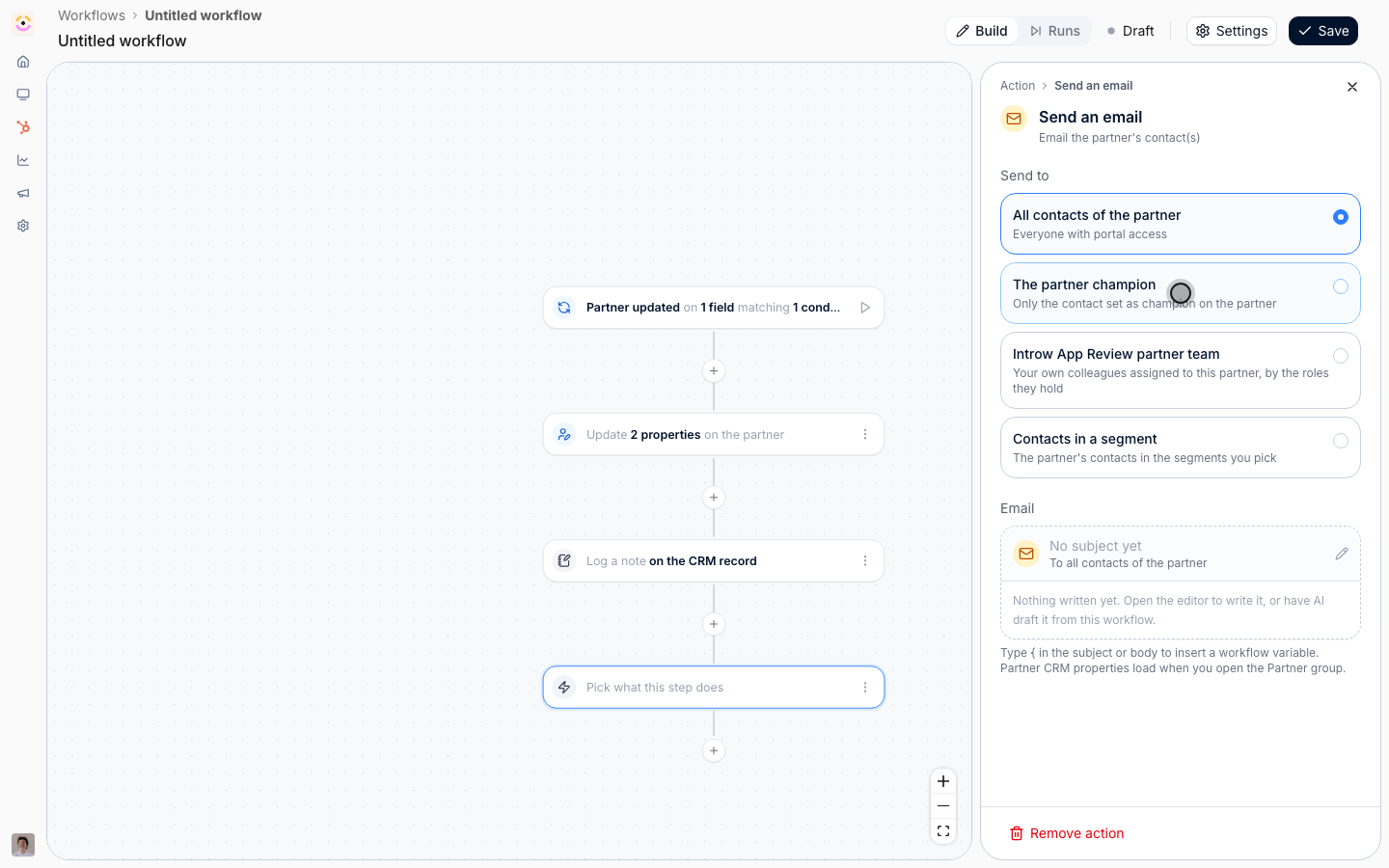
Rehearse and enable
1
Test it, carefully
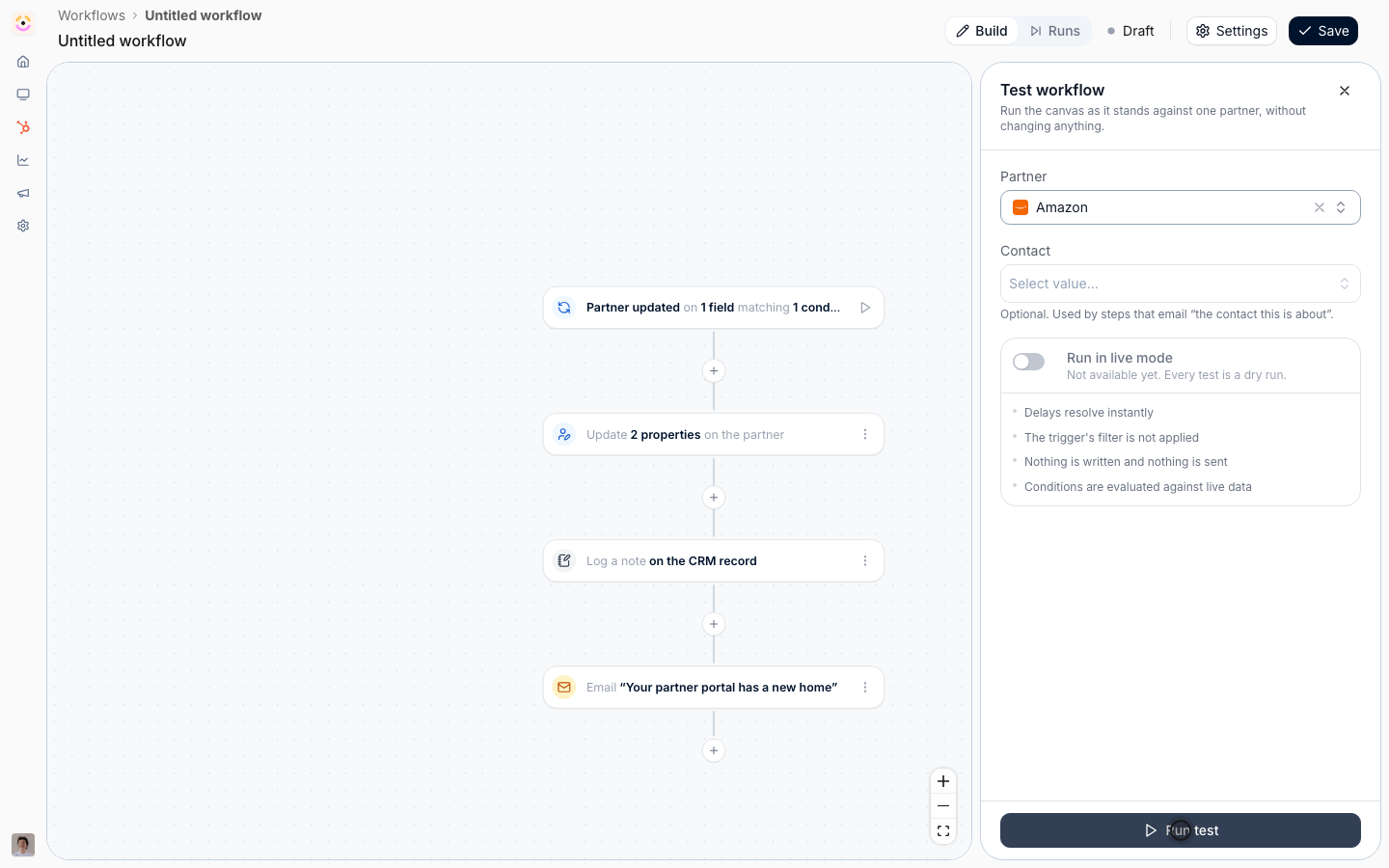
Select the play button beside the trigger, pick a partner, and select Run test. Nothing is written, so the experience is not actually published and no note reaches your CRM. What the rehearsal proves is that the steps are complete and the values resolve.Because this workflow moves partners between portals, it is worth doing one deliberate live check after enabling rather than relying on the rehearsal alone: change the CRM field on a single test partner and read the run.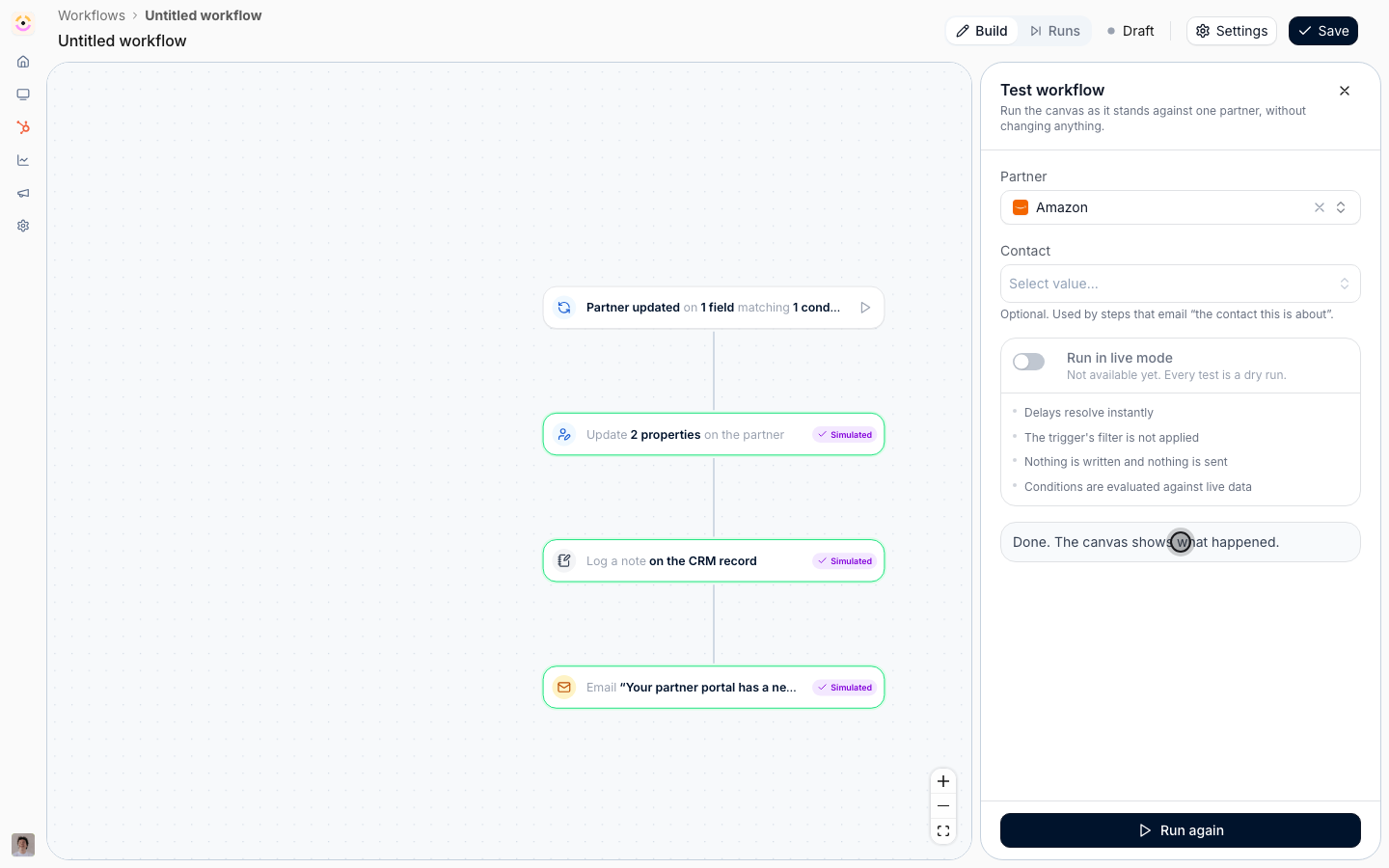
2
Name it and switch it on
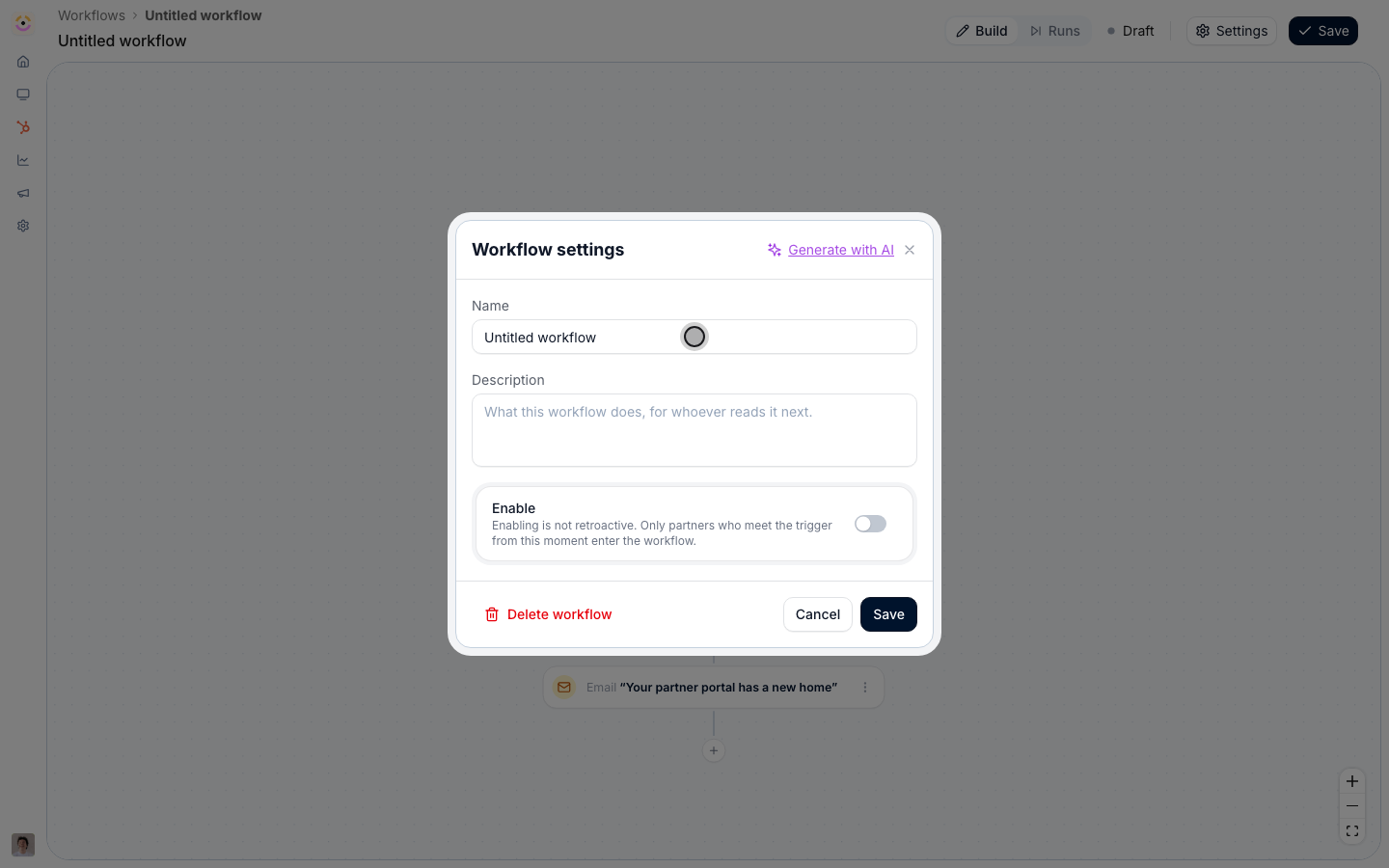
Open Settings, name and describe it, switch Enable on, and Save.Two things to keep in mind. Enabling is not retroactive, so partners whose field already holds the target value are not moved; do that batch once with a bulk update. And changes the workflow makes itself never re-trigger it, so writing partner categories in a workflow that triggers on partner categories does not loop.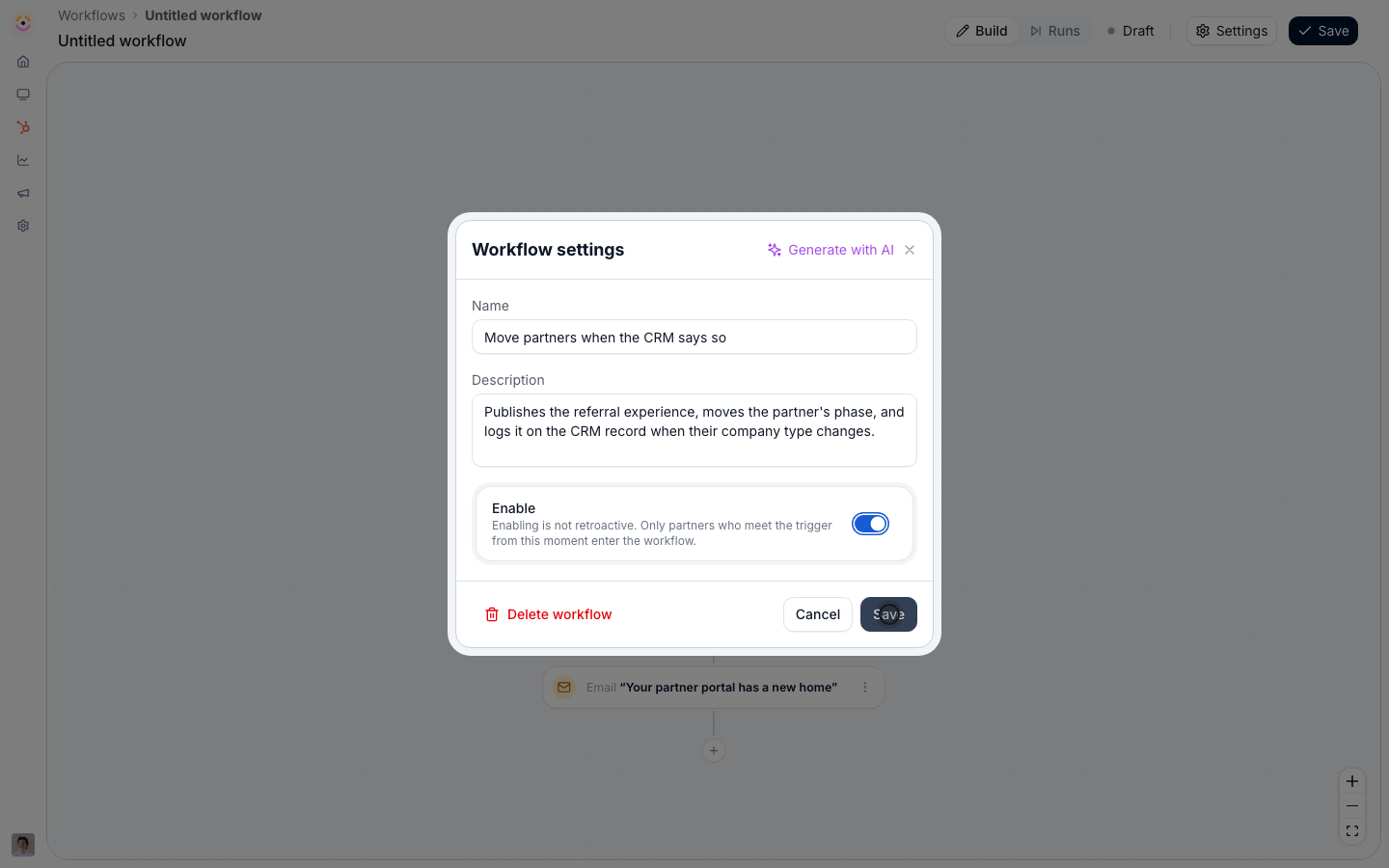
Verify it worked
Change the property on one partner in HubSpot or Salesforce. Within the sync interval, switch the canvas header to Runs: a run appears named after that partner with its nodes reading Ran. Open the partner in Introw and their Experience is the new one; open their portal as a partner would and the new content, journeys, and goals are there. The note is on their CRM record, and the categories you wrote are on the partner, which means any segment keyed off those categories now includes them too.Related
Create a dynamic segment
Build the audience this workflow narrows on.
Build and publish a portal experience
Build the experience the workflow moves partners onto.
Re-engage quiet partners
Trigger on a segment instead, for the changes no single field names.
Workflows setup reference
Every writable property, write mode, and trigger narrowing.