

What you’ll achieve
An enabled workflow that reaches a partner in the days after they go quiet, on the channel they actually watch, checks a week later whether they came back, and puts the ones who did not on their manager’s task list with the history already written down.Before you start
1
Build the quiet segment
This whole workflow hangs off a dynamic segment whose audience defines “quiet” for your program: no portal activity in 30 days, no new deal in a quarter, or a CRM field your own scoring writes. Dynamic segments re-evaluate on a schedule, which is what makes membership an event. See Create a dynamic segment and Re-activate inactive partners.
2
Decide what counts as coming back
The mid-flow check needs something to test. The simplest reliable version is a second segment, or the same segment read again: a partner who has become active again is no longer in the quiet segment.
3
Connect chat if you want to nudge there
Posting to a partner’s shared channel needs Slack or Microsoft Teams connected and a channel mapped on the partner’s page. See Chat integrations.
Watch it
- Video
- Click through
Steps
Trigger on the segment
1
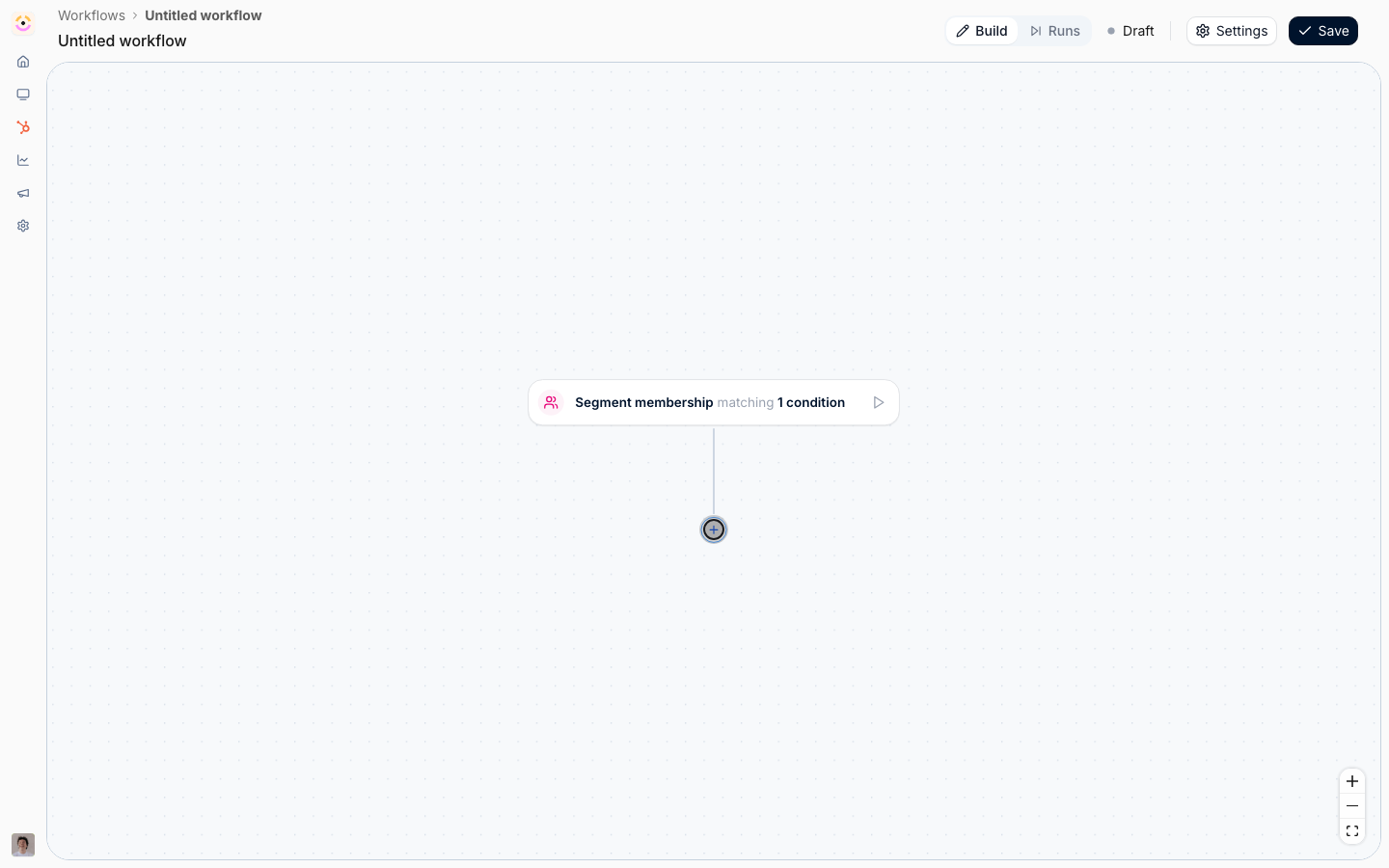
Create the workflow and pick Segment membership
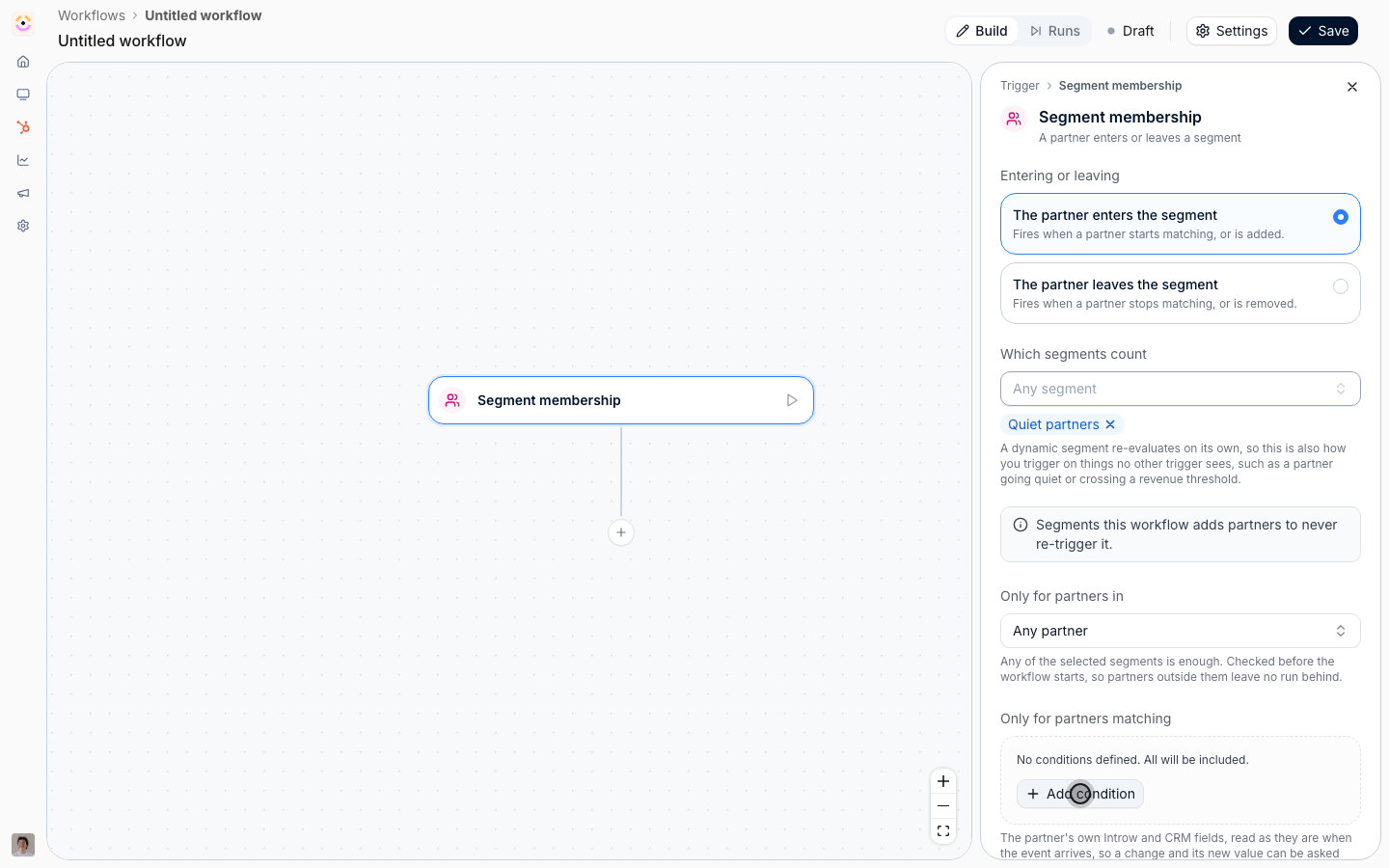
Go to Workflows, select New workflow, select the trigger node, and choose Segment membership under Partners.This is the trigger that answers questions no other trigger can. A dynamic segment carries time constraints and partner, contact, and CRM conditions, and its membership is recalculated on a schedule, so “has not traded in 30 days”, “reached Gold”, and “is certified but not transacting” are all this one trigger pointed at a different segment.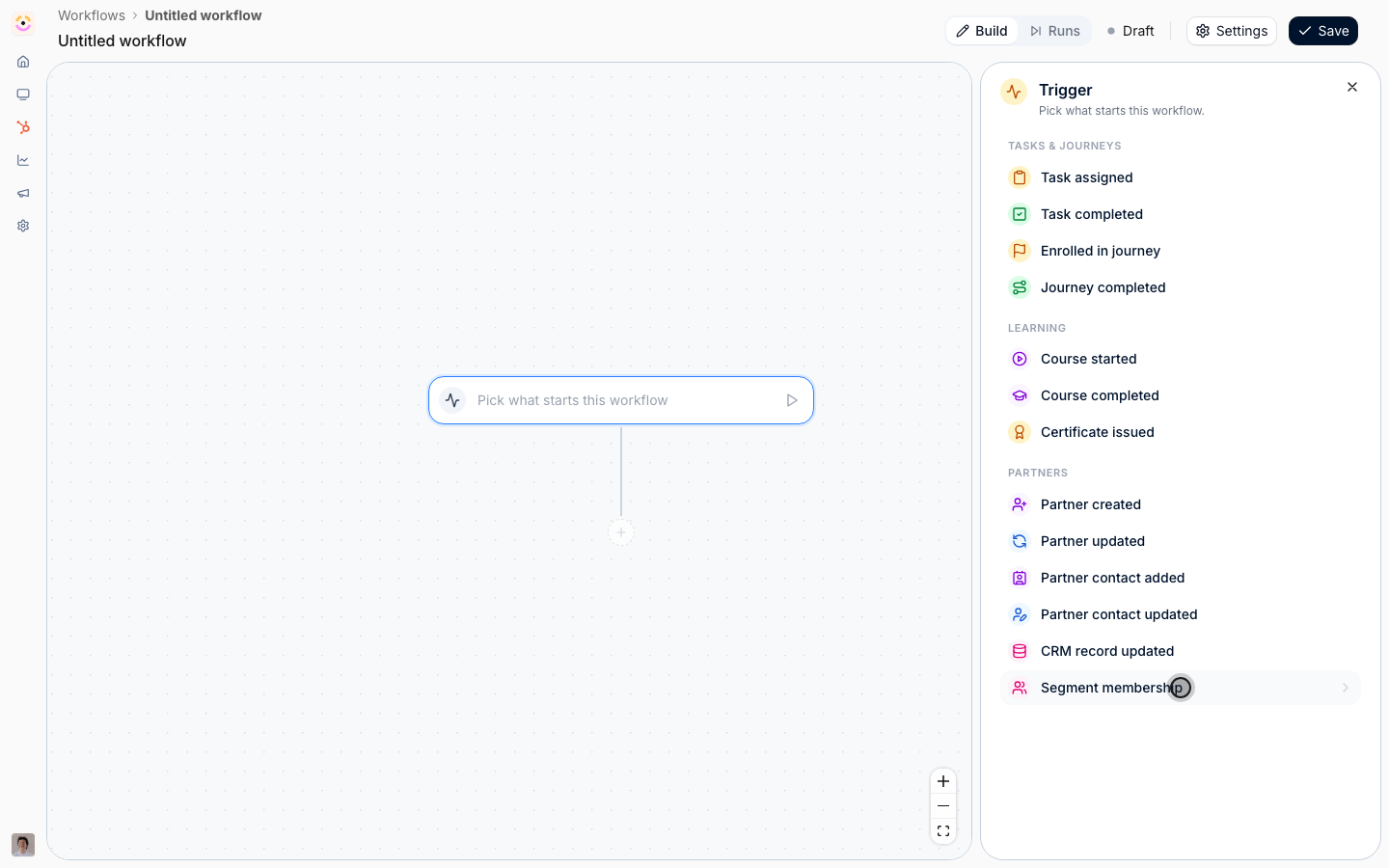
2
Choose the direction and the segment
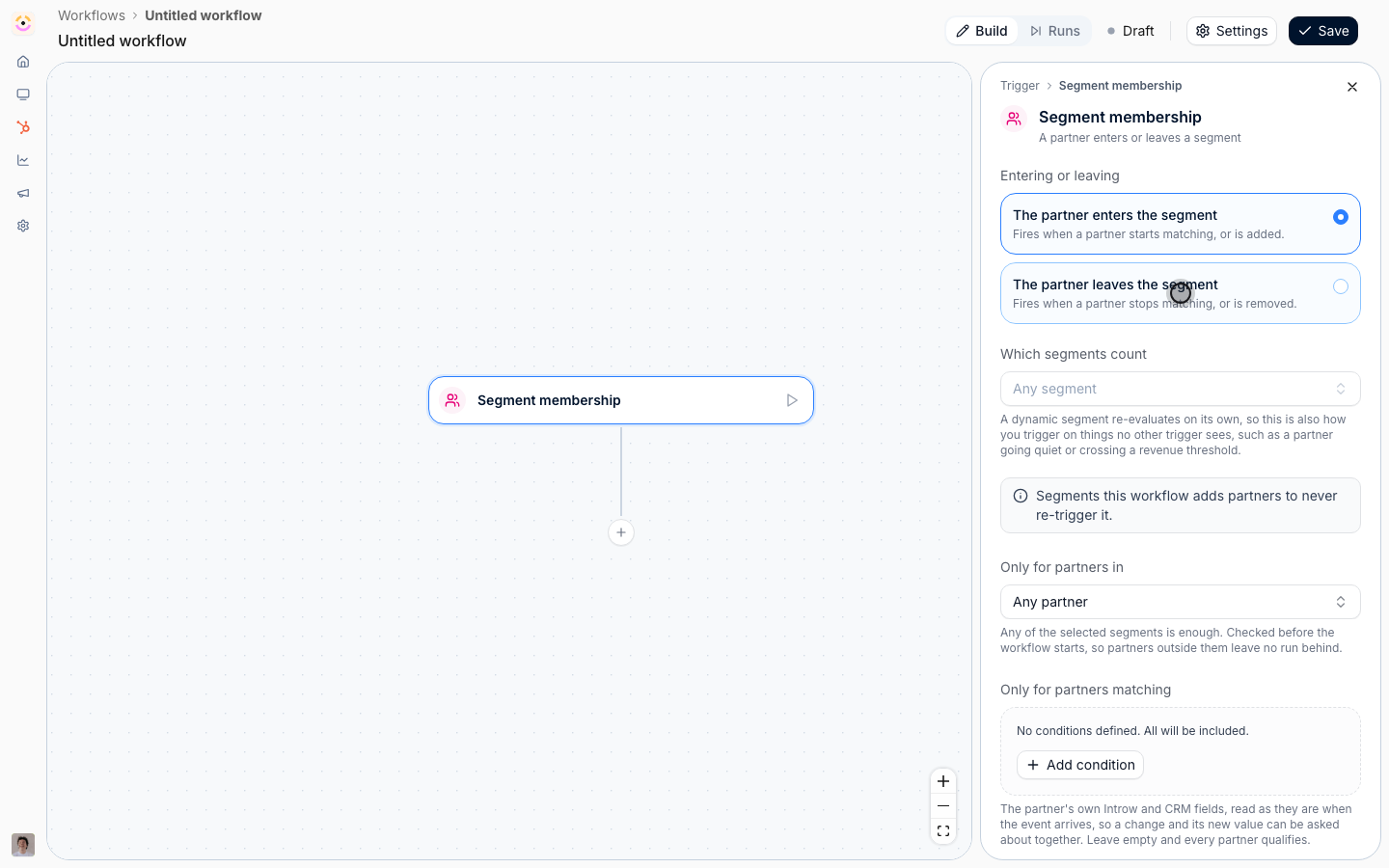
- Entering or leaving - choose The partner enters the segment. It fires when a partner starts matching, or is added. The partner leaves the segment is the mirror, and is what you would use to stop a sequence or to celebrate a partner who climbed out of a risk cohort.
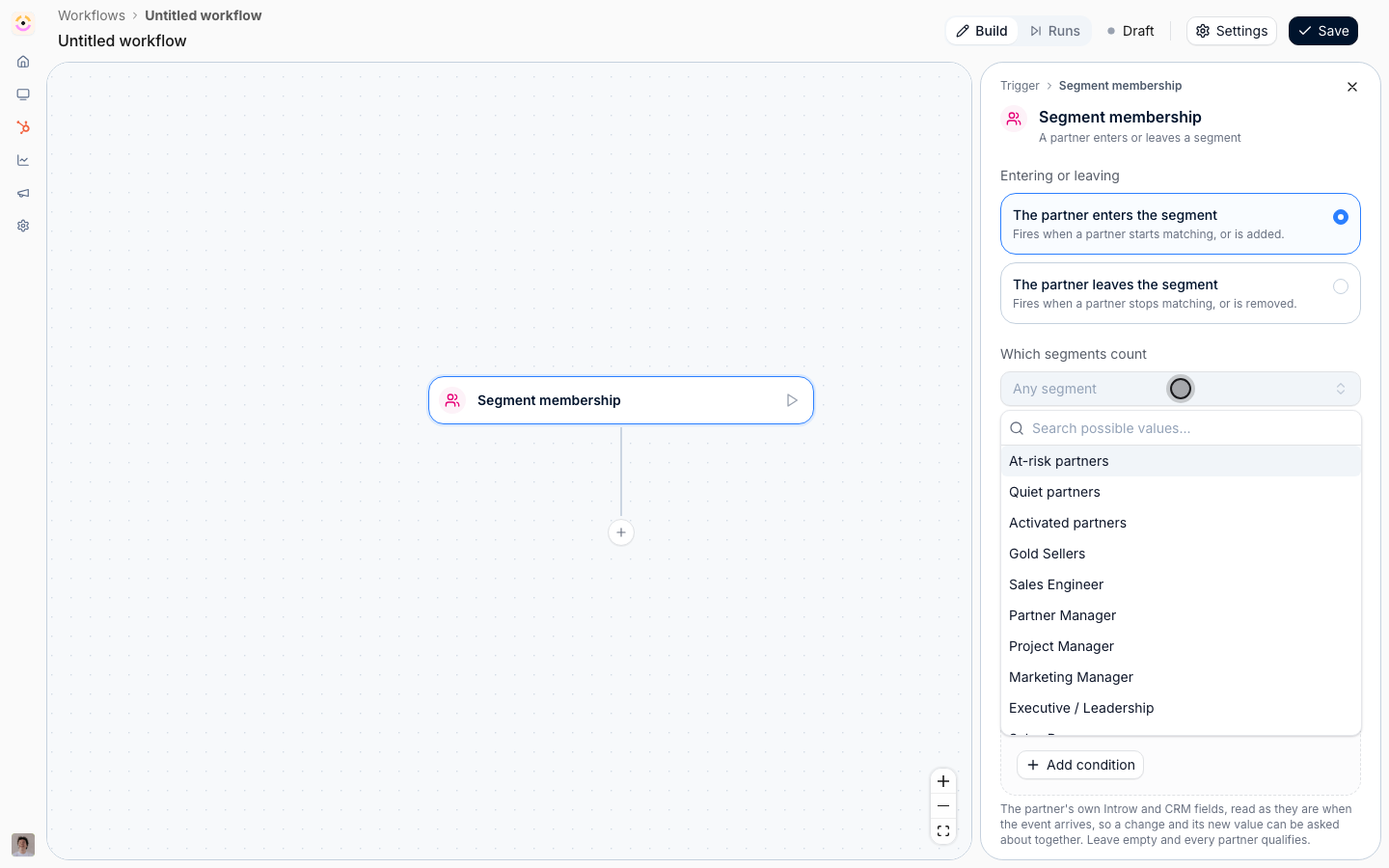
- Which segments count - pick your quiet segment. Leave it empty and any segment movement anywhere starts a run, which on an account with a dozen segments is a lot of noise. Pick one.
3
Narrow further if only some partners are worth chasing
Only for partners in narrows the audience on top of the trigger’s own segment: any of the segments you pick matching is enough. Use it to exclude the partners you do not want chased, for example by adding a segment of active-tier partners only, so a dormant affiliate does not get a reseller’s re-engagement sequence.Only for partners matching reads the partner’s own Introw and CRM fields instead of a segment, which is the shortest way to say “only chase the partners worth chasing”: Partner tier is any of Silver, Gold, Elite, and a dormant affiliate never enters the sequence.Only for segments matching offers the event’s own Segment field, which is useful when the trigger names several segments and you want a mid-flow fork on which one the partner joined.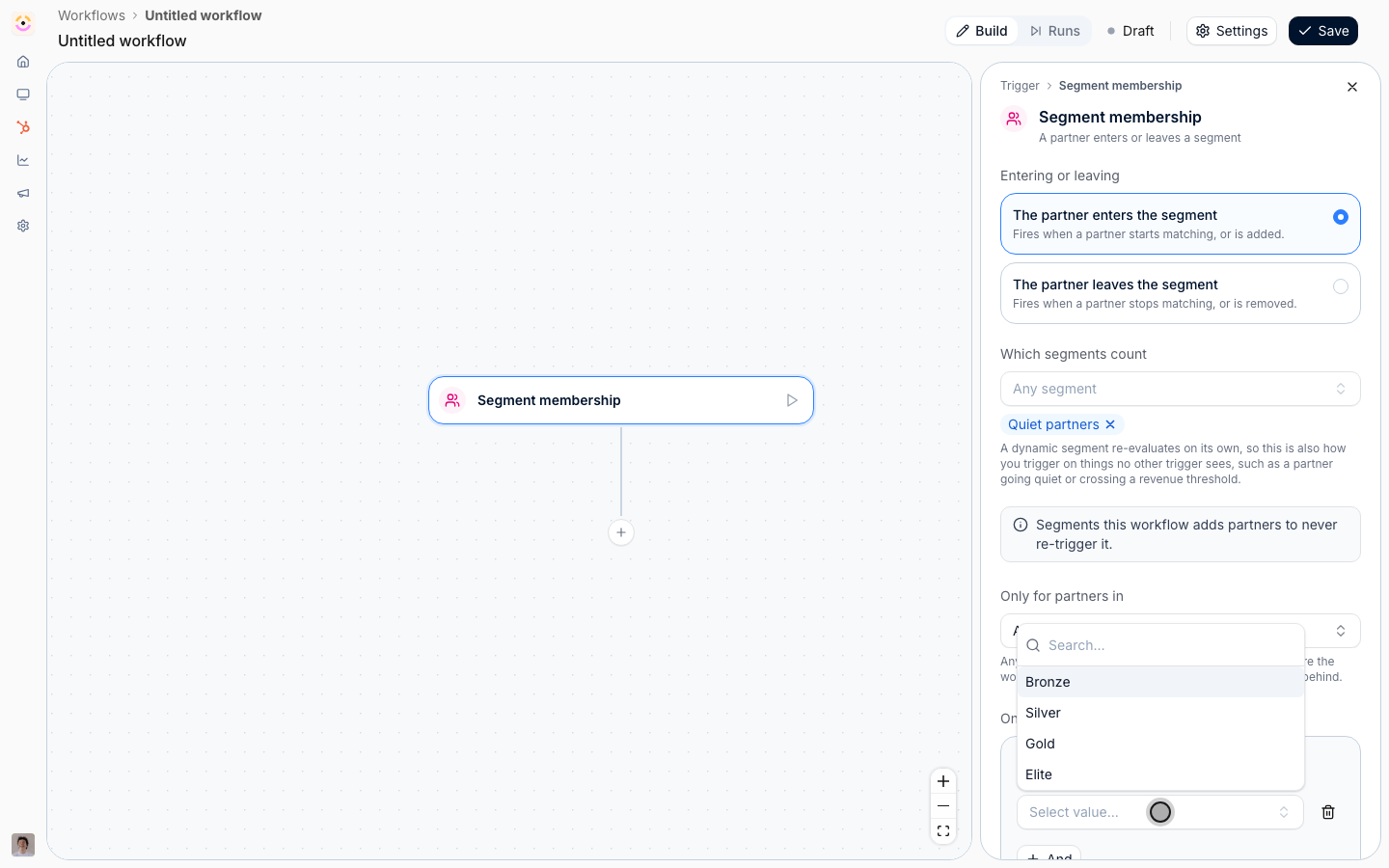
Reach the partner where they are
1
Nudge in chat first
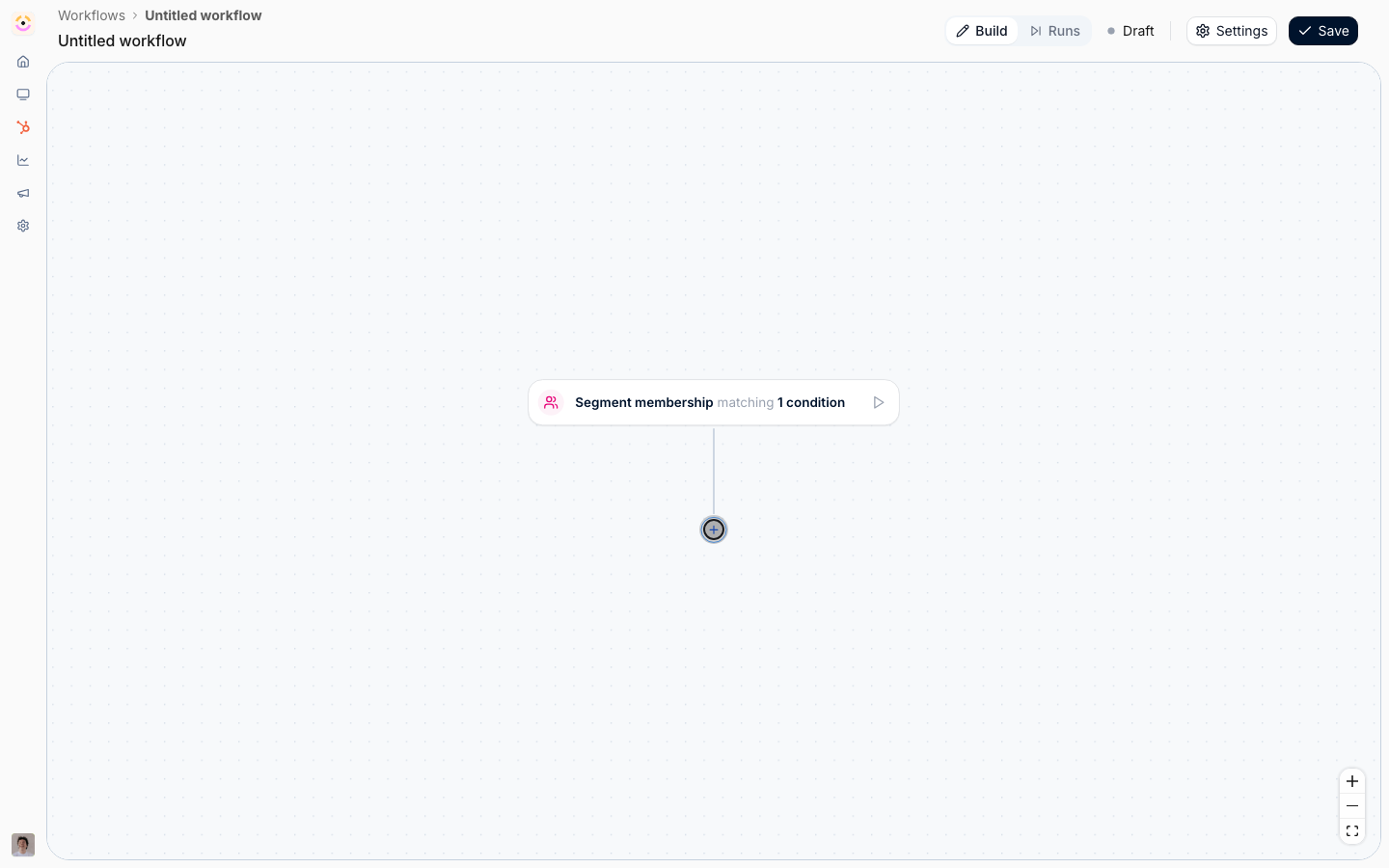
Select the + under the trigger, choose Action, then Send a chat message from the Messages group.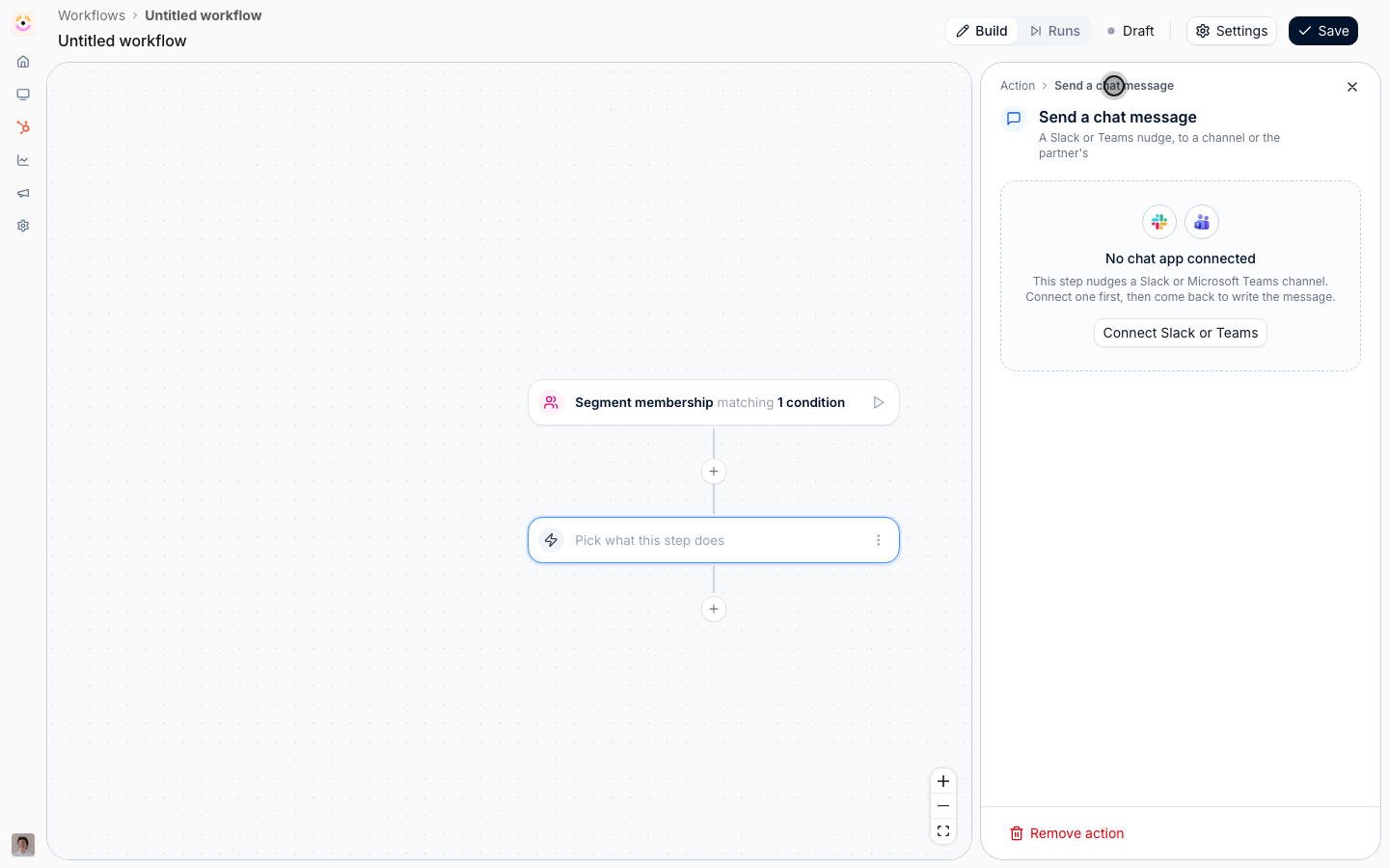
- Provider - Slack or Microsoft Teams. Only connected and active workspaces are offered, and with one connected there is no choice to make.
- Channel - The partner’s channel posts into the shared channel mapped on that partner’s page, resolved when the message sends, so remapping a partner later moves every workflow with it. One fixed channel posts every run into the same place, which is for internal alerting rather than for reaching a partner.
- Message - plain text, short. Write
{{partner}}where you want the partner’s name.
2
Follow with an email
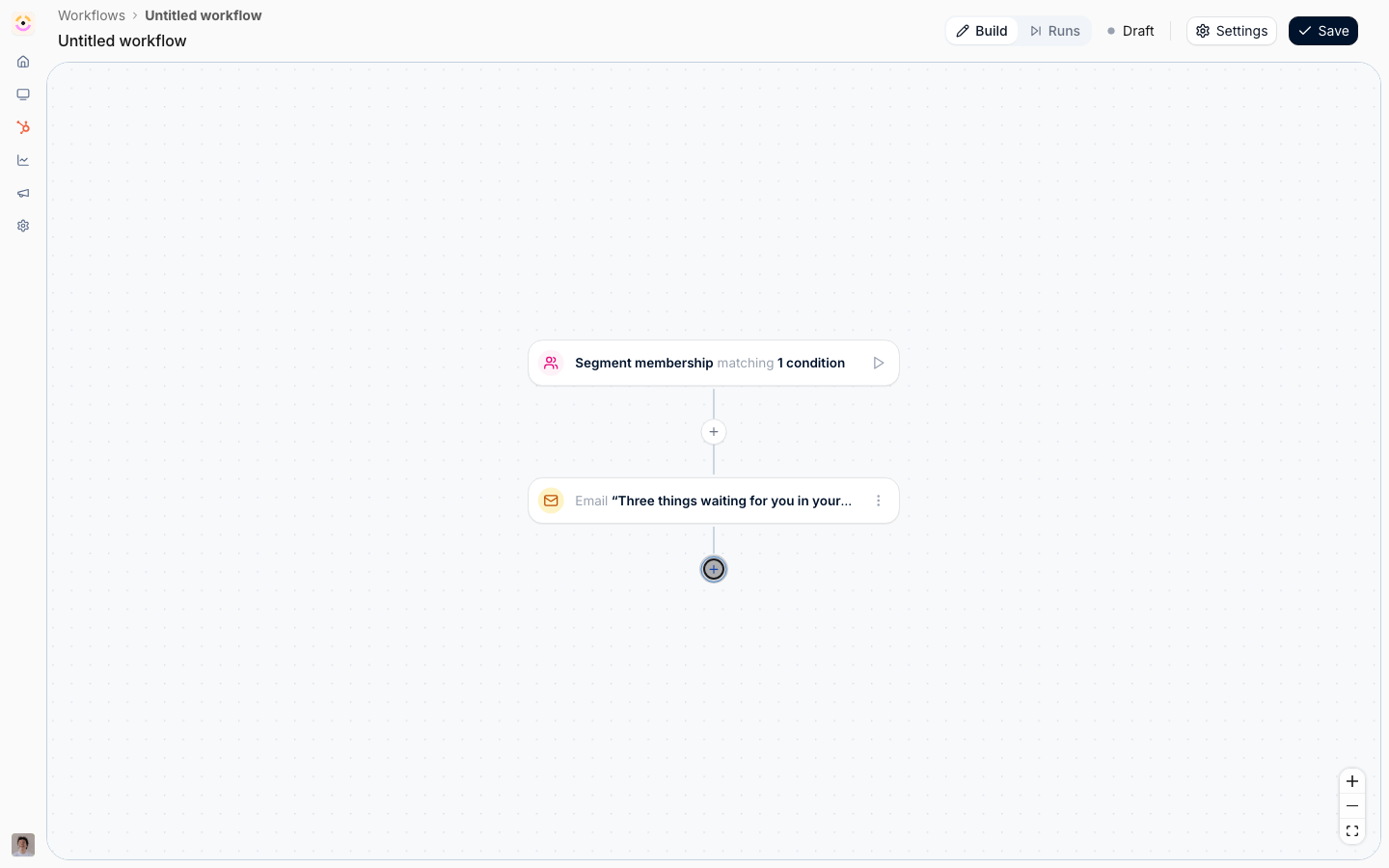
Add Send an email.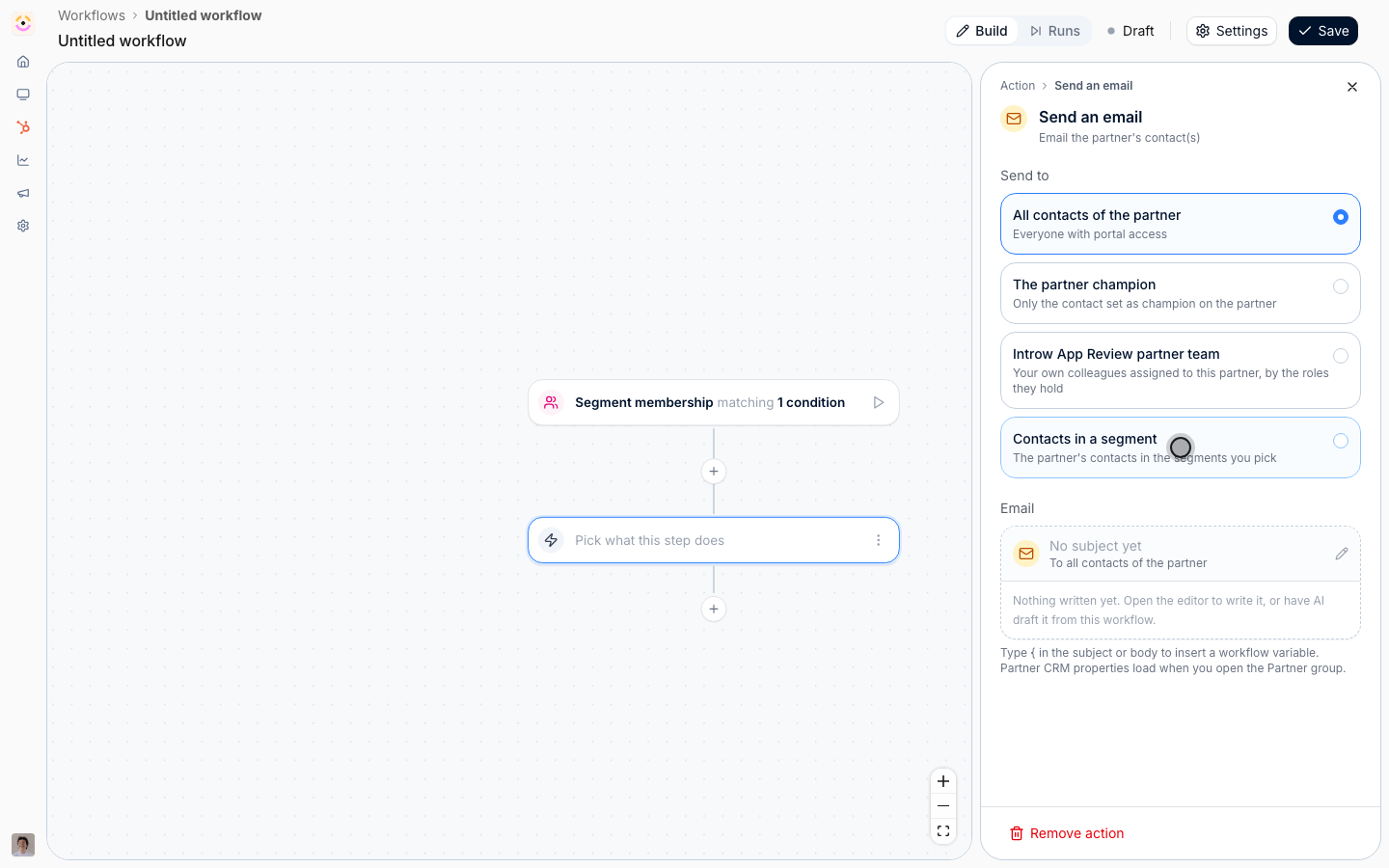
- Send to - The partner champion for a personal note, or Contacts in a segment if you maintain a segment of the people worth reaching at each partner. The contact this is about is not offered on this trigger, because a segment movement is about the partner, not one person.
- Email - give the partner a reason to come back rather than an observation that they left: a new asset, an open campaign, a deal of theirs that needs attention. CTA buttons point at that partner’s own portal, so a button can land them exactly where the reason is.
3
Give the partner something concrete to do
Add Give a task with Assignee left as the partner’s company, or set to a partner team role if you know who to reach. A task appears in the partner’s portal, is visible to both sides, and shows up in the built-in task reminders, which means the re-engagement keeps working after your email has been buried.Set Due date to a handful of days after assigned and write a Description that says why you are asking. Keep Visibility as Public so the partner can see it.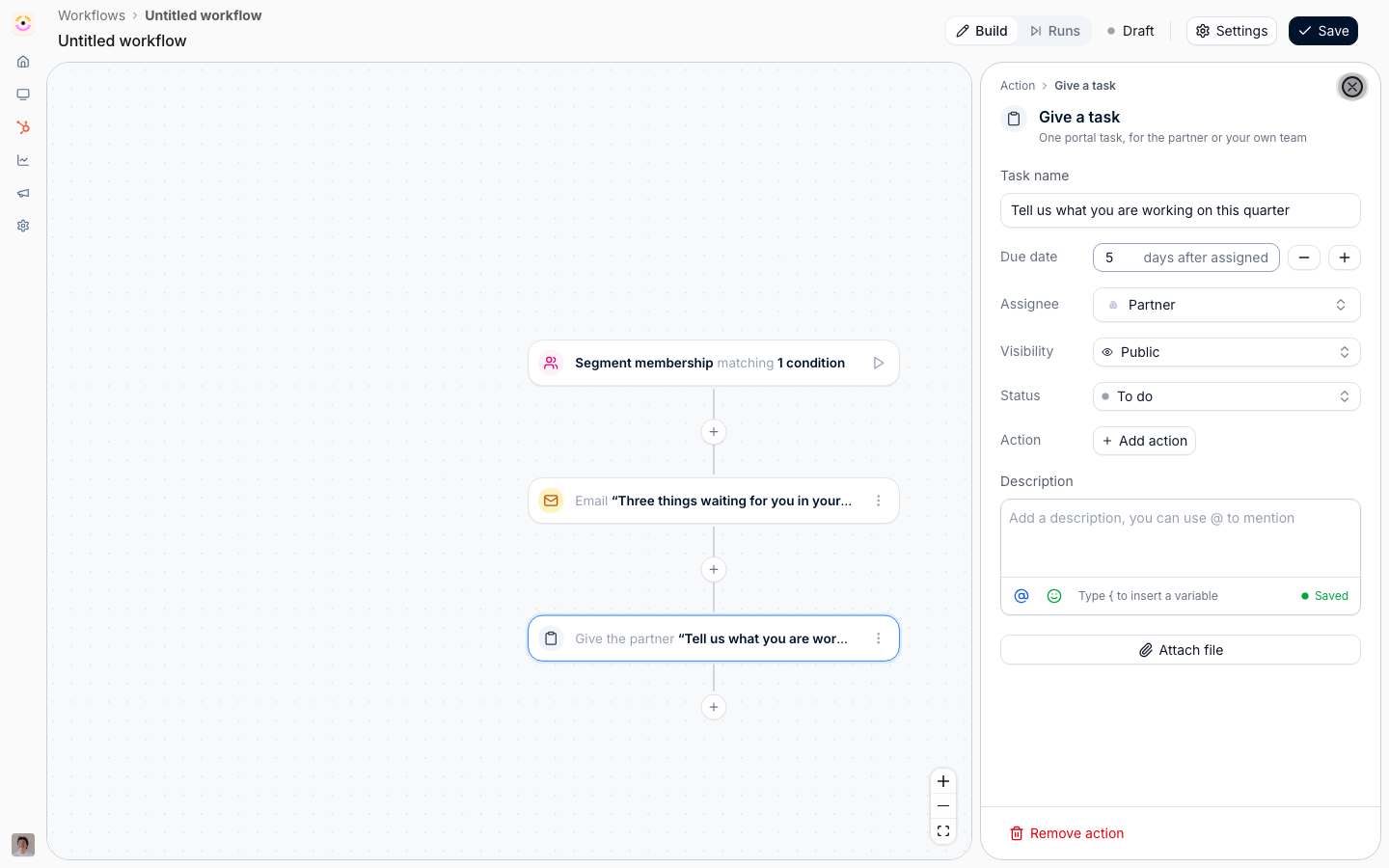
Check whether it worked
1
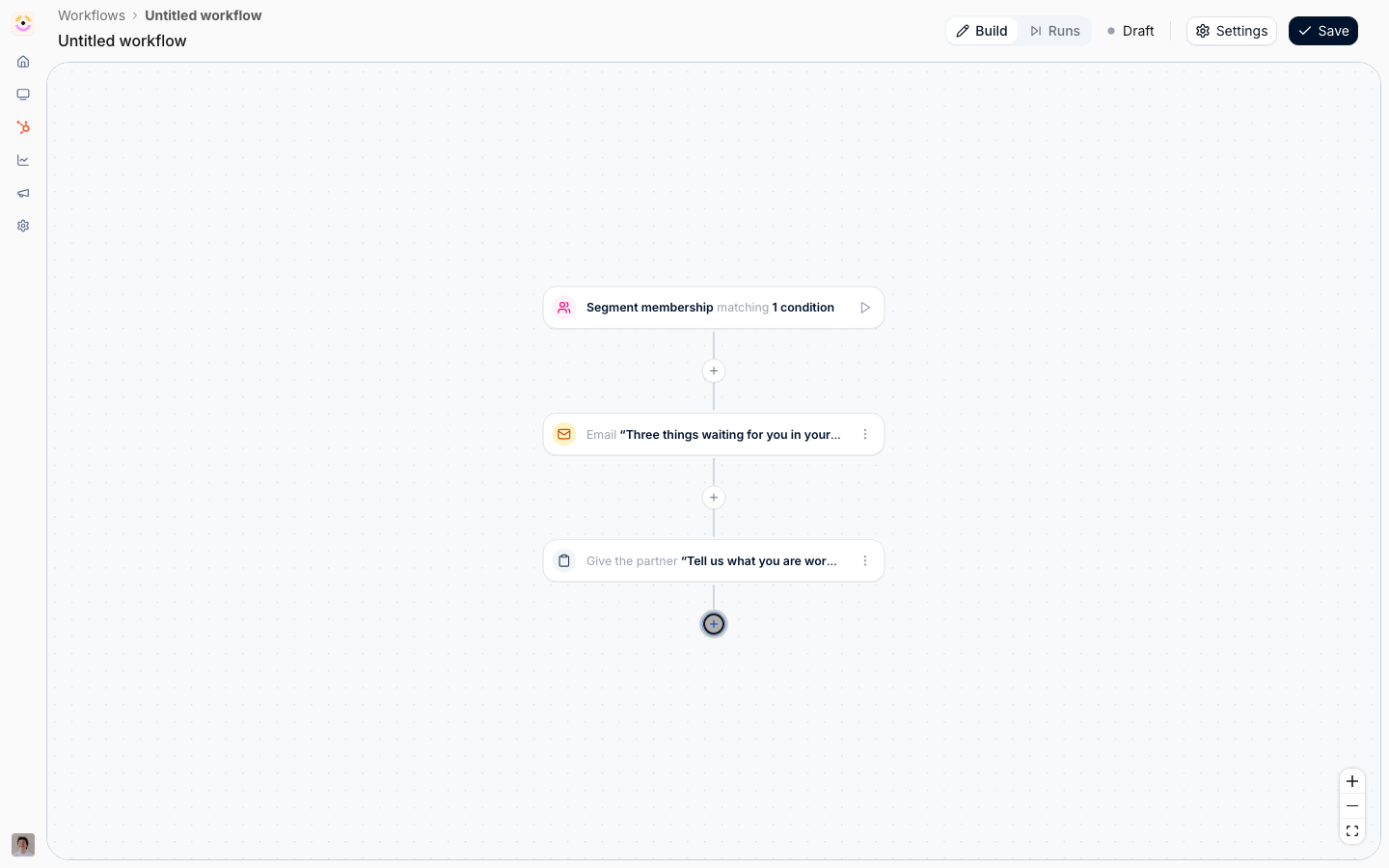
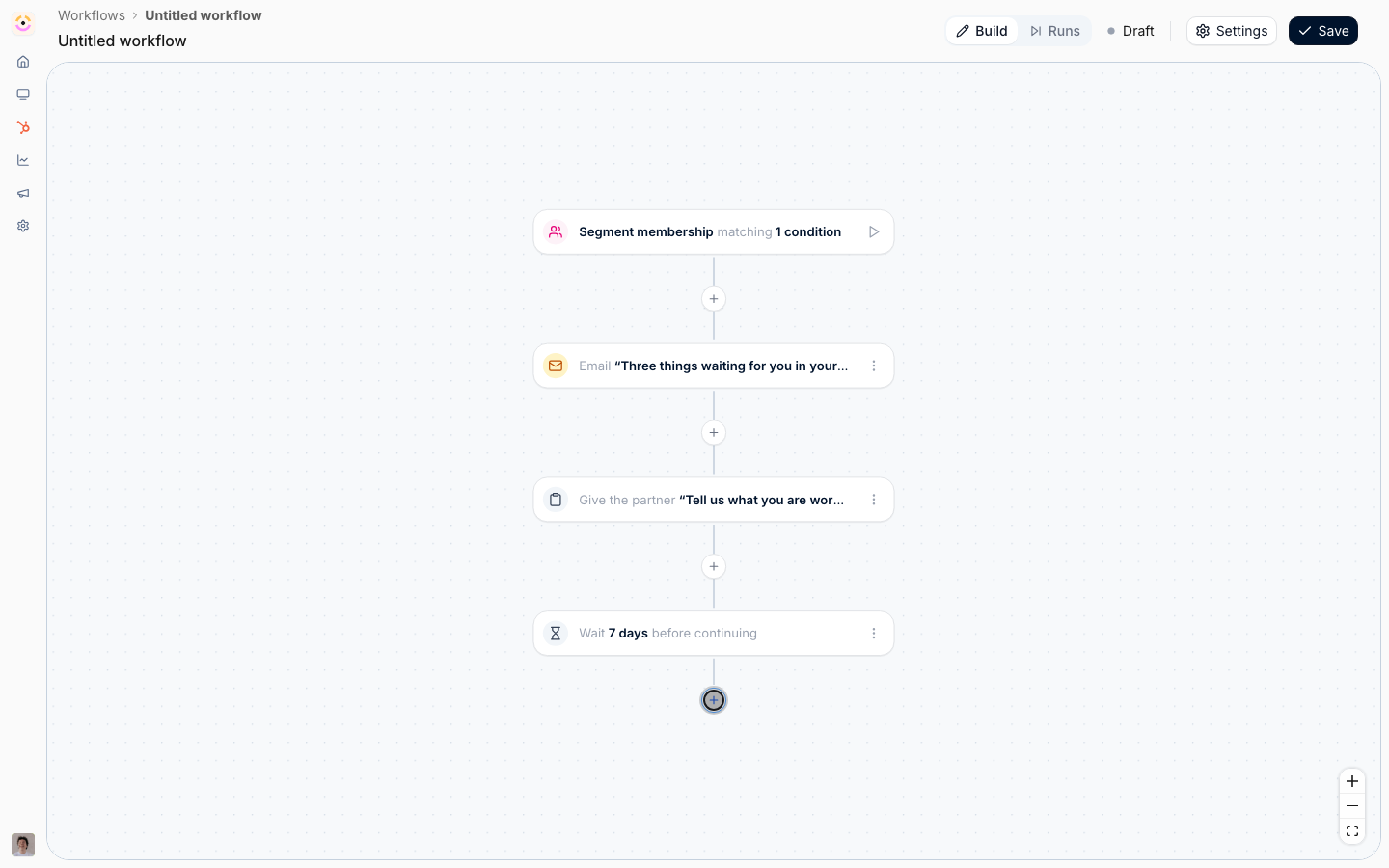
Wait a week
Add a Delay: After the previous step, 7, Days. A segment trigger carries no due date to anchor on, so a plain wait is the only option here and the panel simply says so.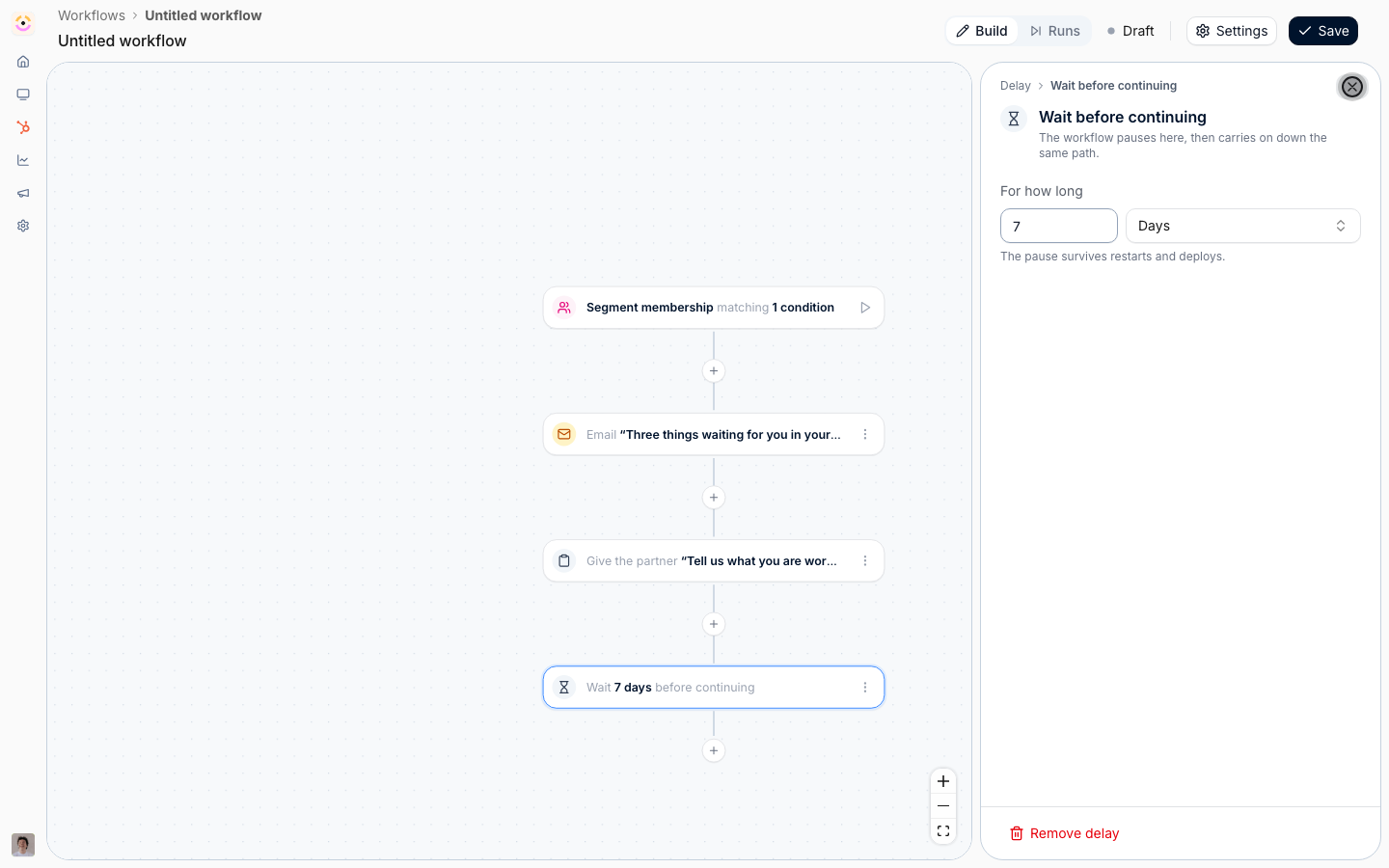
2
Fork on whether they came back
Add a Condition. Under Partners in, pick your quiet segment again.Read it carefully, because the logic inverts: a partner still in the quiet segment takes the Yes path, which is the escalation path, and a partner who has become active again has dropped out of the segment and takes No, where there is nothing left to do. The segment is re-read when the condition is decided, not when the run started, which is exactly why this works.Remember that dynamic membership follows a schedule rather than changing the instant a partner acts, so leave the wait long enough for at least one re-evaluation to have happened. A week is comfortable; an hour would not be.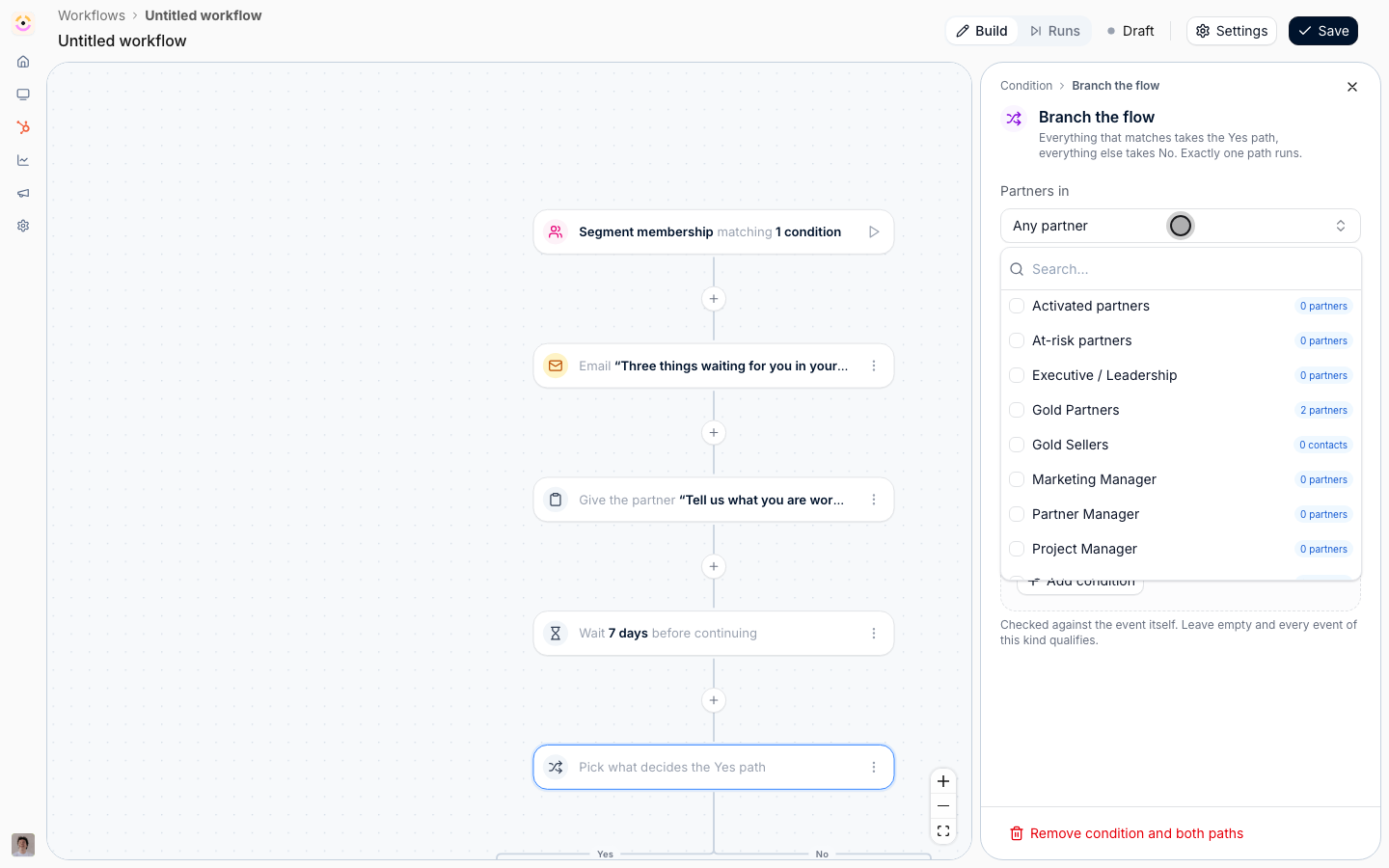
Hand it to a human
1
Task the partner manager on the Yes path
On the Yes path, add Give a task: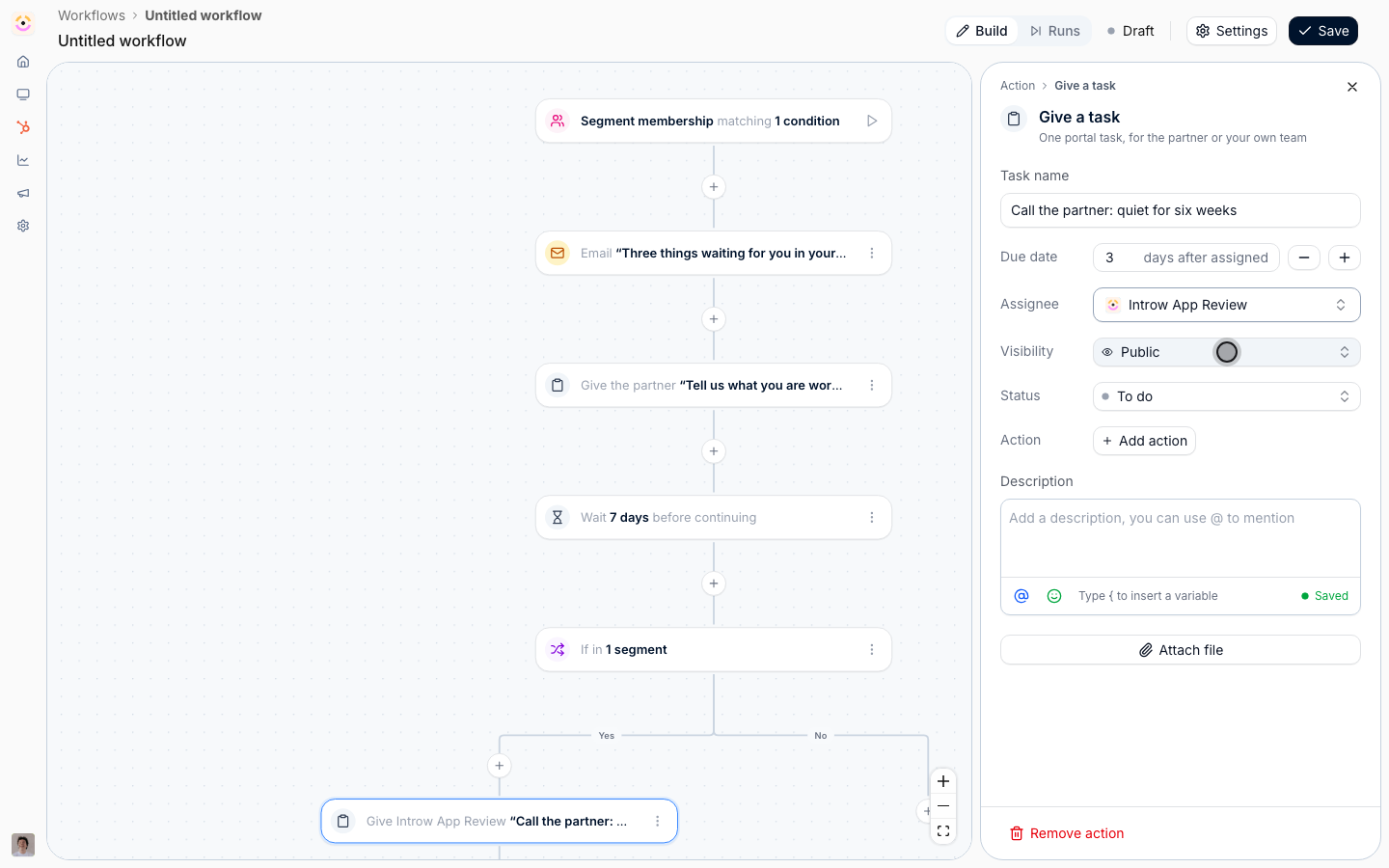
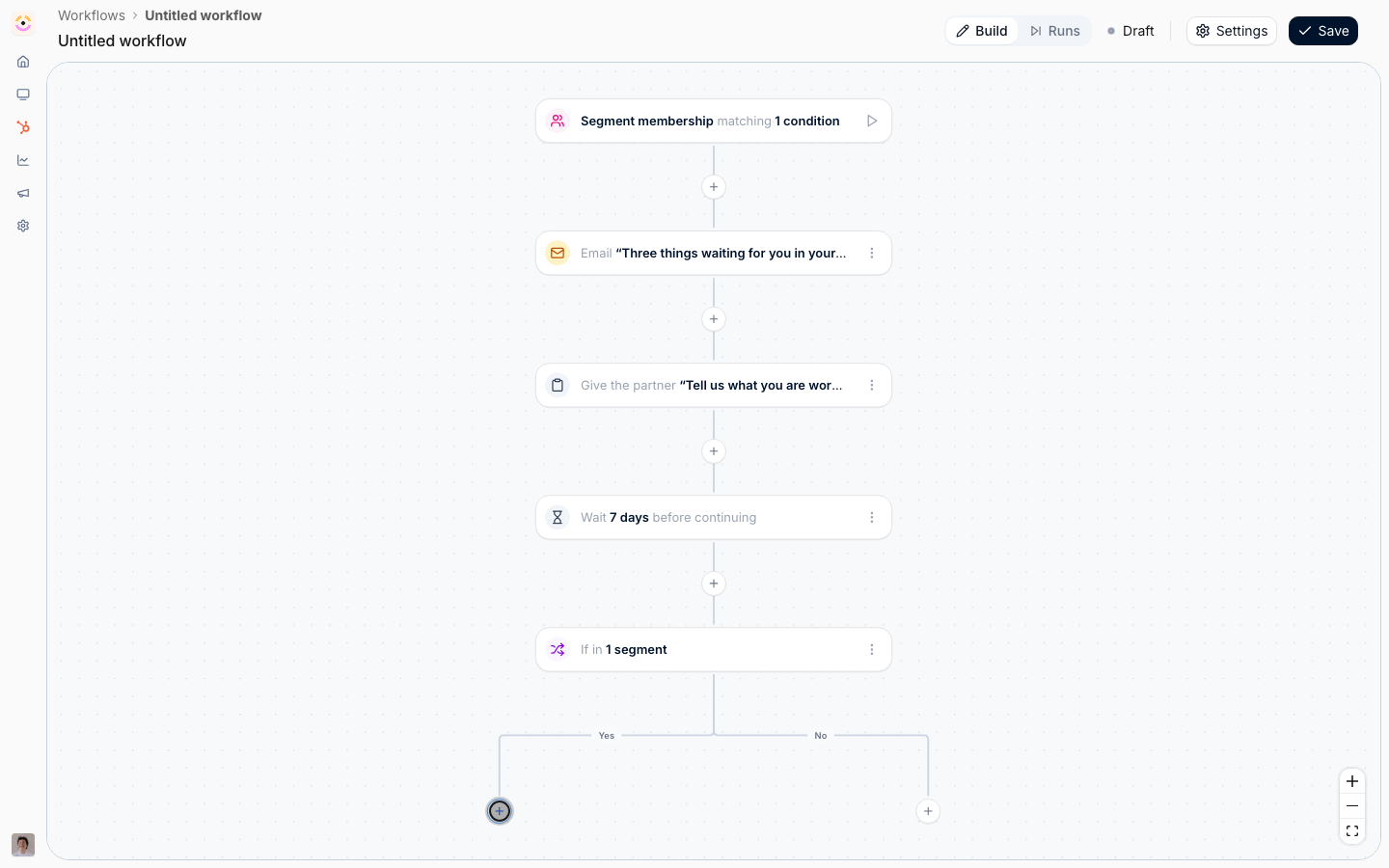
- Task name - “Call the partner: quiet for six weeks”, or whatever your window adds up to.
- Assignee - one of your own team, ideally a partner team role rather than a named person, so the task follows whoever owns the partner.
- Visibility - Internal, so the partner never sees it. Internal is only available on a task assigned to your own team.
- Due date - a few days after assigned.
- Description - list what the partner has already received, the chat nudge, the email, and the portal task, so the manager opens the conversation knowing what has been tried.
2
Email the team and write it down
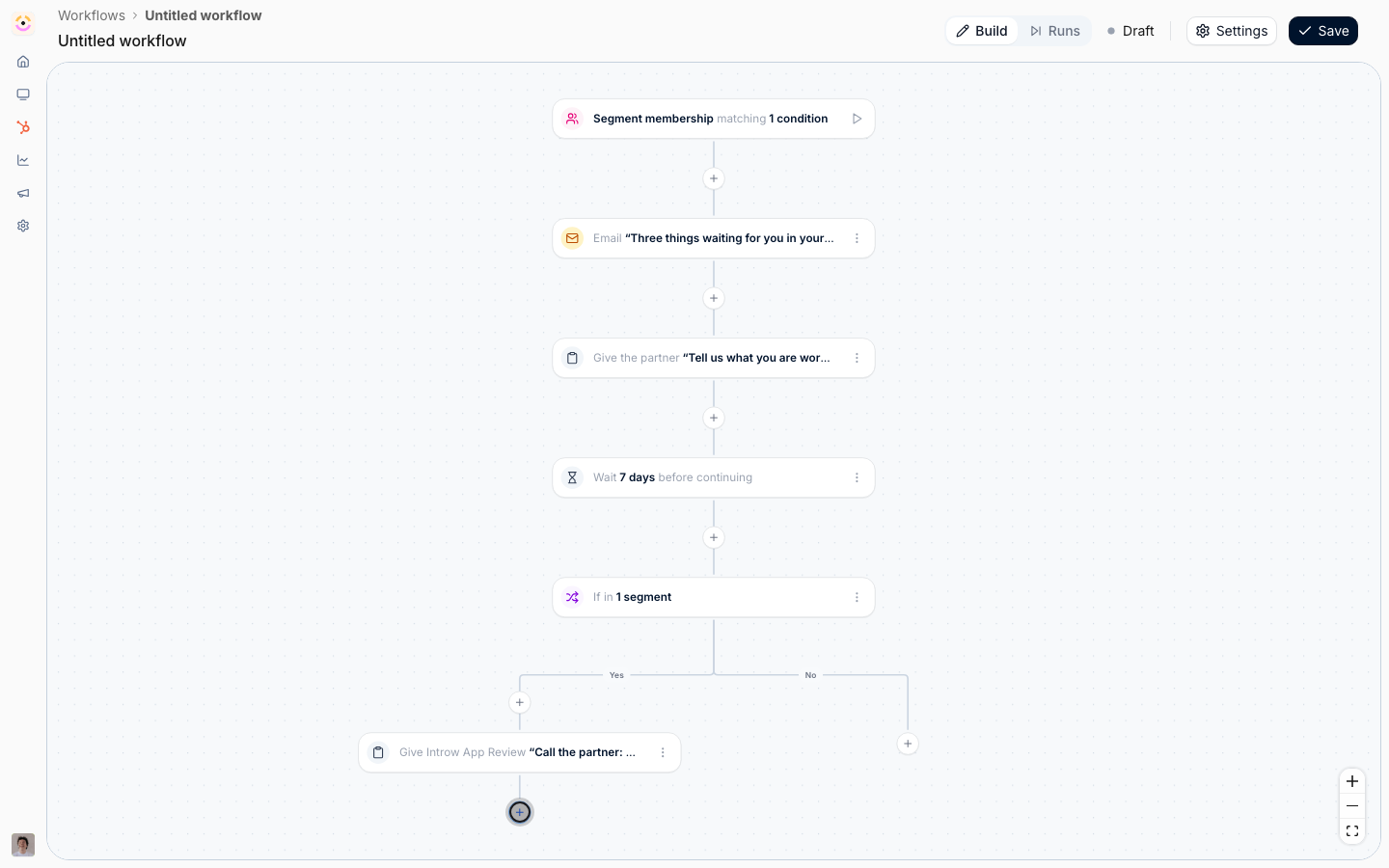
Add Send an email with Send to set to Your partner team, shown as your organisation’s name followed by “partner team”. This is the one always-internal audience: your own colleagues assigned to this partner. A Roles picker appears under it; pick the partner manager role to reach only them, or leave it empty for the whole team.Then add Log a CRM note so the sequence and its outcome are on the partner’s CRM record. When the account team next opens the record in HubSpot or Salesforce, the history of the re-engagement attempt is there rather than in a workflow log nobody thinks to check.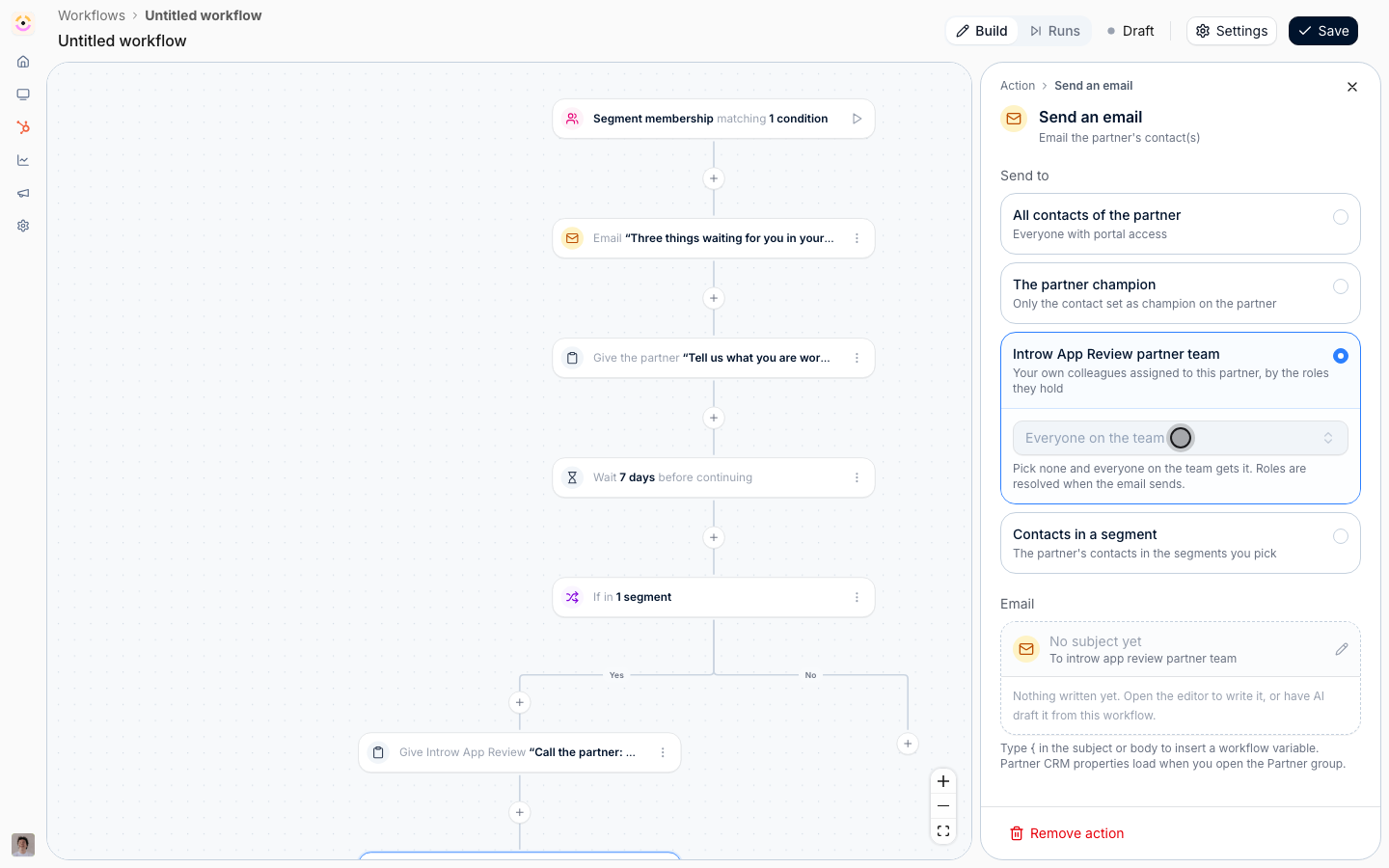
3
Optionally move them into a watchlist
Add Add to a segment and pick a static at-risk segment. It gives you a durable list to report on and to target with announcements, and because so much keys off segments, it can also change what the partner sees. Only static segments are offered, since a dynamic segment’s membership is decided by its own audience.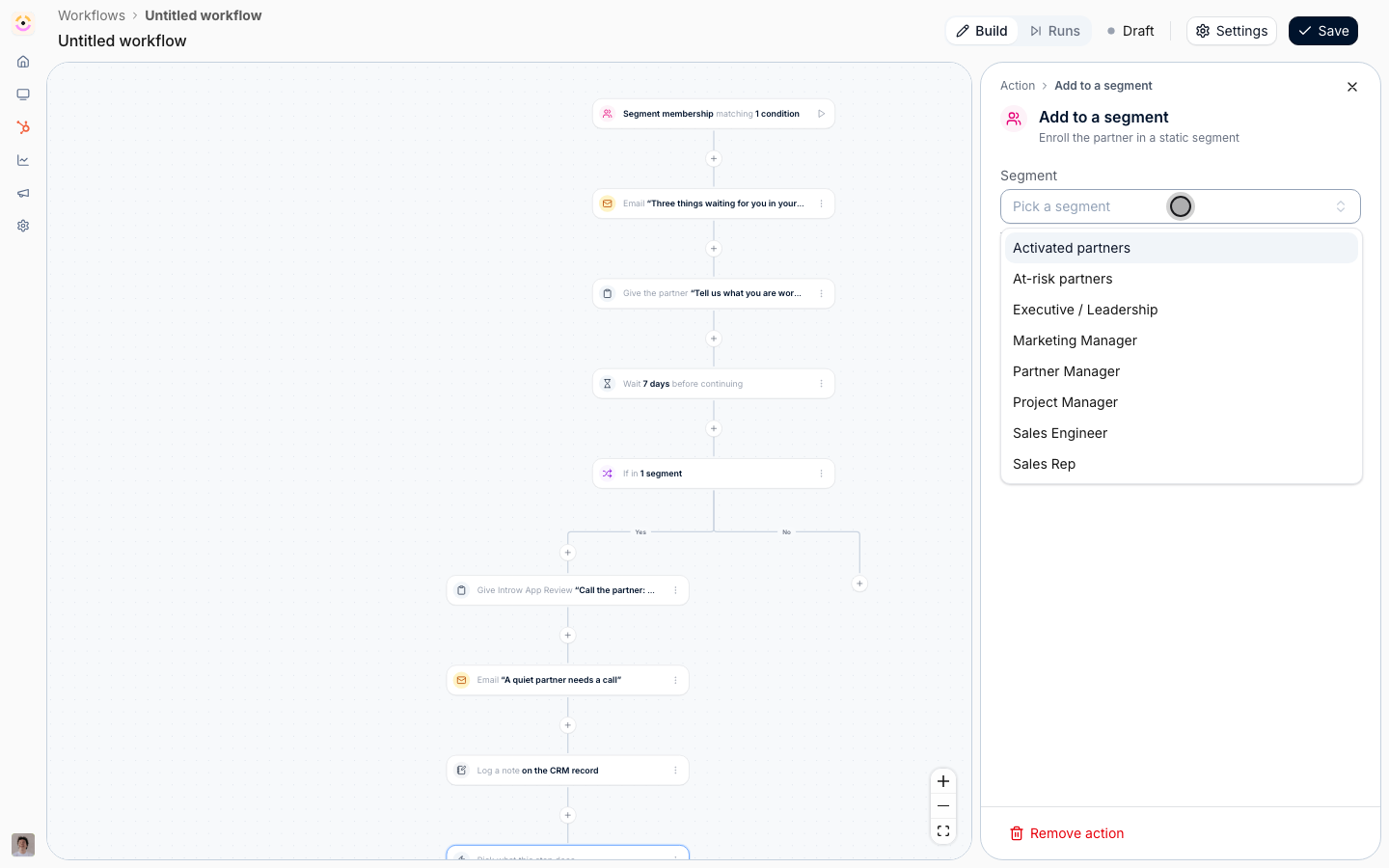
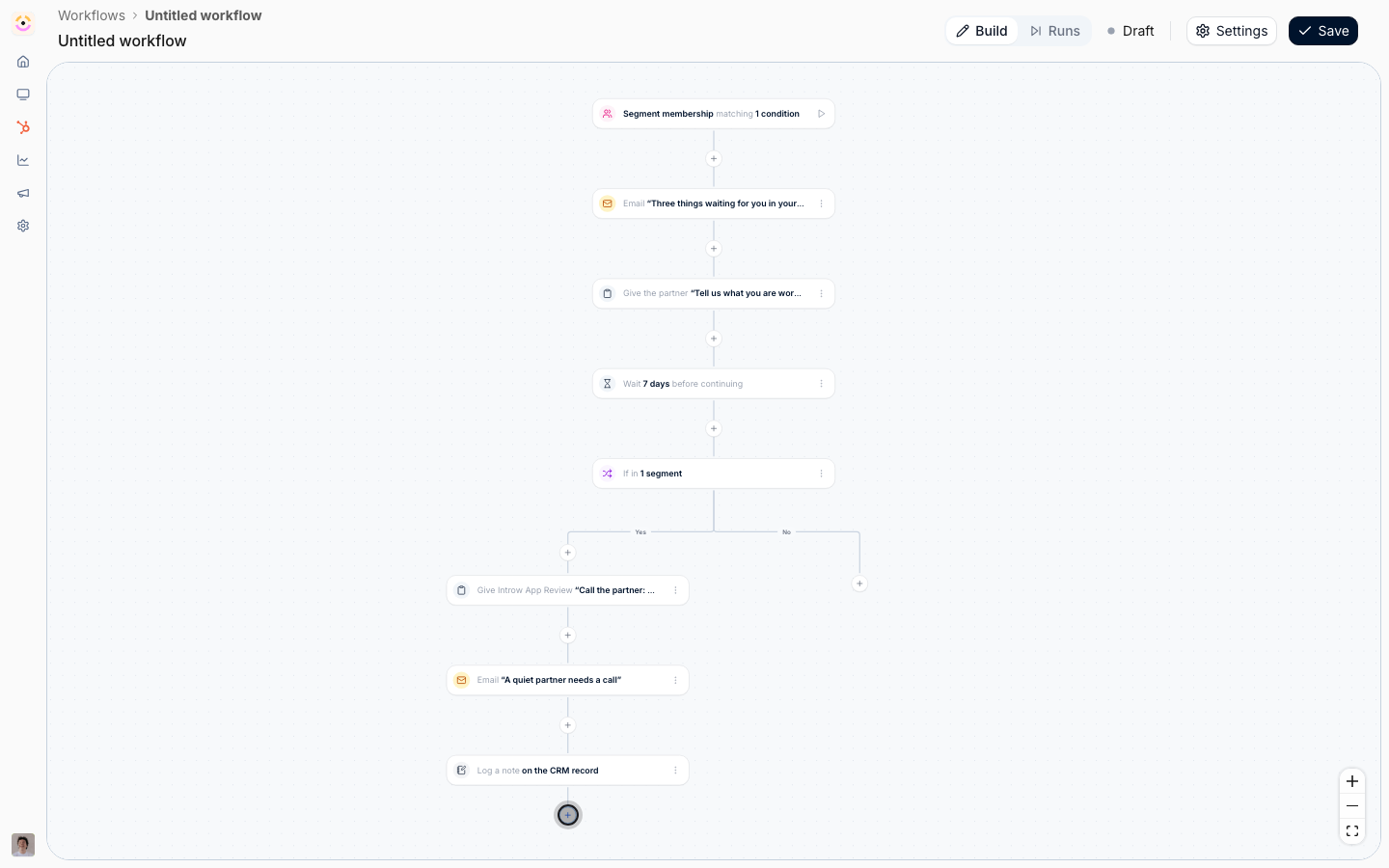
Rehearse and enable
1
Test it
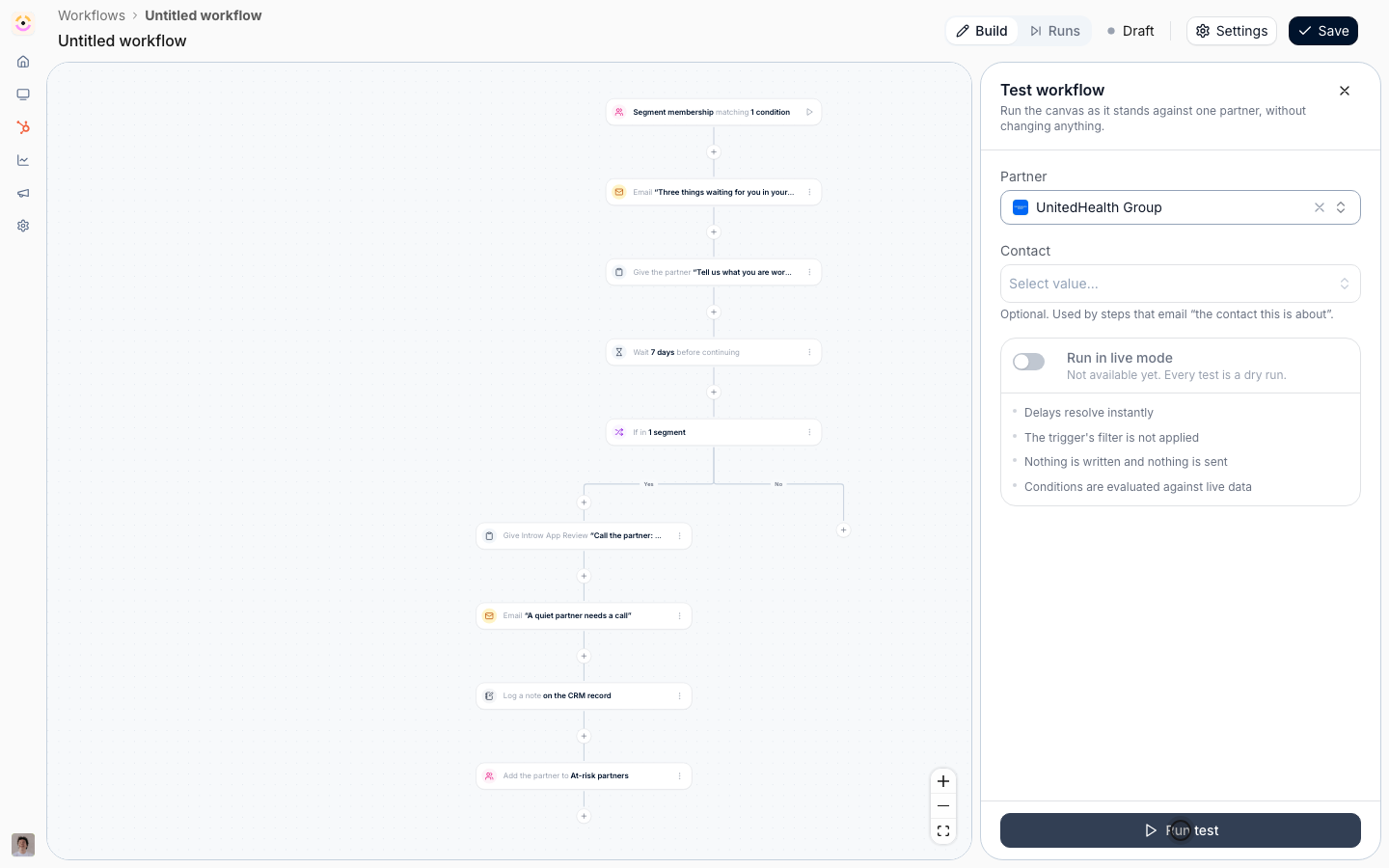
Select the play button beside the trigger, pick a partner, and select Run test. Delays resolve instantly, so both weeks pass in seconds. Conditions are evaluated against live data, so the fork tells you the truth about whether that partner is in the quiet segment right now, which makes this a genuinely useful rehearsal. Nothing is written and no message is sent.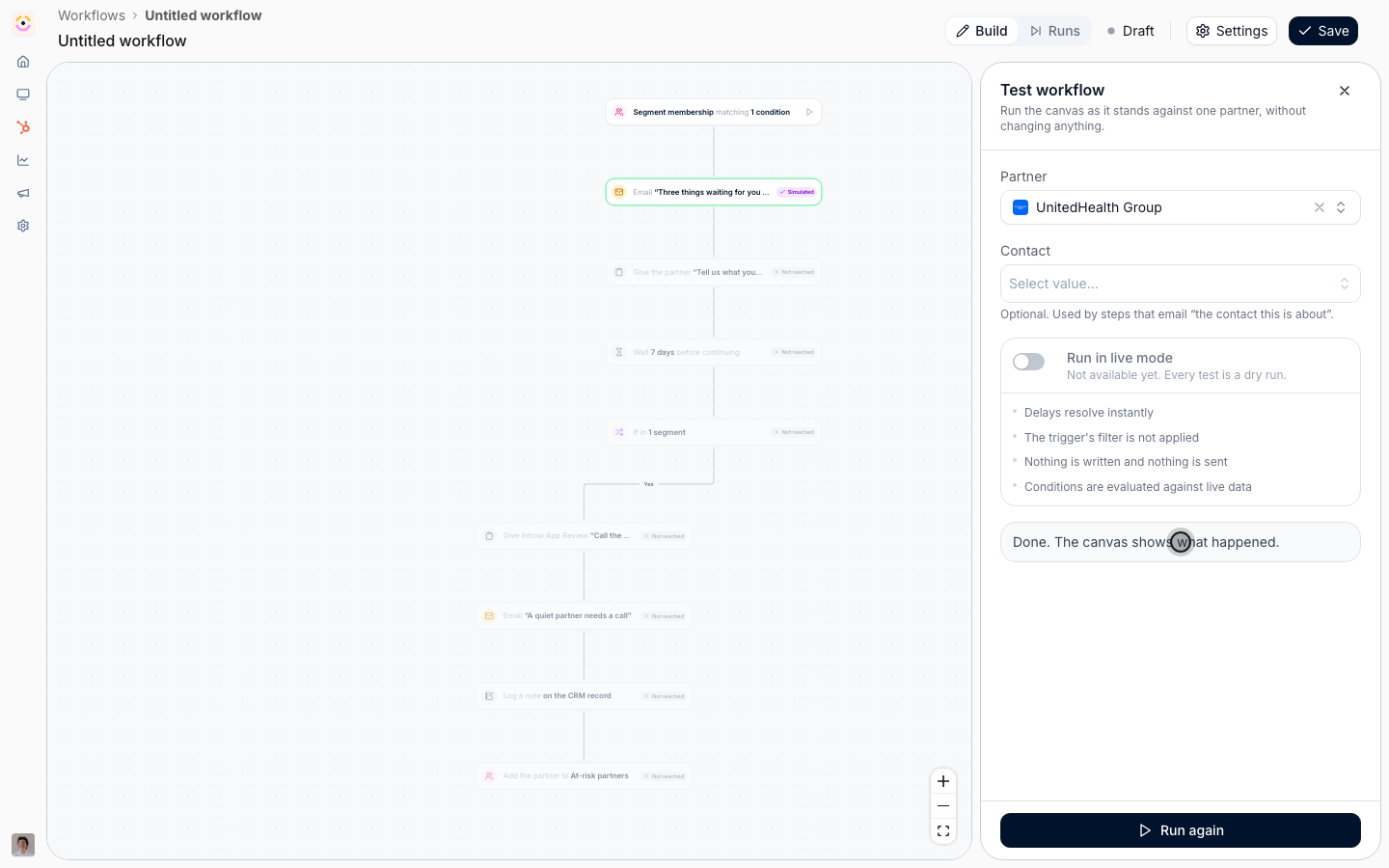
2
Name it and switch it on
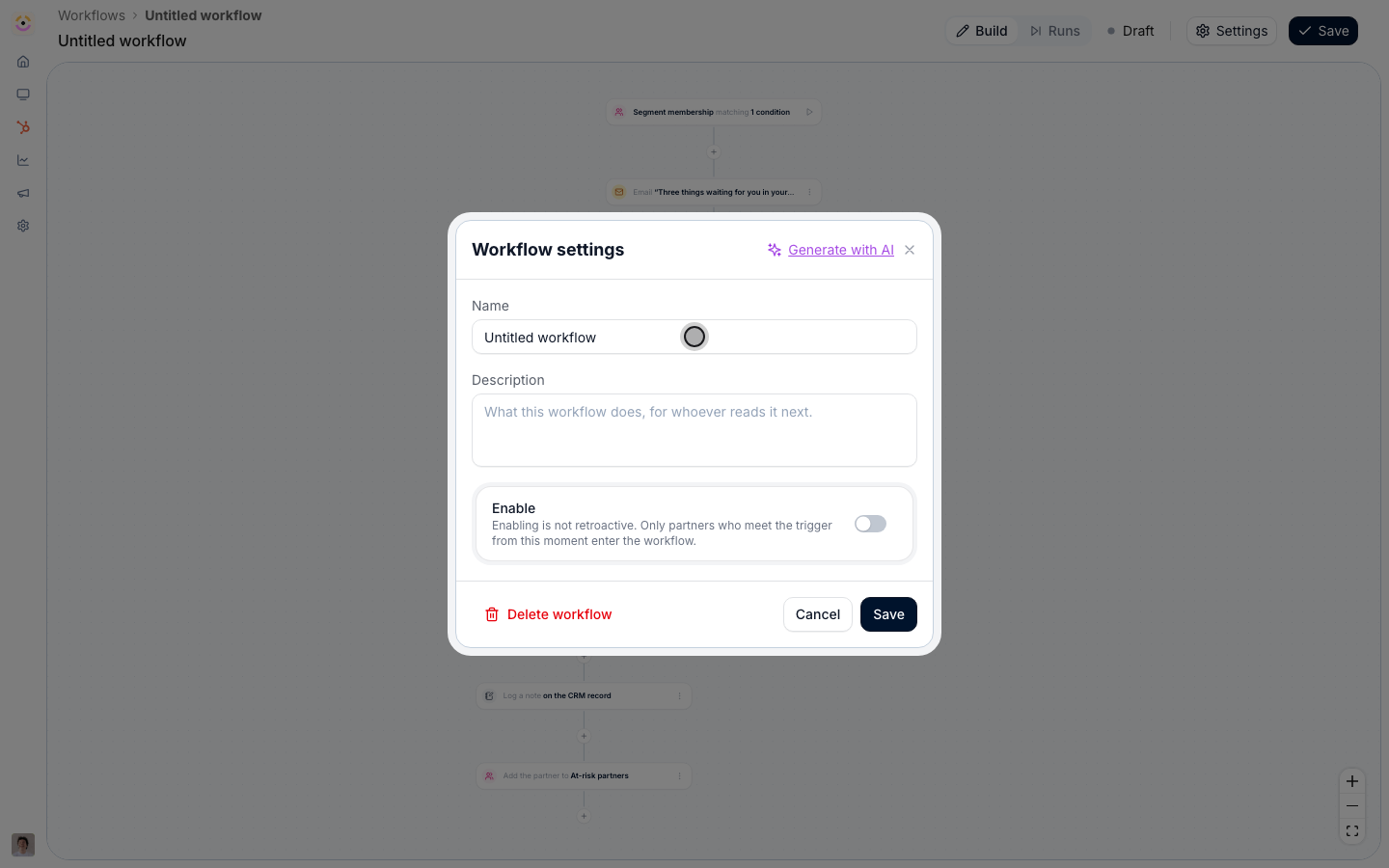
Open Settings, name and describe it, switch Enable on, and Save.Enabling is not retroactive, and on this trigger that has a specific consequence: partners already sitting in the quiet segment do not start a run, because they did not enter it after you switched the workflow on. Handle that backlog once, then let the workflow catch everyone who goes quiet from now on.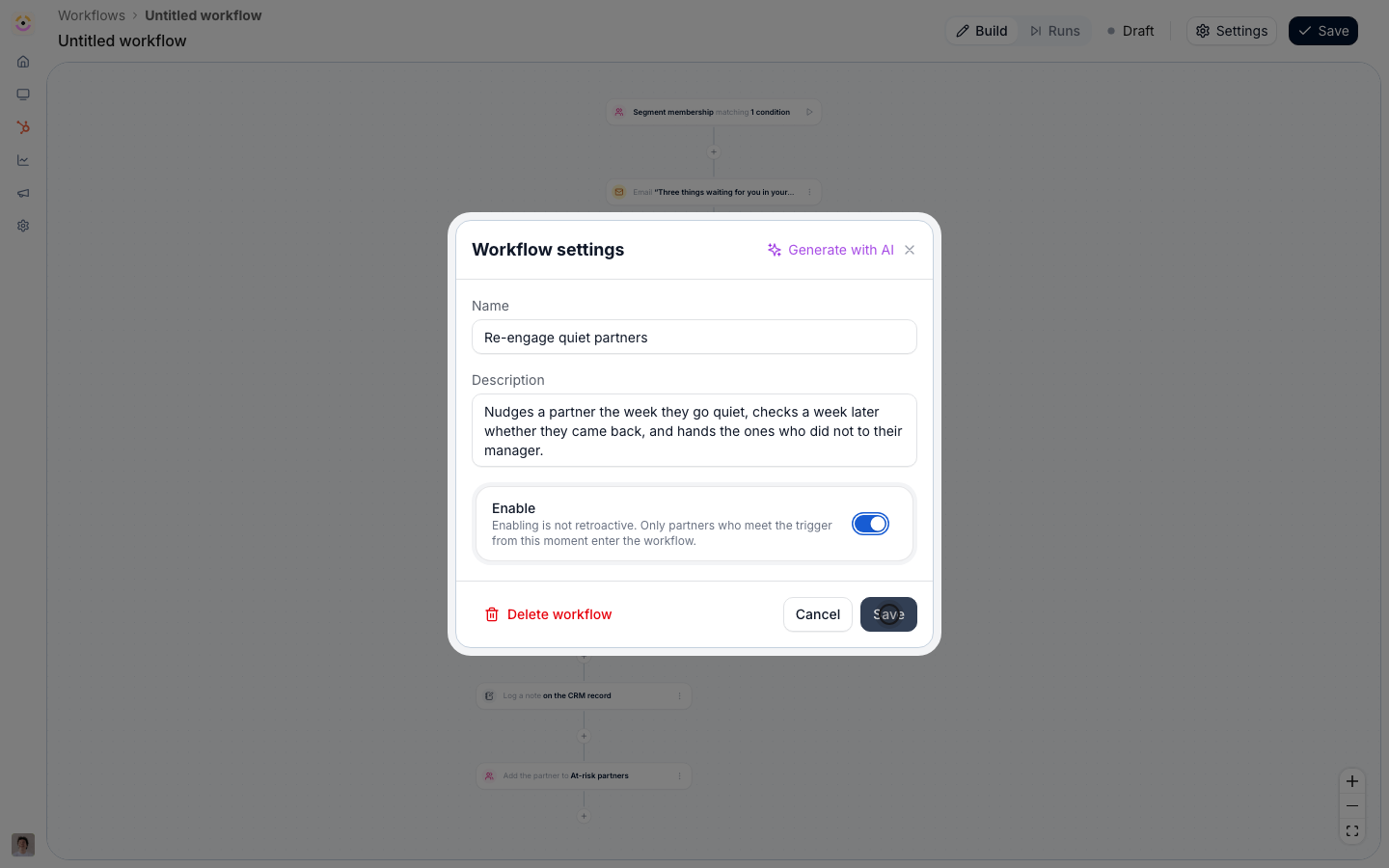
Verify it worked
Switch the canvas header to Runs a day or two after enabling. Runs appear named after each partner who crossed into the quiet segment, with the chat, email, and task nodes reading Ran and the delay reading Waiting. Open one of those partners: the chat message is in their shared channel, the task is on their portal, and the champion has the email. A week later the fork resolves, and the partners who came back show the escalation branch as Not taken while the ones who stayed quiet have a task on their manager’s list and a note on their CRM record.Related
Re-activate inactive partners
Build the quiet segment this workflow triggers on.
Chase a task to its due date
The same escalation pattern, measured from a deadline.
React to a CRM change on a partner
Trigger on a single field instead of a whole audience.
Workflows setup reference
Every trigger, action, condition, and delay option.