

Where it lives
A registration is a form. You build and configure it under Portal, at Forms, and every registration lands at Submissions.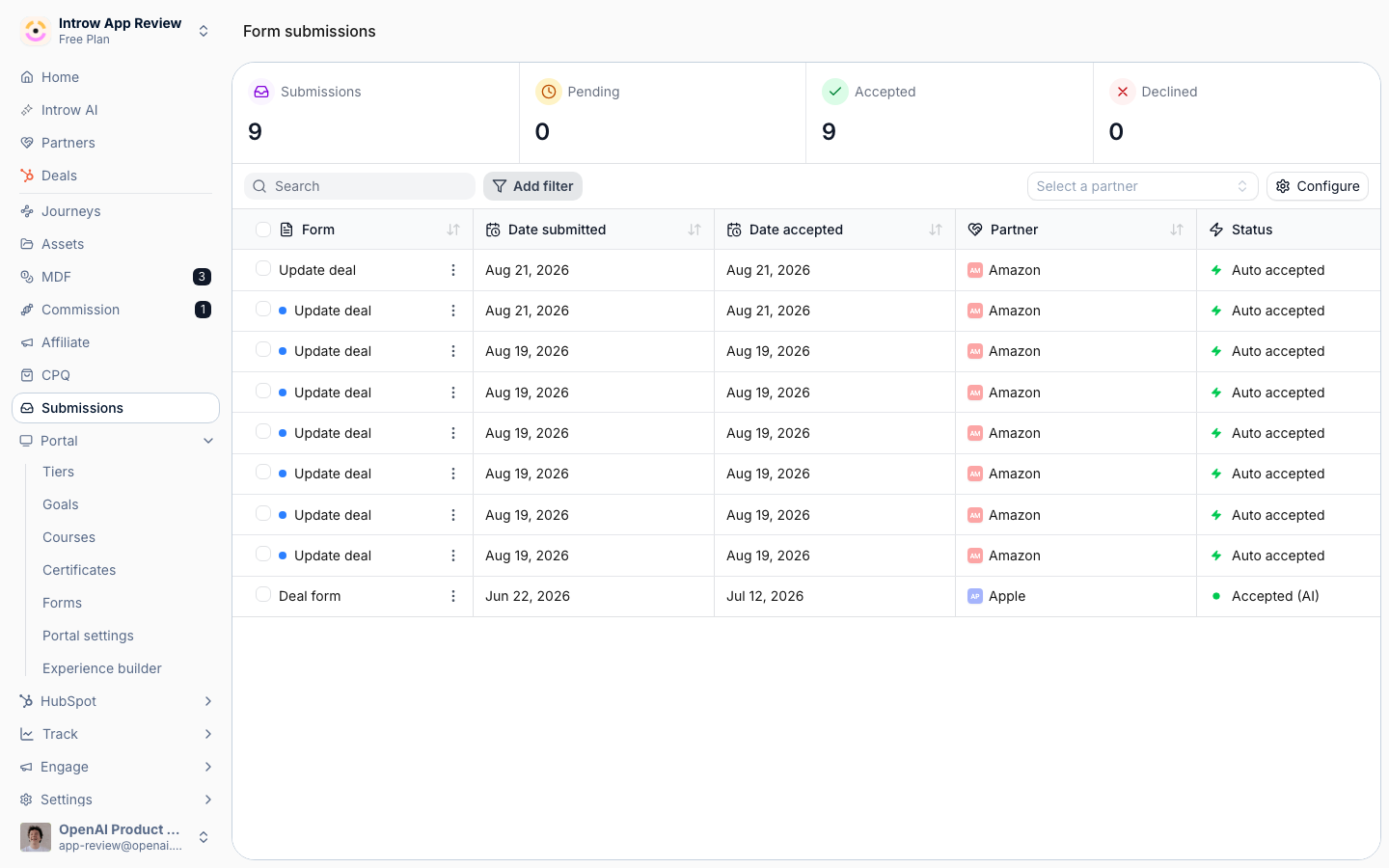
Before you start
How it works
A registration is an Introw form with a CRM automation behind it. A partner fills it in from wherever they work: the portal, a share link, an embed on your site, an email, Slack or Teams, an AI assistant, or the API. Introw identifies the submitter and their partner, checks the registration against your existing pipeline for channel conflict, holds it at the approval gate when you have one, and on accept writes the record to HubSpot or Salesforce attributed to the partner. The record then shows up on that partner’s shared pipeline, so the co-sell continues on the same object. Deals and leads run through the same mechanics; what differs is the object the automation writes. A deal registration maps to a deal, usually with the company and contact behind it, so credit is locked in before anyone works the opportunity. A lead registration maps to a lead or contact, and your team qualifies it into a deal. When a lead later becomes a deal, a lead picker on the deal form ties the two records together. Because it is a form, nothing about registration is bespoke. The form builder, the CRM automation, channel-conflict analysis, the approval gate, the sharing channels, and the Submissions inbox are the same ones every other partner form uses. This page tells you which of those settings matter for registration and sends you to the full reference for each.Settings & configuration
Everything registration-specific lives on the form: its fields on the Form builder tab and its behavior on the Automation tab, both from Forms. The Automation tab lists the form’s blocks in four groups, Submission, Review, Notifications, and Records written, and opens each one in the panel beside the list. The settings below are the ones that decide whether a registration lands clean, credited, and on the right desk.Fields and CRM mapping
On the Form builder tab, add the fields a partner fills in and map each one to a CRM object and property under CRM Mapping. A deal registration usually asks for the company name and domain, a contact, the deal amount, the expected close date, and one free-text question about the opportunity. Keep it short: partners register more when the form only asks what you cannot look up yourself. Add a CRM object field when you want a partner to pick an existing lead, account, or contact instead of retyping it, and use conditional fields to ask a question only when it applies. Start from the Deal registration or Lead capture template rather than a blank form. Full reference: Form Builder.The deal or lead record
Under Records written, add the record a registration should write: a Deal for deal registration, or a Lead, Contact, or Company for lead sharing. The panel asks four questions in order. Which deal does this write to? Match or create enriches the deal Introw finds in your CRM and creates one only when nothing matches, so a registration never duplicates a deal you already have. Match only never adds a record, for forms that should only ever update an existing deal. A CRM object picker on the form outranks matching: the record the partner picks is the record Introw writes to. Form fields map what the partner submits to CRM properties. Each row carries a Write mode that defaults to Fill in if not known, so partner data fills gaps and never overwrites what a rep already set. Default values are what the partner never sees: the pipeline, the stage, the deal owner (a fixed person or the partner’s own manager), and a deal-name convention built from text and variables such as the company name via the partner. The panel also shows the values Introw resolves itself at submission time, such as the partner attribution property, so you can see what every registered deal is created with. Full reference: CRM Automations.Attribution
Partner links, on the same panel, decides how the deal Introw writes gets attached to a partner. Submitting partner links the record to the partner who submitted, using the attribution methods you already configured on your CRM connection, with no per-form wiring. This link is what puts the deal on that partner’s shared pipeline and counts it toward their revenue and commissions. Identify submitter, under Submission, matches the standard submitter fields to partner details, so a registration that arrives off-portal, from a link, an email, or a chat message, is still credited. Full reference: Configure deal attribution.Channel conflict check
Channel conflict check, under Review, cross-references each registration against your existing deals, contacts, and companies before anything is written. Turn on Channel Conflict Analysis, scope it with filters, for example excluding Closed Lost deals, and add context about how your team defines a conflict. The analysis proposes one of three outcomes: create a new record, link the registration to the existing deal, or decline it. Conflict cases show the overlapping records in the inbox so the reviewer decides with full context. Full reference: Channel Conflict Resolution.Approval gate
Approval gate, under Review, holds registrations for review before the CRM writes run. Switch it on and pick how much of the review Introw AI owns. Manual sends every submission to your approvers with no AI. AI Assisted has Introw AI pre-check each registration and recommend, and your approvers decide. Autonomous AI lets Introw AI decide when it is confident and escalate the rest to your approvers. The mode in force shows beside the block in the list. Without a gate, a conflict-free registration is accepted the moment it arrives. Full reference: Approval gate.Who gets told
Notify your team, under Notifications, sets who on your team is emailed about every new registration; this is also where a Submission error email goes when your CRM refuses the record, so leave nobody out. Reply to submitter, shown once the approval gate is on, holds the accept, decline, and return emails the partner receives. Confirmation screen, under Submission, is what the partner sees right after submitting: an end screen or a redirect to your own URL.Sharing the form
Share form on the form gives you every entry point. A General link is open to anyone, a Partner link stamps every submission with that partner’s attribution, Embed places the form on your own site, and the API tab turns it into a request from the partner’s systems. In a portal experience, add the form as a section. With the AI agent on and the integration connected, partners also register by forwarding an email, messaging the agent in Slack or Teams, or asking a connected AI assistant. Full reference: Sharing & submitting.Working the inbox
Submissions lists every registration with its status. Open one to Accept, Decline, or Return it for more information, and reply to the partner on the same thread. Use Configure to add the mapped CRM properties you triage by, such as deal amount and stage, as columns. Accepted is final: accepting is what wrote the record and told the partner yes, so correct the record in your CRM and return the submission if you need a change. Full reference: Submissions & Approvals.How-to guides
Registration owns no guides of its own. It is a form, so the guides live with Forms and with the two registration motions. Follow them in this order.Start with the whole recipe
Build the form
Write it to your CRM
Check it and approve it
Put it in front of partners
Test it and work the inbox
Troubleshooting
Registrations all sit in Pending
Registrations all sit in Pending
An approval gate is on, or AI validation was not confident enough. Review them in Submissions, or adjust the approval steps and the threshold on the form’s Automation tab.
A registration created a duplicate deal
A registration created a duplicate deal
Matching found no existing record. Check the match keys and filters on the deal record, or switch it to Match only for a form that should only update deals.
Conflicts are not flagged
Conflicts are not flagged
Channel Conflict Analysis is off on the form, or its filters exclude the records that overlap.
A submission shows no partner
A submission shows no partner
It came in through the general link and the submitter’s email matched no partner contact. Share a partner link instead, or add the contact to the partner first.