

What you’ll achieve
Partners open their experience and see a live pipeline of exactly the deals attributed to them, scoped by your filters, showing only the properties you exposed, each one only on the records where it matters - and able to edit just the fields you allow (for example to move a stage or update a close date). Everything reads and writes straight to your CRM, so the portal stays in sync without anyone leaving their own tools.Before you start
1
A connected CRM
Your CRM (HubSpot or Salesforce) must be connected, since the pipeline reads deals from it. Some controls below are HubSpot-only and are called out where they appear.
2
Access to integration settings and experiences
You need access to your CRM connection settings to set attribution, and edit access to a partner experience to add and configure the pipeline view.
3
A partner experience to add it to
Have the experience (the portal partners see) where the pipeline should appear, so you can drop the view into its content.
Watch it
- Video
- Click through
Steps
Attribute deals to partners
1
Open your CRM connection
Go to Settings, then Integrations and open your CRM connection. Attribution is the foundation of everything shared: it links each deal to the partner who sourced or works it, and until it is set there is nothing to show in a pipeline.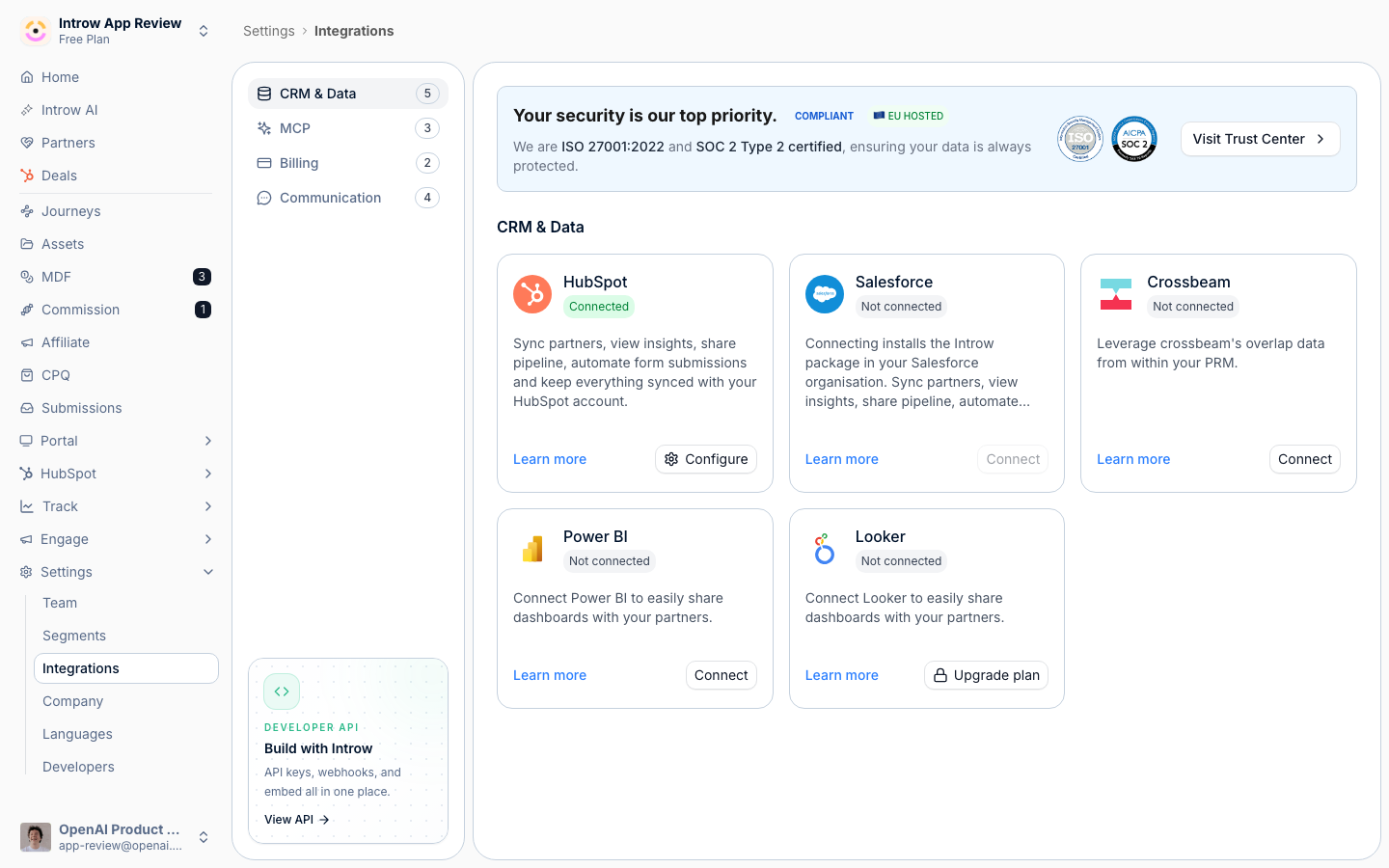
2
Define how deals relate to partners
Configure the attribution using the relationship your CRM already holds between a deal and a partner (for example a partner association or a property on the deal). This decides which partner each deal belongs to, so it appears for the right partner and no one else. Save it and let Introw sync; attributed deals then become available to expose in a pipeline view and on partner records.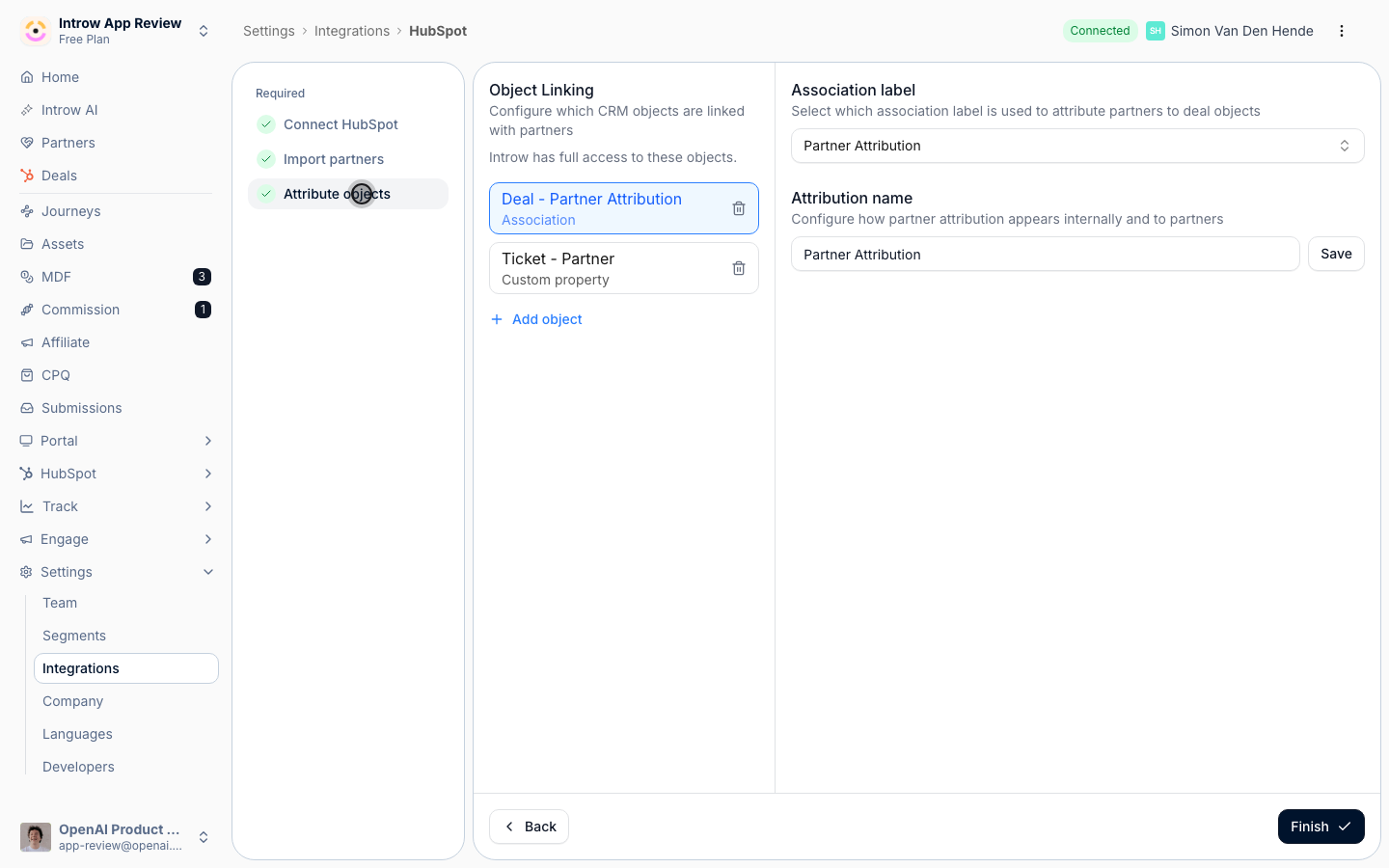
Add the pipeline view to a partner experience
1
Open the experience builder
Go to partner experiences and open the experience where the pipeline should appear. The view lives in the experience content, so partners reach it as part of their portal rather than as a separate report.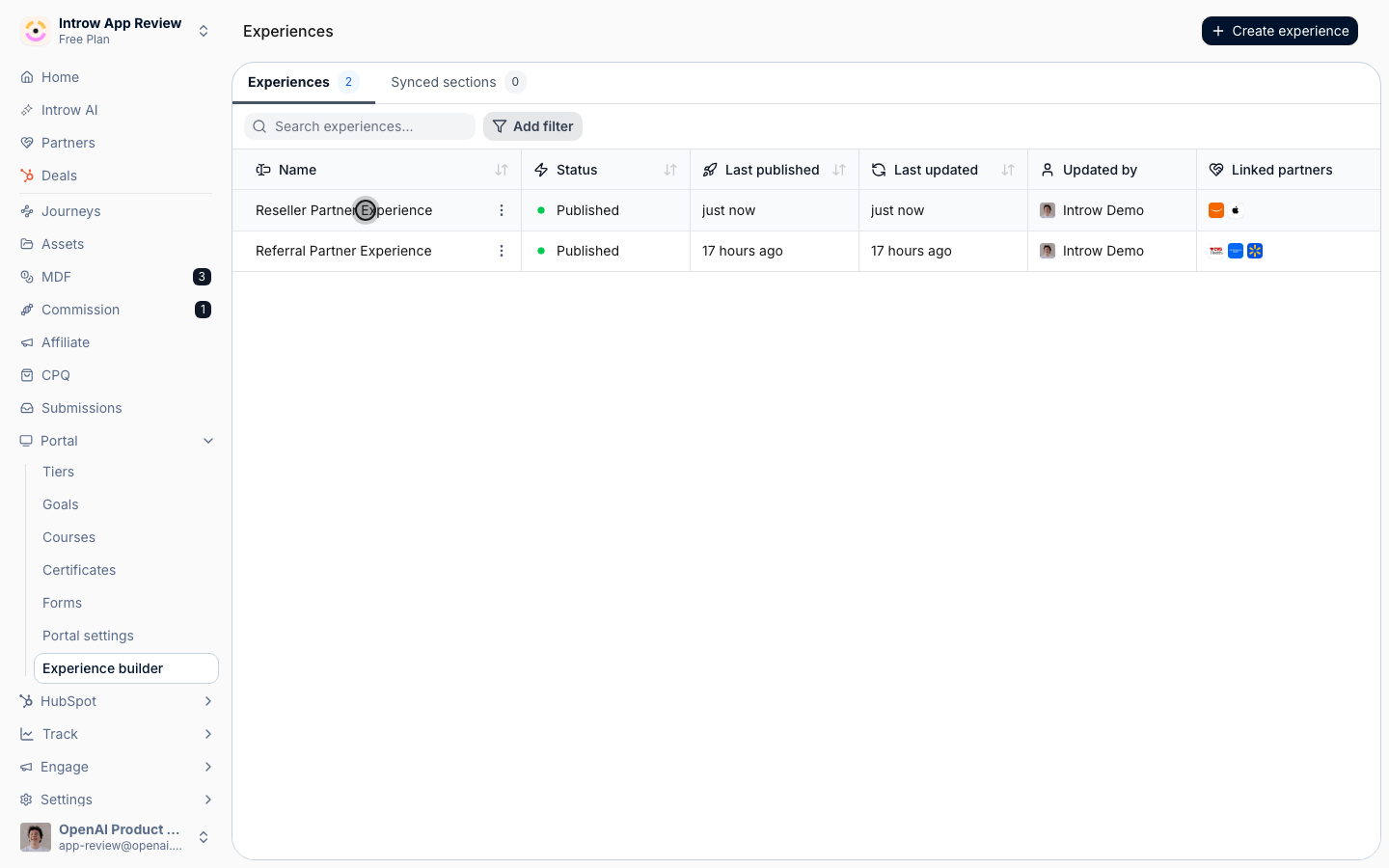
2
Insert a deals list and pick the pipeline
Add a CRM list of deals to the content, then set its core inputs: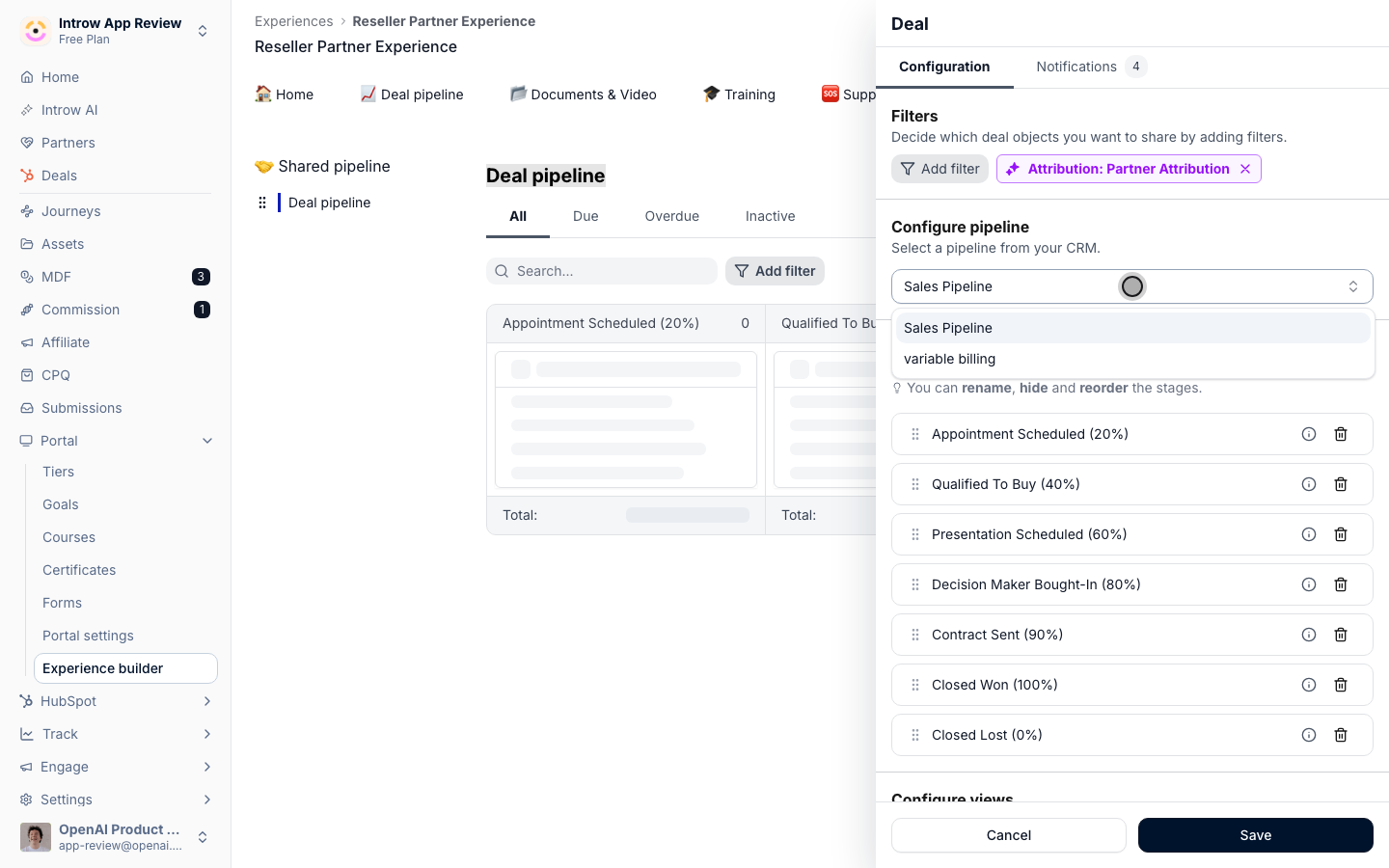
- Object and pipeline - choose the deal object and which pipeline’s stages to show; this defines the columns of a board view and the stage set partners see.
- Stages - keep the stages partners should see and hide any that are internal-only, so the board reflects the partner-facing process.
- Layout - show the view as a board by stage or as a table. A board reads well when partners move deals through stages; a table suits a denser, read-heavy list. (A board needs at least one visible stage, and one stage is a one-column board; hide every stage and it falls back to a table. HubSpot custom objects with a pipeline get the board too. Companies and contacts are always a table.) The table view is also where partners select several records and edit them together, see Let partners update many records at once.
- Saved views - save one or more named views with their own columns and filters when different cuts of the pipeline are useful.
Scope which deals appear
1
Set the view's filters
Open the view’s filters. Even within a partner’s attributed deals, not everything belongs in the portal, and filters scope the list precisely. The view starts with a partner-attribution filter so each partner only ever sees their own deals; add further conditions (pipeline, stage, a property value) to narrow it. At least one filter is required, and the partner-attribution filter is what guarantees partners never see another partner’s deals.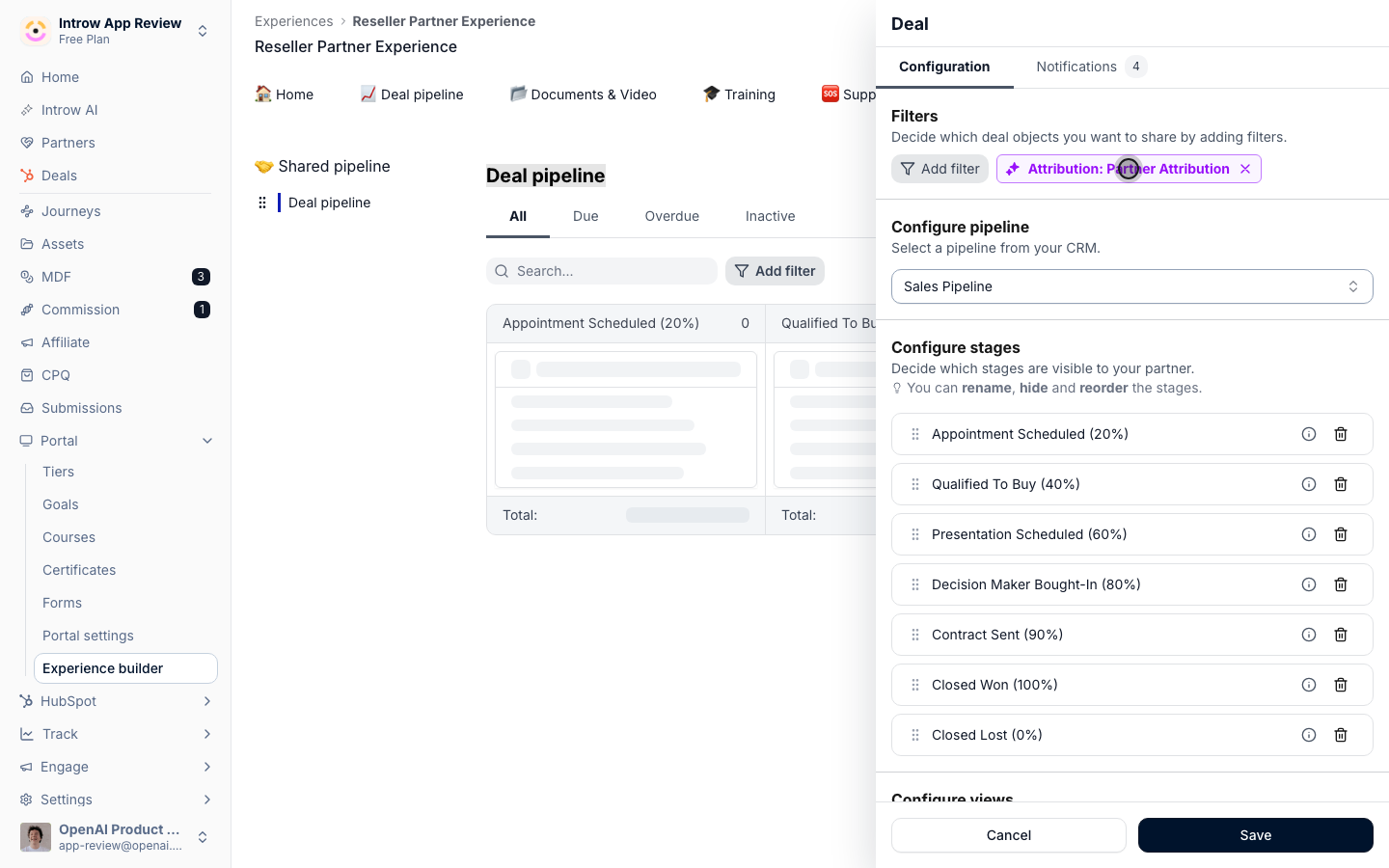
Choose what partners see and edit
1
Open the property configuration
Open the deals list configuration. Properties are set per embed (and the same configuration governs the record when a partner opens a single deal), so this is where you decide the partner-facing fields.
2
Configure the visible properties
Add the properties partners should see and shape how they appear. For each property you can: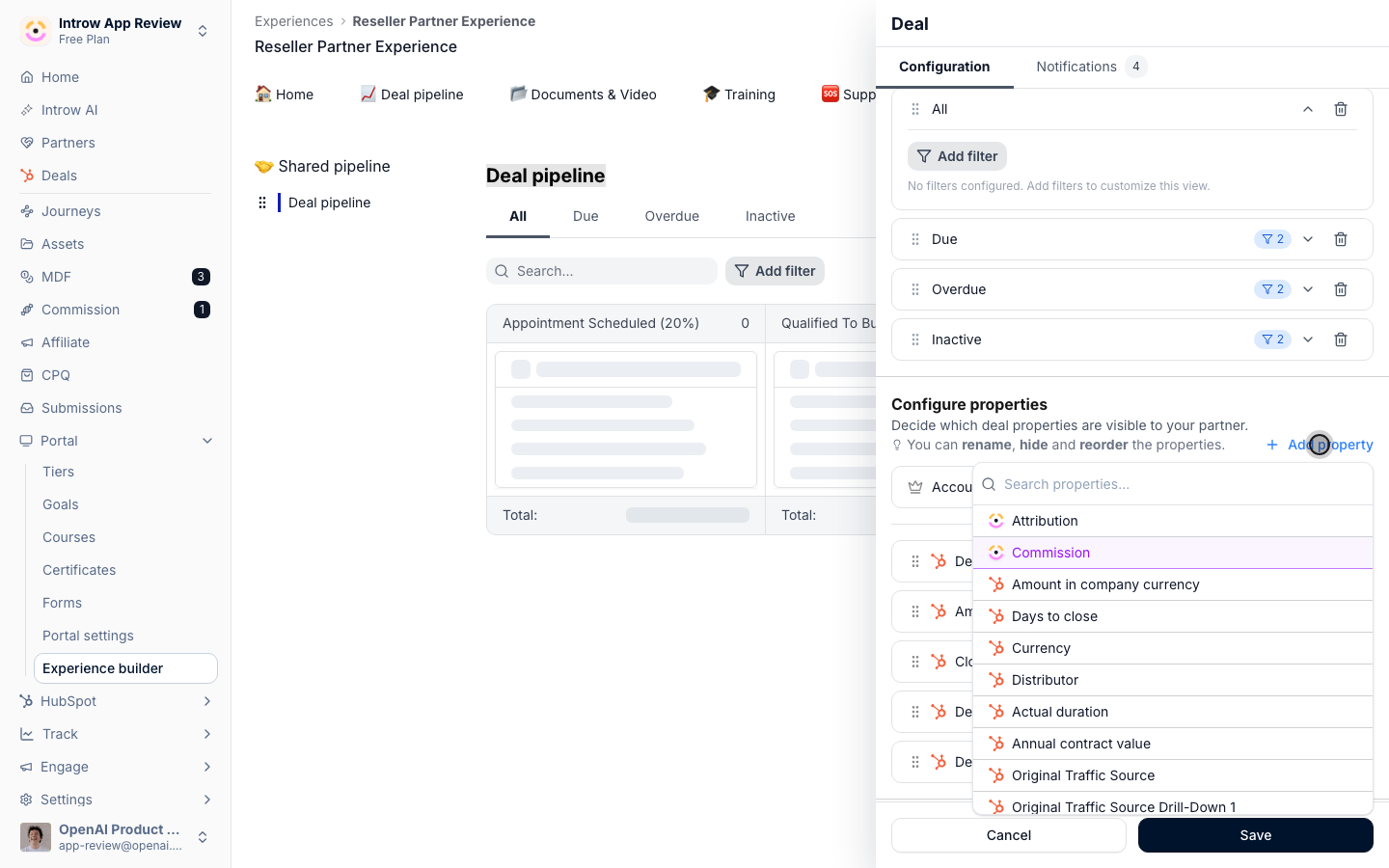
- Add or remove - choose which fields are exposed; leave internal fields off entirely.
- Rename - relabel a field to partner-friendly wording without touching the CRM name.
- Reorder - drag to set the order partners read them in.
- Hide on card - keep a property in the detail view but off the summary card, to keep cards clean.
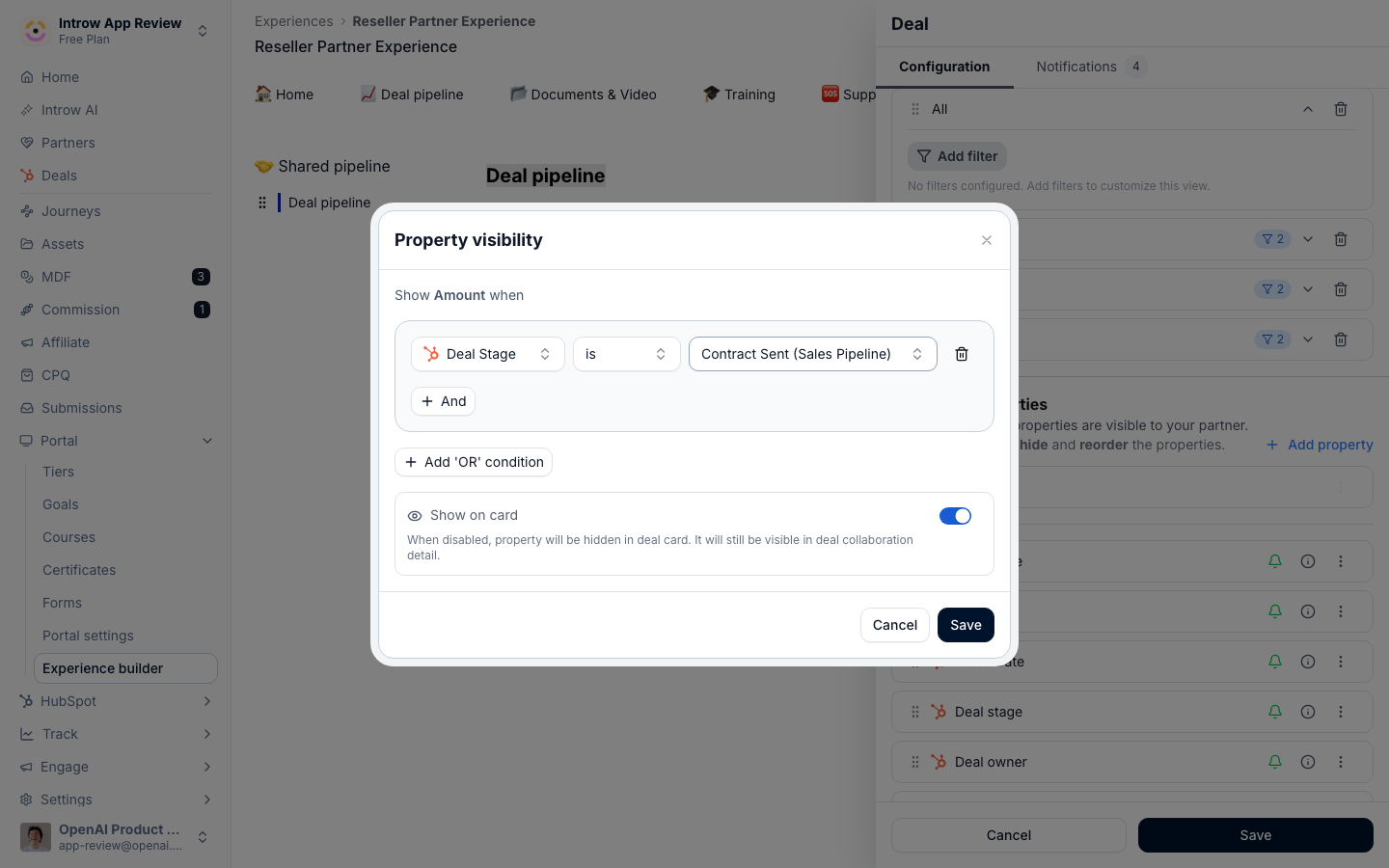
- Configure visibility - show the property only on records where it matters. Property visibility reads
Show <property> when, followed by conditions on the record’s other exposed properties, such as a discount field shown only once Deal Stage is Negotiation, or a loss reason shown only when it is Closed Lost. No conditions means always shown. The same dialog holds the Show on card switch. The stage, the pipeline, the header, the sort and the total property are always shown, and the menu says why. - Primary - mark the property shown as the card’s headline; it defaults to the account.
- Sort - set the property and direction the list sorts by (newest first by default).
- Notify on change - flag properties whose changes should drive update notifications to the people watching the deal.
3
Mark the editable properties
Among the visible properties, choose which partners may edit; the rest stay read-only. Editing lets partners keep a deal current - amount, close date, next step - without a CRM seat. To let partners move deals across a board, the stage property usually needs to be editable. Leave anything partners should not change as read-only even if it is visible.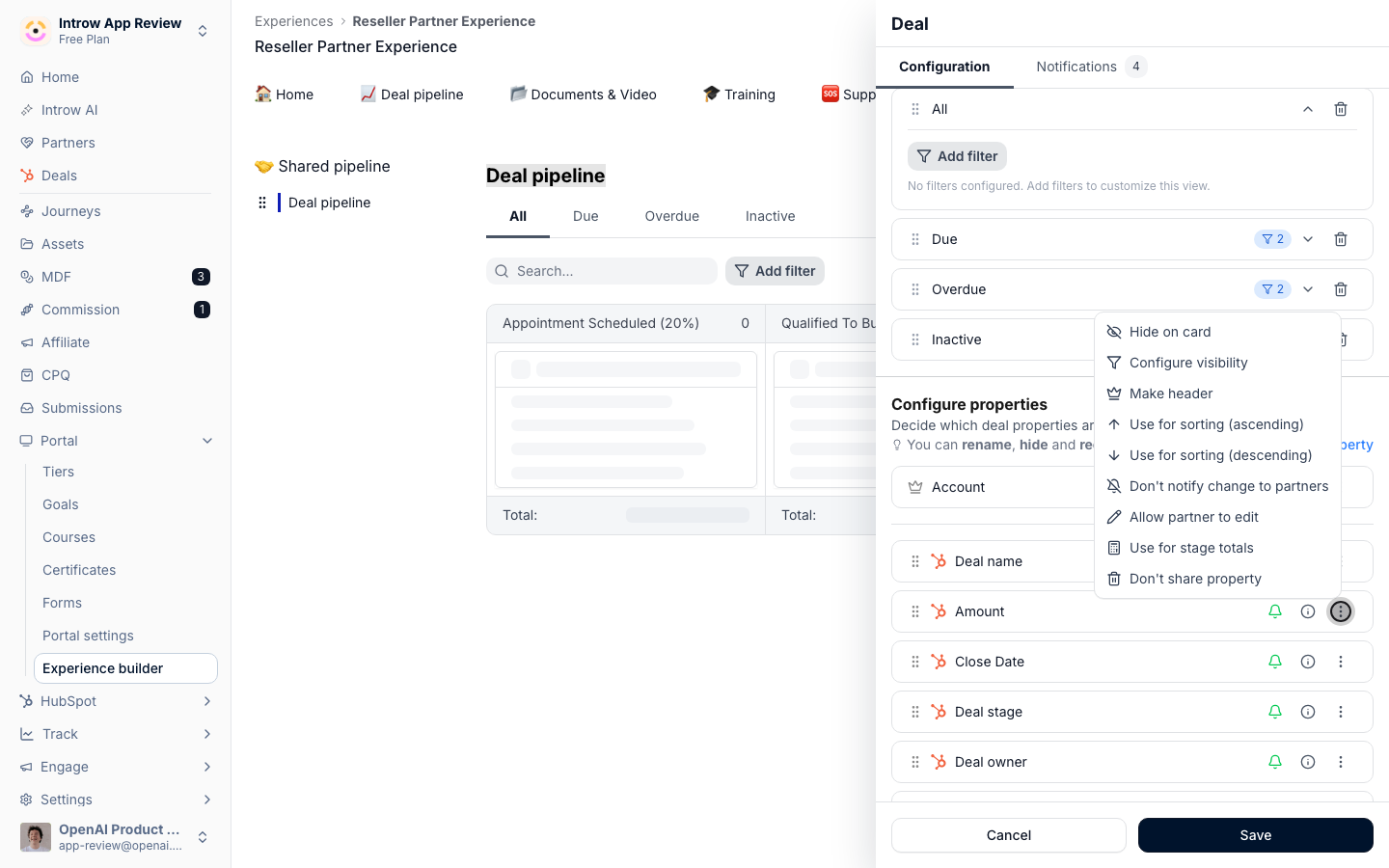
4
Decide related items
Choose what related records appear alongside the deal: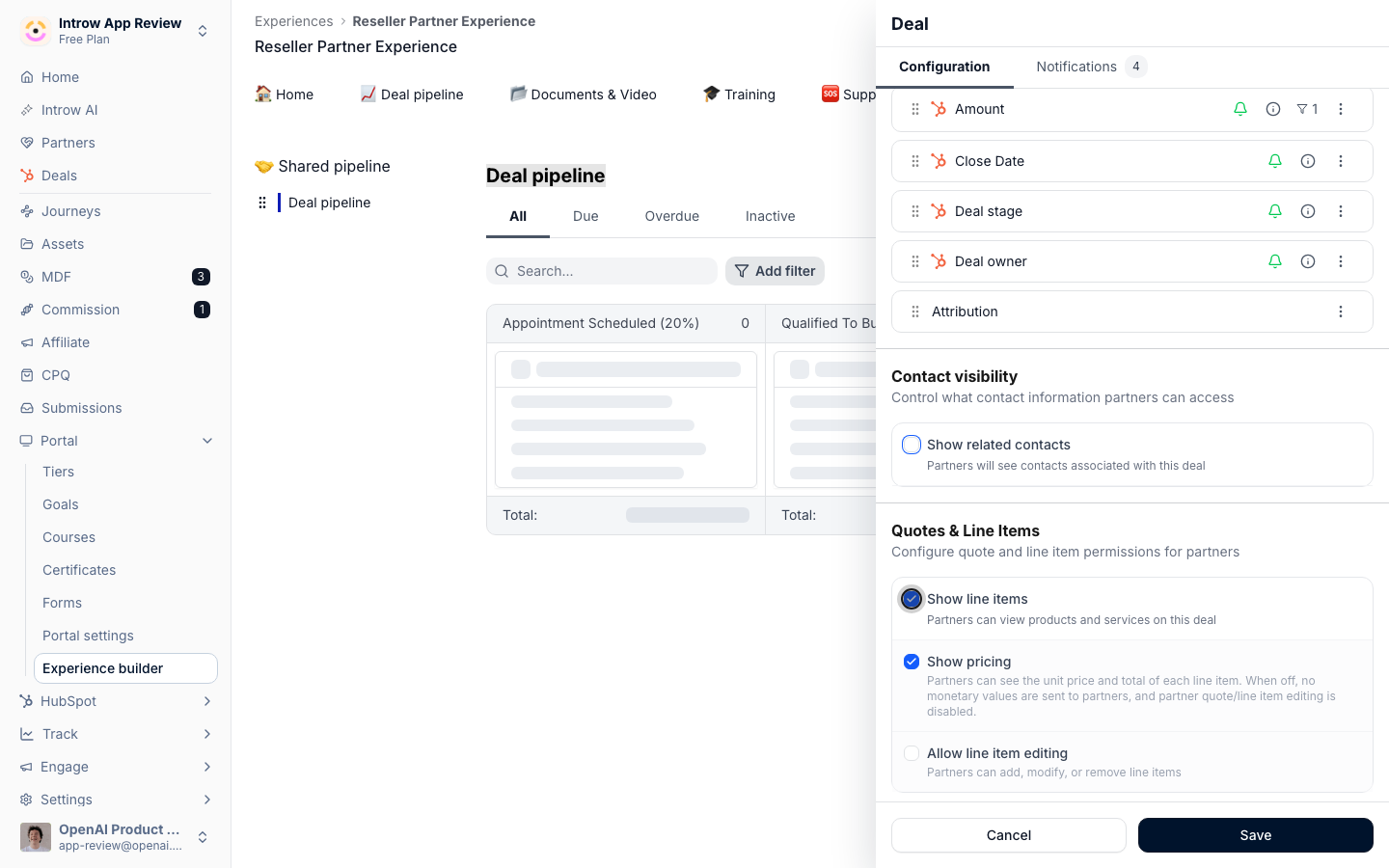
- Show related contacts - expose the contacts on the deal; optionally Include phone numbers, and on HubSpot Allow contact creation so partners can add contacts.
- Show line items - let partners view products and services on the deal. Viewing is available on any plan; Allow line item editing is HubSpot-only and requires the Product Hub add-on.
- Show quotes - HubSpot-only; lets partners view quotes on the deal. Allow quote creation and Allow quote publishing require the Product Hub add-on (and quote-write permission on the HubSpot connection), and you can gate who creates or processes quotes by segment.
5
Set per-embed notifications
On the Notifications tab, set which events notify people for this embed - for example a New object, Object updates (on the properties you flagged), a Sleeping object stuck too long, or a Deal closed won. These overrides are per embed, so this pipeline can notify differently from another. Save the configuration when done.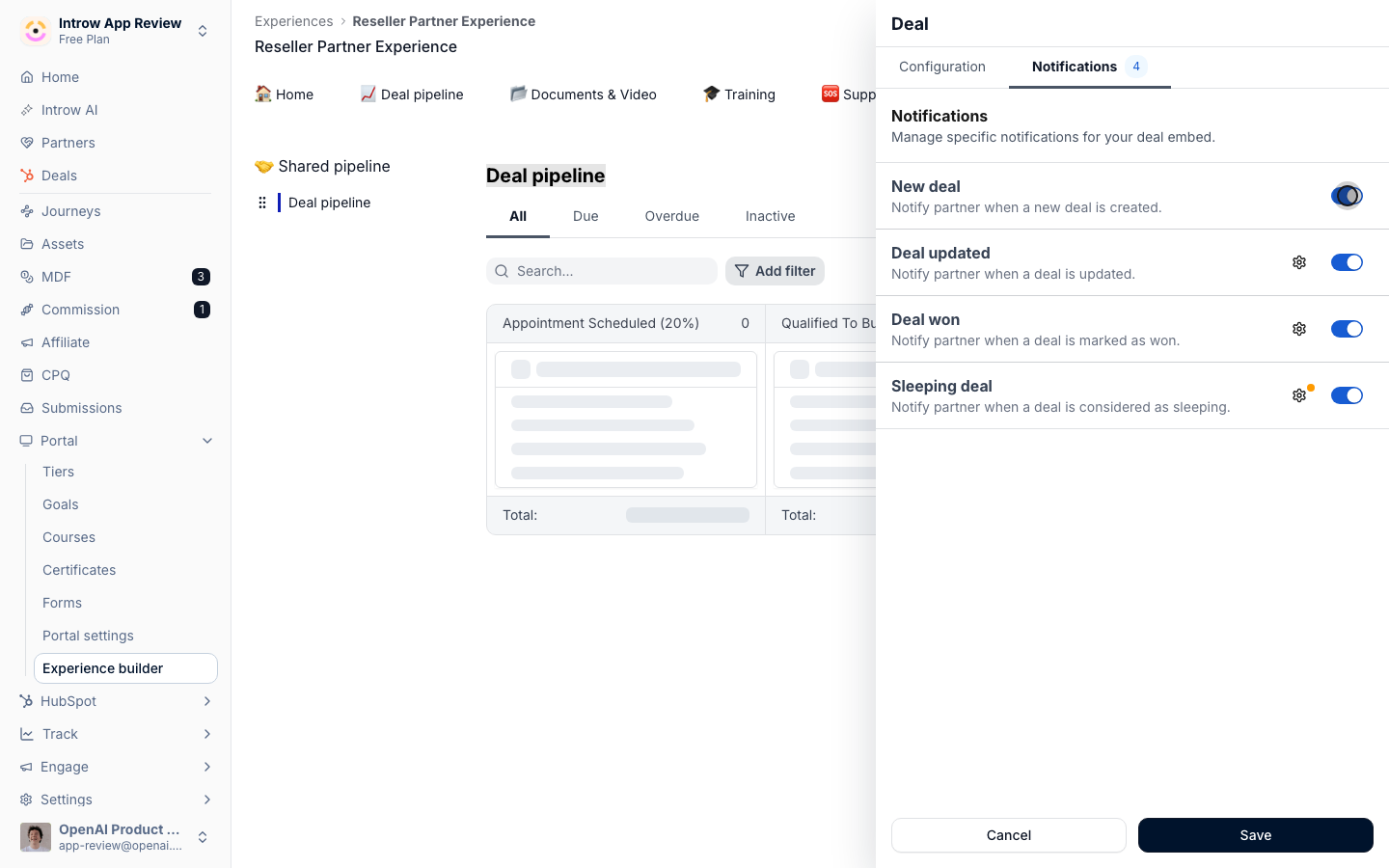
Verify it worked
Open the experience as a partner (or preview it): the partner sees a live pipeline of only their attributed deals, in the layout you chose, showing only the properties you exposed. Editing one of the fields you marked editable - moving a stage or changing a close date - writes straight back to your CRM, and your team reads the same deals from the deal overview.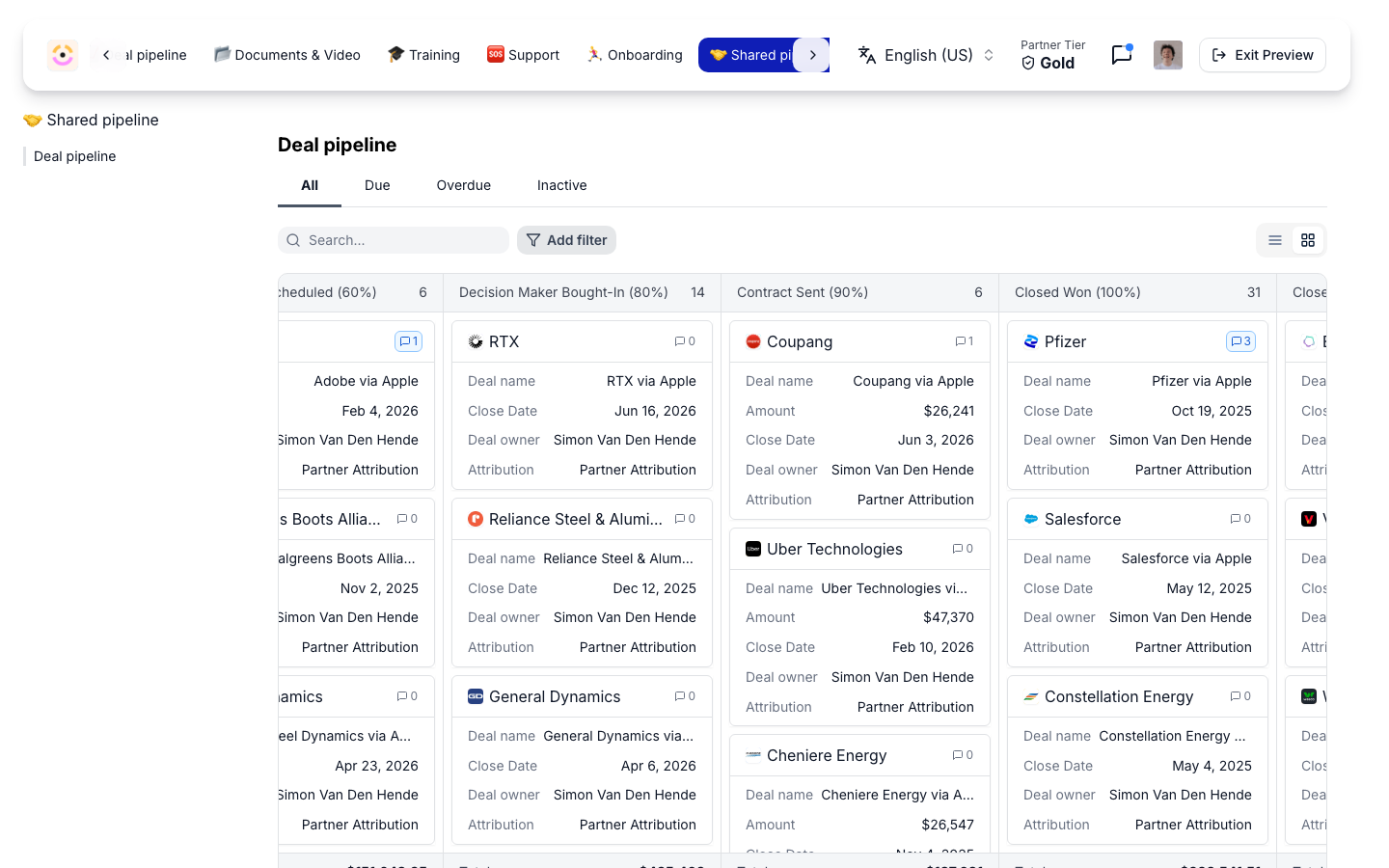
Related
Collaborate on a shared deal
Share a record, add collaborators, and discuss it in context.
View partner pipeline
Read the same pipeline org-wide or per partner from Introw.
Collaborate from your CRM
Work the same deals from inside HubSpot or Salesforce.
Implementation reference
Full configuration options.