

What you’ll achieve
A shared deal opens as a full collaboration space. You can read everything that ever happened on it, leave an update, @-mention the other side to pull them in, add tasks and files, view related contacts and quotes, and edit the fields the vendor opened up. Both sides work the same record, so context never scatters across email threads - the partner self-serves on their own deal and reaches out for an update right where the work is.Before you start
1
The deal is attributed and visible to the partner
Only a deal attributed to a partner shows up in their portal. Confirm attribution and visibility first - see Set up a shared pipeline.
2
The fields and permissions are configured on the embed
What a partner can see and edit - properties, related contacts, line items, quotes, and notifications - is set once on the pipeline embed. Adjust it in the implementation reference if you need to.
3
The partner has portal access
The partner contacts working the deal need access to the experience so they can open it and act on it.
Open the deal room
Open the shared pipeline and click the deal you want to work. As a partner, that’s the pipeline in your portal; as the vendor, start from Deals overview or the partner’s record. See View a partner’s pipeline for finding the right deal.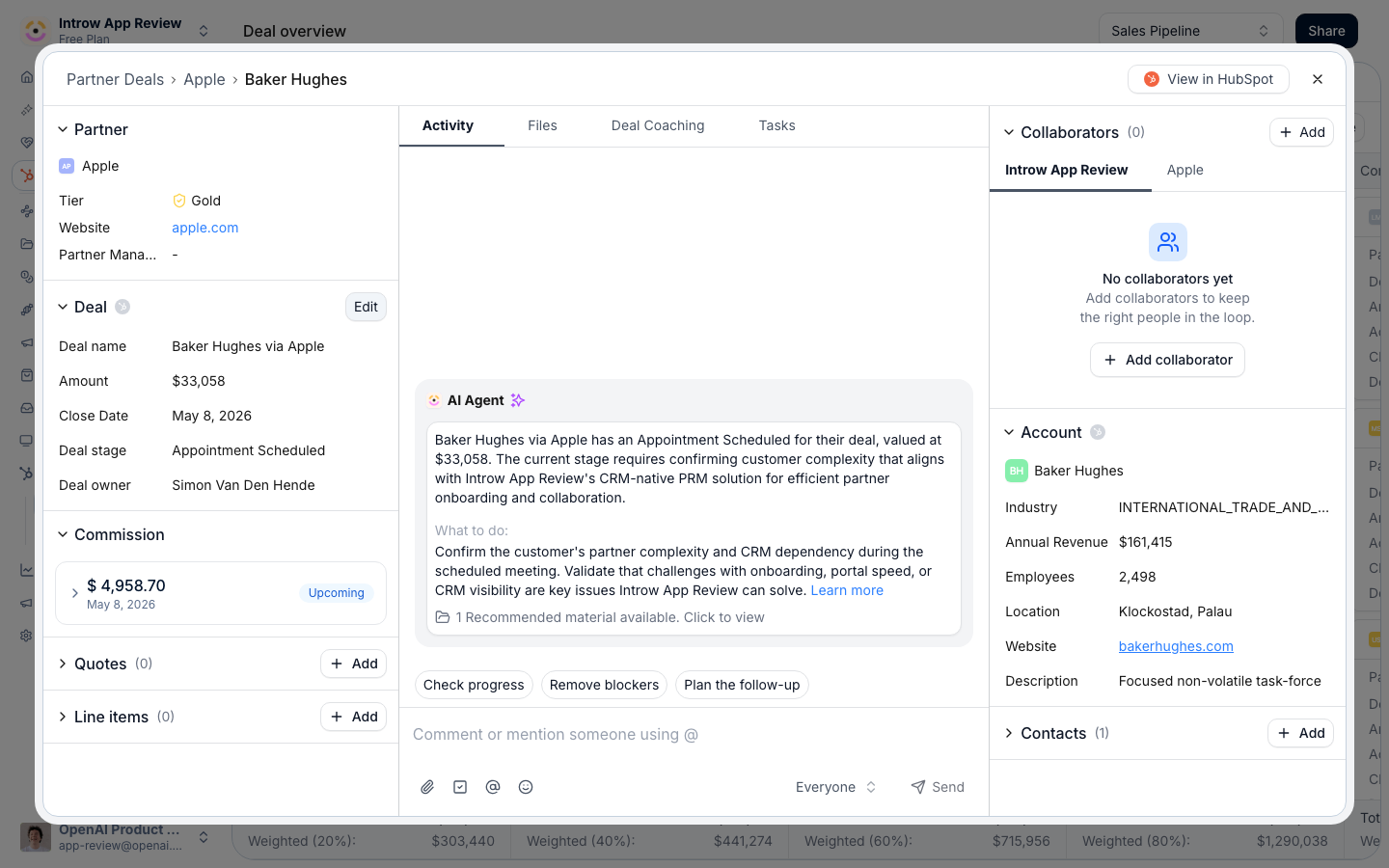
- Left - the deal’s own properties, and any Commission, Quotes, and Line items attached to it.
- Middle - the tabbed workspace: Activity, the AI agent, Deal Coaching (deals only), Files, and Tasks, with the comment box at the bottom.
- Right - the Collaborators in the loop, any Crossbeam overlap, the Account the deal belongs to, and its related Contacts. Opening a task replaces this lane with the task’s details.
Read the activity timeline
The Activity tab is the deal’s full history, newest first. Everything that happens on the record lands here, for both sides to see:- Comments and @-mentions left by either side.
- Property changes - each edit shows the field and its value from → to (stage moves, amount, close date, and any other tracked property).
- New and shared deals, and sleeping-deal alerts when a deal goes quiet.
- Tasks created, updated, and completed.
- Quotes created and published, and form submissions (like a deal registration) with their accept, decline, and return decisions.
- Files viewed or downloaded, and commission updates and payouts.
- Announcements and portal visits.
Post an update and pull in the vendor
Use the comment box at the bottom of the workspace to leave an update. The conversation stays attached to the deal, so everyone in the loop sees the thread and can reply.1
Start the message
Type your update in the composer. On a deal, quick-start chips prefill common asks - Check progress, Remove blockers, and Plan the follow-up - so reaching out for a status is one click.
2
Pull in a specific person
Select Mention someone (or type
@) and pick from the list. A partner sees the contacts on their own side plus the vendor people on their partner team and the vendor collaborators listed on this deal, so a partner can @-mention their rep or partner manager to pull them in - and get notified back the same way. A partner never sees your whole team. You see every active teammate. Mentioned people are notified.3
Attach a file if you need to
Use Add attachment to share a document with the message. It stays on the deal and shows up in the timeline and the Files tab, so materials live with the opportunity instead of in an inbox.
4
Add an emoji or ask AI
Add emoji for tone, or Ask AI to bring in the AI agent for help drafting or answering a question about the deal.
5
Choose who sees it
As a member of your team, use the visibility control on the composer to post to Everyone or keep it Internal. Everyone is the default and behaves as it always has: both sides see the comment and the partner is notified. Internal keeps the comment on the deal for your team only - the partner never sees it on any partner-facing surface, and it never triggers a partner notification.In the deal dialog, the same choice is an audience picker that reads To everyone or Internal. On a deal with several partners it lists each partner, so one comment can go to some or all of them, each in its own copy. See Collaborate with several partners on one deal.Internal comments are marked in the activity log, so anyone on your team can tell at a glance whether a note was shared with the partner. Partner contacts cannot post internally; everything they post is visible to both sides.
6
Send
Select Send (or press Enter). An Everyone update posts to the timeline for both sides immediately, and you can edit it later.
Track next steps with tasks
Turn talk into next steps without leaving the deal.- Open the Tasks tab to see every task on this deal, or select Add task to create one with an assignee and due date. You can also add a task straight from the comment box with Add task.
- Tasks carry a status - to do, in progress, or done - and status changes show up in the timeline.
- A partner can complete tasks assigned to them or that they created; the partner manager can edit any task. Marking a task done posts to the activity feed.
Work the deal’s details
The left and right lanes are where you see and update the deal itself.- Edit what you’re allowed to. If the vendor marked any properties editable, an Edit button opens the deal’s fields for changes; everything else is read-only. Edits sync straight back to the CRM, so the vendor’s source of truth stays current.
- See the account and contacts. The Account panel shows the company on the deal, and the Contacts panel lists the people on it. If contact creation is enabled, partners can add a new contact to the deal.
- View quotes and line items. When enabled, the Quotes and Line items panels show what’s attached. With the right permissions, partners can create line items and build, publish, or process quotes on the deal.
- Check commission. If a commission is set on the deal, the Commission panel breaks it down.
Keep the right people in the loop
The Collaborators panel on the right is your access control for the deal. It splits into two tabs - your team and the partner company:- Add puts a specific person on the deal so they see it and get updates. Choose the team, then pick from suggestions or enter an email.
- Remove ends someone’s access immediately. The partner manager is always included and can’t be removed.
- A bell next to a collaborator means they’re subscribed to automatic updates about this deal - driven by the notification rules configured on the embed (new deal, deal updated, deal won, sleeping deal).
Self-serve on your own deal
Put together, the deal room lets a partner run their opportunity end to end in one place:- Read the timeline to see exactly where the deal stands.
- Update the fields they’re allowed to, and add tasks and files to keep it moving.
- Reach out with a comment and an @-mention when they need the vendor - who’s notified and replies on the record.
- Ask the AI agent, and use Deal Coaching on deals for AI guidance and recommended materials.
Verify it worked
The deal opens in its collaboration view. A comment you post appears in the Activity feed for both sides, and anyone you @-mention is notified. A task you add shows in the Tasks tab and the timeline, an edit to an allowed field syncs to the CRM, and anyone you remove from Collaborators can no longer open the deal.Related
Run tasks on a shared deal
Add next steps with owners and due dates on the shared record.
Collaborate with several partners on one deal
One deal, a reseller, a distributor and a referrer, each with its own conversation.
View a partner's pipeline
Find and open the deals you co-sell with a partner.
Set up a shared pipeline
Attribute deals and control the fields partners see and edit.
Collaborate from your CRM
Work the same shared deal from inside HubSpot or Salesforce.
Nudge partners at scale via the API
Post the same comments from your own systems or an agent.
Shared pipelines overview
How shared pipelines fit the co-selling program.
Implementation reference
Full configuration options for the pipeline embed.