Give partners one button that updates their own deal: the stages you allow, a mandatory reason when they close it lost, and no button at all once the deal is decided.
Partner-reported pipeline is either stale or unsafe.
Leave the deal read-only and your partner manager chases updates by email.
Mark the fields editable and a partner can quietly close a deal won, or close one lost with no reason anyone can report on.
This guide builds the middle path: instead of opening fields up on the record, you put one button on the deal that opens a short form, and the form is where the rules live.
It offers only the stages you allow, demands a closed-lost reason the moment a partner picks Closed Lost, and is not there at all once the deal is decided.
A partner opens one of their open deals in the portal and presses Edit.
A form opens, already knowing which deal it is about, offering a stage list with no Closed Won in it.
Choosing Closed Lost makes a mandatory reason appear, so a deal cannot be closed lost silently.
Once the deal is Closed Won or Closed Lost the button is gone, so the record reads as settled.
Every answer writes straight to the deal in your CRM.
Have a shared pipeline the partner can already see
This guide adds control to a pipeline that exists. If partners cannot see their deals yet, build that first: deals attributed to the partner, a pipeline view on their experience, and filters that scope it. See Set up a shared pipeline.
2
Decide which fields partners should maintain
The stage is the usual one, and the next step is the usual companion, because between them they answer “where is this and what happens next”. Close date is a common third. Keep the list short: this is a button a partner presses in passing, not a data-entry exercise.
3
Know the property your closed-lost reporting reads
Use the property your own funnel reporting already reads, not a new one, or the partner’s answer will land somewhere nobody looks. A dropdown beats free text, because a reason you can group is a reason you can act on.
Every choice below follows from it, and a rule you cannot state in a sentence turns into a form nobody understands. For this guide the rule is: partners may move a deal through the open stages and may close it lost with a reason, but only your own team closes a deal won.
2
Know which control carries which clause
Four controls are involved and they are easy to confuse, so it is worth holding them apart before you touch anything:
The editable properties on the view decide whether a partner can change a field directly on the record, with no form and no rules. For this recipe you deliberately leave them off.
The form’s fields decide what a partner can change, and its dropdown options decide which values they may set.
The form’s visibility conditions decide what a partner has to tell you, and when that becomes mandatory.
The action’s visibility decides whether the button is offered on this deal at all.
3
Choose whether the change is instant or reviewed
A submission either writes on submit or waits for approval. Instant is right when the change is low-risk and the point is fresh pipeline. An approval gate is right when the change ends the deal, because a closed-lost reason nobody read is a reason nobody acted on. You can have both by pointing one button at an ungated form for ordinary moves and a second at a gated form for the closing path.
Go to Experience builder, open the experience carrying the pipeline, and open the deals list configuration. Everything in this phase and the last one lives on its Configuration tab.
2
Leave the fields you want rules on as read-only
This is the move the whole recipe rests on, and it is the opposite of what feels natural. Under the property configuration, keep the stage visible but not editable, along with any other field the form is going to own.A field marked editable can be changed directly on the record: inline in the list, by dragging a card between stage columns on the board, and in the built-in Edit dialog. None of those paths can ask a follow-up question or make anything conditional, so a stage that is editable is a stage a partner can close without explaining. Leaving it read-only removes that path, and your form’s own writes are unaffected. The button becomes the only way in, which is exactly what makes the rules enforceable.
3
Trim the stage list on the view as well, if you want belt and braces
Under Configure stages you can also remove a stage from the view entirely. A removed stage stops being a board column, stops being a drag target, and stops being an option in every stage picker on the view.You do not need this when the fields are read-only, but it is worth doing when the same view also exposes editable fields, or when a stage should simply never appear in a partner’s world. While you are there, reorder the stages into the sequence partners read them in, and rename any of them to partner-facing wording. Renaming is display only, and your CRM’s own label stays available as a tooltip. Add stage brings a removed stage back.
Go to Forms and create a short form. Name it for the job, such as Update deal, because the name is what you pick from when you wire the button.
2
Start with a deal field, so the form knows which deal it is about
Make the first field a CRM object field set to the deal object. This is the field that carries the record: when the form is opened from a button on a deal, Introw prefills it with that deal, so the partner never picks it and an answer cannot land on the wrong record.Do not skip it because the partner will not see it in use. Without this field the form has nothing to attach to, and the submission creates a new deal instead of updating the one on screen.
3
Add the fields partners may change
Add one field per property you decided on, each mapped to that property. This is what “editable” means in this design: a field is changeable because it is on the form, not because it is flagged on the record.
Stage - the field this whole guide is about.
Next step - the natural companion, and the one your partner manager actually wants filled in.
Close date - add it if partners are close enough to the deal to be right about it.
Mark the stage required. A partner opening an update form has come to change something.Keep separate concerns in separate forms. One form for ordinary progress updates and another for a quote or order request reads better than one long form that tries to cover both, and it lets each one have its own approval setting and its own button.
4
Cut the stage options down to the ones partners may set
Open the stage field. Because it is mapped to a CRM picklist it takes its options live from your CRM, so you never maintain a second list. Then limit what this form offers: uncheck Closed Won.The list is exclusion-based, so everything is offered by default and you opt options out. That direction matters, because a stage your team adds in the CRM next quarter shows up on the form on its own instead of silently going missing. See Dropdown options.Leave Closed Lost checked. Partners closing their own dead deals is the outcome you want, as long as they explain it, which is the next step. Unchecking both leaves partners no way to close anything and defeats the point of the reason field.
5
Add the closed-lost reason, conditional and required
Add the field for your closed-lost reason, mapped to the property your reporting reads. Then do two things to it:
Add a visibility condition: show it when the stage field equals Closed Lost.
Mark it required.
Those two settings together are the whole trick, and there is no separate conditionally-required setting to hunt for. A required field is only enforced while it is visible, so this field stays out of the way on every ordinary stage move and becomes unavoidable the instant a partner picks Closed Lost. See Show fields conditionally.If your team reports on a sub-reason too, add it with a condition on the reason field. Conditions chain, so changing the reason collapses the sub-question with it rather than leaving an orphaned dropdown on screen.
6
Set the write behavior to overwrite on the fields that must change
On the Automation tab, add the CRM object automation for the deal and map each field to its property.Then check the write mode on each one, because the default will quietly defeat this form. Introw defaults to Fill in if not known, which writes only when the CRM value is blank. A deal’s stage is never blank, so with the default in place the partner submits and nothing moves. Set the stage to Overwrite, and do the same for the next step and the closed-lost reason, which are all fields a later submission should be able to correct.
7
Decide the approval gate
Still on the Automation tab, enable the approval gate if you chose review earlier, and add the approver step: named users, a role, or the partnership manager. Leave it off and the submission is accepted on arrival and the deal moves immediately.A good default for this form is off, so ordinary stage moves are instant, with a second gated form for the closing path if your team wants a human on every lost deal.
Put the button on the deal, and take it away when the deal is decided
1
Add the custom action
Back on the deals list configuration, scroll to the bottom of the Configuration tab to Custom actions and select Add action button. Pick the form you just built and give the button a label partners will understand. Edit is the honest label here because editing is what it does; anything clearer for your partners works just as well.
2
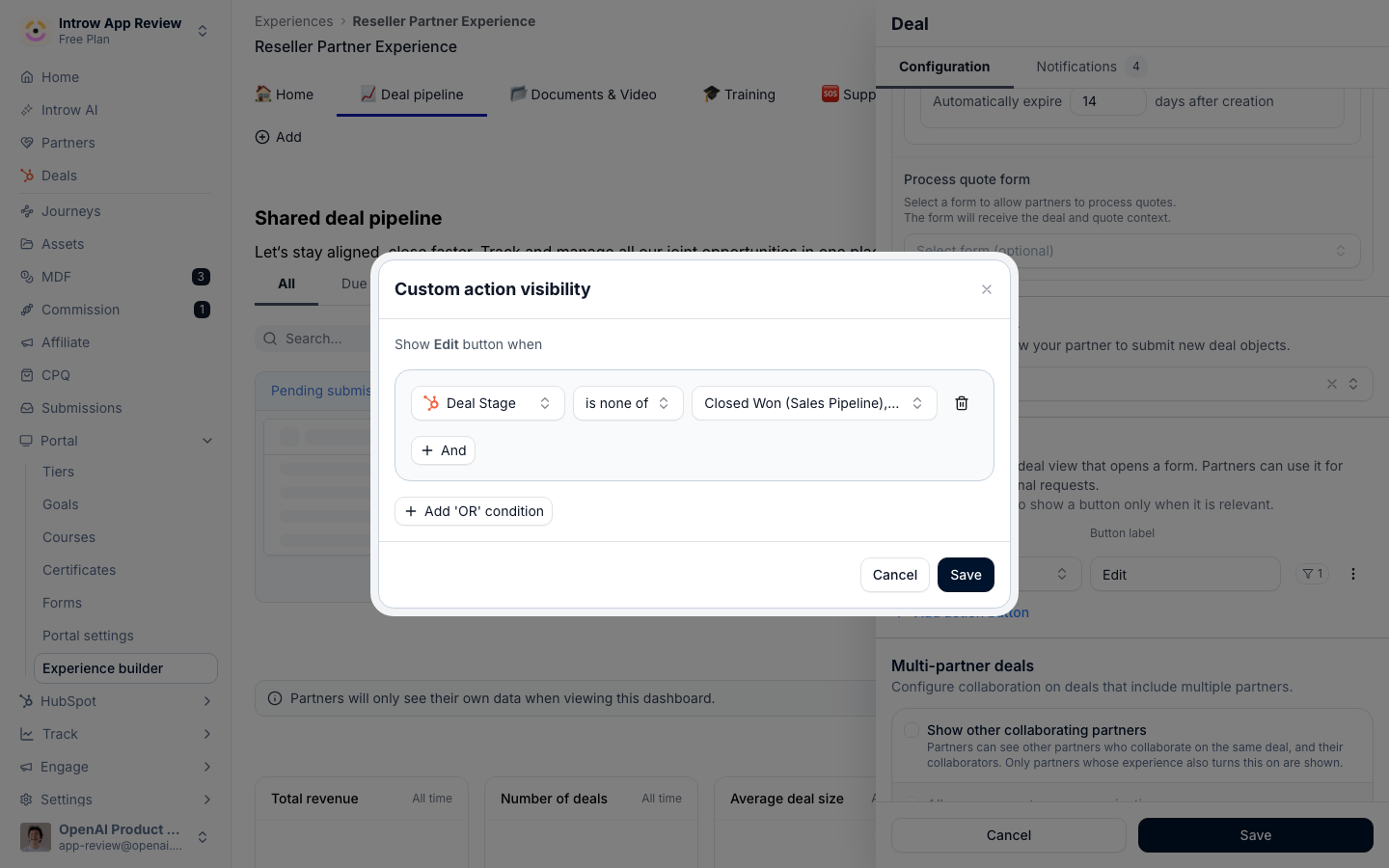
Hide the button once the deal is closed
Open the action’s three-dots menu and choose Configure visibility. The panel reads Show <your label> button when, followed by a condition builder over the properties you exposed on this view.Add the conditions that keep the button off settled deals: the stage is not Closed Won, and the stage is not Closed Lost. An action with no conditions is always shown, so this is the step that makes a closed deal read as finished instead of inviting a partner to reopen it.Save it. The action list now shows a small count beside this button, so anyone opening the configuration later can see it is conditional rather than wondering why it does not appear on every deal.
3
Point the same mechanic the other way
Conditions work just as well for making a button appear as for hiding one, and this is where the pattern earns its keep. Point a second action at a purchase-order or quote-request form and show it only when the deal is Closed Won, so the next thing a partner is asked for arrives exactly when it is due. Point a third at a support or resource request and leave it always visible, so partners are never stuck without a way to ask.
4
Know that the button also works on a selection
In the table view, a partner can tick several deals and press the same button once from the bar above the table. The form opens with every selected deal listed and is submitted once per deal, so each one goes through your stage options, the required reason and the CRM automation on its own. See Let partners update many records at once.
5
Know that the agent uses the same button
When a partner asks the AI agent to change a deal, in the portal or from an assistant connected through Partner Connect, the agent goes through this button rather than writing to the deal itself. It only offers a button whose visibility conditions match the deal, so the closed-deal rule above holds for the agent too, and the stage options, the required reason and the CRM automation apply to its change as they do to the partner’s. With no matching button, it offers to leave a comment instead.
6
Save the configuration and publish the experience
Save the embed configuration, then publish the experience so the change reaches the partners assigned to it.
Open the portal as a partner, or preview it, and open one of their open deals.
Edit is on the record, and pressing it opens your form with the deal already filled in.
The stage list offers your open stages, and Closed Won is not among them.
Picking Closed Lost makes the reason field appear, and submitting without it is refused.
Submitting moves the deal in your CRM, and the reason lands on the property your reporting reads.
Asking the portal’s AI agent to move the deal goes through the same button, with the same stage options and the same required reason.
The deal is not editable any other way: no inline edit on the stage, and no dragging the card between columns.
If you do leave the stage editable and your HubSpot pipeline has rules, such as an approval stage that cannot be skipped, a card dragged past it goes back to its column and the partner is told a pipeline rule in the CRM blocks the move.
Reopen that same deal now that it is Closed Lost, and the button is gone.
Conditions on a custom action are a relevance control, not a permission.
They decide which buttons are worth showing on a record; they do not lock the deal, its stage, or its properties, and a hidden action’s form stays reachable by its own link.
What actually constrains a partner is the set of fields you left non-editable on the view, the stage options you removed from the form, and your CRM’s own validation rules.
Build it in that order, as this guide does, and use visibility to keep the record clean.