

Where it lives
Forms are their own area, at Forms. Each form is built on a canvas of fields and content blocks, then shared by link, embed, portal or API.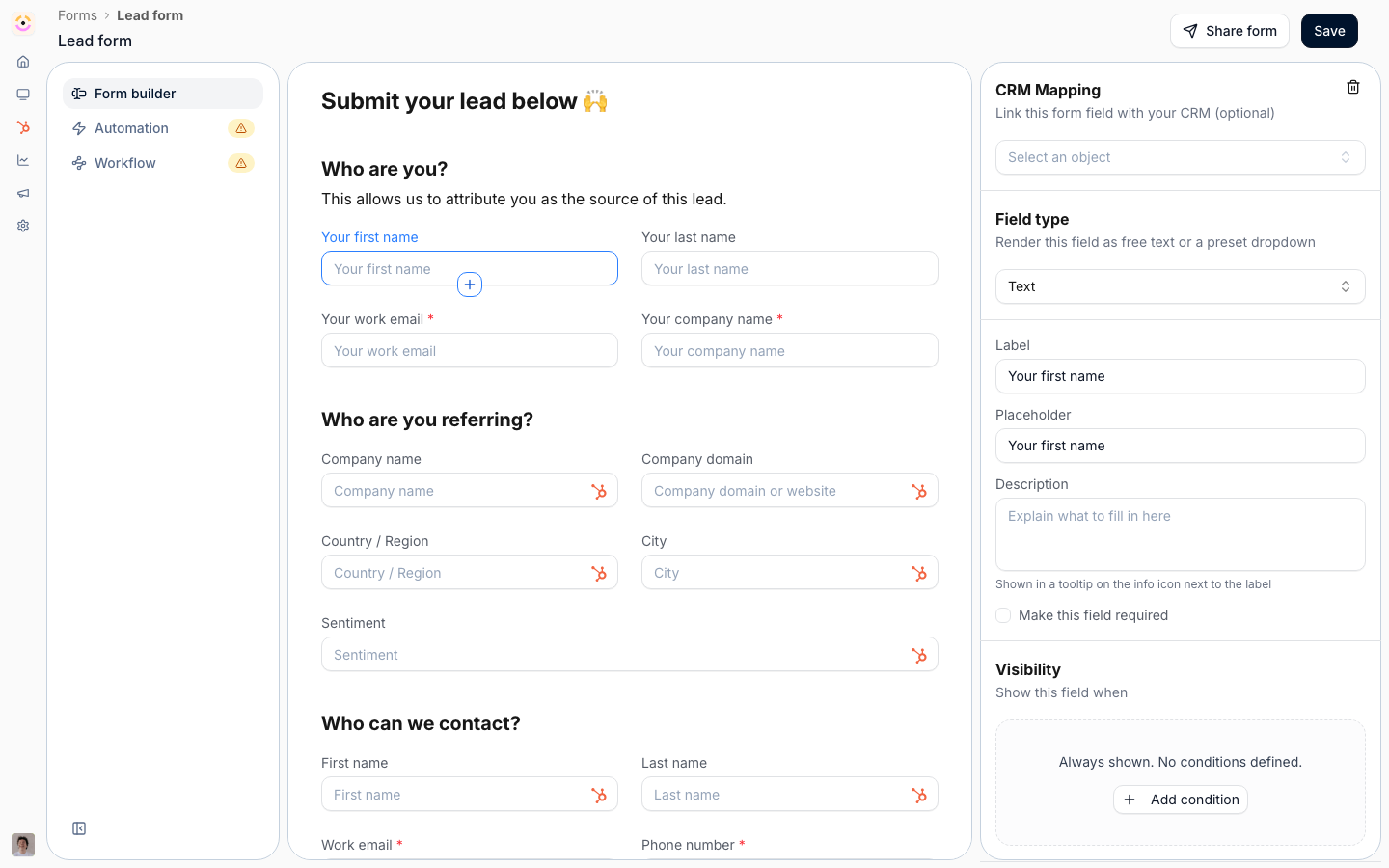
Before you start
Link, portal and API sharing work without a domain.
How it works
Forms are managed under Forms. You create a form, then build it in an editor with three tabs: Form builder for the fields and layout, Automation for what happens on submit, and Workflow for a visual view of the submission flow. Forms inherit your organisation’s portal branding, so the header, colors, and button match your portal. A form reaches partners through a share link, an embed, or a section in a portal experience. General links work for anyone, while partner-specific links tie a submission to a known partner. Embedding a form requires a portal domain (a subdomain or verified custom domain).Settings & configuration
Forms are built at Forms and edited at/forms/{org}/{formId}/edit.
Fields
Add fields from the Add to form menu, or by typing/ in the form body. Field types include
text input, text area, file upload, checkbox, partner select, CRM object, quote selector, and
batch (CSV) upload. For each field you set a label, placeholder, and whether it is required, plus
any CRM mapping.
A field’s handle menu has Duplicate, which adds a copy of the field right below it with its configuration kept, so a second address or contact block does not start from scratch.
How many fields to ask for, and which ones to require
The most common form problem is not a missing capability, it is a form nobody finishes. Two rules keep it honest. Ask only for what you cannot get another way. Every field a partner has to type is a field you could have resolved, defaulted or inferred instead. Before adding one, check whether it is already available:- The submitter and their company resolve on their own when the partner arrives through their own portal or through the partner-specific link from the Share form dialog. Asking a partner to type their own name and company is the clearest signal a form was never tested.
- Anything on the partner record is already yours. Region, tier, manager and program type do not need asking; they are on the partner and can be written by the automation rather than by the partner.
- Anything your team decides does not belong on a partner’s form. Owner, stage, source and internal classifications are set by the CRM automation.
Content blocks
The same menu adds blocks that are not inputs: Subtitle headings, a Columns layout, Image, and Videos. A video block embeds YouTube, Loom, Vimeo, or Vidyard from its share URL, with Embed other for any other provider, so an explainer can sit inside the form rather than alongside it.Dropdown options
A field mapped to a CRM picklist gets its options live from your CRM, so you never re-type or maintain a second list. Introw adds one control on top of that: you can limit which of those options the form offers. The limiting is exclusion-based. Every synced option is checked by default, and you uncheck the ones this form should not show. That direction matters: because you are opting options out rather than picking them in, an option your team adds in the CRM later appears on the form automatically instead of silently going missing. You get both halves - your CRM stays the source of the list, and partners only see the subset that makes sense for them. The field’s configuration shows Options (n/m shown) with a checkbox per option, plus Select all and Clear all. A value you hid is remembered even if it later disappears from the CRM, so it stays hidden if it comes back. Unmapped dropdown fields work differently: they carry your own preset options, typed on the field. On the form itself, a multi-select dropdown carries Select all at the top of its list, so a partner picking most of a long list ticks one box instead of twenty. Typing in the search narrows the control to Select all matching, which takes only the options on screen, so searchingEMEA and selecting all picks the EMEA options and leaves the rest alone.
Conditional fields
Any field can be shown only when other answers on the same form match a rule. Open the field and add one or more visibility conditions; each condition points at another field on the form and compares its value. A field with no conditions is always visible, and a field that has them shows a Conditional pill in the builder so you can see the branching at a glance. Conditions use the same operator set as the rest of Introw: equals, does not equal, contains, does not contain, starts with, ends with, greater/less than, is any of, is none of, and is unknown. Group them with and / or, and nest the groups when a rule needs both. A multi-select field is compared per selected value, so a rule on one option keeps matching after a second option is picked. Conditions chain. Hiding a field also hides anything that depended on its answer, so a stage -> reason -> sub-reason cascade collapses in one step rather than leaving orphaned questions on screen. Required follows visibility. A field marked required is only enforced while it is visible, which is what makes the two most-asked patterns work:
The same rules run in three places: the form as the partner sees it, the validation that runs on submit,
and the CSV batch-upload path. A hidden field is never submitted, never validated, and never written to
the CRM.
Helper text
Each field takes an optional description. It renders as an info icon next to the label, so you can explain what a field means or how the value is used without adding a paragraph to the form body.Validation
Two layers of validation run before a submission is accepted. Your CRM’s own rules. For every field mapped to a CRM property, Introw reads that property’s validation rules from HubSpot or Salesforce and applies them at submit time - number ranges and the constraints the CRM enforces on its own writes. Submissions that would be rejected by the CRM are caught in the form instead of failing later, and the message names the property that blocked it. Introw’s own rules. Required fields, field types (a number field only accepts numbers, a date field only a date), and the visibility rules above. Date and date-time fields do not need a CRM mapping - an unmapped date field is a plain question with a date picker.Layout
Structure the form with headings, lists, columns, tables, images, and call-to-action links so it reads clearly.Confirmation
In the automation tab, set the submission confirmation: show an end screen or redirect partners to a URL after they submit.Sharing and embedding
Use Share form to get a general link or a partner-specific link, or to embed the form. Embedding requires a portal domain. You can also add the form to a portal experience as a section.Branding
Forms automatically use your portal branding, so there is no separate per-form branding to set.How-to guides
Troubleshooting
A partner-specific link does not attribute the submission
A partner-specific link does not attribute the submission
Use the partner link from the share dialog, not the general link.
A required field is being skipped
A required field is being skipped
Confirm it is marked required in the field settings.