

What you’ll achieve
One form whose questions follow the answers. A reason field that appears only for the outcome that needs explaining and is required the moment it appears, a whole block of follow-up questions that unfolds from a single choice, and a cascade that collapses cleanly when the partner changes their mind. The same rules apply in the portal, in the validation that runs on submit, and in the CSV batch-upload path, so a hidden question is never submitted and never written to your CRM.Before you start
1
Have the form and its fields
Conditions point at other fields on the same form, so add the fields first and wire the rules second. See Build and publish a form.
2
Know which answer drives the branch
Every rule needs a field to read. Dropdowns and checkboxes make the best drivers because their values are a fixed set. Free text works but ages badly: a rule on typed text breaks the day someone types it differently.
Steps
Plan the branches before you build them
1
List the cases your form actually has
Write down the two or three real cases the form covers and, for each, the questions only that case needs. This is the whole design. A form with one driver field and three short branches reads well; a form where nine fields each carry their own unrelated rule reads like a puzzle, and nobody can tell what it does six months later.
2
Decide what is genuinely mandatory
Mark a question required only when you cannot act on the submission without it. Required is enforced only while a field is visible, so you can be strict inside a branch without punishing the partners that branch does not apply to.
Make a field appear only when it is relevant
1
Open the field that should be conditional
Go to Forms, open your form and its builder, and select the field that should not always show. The rules live on the field that appears, not on the field that drives it, which is worth remembering when you go looking for them later.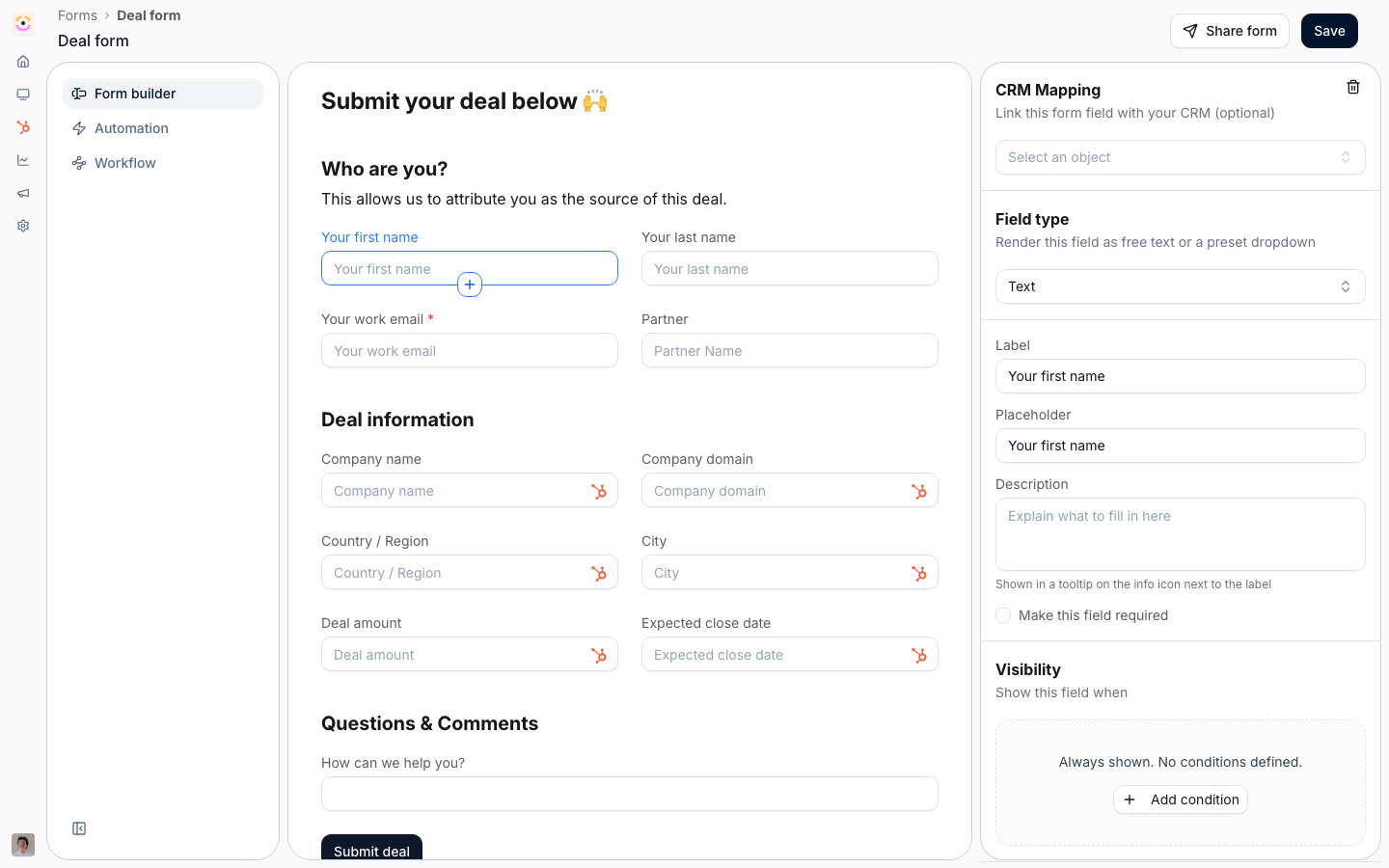
2
Add a visibility condition
Add a condition and point it at another field on the form, then choose how to compare its value. A field with no conditions is always visible, so the first condition you add is what makes it conditional.The operators are the same ones Introw uses everywhere: equals, does not equal, contains, does not contain, starts with, ends with, greater than, less than, is any of, is none of, and is unknown. Is any of is the one to reach for when several answers should reveal the same field, because it keeps one rule where you would otherwise write three.
3
Combine rules when one is not enough
Add further conditions and join them with and or or, and nest groups when a rule genuinely needs both, such as an amount over a threshold in either of two regions. Keep the nesting shallow: if you cannot read the rule aloud, the partner will not be able to predict the form either.For a multi-select field, a rule is tested against each selected value, so a condition on one option keeps matching after the partner picks a second one.
4
Confirm the field is marked as conditional
A field with conditions shows a Conditional pill in the builder. Use it to read the branching at a glance and to spot the field that was supposed to be conditional and never got its rule.
Make a question mandatory only in the case that needs it
1
Mark the field required and give it a condition
There is no separate conditionally-required setting, and this is the part worth internalising: required is only enforced while the field is visible. Mark the field required, then give it the visibility condition for the case it belongs to. Outside that case the field is not on screen and not enforced; inside it, the partner cannot submit without it.The classic shape is an outcome and its explanation. Show a reason field when the outcome field equals the outcome that needs explaining, mark it required, and the reason becomes unavoidable exactly when it matters.
2
Use the same mechanic for either/or
When you need one of two answers but do not care which, give the second field the condition “the first field is unknown” and mark the second required. Answering the first hides the second; leaving the first empty makes the second mandatory. One of the two always gets answered, and the partner never sees both demanded at once.
Unfold a whole section from one answer
1
Put the driver question first
Lead with the dropdown or checkbox that decides the case, so the partner makes one choice and the form shapes itself around it rather than reshuffling as they scroll.
2
Give every field in the block the same condition
Apply the identical condition to each follow-up question and they appear and disappear together as a block. Headings and other content blocks are not fields and carry no rules, so keep a heading that belongs to one branch short, or word it so it reads sensibly whichever branch is open.
3
Chain a cascade where the answers narrow
Point a third field at the second field’s answer and you get a cascade: outcome, then reason, then sub-reason. Conditions chain and collapse together, so flipping the first answer hides everything below it in one step instead of leaving a stale sub-question on screen off a value the partner can no longer see.
Check it the way a partner will meet it
1
Preview the form and walk each branch
Open the form as a partner sees it and walk every case you planned. Watch for the two failures that matter: a question that should have appeared and did not, and a required question stranded in a branch nobody reaches.
2
Try to submit an incomplete branch
Open a branch, leave its required field empty, and submit. The submission is refused, because the same rules run in the validation on submit rather than only in the browser.
3
Check the batch path if partners use it
If this form accepts CSV batch upload, the same rules apply there too, so a row that does not open a branch is not asked for that branch’s columns. See Share and submit a form.
Verify it worked
Submit the form once per case and open the submissions inbox.- Each submission carries only the fields its branch actually showed. A hidden field is never submitted, never validated, and never written to your CRM, so your reports are not full of blank columns from branches nobody opened.
- The required field inside a branch is filled on every submission that opened it.
- Your CRM records carry the branch’s answers on the properties you mapped, and nothing on the properties belonging to branches that stayed closed.
Limits & gotchas
- Rules point at fields, so deleting a field breaks the rules that read it. A condition whose field no longer exists stops matching, which hides the field that depended on it. If a question disappears after an edit, check whether its driver field was removed or replaced.
- A malformed rule fails open. A condition Introw cannot read is ignored rather than applied, so a field is shown rather than silently hidden. Broken rules cost you a stray question, never a lost answer.
- Keep the driver’s options stable. A rule matches a value, so renaming the option a rule depends on means revisiting the rule.
Related
Let partners update a deal with guardrails
These rules put to work on a shared deal, behind a button that hides itself.
Connect a form to your CRM
Where the answers land, and the write modes that decide whether they stick.
Build and publish a form
The form itself, end to end.
Implementation reference
Full configuration options.