

Attribution reads the relationship your CRM already holds, so the exact clicks differ by CRM. Jump straight to yours - Attribution in HubSpot or Attribution in Salesforce - or compare every method in one place in Attribute deals to partners.
What you’ll achieve
Deals linked to the partner who sourced or influenced them, under a clear attribution name your team and partners recognize, so attributed deals flow into the right partner’s shared pipeline and partner records, partner-sourced and partner-influenced pipeline shows correctly in reporting, and commission plans pay on exactly the deals a partner earned.Before you start
1
Connect your CRM
Your CRM must be connected and synced, since attribution reads the relationship between a deal and a partner from it. See Connect HubSpot or Connect Salesforce.
2
Have partners in Introw
The partners deals attribute to must exist in Introw so the link resolves to a real partner record. See Sync partners and contacts.
3
Know how deals relate to partners
Decide which relationship your CRM already uses: a deal property that holds the partner, an association between the deal and the partner company or object, or a Salesforce lookup or relation table. If you have none yet, Introw can create one for you. Compare every option for your CRM in Attribute deals to partners.
Watch it
- Video
- Click through
Steps
Understand what attribution drives
1
Know why this is the foundation
Attribution is the one link that answers “whose deal is this?”. Before you configure it, know what reads from it, because a wrong or missing attribution silently breaks all of it:
- Shared pipelines and partner records - a partner only sees a deal if it is attributed to them, so attribution is what scopes each partner to their own deals and never anyone else’s.
- Reporting - partner-sourced and partner-influenced pipeline and revenue are only credited to a partner when a deal resolves to them.
- Commissions - a plan’s eligibility can filter on partner attribution, so a partner only earns on deals actually tied to them. See Set eligibility conditions.
Configure the attribution
1
Open Object Linking
Go to Settings, then Integrations and open your connected CRM with Configure, then go to Which objects do you link with partners? (the Object Linking screen). Choose Add object to create a new mapping, or open the existing Deal or Opportunity mapping to edit it. This is the same attribution step the connect wizard runs, reopened so you can add or refine mappings any time.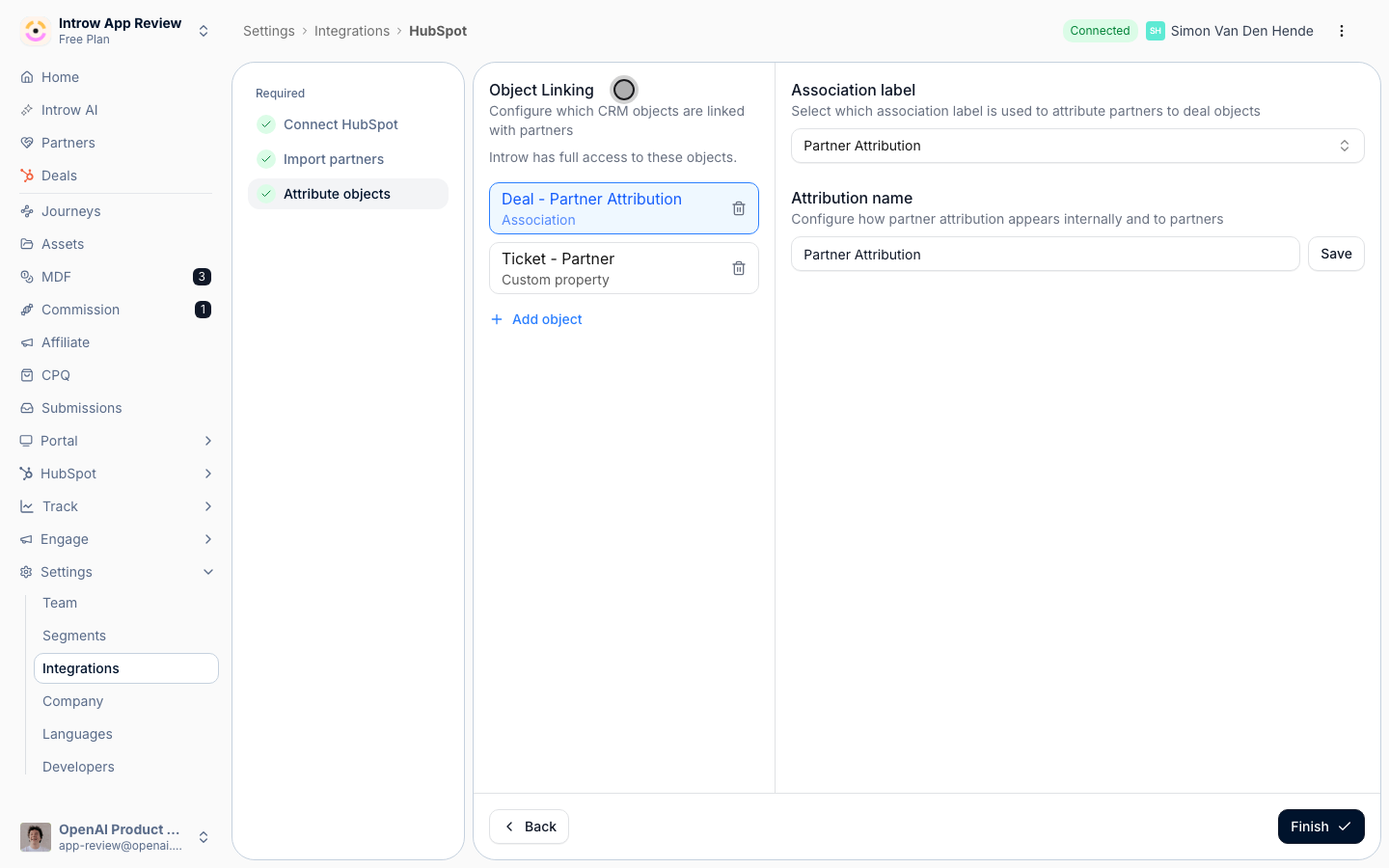
2
Choose the method that matches your data
On How do you attribute partners to Deal objects?, pick the method that mirrors how your CRM already links deals to partners. Match your existing model rather than restructuring it: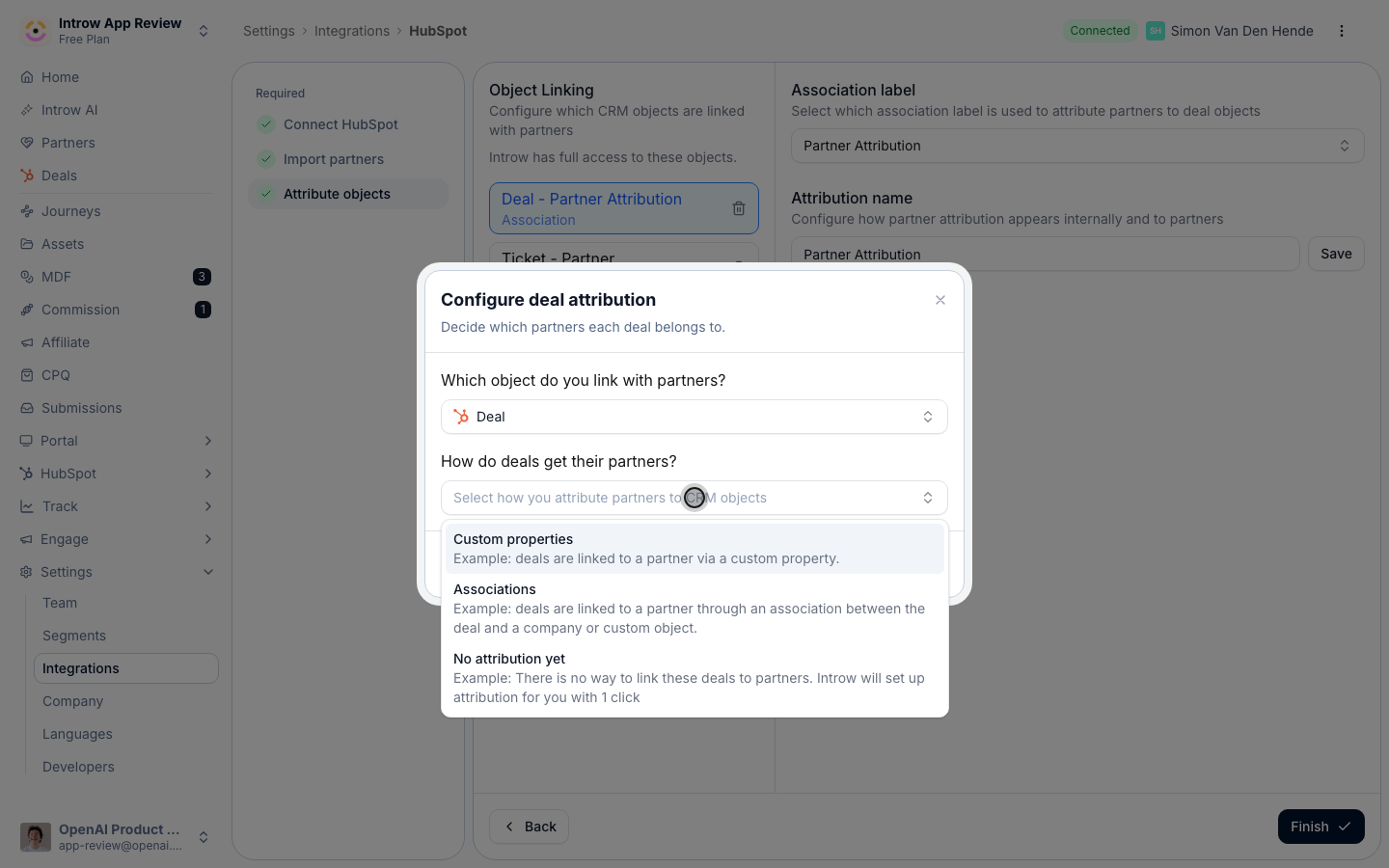
- Custom property - link each deal to a partner through a property you already maintain (a partner dropdown, picklist, or lookup). Best when a deal records one partner on a field.
- Association / relation - attribute through a native association (HubSpot) or a lookup or relation table (Salesforce) between the deal and the partner company or object. Best when you already relate partners to deals natively, and required for many-partners-per-deal.
- No attribution yet - if no link exists, Introw creates a dedicated partner property on the object for you in one click, so you can start fresh.
3
Map values to partners if prompted
When the source holds coded values rather than partner names, use Match property values to Introw partners to line each CRM value up with the right partner record, so deals resolve to the correct partner. For an association or relation, confirm the label or keys that represent the partner relationship.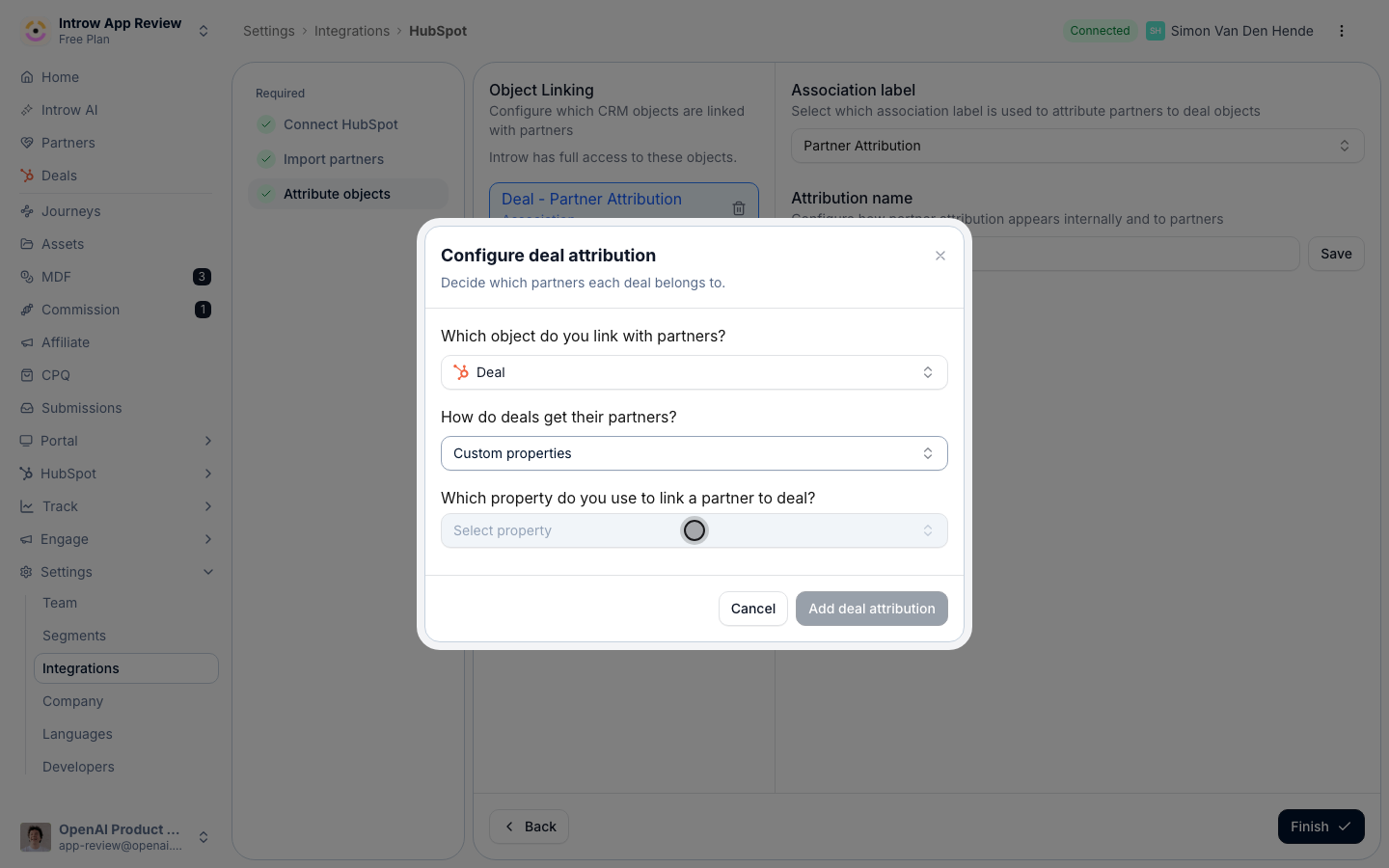
4
Name the attribution
Set What name do you want to use for this attribution? so the link reads clearly to your team and partners. The name is not cosmetic: it is how the credit is labeled in reporting and how you target it in commissions. Use language that reflects the role, for example Sourced by for the partner who created the deal and Influenced by for a partner who helped.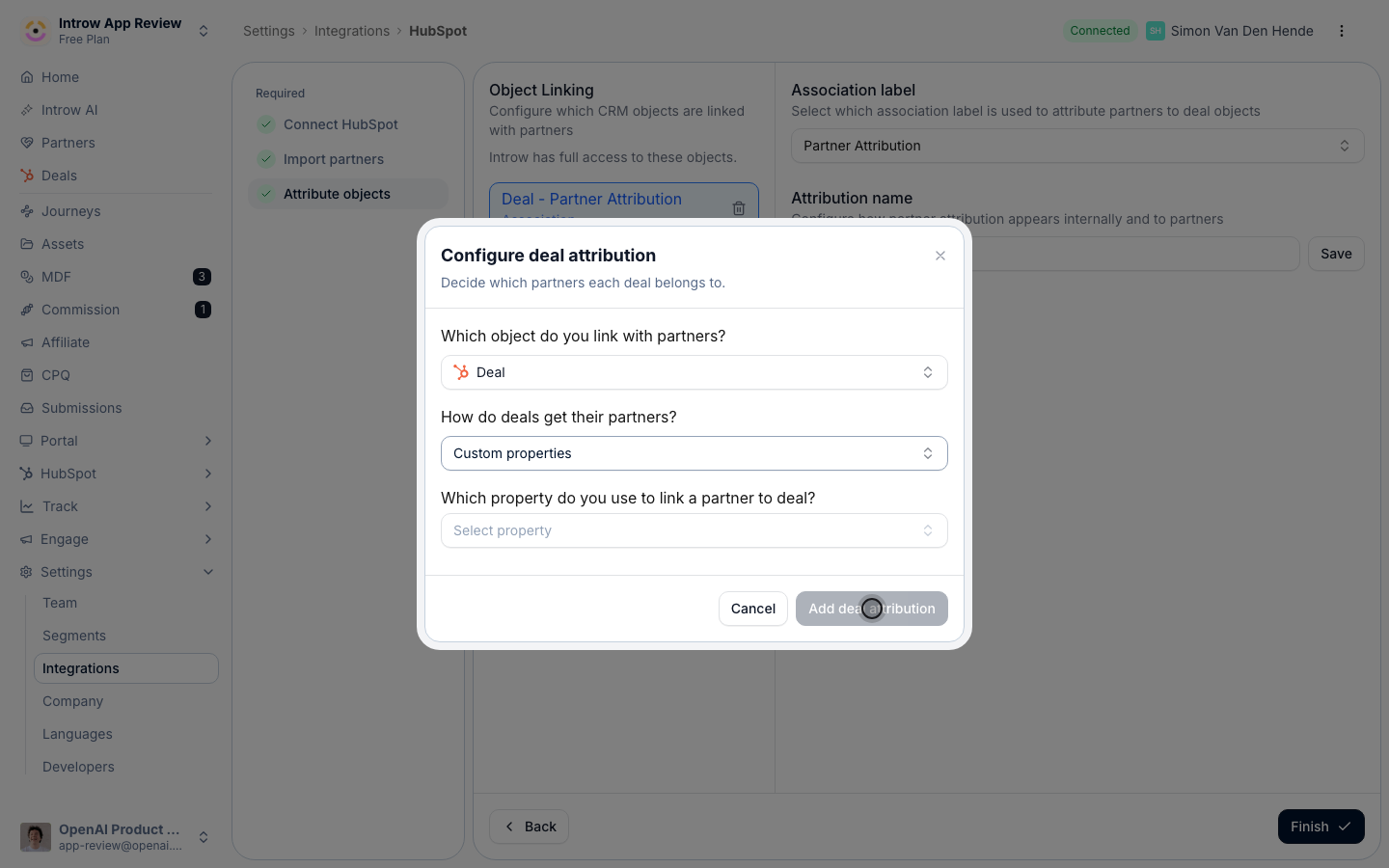
5
Add more attributions for sourced vs influenced
If a deal can involve more than one partner, add a second attribution (for example one named Sourcing partner and one Influencing partner) so a deal can credit both without them colliding. This is what lets a distributor and a reseller, or a referrer and a co-seller, share credit and visibility on the same deal. Repeat the method + name steps for each attribution you need.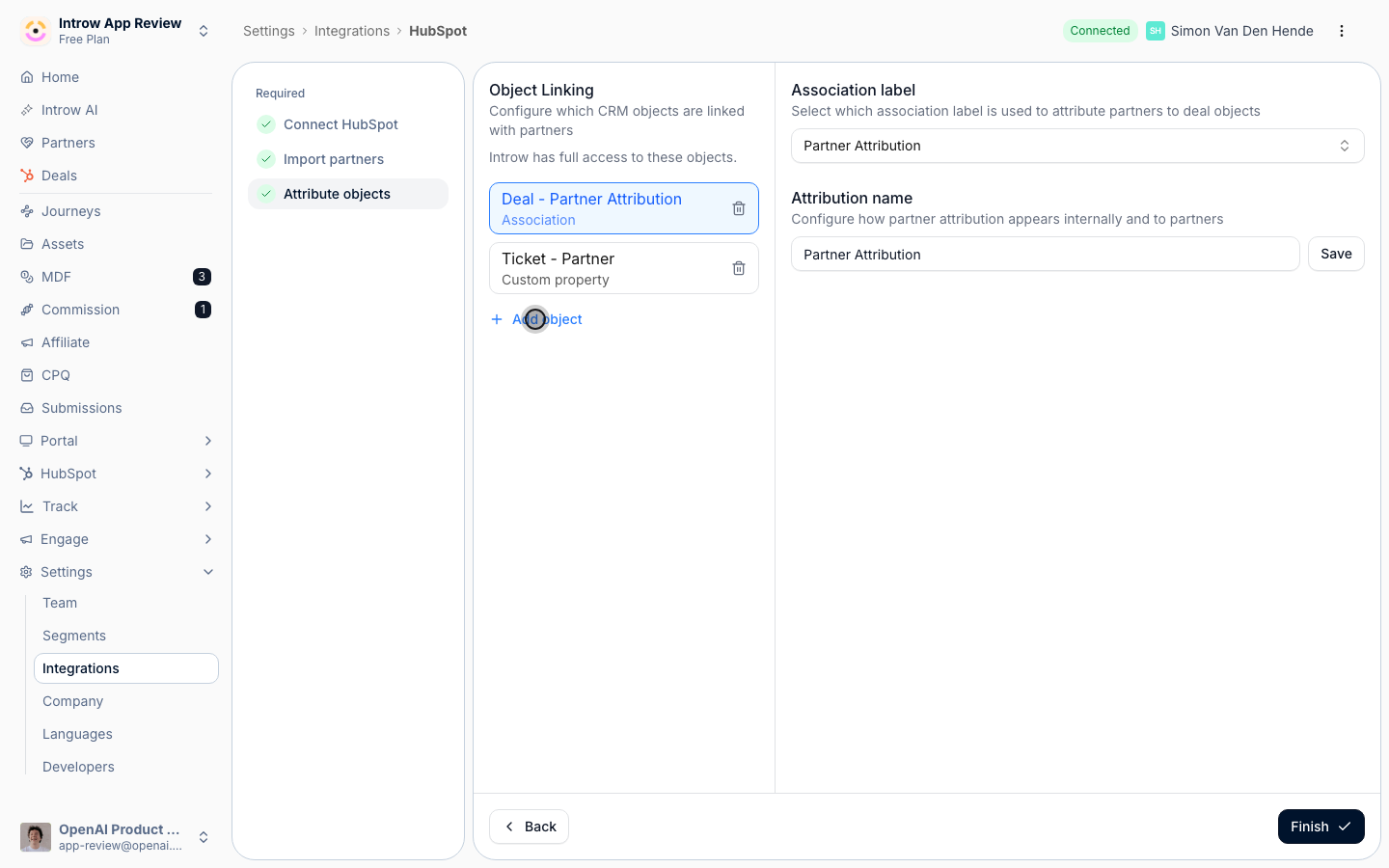
6
Save and confirm
Select Add Deal attribution (or Save when editing) and confirm when Introw asks you to verify the configuration. Introw then resolves every matching deal to its partner on the next sync, and keeps new and updated deals attributed automatically.
Verify it worked
Open a partner-influenced deal in your CRM. In Introw it now shows attributed to the right partner under your attribution name, that partner’s pipeline in a shared experience includes the deal, and their sourced or influenced pipeline reflects it in reporting and commissions. If a deal is missing, confirm the deal carries the property, association, or relation your method reads, and that any coded values are mapped to a partner.Related
Attribute deals to partners
Compare every attribution method across HubSpot and Salesforce in one place.
Attribution in HubSpot
Every HubSpot attribution method - properties, association labels, custom objects - and when to use each.
Attribution in Salesforce
Every Salesforce attribution method - picklists, lookups, relation tables, custom objects - and when to use each.
Set up a shared pipeline
Put attributed deals in front of partners in the portal.