

Where it lives
Submissions & Approvals sits under Submissions, at Submissions.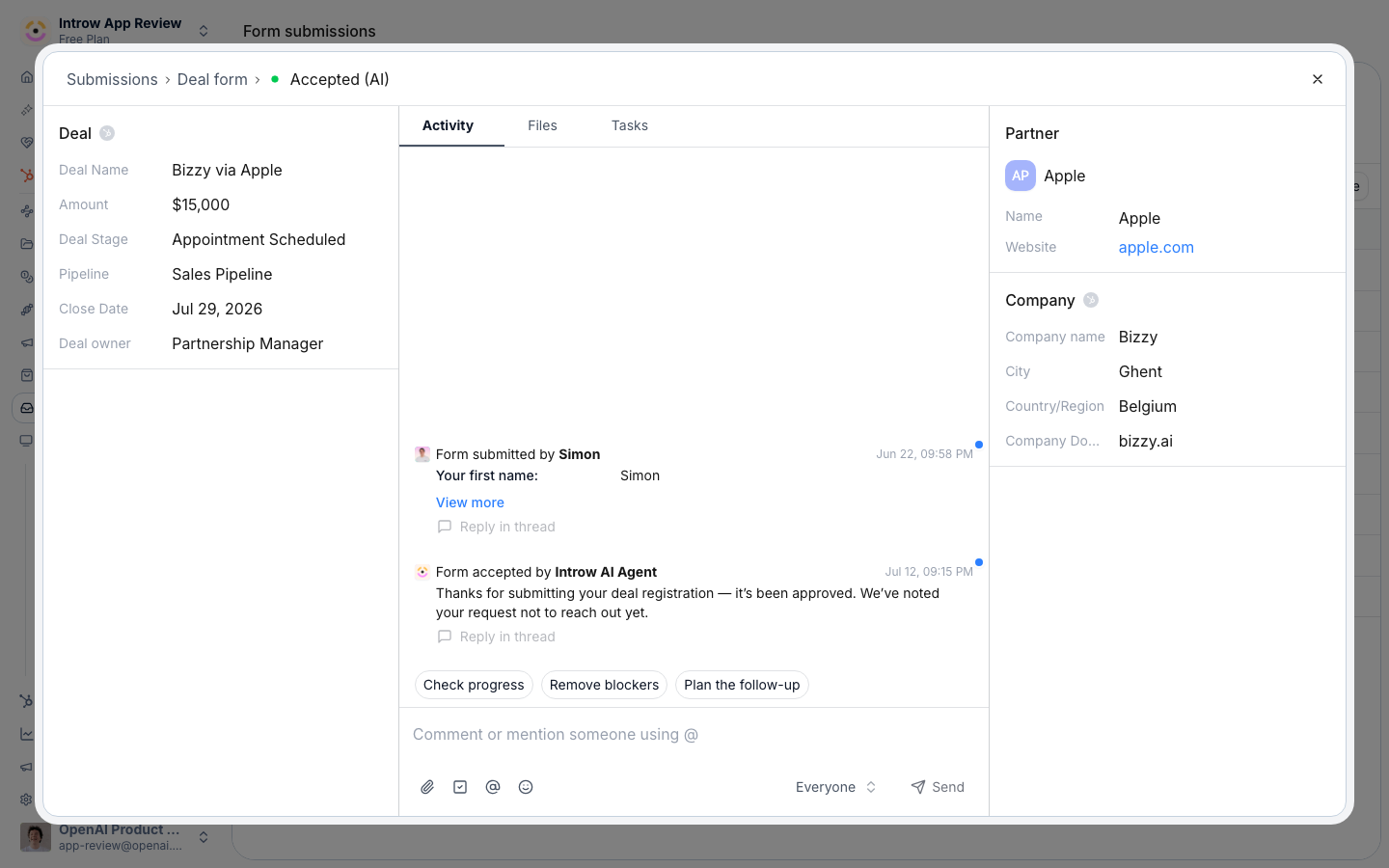
Before you start
How it works
Submissions land in the Submissions inbox. Each submission holds one of six statuses and shows the form, partner, submitter, and dates. From a submission you can accept, decline, return for more information, or reopen it.
Error is not a decision. It means the submission reached Introw but your CRM refused the record, so
treat it as work rather than an outcome. Accepted is final: an accepted submission cannot be
un-accepted, because accepting is what created the CRM record and told the partner yes. Correct the
record in your CRM and use Return to ask for a corrected submission.
Reading an Error. Open the submission and the object that failed carries a red Could not create
panel with the reason in plain language, rewritten from your CRM’s own refusal so it names what
happened rather than a status code. A submission that failed on several objects reports each one
against its own object. Where the cause is the submitted data, a required property left empty or a
value your CRM validates, the panel says Edit the submitted fields to retry and the automation
runs again on your correction. Where the cause is a permission, fix it in your CRM first: Introw does
not retry a permission refusal, because the same call fails the same way every time. Once the cause
is fixed in your CRM, you can also accept an Error submission again, from the Accept dialog or by
sending the message the channel conflict chat drafts for you: either one reruns the CRM create, sends
the acceptance email and marks the submission Accepted. The chat replies before the CRM create
finishes, so if it fails again the chat still says the submission was accepted: the red panel and the
Submission error email are where the new failure shows. See
Every CRM error Introw logs.
Someone has to be told. Introw emails a Submission error notification to the internal
recipients configured under Notify your team on that form’s Automation tab, and to nobody
else. A form with no recipients there sends no error email, so its failed submissions wait in the
inbox until someone looks. Configure recipients on every form that writes to your CRM.
Approval behavior is set per form in the form’s Automation tab. You can require an approval gate
with one or more approver steps, and optionally enable AI validation that reviews a submission
against instructions and, if you allow it, auto-executes when it is confident enough. Org-level
notifications control which emails go out on submit and on each outcome.
Settings & configuration
The inbox is at Submissions; approval gates are set per form in the Automation tab.Reviewing submissions
Open a submission to see its details and act on it: accept, decline, or return. Returned submissions can be edited and resubmitted by the partner. A declined submission can be reopened from the top of the submission, which returns it to pending for another decision - it re-enters the approval gate from the first step and re-runs AI validation if enabled.Editing a submission
You can correct the answers on a Pending or Error submission. What the save does depends on the form:- No approval gate (auto-accept form). The edit is resubmitted on the spot: the submission becomes Auto accepted and the corrected values go to your CRM now. Partners do not get a second “form submitted” email.
- Approval gate, and you approve the current step. The submission stays in review and the Accept dialog opens right away, so you can finish the review in one go.
- Approval gate, and you do not approve the current step. The submission stays Pending and the confirmation says it is still waiting for review.
- An Error submission. Editing is the retry. The approval cycle restarts, so the submission has to be accepted again, unless the form auto-accepts.
Inbox columns
Use the configure option to choose the columns shown in the inbox, including custom and CRM fields, so you review by what matters to you.Bulk accept, decline, and delete
Select submissions with the checkbox on the left of each row. The column headers are replaced by a bar reading N selected with Accept, Decline, and Delete, and the checkbox in that bar selects every row currently loaded in the table - so filter or search first, then select, when you want a batch that is scoped to one form or partner. Accept and Decline open one dialog for the whole batch with an optional Message to partners. It is prefilled with the form’s accept or decline message when the selection has one, and the same message is sent to every partner in the batch and posted on each submission, so the partner still gets a reason rather than a bare status change. Every submission in the batch runs the same path as accepting or declining it on its own: CRM automations, partner and team notifications, and timeline events. Where the form has an approval gate, a bulk accept records your approval on the current step (and on any later step you are an approver for) rather than force-accepting - the submission is accepted once the last step is satisfied. Only what qualifies is processed, and the rest is skipped rather than blocking the batch. Introw reports how many were processed and how many were skipped:- Not pending - already accepted, declined, or returned. Both actions only touch pending submissions.
- No partner linked - bulk accept skips a submission Introw could not tie to a partner, since attribution is the point of accepting it. Link the partner, or open the submission and accept it there.
- Not yours to approve - you are not an approver on the submission’s current step, or you already approved it.
- An MDF request with no fund - route it to a fund first, since acceptance is what creates the fund-linked request.
Approval gate
In a form’s Automation tab, switch on Approval gate to hold submissions as pending rather than accepting them on arrival. One question then sets how much of the review Introw AI owns: Manual sends every submission to your approvers with no AI, AI Assisted has the AI pre-check and recommend while your approvers decide, and Autonomous AI lets it accept, decline or return on its own above the confidence you set, escalating everything below. Switching the gate on lands on AI Assisted and seeds one step set to Anyone, so it starts permissive and you tighten it from there. Steps run in order: each must approve before the next is asked.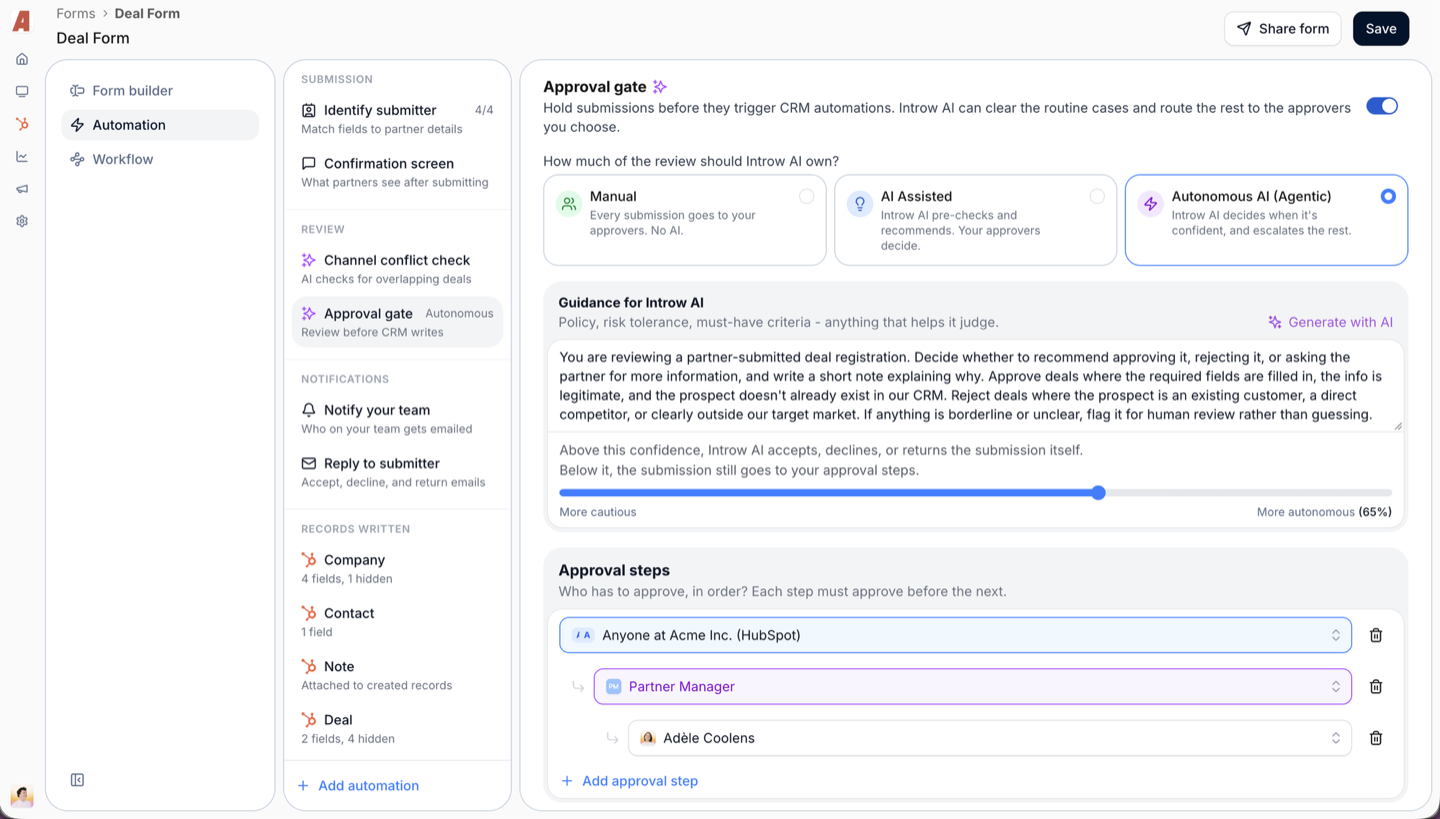
One question decides how much of the review Introw AI owns; the guidance and the confidence bar under it are what it is held to.
The two dynamic options are what let one form serve every partner without a rule per partner. Removing
the last step switches the gate off entirely.
What the model does not express, since these are the questions it raises most: two approvers on one
step where either may approve, routing by a field value such as territory or deal size, an SLA that
auto-accepts after a number of days, and accepting or declining from Slack or Teams (the chat message
deep-links to the submission instead). See
Choose how submissions get approved
for what to do instead in each case.
What the partner sees
Nothing about the gate is visible to a partner unless you show it, which is why “where is my registration” is a common question.- Their own submissions, with status. Add the Form submissions section to the portal experience, from the Forms group in the section picker. It lists that partner’s submissions with a Status column.
- A returned submission comes back prefilled. When a partner reopens the form after a return, their previous answers are already filled in and the reviewer’s return comment is shown with them. Their edit resubmits the same submission rather than creating a second one, so a return does not fragment the inbox.
- Outcome emails are org-level. Accepted, declined and returned emails are configured on Default settings, on the Notifications tab, under the Submissions group.
AI validation
Both AI modes are steered from the same box on the gate. Under Guidance for Introw AI, write the rules a submission has to meet in plain language, or Generate with AI a first draft from the form’s own fields and edit it. On Autonomous AI, one slider sets the confidence the AI has to clear before it accepts, declines or returns by itself (it defaults to 90%); anything below that bar still goes to your approval steps. See AI Approvals.Notifications
Per-form, set who is informed on submit. Org-level notification settings control partner emails for accepted, declined, and returned outcomes.How-to guides
Troubleshooting
A submission is stuck pending
A submission is stuck pending
It is waiting on an approver step, or AI was not confident enough to auto-execute.
AI is not auto-handling cases
AI is not auto-handling cases
The certainty threshold is higher than its confidence, or auto-execution is off.
A partner did not get an outcome email
A partner did not get an outcome email
Check the org-level notification settings for that outcome.
Accept and Decline are greyed out with rows selected
Accept and Decline are greyed out with rows selected
No selected submission is both pending and linked to a partner. Both buttons hinge on that, so a partnerless submission has to be handled from the submission itself.
A bulk action skipped some submissions
A bulk action skipped some submissions
They were not pending, had no partner linked, were on an approval step you are not an approver for, or were MDF requests not yet routed to a fund. Open those individually to see which.
The bulk bar's select-all missed rows
The bulk bar's select-all missed rows
It selects the rows loaded in the table, not every match behind the filter. Scroll to load more, or narrow the filter and repeat.