

Where it lives
Channel Conflict Resolution sits under Portal, at Forms.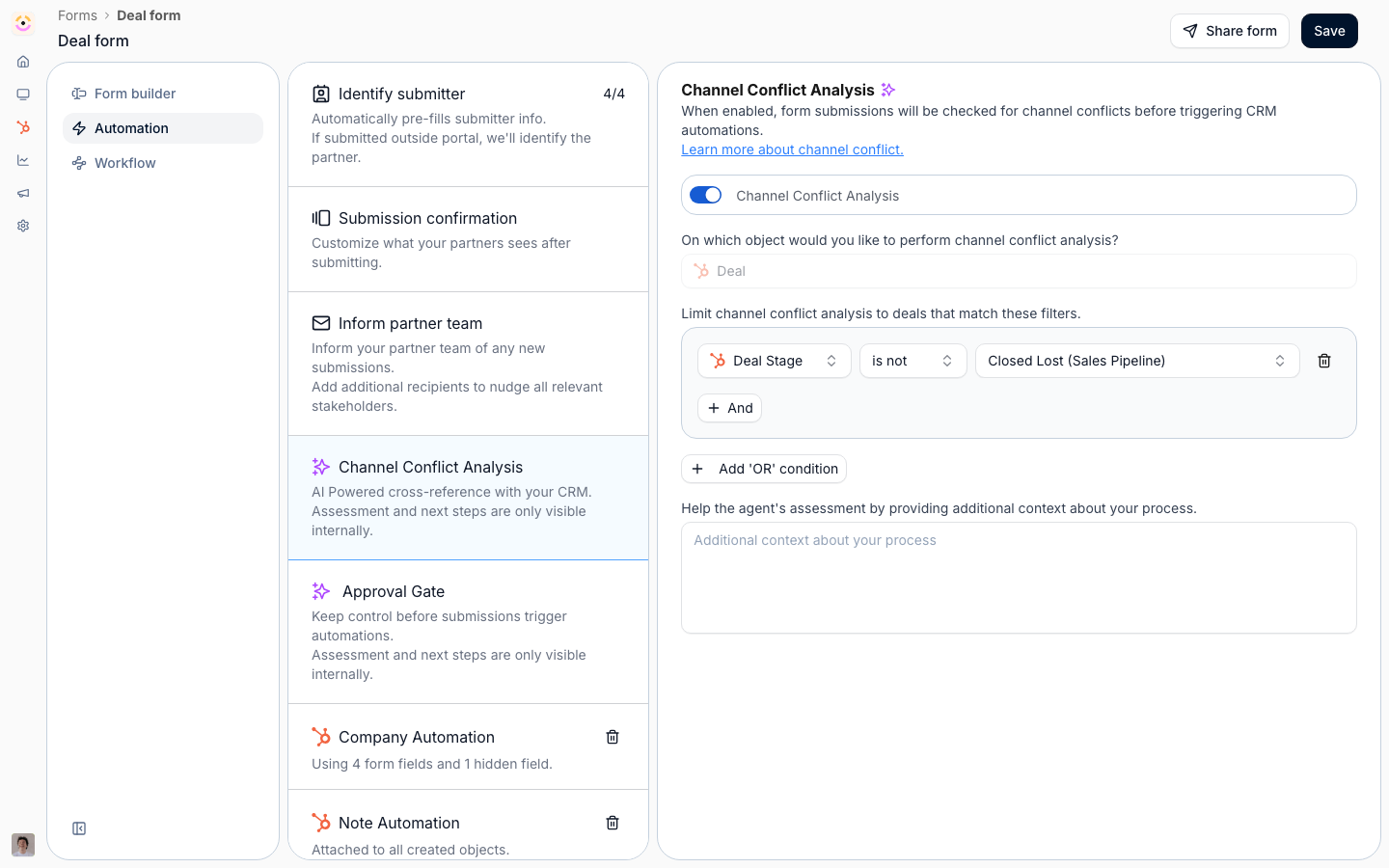
Before you start
How it works
Channel conflict screening is configured per form, not in a global settings screen. On any form whose automations create a deal, you can add a Channel Conflict Analysis automation. When it is on, each submission is cross-referenced against the deals already synced from your CRM to find overlap on the same account or opportunity, before the form’s CRM automations run. If the AI finds a likely conflict, the submission is held as pending in the Submissions inbox with a channel conflict flag, the overlapping deals, an assessment, and a recommended next step. A reviewer on your team approves, declines, or links the submission to an existing deal. The assessment and next steps are internal only, partners never see them. The AI handles detection and triage; the decision stays with your team. The assessment does not wait for someone to open the inbox: it rides along on the Form submitted notification your reviewers already get, so the first thing they read tells them there is a conflict. See Conflict context in the Form submitted notification.Settings & configuration
Channel conflict lives on the Automations tab of a deal form, as the Channel Conflict Analysis automation. Channel Conflict Analysis is the on/off switch for AI screening on that form. When on, every submission is checked for overlapping deals before the form’s CRM automations run; a Disabled pill on the automation means it is off. Adding a Create partner automation to the same form turns channel conflict off, and it is not available on MDF forms. Object is the CRM object the analysis runs against. It is fixed to your Deal object and cannot be changed. Filters optionally limit screening to deals that match conditions you set (for example a minimum amount or a specific pipeline). Leave it empty to screen every deal the form creates. Additional context is free text that tells the agent how your program judges a conflict (for example how you treat existing open opportunities or overlapping regions), so its assessment reflects your rules of engagement. Resolution happens in Submissions: a flagged submission is pending and shows a channel conflict status; reviewers with submission access get an AI panel to approve, decline, or link the deal.Conflict context in the Form submitted notification
There is nothing to configure here; it follows from having the analysis on. When a submission trips a deal-level conflict, the Form submitted notification your reviewers receive changes shape:- A Channel conflict section leads the message, carrying the same assessment and recommendation the Submissions inbox shows, as plain text.
- The button changes from View submission to Resolve conflict, and lands on the same submission.
- In email, the submitted fields are trimmed to the first five with a link to see the rest, so the conflict stays the headline rather than being buried under a long form.
How-to guides
Troubleshooting
A submission was never screened
A submission was never screened
The form has no deal automation, or Channel Conflict Analysis is off (shows a Disabled pill).
Channel Conflict Analysis is missing on a form
Channel Conflict Analysis is missing on a form
It is hidden on MDF forms and on forms with a Create partner automation.
No overlap is ever found
No overlap is ever found
Confirm the comparable deals are synced from your CRM and your filters are not too narrow.
A flagged submission was not actioned
A flagged submission was not actioned
Confirm a reviewer with submission access is working the Submissions inbox.
A flagged submission arrived as an ordinary Form submitted notification
A flagged submission arrived as an ordinary Form submitted notification
The overlap was on a company or contact rather than a deal, or the assessment did not come back in time. Open the submission; the flag and the assessment are in the inbox either way.
Nobody was notified at all
Nobody was notified at all
The form has no email automation and no chat channel receiving Form submitted. The conflict section rides on that notification; it does not create one. See Control who gets notified.