

What you’ll achieve
Each notification scoped to the partners and teammates it applies to, on the channels you choose, so partners receive only relevant updates and your team sees only the partner activity they own.Before you start
1
Know the catalog
Decide which events matter to your program before you tune who receives them. See Every notification Introw sends for the full list.
2
Have your segments ready
Anything narrower than your organisation-wide baseline is expressed with a segment, and an overriding segment needs at least one condition. Build them first if needed. See Segments.
Steps
1
Set the baseline for every partner
Go to Default settings and open the Notifications tab. Give each event its recipients: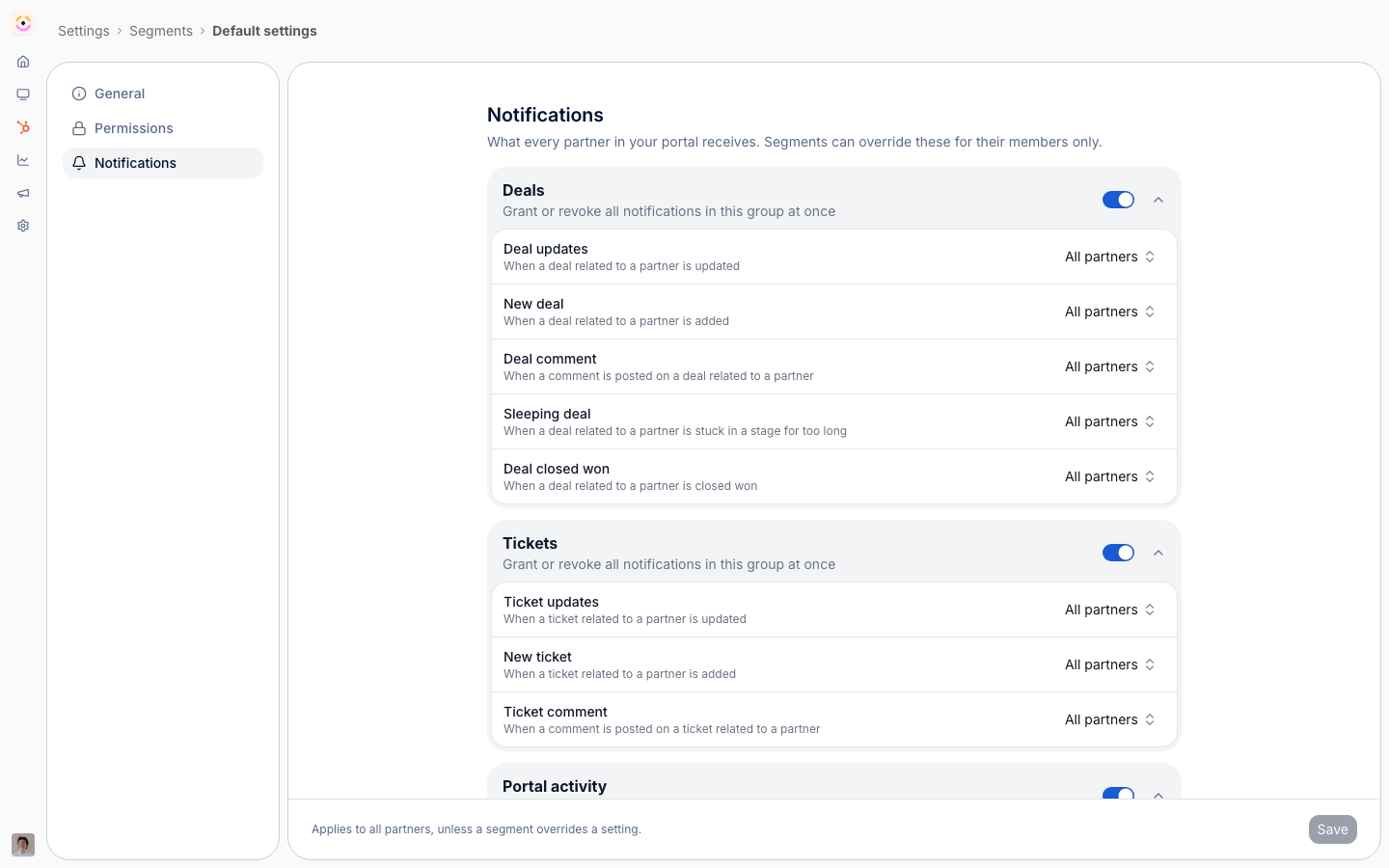
- All partners - everyone the event applies to.
- Collaborating only - just the contacts assigned as collaborators on the record. Offered only for events attached to a CRM record, where collaboration means something.
- Disabled - the event does not send.
2
Override it for one audience
Open the segment that audience is defined by, go to its Notifications tab, and switch on Override the default for this segment. Until you do, the segment changes nothing, so creating a segment to target an announcement has no notification side effects.
- When to override - program-specific messages that should not reach every partner, such as a tier-only update or a region-specific deal notification.
- Both directions - an override replaces the default for that segment’s members, so it can hold an event back as well as open it up.
- It has to target a subset - a dynamic segment with no conditions matches everyone, so it cannot override. Add at least one condition, or keep using it purely for targeting.
3
Set chat separately
Recipients above govern email. Which partner events reach a partner’s chat channel is set per platform on that chat integration, on its Partner channels tab, because a channel belongs to a whole partner rather than to a person. Chat cannot be targeted per segment. Some notifications are email-only. See Channels.
4
Decide which of your team is copied
For notifications that also reach internal users, role and user settings decide who on your team is notified. Choose the reach that fits each role:
- All partners - the person is notified about every partner.
- Only their own partners - limited to partners they own or manage.
- Only where they collaborate - limited to the specific deals or records they are a collaborator on.
- Off - the person is not notified for that type.
5
Know what happens when overrides overlap
When a contact matches several override segments that disagree on the same event, the most permissive one wins, so an event enabled in any of them reaches the contact and the wider audience applies. Anything no override segment mentions falls through to the default.
6
Read a contact's cascade
Open a partner contact’s Notifications tab and Introw shows the three-layer cascade that decides each event, top to bottom:
- All partners · Default - the organisation default from Default settings, with a link to edit it.
- Matched override segments - each segment the contact belongs to that overrides at least one event, named and linked, with the number of events that segment decides.
- This contact - the events this contact has opted out of themselves.
7
Opt a contact out (opt-out only)
On the contact’s Notifications tab, turn off any event the layers above leave available. Contact-level toggles can only opt out of an event that is available; they cannot re-enable one a higher layer has locked to off. If a row is locked, use the links on the cascade card to edit the default or the matching segment.The rule is enforced when the change is saved rather than only hidden in the interface, so an opt-out recorded against a locked event is stripped before it is stored. No screen can claim an opinion the organisation default or a segment owns.
8
Respect partner opt-outs
Partners can also opt out of non-essential emails from their own settings, and Introw honors that alongside the cascade. Keep essential, action-driving notifications on and avoid enabling low-value ones, so partners stay opted in to the messages that matter.
Verify it worked
On Segments, the Notifications column reads Default for every segment that follows your baseline and shows the exact difference for every segment that does not, so your whole setup is one screen. Then open a contact in the audience you scoped and confirm their cascade names the layer you expect. After the next real event, the Last sent time updates and Insights on Notification settings shows who it reached.Related
Every notification Introw sends
The full catalog of what you can turn on.
Segments
Build the partner audiences you scope notifications to.
Channels
Set up email, Slack, and Teams delivery.
Implementation reference
Full configuration options for notifications.