

What you’ll achieve
A clear picture of everything Introw sends automatically, grouped by area, so you can choose which notifications to turn on, which channels they use, and who receives them, and explain to partners exactly what to expect.Before you start
1
Know where to configure these
Every notification below is turned on, channelled, and scoped from Notification settings. This page is the catalog; Control who gets notified covers targeting and Channels covers delivery.
How to read this
Unless a row says email-only, a notification can be delivered by email and, where the workspace is connected, in Slack or Teams, and it also appears on the partner’s portal timeline. Recipients depend on the segments and scopes you set. “Your team” means internal Introw users rather than partners.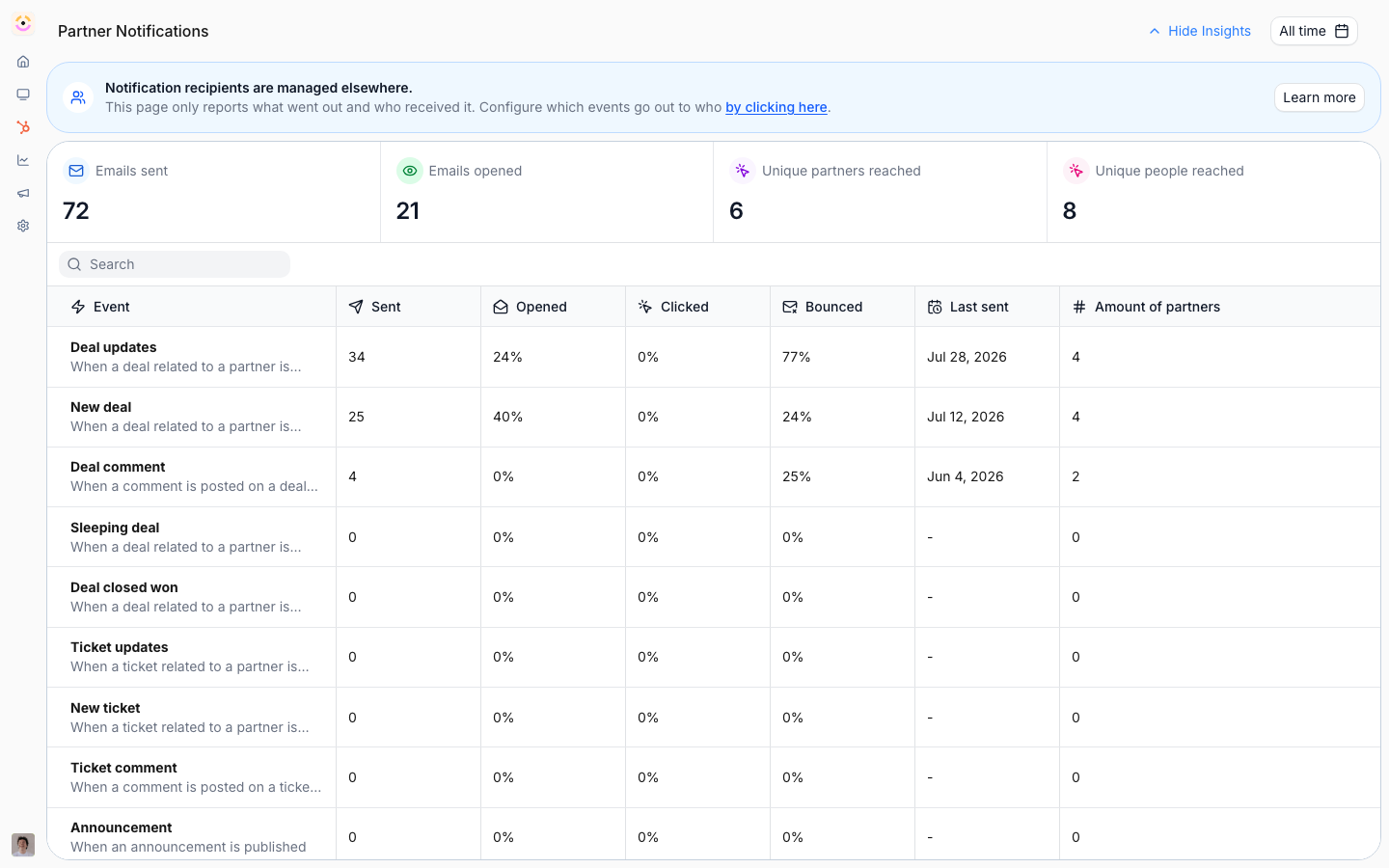
Deal and pipeline
The heartbeat of a co-sell program: Introw watches your CRM and signals every meaningful change on a partner-attached deal.
A deal Introw sees for the first time only counts as new when your CRM last changed it in the past day.
Widening a sync scope, connecting a CRM or backfilling attribution therefore does not tell partners about deals that closed years ago, while a deal that is really new still announces itself.
Deal notifications carry a coached next step. Instead of only telling a partner that a deal changed or went quiet, deal coaching adds what to do next, why it moves the customer forward, and how, including a ready-to-send message. See Deal coaching.
Portal activity
Submissions
Covers deal registrations, shared leads, MDF requests and claims, and any partner form.
Submission error is internal, and it follows the form. It goes to the recipients configured under Notify your team on that form’s Automation tab, never to the partner, and a form with no recipients there sends nothing. Configure recipients on every form that writes to your CRM, or a failed submission waits in the inbox unnoticed. When a form has several email automations, each one sends on its own: one that resolves to nobody, such as a partner manager role on a partner with no manager, is skipped and the others still send. What the error means and how to fix it: Every CRM error Introw logs.
Form submitted carries channel conflict. When the submission overlaps a deal already in your CRM and the form runs Channel Conflict Analysis, the notification leads with a Channel conflict section holding the AI’s assessment and recommendation, and its button reads Resolve conflict rather than View submission. This is internal only: partner-facing channels get the ordinary message with neither.
Tasks and onboarding
Learning and goals
Commissions and funds
Activity and engagement signals
Mostly for your team, to show which partners are active.Account and access
Transactional messages that keep people able to log in and work: portal and app invitations, email verification codes, and internal team invitations and join-request outcomes. These always send so people can get in.Turn these on and target them
1
Set the ones that drive action
On Default settings, give each event above its recipients and set the rest to Disabled.
2
Narrow it for one audience
Override the default on the segment that audience is defined by. See Control who gets notified.
3
Choose chat separately
Which events reach a partner’s Slack, Teams, or WhatsApp channel is set per platform on that chat integration. See Channels.
Verify it worked
On Notification settings, each enabled notification shows a Last sent time after its next real event, and Insights shows what was sent and opened, so you can confirm the ones you turned on are firing.Related
Control who gets notified
Scope notifications to the right partners and teammates.
Nudge stalled deals
Set up the sleeping-deal reminder.
Channels
Deliver these by email, Slack, and Teams.
Deal coaching
Add a coached next step to deal notifications.