

Where it lives
Sharing & submitting sits under Portal, at Forms.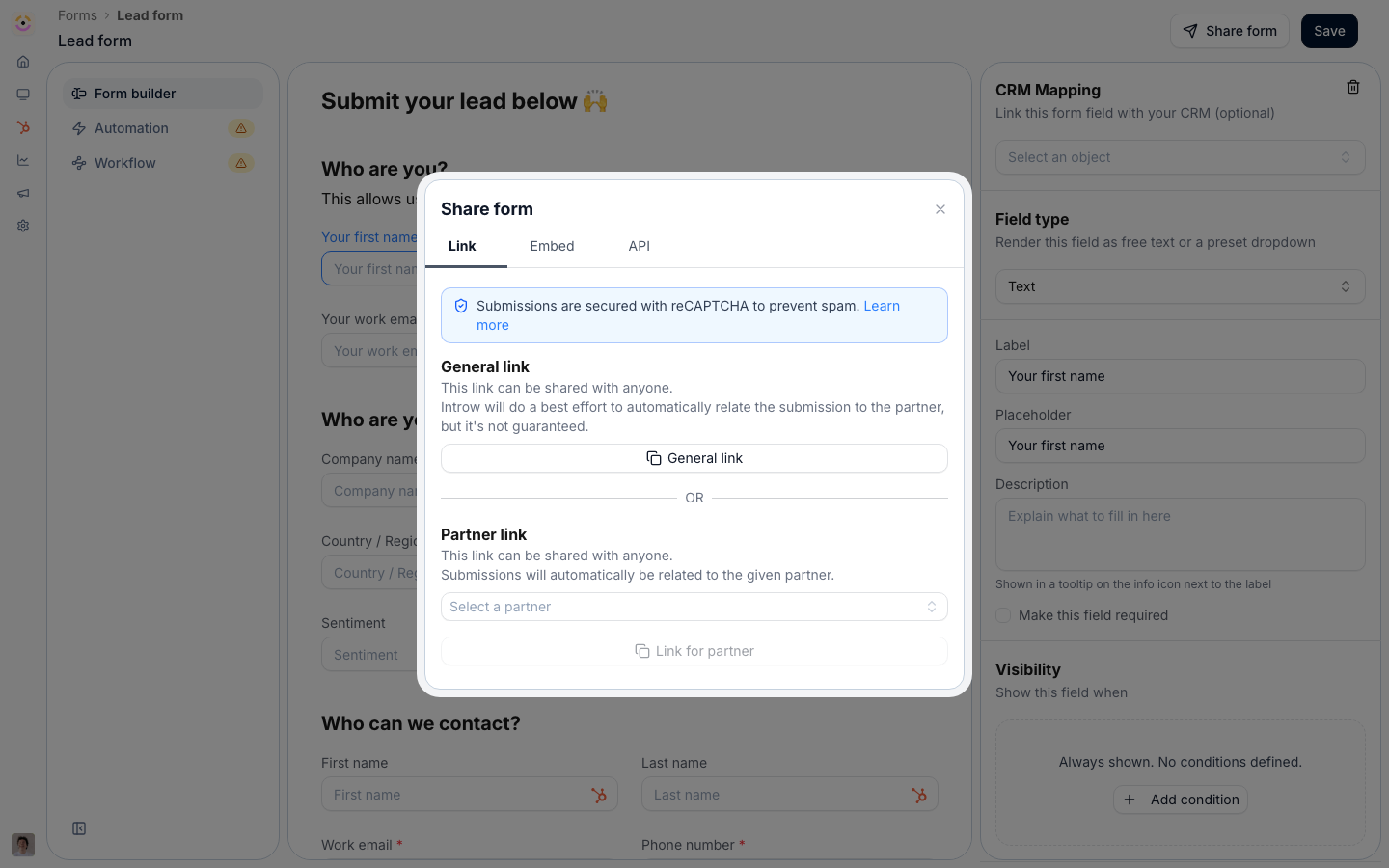
Before you start
Every plan includes API access with a monthly API credit allowance, so there is no add-on to enable.
How it works
A form in Introw has one definition and one CRM automation, and many ways in. You build the form once, then decide how partners reach it: copy a link, embed it, place it in a portal experience, turn on off-portal channels, or expose a bulk upload for lists. Whichever route a partner takes, the submission runs through the same automation, so it is attributed and synced to your CRM identically every time. Two ideas are worth holding onto. First, a general link is open to anyone, while a partner-specific link stamps every submission with that partner’s attribution automatically. Second, the channels are not separate forms: they are entry points onto one form, so you configure the form and its automation once and switch channels on or off freely.Settings & configuration
Share form dialog
Open a form and choose Share form to get its entry points. General link is the open link anyone can open and submit. Use it for broad, unattributed capture (a public sign-up, an event form). Partner link is a partner-specific link that credits every submission to the chosen partner. Prefer it over the general link whenever you send a form to a known partner, so attribution is never in question. Embed provides the code to drop the form onto your own site under your branding, on the Embed tab. The snippet resizes the form to its content, including after submit. Embedding requires a custom domain; until one is set, the tab points you to Configure custom domain and you should share the link instead. API turns the form into a request. The tab gives you a runnable cURL snippet already carrying this form’s id and every field id, plus a Fields table listing each field’s id, label, and whether it is required. Field ids are opaque generated strings, so never type them from labels: read them here, or fetch them fromGET /api/v1/forms/{formId}/schema, which the note under the table links to. Pick a partner in the dialog before copying and the snippet comes back with that partner’s partnerId pre-filled. API submissions run the same automations and acceptance flow as portal submissions, from any system, with no browser and no portal login. The tab is available on every plan; each submission spends one API credit from your monthly allowance. Full setup is in Submit a form via the API, and the complete contract is in Form submissions.
Off-portal channels
Partners can also submit without opening the form at all. With the AI agent enabled and the matching integration connected, a partner can forward an email, message the agent in Slack or Microsoft Teams, or ask a connected AI assistant, and the agent fills in and submits the same form. These channels are covered end to end in Ways to submit a form.Batch upload
For lists rather than single records, add a Batch Upload field to the form. Its Batch Upload Settings control the four labels a partner sees (the upload Label and Subtext, the Download Template action, and the Upload Data action), and the field accepts a CSV of up to 1000 rows. The downloaded template is built from the form’s fields, so it lists your allowed picklist values and marks required columns, and a preview validates every row before submission. Full setup is in Bulk upload multiple records.How-to guides
Troubleshooting
A submission is not attributed to the partner
A submission is not attributed to the partner
It likely came through the general link. Send the partner-specific link instead, or pass
partnerId on the API call.An embedded form is cut off or leaves a gap
An embedded form is cut off or leaves a gap
The snippet on the page predates auto-resizing. Copy it again from the Embed tab and replace the old one.
An AI or chat submission did nothing
An AI or chat submission did nothing
Confirm the AI agent is enabled and the Slack or Teams integration is connected for your program.
API submissions return 402
API submissions return 402
This month’s API credit allowance is spent; it resets on the first of the month.
An API submission returns 422
An API submission returns 422
A required field was missing or a value failed the form’s validation. Re-check the ids in the Fields table.