

For partner ops collecting batches of records - lists of leads, end customers, deals, or assets - from partners who work in a spreadsheet, not one entry at a time.Sometimes the unit of work is a whole list, not a single record. A batch upload field lets a partner hand over many rows in one CSV, and each row flows into your CRM exactly like a single submission would: mapped, attributed, deduplicated, and routed through the same approval. The difference is scale, and the safeguards that come with it. Partners download a template that already knows your fields and your allowed values, and a preview validates every row before anything is submitted, so a spreadsheet full of typos never becomes a CRM full of bad data.
What you’ll achieve
A form with a batch upload field where a partner downloads a ready-made CSV template, fills in up to 1000 rows, and uploads them in one pass. Before submission, a preview validates every row against the same rules a single submission obeys - required fields, picklist options, and the validation rules on your mapped CRM properties - and highlights any cell that fails. The partner can only submit once every row is clean, and each row then lands as its own created or updated CRM record, attributed to the partner.Before you start
1
Confirm access
You need edit access to forms.
2
Have a form with its CRM automation mapped
Batch upload reuses the form’s CRM automation, so each row needs somewhere to land. Map the per-record fields to your CRM objects and properties first, in Connect a form to your CRM. The template columns, the allowed picklist values, and the validation rules all come from that mapping.
Watch it
- Video
- Click through
Steps
Add and configure the batch upload field
1
Open the form builder
Go to Forms and open the form partners will submit records to, on its Form builder tab. Use an existing form or build one first (see Build and publish a form).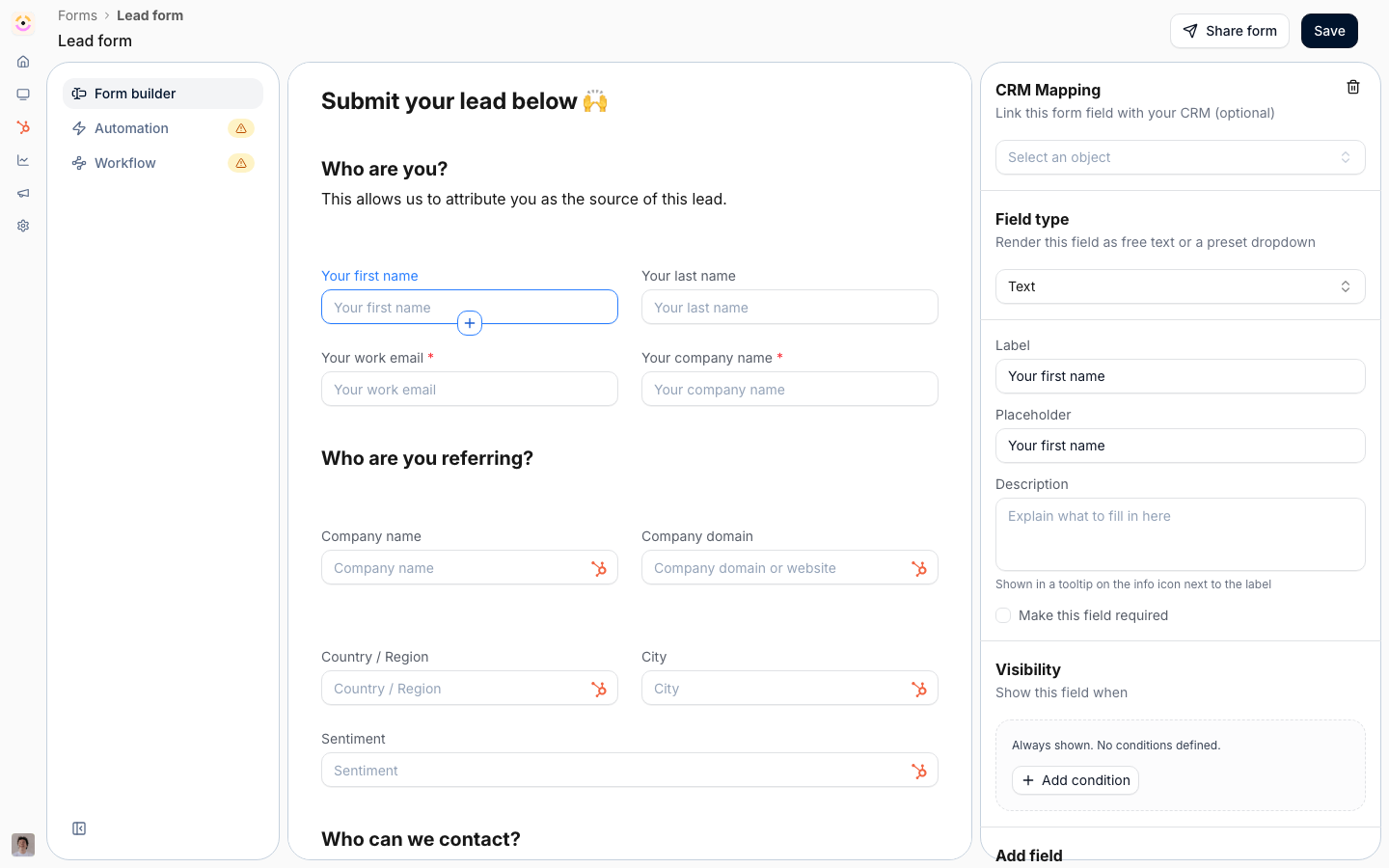
2
Add a Batch Upload field
Use Add field and choose Batch Upload. This replaces single-entry inputs with one control that accepts a CSV of many rows, so a partner submits a list instead of one record at a time. One batch field per form is enough: the template is built from the form’s other fields, and those fields define every column.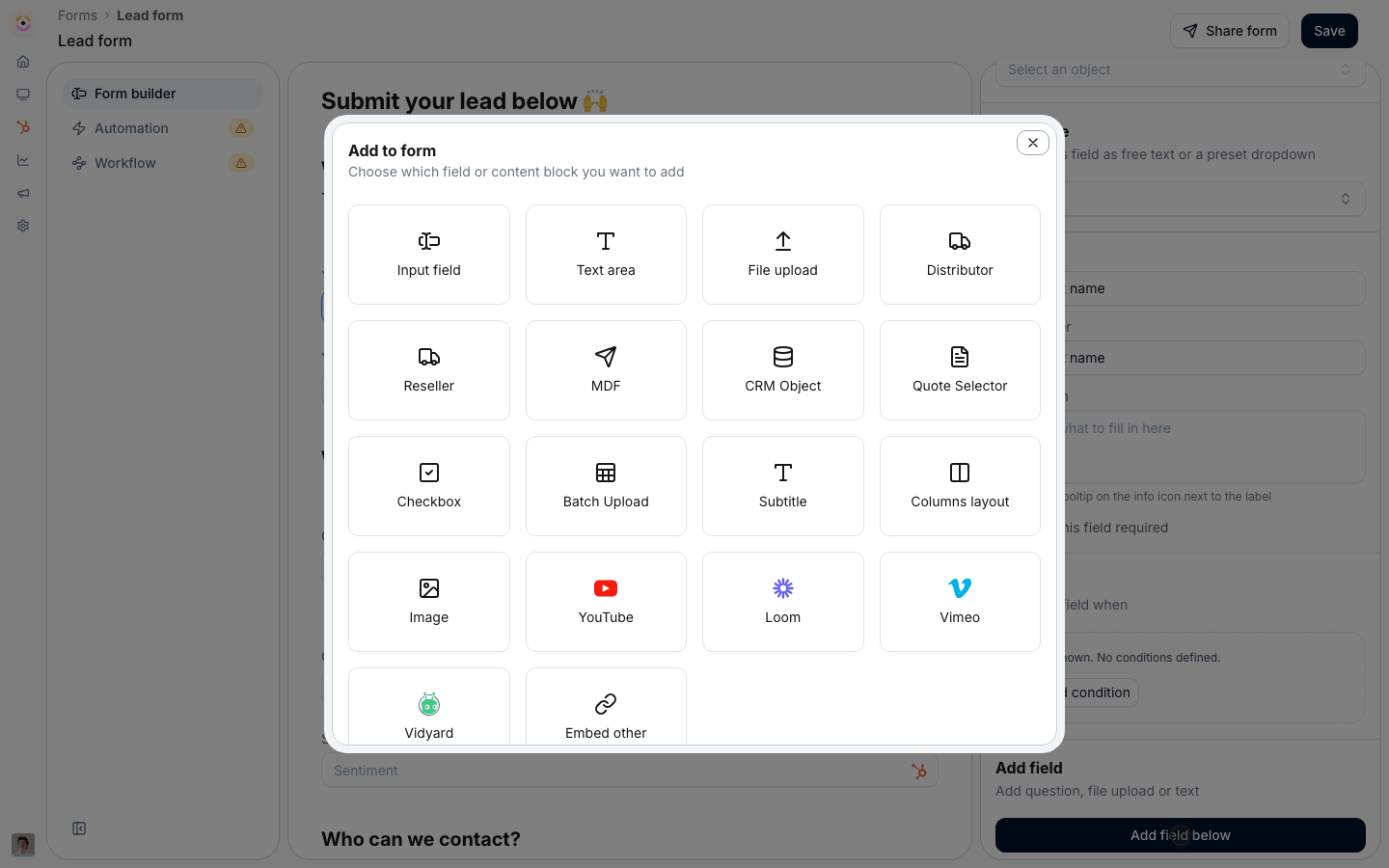
3
Configure the Batch Upload settings
Open Batch Upload Settings for the field. These four labels are what the partner sees, so make them action-led: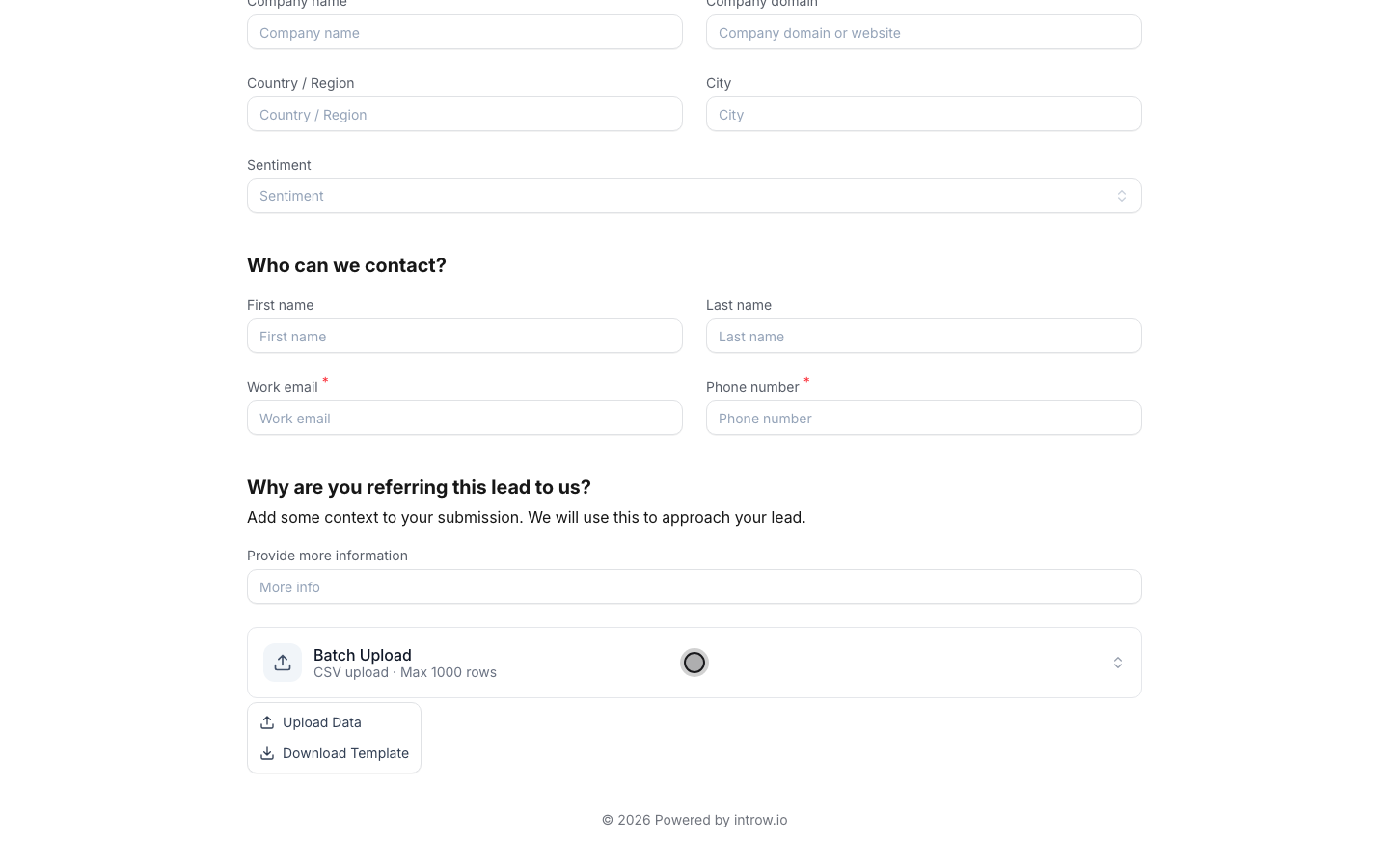
- Label - the title on the upload card. Name the thing being uploaded, for example “Upload your leads” or “Upload end customers”.
- Subtext - the helper line under the label. Use it to set expectations on format and size. The default notes a CSV upload with a maximum of 1000 rows; keep that limit visible so partners split larger lists themselves.
- Download Template - the label for the action that hands the partner the ready-made CSV. Leave it recognizable so partners always start from the template rather than an empty sheet.
- Upload Data - the label for the action where the partner picks their completed CSV file.
4
Map each per-record field to your CRM
On the Automation tab, confirm every per-record field maps to the right CRM object and property, and set the write behavior (create new, or match and update) exactly as you would for a single submission. This is the same create/update, attribution, and duplicate-matching model described in Connect a form to your CRM. It is also what makes the template and the validation smart: mapped picklist properties become dropdown columns with fixed options, and any validation rules on those properties apply to every row.File upload fields are the one thing a CSV can’t carry, so they are left out of the template and ignored on a batch. If a per-record field must include a file, collect it through a single submission instead.
The template partners download
The template is the contract between you and the partner. It is generated from the form’s fields the moment the partner chooses Download Template, so it always matches the current form, and it is self-documenting:- One column per field, in form order. Every field becomes a column headed by its exact label. Because two fields can legitimately share a label (a company email and a contact email), columns are matched to fields by position, so duplicate headers never collapse onto one field.
- Required columns are flagged. Each required field’s example cell is prefixed with
[Required], so the partner can see at a glance which columns cannot be left blank. - Picklist columns spell out their allowed values. This is the important part. For a field mapped to a CRM picklist (a dropdown or multi-select property), a pipeline stage, or a partner picker, the example cell lists the actual allowed values, for example
One of: Gold | Silver | Bronze. A multi-select field readsAny of (separate multiple with ;): ...so the partner knows to separate several values with a semicolon. Long option lists are truncated to the first ten with a+N morehint. Partners no longer guess your labels: the vocabulary is shared in the template itself.
What the partner sees when they upload
1
Upload the completed CSV
The partner opens the form, opens the batch upload card, chooses Upload Data, and picks their file. Introw reads it in the browser and immediately opens a preview - nothing is submitted yet.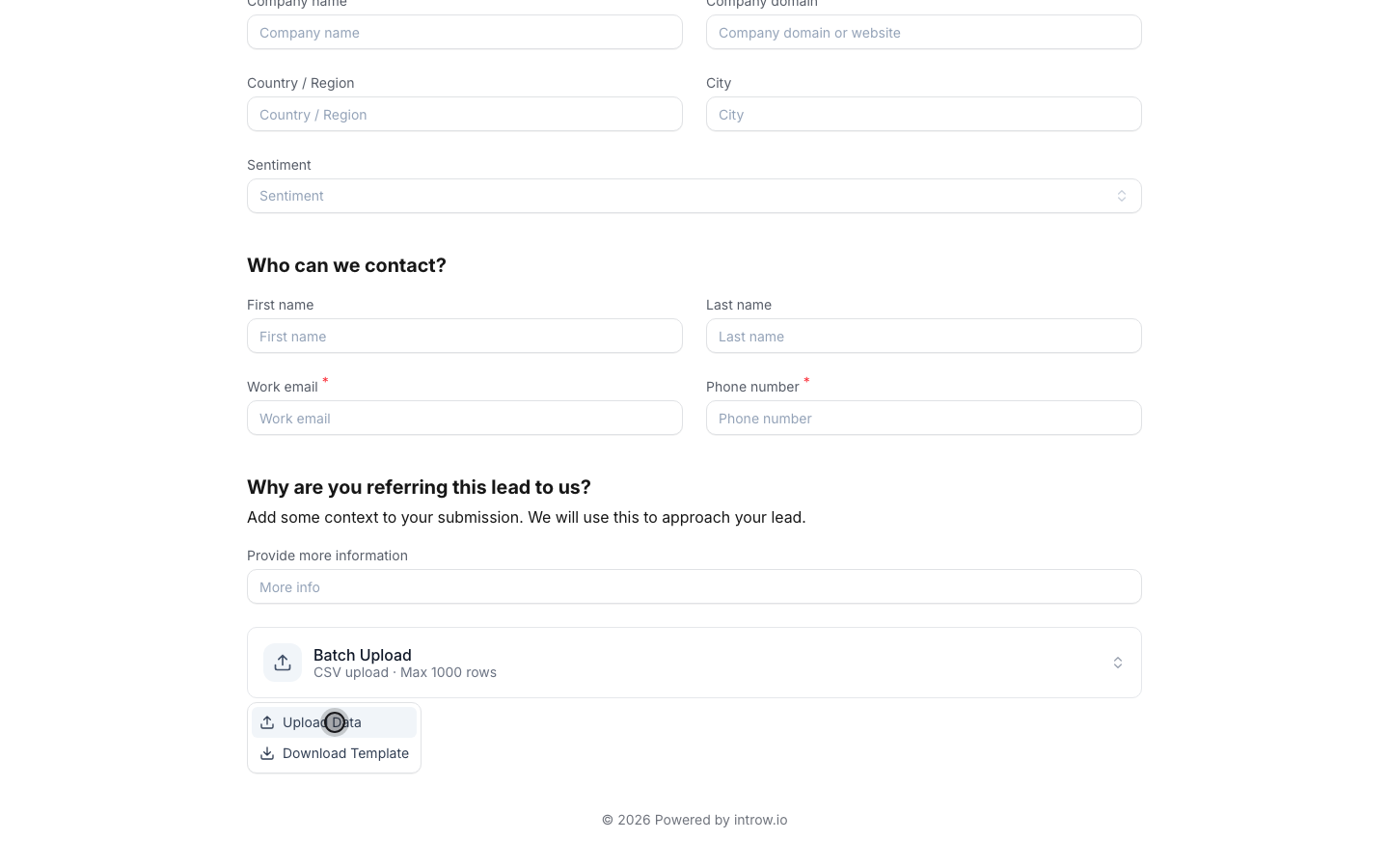
2
Review the preview and fix any flagged rows
The preview shows the file name, the row count, and a table of the rows to be submitted, then validates every row before anything is sent. Validation runs the same three checks a single submission passes, cell by cell:
- Required values must be present. A required column left empty is flagged.
- Picklist values must be allowed. Every value in a dropdown, multi-select, pipeline-stage, or partner column must be one of that column’s allowed options (matched case-insensitively; multi-select values split on
;). A value that isn’t in the set is rejected, and the message lists what is allowed. The options shared in the template are enforced on the batch, not merely suggested. - Validation rules must pass. The full set of rules your form applies on a single submission runs on every row too: number and date formats, email format, and any validation rules configured on the mapped CRM properties. A row that would have been blocked in the single-entry form is blocked here for the same reason.
3
Submit the batch
On a clean file, the partner submits and sees a confirmation that the records were received. Large lists must be split: a file over the 1000-row limit, an empty file, or a non-CSV file is rejected up front with a clear message rather than partly imported.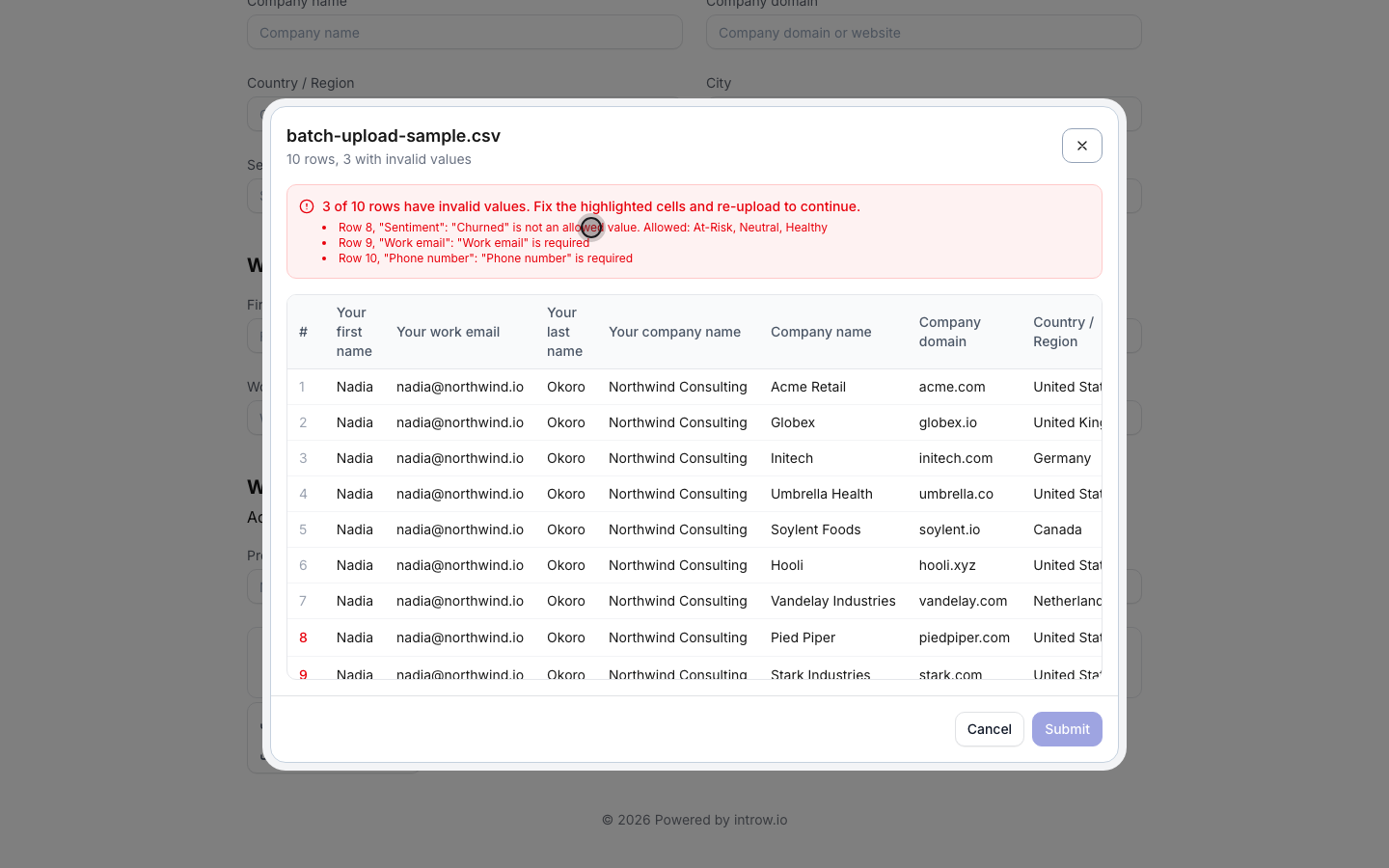
What happens after submit
Each row becomes its own submission and flows through the form’s automation exactly like a single entry: fields map to your CRM objects and properties, the record is attributed to the partner, existing records are matched and enriched instead of duplicated, and the batch runs through the same approval you configured (auto-accepted, or held for human or AI review, per row). Introw re-validates every row on the server as it processes the batch, so the browser preview is a fast first pass, not the only gate. On the server, picklist entries are canonicalized to the values your CRM stores (a partner can type the label they saw, and it resolves correctly), and any row that still fails validation is skipped and reported rather than written, so a bad row can never quietly land as malformed CRM data. Rows are processed in chunks, so a large batch lands steadily without overwhelming your CRM.Verify it worked
Upload a test CSV that mixes clean rows with a couple of deliberate mistakes: a made-up picklist value and a blank required cell. The preview should highlight exactly those cells and keep Submit disabled. Fix them, re-upload, and submit. Each row then appears as its own created or updated record in your CRM, attributed to the partner, and the batch shows in your Submissions inbox under Form submissions.Related
Ways to submit a form
Every other channel a partner can submit through: link, embed, email, Slack, Teams, AI, or the API.
Connect a form to your CRM
Map each record to the right CRM object, and set the picklists and rules the batch enforces.
Build and publish a form
Create the form and its fields first.
Run a submission approval workflow
Review and approve what a batch brings in.