

What you’ll achieve
A scoped, time-limited API key that your integration uses to authenticate against the Introw REST API, with a clean way to retire it. The key carries only the permissions you grant, expires on the date you choose, and stops working immediately when you revoke it.Before you start
1
Know your credit allowance
Every plan includes API access with a monthly allowance of API credits. One successful request spends one credit, and the allowance resets on the first of each month. You do not need an add-on to create a key.
2
Have the Developers permission
You need the Developers settings permission on your role to create or revoke keys.
3
Plan the scopes
Know which resources the integration reads or writes (partners, commissions, affiliate conversions, or portal sessions) so you grant the minimum it needs.
Watch it
- Video
- Click through
Steps
Create and capture the key
1
Open API Keys
Go to API Keys under Developers. The list shows each key’s name, a masked key, when it was created and by whom, its expiry, last-used time, and permissions. Select Create key to open the create dialog.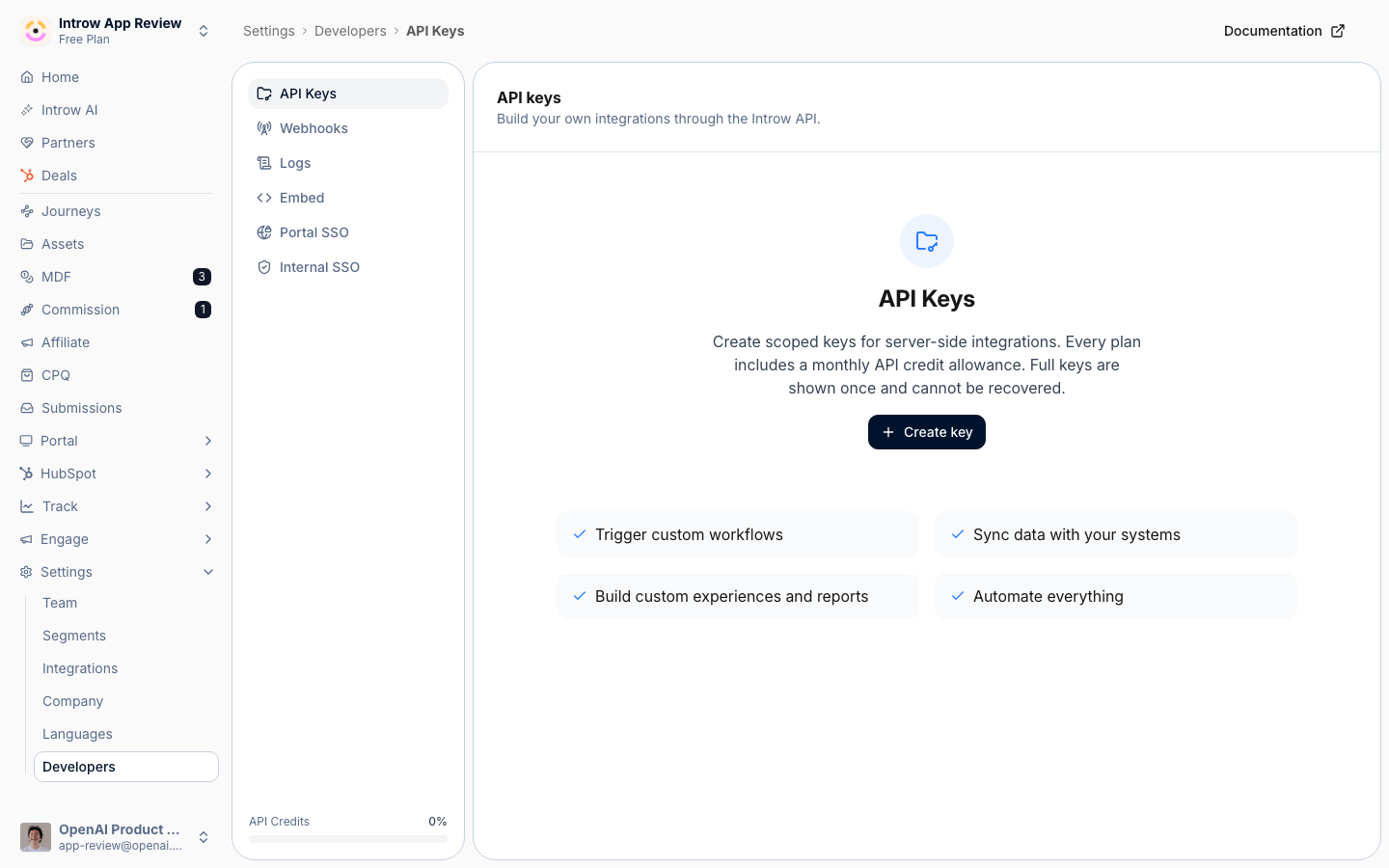
2
Name the key
Set a Name that identifies where the key is used, for example the integration or product it belongs to (such as “Introw x Lovable”). The name is how you recognize the key later in the list and when you decide what to revoke, so make it specific rather than generic.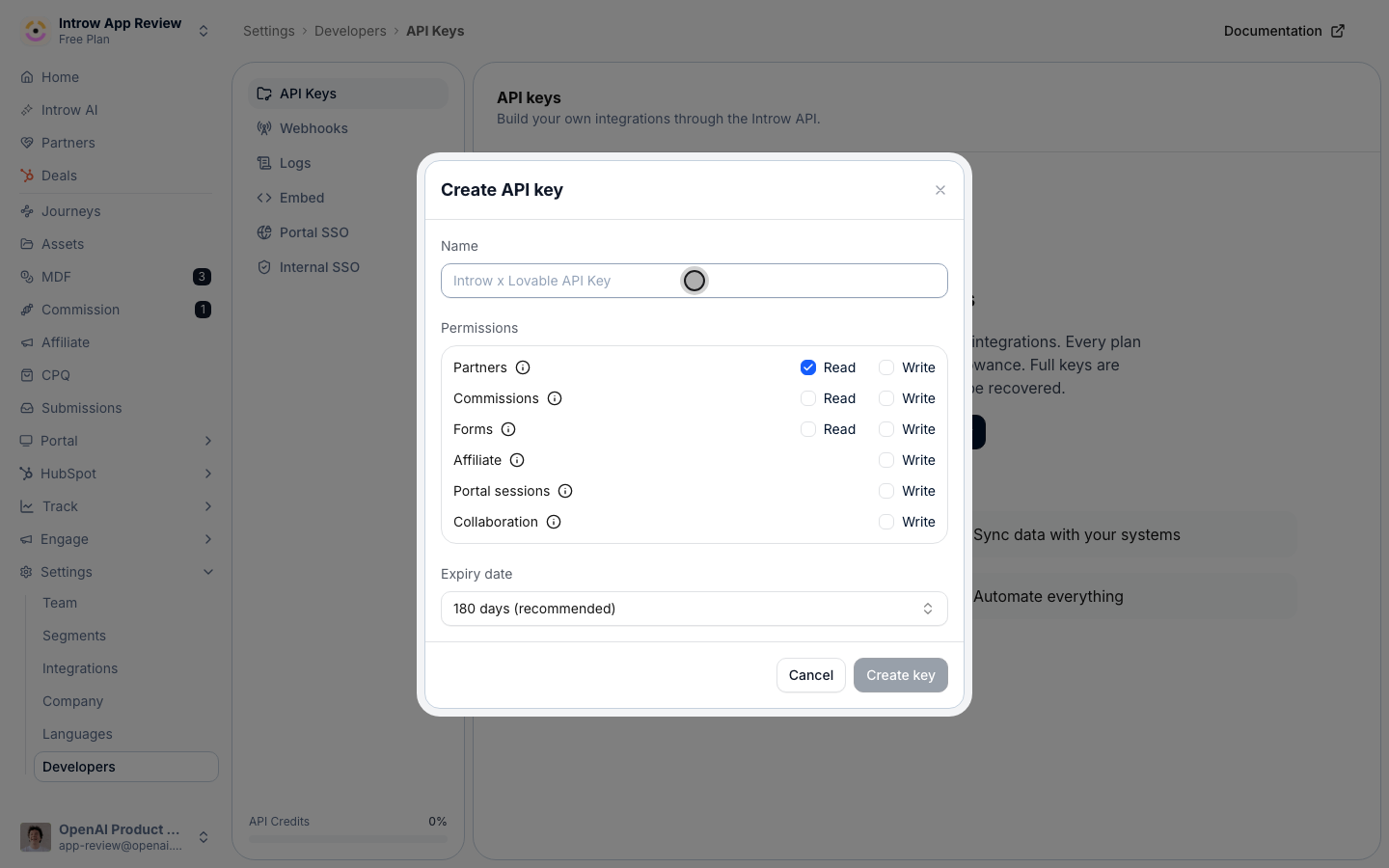
3
Choose permissions
Under Permissions, grant read or write per resource group. Select the minimum the integration needs, the smaller the scope, the smaller the blast radius if the key ever leaks.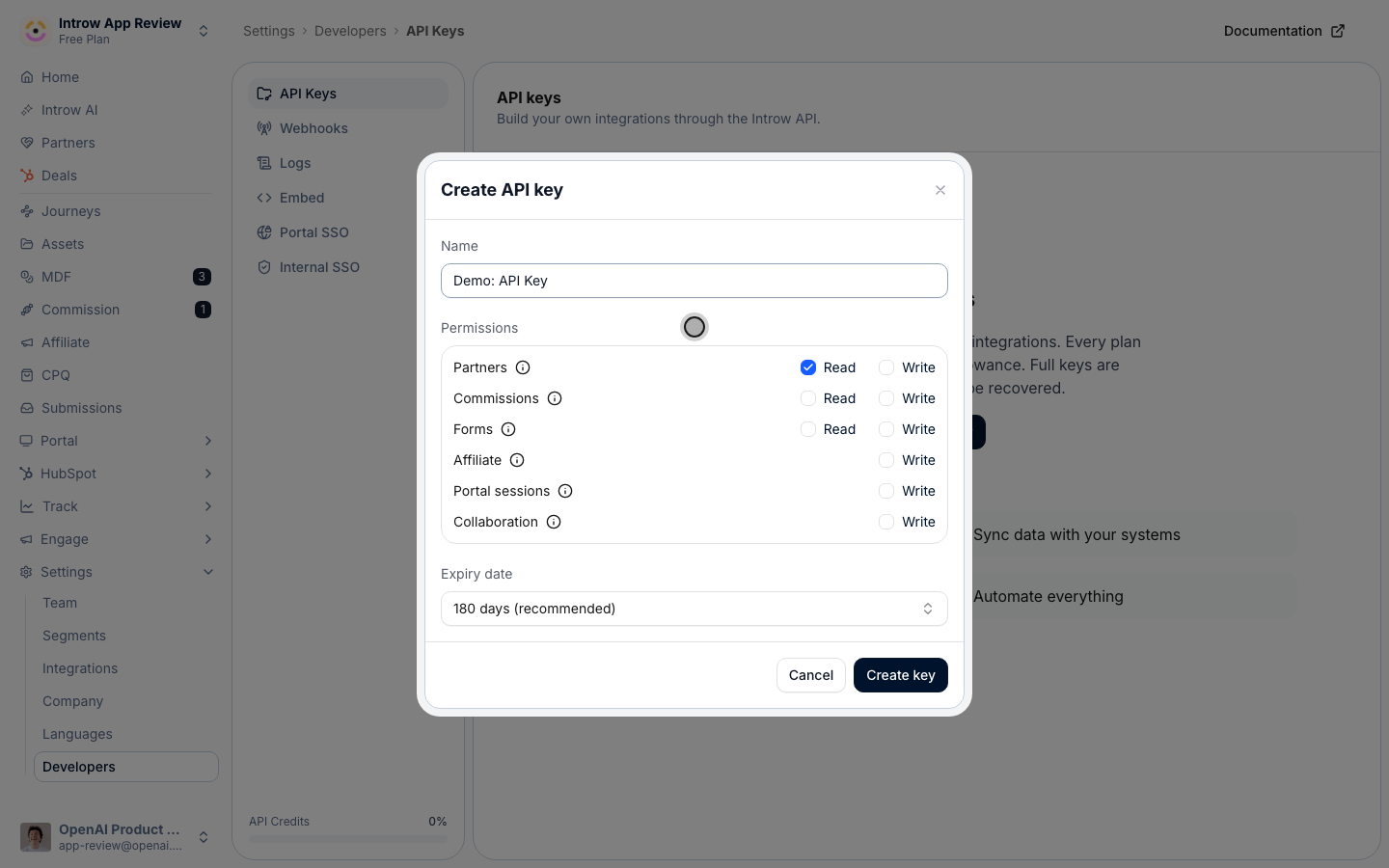
- Partners - Read to list and inspect partner records, Write to create and update them. Most read-only integrations need only Read.
- Commissions - Read to read commission payouts, Write to manage commission line items.
- Affiliate - Write records affiliate conversions server-to-server. This group only appears when the affiliate campaigns module is enabled on your plan; if you do not run affiliate campaigns, you will not see it.
- Portal sessions - Write creates authenticated partner portal session links. Grant this only for a portal embed integration (see Embed the partner portal).
4
Set the expiry
Choose an Expiry date so the key does not outlive its use. Options are 90 days, 180 days (the recommended default), 365 days, and Never expires (not recommended). Pick the shortest window that fits the integration’s lifecycle; you can always create a replacement before the old one lapses. Select Create key to generate it.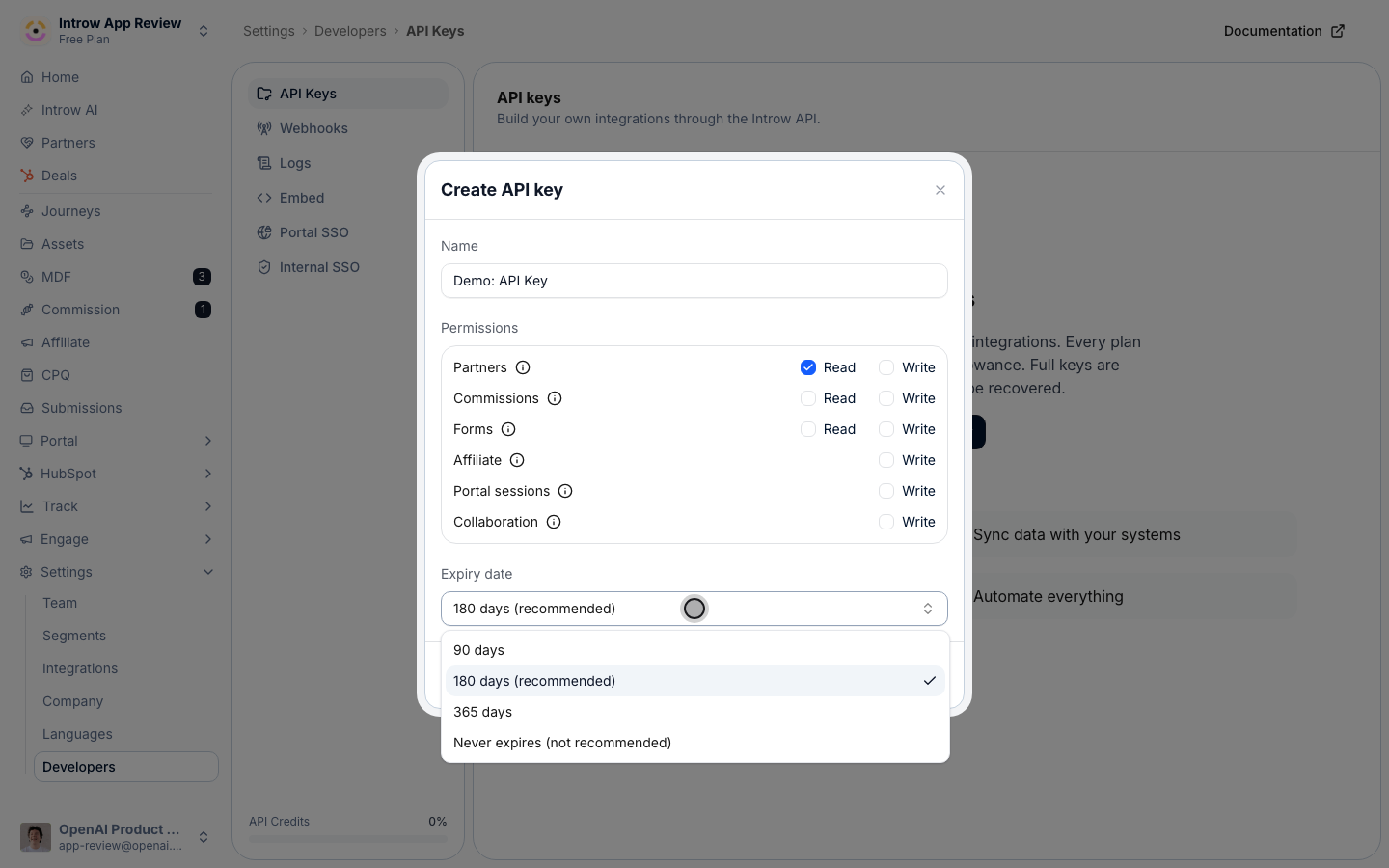
5
Copy the secret now
Introw shows the full key once, in the Copy your API key dialog, prefixed with
ink_. Copy it and store it in a secret manager before closing the dialog. The secret is never shown again, so if you lose it you must create a new key and revoke this one. Treat it like a password: never share it, paste it into support chats, or commit it to code.6
Send the key with your requests
Your code authenticates by sending the key in the See the API Reference for the available endpoints, request and response shapes, and per-language code samples.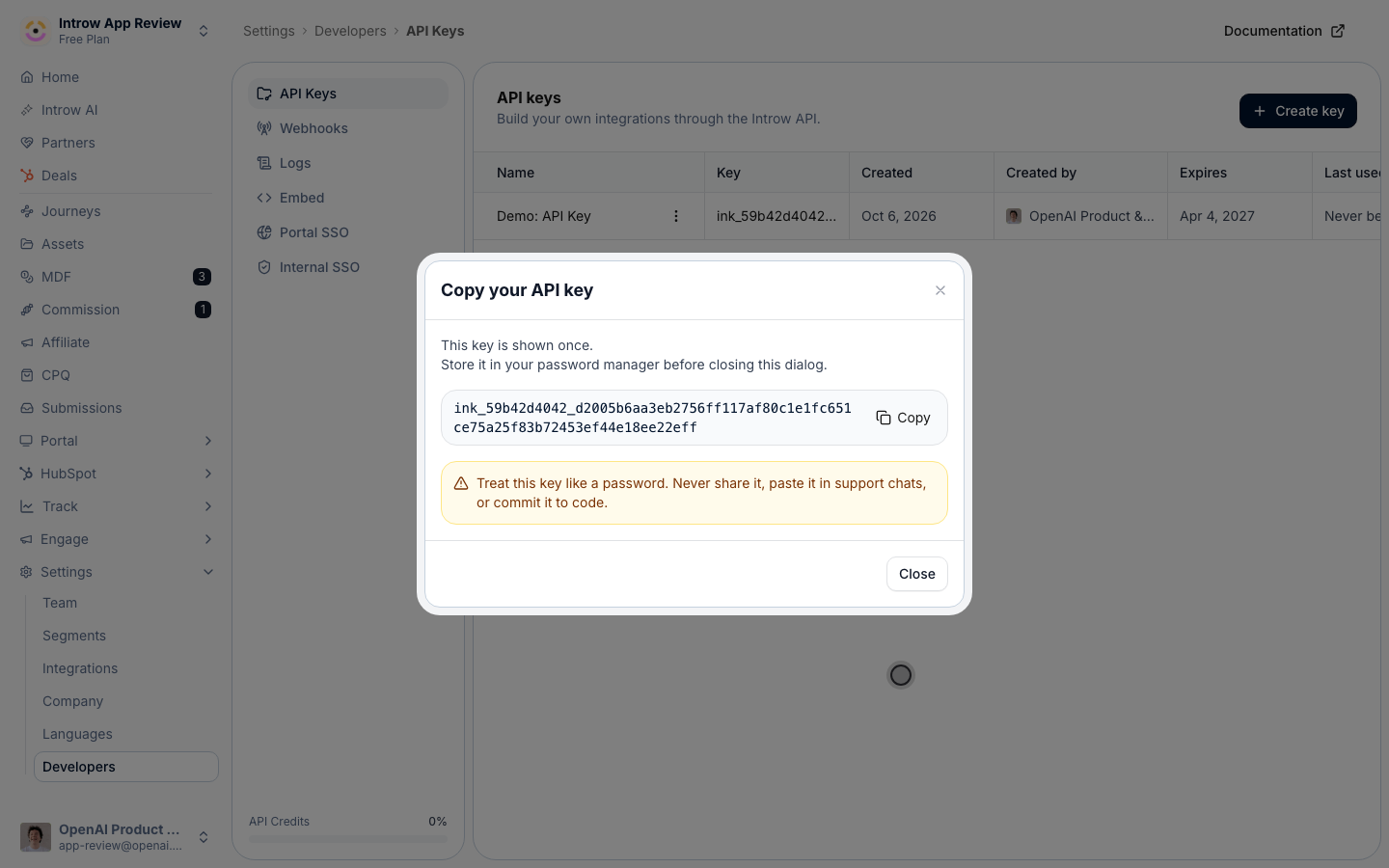
x-api-key header on each request to https://api.introw.io. Keep the key server-side; never ship it in browser or mobile code.Revoke a key when it is no longer needed
1
Find the key
Back on the API Keys list, locate the key by its Name. If it is still in active use, create its replacement first so you can swap the secret without downtime.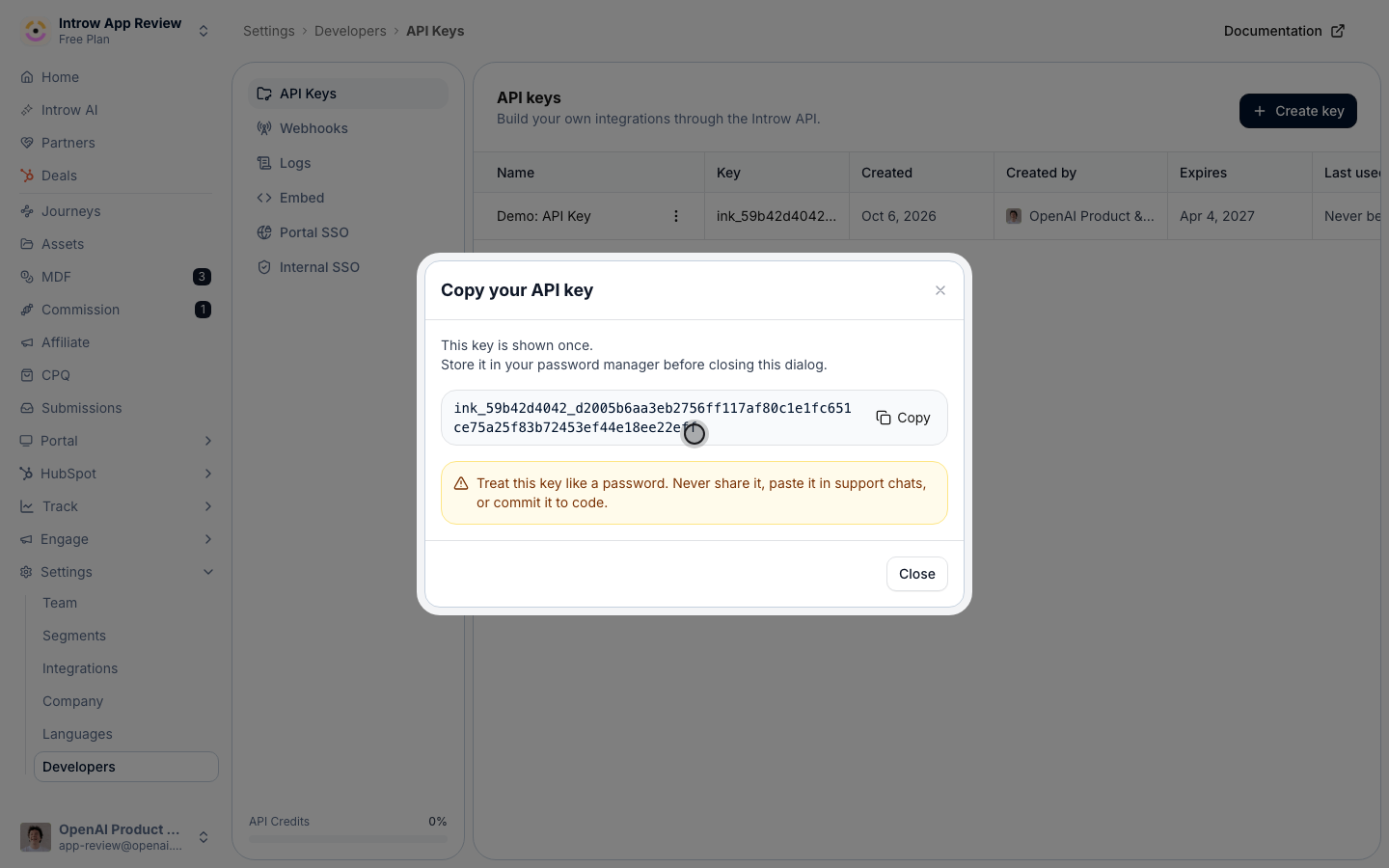
2
Revoke it
Open the key’s row menu and choose Revoke, then confirm in the Revoke API key dialog. Revoking stops the key from authenticating immediately, so do this as soon as a key is retired or you suspect it has been exposed. A revoked key cannot be restored; issue a new one if you need access again.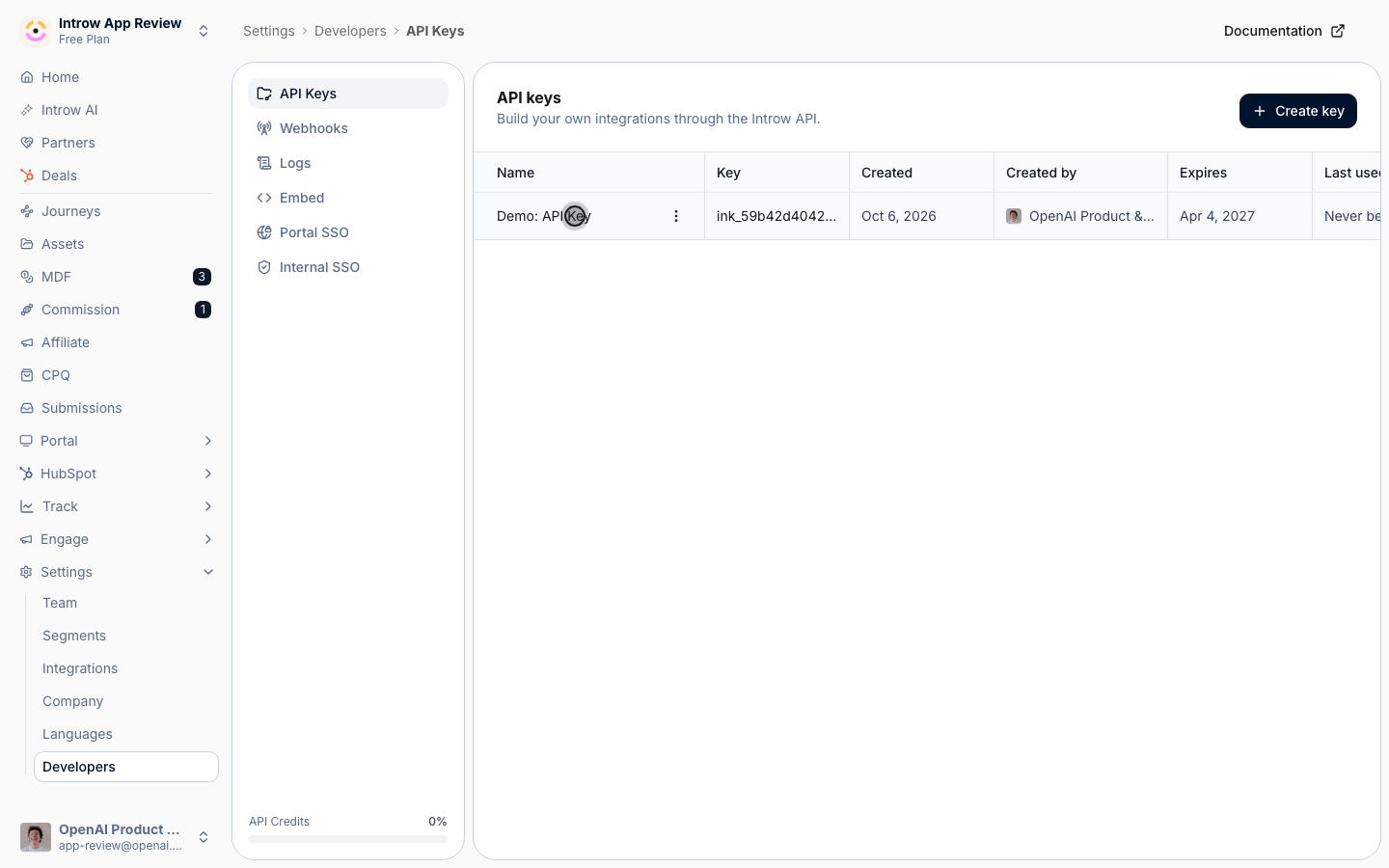
Verify it worked
A request that sends the key in thex-api-key header succeeds for the scopes you granted and is rejected for scopes you did not, and the key’s Last used time updates on the API Keys list. After you revoke a key, the same request is rejected immediately.
Related
Implementation reference
Settings, plan requirements, and troubleshooting for API keys.
Authentication
How to send the key with requests.
API reference
Endpoints, schemas, and code samples.
Embed the partner portal
Uses a key with the portal sessions scope.