

Where it lives
Segments sit under Settings, at Segments. The list groups them by type, and pins the org-wide default as its first row.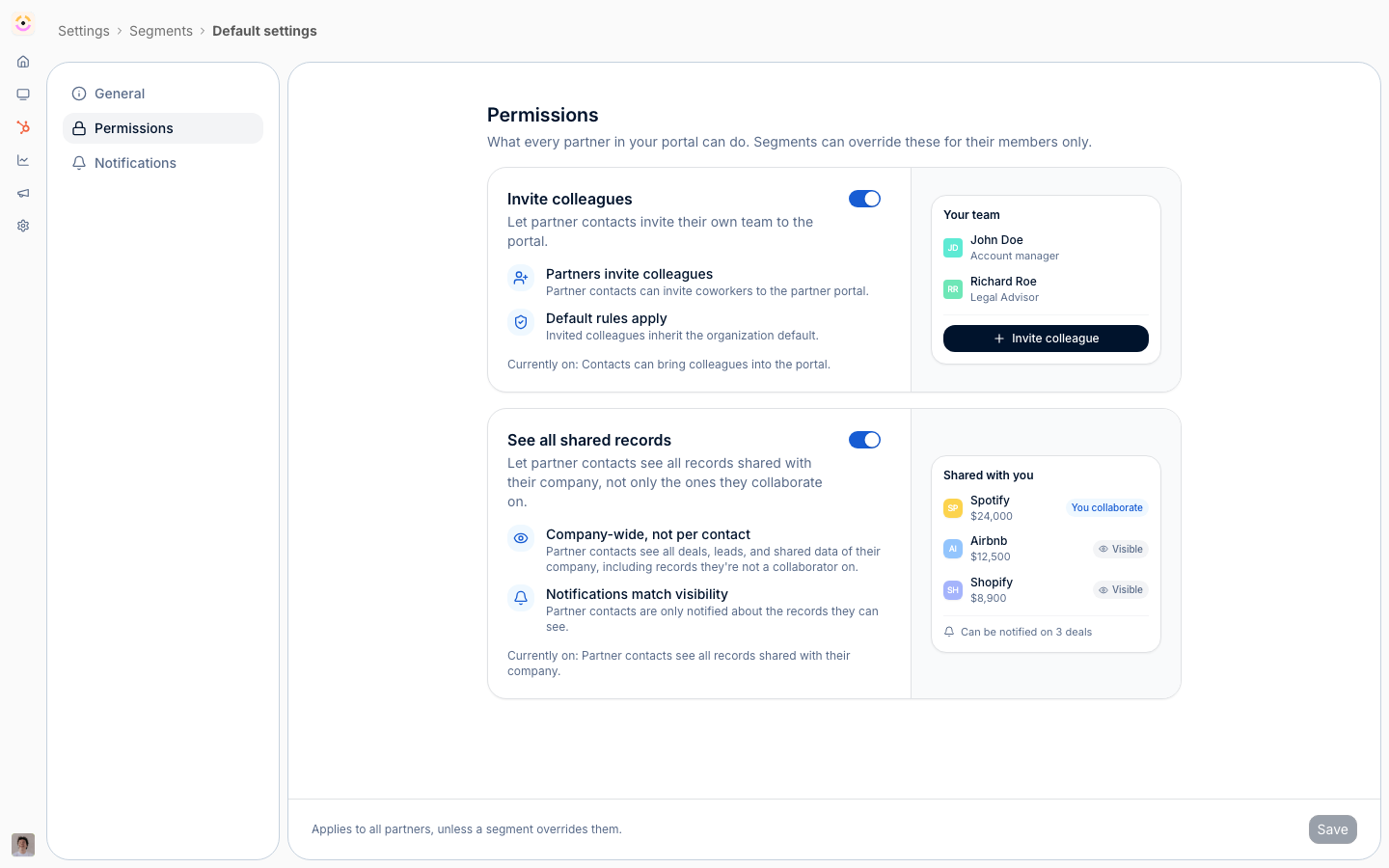
Before you start
Static segments need no CRM: their members are an explicit list.
How it works
A segment is a reusable audience of partners and contacts. It is one of two types. A dynamic segment selects its members automatically from the filters you define, so membership updates as partner data changes. A static segment is a list you hand-pick and update manually. You choose the type when you create the segment. A segment is edited across a few tabs: its general settings, its audience (the filters or hand-picked members), its permissions, and its notifications. Once saved, a segment can be used across the product, from portal experiences to courses and campaigns, and Introw shows where each segment is used so you can see its reach before changing or deleting it. Permissions and notifications resolve through one cascade: the organisation-wide All partners · Default, then any segments that opted in to overriding it, then the contact’s own opt-outs. A segment changes nothing until you switch its override on, and where it states a setting that value replaces the default for its members, in either direction. Settings it leaves alone fall through untouched. When a contact matches several override segments that disagree, each setting has its own tie-break: a grant resolves most-permissive too: one segment that grants a capability decides it. See Layer segments to progressively unlock capabilities.Settings & configuration
Segments are managed under Settings, then Segments. The list groups segments by type, and each segment opens a full editor.The default every partner starts from
All partners is pinned as the first row of the table, tagged Default and compared in the same Permissions and Notifications columns as your segments. It appears on the unfiltered All tab only, since it is not a segment and cannot match a filter. Opening it takes you to Default settings, with three tabs: General, which summarises the default and how many segments override each half of it, plus the same Permissions and Notifications panels a segment has, without an audience. It applies to everyone, so there is nothing to target. This is a layer of its own, not a segment, so it has no membership, no usage links, and cannot be archived. The General tab is where you read the override relationship before changing the baseline: each half carries a count, either No overrides or N segments override this, so you know how many groups will not follow a change you are about to make. The segments list itself names them, one row per segment.Overriding the default for one segment
Each segment’s Permissions and Notifications tabs open with one switch, Override the default for this segment. While it is off the panel shows your organisation defaults read-only, so you can see what the segment’s members actually get. Switch it on and the panel becomes editable, a count pill reports how many settings now differ from the default, and every setting that diverges is marked with an Override pill. Creating a segment therefore has no permission or notification side effects, which is what makes a segment safe to create purely for targeting an announcement. The segments list carries a Permissions column and a Notifications column, each a live diff against your current default. A segment that changes nothing reads Default; one that does shows what it resolves to, or N overrides with a tooltip listing each difference. Because the columns compare against the live default, editing the default updates every row.Choosing the type
Dynamic means the audience auto-updates from filters as CRM properties change. Static means you hand-pick the members and the list stays fixed until you change it. Pick dynamic when membership should follow the data, and static when you need an exact, fixed group.Audience
The audience tab is where you define who is in the segment. For a dynamic segment, set the filters and conditions on partners, contacts, and deals; for a static segment, hand-pick the partners and contacts. A preview shows who currently matches so you can sanity-check before saving.Conditions and operators
Conditions are not limited to a flat list of ANDs. Group them with and / or, and nest the groups, so “(EMEA and Gold) or strategic” is one segment rather than three. Every property type offers Is known and Is not known - the operator to reach for when you want partners with a value missing, or partners who have never done something. Text properties add contains and does not contain; dropdowns add Is any of and Is none of; dates add rolling ranges as well as fixed dates. Alongside your CRM properties, Introw contributes its own filterable fields: partner name, phase, tier, assigned experience, categories, created-in-Introw, partner team, partner last activity, and at contact level completed course, earned certificate, contact last activity, and contact last nudged. Combined with Is not known, those are what build “never opened the portal”, “certified but inactive for 90 days”, or “nudged last week and still silent”.Permissions
The permissions tab controls how the segment’s partners can act. Each permission is a card that states the rule, lists what it means in practice, and shows a live miniature of the partner portal that reacts as you toggle it, so you can see the partner-side result without publishing and impersonating a partner. Both are phrased as grants, so more permission always reads as on. Invite colleagues lets partner contacts invite coworkers into the portal, and invited colleagues inherit the organisation default. It governs every route a partner has to add someone, including their own team page at partners.introw.io: with it off, the invite action there is unavailable and points them back at their partner manager. See all shared records lets a contact see everything shared with their company; turn it off and they see only the records they are assigned as a collaborator on. Notifications follow access either way, so a partner is never notified about a record they cannot see. Both replace the default in either direction. They differ only in how several segments meeting on one contact combine:
Anything no override segment states falls through to the default. A segment states a
setting by moving it off the default value, so a segment that only grants invites leaves
record visibility alone rather than silently restating it.
Restrictions are stickier than grants across overlapping segments. A contact in one
segment that turns See all shared records off and another that leaves it on stays
restricted. So a restriction you intend to lift later belongs on the default, where a
stage segment can turn it back on, rather than in a segment the partner keeps matching.
Invite no longer behaves as an allowlist. Granting it to one segment used to
implicitly revoke it for everyone else. It now follows the cascade, so to limit invites
to one audience, switch Invite colleagues off on the default and on in that segment.
Notifications
The notifications tab tunes which updates this segment’s members receive. Switch on Override the default for this segment and you set the recipients per event: All partners, Collaborating only (offered only for events attached to a CRM record), or Disabled. Every row that diverges from the organisation default is marked with an Override pill, and the switch reports the live count of overridden events so you can see the segment’s impact without comparing to another screen. For a contact in several override segments, the most allowing opinion wins per event: if any of them turns a notification on, they receive it, even when another turns it off, and the wider audience (all partners over only collaborating contacts) applies. When no override segment states an event, the organisation default applies. A segment’s notification override is email only. Which partner events reach a partner’s Slack, Teams, or WhatsApp channel is set per platform on that chat integration, on its Partner channels tab, because a channel belongs to a whole partner rather than to a person. Chat cannot be targeted per segment. See Channels.How segment overrides show up on a contact
A partner contact’s Notifications tab renders the full cascade so it is obvious which layer owns each event:- All partners · Default - the organisation default, with a link to Default settings to edit it.
- Matched override segments - each segment the contact belongs to that overrides at least one event is listed by name, linked to its editor, with the number of events it decides.
- This contact - the events the contact has opted out of themselves.
Seeing where a segment is used
Each segment shows a count of where it is used across the product. Check it before you edit or delete a segment so you understand the impact.Automate it with a workflow
Segments are how a workflow answers “which partners”, and a segment is the only trigger that can catch something no single event names. Segment membership runs when a partner enters or leaves a segment, so “quiet for 30 days”, “crossed a revenue threshold” and “certified but not transacting” are the same trigger pointed at a different dynamic segment. See Re-engage quiet partners. Every trigger and every condition fork also carries an Only for partners in block, so any segment you maintain here doubles as a workflow audience, checked before a run exists. A fork’s segment block is re-read when that step runs, which is what lets a workflow ask “are they still quiet?” a week later. In the other direction, the Add to a segment action enrolls a partner in a static segment, which is how a workflow unlocks everything else that keys off segments at once: portal tab visibility, content and asset visibility, course auto-enrollment, discounts, and notification recipients. Dynamic segments are not offered, because their membership is decided by their own audience and an enrollment there would be undone at the next evaluation. Segments a workflow adds partners to never re-trigger it.How-to guides
Troubleshooting
A partner is not in a dynamic segment
A partner is not in a dynamic segment
They do not match its filters; adjust the filters or use a static segment.
A segment's settings are having no effect
A segment's settings are having no effect
Its Override the default for this segment switch is off, so it inherits the default. The segments list shows Default in that column.
A contact ignores a segment's invite denial or notification narrowing
A contact ignores a segment's invite denial or notification narrowing
They match another override segment that grants more, and the most permissive one wins; tighten that segment or narrow its audience.
A partner sees more than one of their segments allows
A partner sees more than one of their segments allows
Another override segment they match grants it, and overrides merge most-permissive. Narrow that segment’s audience, or withhold the capability on the default and grant it only where it belongs.
The override switch will not turn on
The override switch will not turn on
The segment is dynamic with no conditions, so it matches everyone and cannot override. Add a condition.
Members are not updating
Members are not updating
Confirm the segment is dynamic; static segments only change when you edit the list.
Deleting a segment changed other features
Deleting a segment changed other features
The segment was in use elsewhere; check the usage count before deleting.