

What you’ll achieve
A layered setup where every partner starts on your organisation default and unlocks more permissions, notifications, and portal content as they qualify for more specific segments, with a journey giving them the concrete path to the next layer, and no risk that an overlap accidentally locks a partner out of something they earned.How the default and overlapping segments resolve
Every permission and every partner email notification resolves the same way, per setting:- Start from All partners · Default, your organisation-wide baseline.
- Apply the segments the contact matches that opted in to overriding. A segment with its override switch off contributes nothing, whatever its stored settings say.
- Apply the contact’s own opt-outs, which can only ever switch something off.
- An override replaces the default, in both directions. Where an override segment states a setting, that value wins over the baseline, so a segment can hold a group back as well as open it up. A segment states a setting by moving it away from the default; anything it leaves alone falls through untouched, which is why a segment that only grants invites cannot accidentally change record visibility.
- Overlapping overrides merge most-permissive. When a contact matches several override segments that disagree on the same setting, whichever of them grants the most decides. Qualifying for more groups never takes a capability away:
- Invite colleagues - on if any of their override segments has it on.
- See all shared records - on if any of their override segments has it on. One is enough; the others do not have to agree.
- Notification recipients - the wider audience wins, so all partners beats collaborating only, and either beats disabled.
- The contact’s own opt-outs can only opt out. A contact can turn off any event the layers above leave available, but cannot re-enable an event the default or a matched segment locked to off. Open their Notifications tab to read the full cascade, with each row badged by the layer that decided it and a link to change it at the right level.
- Segment-gated surfaces are a union. A tab, asset, form, course, or report restricted to segments is visible to a contact in any of those segments. Membership in another, more restricted segment never hides it, and this is unaffected by override switches.
The practical rule: your restrictions belong on the default, not spread across every segment. You no longer have to mirror a restriction into each segment to make it hold, a stage segment can lift one for the partners who earned it, and creating a segment for targeting no longer changes anyone’s permissions or notifications.
Before you start
1
Confirm access
You need access to segment settings, and write access to the experiences you plan to gate.
2
Map the progression
Decide the stages a partner moves through (for example: everyone, onboarded, certified, co-sell) and what each stage should unlock: which tabs, which permissions, which notifications.
Watch it
- Video
- Click through
Steps
1
Set your restricted baseline on the default
Go to Segments. All partners is pinned as the first row of the table, tagged Default; open it to reach Default settings. This applies to every partner and contact, including everyone who joins later, and it is the one place your most restricted settings belong.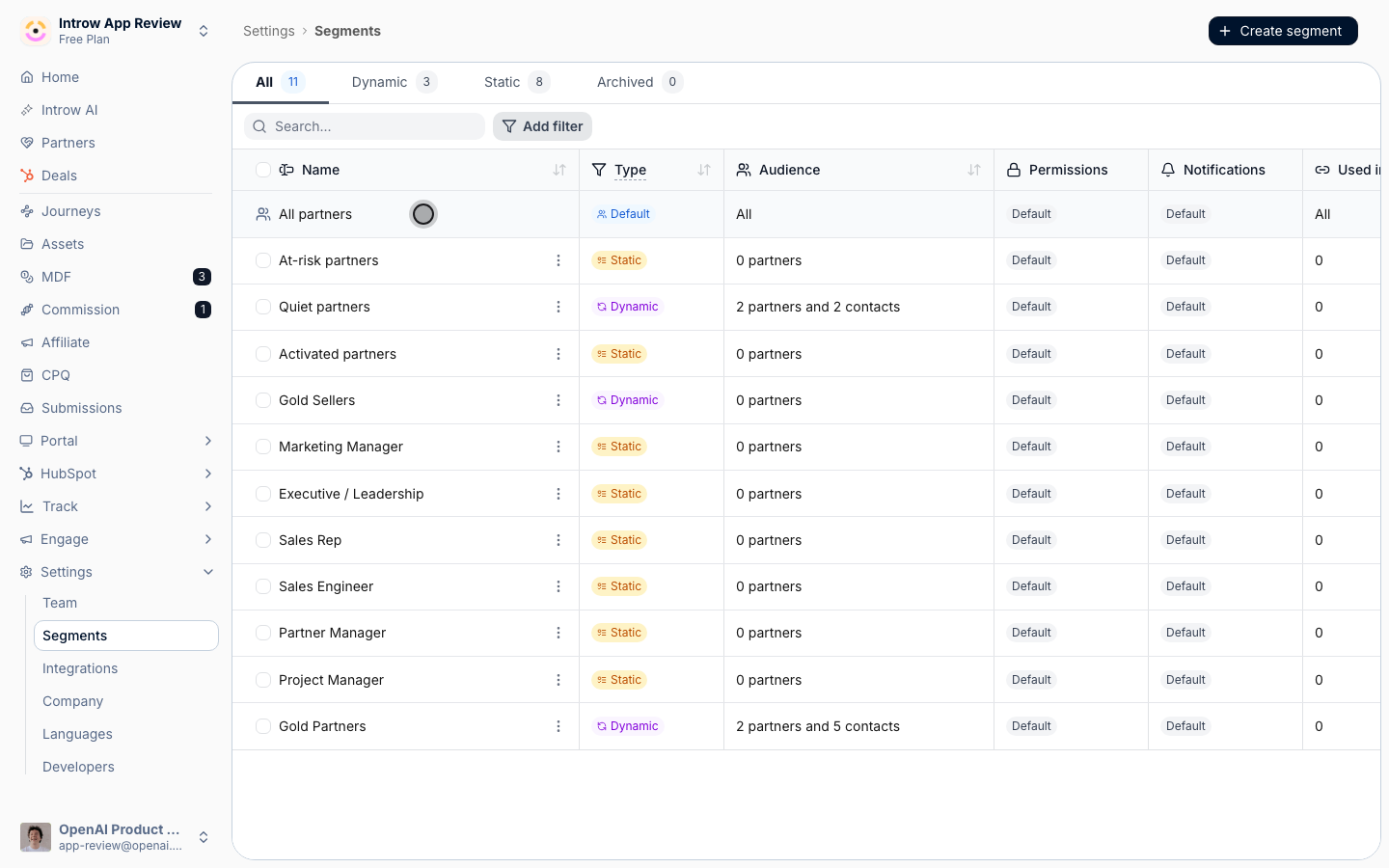
- On the Permissions tab, set the tightest posture you want new partners to have: turn Invite colleagues off if new partners should not bring in coworkers yet, and turn See all shared records off if they should only see records they actively collaborate on.
- On the Notifications tab, keep only the essentials on (for example announcements), and set the events a brand-new partner should not receive yet, such as object updates, to Disabled.
2
Create the segments that grant more
Create one dynamic segment per stage of your progression, each with the condition that marks the stage’s milestone: an onboarding journey completed, a certificate earned, a tier reached, a lifecycle phase, or a CRM property value. Every stage segment needs at least one condition, which an override segment requires anyway.On each, switch on Override the default for this segment on the tab you want to change, then configure only what the stage earns: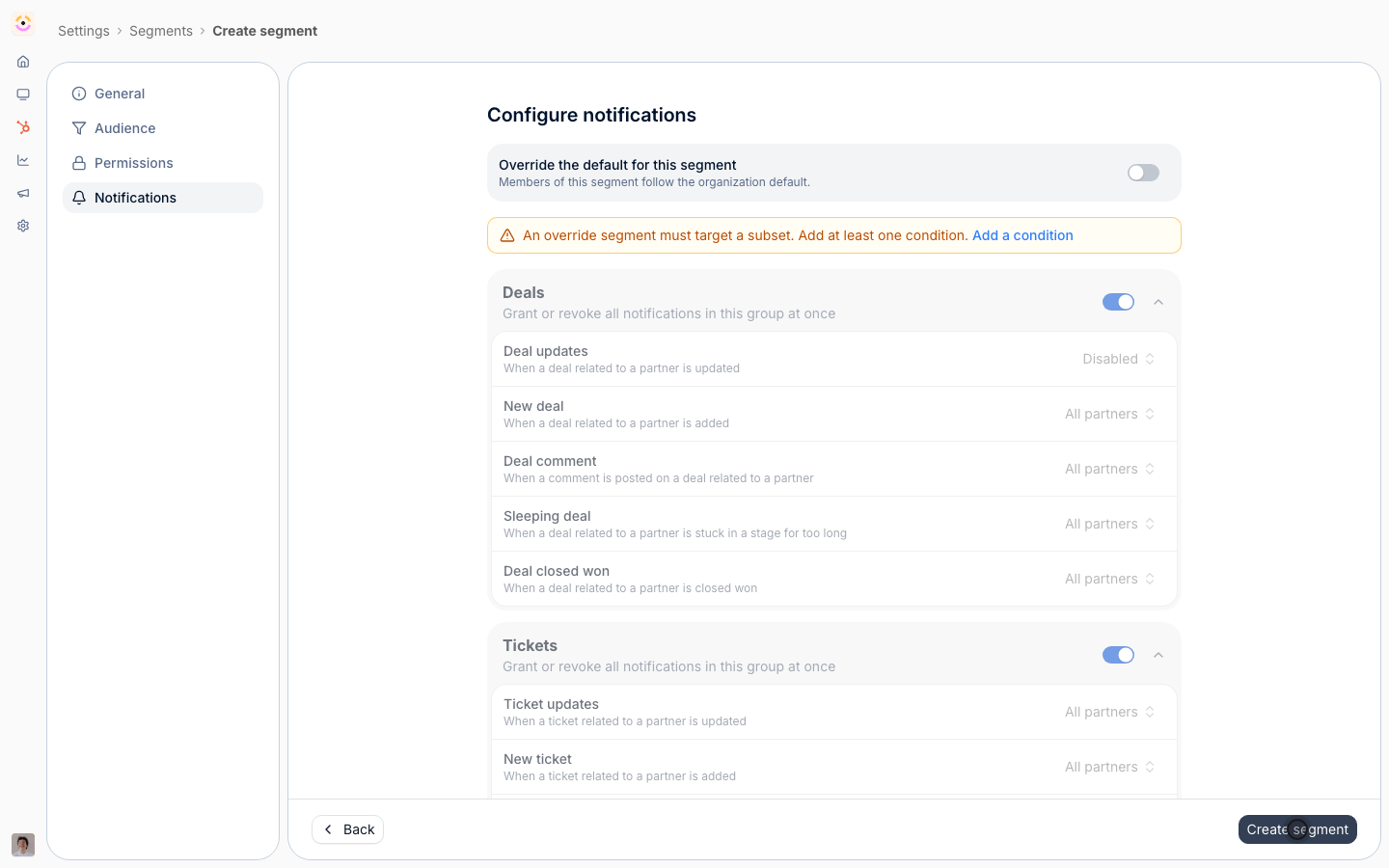
- Permissions - turn Invite colleagues on for stages trusted to grow their own team; turn See all shared records on so the stage sees everything shared with their company.
- Notifications - widen the recipients on the events the stage should now receive, for example object updates from Disabled to Collaborating only or All partners.
3
Gate portal content to the granting segments
Point the surfaces each stage unlocks at its segment: restrict tabs and sections of an experience, target assets, courses, and forms. A partner in any of the chosen segments sees the surface, so gating to a stage segment shows it the moment a partner qualifies. See Restrict a tab to segments.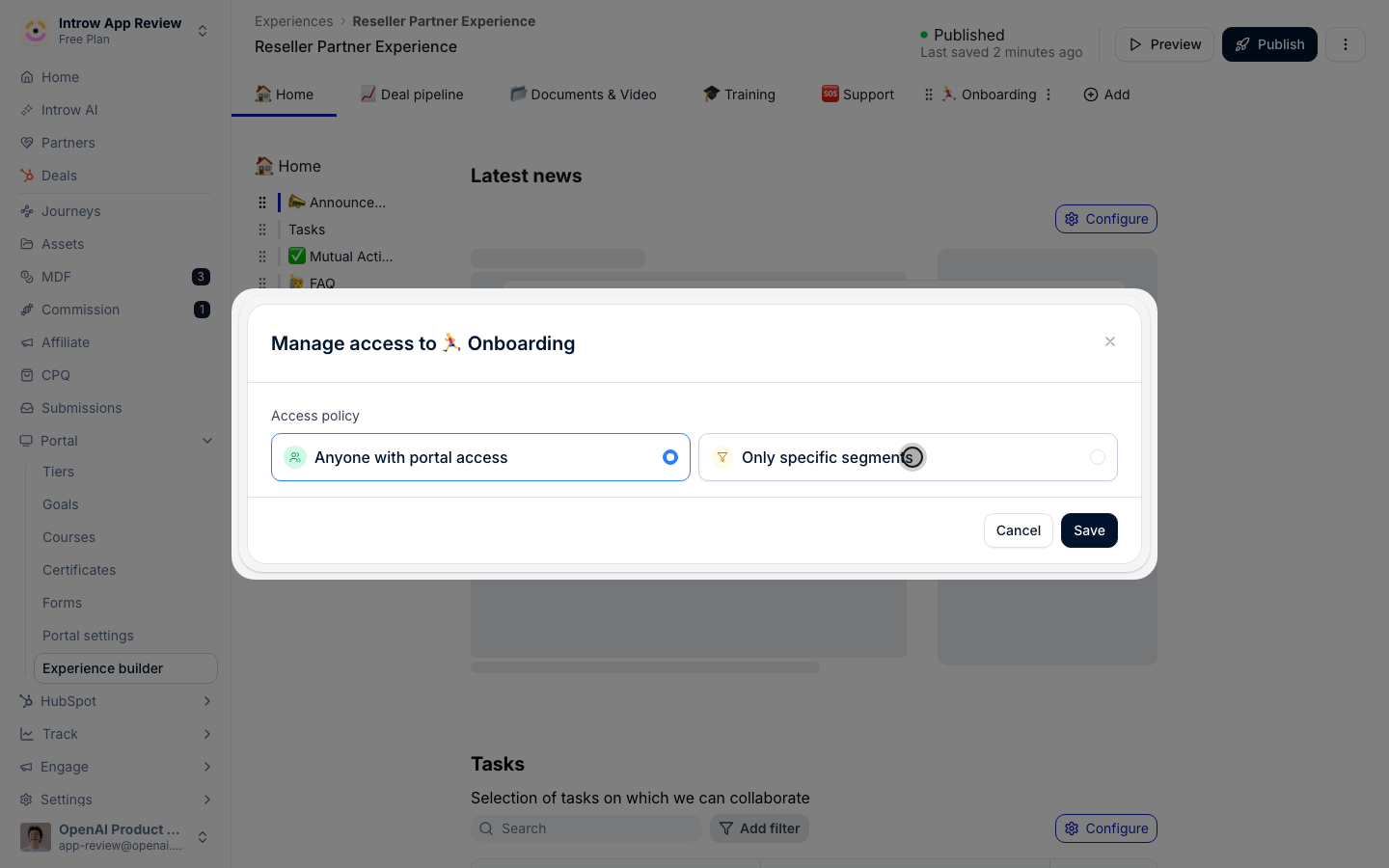
4
Give partners the path to the next layer
Layers only unlock if partners hit the milestones your segments key on, so pair the setup with a journey: the ordered checklist that walks a partner toward the next stage, for example complete the onboarding tasks, finish the certification course, register a first deal. As they complete it, the milestone lands in their partner data, the next stage’s dynamic segment picks them up, and the layer unlocks on its own. See Build a journey from scratch and Assign a journey and track progress; for the full assembled pattern, tabs and sections included, see Build a progressive onboarding path.
5
Verify the resolution with a test partner
Pick a partner contact who matches at least one granting segment and confirm they get the granted behavior, not the baseline: they see the unlocked tabs, they can invite, and they receive the events that stage earns. Open their Notifications tab and check the cascade names the stage segment rather than the default. Then check a partner who matches no stage segment still gets the restricted floor.
Verify it worked
A partner who qualifies for a stage segment gains its capabilities, and a partner who matches none of them stays on your default. On Segments, the Permissions and Notifications columns show at a glance which stages change what and which follow the baseline. As partner data changes in your CRM, dynamic segment membership shifts and the portal opens up on its own, with no per-partner access management.Related
Create a dynamic segment
Build the segments each stage keys off.
Build a progressive onboarding path
The full assembled pattern: stages, gated tabs, and journeys.
Build a journey from scratch
Give partners the checklist that moves them to the next layer.
Implementation reference
Full configuration options for segments.