

What you’ll achieve
A portal that unlocks stage by stage on its own: a dynamic segment per onboarding stage, tabs, sections, and abilities gated to those segments, and a journey driving partners forward. Partners graduate automatically as they qualify, with no manual access grants.Before you start
1
Confirm access and setup
You need permission to create segments and edit experiences, a published portal experience partners can reach, and a connected CRM so dynamic segments can filter on live partner data.
2
Know your milestones
Identify the signal that promotes a partner into each stage, such as a completed journey, a certificate, a tier, or a CRM property value.
Watch it
- Video
- Click through
Steps
Plan the stages
1
List the stages
Decide the stages a partner passes through, for example Welcome, Trained, Selling, and Established. Keep them few enough that each one is a meaningful step up.
2
Decide what each stage unlocks
For each stage, list the tabs, asset sections, and abilities (forms, deal registration, courses) that should become available. This is the reward a partner earns by reaching the stage.
3
Pick the promotion milestone
For each stage, choose the single measurable condition that promotes a partner into it, so it can become a dynamic segment filter. One clear condition per stage keeps advancement predictable.
Create a segment per stage
1
Open Segments
Go to Segments and create a dynamic segment for each stage. A dynamic segment recomputes its membership from filters, which is what makes graduation automatic.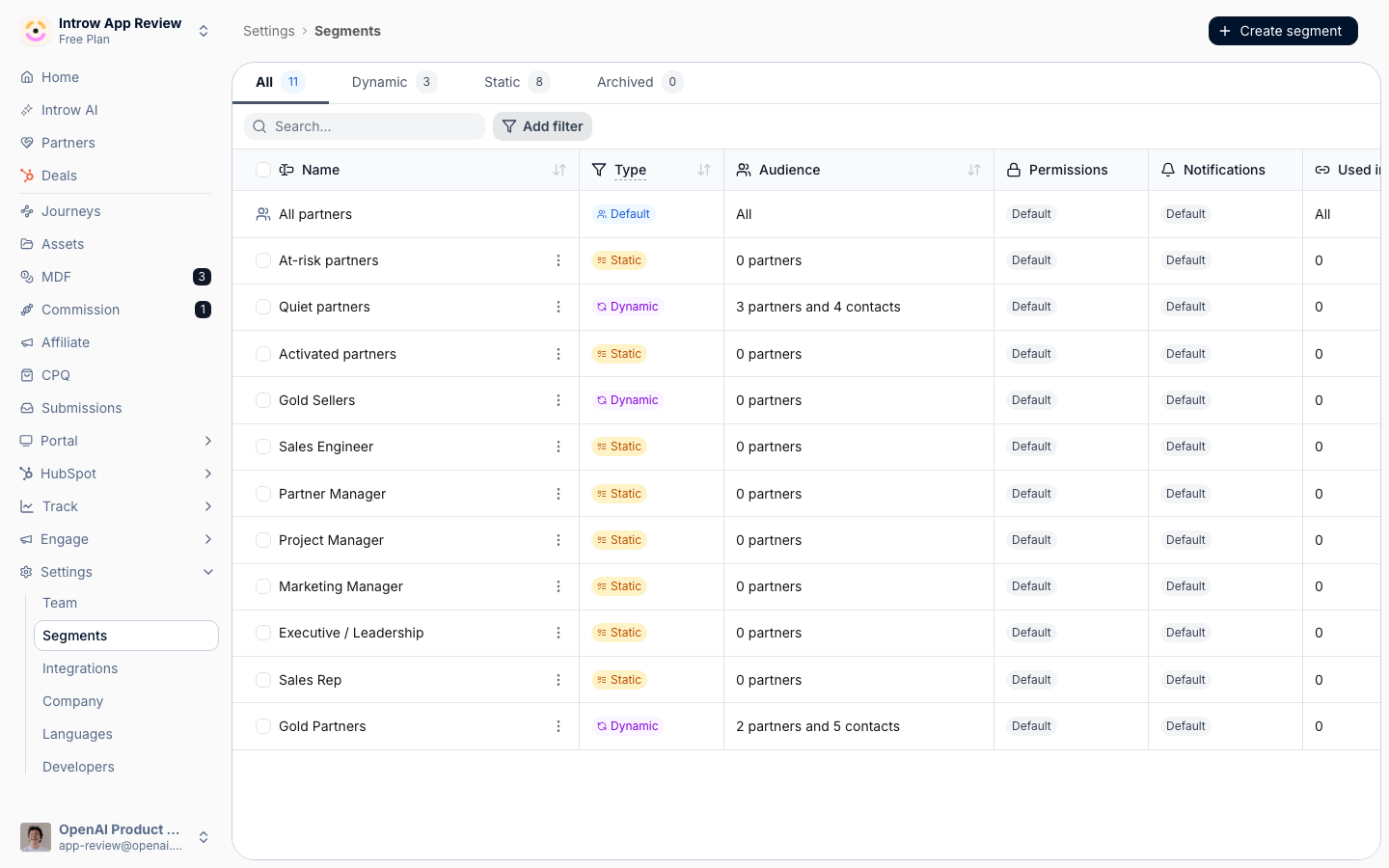
2
Set the qualifying filter
On the segment’s Audience tab, add the filter that defines the stage, such as a tier reached, a certificate earned, an onboarding journey complete, or a CRM property value. Membership then tracks that milestone, so partners enter the segment the moment they qualify. Every stage segment needs at least one condition anyway, since a segment with none matches everyone and is not allowed to override your default. Stage filters do not need to exclude earlier stages: a partner in a later stage usually still matches the earlier segments, and that is safe, because when overrides overlap the most permissive one wins and every stage they have earned keeps adding up.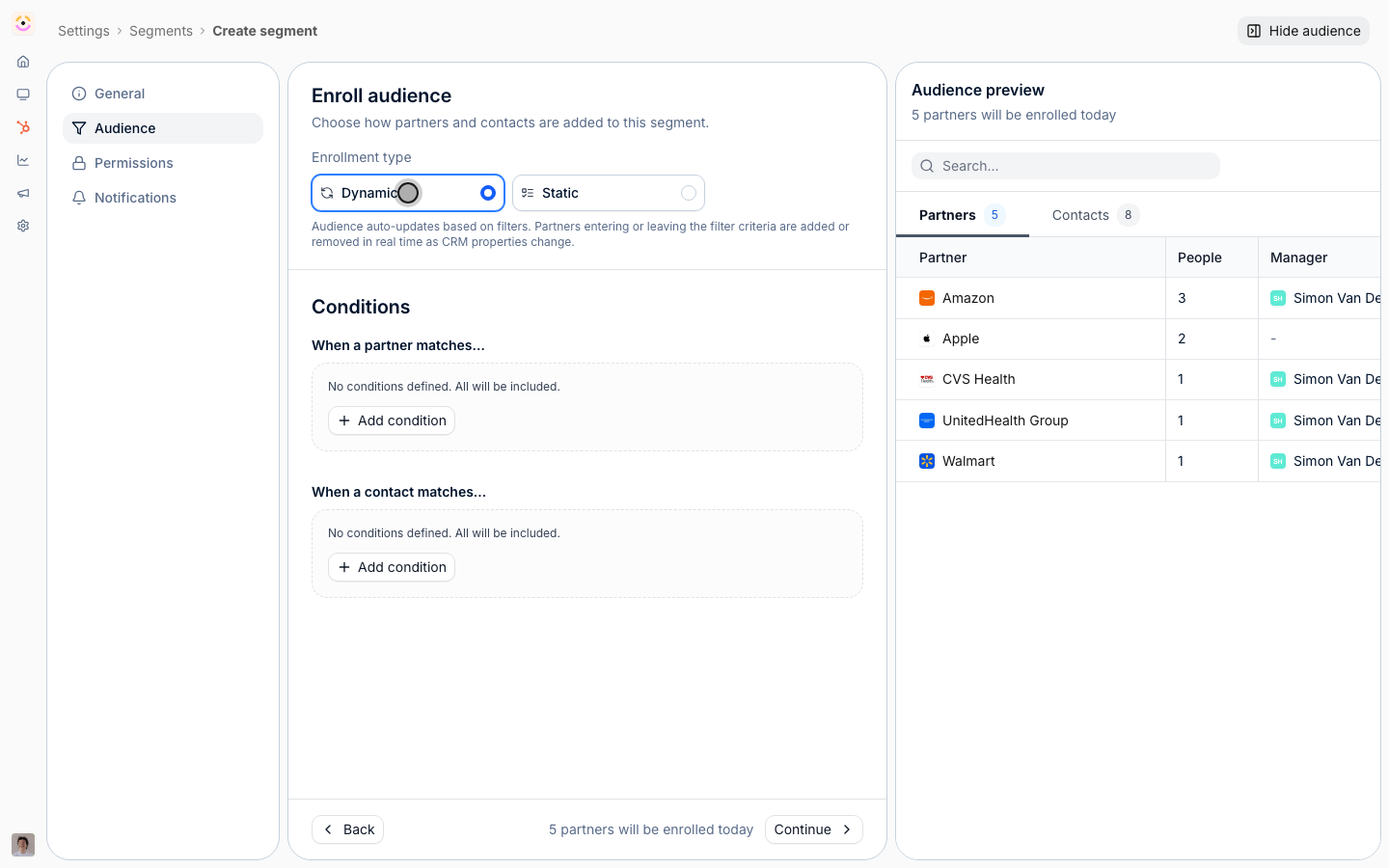
3
Check the audience preview
Use the audience preview to confirm the partners who currently match are the ones you expect, before any gating depends on the segment.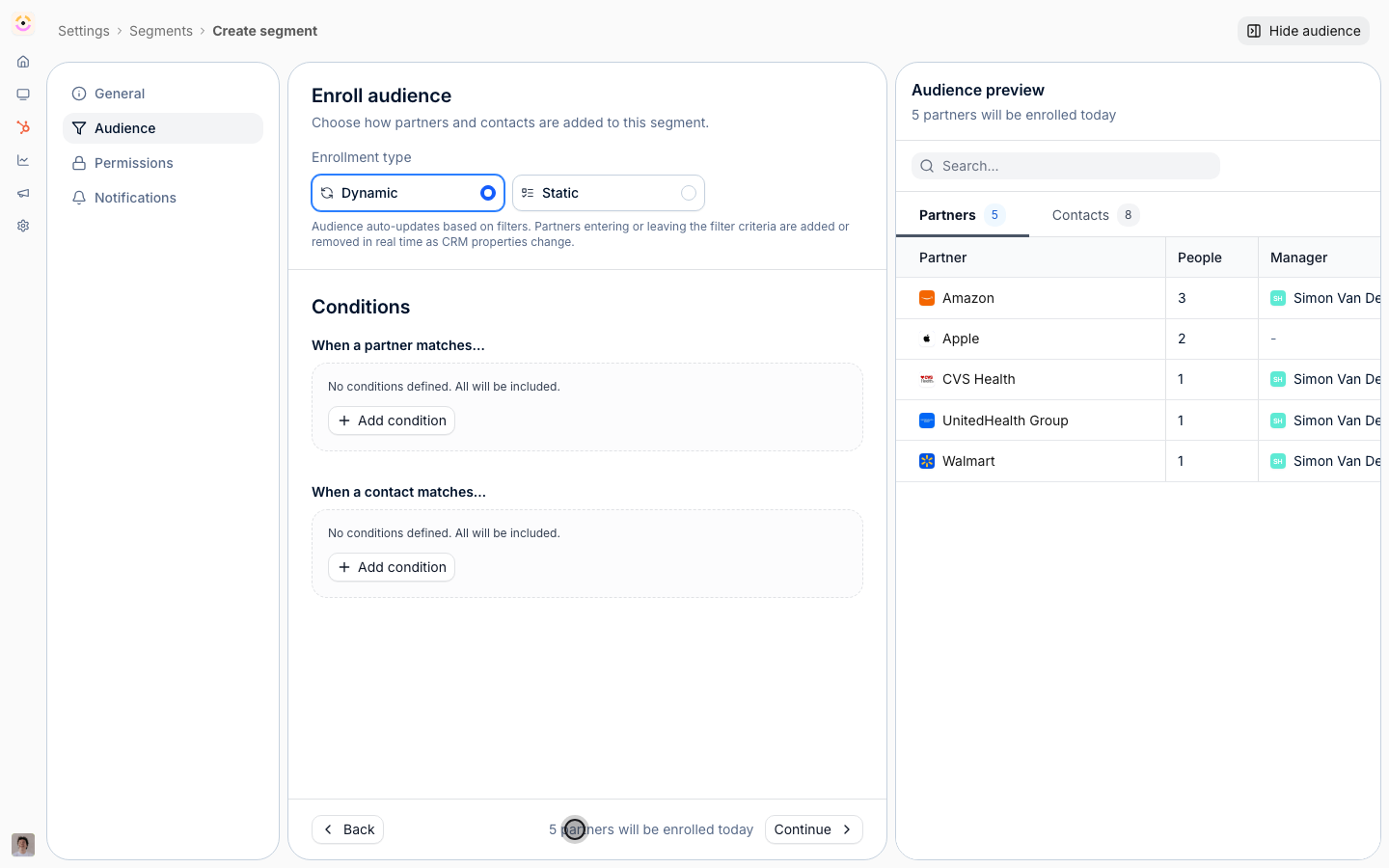
Gate the experience
1
Open the experience
Go to Experiences and open the experience partners use.
2
Restrict tabs to stage segments
On a stage’s tab, restrict it to the segment for that stage so only partners who have reached it see the tab. A tab restricted to a segment is invisible to everyone else, which is the core of progressive unlocking.
3
Gate sections and abilities
Within a visible tab, restrict individual sections to a segment when only later-stage partners should see them. Do the same for ability-bearing sections such as asset libraries, forms, and deal registration, so later stages unlock real capability, not just more pages.
4
Tune stage permissions
On each stage segment, open Permissions, switch on Override the default for this segment, and set only what that stage unlocks, such as Invite colleagues. See Create a dynamic segment for the permission options. Leave the override off on any stage that changes nothing, and it inherits your baseline. Because overlapping overrides merge most-permissive, a stage can never take back what an earlier one gave. Set your baseline on the organisation-wide All partners · Default.See all shared records works the same way: leave it off on the default and turn it on in the stages that earn it. Because overrides merge most-permissive, a stage cannot hold a group back from something another of their segments grants, so grant narrowly rather than broadly. See Layer segments to progressively unlock capabilities.
Drive partners forward and publish
1
Apply an onboarding journey
Give partners an onboarding journey so they always have a concrete next step. As they complete it and hit the milestones your segments key on, they roll into the next stage’s segment and the matching tabs unlock. See Build a journey from scratch.
2
Preview by stage
Preview the experience as partners in different stages to confirm each sees only their unlocked tabs, sections, and abilities. Catching an over-broad segment here avoids exposing content to the wrong partners.
3
Publish
Publish the experience to push the gating to linked partner portals. From here, unlocking happens on its own as segment membership updates.
Verify it worked
A partner in an early stage sees only their tabs, sections, and abilities. When a test partner meets a stage’s milestone, they join that stage’s segment and the matching content unlocks for them with no manual step.Related
Create a dynamic segment
Build the auto-updating audience and set its permissions.
Layer segments to progressively unlock capabilities
How overlapping segments resolve, and why stages only ever add.
Build a journey from scratch
Give partners the checklist that moves them forward.
Assign a journey and track progress
Apply the journey and watch partners advance.
Implementation reference
Full configuration options for progressive onboarding.