

Where it lives
Partner Onboarding sits under Portal, at Experiences.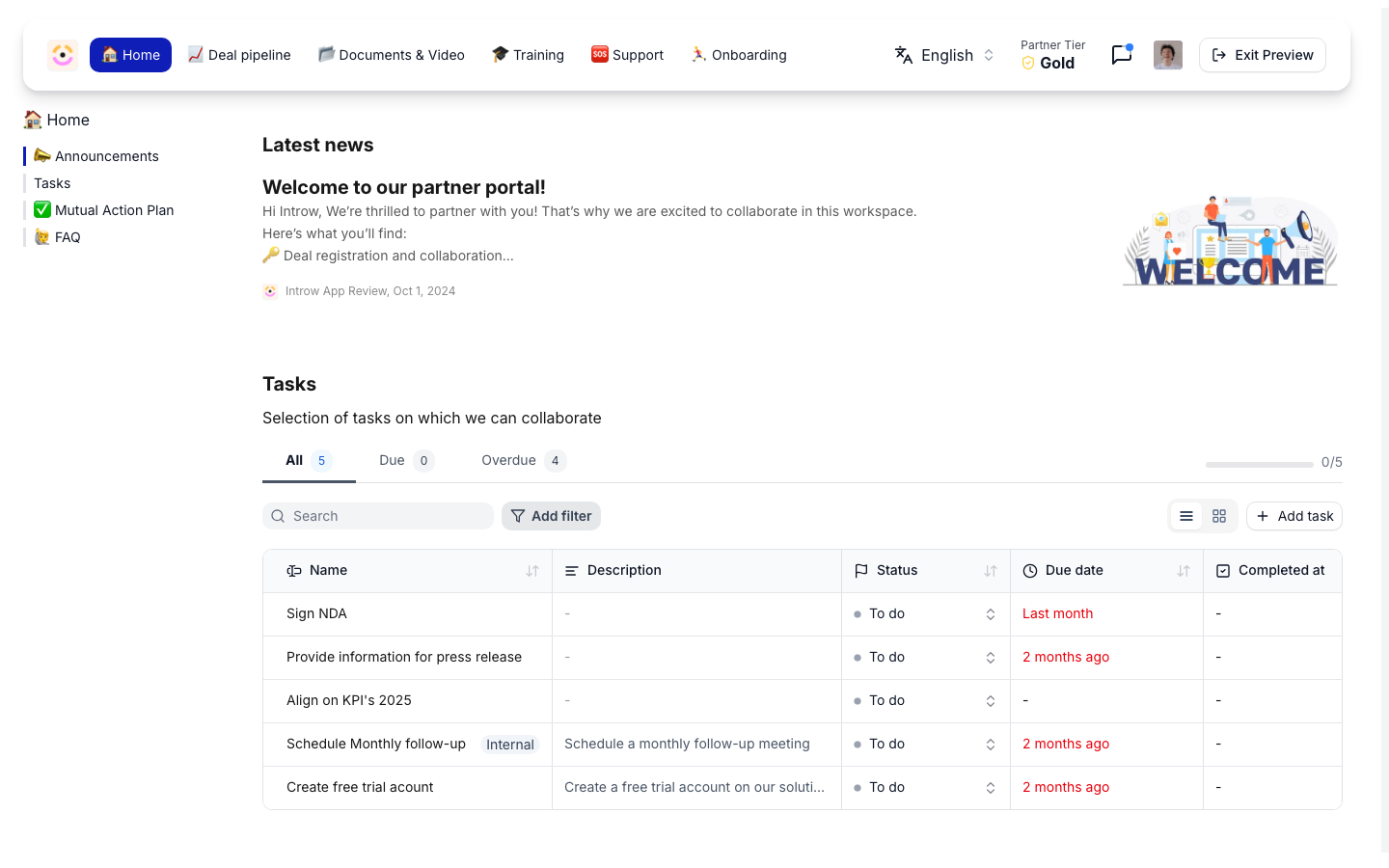
Before you start
How it works
Progressive onboarding is not a single setting; it is a pattern you assemble from pieces that already exist. Three of them do the work together:- Journeys give a partner the ordered checklist that drives them forward, from first login to first deal. See Journeys.
- Dynamic segments decide which stage a partner has reached. A dynamic segment’s membership updates automatically from its filters, so as a partner completes a journey, earns a certificate, reaches a tier, or a CRM property flips, they move into the next segment without anyone touching it. See Segments.
- Portal experiences restrict tabs and sections to segments. A tab or section gated to a segment is only visible to partners in it, so the portal reveals more as a partner qualifies. See Experiences.
Settings & configuration
You assemble onboarding across Segments and the Experience builder.Define a segment per stage
Create a dynamic segment for each onboarding stage and set its audience filters to the condition that defines that stage, for example onboarding journey complete, a certification earned, or a tier reached. Membership recomputes as partner data changes, so partners enter the segment automatically when they qualify. Use the audience preview to sanity-check who currently matches. Every stage segment needs at least one condition, which it has by definition, and which an overriding segment requires anyway. Stage filters do not need to exclude earlier stages. A partner in a later stage usually still matches the earlier segments, and that overlap is safe: when overriding segments overlap, the most permissive one wins, so each stage a partner earns only ever adds capabilities. See Layer segments to progressively unlock capabilities.Gate tabs and sections
In the experience, restrict a tab to specific segments so only partners in a stage see it, and do the same for sections within a stage. Gate the asset sections, forms, and other ability-bearing blocks that should unlock at each stage. Partners not yet in the segment simply do not see the gated content.Drive partners forward
Apply an onboarding journey so partners have a concrete checklist. As they complete it (and the other milestones your segments key on), they roll into the next stage’s segment and the matching tabs unlock.Tune what each stage can do
Segment permissions control abilities like inviting colleagues or how much of their company’s shared data a contact sees, so a stage can unlock not just content but what a partner is allowed to do. Set your baseline on the organisation-wide All partners · Default, then on each stage segment switch on Override the default for this segment and set only what that stage grants. A stage that changes nothing leaves its override off and inherits the baseline. When a partner matches several override segments, the most permissive one wins. See all shared records works exactly like invites: withhold it on the default and turn it on in the stages that earn it. Because overrides merge most-permissive, a partner who still matches earlier stages keeps everything a later one granted. The flip side is that a stage cannot hold a group back from something another of their segments grants, so grant narrowly rather than broadly. See Layer segments to progressively unlock capabilities and Create a dynamic segment.How-to guides
Troubleshooting
A qualified partner is not seeing a new tab
A qualified partner is not seeing a new tab
Confirm they match the stage segment’s filters and the tab is restricted to that segment.
Everyone sees everything
Everyone sees everything
The tabs are not restricted to segments, or the segments are too broad.
A partner never advances
A partner never advances
The milestone the segment keys on is not being met or recorded; check the journey, certificate, or CRM property.
A stage's content changed for the wrong partners
A stage's content changed for the wrong partners
A gated section used a segment broader than intended.
A stage's restriction is not applying
A stage's restriction is not applying
Either the stage segment’s override switch is off, so it inherits the default, or the contact matches another override segment that grants more and the most permissive one wins. For invites and notifications, put the baseline on the organisation default rather than on a stage.
A stage sees more than it should
A stage sees more than it should
Another segment the partner matches grants it, and overrides merge most-permissive. Withhold the capability on the default and grant it only on the stages that earn it.