

What you’ll achieve
A portal tab that appears only for partners in the segments you select, so a single experience serves multiple partner types and each sees only what applies to them.Before you start
1
Confirm segments exist
Restriction is by segment, so create the segments you want to target first. See Create a dynamic segment.
2
Confirm write access
You need write access to the experience that contains the tab.
Watch it
- Video
- Click through
Steps
1
Open the experience
Go to Experiences and open the experience containing the tab.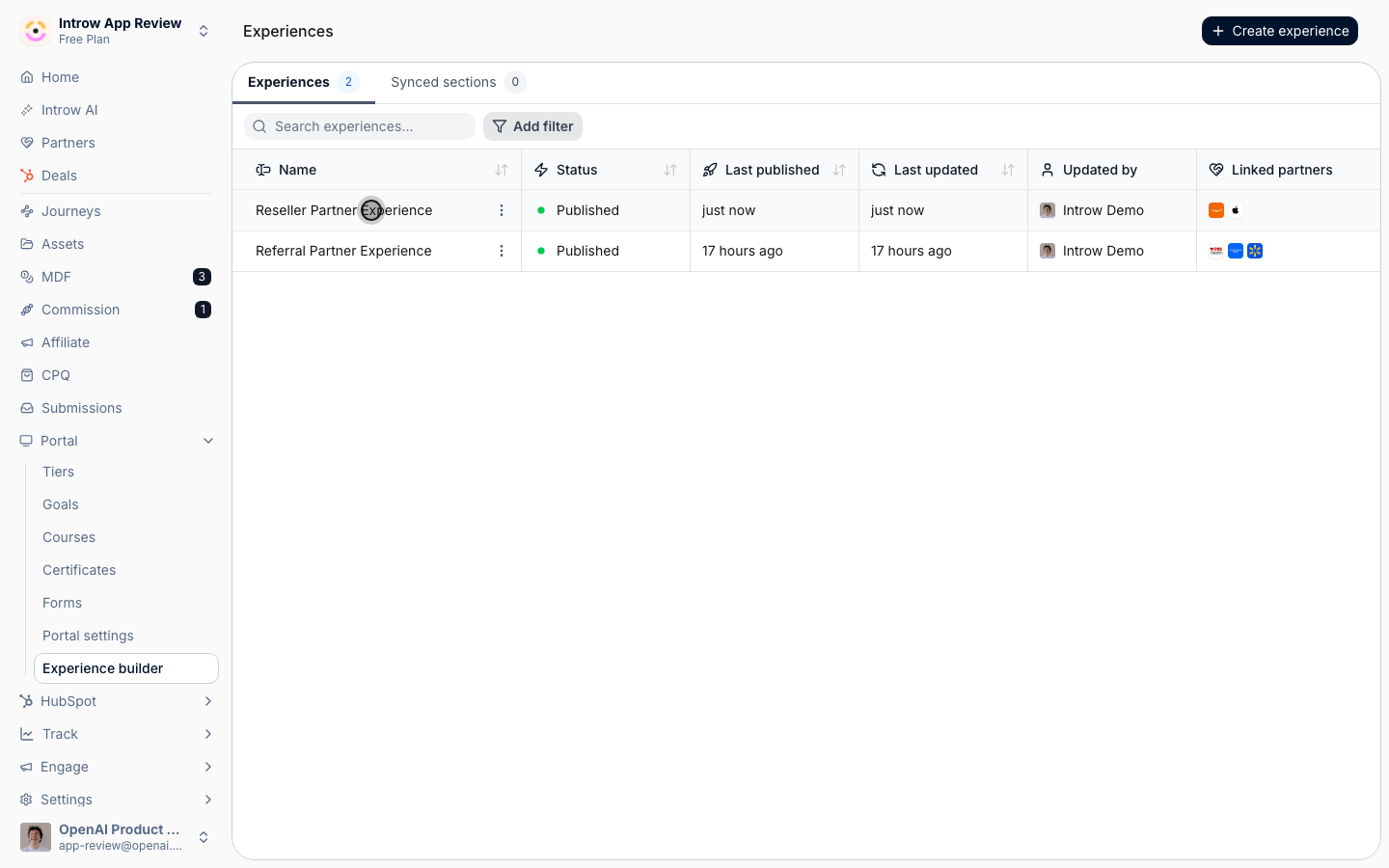
2
Open the tab's access menu
Open the stage menu for the tab and go to its access settings, which control who can see the tab.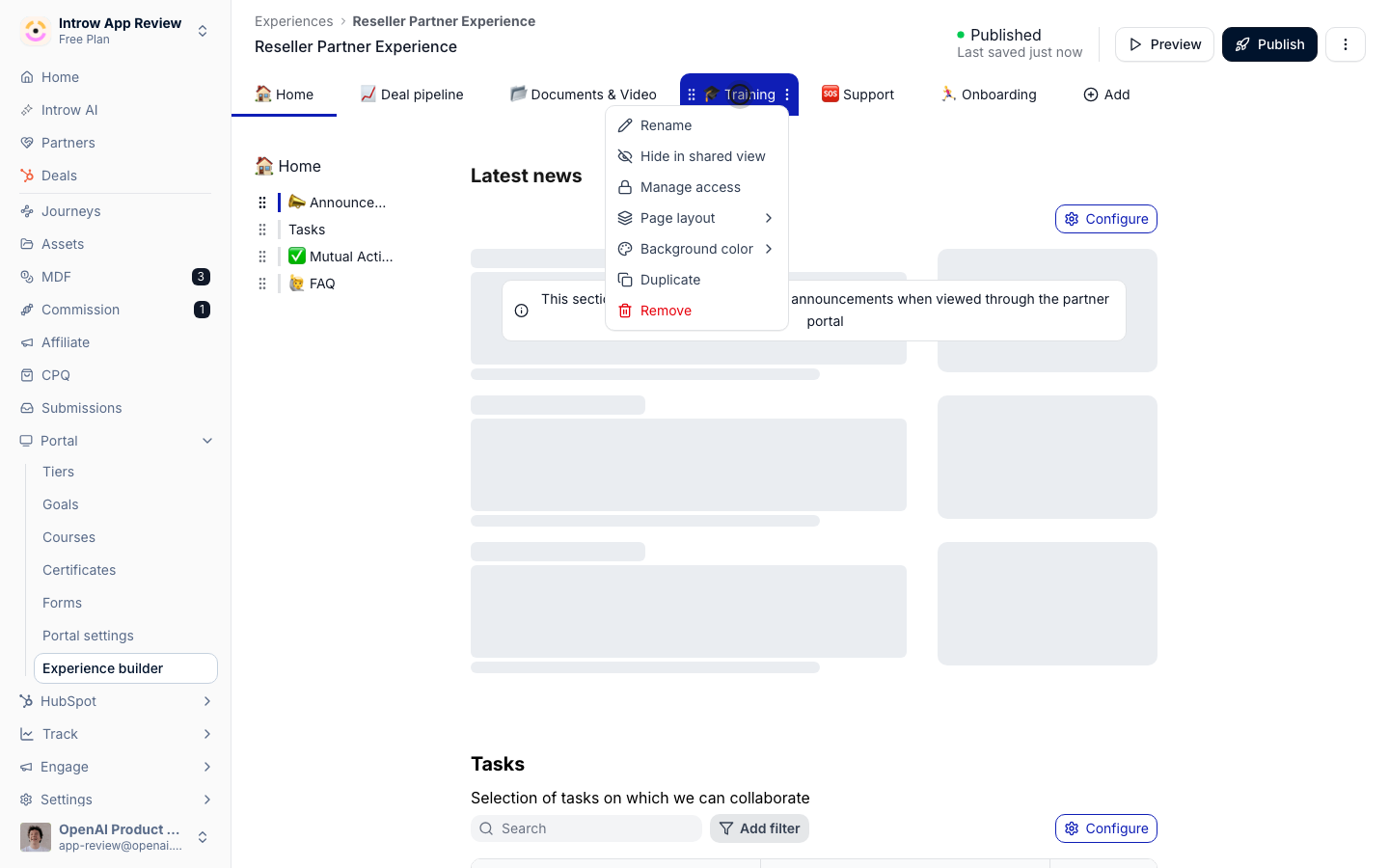
3
Restrict it to segments
Switch the access policy from Anyone with portal access to Only specific segments, then choose the segments that should see it. A live data preview beside the picker lists the partners and people the restriction lets in, so you can check the reach before saving. Partners in any of the chosen segments see the tab; everyone else gets a portal without it. Membership in another, more restricted segment never hides a tab a partner has unlocked: access resolves to the most permissive of a partner’s segments. Choose every segment that legitimately needs the tab so you do not accidentally hide it from a partner type that needs it.A tab group and a URL tab take the same access policy. Restricting a group restricts every tab inside it, and a tab inside a group can carry its own restriction on top. A partner who can see none of the tabs in a group does not see the group at all.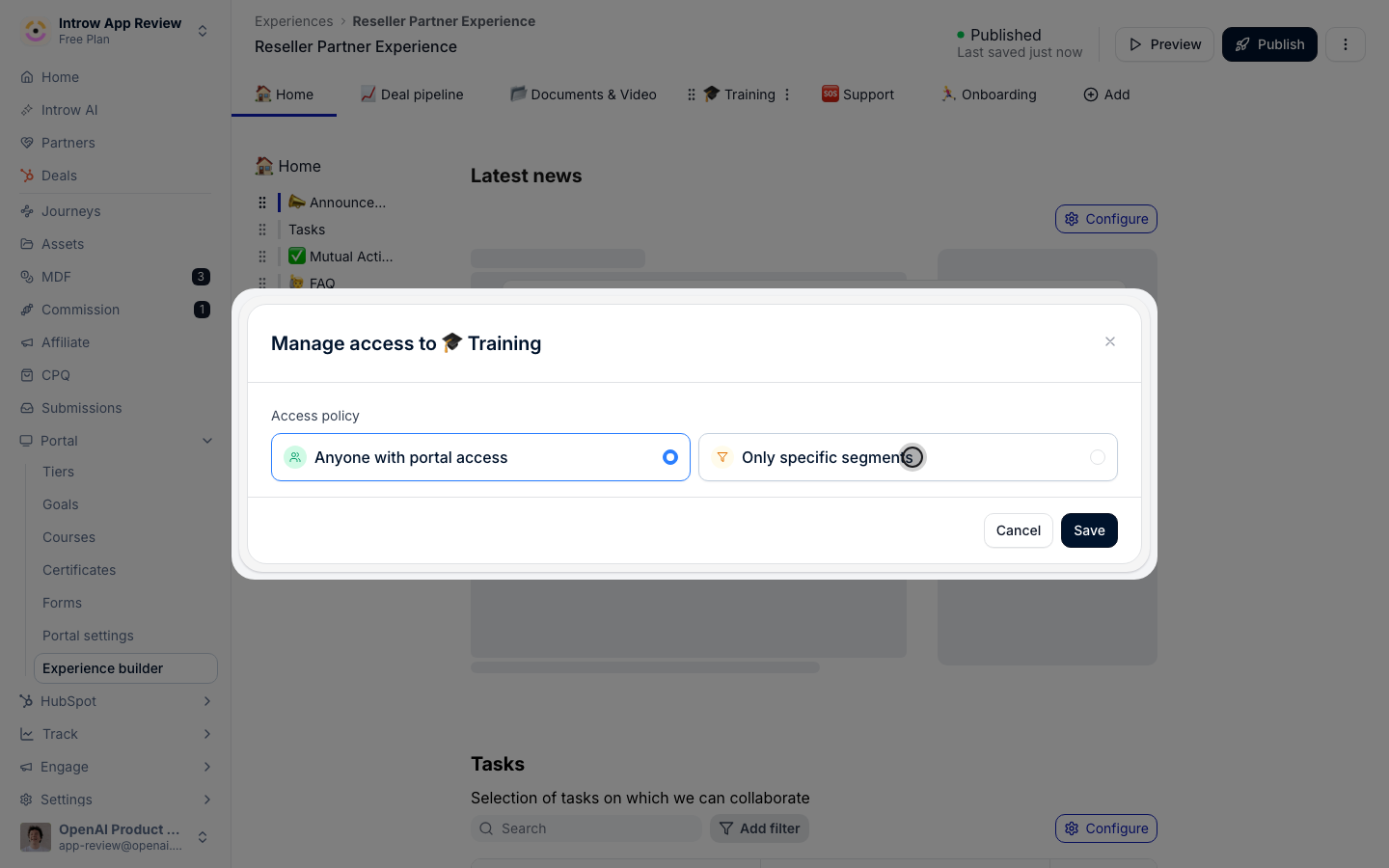
4
Verify with a test partner
A tab’s access travels with the experience, so publish it to the partner first. Then open their portal from the partner’s View portal link: a gated tab is marked with a lock there. To confirm what a partner outside the segments sees, sign in as one, and the tab is absent entirely.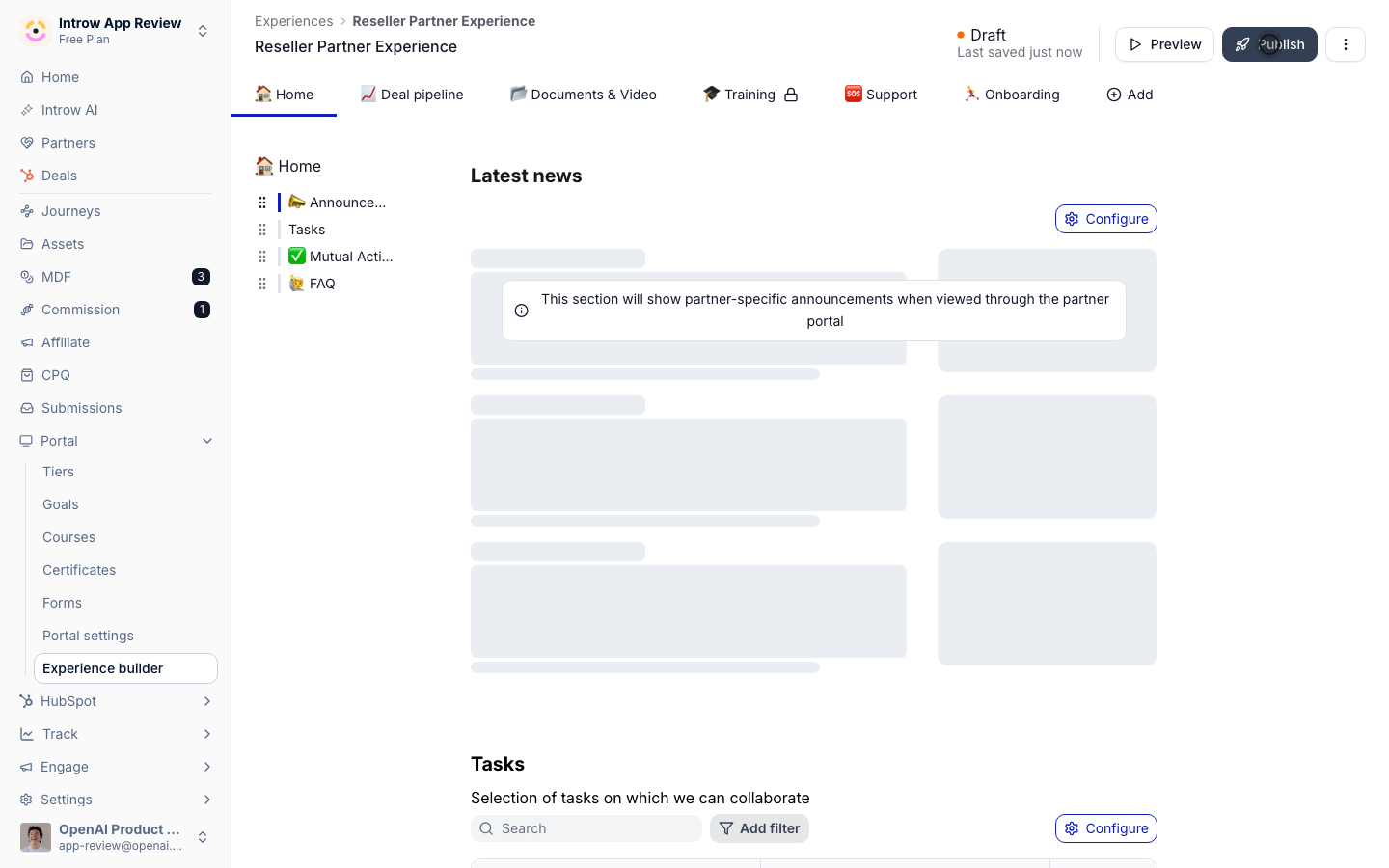
Verify it worked
The tab appears only for partners in the chosen segments, and a partner outside them sees a portal without that tab.Related
Create a dynamic segment
Define the segments you restrict to.
Build and publish a portal experience
Build the tabs you restrict.
Implementation reference
Full portal access configuration options.