

Where it lives
Partner Management sits under Partners, at Partners.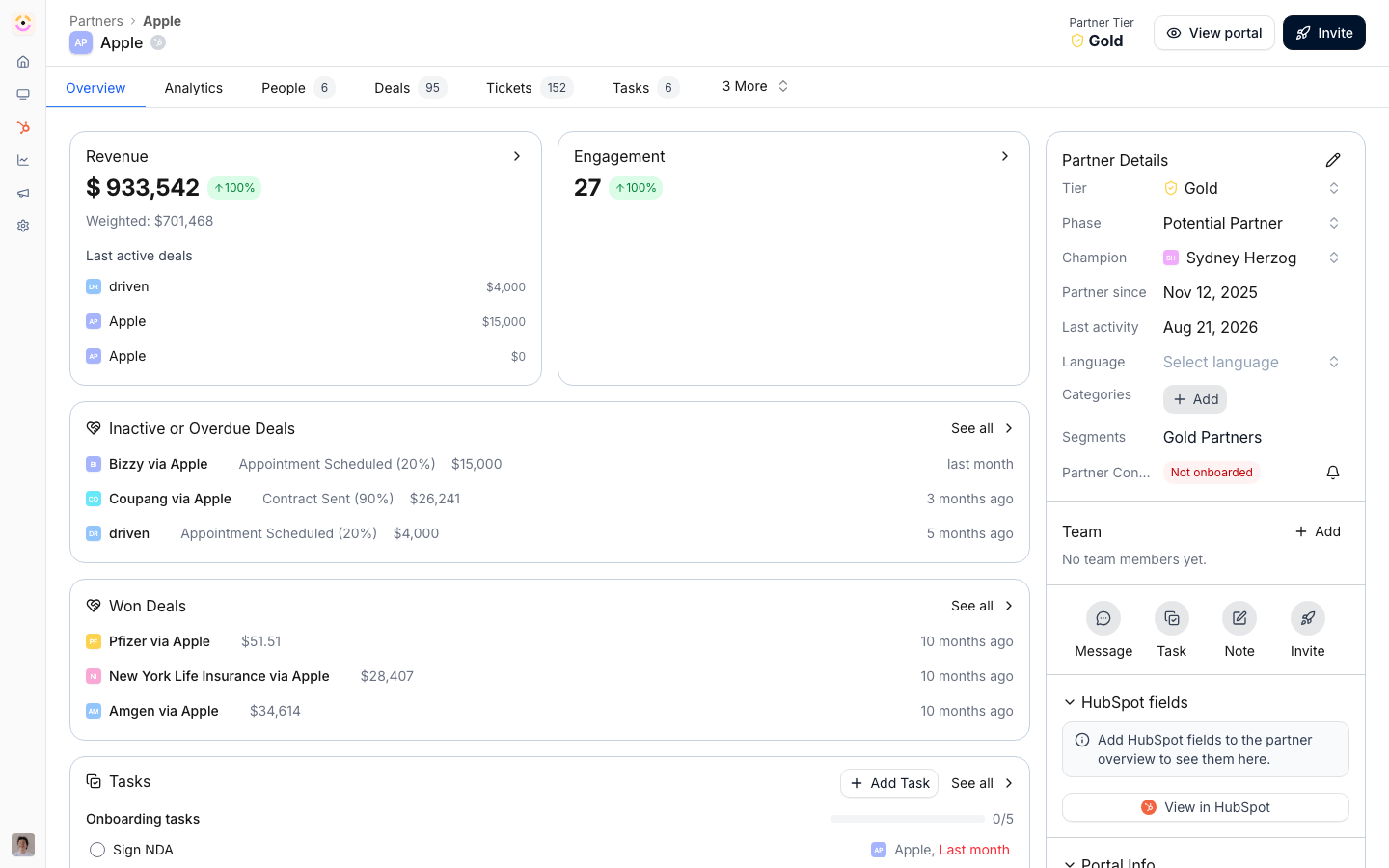
Before you start
How it works
Introw builds your partner list from your CRM. During CRM setup you answer three questions: how partners are stored in your CRM, which records actually count as partners, and which objects (like deals) to link to them. From your answers, Introw imports matching records as partners, links each one back to its CRM record, and can keep importing new matches on its own. Every partner lands in a phase, the lifecycle stage shown as a column in the grid view of the partners list. You manage the list itself with views: saved combinations of filters, columns, and sharing that let different teams look at partners the way they need to. Open any partner to see their people, deals, tasks, notes, assets, and goals, and to set per-partner fields like phase, tier, champion, and language.Settings & configuration
Partner detection and sync are configured in the CRM setup flow, reached from Settings, then Integrations. The list itself is configured directly on the Partners page.CRM detection and sync
How partners are stored is the first setup step. You pick the CRM object that represents a partner, such as Company, Account, or a custom Partner object, and confirm it. This tells Introw where to look. Partner filters narrow that object down to the records that are really partners, using CRM properties plus manual selection. Only records that match become partners in Introw. Automatically sync new partners is the toggle that keeps detection ongoing. When it is on, any new CRM record that matches your filters becomes a partner in Introw without manual work. It becomes available once your filter selection covers all partners, so Introw knows the full set it should watch. Linked objects decide what gets attributed to each partner, such as the deals or contacts associated with them. You define one or more named links so partner deals and people show up on the partner record.The partners list
View switches between List view, a table of partners, and Grid view, a board with one column per phase. The choice is remembered for you. Phases are the lifecycle stages partners move through. They are managed from the list’s configure panel, where you can add a phase, rename it, reorder phases, and remove one (migrating its partners to another phase first). A fresh workspace starts with a default set from potential partner through to won and lost. Views are saved looks at the list. Each view has its own filters, visible properties, and a sharing setting of Private or Shared with team. Use the configure panel to choose which partner properties appear as columns and to add new ones. Bulk edit appears when you select one or more partners with the row checkboxes. From the bulk actions bar you can update Tier, Commission Plan, Currency, or a partner team role for every selected partner at once, or run other actions such as applying an experience or adding a comment.Per-partner fields
On a partner’s detail page you can set fields such as Phase, Tier, Champion, Language, and (when enabled) Currency, and you can update the partner’s company or its link to the CRM record. Segment membership is shown here too, but it is driven by your segments, not edited on the partner.CRM fields on the record
The Partner Info card also carries the CRM fields you configured as columns on the partner list, showing live CRM values. Editable ones can be changed inline and write straight back to your CRM; read-only properties, owner lookups, and picklists with no synced options render as values instead. The same applies one level down: open a person on the People tab and their fields section shows the Contact properties configured on the People list, editable in place, with a link through to the contact in your CRM. Both views read their list’s configuration, so you choose the fields once. See Show and rename CRM fields.Automate it with a workflow
The partner record is where most workflows begin and end. Partner created runs when a new partner appears, whether someone added them or CRM detection brought them in, which is the hook for onboarding every partner identically. Partner updated runs when one of their fields changes, in Introw or in your CRM, narrowed by Which changes count: the Introw partner fields plus every partner-level CRM property on the company or your custom partner object. The matching action is Update partner properties, which writes tier, phase, categories, owner, the partner’s portal experience, and any writable CRM property, each row with its own Write mode. Overwrite always replaces what is there; Fill in if not known leaves a value a partner manager set by hand alone. Changes a workflow makes itself never re-trigger it, so writing a field the same workflow triggers on does not loop. See React to a CRM change on a partner and Onboard a new partner automatically.How-to guides
Troubleshooting
A partner is missing from the list
A partner is missing from the list
Check that the record matches your partner filters, or create it manually from its CRM company.
New partners are not appearing
New partners are not appearing
Automatic sync is likely off, or your filter selection does not yet cover all partners; revisit the find step.
A teammate cannot see your view
A teammate cannot see your view
The view is set to Private; switch it to Shared with team.
FAQ
One partner has several legal entities or regions. Do we model them as one partner or many?
One partner has several legal entities or regions. Do we model them as one partner or many?
Many, one per entity you need to treat separately, because a partner is the unit that carries a portal, contacts, attribution, tiers, commissions and reporting. If the regions have different contacts, different owners, or their own numbers, they are separate partners. Group them back together with a segment or a shared CRM property, and report on the group rather than the parent. There is no parent-and-child partner relationship, so a grouping property is the thing to keep clean.
Do partners have to exist in our CRM first?
Do partners have to exist in our CRM first?
No. Detection finds the ones already there, and you can create a partner by hand at any time, including with no CRM connected at all. A partner application form creates them from a submission, and because a form’s automation runs once per row, adding a batch upload field to that form turns a spreadsheet of partners into one pass. The API does the same from wherever your list lives today. A partner created in Introw can be linked to a CRM record later.
How do we keep a company out of Introw that our filter would otherwise pull in?
How do we keep a company out of Introw that our filter would otherwise pull in?
Tighten the filter on the partner object rather than deleting records: the filter is the boundary, and anything outside it never syncs. A dedicated CRM property that your filter tests on is the version of this that survives a program change, because it makes the decision explicit on the record instead of implicit in a list.
What happens if the same company is attributed twice, or two partners claim one deal?
What happens if the same company is attributed twice, or two partners claim one deal?
A deal can legitimately carry more than one partner: that is how two-tier attribution credits a reseller and its distributor on one record, and each sees it in their own pipeline. What you do not want is an accidental double claim, which is what the conflict check on a registration form is for. If a duplicate has already landed, fix it on the CRM record, since attribution lives there.