

For enablement teams standing up a credential partners will be proud to display and that issues itself.A certificate is more than a completion receipt: it is a credential partners display to win trust with their own customers, and a signal you use to decide who is qualified to sell or deliver. That only works if it looks the part, means something, and arrives the moment a partner earns it. This guide builds a branded, time-bound template and then attaches it to a course so it is awarded automatically, with no manual issuance step.
What you’ll achieve
A reusable certificate template - branded with a name, description, colors or background image, and issuer, with a validity period that controls when it expires - attached to a course so any learner who completes (and passes, if a score is set) is certified automatically.Before you start
1
Confirm Certificates is on your plan
Certificates are a plan feature. If the Certificates area shows an upgrade prompt instead of the builder, it is not on your plan yet - check what yours includes at introw.io/pricing.
2
Confirm access
You need a team role with write access to Certificates, and to Courses for the auto-issue step.
3
Have a course ready (optional)
To wire up auto-issue, have the course you want to certify already built. If you also want to gate certification on a score, plan to set a minimum passing score (see Assess learners with a quiz).
Watch it
- Video
- Click through
Steps
Create the template
1
Start a new certificate
Go to Certificates and select Create certificate. This is the reusable design you attach to courses and award, not a one-off.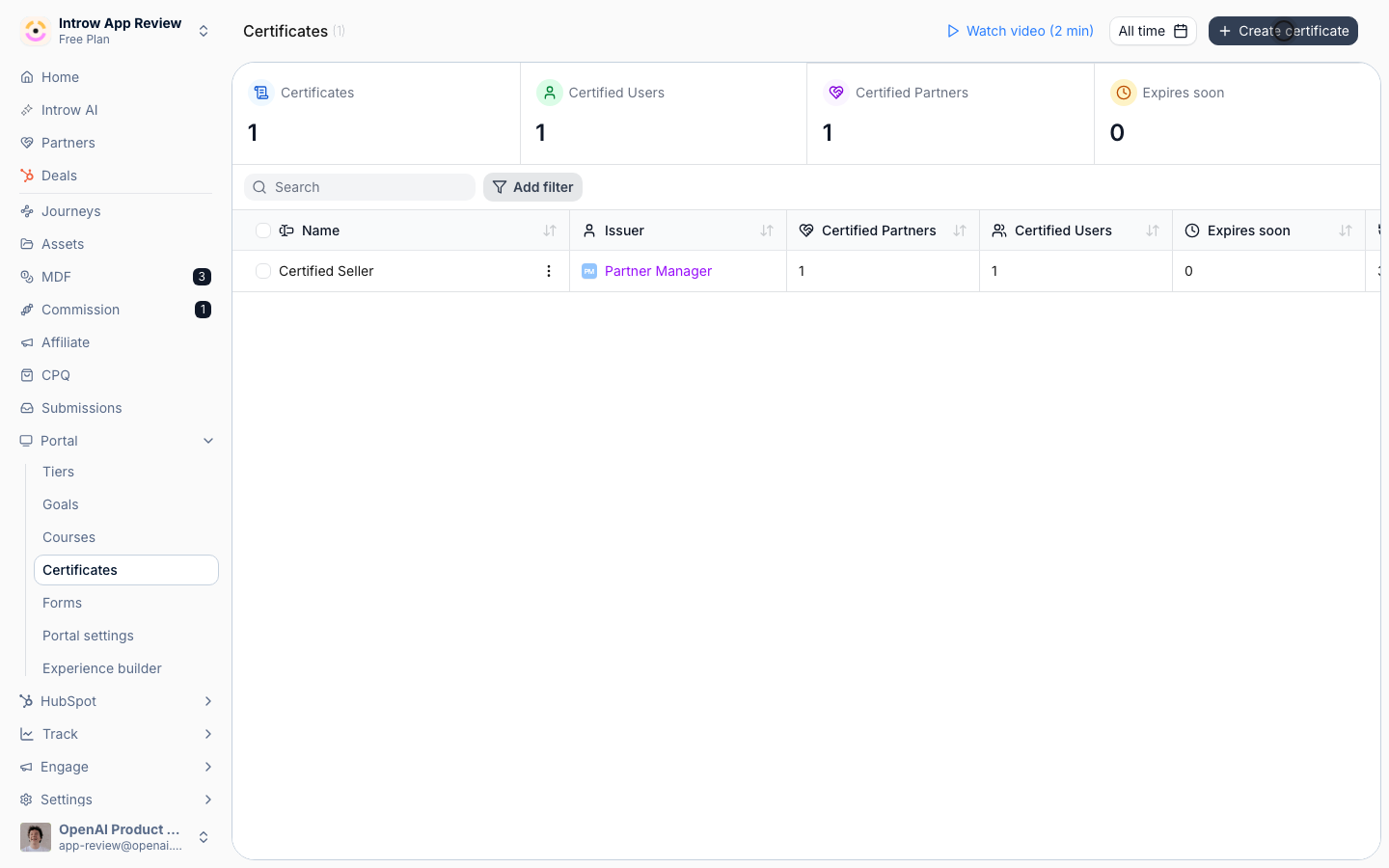
2
Name it, set validity, and choose the issuer
Fill in the create dialog: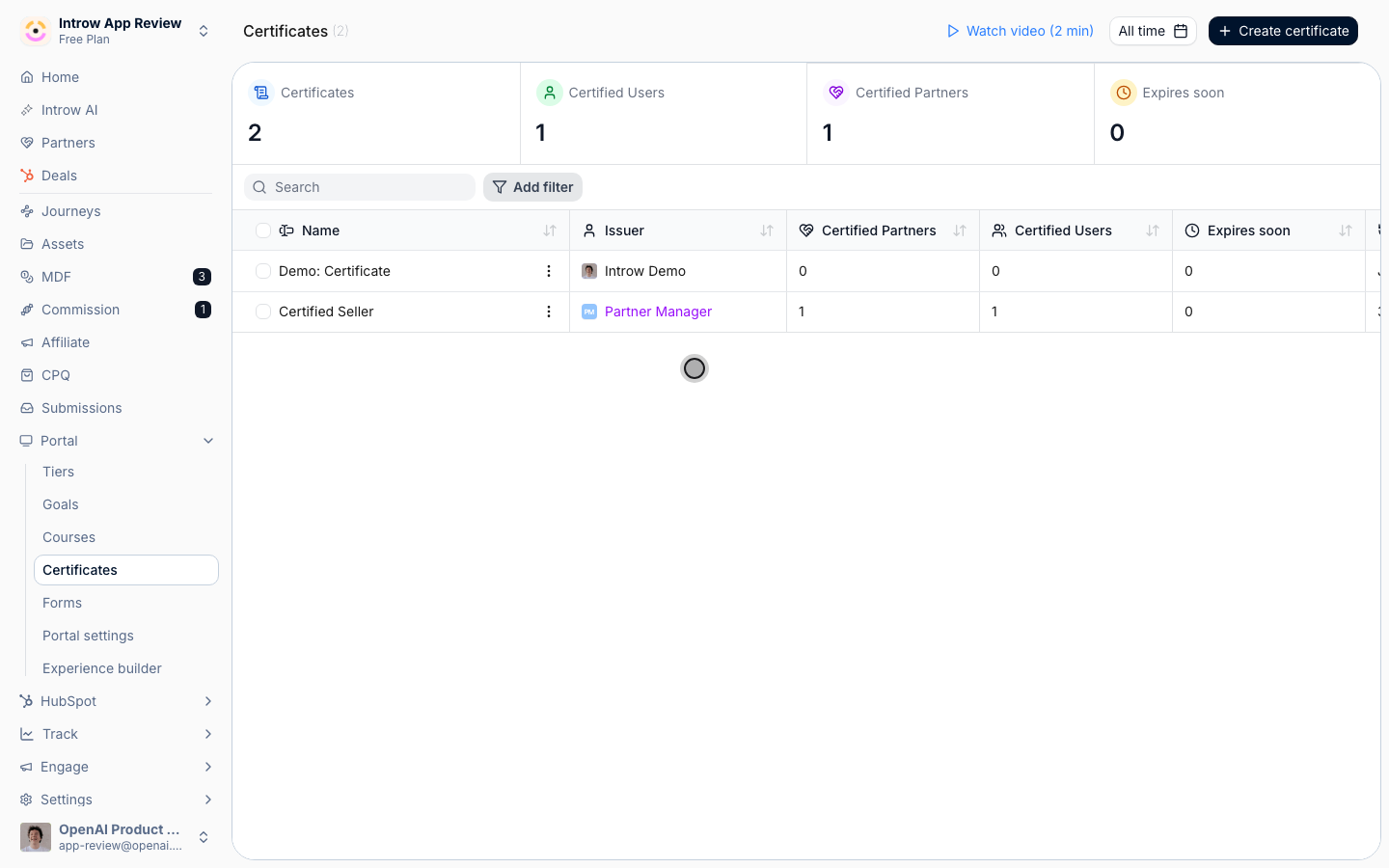
- Name - the credential title shown on the certificate and in your list (for example, “Certified Reseller”). Make it specific so partners and your team can tell credentials apart.
- Validity - how long the credential stays valid: a number plus a period (Days, Weeks, Months, or Years), or choose Unlimited so it never expires. Pick a real window when certification should be refreshed periodically, so a lapsed partner shows up as needing a refresh; choose Unlimited only for one-time acknowledgments.
- Issued by - the issuer name shown on the credential. Default this to your company or program name so the certificate reads as official.
3
Brand the certificate
On the certificate’s detail page, refine how it looks. The preview updates as you edit: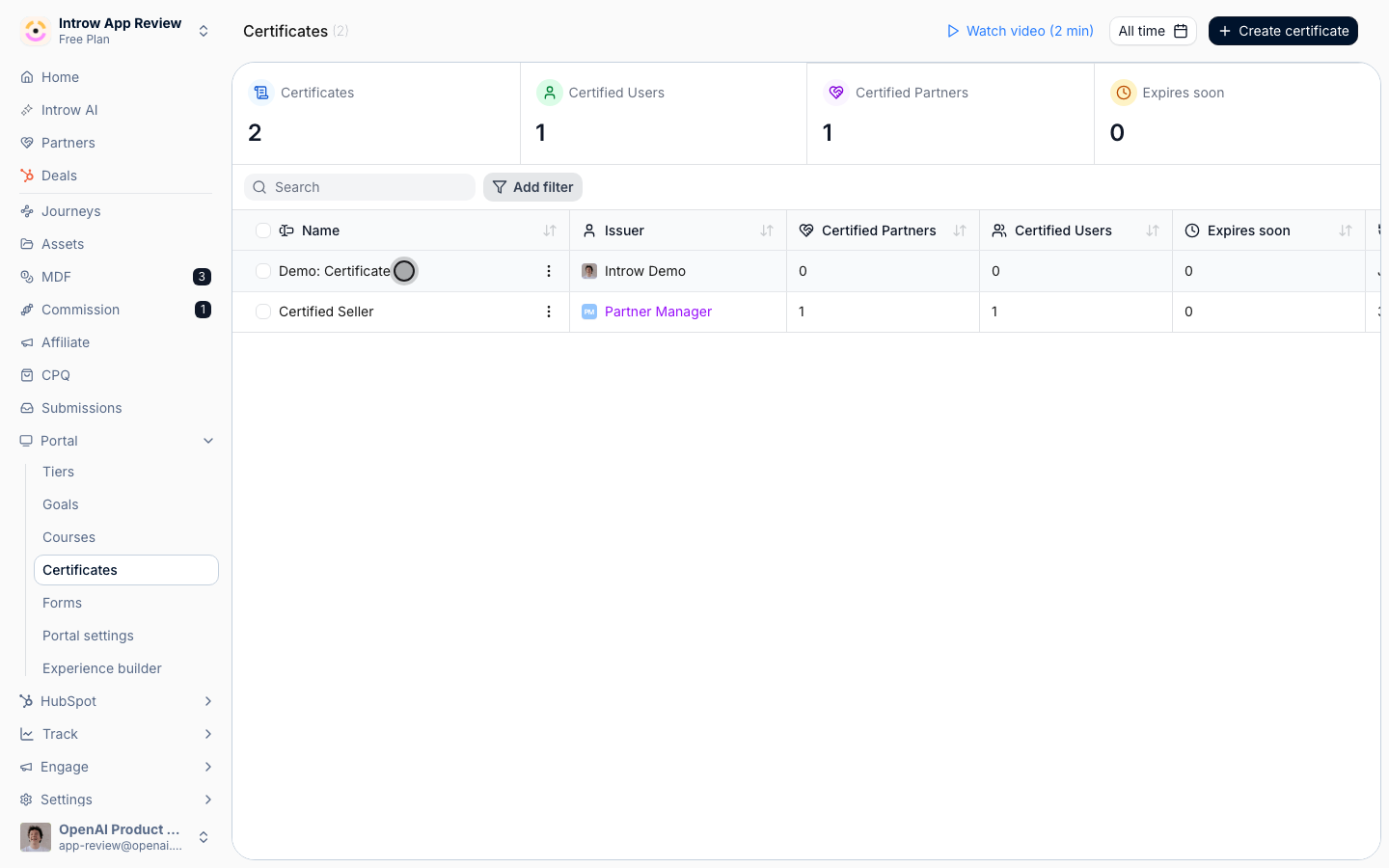
- Description - a short line describing what the credential represents. This appears on the verifiable certificate page partners share.
- Background image - upload artwork to use as the certificate background, or select Generate with AI to create one from a prompt (see below). Use this for a fully designed credential; when an image is set, the Background color picker is hidden because the image defines the background. The certificate is rendered at 16:9, so upload artwork at that ratio - 1920×1080 is the recommended size, up to 20 MB - and Introw offers a crop-and-zoom step to fit anything else. Leave the middle clear: the logo, name, and recipient are drawn over it.
- Generate with AI - open the prompt, which is pre-filled with your organisation’s name and domain, and edit it if you like. Introw generates an on-brand background and sets it as the certificate background automatically. Regenerate until you’re happy, or upload your own instead.
- Text color - the color of the text rendered on the certificate; set it to stay readable against your background image or color.
- Background color - shown only when no background image is set; choose a color that matches your brand.
- Hide logo - toggle on to render the certificate without the organisation logo. Use this when your background image already includes branding, so the logo isn’t duplicated. This applies to both the preview and every issued certificate.
Auto-issue it on course completion
1
Open the course's Certificate tab
Open the course you want to certify, select Configure, and go to the Certificate tab. This is where you link a credential so completion issues it automatically.
2
Attach the certificate
Choose the template you just built (or generate one with AI if you skipped the design step). Attaching it means every learner who completes this course is issued this credential, no manual step required.
3
Gate on a passing score (optional)
If certification should require proof of competency, set a Minimum score to pass on the Advanced tab. With a score set, the certificate issues only to learners who complete and pass; without one, completion alone certifies them. See Assess learners with a quiz.
4
Save changes
Select Save Changes. From now on, any qualifying completion issues the certificate automatically, gives the partner a verifiable certificate page, and syncs the issuance to your CRM.
Verify it worked
The certificate appears in your certificate list and is selectable when configuring a course. After attaching it, a learner who completes the course (and meets the passing score, if set) receives the credential, gets a verifiable certificate page, and the issuance syncs to the CRM.Related
Generate a certificate with AI
Skip the design step and let AI draft it.
Issue a certificate
Award a credential automatically on completion or by hand.
Revoke a certificate
Remove a credential when it no longer applies.
Implementation reference
Certificate model, validity, and issuance.