

For turning an earned credential into reach: partners post it to LinkedIn, and every view links back to a verifiable page that names you as the issuer.Every certificate a partner earns is a marketing asset you do not have to make. When a partner adds it to LinkedIn, their network sees they are certified by you, and each credential links back to a verifiable page that names your program as the issuer. This is a partner action with no setup on your side: the option sits on every issued certificate. This guide walks the flow so you can point partners to it and know exactly what gets shared.
What you’ll achieve
A certified partner’s credential added to the Licenses & certifications section of their LinkedIn profile, prefilled from the certificate and linked back to its verifiable page.Before you start
1
Confirm Certificates is on your plan
Certificates are a plan feature. If the Certificates area shows an upgrade prompt instead of the builder, it is not on your plan yet - check what yours includes at introw.io/pricing.
2
Have an issued certificate
The partner must already hold the credential, whether it was issued automatically on course completion or by hand (see Issue a certificate).
Watch it
- Video
- Click through
Steps
1
Open the earned certificate
A partner reaches their credential from the Congratulations screen shown the moment they complete a course, or from the certificate on their portal. To preview what they see, go to Certificates, open the certificate, and view a certified partner’s issued copy. The issued certificate shows two actions: Share on LinkedIn and Download certificate.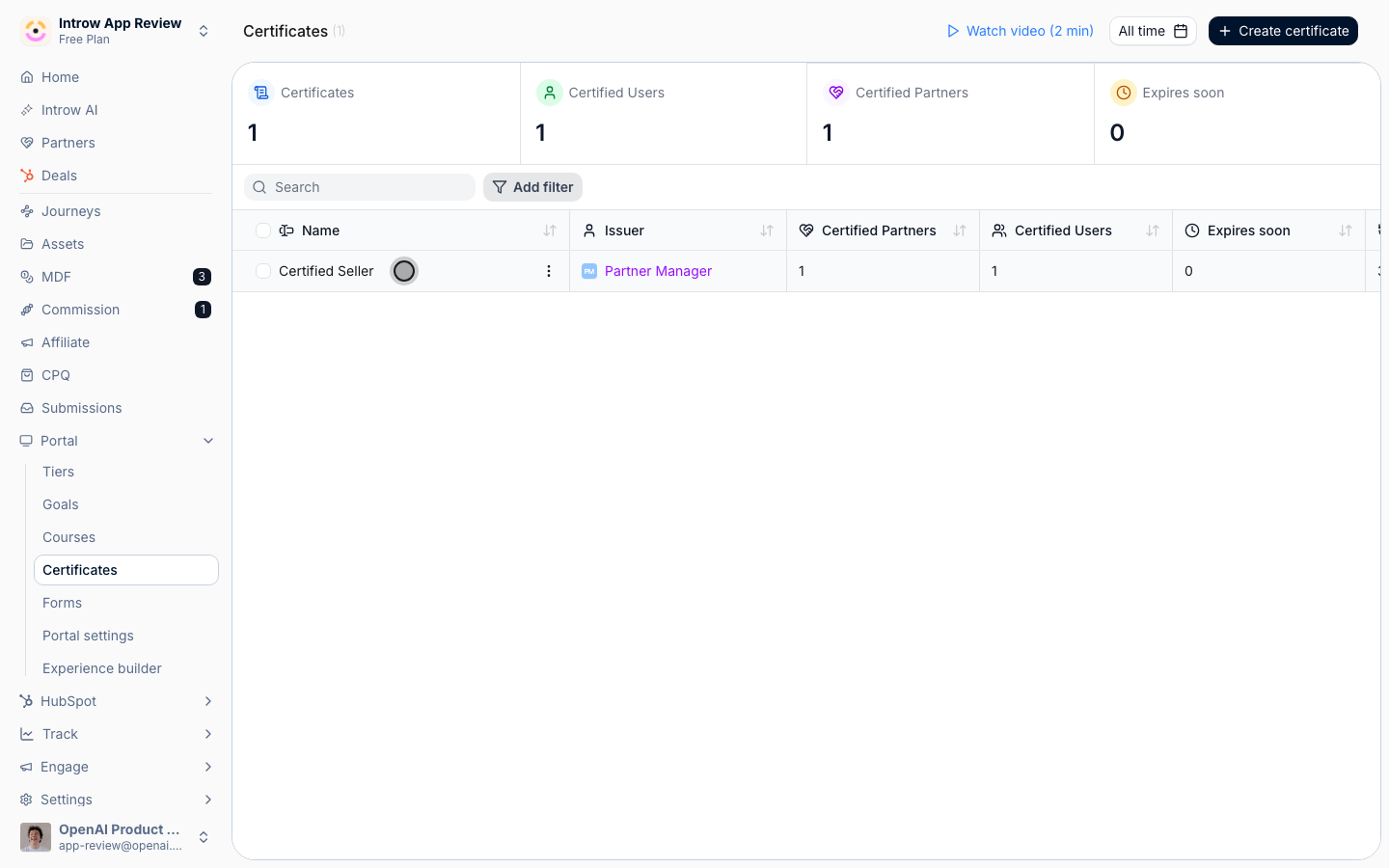
2
Select Share on LinkedIn
Selecting Share on LinkedIn opens LinkedIn’s add-to-profile flow in a new tab, already filled in from the certificate: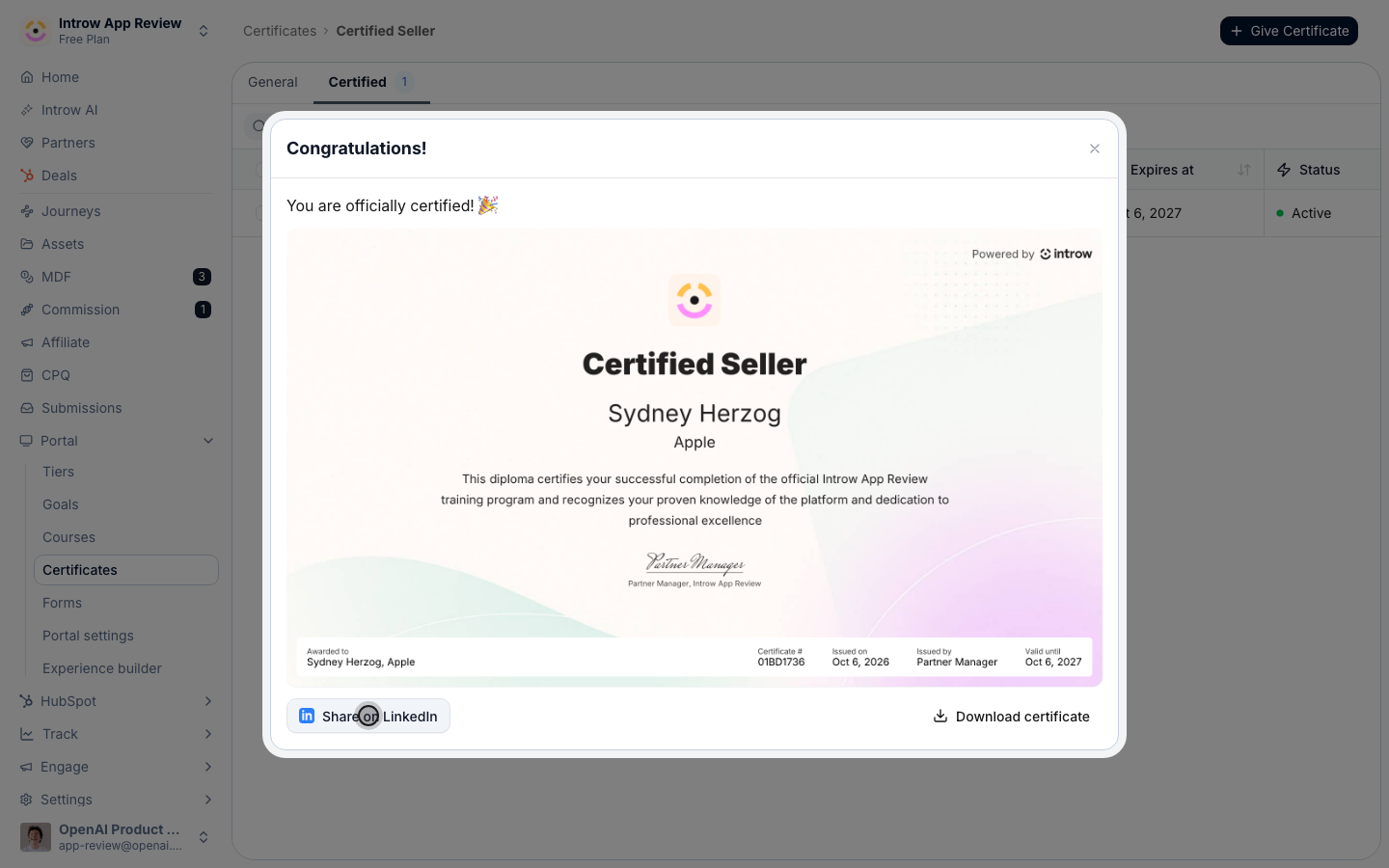
- Name - the certificate’s name, so the credential reads correctly on the profile.
- Issuing organization - your organisation, so the partner’s network sees who certified them.
- Credential ID and Credential URL - the certificate’s identifier and its verifiable page, so anyone can confirm the credential is real.
- Issue and expiration dates - taken from when it was awarded and its validity period; a credential with no expiry is added without an end date.
3
Confirm on LinkedIn
The partner reviews the prefilled details and saves, which adds the credential to the Licenses & certifications section of their LinkedIn profile. Prefer a visual post instead? Download certificate saves the credential as an image the partner can attach to a normal LinkedIn update.
Verify it worked
The credential appears in the Licenses & certifications section of the partner’s LinkedIn profile, showing your organisation as the issuer, and its Show credential link opens the verifiable certificate page.Related
Issue a certificate
Award the credential partners go on to share.
Create and auto-issue a certificate
Brand the certificate so it looks the part on a profile.
Implementation reference
Issued certificates, verifiable pages, and sharing.