

For teams that want a polished certificate without doing design work.Designing a certificate (wording, colors, layout) is the kind of small task that quietly delays a course launch, especially without a designer on hand. Generating one with AI removes that step: Introw creates a certificate matched to the course in a single action, ready to refine, attach, and issue.
What you’ll achieve
A certificate tailored to a specific course, generated by AI and set as that course’s credential, ready to refine and auto-issue on completion.Before you start
1
Confirm Certificates is on your plan
Certificates are a plan feature. If the Certificates area shows an upgrade prompt instead of the builder, it is not on your plan yet - check what yours includes at introw.io/pricing.
2
Confirm access
You need a team role with write access to Certificates and Courses, and AI features must be enabled for your organisation.
3
Pick the course
Decide which course the certificate is for, since the AI tailors the credential to that course.
Watch it
- Video
- Click through
Steps
1
Open the course's Certificate tab
Open the course from Courses, select Configure, and go to the Certificate tab, where you attach or create the course’s credential.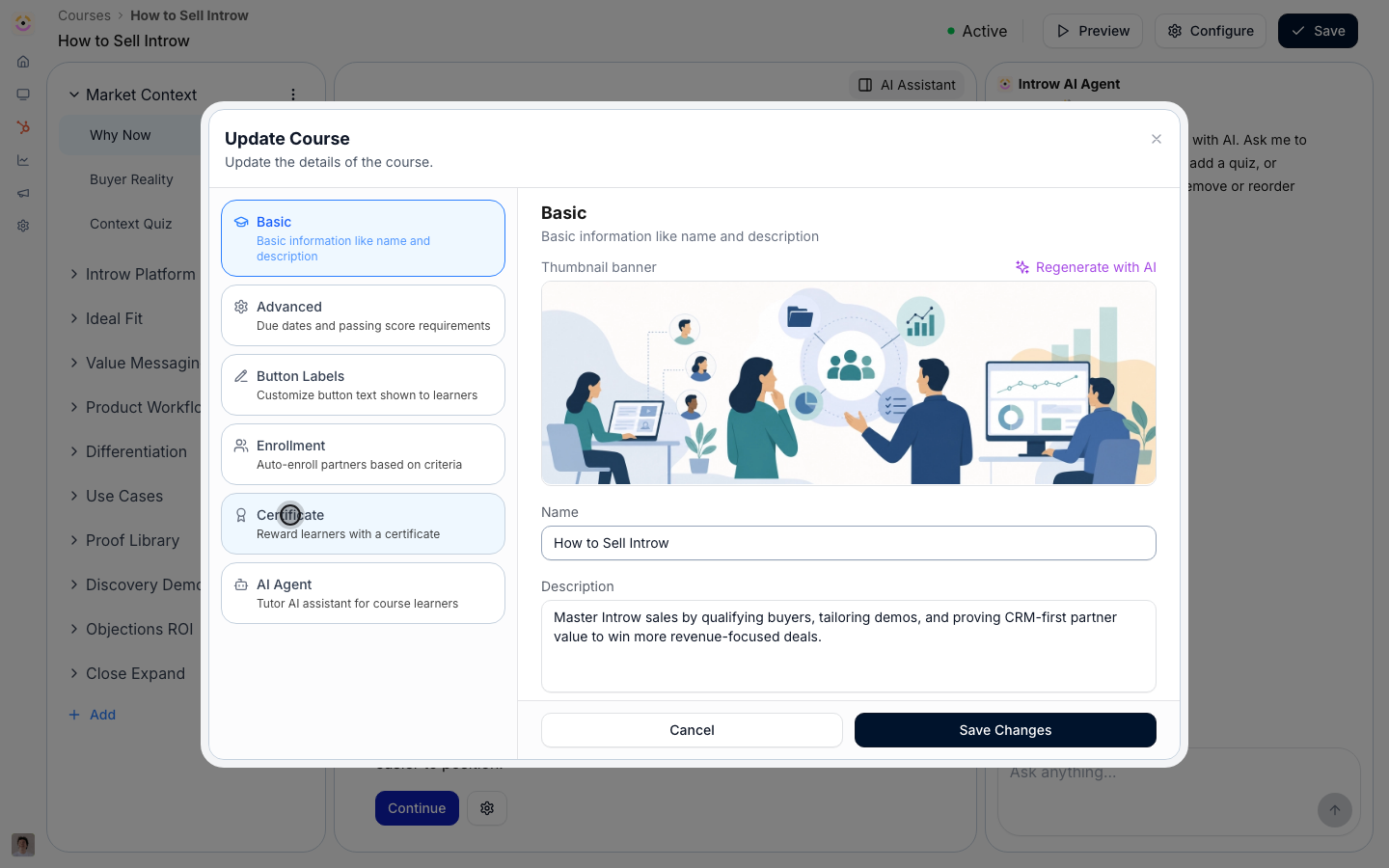
2
Generate with AI
Choose Generate with AI. Introw drafts a certificate tailored to this course, including its name, supporting text, and styling, so you start from a finished design rather than a blank one. The generated background is artwork only: no text, logo, seal or mock certificate of its own, and a quiet center and lower third, so the text Introw prints on top, such as the learner’s name, stays readable.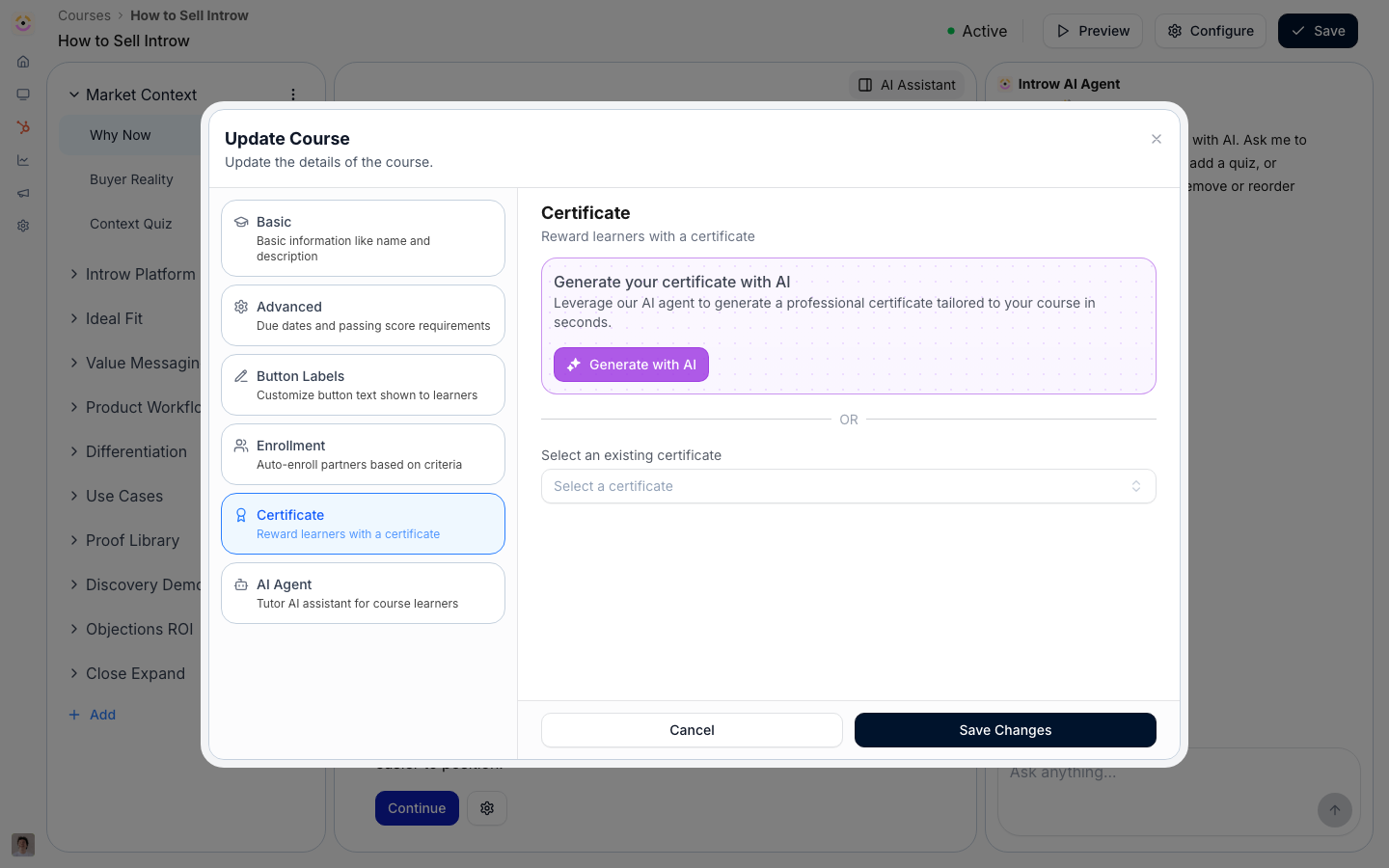
3
Review, refine, and attach
Review the generated certificate. Open it from Certificates to adjust the name, description, validity, colors, or background image if you want. Regenerate with AI on the background, with a line in Describe the certificate background…, draws a new one under the same rules (see Create and auto-issue a certificate for each field). It is already set as the course’s certificate, so it auto-issues to learners who complete and pass, if a passing score is set.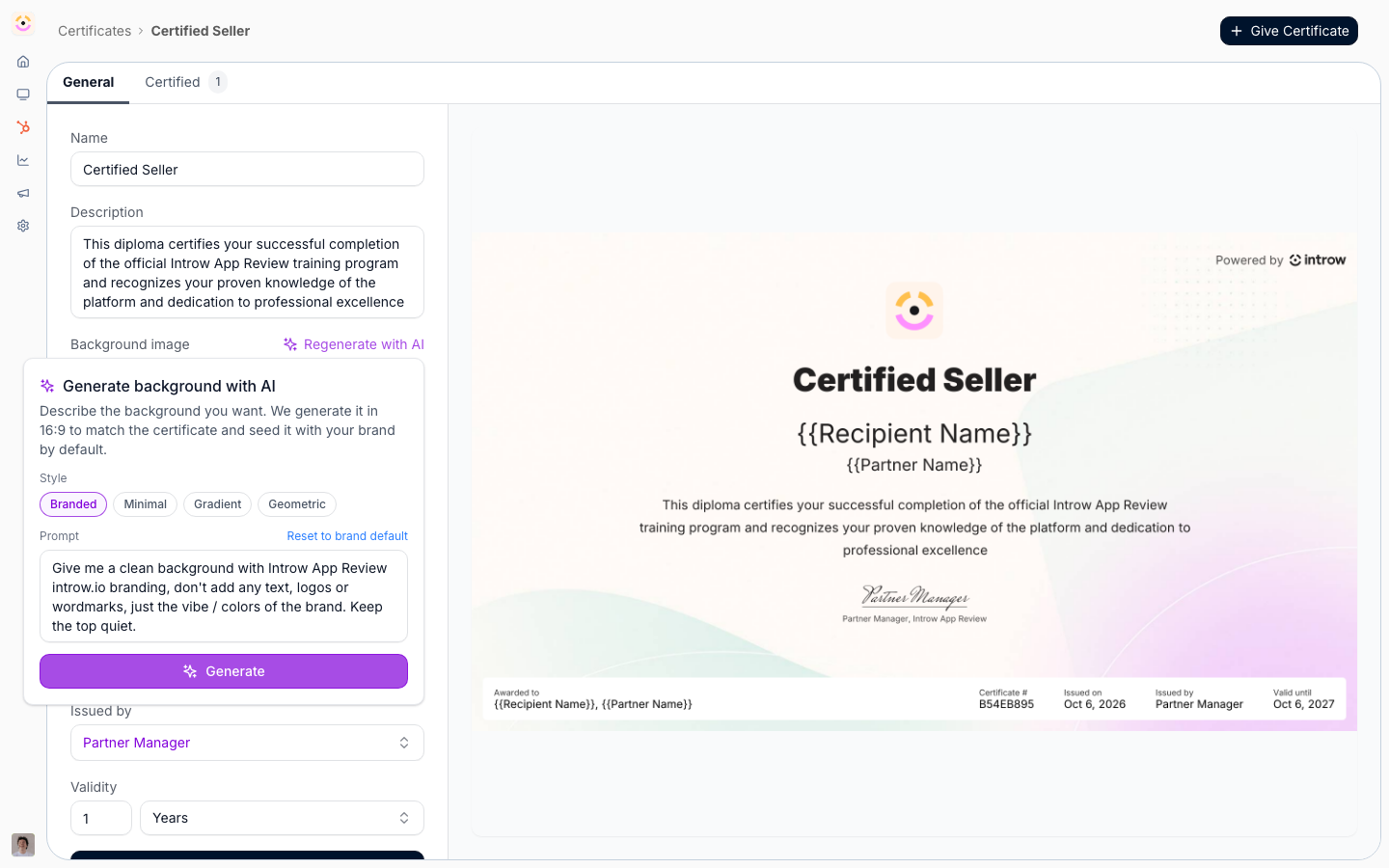
Verify it worked
A new certificate appears matched to the course, a preview renders in the settings panel, and it is set as the course’s certificate so qualifying completions issue it automatically.Related
Create and auto-issue a certificate
Build and brand one by hand instead.
Issue a certificate
Award a credential automatically on completion or by hand.
Implementation reference
Generation, validity, and issuance.