

For authors who want a course to prove competency, not just present content.A course that only presents content cannot tell you whether a partner actually learned anything, and a “completed” with no bar behind it is not a signal you can trust when deciding who is ready to sell or deliver. This guide builds a real assessment end to end: add questions that test understanding, set a passing score so completion means something, and review the upload answers that need a human.
What you’ll achieve
A course with quiz questions (multiple-choice, open-ended, and upload), a minimum passing score that gates completion and certification, and a review flow for upload answers that release completion once graded.Before you start
1
Confirm Courses is on your plan
Courses are a plan feature. If the Courses area shows an upgrade prompt instead of the builder, it is not on your plan yet - check what yours includes at introw.io/pricing.
2
Confirm access
You need a team role with write access to Courses, and reviewer access to enrollments for grading uploads. For AI grading of open-ended questions, AI features must be enabled for your organisation.
3
Have a course to assess
Have the course built (see Build a partner course from scratch) so you have chapters to attach questions to.
Watch it
- Video
- Click through
Steps
Add quiz questions
1
Open the chapter to test
Open the course from Courses, enter the builder, and select the chapter where the question belongs. Questions sit inside a chapter’s content, so pick the lesson the question should follow.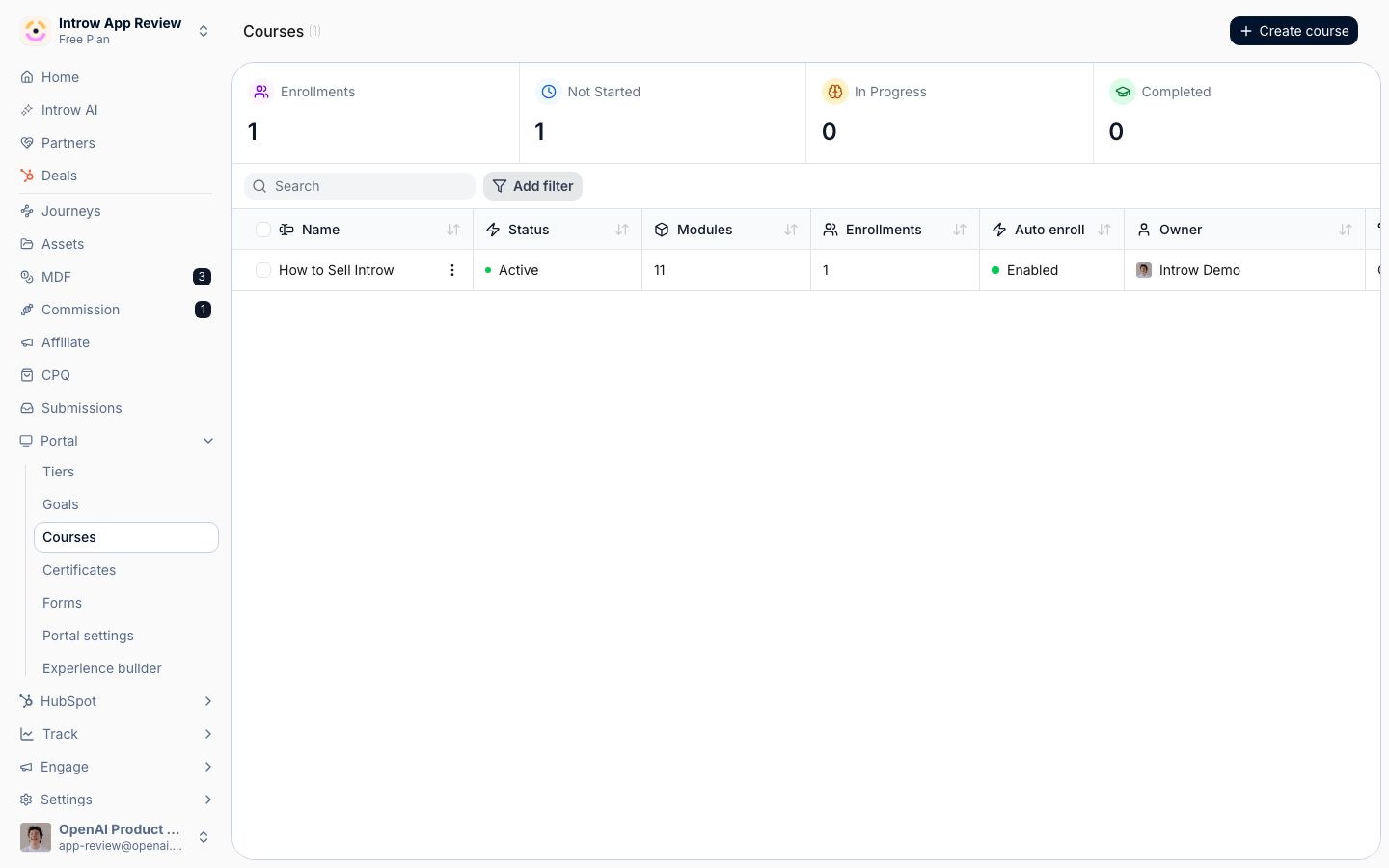
2
Insert a quiz and write the prompt
Add a quiz in the chapter editor and type the question prompt. Keep each question focused on a single idea so the result is easy to interpret and easy to act on.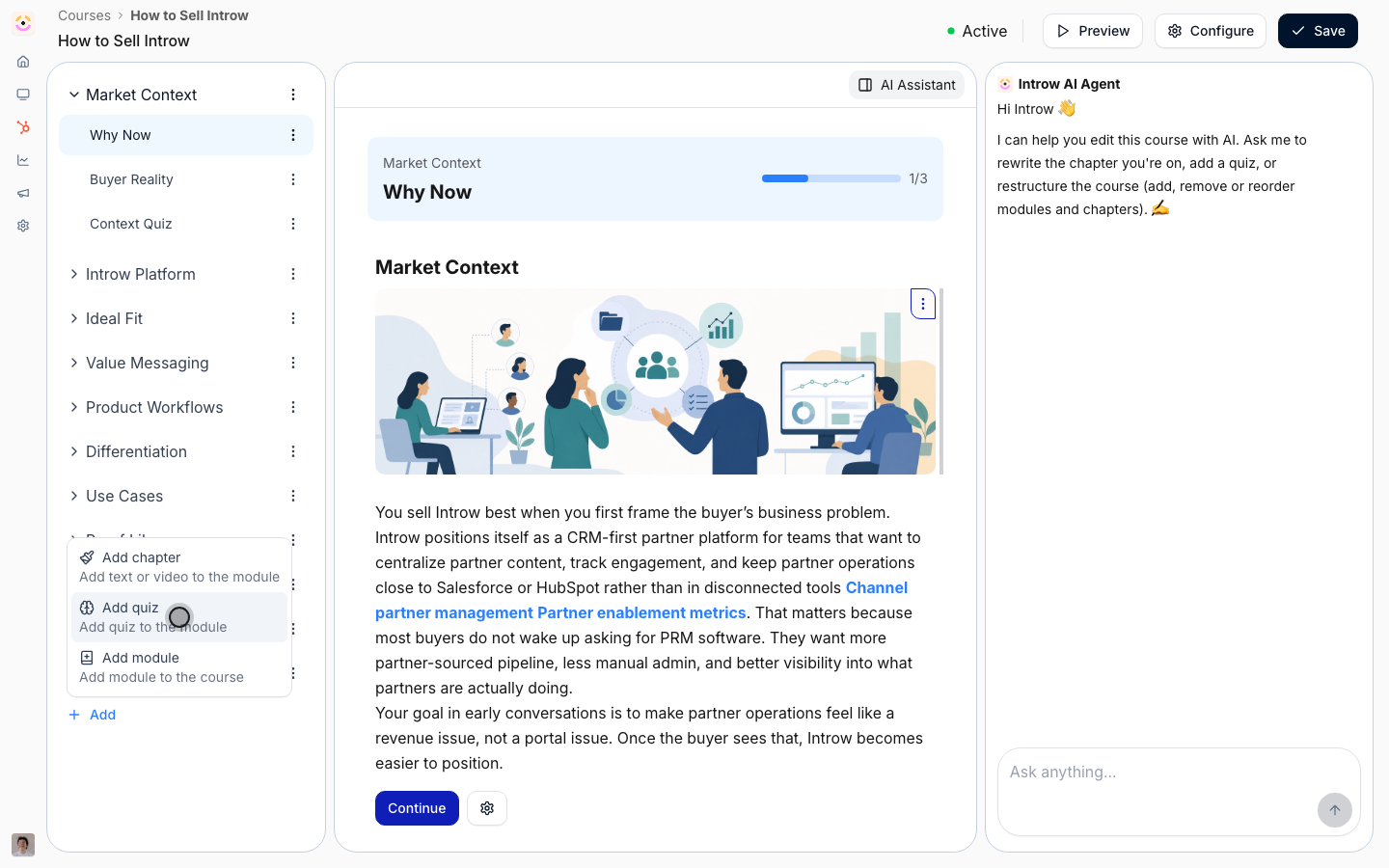
3
Choose the question type
Pick the type that matches what you are testing: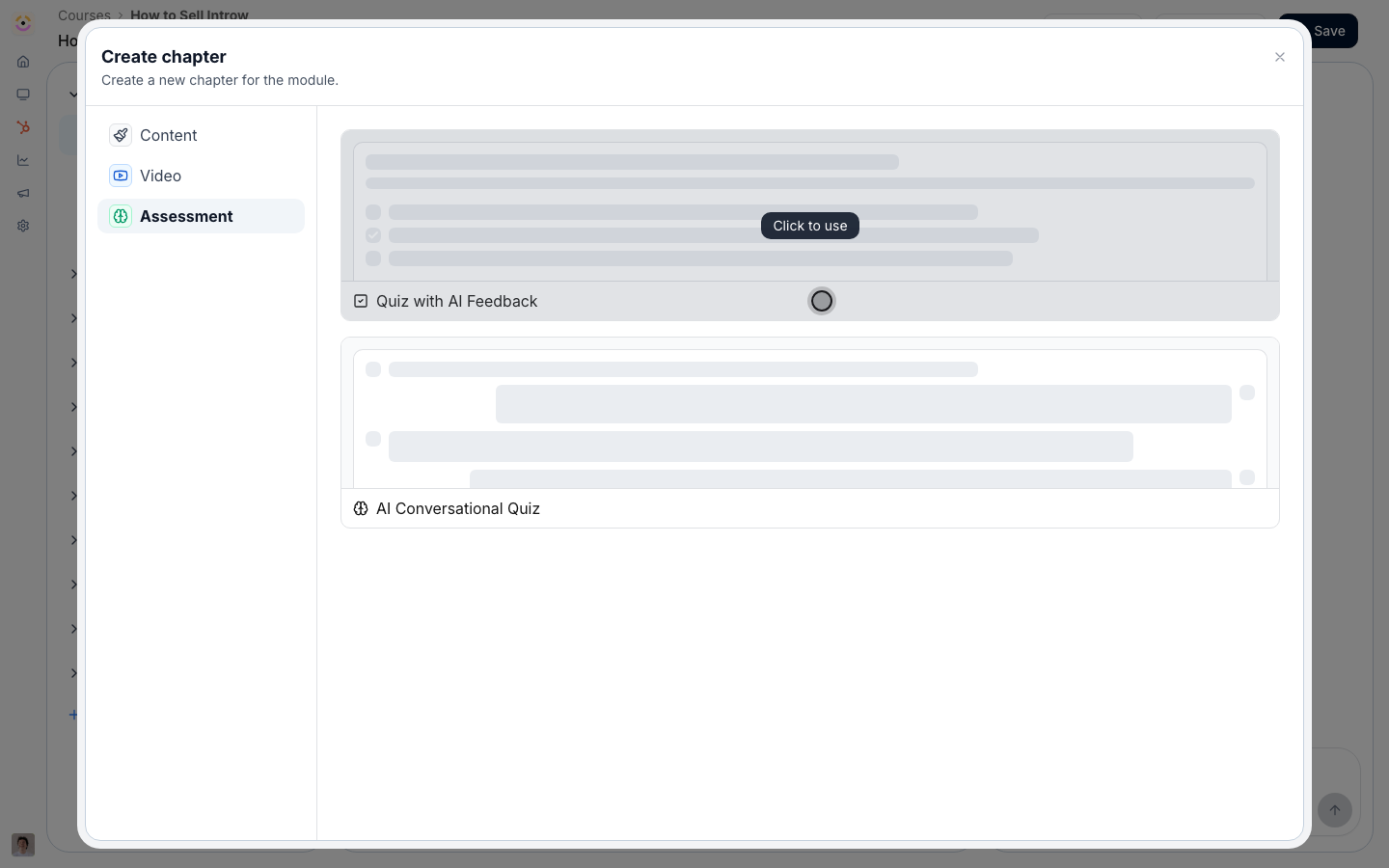
- Multiple choice - define the options and mark the correct one. Use this for recall and clear right-or-wrong checks; it grades instantly.
- Open-ended - a free-text answer the AI grades against the course material. Use this to test understanding in the learner’s own words. Run the preview grader on a sample answer to confirm the AI scores it the way you expect, and refine the prompt or expected answer if it does not.
- Upload - a file or written response a reviewer marks by hand. Use this for applied work like a demo recording or a worked example. Note that a course with upload questions cannot reach Completed until every upload is reviewed.
4
Save the chapter
Save the chapter. The question becomes part of the course and appears the next time you preview it.
Require a passing score
1
Open the Advanced tab
Select Configure to open the Update course dialog, then go to the Advanced tab, where course-wide rules like the passing score and due date live.
2
Enable and set the score
Set the bar learners must clear:
- Minimum score to pass - turn it on to require a score. It starts at 70%; enter any value from 0 to 100. Choose a bar that reflects how critical the material is: higher for must-get-right topics, lower for general awareness. With a score set, “completed” means the learner demonstrated understanding, and any attached certificate only issues once they pass.
3
Save changes
Select Save Changes. The threshold applies going forward, so learners who finish after this point must meet it to pass.
Review upload answers
1
Open the learner's enrollment
From the course’s tracking view, find the learner and open their enrollment detail. The In progress tab is usually where learners with pending uploads sit.
2
Open the submission and grade it
Find the upload question, open the submitted file or written response, and assess it against what the question asked for:
- Verdict - mark the answer correct or incorrect. This feeds the learner’s course score.
- Reviewer feedback - optionally add a note (up to 2000 characters) explaining the decision. This is useful when the learner needs to know what to fix.
3
Save the review
Save your review. The learner is notified, the course score updates, and if this was the last unreviewed upload, the enrollment can move to Completed (and earn its certificate if the passing score is met).
Verify it worked
Previewing the course shows each question and learners must answer to progress: open-ended answers receive an AI assessment and upload answers wait for review. Learners who score below the threshold are not marked as passed, a graded upload shows your verdict and feedback, and marking the last outstanding upload lets the enrollment reach Completed.Related
Build a partner course from scratch
Add the chapters these questions live in.
Create and auto-issue a certificate
Reward a passing score with a credential.
Monitor course progress
Track scores and completion across learners.
Implementation reference
Question types, scoring, and review gating.