

Where it lives
Asset Hub sits under Portal, at Experience builder.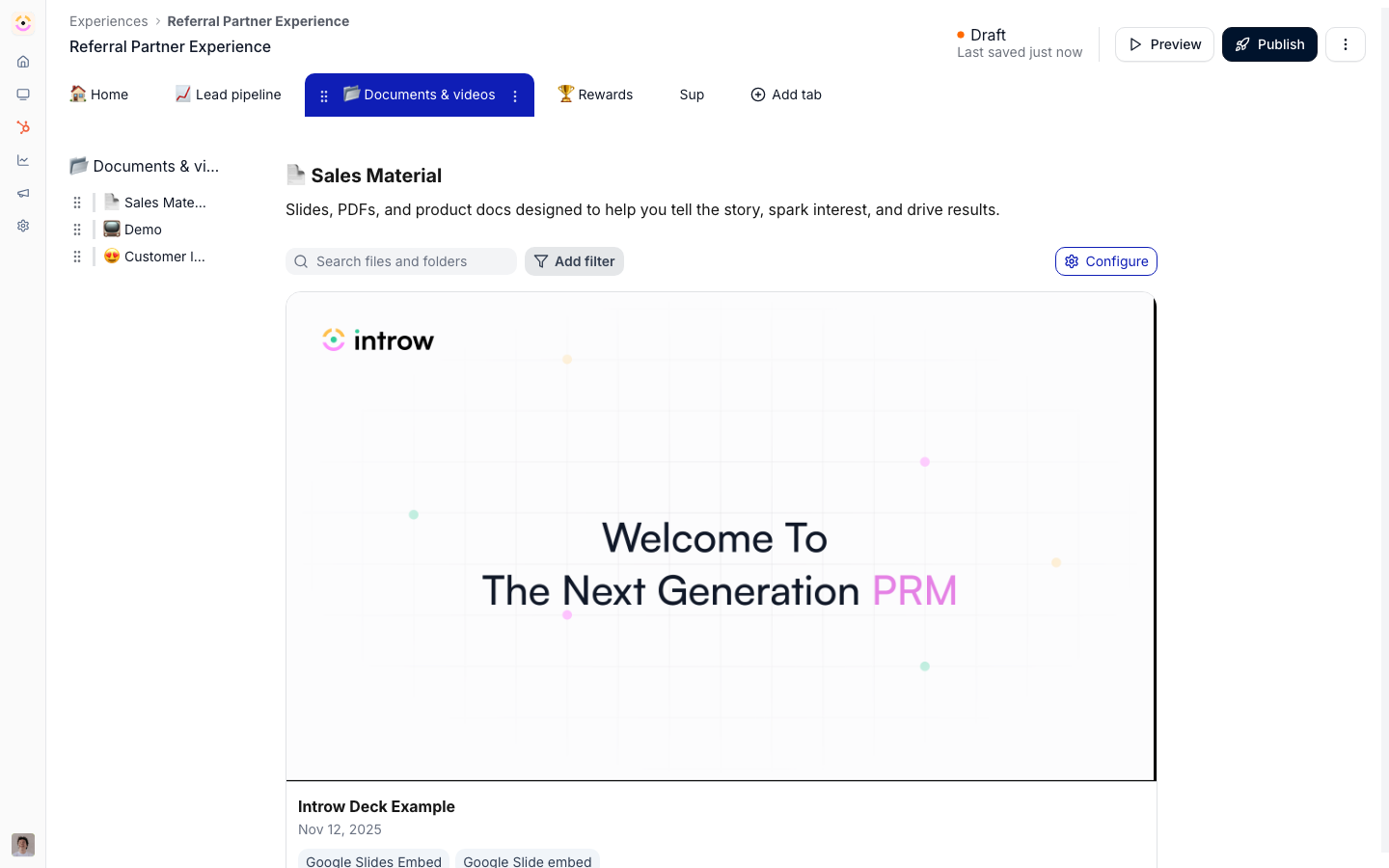
Before you start
How it works
An Asset Hub is a block you add to a portal experience that lists assets from your library. There are two kinds: a general Asset Hub that shows org library assets filtered by the folders you include, and a partner-specific Asset Hub that shows only the assets tied to the partner viewing it. You configure the hub in a sheet that controls layout, visible properties, sorting, saved views, and which asset folders are included. Library visibility still applies, so partners only see assets they are allowed to. Views inside the hub are tracked, so engagement appears alongside your other asset analytics. A general hub also personalizes on open: when a partner opens a co-branded template listed in it, Introw generates and serves that partner’s own co-branded copy instead of the template. A partner-specific hub is only needed for assets that are already tied to one partner.Settings & configuration
Asset Hubs are configured from within an experience in the experience builder.Adding a hub
In an experience, add an Asset Hub block (general) or a partner-specific Asset Hub block from the section picker.Layout
Choose a table or thumbnail layout, set how many thumbnails per row, and toggle search and filters so partners can find assets. Thumbnail tiles are 16:9 and render each asset’s library thumbnail, so the hub inherits whatever is set there - upload 16:9 artwork at 1200×675 on the assets that matter (asset thumbnails).Properties and sorting
Choose which properties partners see, such as name, type, categories, and last updated, and set a default sort.Views
Create named views with their own filters and sorting so partners can switch between curated slices of the hub.Asset visibility
Use the asset visibility settings to include or exclude folder paths, controlling exactly which assets appear in this hub. Library-level visibility restrictions still apply on top.How-to guides
Troubleshooting
An included asset is missing for a partner
An included asset is missing for a partner
The asset’s library visibility excludes them.
The partner-specific hub is empty
The partner-specific hub is empty
No assets are tied to that partner yet.
A configuration change is not visible
A configuration change is not visible
The experience was not published.