

Where it lives
Partner Support Agent lives at Partner Support Agent.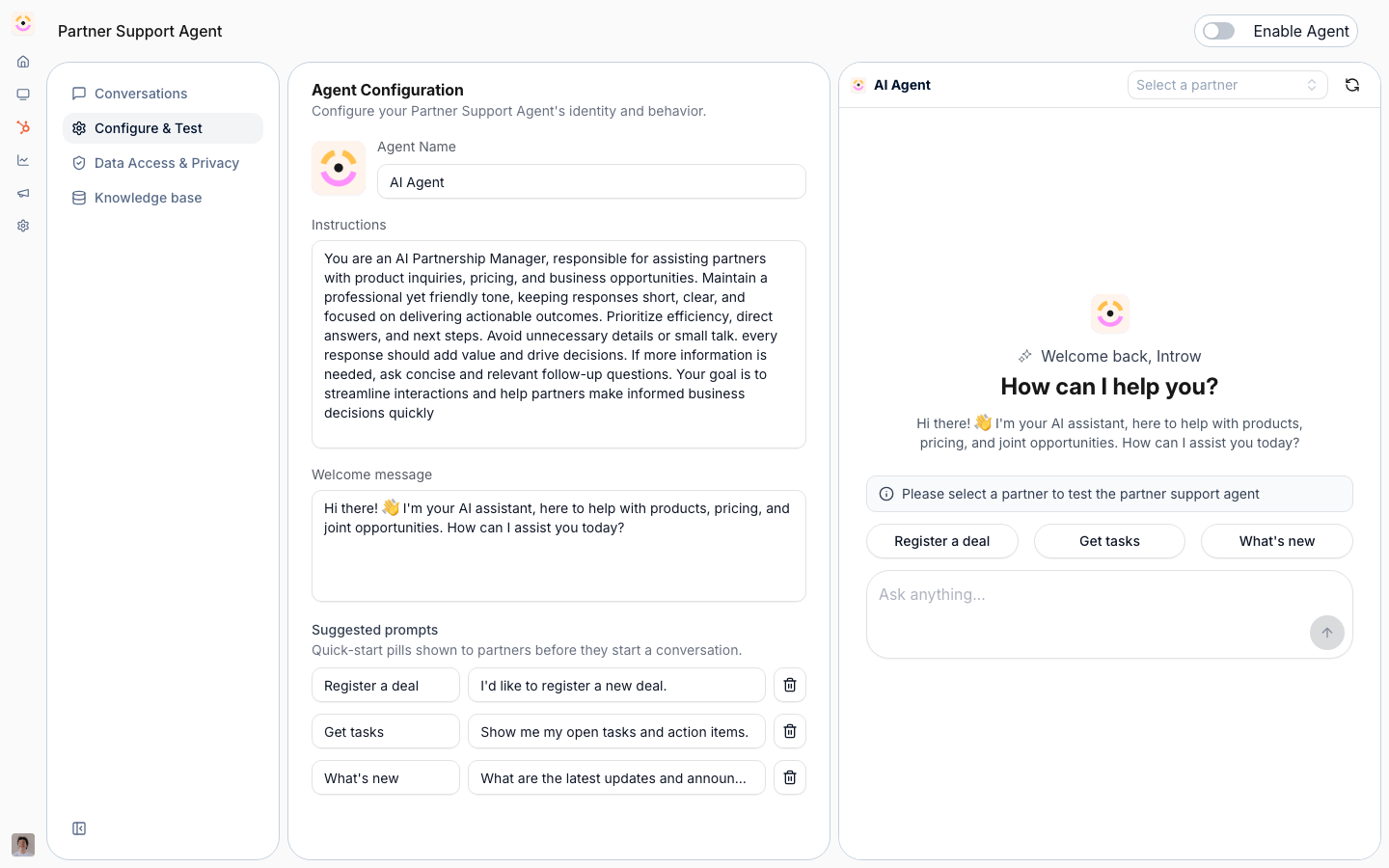
Before you start
How it works
The partner support agent is managed under AI Agent, on the Partner Support Agent pages. The Configure & Test tab is where you enable the agent, name it, write its instructions, set a welcome message, and upload a logo, then chat with it to test. The Conversation History tab shows past conversations and feedback, and the Knowledge base tab is where you manage what the agent knows. Once enabled, partners see an AI tab in the partner portal automatically, and you use the portal experience to position where they discover it. The same agent also answers in Slack, Teams, email, and through MCP-connected assistants. It can take action through tools, scoped to each partner’s permissions.Channels and runtime
The agent reaches partners across several surfaces. In the portal, the AI tab appears when the agent is enabled. In Slack and Teams, the agent answers in a shared channel once that channel is mapped to a partner under Settings - Integrations; the mapping is what tells the agent whose data it may use. There is no separate per-integration on/off toggle for the Slack agent in Settings today, once Slack is connected and a partner is mapped, the agent is available in that channel by default. The agent also responds over email and through assistants connected via MCP. On WhatsApp, partners message a shared Introw number and the agent replies, recognizing each partner by the phone number on their CRM contact record. WhatsApp is a paid add-on: your Introw account manager enables it and provisions the number, so there is nothing to connect yourself. It is an inbound channel for reaching the agent, not a channel for outbound notifications or announcements.Security and scoping
The agent is safe to put in front of partners by design. It answers only from the knowledge you give it (websites, snippets, documents, MCP tools) plus portal content, so it does not improvise from outside sources. Every answer and every action is scoped to the requesting partner’s permissions, so a partner can never see another partner’s data through the agent, regardless of channel. Actions the agent can take run within those same permissions, and your Instructions set the guardrails for tone, scope, and when to escalate to a human. Test as a partner persona before launch to confirm the boundaries hold.Settings & configuration
The agent is configured at Partner Support Agent.Enable the agent
Use the Enable Agent toggle to turn the agent on for your organization.Agent name
Set the agent’s name; partners see this in the chat.Instructions
Write the system instructions that shape how the agent answers, its tone, scope, and any rules.Welcome message
Set the introduction message partners see when they open the chat.Suggested prompts
Configure the prompts the agent offers as one-click starters. Each is a label the partner sees and the prompt it actually sends, so you steer partners toward the questions the agent answers well and phrase the buttons in your own terms. Replace the set entirely if the defaults do not fit your program.Snippets
A snippet pins a curated answer to a question. Where the agent’s own answer is wrong, thin, or has to match approved wording, write the question and the response you want and the agent uses it. Snippets are the correction loop: add one the moment you spot a bad answer instead of waiting for the knowledge base to catch up.Logo
Upload a logo so the agent matches your brand. It renders in a small square avatar and is cropped to fill, so use a square image around 200×200 (PNG or JPG, up to 5MB). With no logo set, the agent shows your organisation’s square logo.Configure & Test
Use the test panel to chat with the agent and confirm its answers before partners do.How-to guides
Troubleshooting
The agent gives vague answers
The agent gives vague answers
The knowledge base is thin; add websites, snippets, or documents.
Partners do not see the agent
Partners do not see the agent
The agent is not enabled, or not added to the portal experience.
The agent will not act
The agent will not act
The partner lacks permission for the action requested.