

Where it lives
Provisioning sits under Settings, at Integrations.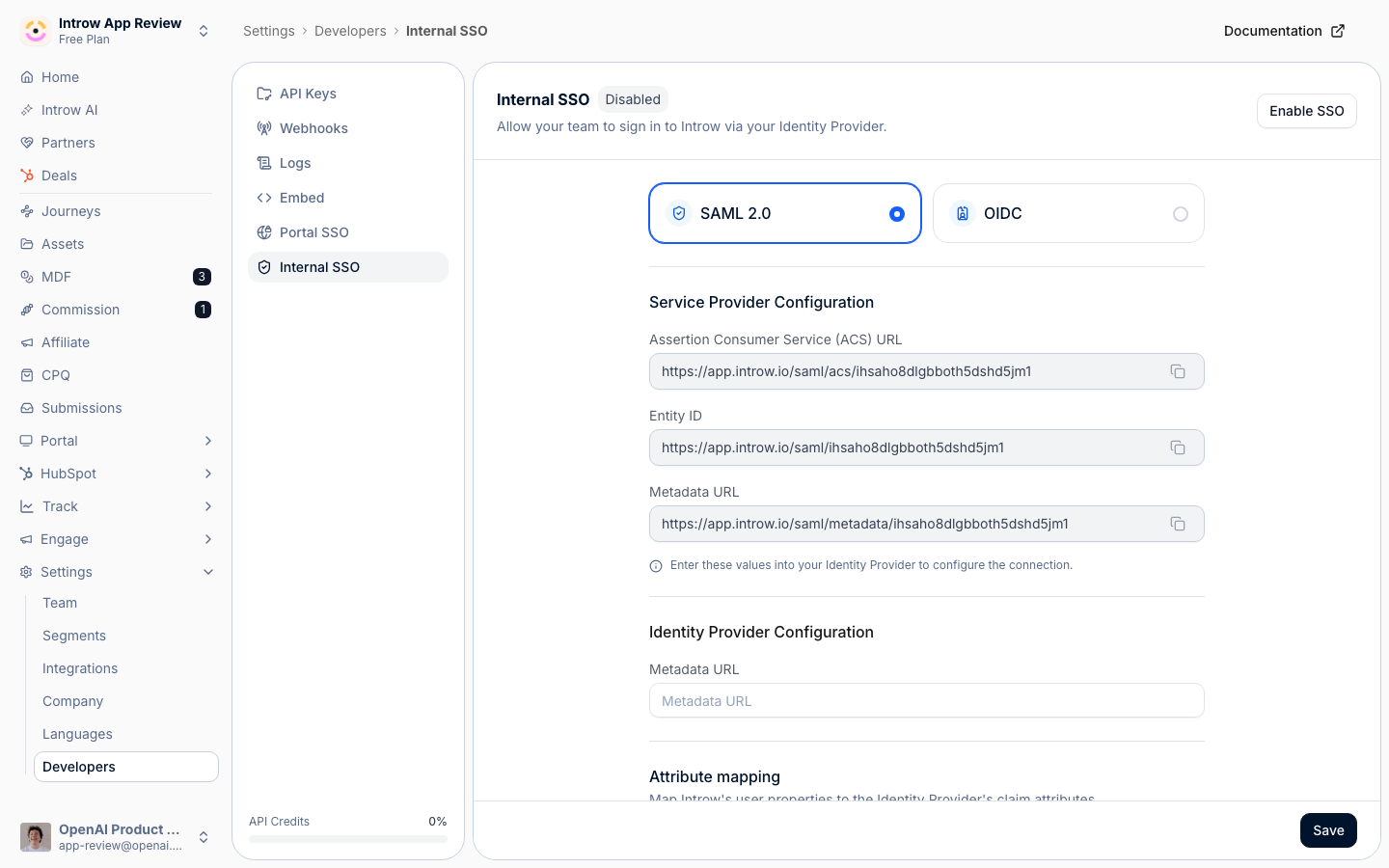
Before you start
How it works
Provisioning is not one screen, it is four paths that put people into Introw and keep their access correct. Most of it is automatic once the CRM is connected:- From the CRM. The partner accounts you select become partners. Each partner’s CRM account owner is suggested as an internal team member you accept with one click, and set as the partner’s manager; a new owner appears as Requested on the Users tab. Any partner managers you assign through a CRM owner property are matched to existing team members. Every contact associated with the partner’s company is imported automatically under the partner’s People. This all runs off the CRM sync, with no SSO required.
- Partner portal access. A partner contact can log in once you grant access, either with the Portal access toggle on the partner’s People tab, or automatically from a CRM field so access is granted and revoked without touching Introw. Dynamic segments built on synced CRM fields then decide which portal tabs and content each contact sees.
- Your internal team. You invite colleagues on Settings, Team, or let them sign in through your identity provider, where a matching team member is created the first time they log in.
- SCIM. Your identity provider creates, updates, and deactivates internal team members on its own, so leavers lose access without a manual step.
Settings & configuration
Provisioning is configured across a few surfaces, one per path.Partners and contacts from the CRM
In Integrations (the CRM and Data settings), How do you store partners in your CRM? sets the partner object, and Find partners in your CRM filters that object down to real partners. Turn on Automatically sync new partners so any future record that matches becomes a partner on its own. When a partner is created this way, Introw provisions the people around it too, all from the CRM and with no SSO required:- Account owner to internal team. The partner’s CRM account owner is added as the partner’s manager and suggested as an internal team member. If they are not yet on your team, they appear as Requested on the Users tab under Settings, Team, where an admin accepts them with one click (or declines).
- Assigned partner managers. If you map a partner team role to a CRM owner property, the people named there are auto-assigned to that role on each partner. This matches existing team members only; it does not create new users. See Set up partner team roles.
- Company contacts. Every contact associated with the partner’s company is imported automatically and appears under the partner’s People, ready to be given access, with no per-contact action needed.
Partner portal access
On a partner’s People tab (under Partners), the Portal access column toggles each contact’s access, shown as Grant access and Revoke access. To let the CRM decide instead, open Configure and, on the portal-access property, select Sync to open Sync contact fields with [your CRM]. There you set:- Access property - the CRM contact field that controls access. A positive value keeps the contact’s access active; a negative value revokes it. This makes the CRM the source of truth for who can log in.
- Role property - a CRM contact field used to group contacts by role, which feeds segments and reports. Optional.
Your internal team
On Settings, Team, the Users tab is where you Invite team member and manage seats, Roles defines the internal roles built from permission categories, and Partner team roles defines the roles people hold on a partner. See Invite a team member and Create an internal role.Single sign-on and SCIM
On Internal SSO (Settings, Developers), turning on SSO lets your team sign in through your identity provider; on first sign-in a matching team member is created just in time, governed by the Allowed domains list and the Default role in the attribute mapping. The same page has a SCIM provisioning section: after you Enable SCIM provisioning, copy the Base URL and Bearer token into your identity provider and it will create, update, and deactivate team members automatically. Portal SSO provides the same sign-in for partner contacts.SCIM provisions internal team members only. Partner contacts are provisioned from the CRM and, if you use partner portal SSO, created the first time they sign in. There is no SCIM for partner contacts.
How-to guides
Troubleshooting
A partner's contacts are missing
A partner's contacts are missing
Confirm the contacts are associated with the partner’s company in the CRM, and that a sync has run since they were added.
A contact can't be toggled on
A contact can't be toggled on
The partner has no portal yet, so create or assign one first.
A team member was not created on SSO login
A team member was not created on SSO login
Check that their email domain is in Allowed domains and that the attribute mapping and Default role are set.
The identity provider cannot provision users
The identity provider cannot provision users
Confirm SCIM provisioning is enabled and the token is current; rotate the token and update the identity provider if in doubt.