

What you’ll achieve
Your identity provider (Okta, Microsoft Entra ID, or any SCIM 2.0 provider) provisions your internal Introw team automatically: new hires assigned to Introw appear as team members with a default role, profile changes flow through, and deactivated users lose access and have their sessions revoked, all without anyone inviting or removing people by hand.Before you start
1
Confirm the add-on and permission
Single sign-on is a paid add-on and must be enabled on your plan; SCIM is part of it. You need single sign-on permission on your role. SCIM works whether or not you also switch your team to SSO sign-in.
2
Have admin access to your identity provider
You need to be able to add and configure a provisioning application in your identity provider (for example an Okta or Microsoft Entra ID admin).
3
Decide the default role
New team members provisioned over SCIM arrive with the org’s default role. Set or confirm it in the Default role field of the internal SSO attribute mapping before you turn provisioning on.
Steps
Enable SCIM in Introw
1
Open the SCIM provisioning section
Go to Internal SSO and scroll to the SCIM provisioning section. It sits on the same page as internal single sign-on, but runs independently: you do not have to switch your team to SSO sign-in to use it.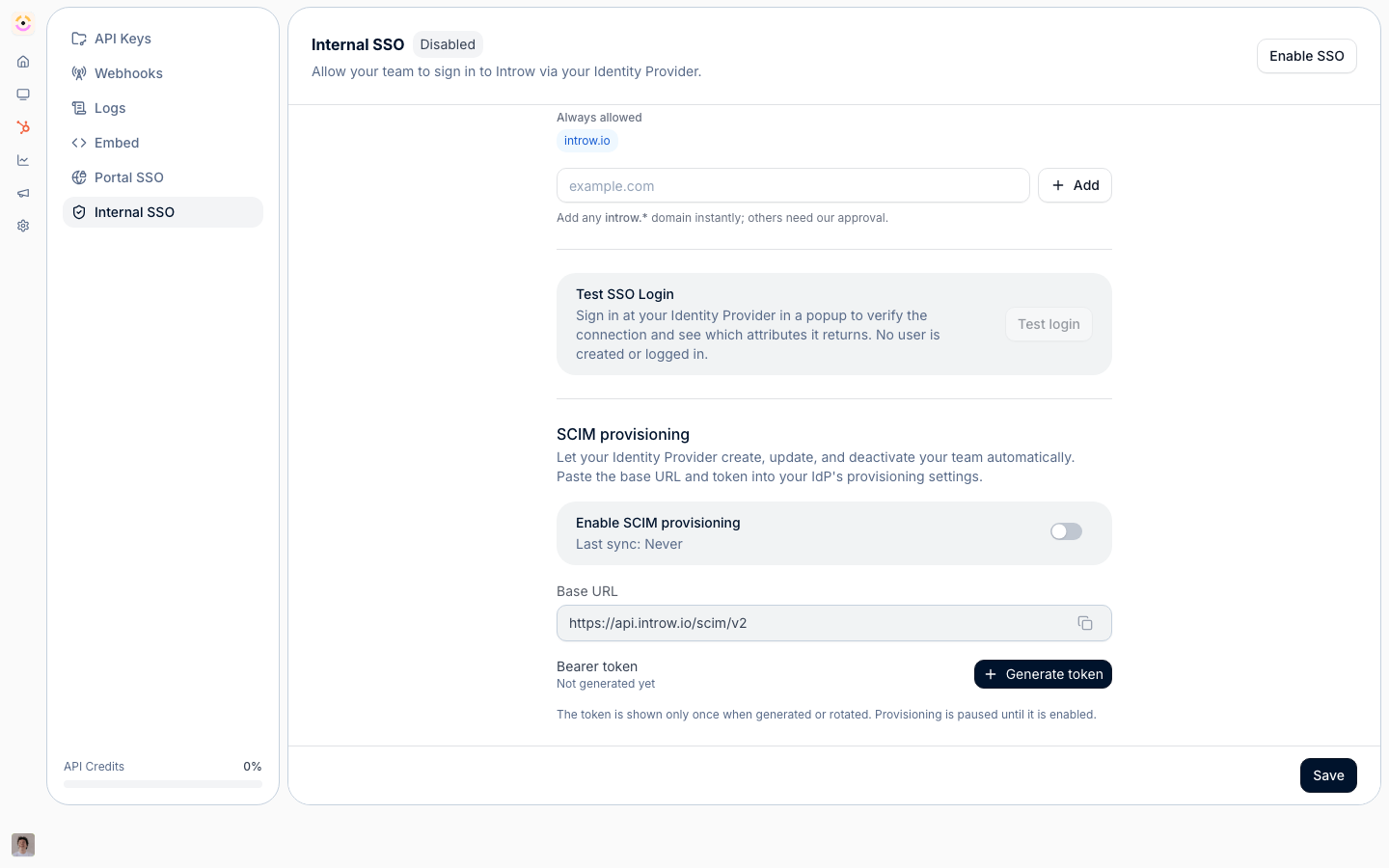
2
Enable provisioning and generate a token
Turn on Enable SCIM provisioning, then select Generate token. The Copy your SCIM token dialog appears with the two values your identity provider needs:
- Base URL - the SCIM endpoint your identity provider connects to. Copy it from the Base URL field.
- Bearer token - the credential your identity provider authenticates with. It is shown once, so copy it now: the dialog reminds you that This token is shown once. Treat it like a password, and never paste it into a support chat or commit it to code.
Connect your identity provider
1
Add Introw as a provisioning app
In your identity provider’s provisioning settings, create or open the Introw application and enable SCIM provisioning. Paste the Base URL as the SCIM connector base URL and the Bearer token as the authentication token. Enable the create, update, and deactivate user operations. Group and role push are not used: roles are assigned in Introw, not by the identity provider.
2
Assign the people who should have access
Assign the users (or the groups) in your identity provider that should have an Introw team seat. Each assigned user is provisioned as a team member with the org’s Default role. You can change any person’s role afterward on the Roles tab under Settings, Team; the identity provider cannot set or override roles, so Introw stays in control of what each person can do.
Verify and maintain
1
Confirm users provisioned
Open the Users tab under Settings, Team and confirm the assigned people now appear as team members in the default role. Back in the SCIM provisioning section, Last sync updates to a recent time once your identity provider has pushed.
2
Check deactivation closes access
Unassign or deactivate a test user in your identity provider. Their team member moves to deactivated in Introw and their active sessions are revoked, so access ends without a manual step. This is the offboarding guarantee SCIM exists for.
3
Rotate or revoke the token when needed
If the token is exposed or you are rotating credentials, use Rotate to issue a new token and immediately invalidate the old one, then update your identity provider with the new value to keep provisioning working. Use Revoke to remove the connection entirely; after that your identity provider can no longer provision or deactivate users until you generate a new token.
Verify it worked
A user you assign to Introw in your identity provider appears on the Users tab within a sync, in the default role, with no invitation sent. Last sync in the SCIM provisioning section shows a recent time. When you deactivate that user in the identity provider, their team member becomes deactivated in Introw and they can no longer sign in.Related
Set up internal SSO for your team
Add single sign-on alongside SCIM so your team also signs in through your identity provider.
Create an internal role
Build the role that provisioned users land in, or reassign them after they arrive.
Provisioning overview
How partners, contacts, and your team all get into Introw.
Implementation reference
Full configuration options.