

Where it lives
Tiers sits under Settings, at Tiers.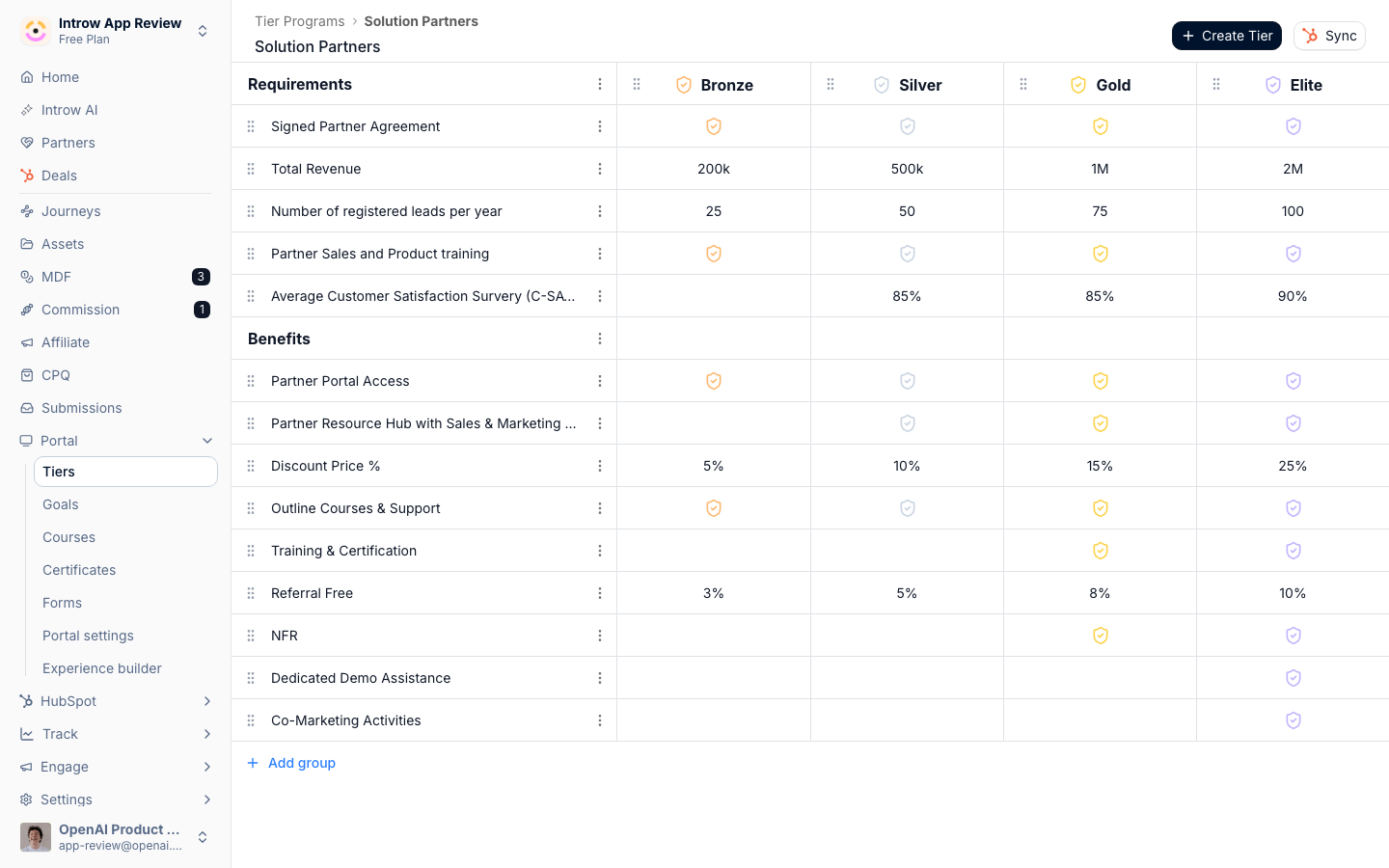
Before you start
How it works
A tier program is a container for a set of tiers, and you can run more than one program for different partner types. Inside a program you create tiers (for example Gold, Silver, and Bronze) and order them from lowest to highest. Each tier has its own name, color, and optional badge image, plus two groups partners care about: requirements (what it takes to reach the tier) and benefits (what the tier unlocks). The items inside those groups can be plain text, checklist items, or goals that track real progress against a target. A partner is assigned to exactly one tier within a program, on their own detail page or in bulk from the partners list. When you map a tier to a CRM property, assignments sync to the CRM, and a tier set in the CRM can flow back into Introw.Settings & configuration
Tier programs are managed under Settings, then Tiers. Each program opens its own editor.Tier programs
Create tier program starts a new program with a name (for example a name for a specific partner type). Each program is independent, so you can run different ladders side by side. From the program list you can also rename, duplicate, or delete a program.Tiers within a program
Create tier adds a level to the open program. A tier has a name, a color, an optional badge, and a rich description. Drag tiers to order them from entry level to top, since that order is the ladder partners see. The badge is stored and served as uploaded - no ratio is enforced and no crop step runs - and every partner-facing surface fits it inside its box rather than cropping: roughly 32px next to the tier name in the portal, 40px in the tiers list, and full size in the download dialog, where partners can also copy an<img> snippet that
links back to your site. So upload a square, transparent PNG at around 512×512, up to
20 MB. The upload frame in the tier editor is 16:9 and previews with a fill crop,
which is cosmetic: it does not affect the stored file.
Requirements and benefits are the two groups shown for each tier. Add items to
them as text for a plain statement, a checkbox for a yes/no item, or a goal
that links to a measurable target so progress shows against it. Use requirements to
explain how to reach the tier and benefits to make its value concrete.
What a tier states
A tier holds named groups of items - “Requirements”, “Benefits”, whatever you call them - and each item is a yes/no, a free-text value, or a goal. A goal-backed item is the one that makes the ladder honest: the tier states the requirement and the partner sees their live progress against it in the same place, so “what do I need to do to reach Gold” is answered by the portal rather than by an email.Assigning partners
A partner’s tier is set on their detail page or, for many partners at once, through the bulk edit action on the partners list. Each partner holds one tier per program.CRM sync
Sync maps your tiers to a CRM property so a partner’s tier is written to the CRM, and a tier already set in the CRM can be pulled into Introw. Set this up once and tier status stays aligned across both systems.Automate it with a workflow
Tiers sync from your CRM on their own, and a workflow covers the moves your CRM does not decide. Update partner properties with Partner tier writes the tier from any trigger, so “move them up the moment their contact certifies” or “promote on finishing onboarding” is a rule rather than a quarterly clean-up. The Write mode on that row is the setting to think about: Overwrite is right for a promotion, because the point is to move a partner who already has a tier, while Fill in if not known is right when your team also sets tiers by hand and should not be overridden. A tier condition on a fork reads the tier the partner has when that step runs, so a chain can check a promotion actually landed. See Build your first workflow, which is this exact rule end to end.How-to guides
Troubleshooting
A partner's tier did not reach the CRM
A partner's tier did not reach the CRM
The tier mapping is incomplete; finish mapping every tier and run Sync.
Tiers show in the wrong order
Tiers show in the wrong order
Drag them into sequence; the order on screen is the order partners see.
A goal requirement shows no progress
A goal requirement shows no progress
The goal is not linked to a measurable target yet; set its target so progress can be tracked.