

Where it lives
Journeys lives at Journeys.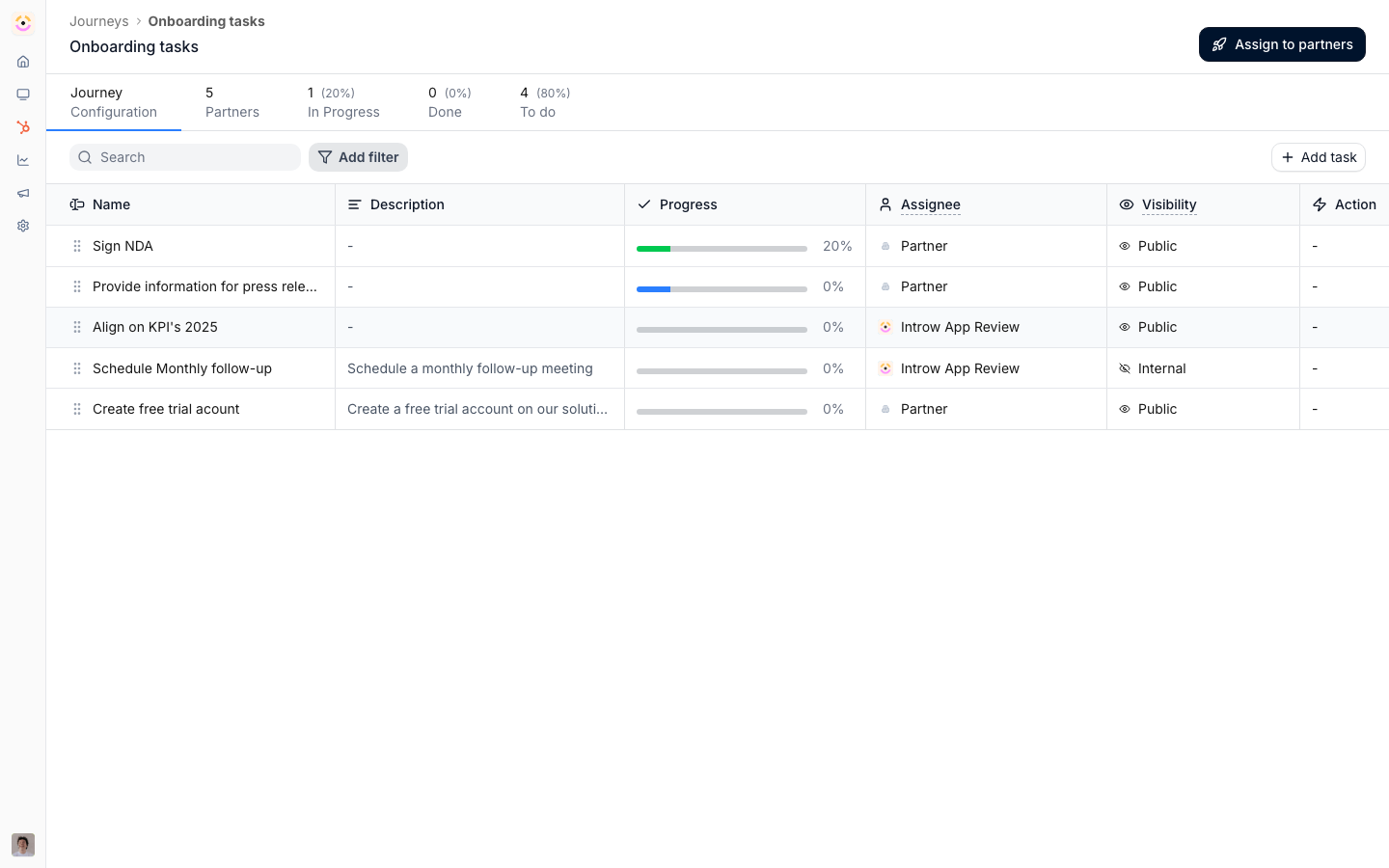
Before you start
How it works
A journey is a reusable set of tasks. You build a journey once, then apply it to the partners who should run it. Applying a journey copies its tasks onto each selected partner, so every partner gets their own progress while the journey itself stays the journey definition. You choose how a journey’s tasks behave. With a flexible order, partners can complete tasks in any sequence. With a sequential order, a task only unlocks after the previous one is done, which is useful when steps build on each other. Introw provides starting templates for onboarding, activation, and certification so you do not begin from a blank page, and you can also create a journey from scratch. Progress is tracked per partner across to do, in progress, and done, and you can view all the partners on a journey from the journey’s own tabs.Activation best practices
Signing a partner is not the same as activating one. A few patterns, drawn from what works across programs, turn new partners into productive ones:- Make the lifecycle explicit. Put partners on a journey so the path to first value (first deal, first certification) is a clear checklist rather than something a partner manager carries in their head.
- Give every step an owner and a deadline. Use per-task assignees and due-date offsets so each step has accountability and a realistic timeframe relative to when onboarding starts.
- Train early. Pair the journey with onboarding courses so partners can sell and deliver, not just complete admin steps.
- Nudge and recap. Use partner notifications to keep deals moving and to recap progress, so a stalled partner gets a prompt instead of going quiet.
Settings & configuration
Journeys are managed from the Journeys page. Each journey has its own configuration and progress views.Creating a journey
Add opens a chooser with built-in journeys (onboarding, activation, and certification) and a create from scratch option. Picking a template seeds the journey with a sensible set of starting tasks you can edit. Name identifies the journey in the list and to your team. Give it a name that says what stage it covers, like onboarding or activation. Task execution order is the key behavior setting. Flexible lets partners complete tasks in any order; sequential requires each task to be finished before the next opens. Choose sequential when later steps genuinely depend on earlier ones.Tasks within a journey
On a journey’s configuration view you add, edit, reorder, and remove the tasks partners will complete. Order matters most when the journey is sequential, since it sets the unlock sequence. On each task, Add action configures how the task completes automatically when a partner watches an asset, submits a form, uploads a file, opens a link, completes a course, or obtains a certificate. The course and certificate actions pair naturally with a certification journey, closing the task the moment the partner finishes the course or is issued the certificate.Applying and tracking
Apply publishes the journey to a chosen set of partners, copying its tasks to each of them. The journey’s progress tabs then show partners grouped by where they are: to do, in progress, and done. You can also see and complete a partner’s tasks from that partner’s own task list.Automate it with a workflow
A journey both starts automation and is started by it. Enrolled in journey and Journey completed are workflow triggers, and Enroll in a journey is a workflow action, the same operation as Apply on the partner page, so a partner already on the journey keeps their progress. That closes the loop at both ends: put every new partner on the onboarding journey the moment they appear, and pay the bonus, award the certificate and unlock the next stage the moment they finish it. See Onboard a new partner automatically and Reward a finished journey. A mid-flow fork can read Journey progress right now, which after a wait is a different answer to the one the trigger recorded, so a chase can stop as soon as the partner gets going.How-to guides
Troubleshooting
A partner cannot start a later task
A partner cannot start a later task
The journey is sequential and an earlier task is not done yet.
Edits to a journey did not reach a partner
Edits to a journey did not reach a partner
The partner was applied before the edit; re-apply or update their tasks directly.
A journey shows no partners
A journey shows no partners
It has not been applied yet; use Apply to publish it.