

Where it lives
Asset Library lives at Assets.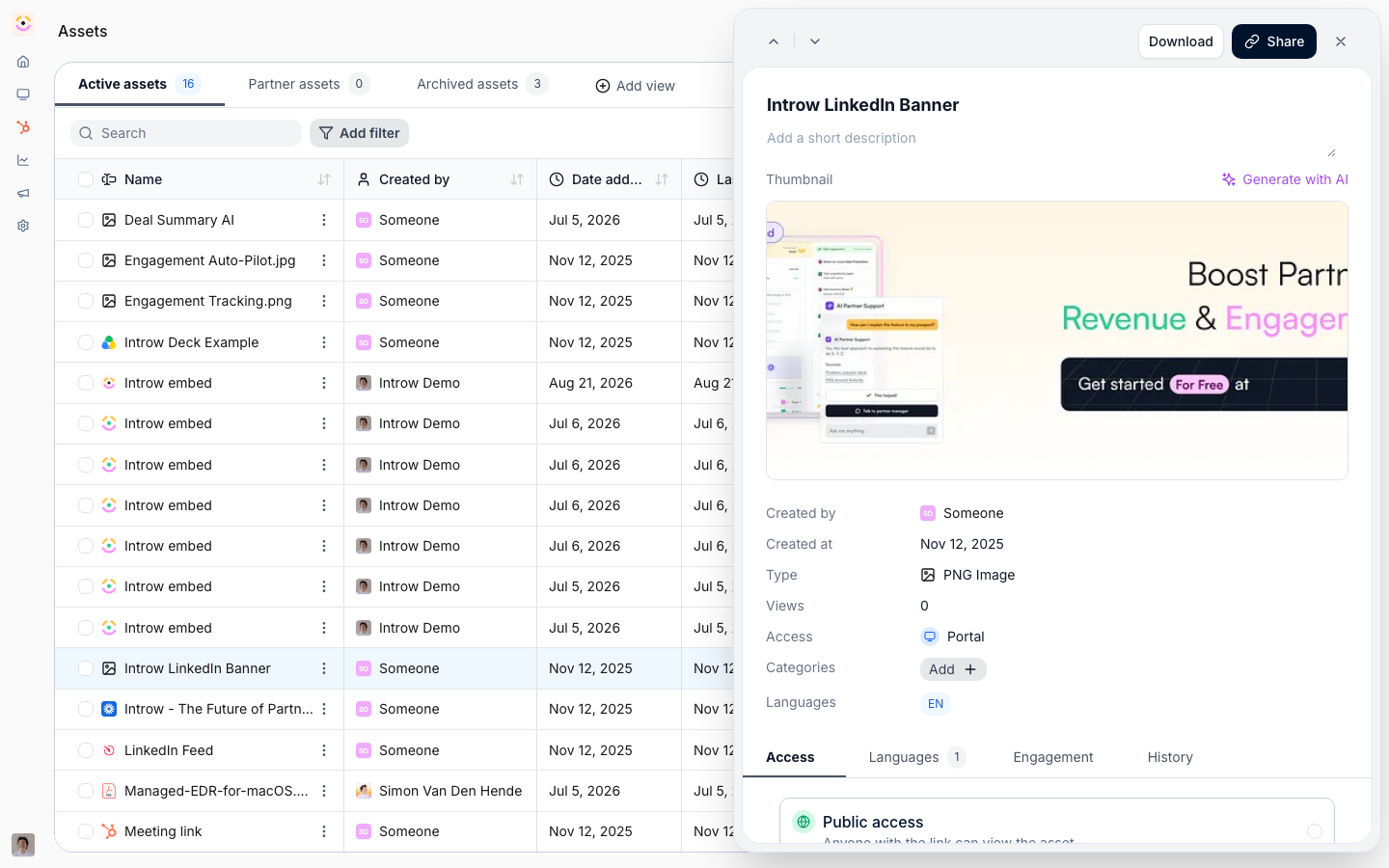
Before you start
How it works
The Asset Library lives under Assets and is organized into folders. Each item is an asset: an uploaded file, a web link, or an embed. You add assets, sort them into folders, and tag them with categories so they are easy to find. Every asset has visibility settings that control who can see it, and a detail panel with tabs for access, languages, engagement, history, and AI. The library has built-in views for active assets, partner assets, and archived assets, and you can create custom views with your own filters and layout. Archived assets are kept for a retention window before they are permanently removed. An asset is either shared or owned by one partner. A shared asset lives in the general library and its access tab decides who may open it. A Partner Specific asset belongs to a single partner: it is listed on that partner’s Assets tab and in the Partner assets view, never in the general library, and it has no access tab because the partner link is the access rule. Use it for signed agreements, NDAs, and anything else that is one partner’s alone. See Share an asset with one partner only.Settings & configuration
The library is managed at Assets.Adding assets
Use the add menu to upload a file, import a folder, add a web page URL, or create a folder. Imported folders can keep syncing from their source so the library stays current. The add dialog carries a Type switch: Regular for a shared asset, or Partner Specific for one owned by a single partner, which then asks for the Partner and, optionally, Include in partner experience to place it in that partner’s portal straight away. Folders can be partner-owned in the same way.Folders and categories
Organize assets into nested folders and tag them with categories. Categories act as filterable tags across the library and Asset Hub embeds. Folders take categories of their own, so a whole folder is filterable without tagging each file inside it. Assets also move, re-categorize, archive, restore, and delete in bulk - select several and act on them once, rather than opening each asset.Thumbnails
Every asset and folder gets a thumbnail without you doing anything. Images, videos, PDFs, and Office files are previewed from the file itself; anything else falls back to a generated 1200×675 (16:9) card carrying the asset name and your logo on your brand color. Override either when the automatic one is unhelpful:
Each upload opens a crop-and-zoom step and is saved at exactly 16:9, so a portrait image loses
its sides. Thumbnails are served downscaled to 1080px wide, so there is nothing to gain from
uploading more than about 1920×1080. Thumbnails are what the Asset Hub’s thumbnail layout shows
partners, so they are worth setting on anything customer-facing.
Generate with AI sits next to both uploads. It reads the asset (name, description,
categories) or the folder (name and what it holds) plus your brand colors, and produces a 16:9
image at 1200×675 - so the artwork is about the content rather than generic stock. Add an
optional line of direction before generating, and regenerate as often as you like. Generated
images never contain text, since image models render text unreliably.
Visibility and access
Access is set per asset and per folder. A folder carries its own audience - the same partner, contact, and deal conditions a segment uses - so restricting a folder restricts everything in it and hides the folder itself from partners outside that audience. That is how you keep one library for the whole program while a tier, a region, or a single partner sees only its own shelf, without maintaining per-partner copies. Sub-folders carry their own audience on top. Each asset’s access tab controls visibility: public for anyone with the link, portal for partner portal users, or restricted to specific segments. Share settings let you set link expiry and whether downloads are allowed. Partner-specific assets show an Include tab instead of an access tab, holding the portal placement rather than an audience.Languages
The languages tab manages locale variants. You can add variants manually or generate document translations with AI, which run as a background job.Engagement and history
The engagement tab shows views over time and breakdowns by people and partners. The history tab shows versions and uploads, and you can restore a previous version.AI context
The AI tab holds a context description and supporting files that help AI features answer partner questions accurately from your content.How-to guides
Troubleshooting
A partner cannot see an asset
A partner cannot see an asset
Its visibility is set to restricted or portal and they are not in scope.
A partner-specific asset is missing from the portal
A partner-specific asset is missing from the portal
It has no placement on its Include tab, or the partner’s experience has no Partner Specific Asset Hub to hold it.
A translation has not appeared
A translation has not appeared
The generation job is still running.
A deleted asset is gone
A deleted asset is gone
It was past the archive retention window when removed.