

What you’ll achieve
A single document asset that carries language variants, each held against its locale, so a partner is served the version in their language while you maintain one asset. Translations preserve the document’s formatting and fill only the language slots that are still empty.Before you start
1
Have a supported document
You need a document asset that supports translation. Very large files are not eligible, so keep the source within the document translation size limit.
2
Confirm automatic translation is enabled
Automatic document translation depends on a translation provider being configured for your workspace. If it is not enabled, the generate action reports that automatic translation is not configured, and you will need it turned on before you can continue.
Watch it
- Video
- Click through
Steps
1
Open the Languages tab
Go to Assets, open the document, and select its Languages tab. This tab lists the base language and any existing variants, and is where you add or generate more.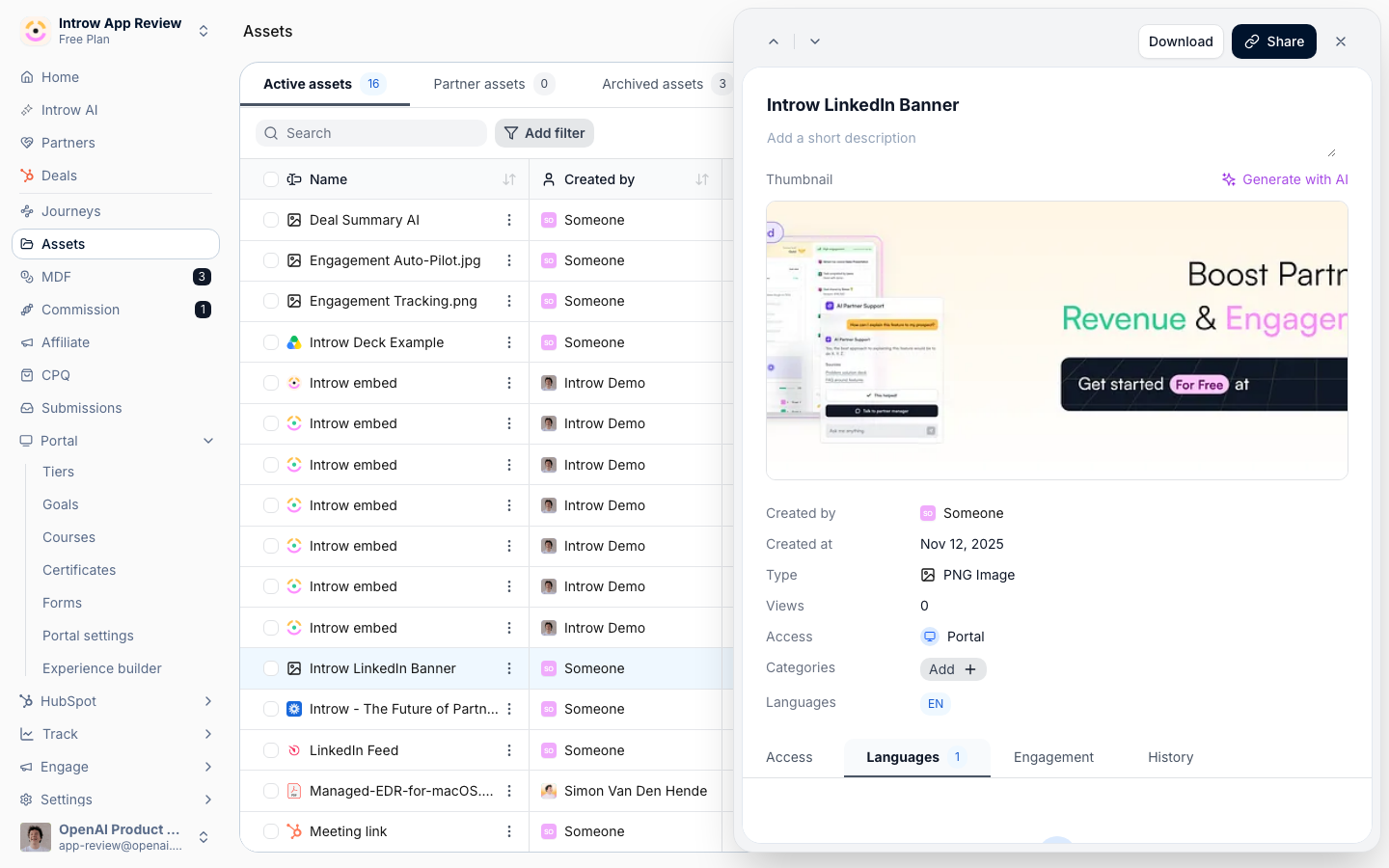
2
Choose the target languages
Open the generate translations action and pick the languages you want variants for. Use the select-all control to fill every empty language at once, or check individual languages for a subset. Only languages without an existing variant are offered, since translation fills empty slots rather than overwriting work you already have.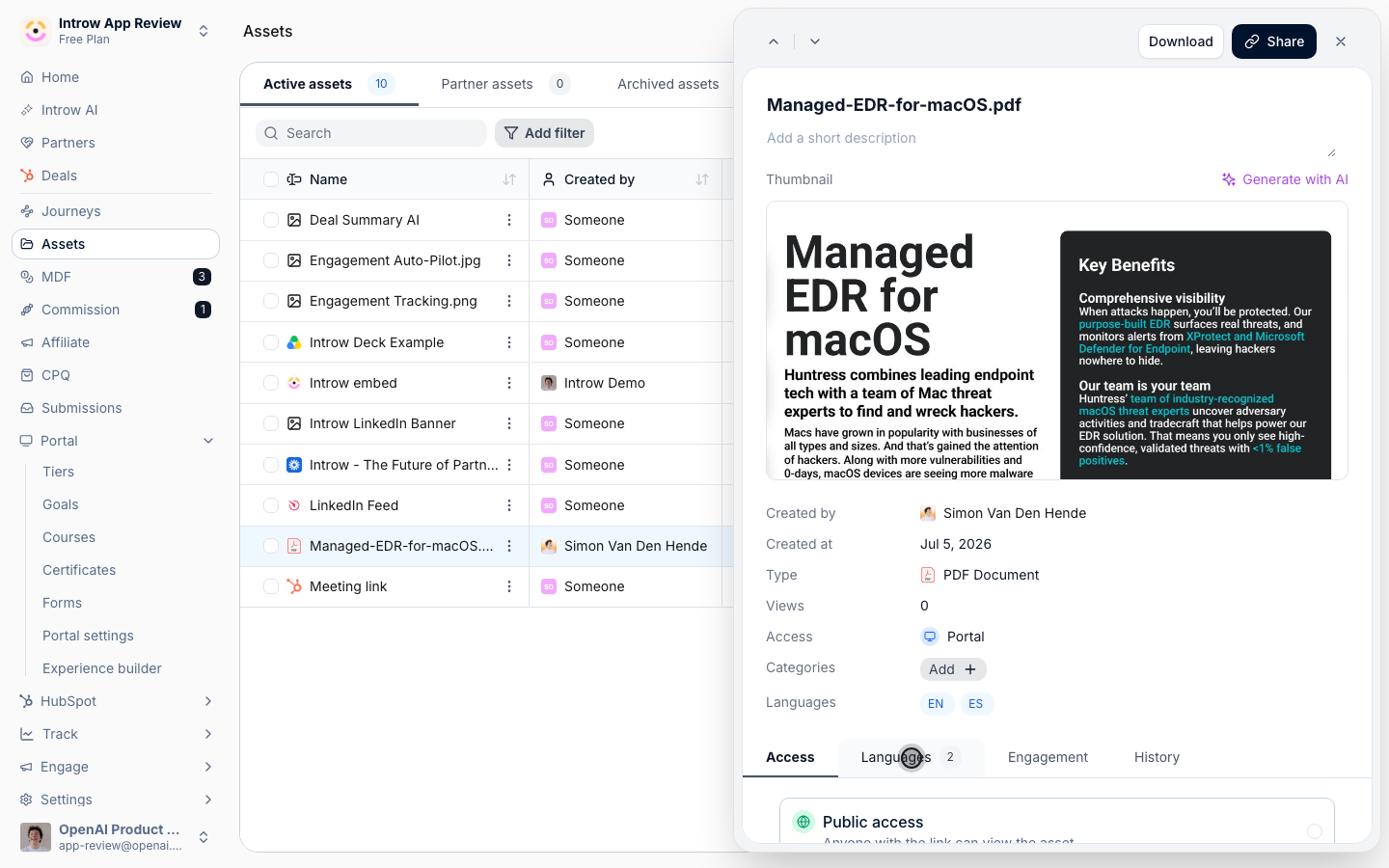
3
Generate the translations
Start the translation. It runs as a background job that preserves the document’s formatting, so you can keep working while it completes; large files can take a few minutes. You are notified when the variants are ready.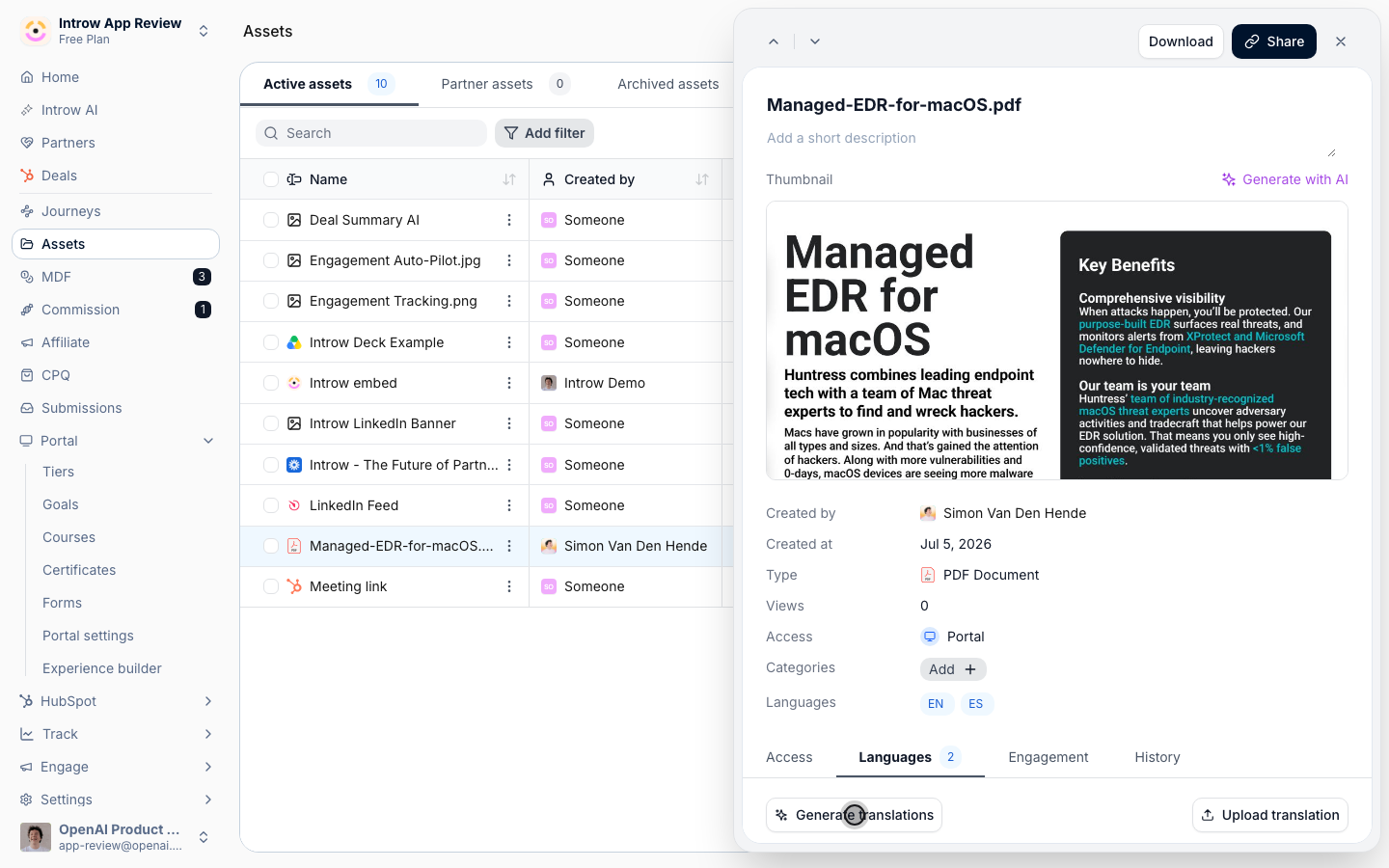
4
Review each variant
Once the job completes, open each new variant from the Languages tab and check it for accuracy before relying on it with partners. If you would rather supply your own translation for a language, you can add a variant manually instead of generating one.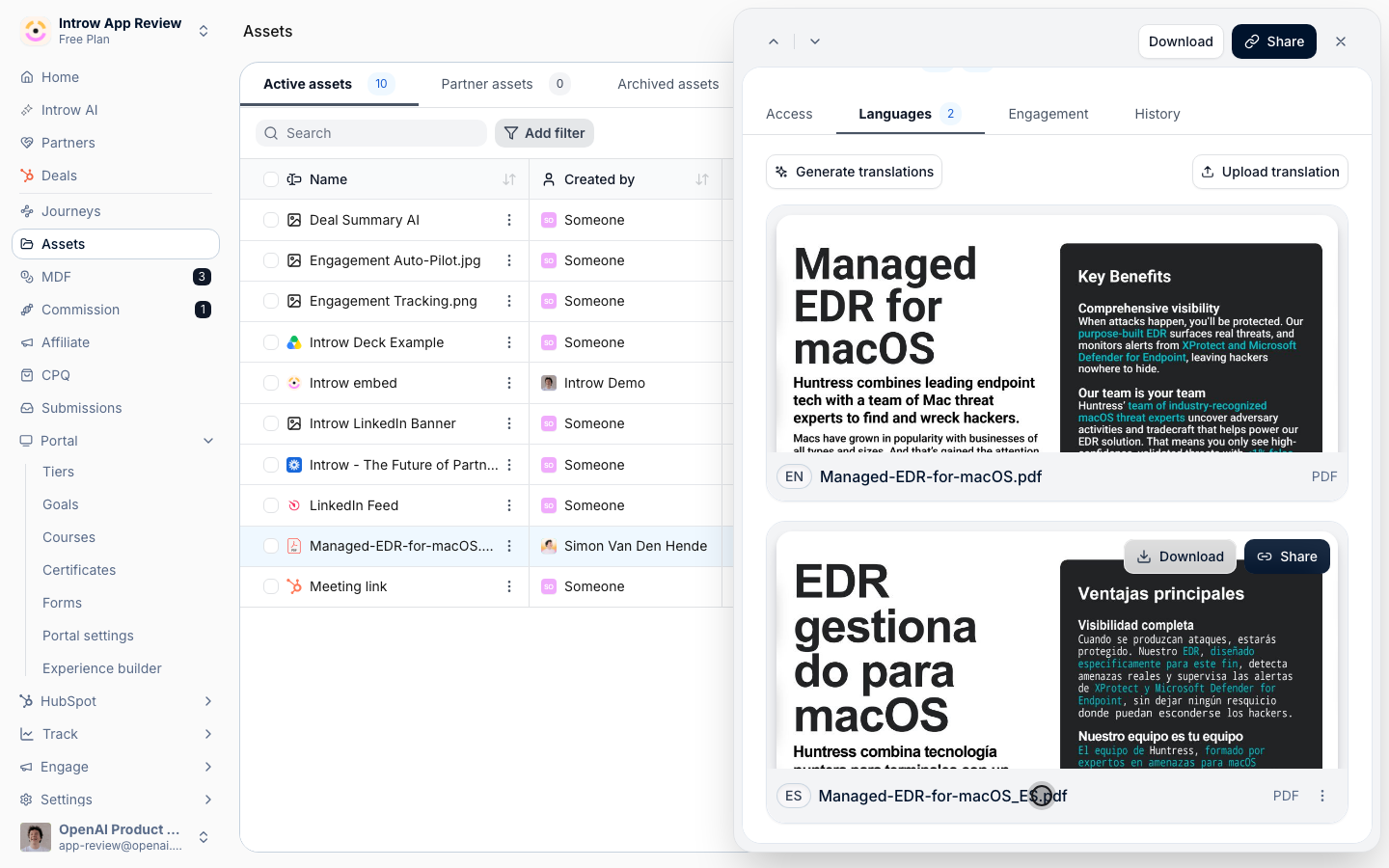
Verify it worked
The new language variants appear under the asset’s Languages tab, each tied to its locale. A partner in that language is served the matching variant from the same asset, and the base document and its variants stay together as one item.Related
Build the asset library
Add the documents you localize.
Review asset engagement
See which language variants partners use.
Implementation reference
Full asset library configuration options.