

Where it lives
Goals & KPIs sits under Settings, at Goals.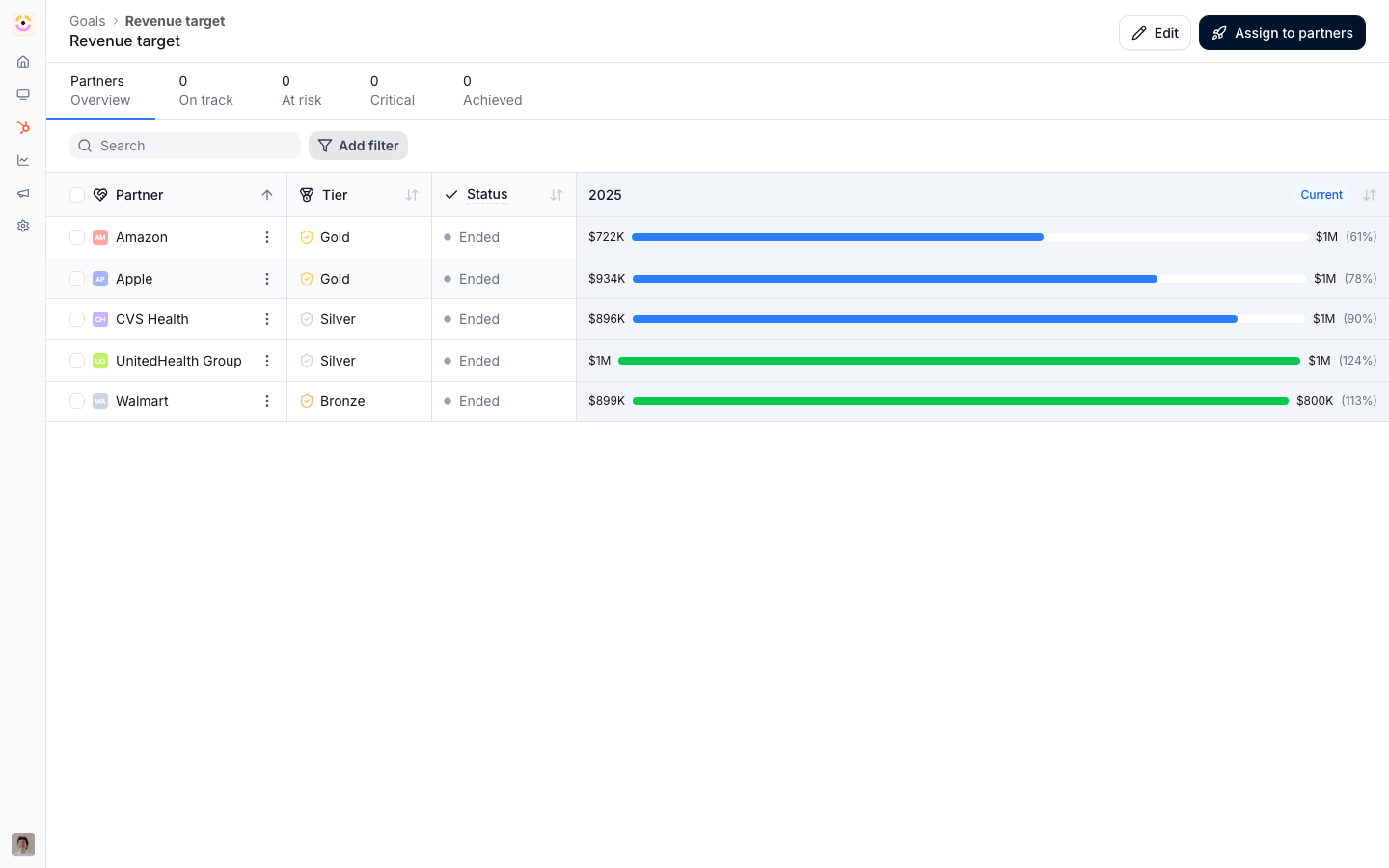
Before you start
Set your fiscal year start in Company settings if your reporting periods do not follow the calendar year.
How it works
Goals live under the Portal group at Settings, Goals. You create a goal, define what it measures, a count of objects or a sum of a property, and set a frequency: one-time, monthly, quarterly, or yearly. The object can be a CRM object or certifications. Targets are assigned tier based, partner based, or segment based, and you set the per-partner target values. Progress is computed automatically from CRM object lists and certification records. Goal detail views group partners by achieved, on track, and at risk. You assign a goal to partners, surface it through a Goals section in a portal experience so assigned partners see their own progress, and nudge partners who are behind.Settings & configuration
Goals are managed at Goals.Definition
Set the name, description, aggregation (count of object or sum of property), and frequency.Object type
Choose a CRM object or certifications as the thing being measured. Certifications are a source in their own right, not only CRM objects: a goal can count the certificates a partner’s people earned, which is how a certified-headcount requirement becomes a tracked, partner- visible number rather than a spreadsheet.Target type
Assign targets tier based, partner based, or segment based, then set the target values.Fiscal year start
Quarterly and yearly goals bucket progress into periods. If your fiscal year does not start in January, set the fiscal year start date under Company settings (“Fiscal year start date”) so goal quarters and years align with your fiscal calendar and the fiscal presets appear in date pickers. This is an organisation-wide setting that also applies to reports.Assignment
Assign the goal to partners from its detail page. A goal becomes visible to a partner once it is assigned to them and surfaced through a Goals section in a portal experience.Portal display
Add a Goals section to a portal experience and choose which goals to show; only goals assigned to a partner appear for them.Nudging
Use the nudge action to prompt partners who are behind on a goal.How-to guides
Troubleshooting
You cannot create a goal
You cannot create a goal
You have reached your plan’s goal limit.
A partner has no target
A partner has no target
They are not in the tier or segment the target applies to.
A partner cannot see a goal
A partner cannot see a goal
It is not assigned to them, or no Goals section surfaces it in their portal experience.