

Where it lives
Partner Team sits under Partners, at Partners.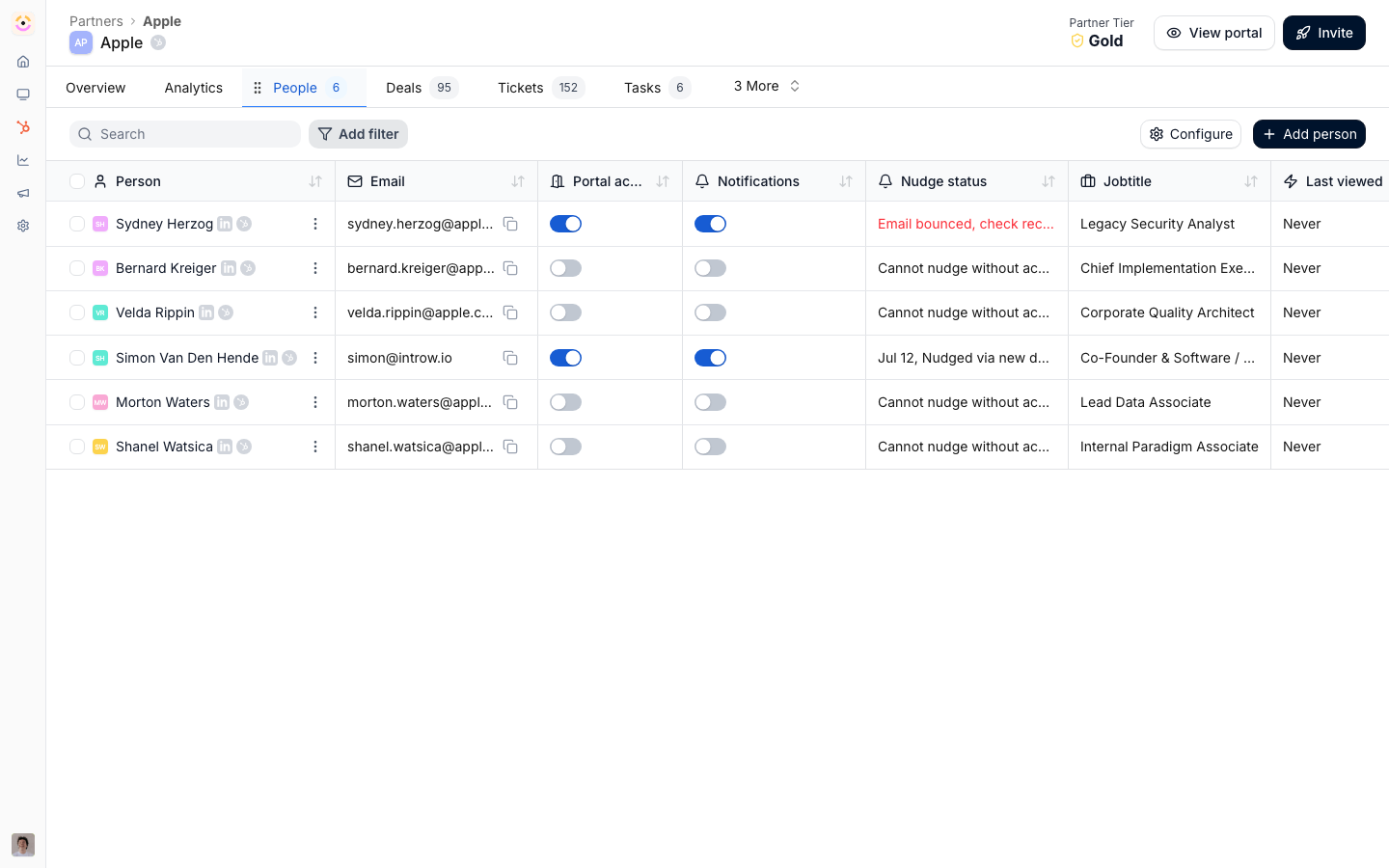
Before you start
How it works
Every partner has a Team card on its detail view. That card lists the people from your side who own the relationship, each holding a partner team role, the role someone holds on a specific partner (for example lead partner manager, co-owner, or technical contact). You define the available roles once under team settings, then assign members to them on each partner. Assignment is the input; the rest of the program reads from it. When a partner has an assigned team, that ownership becomes available to other surfaces: the portal experience can render the partner’s points of contact, partner-facing communications can use the assigned manager as their sender and reply-to, invites a partner sends to their own colleagues CC the assigned manager, certificates can name the assigned manager as the issuer, and form approval gates can route to the partnership manager rather than a fixed user. Because partner team roles can map to a CRM property, the owner you set here can stay reflected on the CRM record. Defining and scoping the roles themselves (permission categories, single-member roles, limiting a user to their assigned partners) is covered in Team Management. This page focuses on assigning the team on a partner and wiring the downstream impact.Settings & configuration
Assignment happens on a partner’s Team card at Partners; the roles it draws from are defined under Team.Assigning the team
On a partner’s Team card, add a member and pick the partner team role they hold. Some roles allow only a single member (for example a single lead manager); adding another prompts you to replace the current one. Remove or change a member from the same card. The assigned team is what every downstream surface reads.Points of contact in the portal
A portal experience can show the partner their assigned team as points of contact. Add a partner profile or team section to the experience so the logged-in partner sees who owns their relationship; the names update automatically as you change the assignment, with no per-partner editing. See Experiences.Communication sender and reply-to
Partner-facing communications such as announcements and emails can be sent from the partner’s assigned manager, so replies go to a real person rather than a generic inbox. Set the sender at the communication level and it resolves to the assigned manager per partner. See Announcements and Partner notifications.Certificate issuer
A certificate’s Issued by field is the team member shown as the issuer on the credential. Set it to the partner’s assigned manager so certificates are signed by the right person. See Certificates.Approval routing
A form’s approval gate can add the partnership manager as an approver step, which resolves to the partner’s assigned manager at submission time. This routes a partner’s requests to whoever owns them instead of a hard-coded name. See Submissions & Approvals.How-to guides
Troubleshooting
The portal shows no points of contact
The portal shows no points of contact
The partner has no team assigned, or the experience has no profile/team section.
An email came from a generic address
An email came from a generic address
The partner has no assigned manager, so it fell back to the org default sender.
An approval is not routing to the manager
An approval is not routing to the manager
The gate uses a fixed user instead of the partnership manager step, or no manager is assigned.
A certificate names the wrong issuer
A certificate names the wrong issuer
Update the certificate’s Issued by field to the assigned manager.