

What you’ll achieve
A library asset with a version per active language: partners are served the version that matches their language, and fall back to the original where no translation exists.Before you start
1
Add your languages first
The asset offers translations for your active languages, so set them up under Languages first (see Set up portal languages).
2
Add the original file
The source file must already be in the asset library before you can localize it.
3
Check automatic translation availability (optional)
Auto-generating document translations requires a translation provider configured for your workspace, and works only for document file types (PDF, Office, TXT, and HTML). Uploading or linking a translated file works without a provider.
Steps
1
Open the asset's languages
From the asset library, open the asset and go to its Languages section. It shows the original file plus a slot for each active language that does not yet have a translation.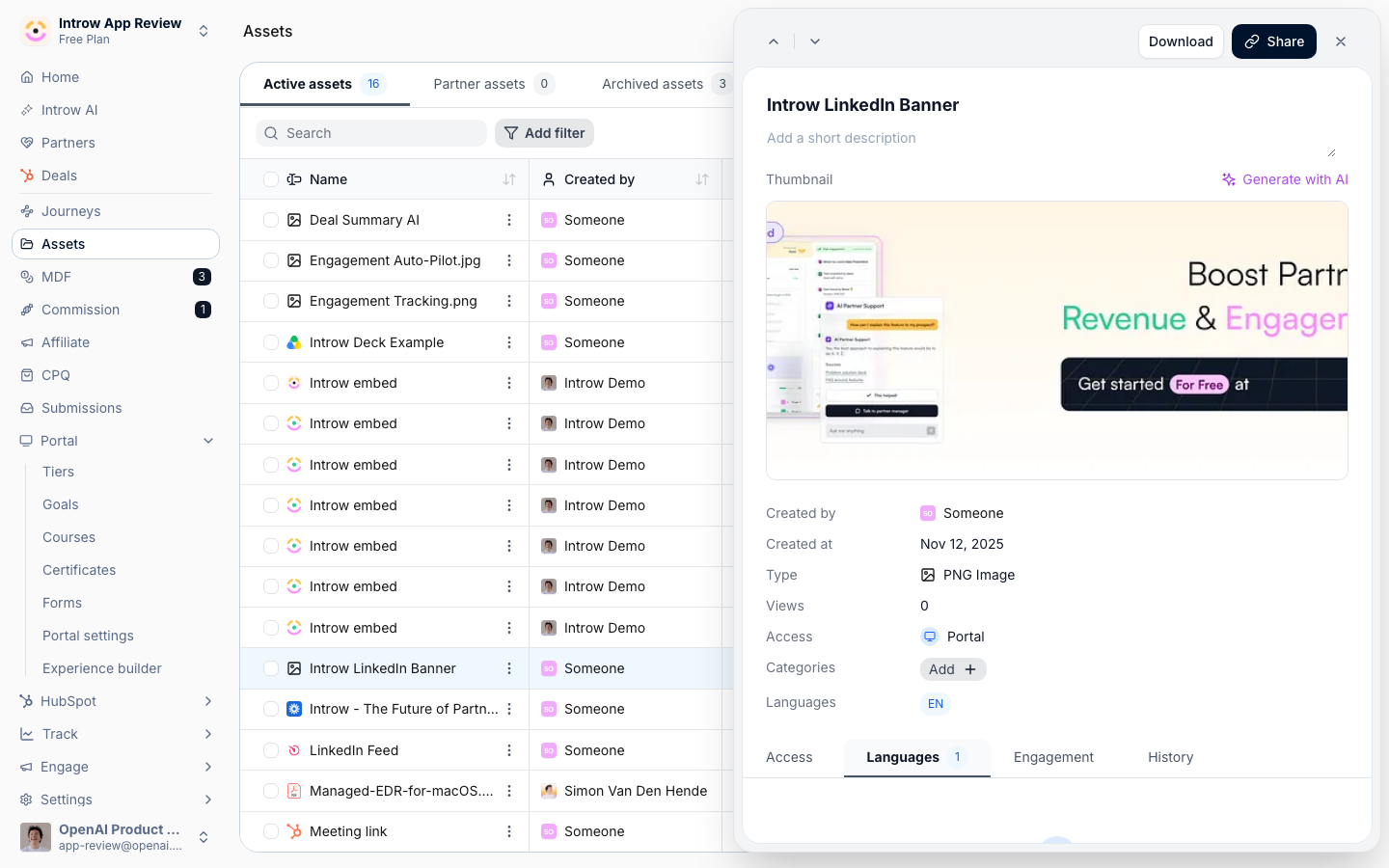
2
Add a translation manually
Use Add translation to provide a localized version for a language.
- Upload a file - for file-based assets, pick the target language and upload the translated file (up to the asset size limit). The version is stored against that language.
- Add a translation link - supply a direct URL to the translated file or page for a language. Use this when the localized version lives elsewhere. Enter a valid link; Introw derives the file name from it.
3
Generate translations automatically (optional)
For eligible document assets, use Generate translations to translate the file into the languages that do not yet have a version, then confirm in the dialog.
- When it is available - the action is enabled only when a translation provider is configured and the file is a supported document type (PDF, Office, TXT, or HTML). If it is greyed out, the tooltip explains why (no provider, unsupported type, or every language already covered).
- What it does - queues a translation per missing language; each shows progress while it runs and becomes a downloadable version when done. A failed language is flagged so you can retry or add that one manually.
4
Review and manage the versions
Each language version appears as its own card with a language pill. Use a version’s menu to Replace file or Edit link, or Remove translation to delete a version. The original stays in place as the fallback.
Verify it worked
The asset’s Languages section lists a version per language you added, and partners are served the version for their language when they open or download the asset, falling back to the original where none exists.Related
Manage the brand glossary
Keep terms consistent across translations.
Build the asset library
Add the original file first.
Implementation reference
Full configuration options.