

What you’ll achieve
A registered deal that carries both a distributor and a reseller as independent attributions on one CRM record, captured at registration and visible to each partner in their own portal, scoped to what each should see. Credit reconciles because it lives on the CRM record, not on a form field.Introw represents tiers as multiple partner attributions on the same CRM deal, not a parent-child partner hierarchy. There is no automatic roll-up reporting across a reseller network: each partner reports through their own attribution. A picker on the form captures the relationship, but the credit that counts always comes from the CRM attribution mapping, not the picker alone.
Before you start
1
Confirm your CRM supports multiple partner roles per deal
Your CRM attribution mapping must be able to link more than one partner role (for example reseller and distributor) to a single deal.
2
Have a registration form ready
A reseller registration form with its CRM deal automation should already exist. Build it in Register and approve a deal first.
Steps
Map both partner roles on the deal
1
Open the deal attribution mapping
Go to Integrations and open your CRM connection’s property mapping for the deal object. This mapping is what tells Introw how a deal links to a partner, and it is the source of truth for credit.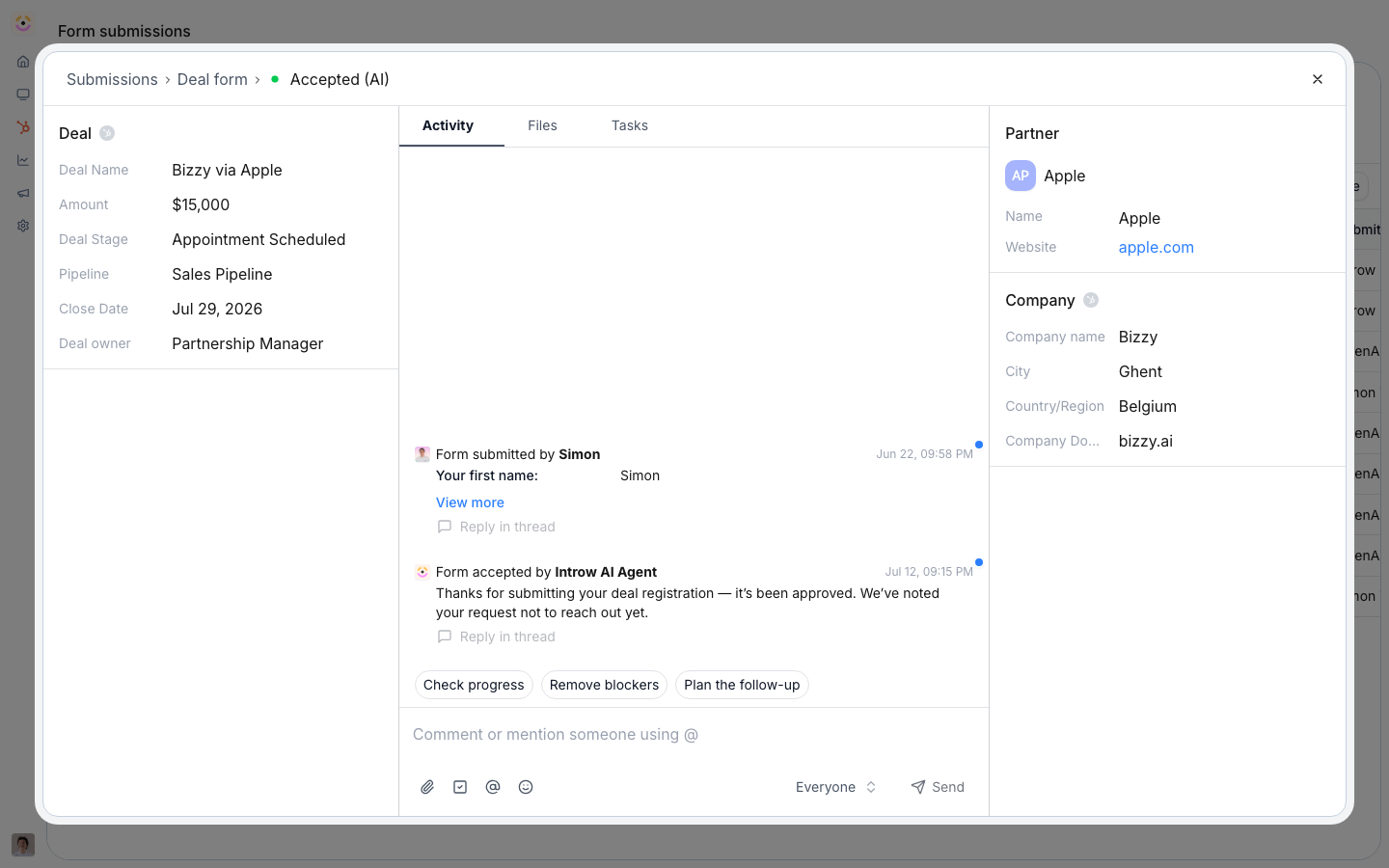
2
Map the reseller and distributor roles
Add an attribution mapping for each partner role you want credited on a deal:
- Reseller mapping - map how the deal links to the reseller partner so the reseller is attributed. This is the partner who closes.
- Distributor mapping - add a second mapping for the distributor role so the distributor is attributed on the same deal. Both attributions coexist; neither overwrites the other.
Capture the tier at registration
1
Open the form builder
Open the registration form in Forms for editing. You will add a picker so the reseller records the related distributor (or vice versa) as they register.
2
Add the Distributor or Reseller field
In the Add field dialog, choose the preset that matches the tier you want to capture:
- Distributor - drops in a partner picker pre-labeled for the reseller to select the distributor standing behind the deal.
- Reseller - the mirror preset, for a distributor-led form where the distributor names the reseller.
3
Scope the picker options
Use the field’s audience filters so the reseller only sees the right set of distributors to choose from, rather than every partner. Mark the field required if the tier relationship must be recorded on every registration.
4
Publish the form
Save the form so the picker appears at registration. Remember the picker captures the relationship; the credit that reconciles still comes from the attribution mapping you set above.
Give each tier scoped visibility
1
Add the deal pipeline to each partner's experience
Because attribution drives portal visibility, a deal pipeline embed shows each partner the deals attributed to them. In the Experience builder, add a CRM deal pipeline to each tier’s experience so a deal attributed to both the reseller and the distributor appears for each one in their own portal.
2
Tighten visibility where a tier should see less
If a tier should only see the specific deals they actively work rather than every attributed deal, open that tier’s segment, switch on Override the default for this segment on its Permissions tab, and turn See all shared records off. Use it, for example, to stop a distributor from seeing every reseller deal when they should only see the ones they are involved in. Overrides merge most-permissive, so also check those contacts are not in another override segment that grants full visibility, which would win.
Verify it worked
Submit a test two-tier registration with both partners captured, then open the resulting CRM deal and confirm both the reseller and the distributor appear as attributions on the record. Sign in as each partner and confirm the shared deal shows in their pipeline, scoped as you intended.Related
Register and approve a deal
Build the registration form behind the two-tier capture.
Map partner attribution
The full attribution mapping setup.
Control which deals partners see
Scope the pipeline view per partner.
Implementation reference
Full configuration options.