

Where it lives
Team Management sits under Settings, at Team.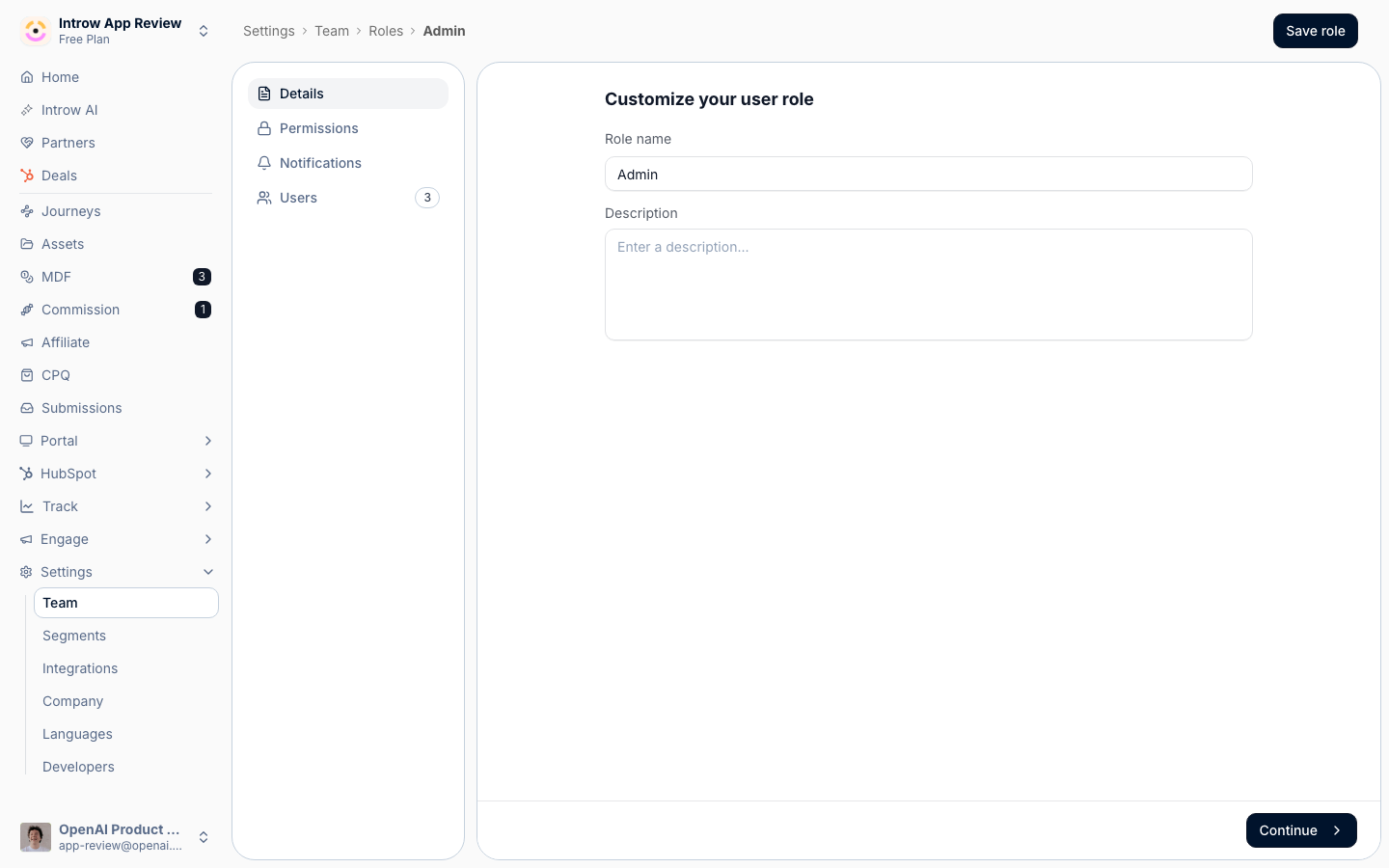
Before you start
How it works
Team settings has three tabs. Users is where you invite and manage your internal team. Roles is where you define what each role can do, built from permission categories grouped into areas like General, Portal, Commissions, Track, Engage, and Settings. Partner team roles is where you define the roles people hold on a specific partner and keep partner ownership clear. A role can grant everything (admin), a custom set of permissions, or be limited so a user only sees the partners they are assigned. Internal users count against your plan’s seat allowance, with CRM-only users handled separately.Settings & configuration
Team management lives at Team.Users
The Users tab lists your team with their name, email, status, role, and invite date. Use Invite team member to add someone by email and assign a role. The status filter separates Active, Pending, Requested, and Deactivated users. From a user’s row you can change their role, resend an invitation, or deactivate them.Roles
The Roles tab is where you create and edit roles. When creating a role you choose an access type: Admin grants all permissions on all partners, Custom lets you configure individual permissions, and Partner manager limits the user to managing only their assigned partners. Permissions are toggled per category, grouped into General, Portal, Commissions, Track, Engage, and Settings, so you grant exactly the areas a role should reach. The role editor also lets you set notifications and assign users.Partner team roles
The Partner team roles tab defines the roles people hold on a partner. Create a role with a name, then assign members to it on a partner. Roles can be mapped to a CRM property so partner ownership stays reflected in your CRM. Members are added from a partner’s Team card or the role’s detail panel, and some roles allow only a single member. A role also carries permissions, which is what lets a partner run its own side of the program:
Whether partners may invite colleagues at all is a separate, organisation-level control set on your
default segment settings and overridable per segment, so you can allow self-service invites for some
tiers and keep others invite-only. Combine it with domain-restricted portal access to bound who can be
added.
How-to guides
Troubleshooting
An invited user cannot do something
An invited user cannot do something
Check the permission categories enabled on their role.
A user sees partners that are not theirs
A user sees partners that are not theirs
Confirm their role uses the Partner manager access type and partners are assigned.
A partner team role will not add a second person
A partner team role will not add a second person
It may be a single-member role; replace or use a different role.