

Partner permissions and notifications now start from one organisation-wide default, and a segment changes that default only when you deliberately turn on an override. This page explains what changed, why, what we migrated for you, and the handful of things worth checking in your own setup.Shipped in the August 2026 release. In June, roles became segments, and segments became the one audience model across the product. This release doubles down on that: it gives segments a real baseline to sit on top of, makes every override explicit and visible, and explains each setting where you set it. The result is a program you can reason about at a glance, which is the enterprise-grade bet applied to governance: as your segment count grows, the number of things you have to hold in your head does not.
What changed, in one table
The one rule
Every partner permission and every partner email notification now resolves the same way, in three steps:See the whole cascade in one pass
This is the release end to end: a restricted baseline set on All partners · Default, a stage segment that overrides it to grant more, a portal tab gated to that stage, and finally the same partner contact resolving to the granted behavior with each layer named.- Video
- Click through
Where you configure it now
All partners · Default
Segments now opens with All partners pinned as the first row of the segments table, tagged Default and sharing the same Permissions and Notifications columns your segments are compared in. It is pinned on the unfiltered All tab only, since it is not a segment and cannot match a filter. Opening it takes you to Default settings, which has three tabs: General, which summarises what the default holds and how many segments override each half of it, plus the same Permissions and Notifications panels a segment has, minus the audience. There is nothing to target, because the default applies to everyone. This is the one place your baseline lives, so a brand-new partner and a partner who matches no segment get exactly what you set here. The General tab also tells you how much of your program has opted out of the baseline before you change it. Each half carries a count, either No overrides or N segments override this, so you know how many groups will not follow a change you are about to make. The segments list names them, one row each.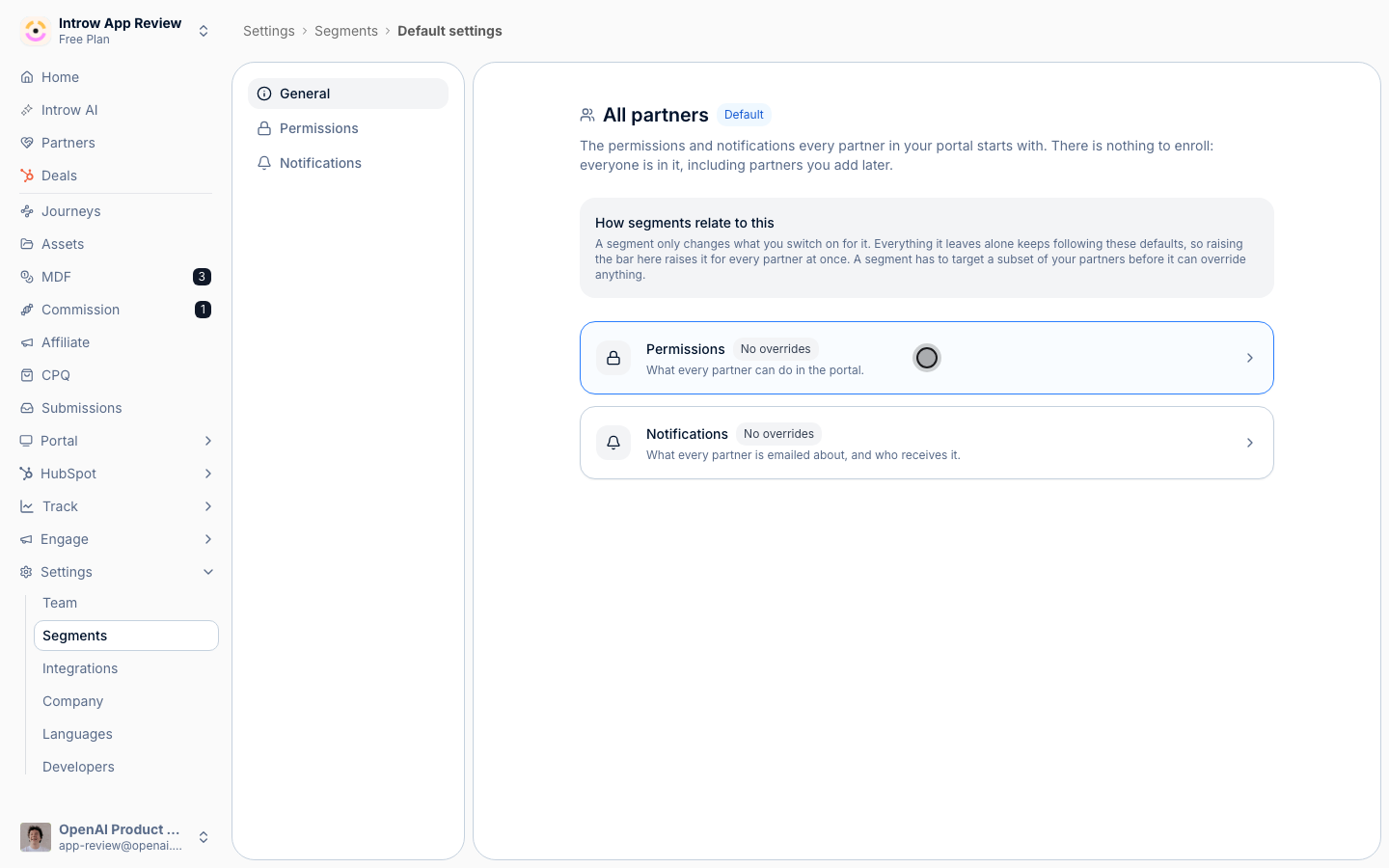
Default settings opens on General: what the default is, how segments relate to it, and how many override each half.
Each segment, opt-in
Open any segment and its Permissions and Notifications tabs each start with one switch: Override the default for this segment.- Leave it off and the panel below shows your organisation defaults, read-only, so you can see what the segment’s members actually get without leaving the page.
- Switch it on and the panel becomes editable. A count pill next to the switch tells you how many settings now differ from the default, and every setting that diverges is marked with an Override pill.
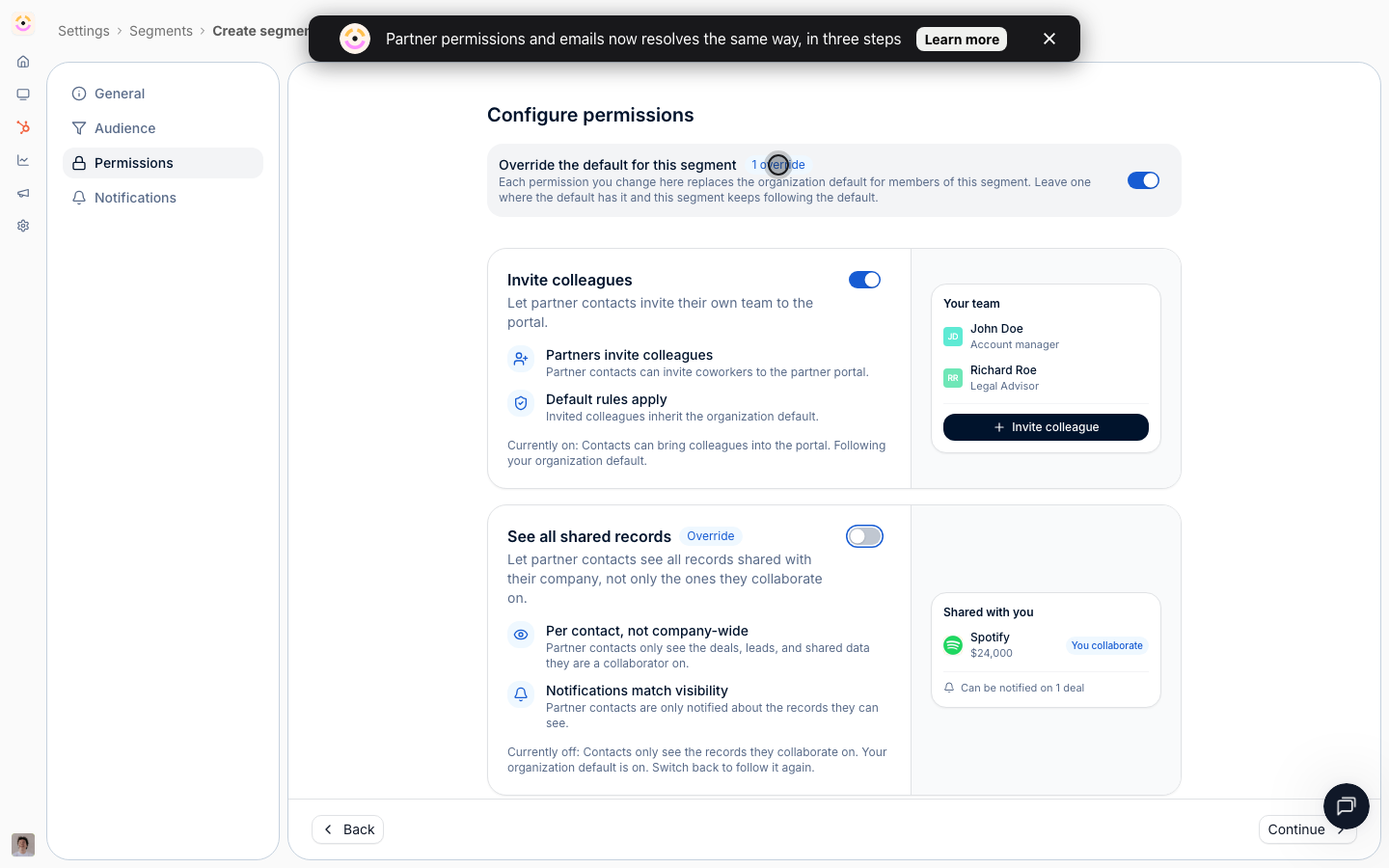
One segment, override on: a count pill beside the switch, an Override badge on the setting that diverges, and the other card still reading 'Following your organization default'.
Partner notifications became a report
Partner Notifications is now read-only, and reshaped to look like the Forms page: metrics, filters, table. It still does what it was best at, reporting per event how many partners are reached, how many opened, clicked, bounced, and when it last sent. It no longer writes. A banner at the top says so in as many words, “Notification recipients are managed elsewhere”, and links straight to the default’s Notifications tab, which is where the recipients value is set. One thing people notice immediately: the per-event email and chat checkboxes are gone from this page. They were replaced, not removed. Email moved into the cascade as a Recipients value, and chat moved to the chat integration. Opening an individual notification is now one tab bar rather than two rows of chrome: Email for the preview, then Sent, Opened, Clicked, and Issues carrying their counts on the tabs themselves, with the date range in the page header so it applies to all of them. The preview renders full width, at the size partners actually receive it. There is nothing to configure there: the recipients dropdown that used to live on this page was a second way to write the same value, so it moved to the default editor with everything else.Partner chat notifications moved to the integration
Which partner events reach a partner’s Slack, Teams, or WhatsApp channel is now configured on that integration, under Settings → Integrations → your platform, on the Partner channels tab next to the internal channel toggles you already had. Email and chat are deliberately two systems now. An email is addressed to a person, so it takes the full cascade, including a contact’s own preference. A chat channel belongs to a whole partner organisation, so it has no per-person layer, and its config sits with the integration that owns the channel. Both read the same event catalog, so nothing is named differently between them.Notifications: one choice per event
A partner notification is now a single Recipients value per event, instead of a channel checkbox plus a separate scope:- All partners sends to every partner the event applies to.
- Collaborating only sends only to contacts assigned as collaborators on the record, and is offered only for events attached to a CRM record where collaboration means something.
- Disabled switches the event off.
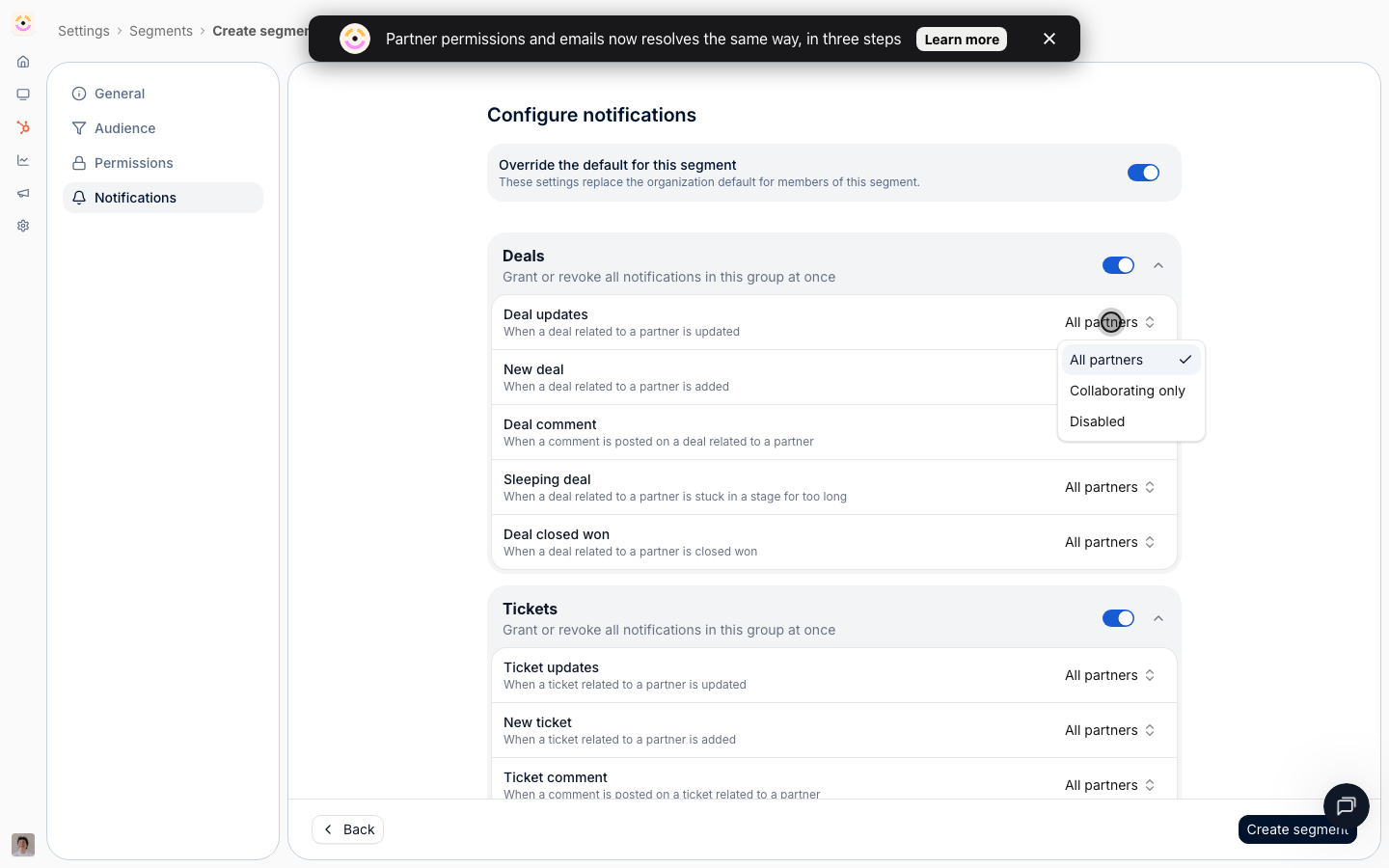
Every event, at every layer, is the same three-way choice. Collaborating only is offered where the event hangs off a CRM record.
Permissions now explain themselves
The two partner permissions are unchanged in what they do, and completely changed in how they read. Each is a card that states the rule, lists what it means in practice, and shows a live miniature of the partner portal that reacts as you toggle it. Both are now phrased as grants, so more permission always reads as on, and both were renamed to say what they do rather than what they restrict. Invite colleagues. Whether partner contacts can invite their own coworkers into the portal, and a note that invited colleagues inherit the organisation default. The preview shows the partner’s Your team panel with either an Invite teammate button or a locked Invites turned off state. See all shared records (previously “Collaboration restricted”, inverted). On, a contact sees everything shared with their company; off, only the records they are assigned as a collaborator on. The preview shows a Shared with you list dimming the records that would be hidden, and, importantly, that notifications follow access: a partner is never notified about a record they cannot see. Toggling a permission and seeing the partner-side result move is the point. It removes the round trip of changing a setting, publishing, impersonating a partner, and checking, which is the low total cost of ownership bet applied to configuration: the fewer times you have to verify a setting by going and looking, the cheaper the program is to run.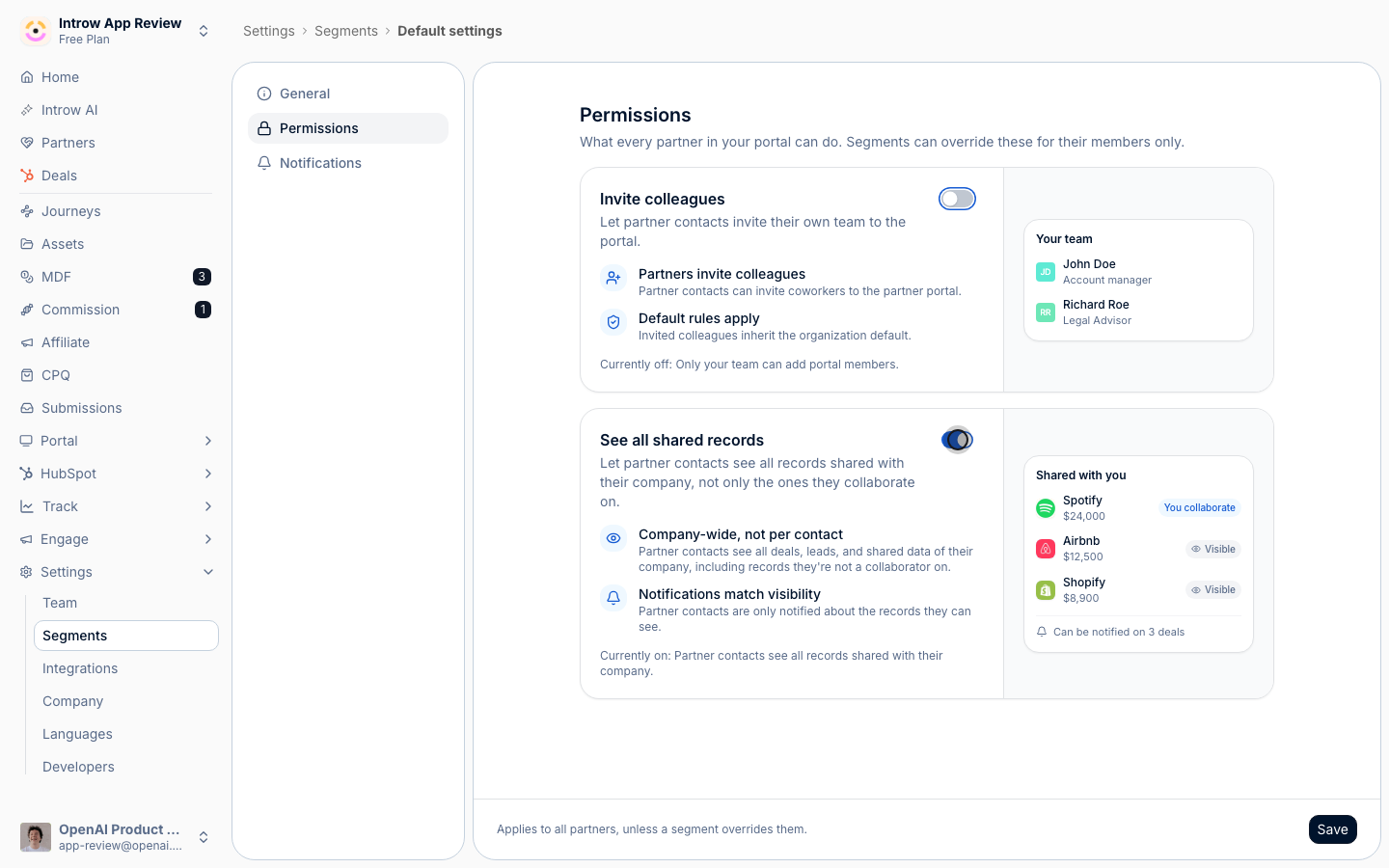
The same two cards on the default layer. Invite colleagues is off here, so its preview shows the partner's Your team panel with no invite action.
Read your whole setup from the list
The segments table now carries a Permissions column and a Notifications column, and each cell is a live diff against your current default.- A segment that changes nothing reads Default.
- A segment that changes something shows what it resolves to, or N overrides when several settings differ, with a tooltip listing each difference, for example
Object updates → Collaborating only. - Clicking either cell opens that segment straight on the matching tab.
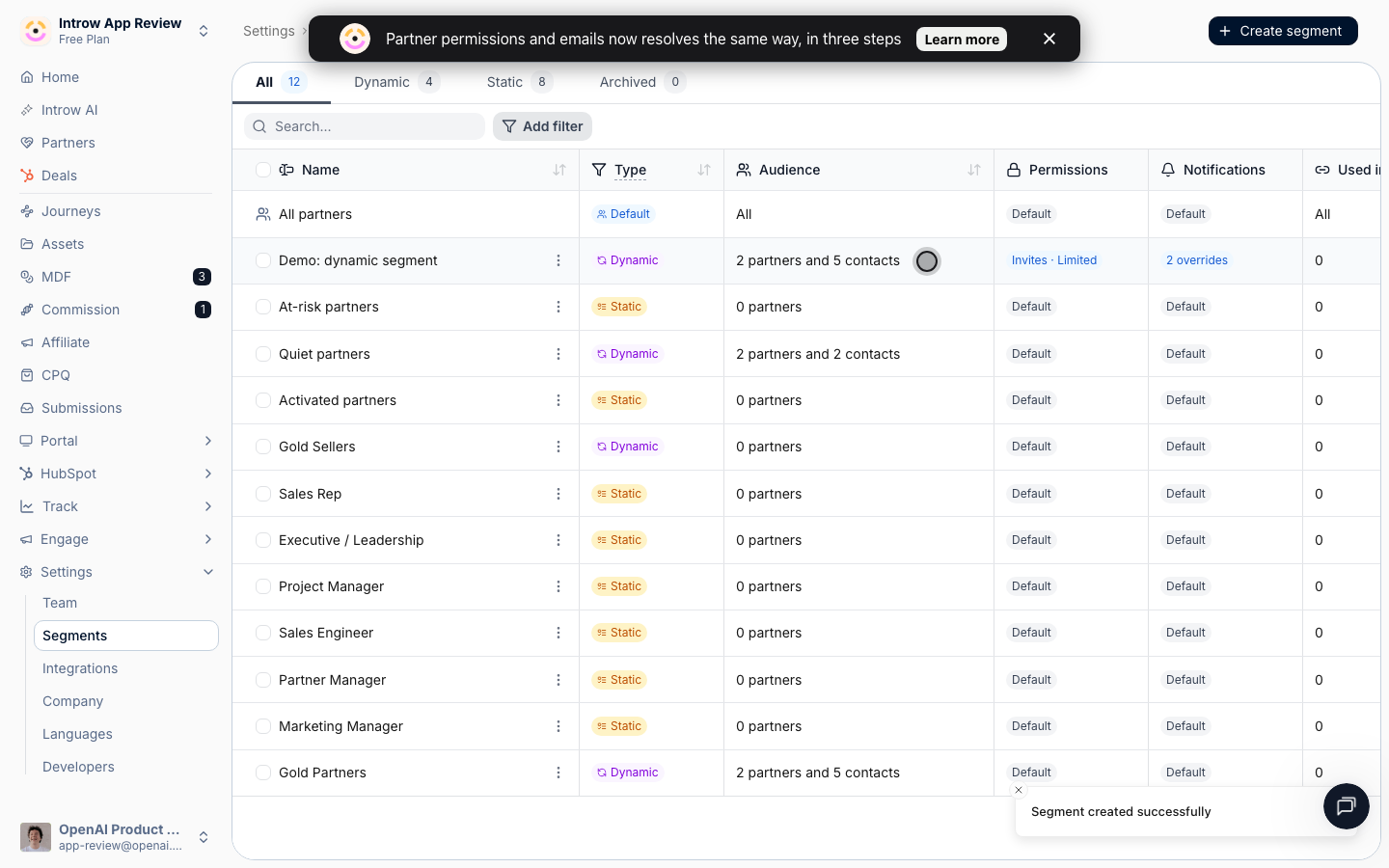
The whole program in one table: the pinned default on top, then each segment either reading Default or showing exactly what it resolves to, with the differences in a tooltip.
An override segment has to target a subset
A dynamic segment with no conditions matches every partner. That is fine for targeting an announcement, and it is exactly wrong as an override, because it would be a second baseline competing with the default. So Introw now blocks it: switching on an override for a conditionless dynamic segment is rejected with “An override segment must target a subset. Add at least one condition.” The block shows up in the editor next to the override switch, before you can save into it, and it is enforced on the server too, so an API call cannot get around it. Static segments are never blocked, because their members are an explicit list rather than a matched audience. Segments with no conditions keep working for everything else: announcements, tabs, assets, courses, forms, and reports. They just no longer set policy for your whole program.What we migrated for you
Nothing was lost, and your partners’ effective settings did not change on the day this shipped.Your permission baseline was created
Your notification values were converted
Segments that were configured stayed configured
Conditionless segments stopped setting policy
What to check in your setup
Read your default
Scan the two override columns
Re-point any per-segment chat rule
Re-check invite if you used it as an allowlist
Spot-check one contact
Seeing why a contact gets what they get
A contact’s Notifications tab is now a derived view with its reasoning shown. At the top, a card walks the three layers for that contact: how many events the default leaves on, which override segments they matched and how many events each one decides, and how many events they opted out of themselves. Each segment is a link straight to that segment. Below it, every event row carries a badge naming the layer that decided it, for exampleAll partners · default settings, Disabled · segment Tier 1, or Off · contact opted out.
Rows your policy switched off are locked with a tooltip saying which layer locked them, so nobody is offered a control that a higher layer owns.
Only the contact’s own opt-outs are editable here, which is the honest version of that screen: it used to present toggles that could not actually grant anything.
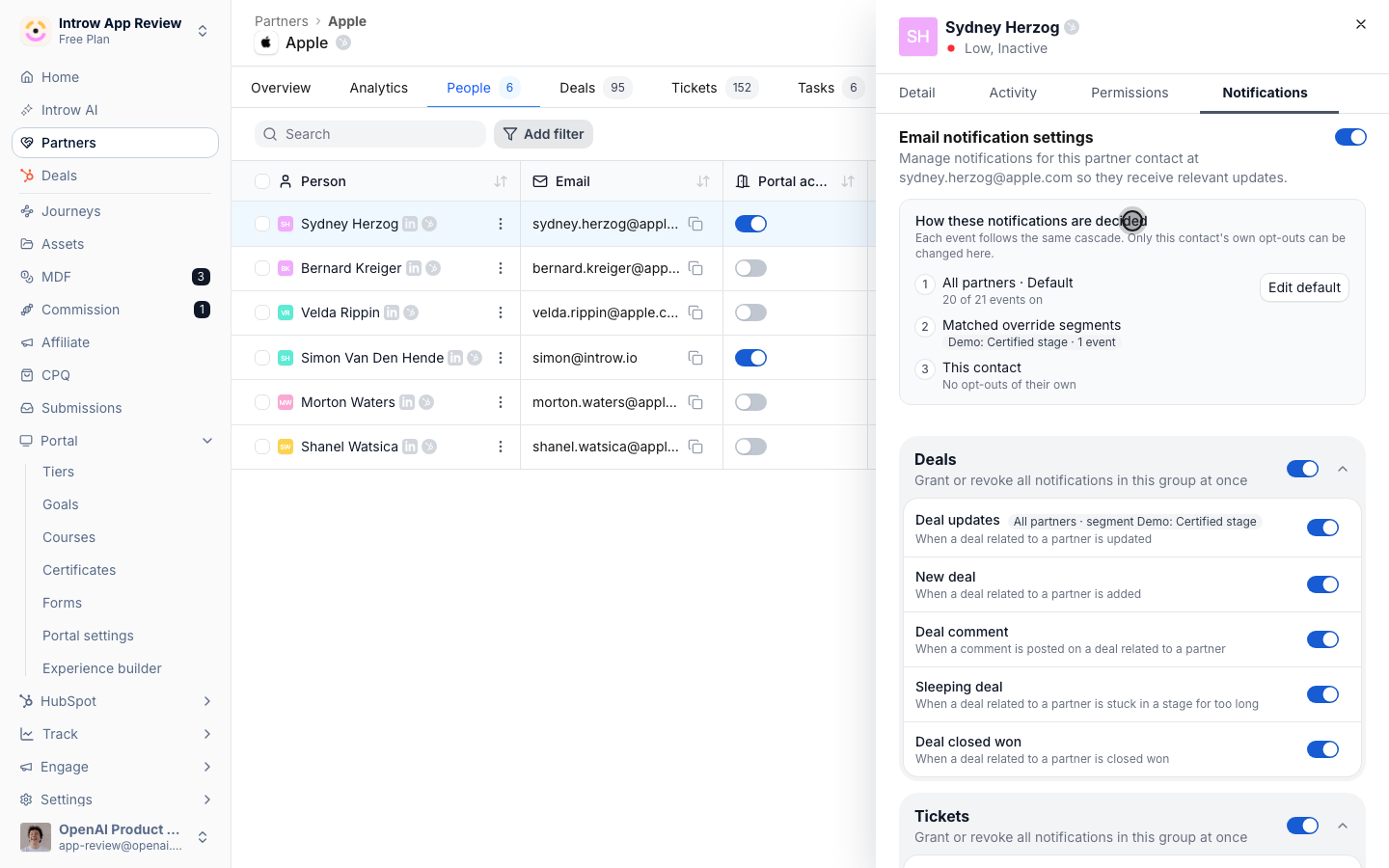
The three layers for one contact, and the event row badged with the segment that decided it rather than the default.
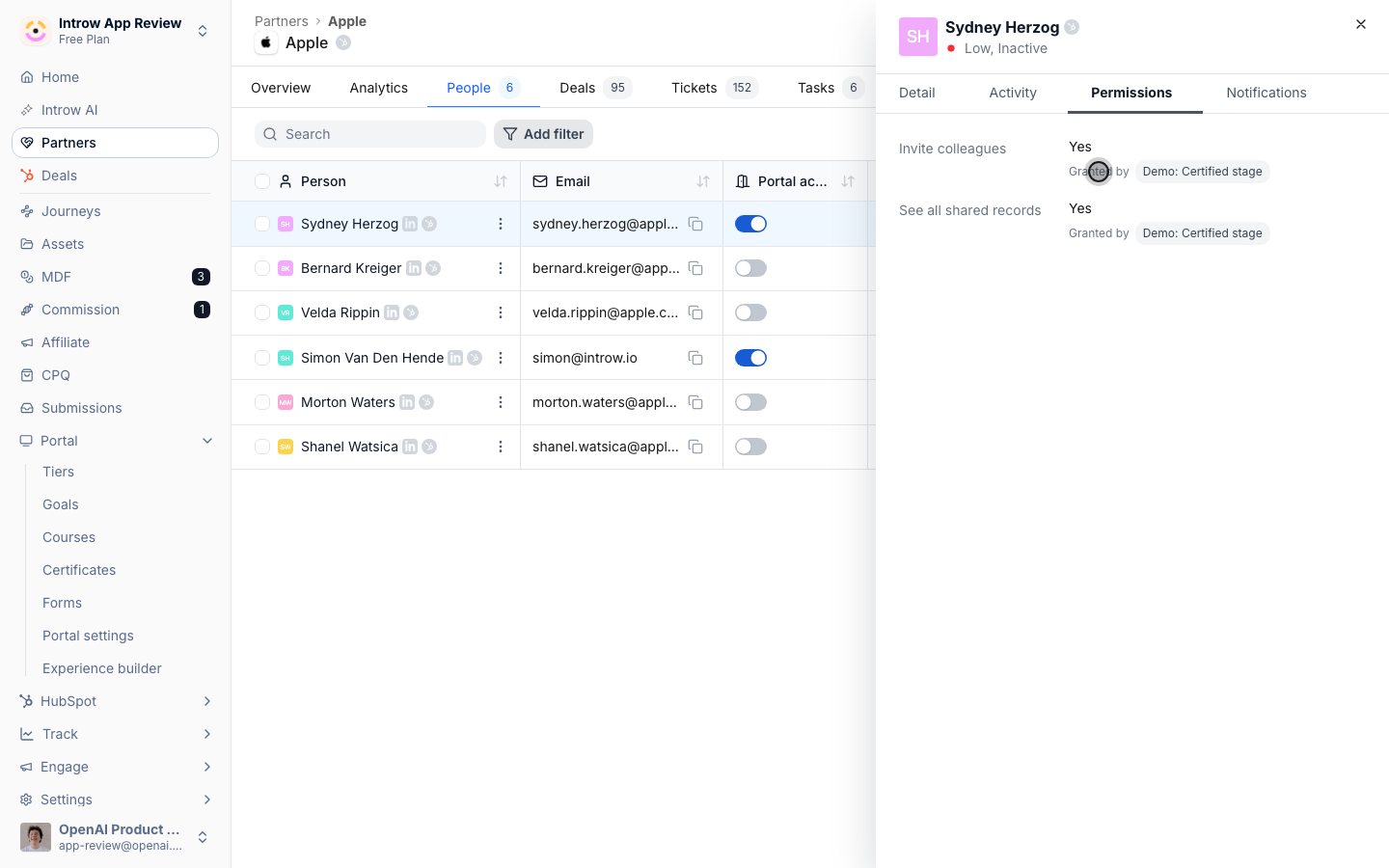
Resolved permissions for one contact: both read Yes, granted by the stage segment, while the organisation default withholds them.