

What you’ll achieve
A live referral form that a partner can open from anywhere, fill in with prospect details, and submit. Each submission creates an attributed lead in your CRM, credited to the referring partner from the first touch; once the referral is partner-qualified, that lead becomes the opportunity, its account, and the contact - still attributed. Every submission is checked for conflicts and duplicates before it is accepted. You leave with a shareable link, an embed snippet, and an API request ready to distribute.Before you start
1
Connect your CRM
A connected CRM is required so the form can create the lead - and, when qualified, the opportunity, account, and contact - and read your pipeline and properties.
2
Confirm partner attribution
Partner attribution should be configured on your CRM connection so every created record can be credited to the referring partner.
3
Check custom domain (for embedding)
Embedding the form on your own website requires a custom domain on your plan. A shareable link works without one.
Watch it
- Video
- Click through
Steps
Build the form
1
Create the form
Go to Forms and select Create form. Give it a clear name like “Refer a deal” so partners and your team recognize it, then open the Form builder.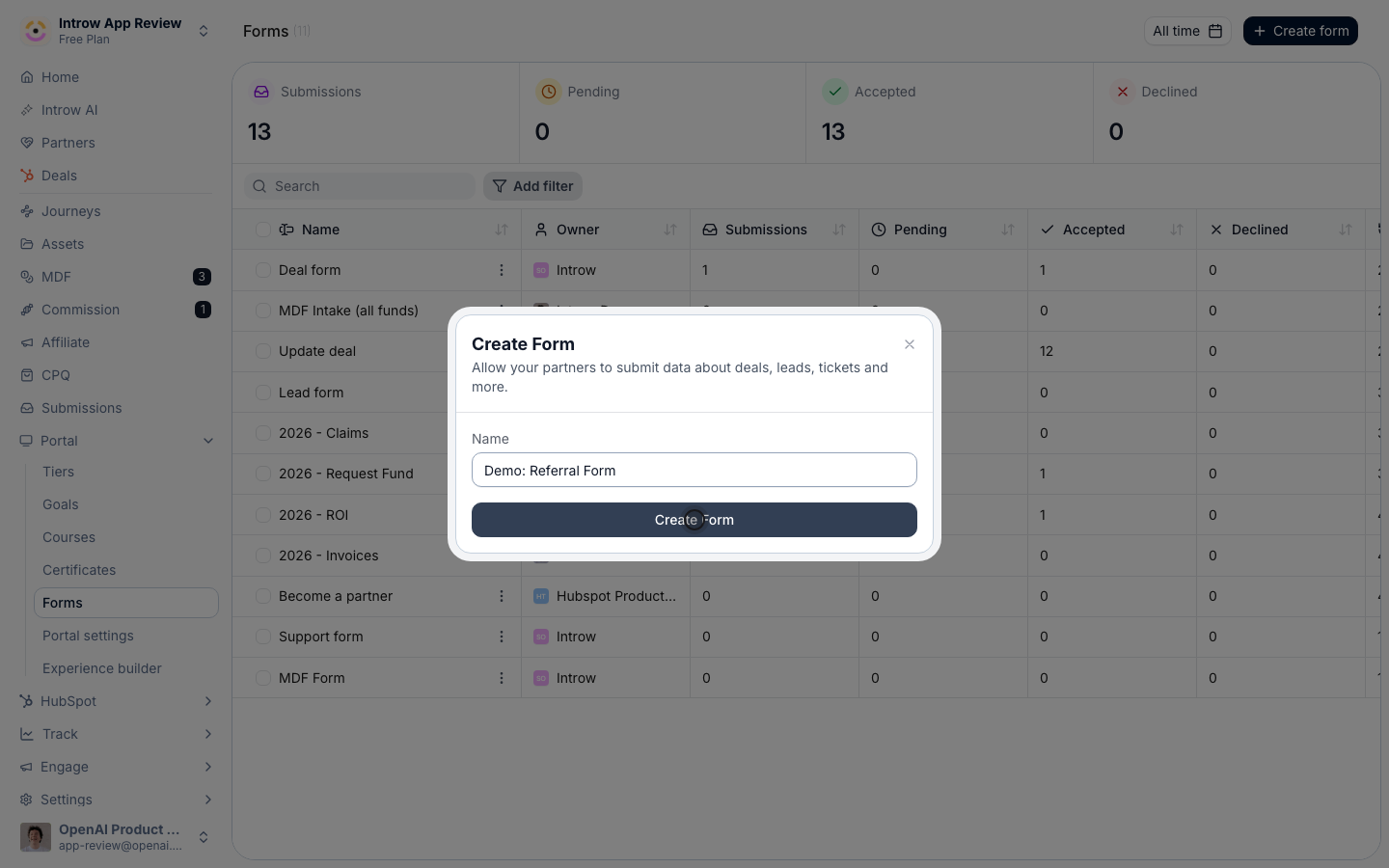
2
Add the fields partners fill in
On the Form builder tab, use Add field to build the questions a partner answers about the prospect. For each field, set: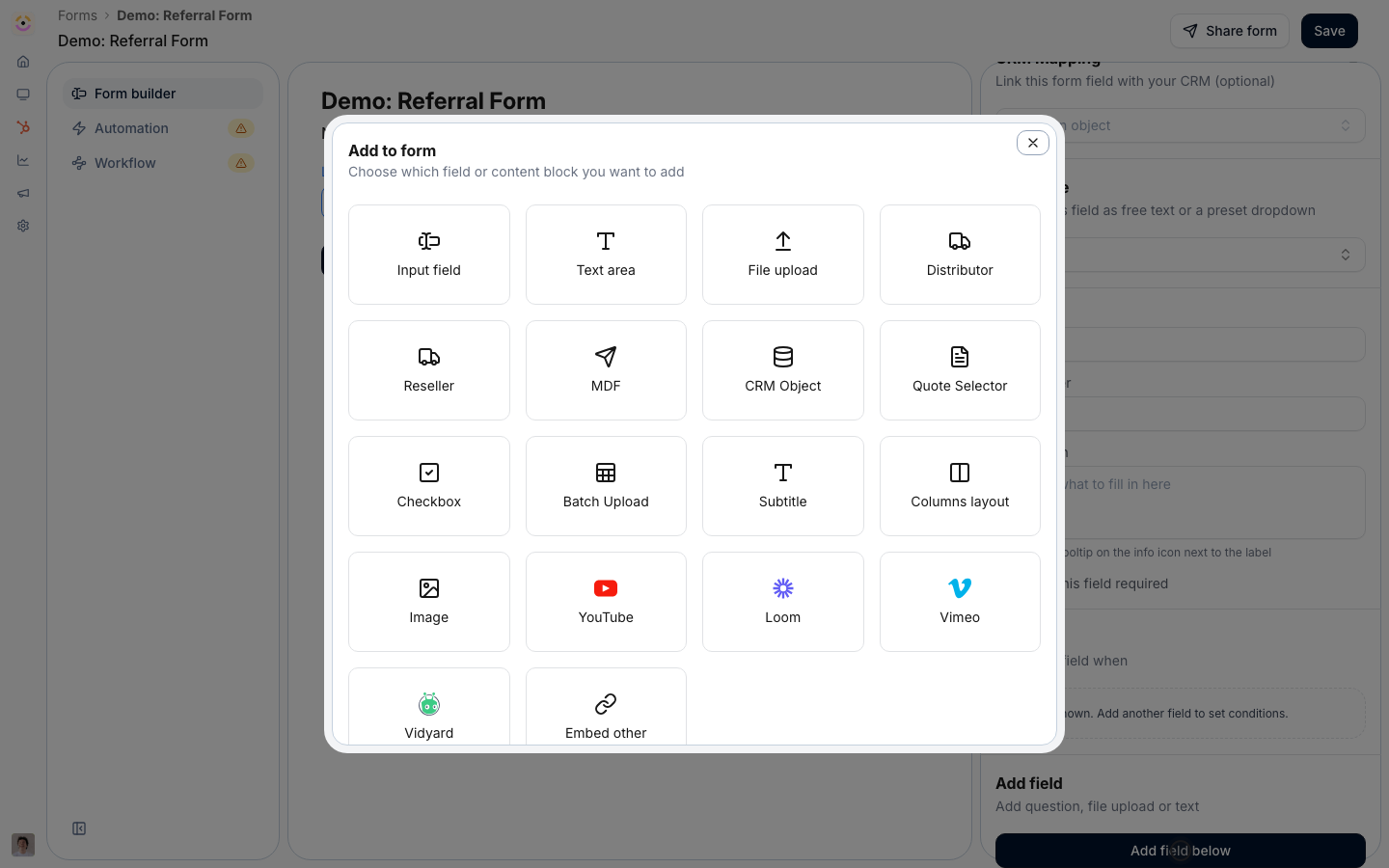
- Field type - what kind of input it is. Use Input field for short answers (company name, contact email), Text area for context like deal notes, CRM Object to let a partner pick an existing record, and File upload for attachments. Most referral forms need a handful of input fields plus a notes area.
- Label - the question text the partner reads. Keep it plain (“Prospect company”, “Contact email”) so partners do not hesitate.
- Placeholder - example text inside the field that hints at the expected answer.
- Make this field required - turn this on for the details you must have to create a usable deal (company, contact, email). Leave optional anything that is nice to have.
- CRM Mapping - optionally link the field to a CRM property here so its value flows straight into the record. You can also map fields later in the automation; mapping here seeds that step.
Turn submissions into CRM records
1
Create the lead by default
Open the Automation tab and select Add automation. A referral should enter as a lead - the lowest-friction way for a partner to hand you a warm intro, attributed from the first touch. Add a Lead automation and, in Enrich or create, turn on Create a new lead when one is selected so a fresh, attributed lead is created from each referral.When the referral is partner-qualified - the partner marks it qualified, or your team accepts it - you want the full deal context, not just a lead. Add Company, Contact, and Deal automations as well, so a qualified referral creates the opportunity, its account, and the contact as real, worked pipeline. Introw matches existing records first (see the deduplication step below), so this enriches what you already have instead of duplicating it.
2
Map form fields to CRM properties
In the Form fields section, connect each answer to the right CRM property so the lead - and the opportunity, account, and contact it becomes once qualified - is populated correctly. For each mapping set: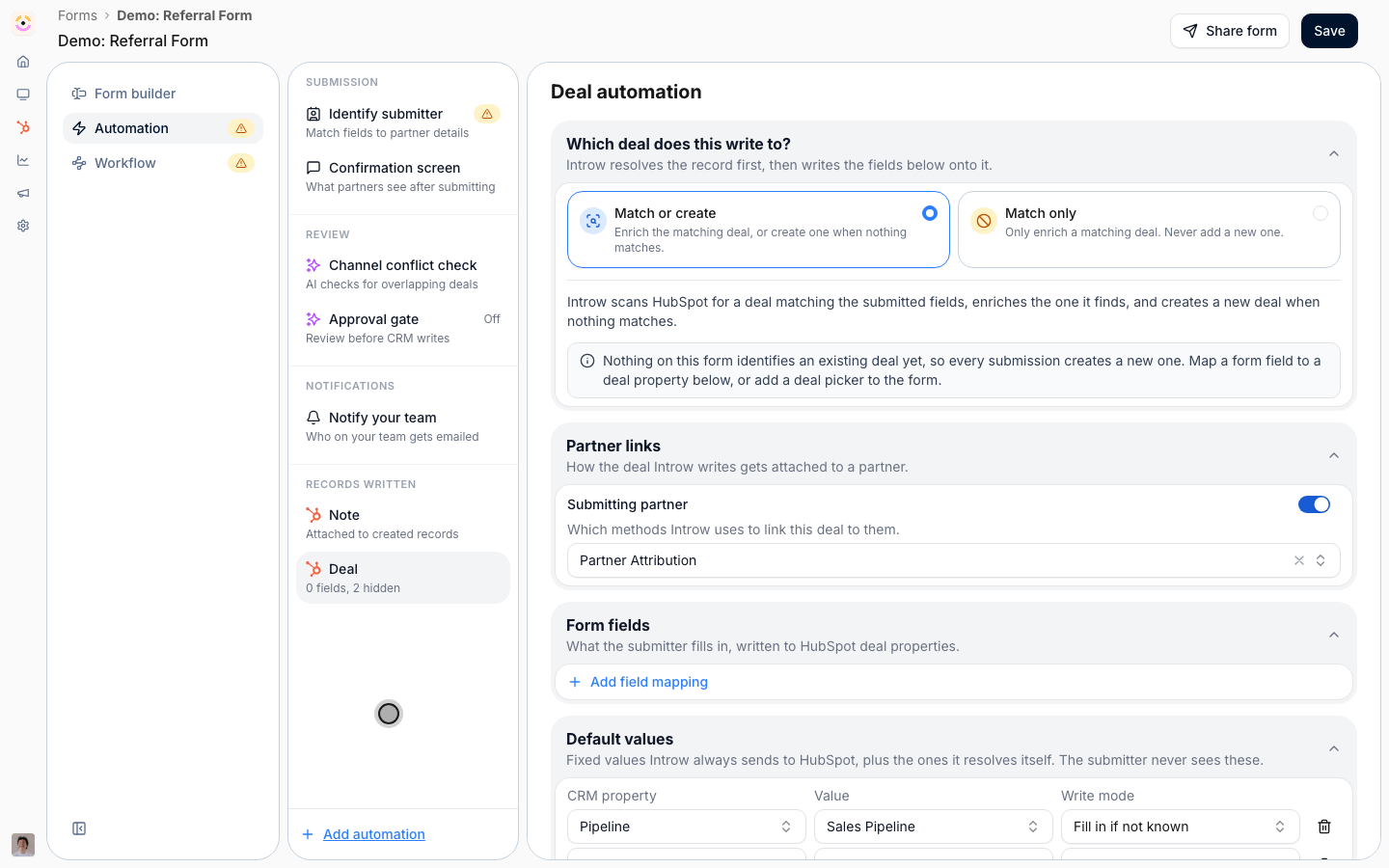
- CRM Property - the field on the CRM record that receives the value (for example the deal name or amount).
- Form Field - the answer from the form that fills it.
- Write Mode - how the value is written. Fill in if not known (the default) only sets the property when it is empty, which is safest for enrichment; Overwrite always replaces the current value. Use Add field mapping for each property you want to set.
3
Attribute the referral to the partner
Turn on Auto-link your partners so the created records are tied to the referrer, then set the Submitting Partner attribution method that records who sent the referral. This is what makes credit automatic: every downstream update notification and reward depends on the referral being attributed here.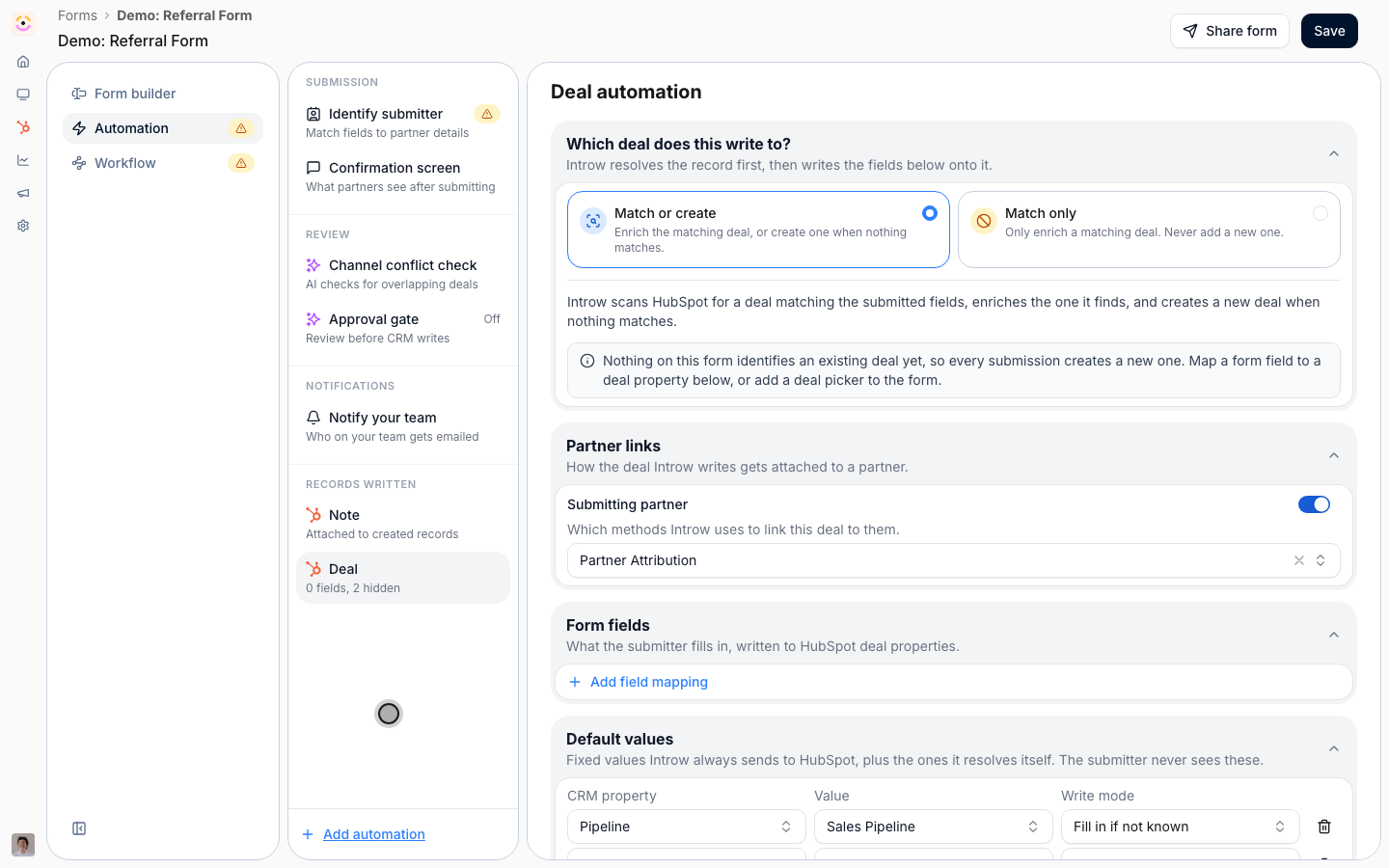
Protect referral credit
1
Turn on Channel Conflict Analysis
Select Channel Conflict Analysis in the automation list and enable it. Before a referral creates CRM records, Introw cross-references your CRM for an existing overlapping deal so the same opportunity is not double-credited or claimed twice. Configure:
- Object - the record type to check conflicts against, typically the deal pipeline the referral lands in.
- Filters - limit the check to deals that match conditions you set, so only relevant pipeline counts as a conflict.
- Additional context - a short description of your process that helps the analysis judge borderline cases.
2
Set deduplication fields
On company and contact automations, open Enrich or create and review Deduplication fields. Introw matches incoming submissions against existing company or contact records on these fields to prevent duplicates and detect conflicts. Keep the suggested defaults (name, email, domain) or pick the fields that best identify a unique account in your CRM.
Set the partner experience and share
1
Customize the confirmation and review
Configure Submission confirmation to control what a partner sees after submitting: choose an End screen with a thank-you message, or Redirect to URL to send them to a page you choose. Then decide review with Approval Gate: leave it off (the default) to accept referrals automatically, or enable it when a person should approve submissions before they create CRM records.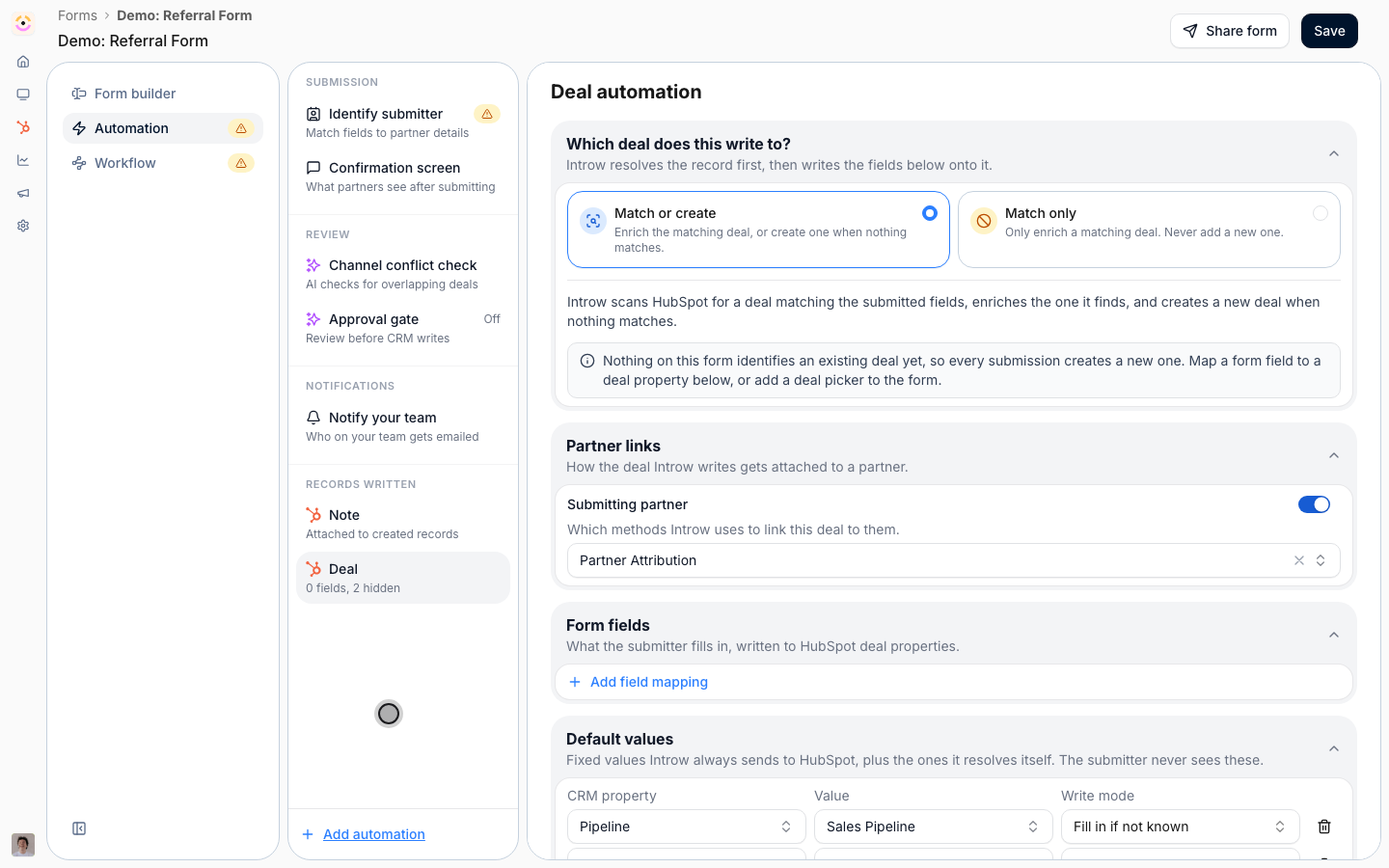
2
Share the form
Select Share form to open the share dialog. On the Link tab you get two options:
- General link - shareable with anyone; Introw makes a best effort to relate the submission to a partner, but attribution is not guaranteed. Use it for open or web traffic.
- Partner link - pick a partner and copy their link; every submission through it is attributed to that partner automatically. Use this whenever you send the form to a known referrer so credit is never in question.
3
Let a partner's systems refer over the API
On the API tab, copy the cURL snippet. It already carries this form’s id and every field id, and the Fields table below marks which ones are required. A partner’s own portal, your internal tooling, a backfill script, or an agent can then refer from anywhere, with the referral attributed to the partner you name and running the same conflict checks and automation. Full setup is in Submit a form via the API.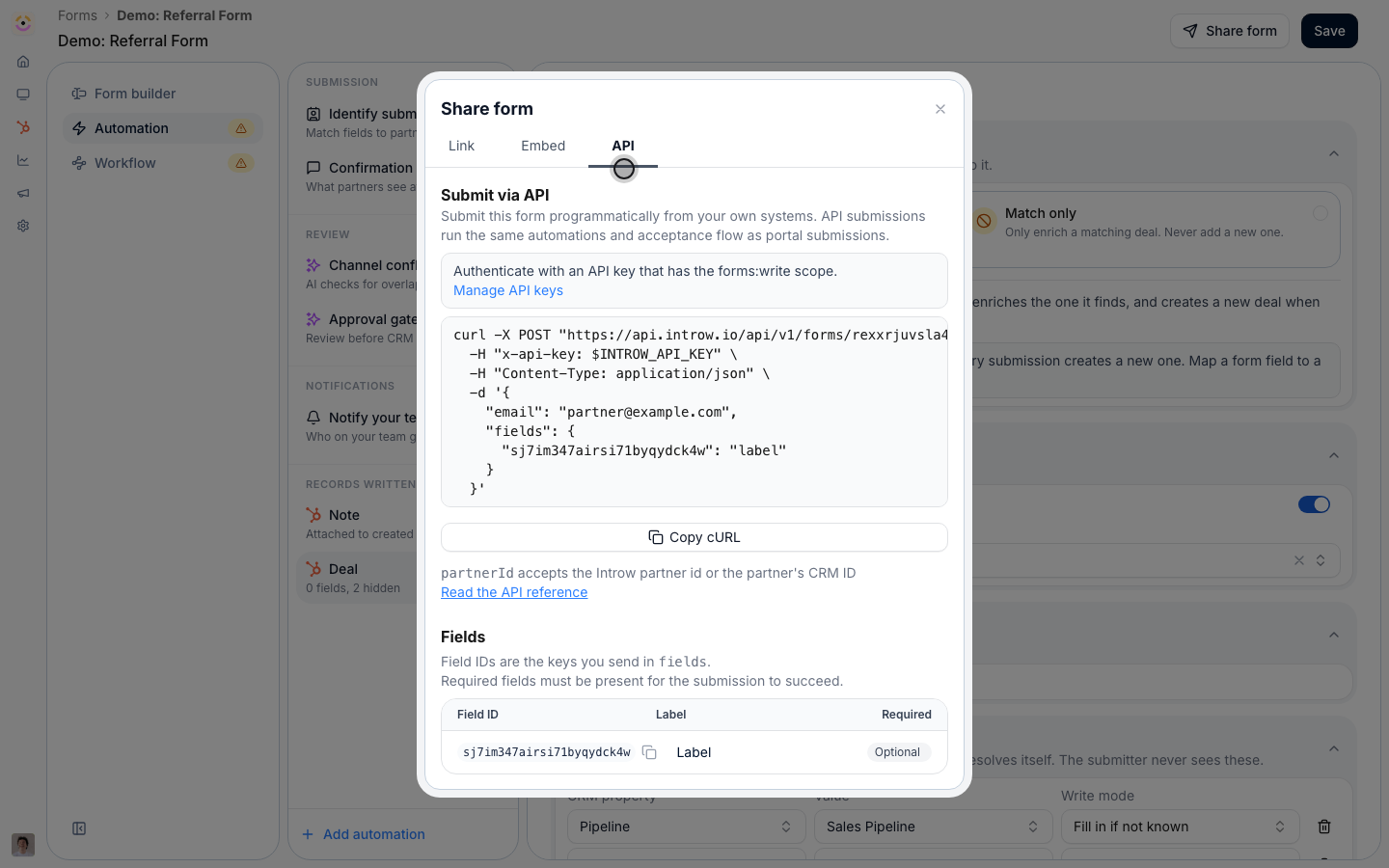
Verify it worked
Open a partner link yourself and submit a test referral. Confirm it appears in Submissions under Form submissions, attributed to the right partner, and that an attributed lead was created in your CRM with the mapped properties filled in. Mark it partner-qualified (or accept it) and confirm the opportunity, its account, and the contact are created and still attributed. To check the safeguards, submit a referral that overlaps an existing deal and confirm it is flagged as a conflict rather than silently creating a duplicate.Related
Ways to refer
Every channel a partner can refer from - link, embed, email, Slack, Teams, AI, or the API.
Keep referrers updated
Notify referrers as their deals progress.
Set up referral rewards
Pay referrers for the deals they source.
Detect channel conflict with AI
The full conflict-detection setup.
Implementation reference
Full configuration options.