

Where it lives
Lead Sharing sits under Portal, at Forms.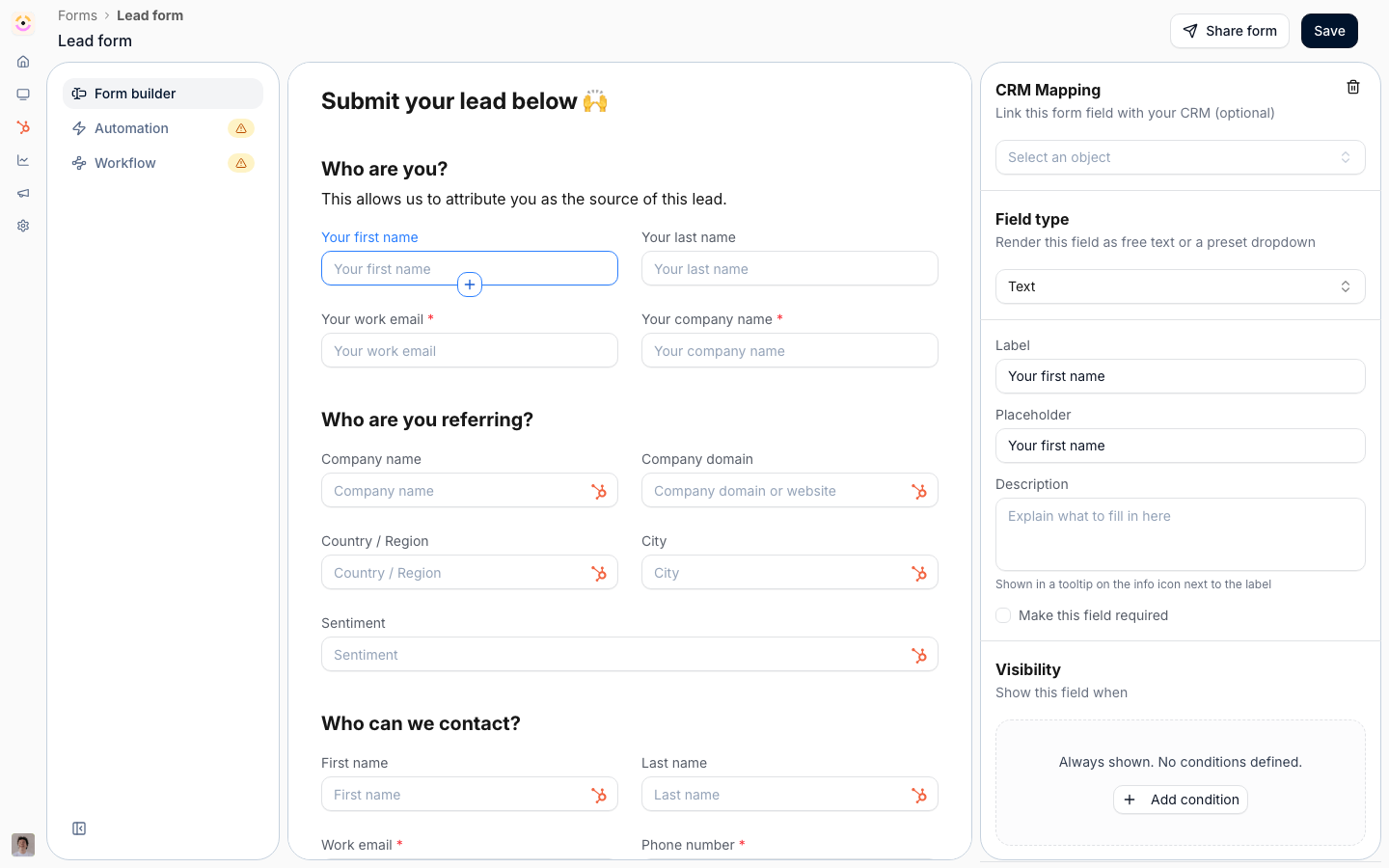
Before you start
How it works
A referral form is a regular Introw form. By default it captures a referral as an attributed lead - a low-friction warm intro that asks for only a few details. When the referral is treated as partner-qualified (the partner marks it qualified, or your team accepts it), the same form’s CRM automations create the full deal context: the opportunity, its account, and the contact. From the form’s share dialog you get a link partners can use, an embed snippet for your own site, and the option to add a partner-specific link that pre-attributes submissions to that partner. Partners can also refer by emailing your partner support address or by asking an AI assistant to submit on their behalf. Whichever entry point a partner uses, the submission is captured by the same form pipeline, attributed to the referring partner, and written to your CRM. You manage the form fields and CRM mapping in the form builder; this page covers getting referrals in from off-portal surfaces.Protecting referral credit
A referral program runs on trust: if a partner refers a deal and later finds it was already in your pipeline, or that someone else got the credit, they stop referring. Introw protects credit in three layers. Attribution ties each submission to the referrer, automatically when you use a partner link or an attributed channel, so credit is recorded the moment the referral arrives. Channel Conflict Analysis cross-references each referral against your existing CRM before it creates records, so an overlapping deal is flagged instead of silently double-credited. Deduplication matches incoming companies and contacts against existing records so the same account is not created twice. You configure all three on the referral form; see Build and share a referral form.Settings & configuration
Referral forms are managed from Forms; submissions land in Submissions.Share link
The form’s Share form dialog provides a Link tab with a general link anyone can use and a partner link that attributes submissions to a specific partner. Use the partner link when you send it to a known referrer so credit is automatic.Embed
The Embed tab gives an HTML snippet to place referral capture on your own website. Embedding on your domain requires a custom domain; without one, share the link instead.Refer by email
Partners can forward a lead to your partner support email address, where the AI agent reads it and submits the referral form for them. This lets partners refer straight from their inbox.Refer by AI assistant
With the AI agent and MCP connectors available, partners can ask their assistant to submit a referral, which calls the same submission flow. This is handy for partners who live in chat or their CRM.How-to guides
Troubleshooting
A referral is not attributed to the partner
A referral is not attributed to the partner
Use the partner-specific link or an attributed channel rather than the general link.
The embed will not load on your site
The embed will not load on your site
Confirm a custom domain is configured.
Email referrals are not coming through
Email referrals are not coming through
Check that the AI agent and partner support email are set up.