

What you’ll achieve
A product that prices itself by partner tier. When a partner builds a quote, the line-item price reflects their tier’s discount automatically, so the same product quietly carries different margins for Silver, Gold, and Platinum partners without anyone editing the quote.Before you start
1
Define your tiers
Tiers must exist in Settings before you can set a per-tier discount. Create them first if you
have not.
2
Assign partners to tiers
A partner only receives a tier discount once they belong to that tier, so make sure partners are
assigned. A partner with no tier gets no tier discount.
Watch it
- Video
- Click through
Steps
1
Open the product
Go to CPQ, stay on the Products tab, and click the product you
want to discount to open its detail panel. Scroll to the Discount section. Changes save
automatically, so there is no separate Save button.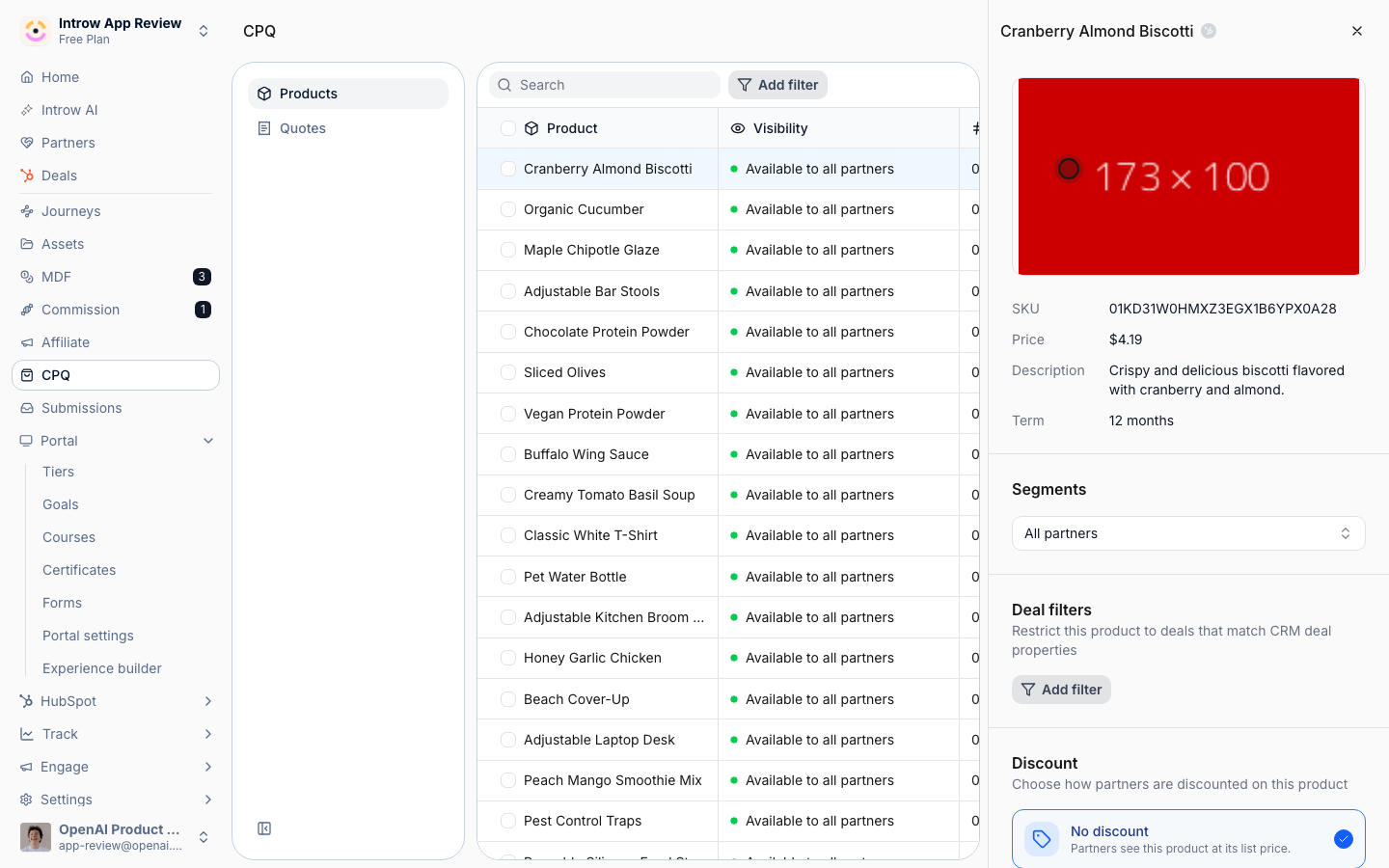
2
Choose Tier based
In the Discount switcher, select Tier based. A product uses one discount type at a time,
so choosing this replaces any partner-based or custom pricing previously set on the product. The
Tier Discounts table then appears, pre-filled with one row per tier at 0%.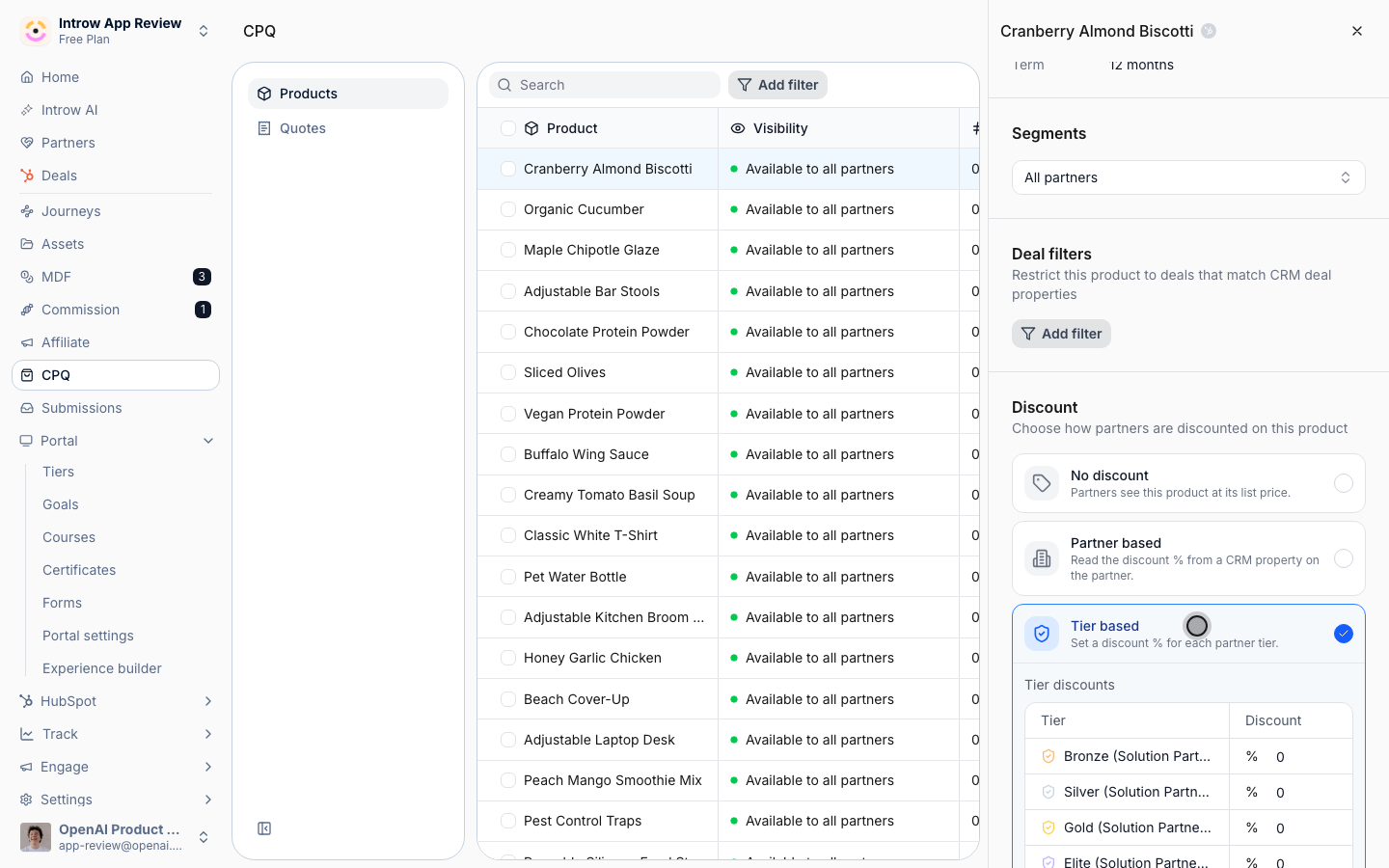
3
Set a discount per tier
In the Tier Discounts table, enter the discount for each tier: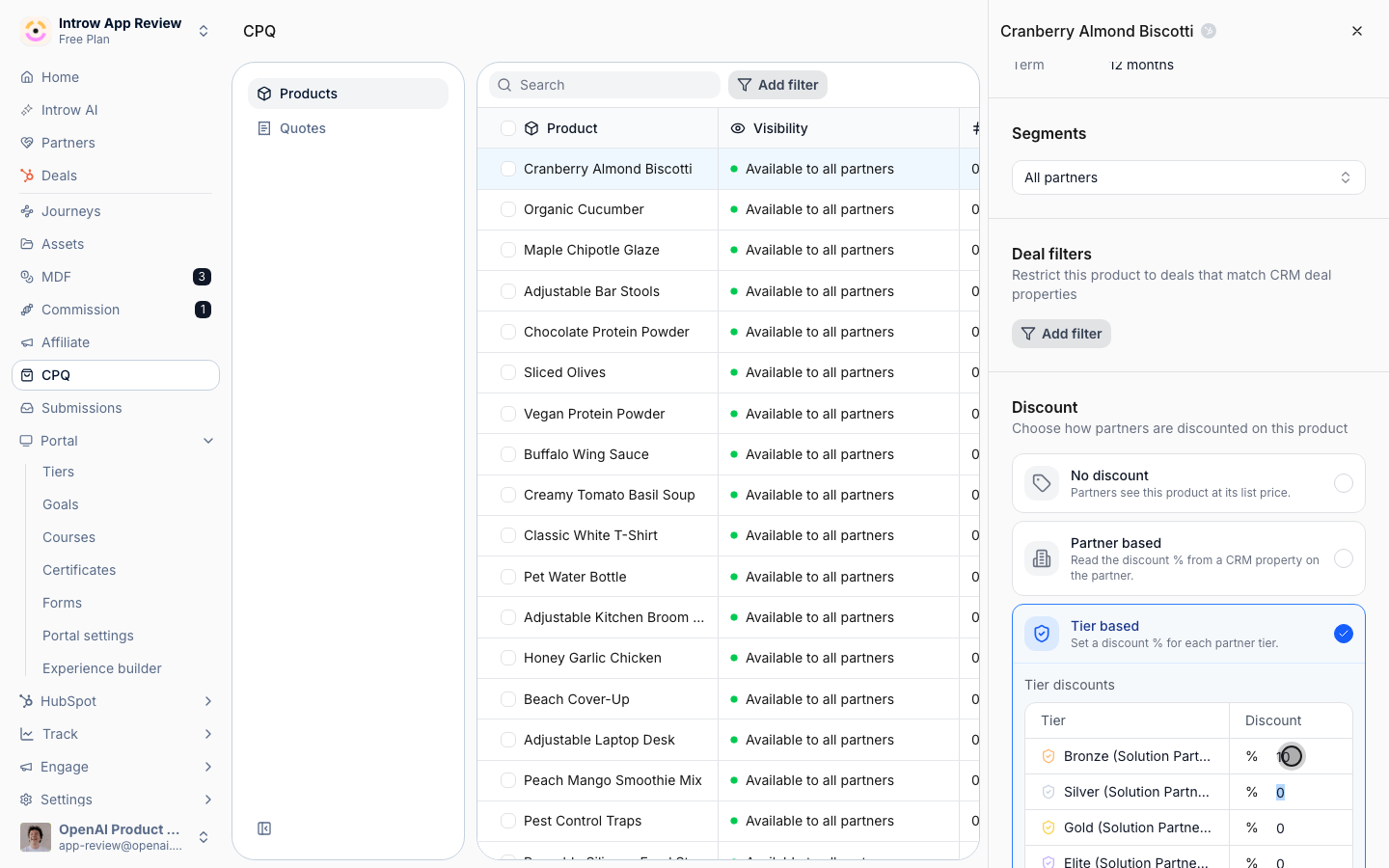
- Tier - each row is one of your defined tiers (shown with its tier color). Every tier gets a row so you can decide its margin explicitly.
- Discount - the percentage off the product’s list price for partners in that tier, from 0 to 100. Leave a tier at 0 for no discount, or raise it to reward higher tiers. If the table shows “No tiers configured”, create tiers in Settings first, then return.
4
Confirm the rule is saved
Each percentage saves as you enter it. The Discount switcher stays on Tier based, which
confirms the product now prices by tier.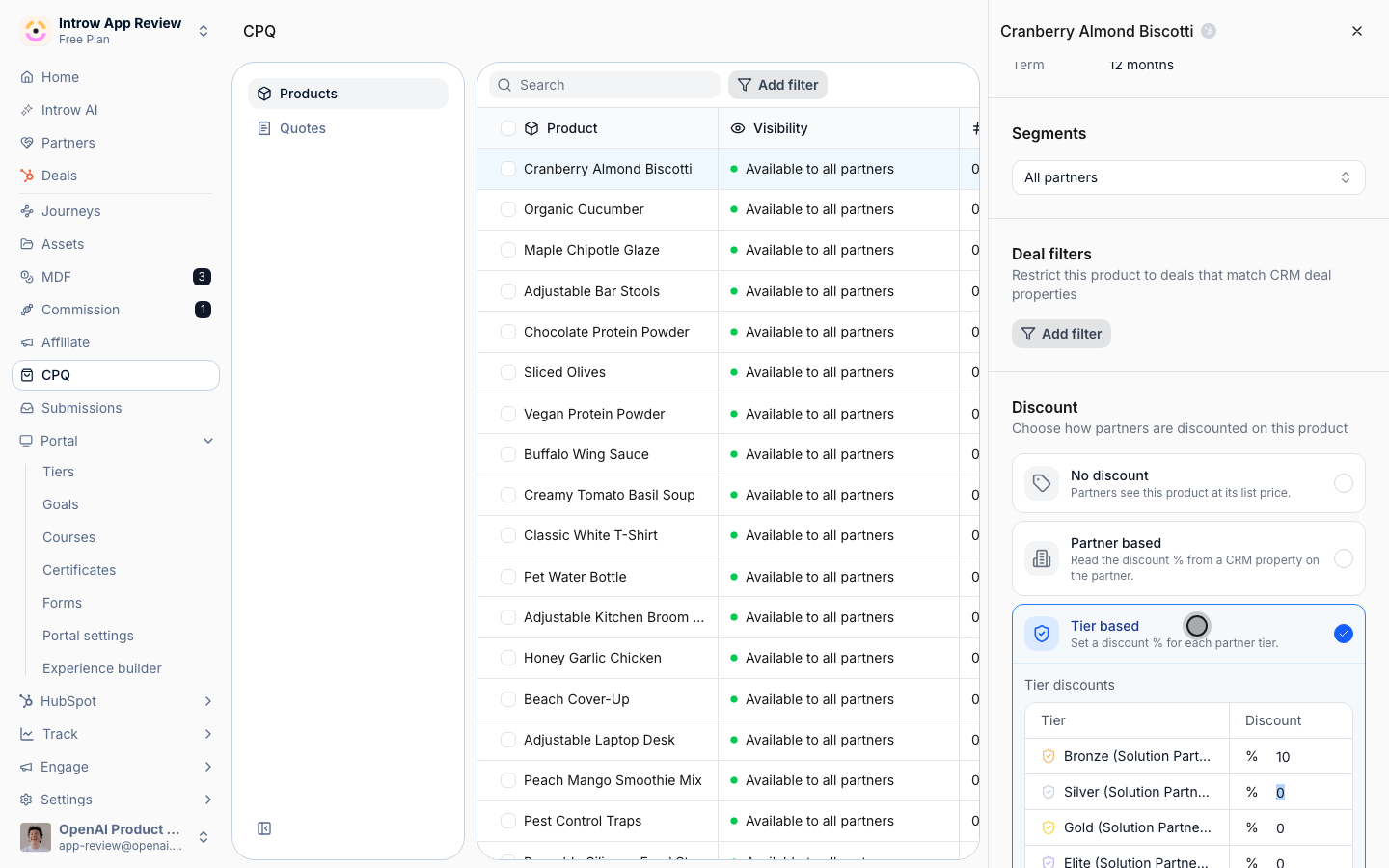
Verify it worked
Add the product to a quote as partners in different tiers and confirm each tier gets the discount you set: a Gold partner’s line item reflects the Gold percentage, a Silver partner’s reflects the Silver percentage, and a partner with no tier gets no discount.Related
Set a partner-based discount
Price each partner from a CRM property instead.
Configure tiers
Define the tiers to price against.
Govern product visibility
Give each tier its own SKUs instead of a percentage.
Implementation reference
Full pricing configuration options.