

What you’ll achieve
A product whose discount is driven by a value on the partner’s CRM record. Each partner is priced by their own property value at quote time, so updating a partner’s negotiated rate in the CRM updates their pricing everywhere, with no per-product editing in Introw.Before you start
1
Create a numeric discount property on the partner
The discount must live in a numeric or currency property on the partner record in your CRM. Only
numeric and currency properties can be selected, because the value is read as a percentage.
2
Populate the property for your partners
A partner only receives a discount once their property holds a value. A partner whose property is
empty gets no discount, so fill it in for the partners who should be priced this way.
Watch it
- Video
- Click through
Steps
1
Open the product
Go to CPQ, stay on the Products tab, and click the product you
want to discount to open its detail panel. Scroll to the Discount section. Changes save
automatically, so there is no separate Save button.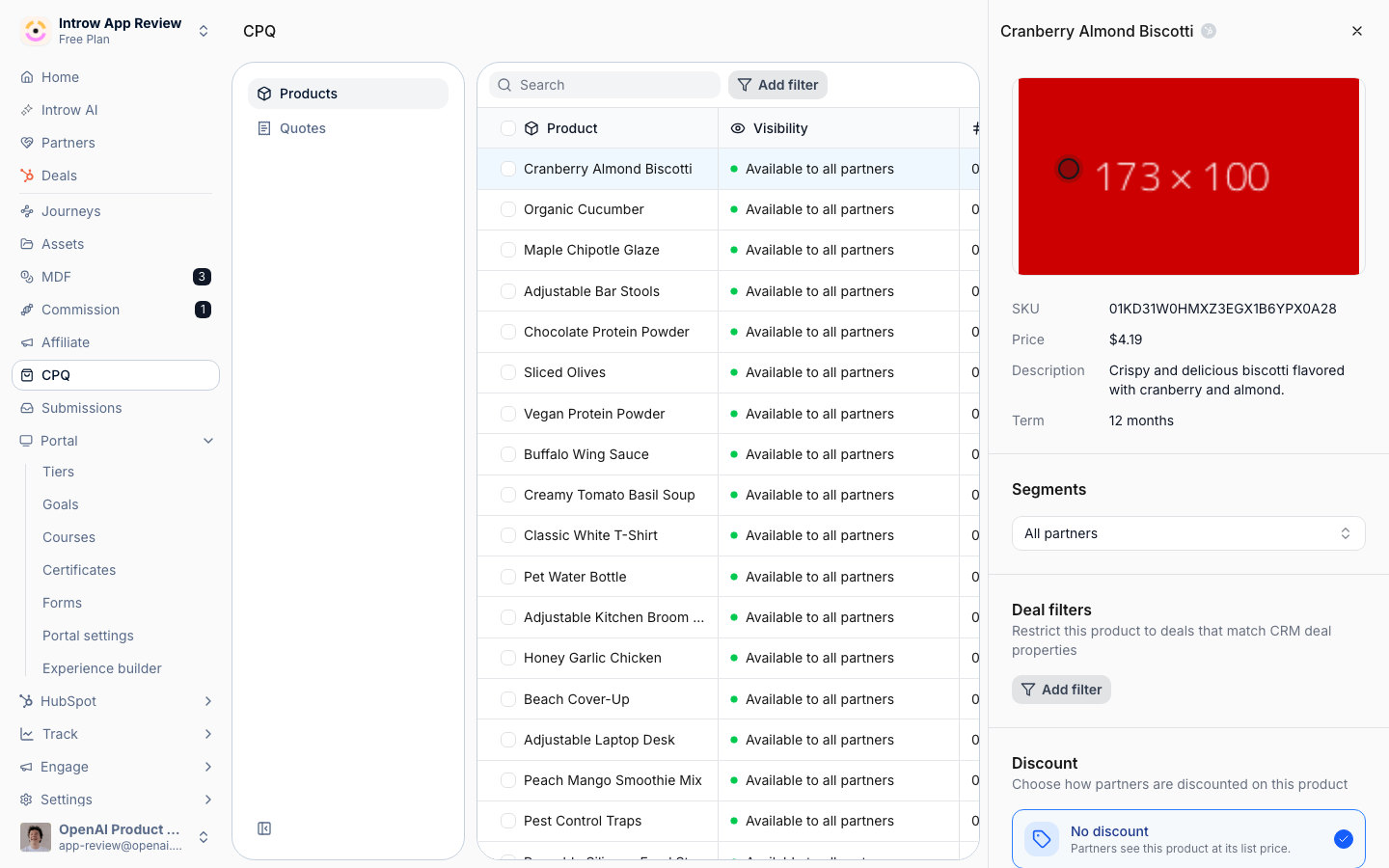
2
Choose Partner based
In the Discount switcher, select Partner based. A product uses one discount type at a
time, so this replaces any tier-based or custom pricing previously set. A Discount Property
selector then appears.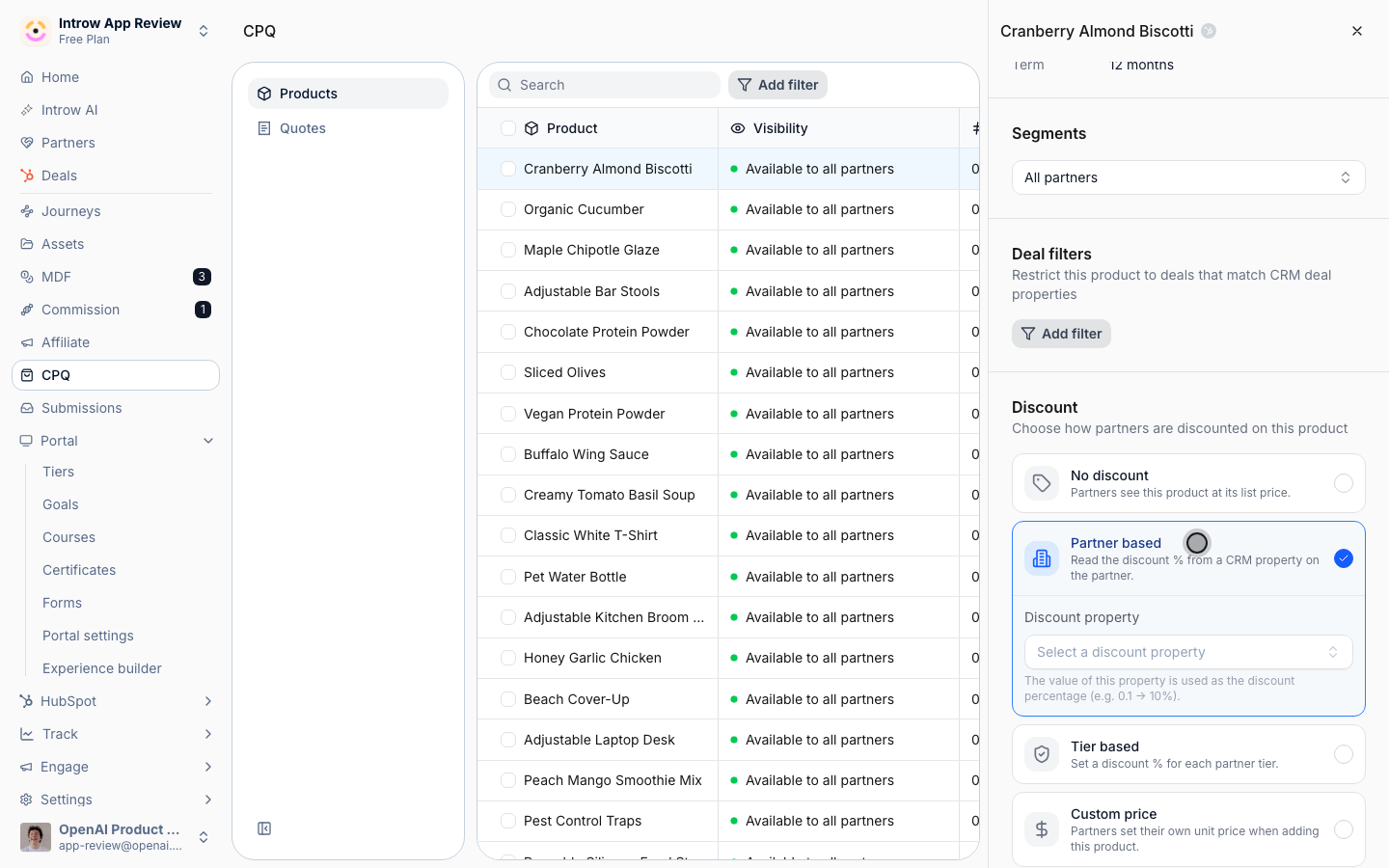
3
Pick the discount property
Choose the partner property that holds the discount: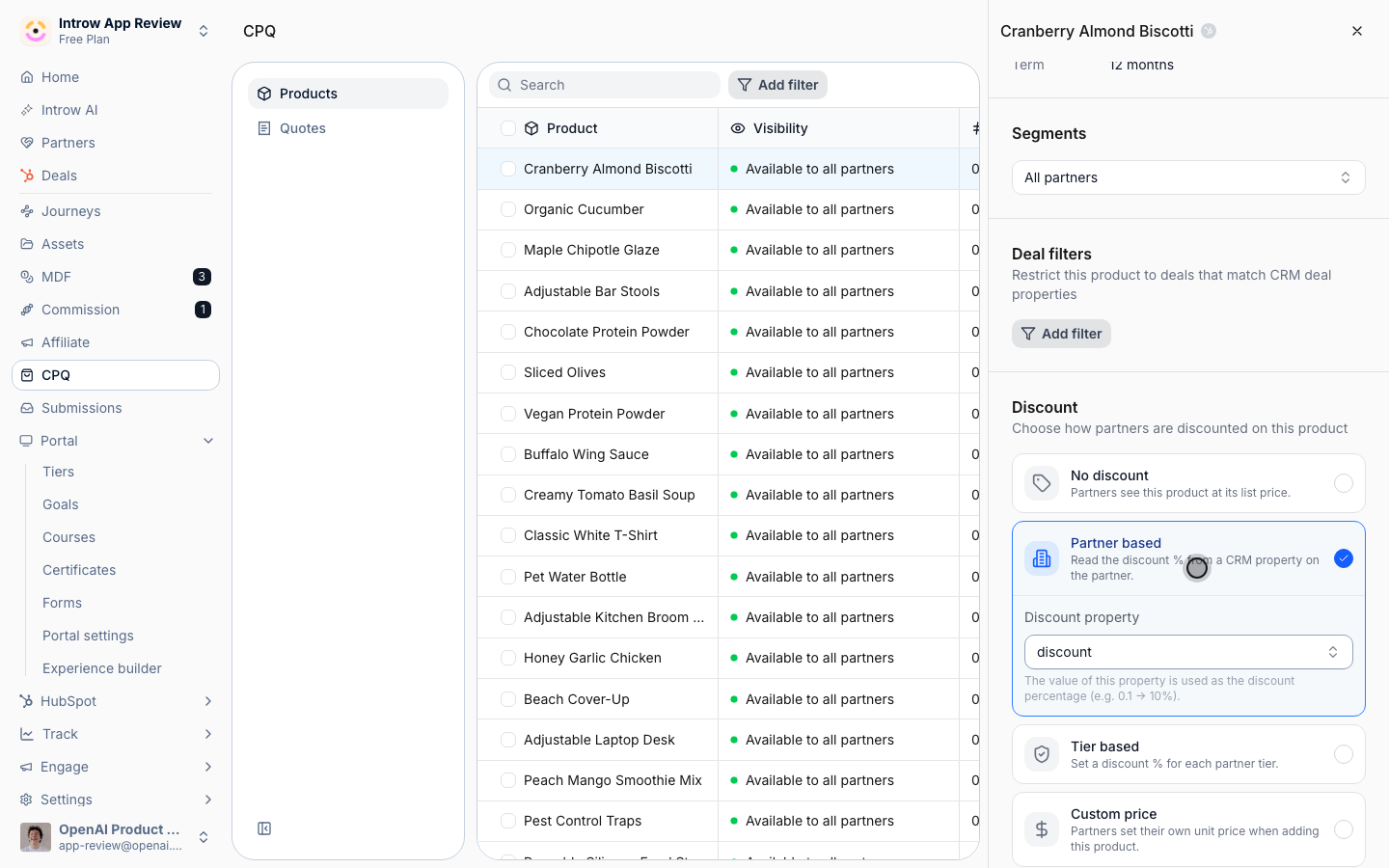
- Discount Property - the numeric or currency property on the partner record whose value is used as the discount percentage (the selector only lists eligible numeric and currency properties). Pick the property your team uses to store each partner’s negotiated rate. Its value is applied directly as the percentage off list price at quote time.
4
Confirm the rule is saved
The selection saves automatically. The Discount switcher stays on Partner based with your
chosen property, confirming the product now prices from each partner’s CRM value.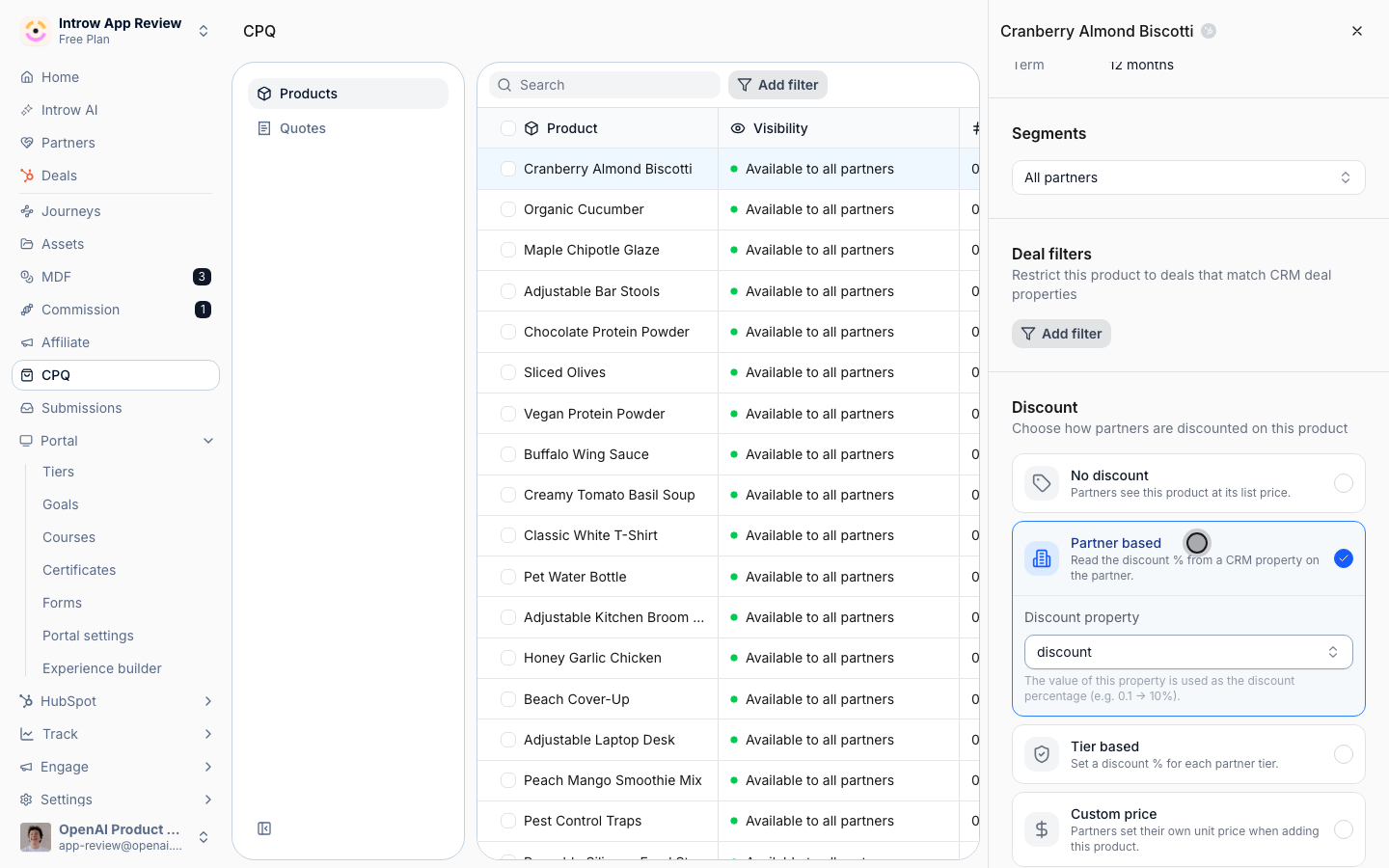
Verify it worked
Add the product to a quote as a partner whose discount property holds a value, and confirm the discount is applied to the line item. Try a partner with an empty value and confirm they receive no discount, which proves the price is being read from the property.Related
Set tier-based discounts
Price by partner tier instead.
Allow custom pricing
Let trusted partners set the price.
Implementation reference
Full pricing configuration options.